Ever notice a photo with a watermark that looks misleading? Or wondered where the beach is that your favorite celebrity shared on Instagram? Instead of text, you can search using an image.
This process is called reverse image search. Media organizations, journalists, content creators, and social media professionals often use it to verify authenticity and gather information. Curious to know how they do it?
Today, I’ll walk you through How to Reverse Image Search on both desktop and mobile devices. We’ll also learn ways to reverse-search images using AI chatbots and dedicated tools. Stay tuned till the end!
What is Reverse Image Search?
Reverse image search is a search technology where we use an image as a query instead of text. In the search bar, you either upload a file or paste the image URL. The search engine then scans a large database of indexed images to find the original source or similar visuals. Search engines use advanced algorithms to identify visuals based on size, color, shape, and other unique characteristics. Some engines even support facial recognition, which lets you identify the image of any person.
How to Reverse Image Search on Your Smartphone
No matter if you use an Android or an iPhone, searching on your smartphone is very simple. Here are two ways:
a) Search by Image from the Web
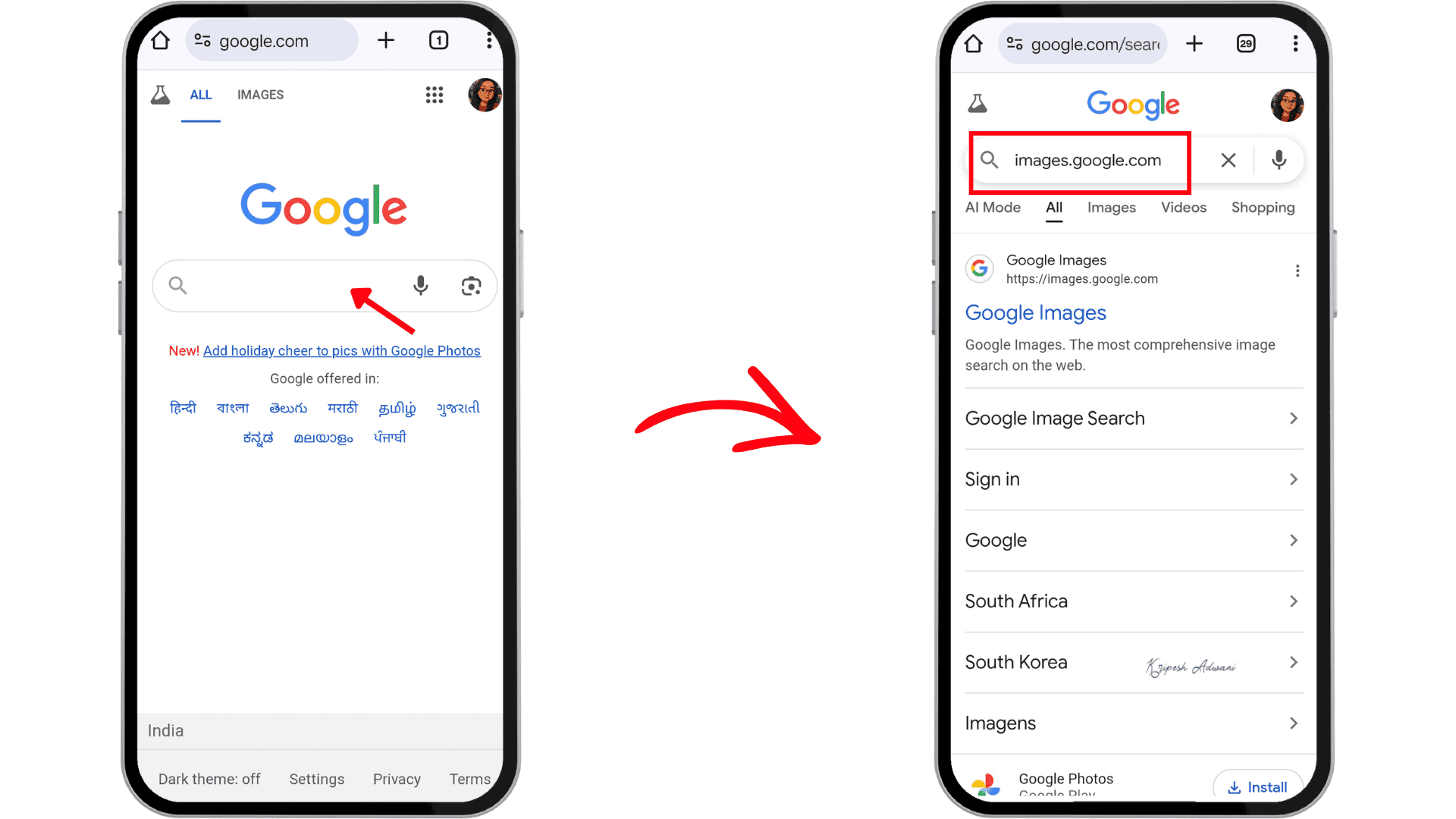
Step 1: You can also go directly to images.google.com in your mobile browser or open the Google app.
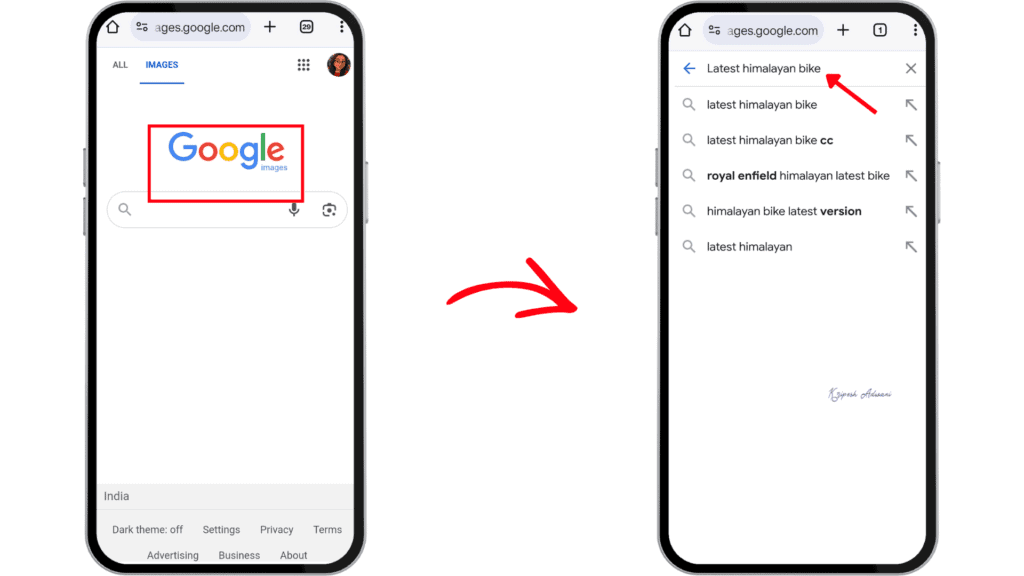
Step 2: Enter the topic related to the image you’re looking for. For example, I searched for the “Latest Himalayan Bike” to explore the model, unique features, and costs.
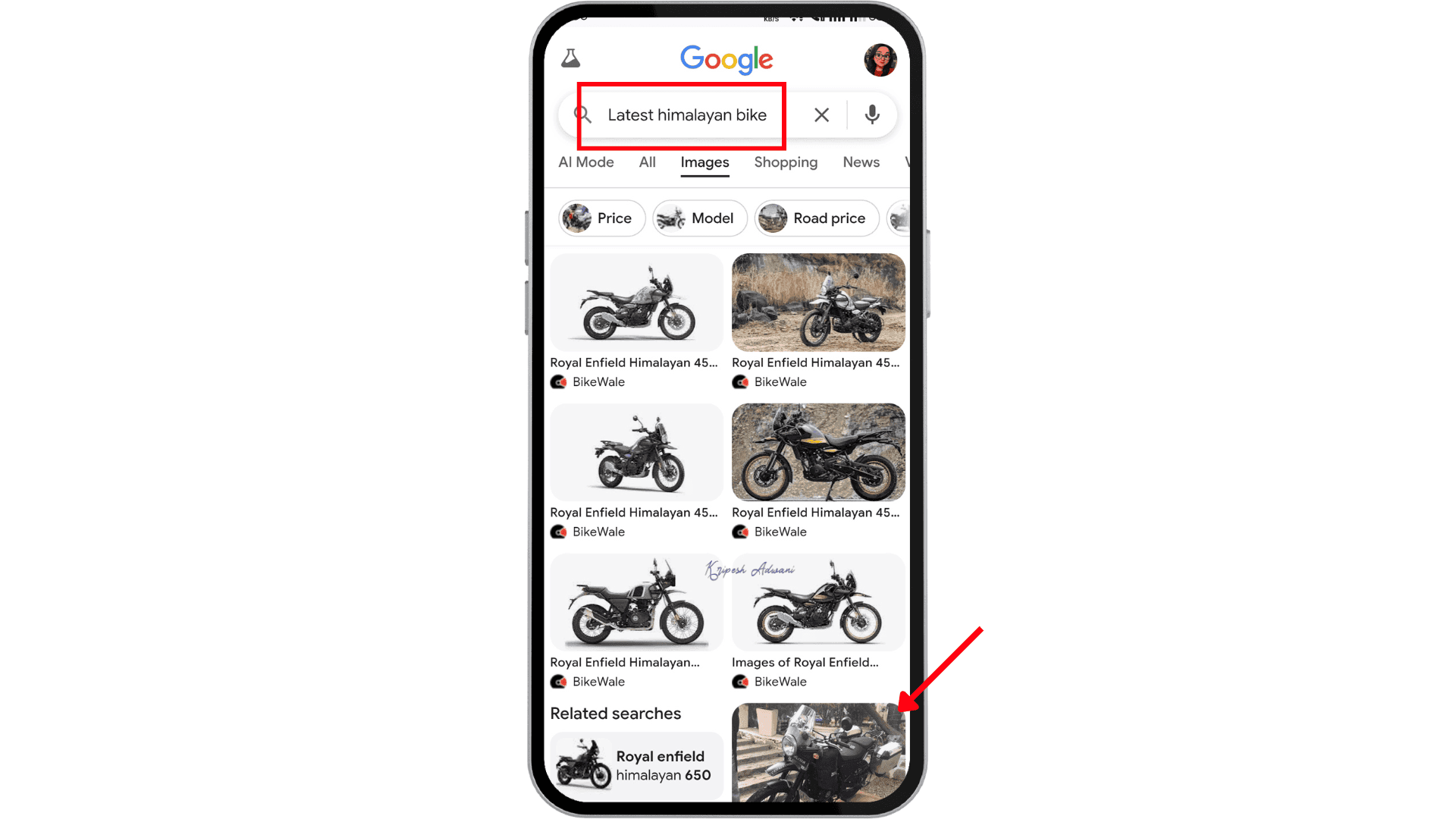
Step 3: Select the image you want to reverse search.
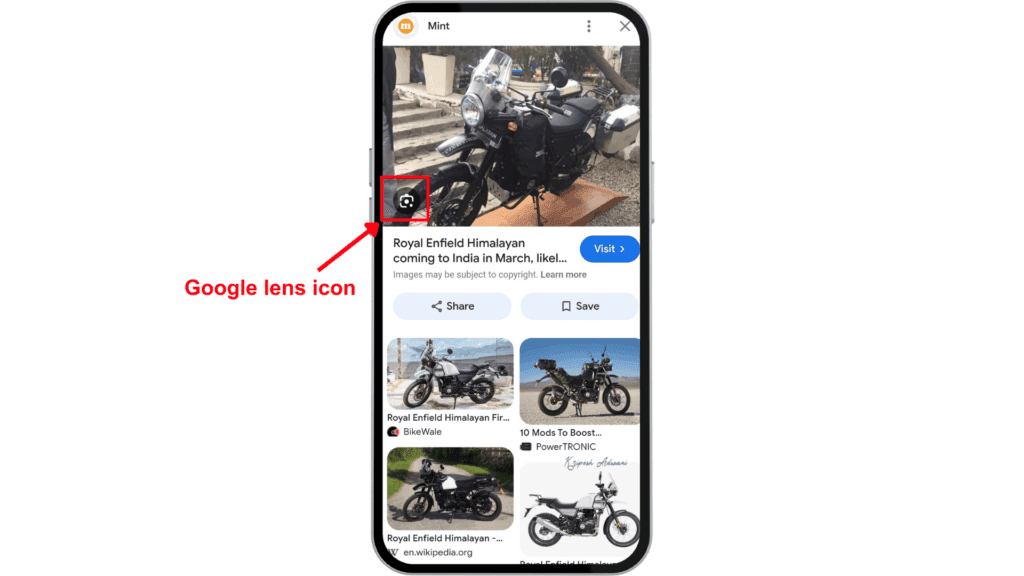
Step 4: Tap the “Google Lens icon” on the selected image.
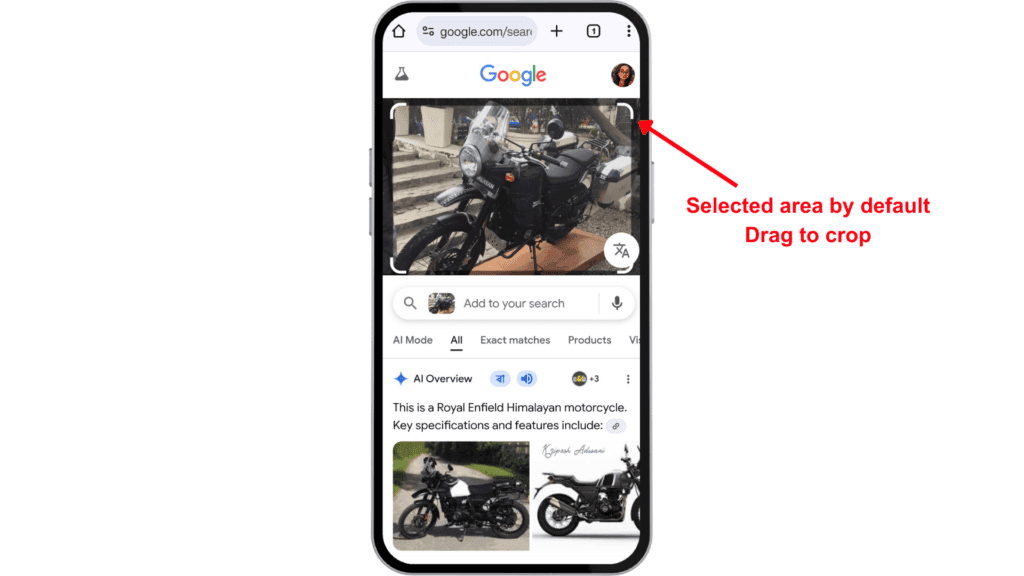
Step 5: At first, Google Lens will highlight the focus of the image, but you can drag the crop area to narrow down the search results.
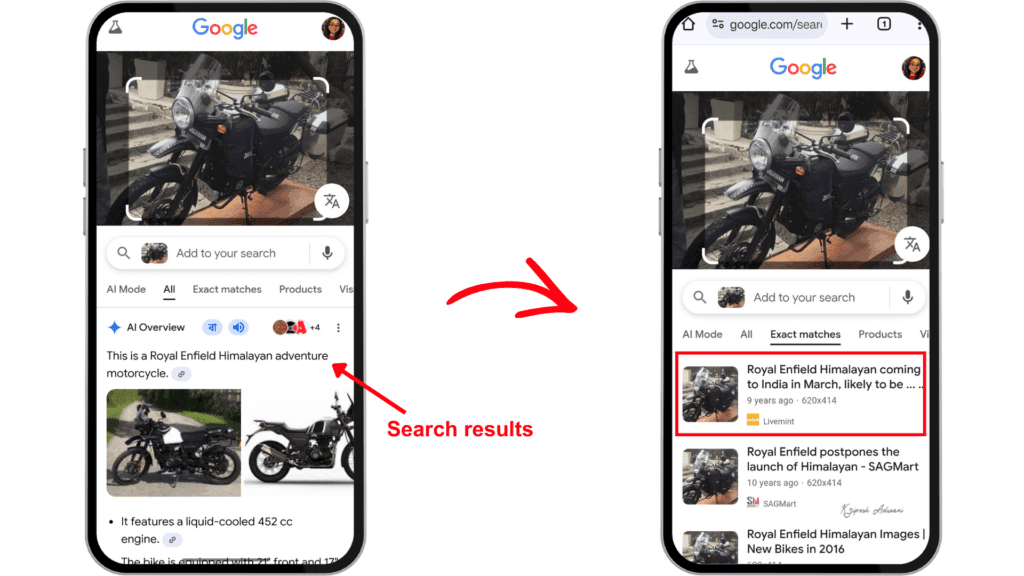
Step 6: Scroll down to view the results.
b) Search Using Your Own Photos
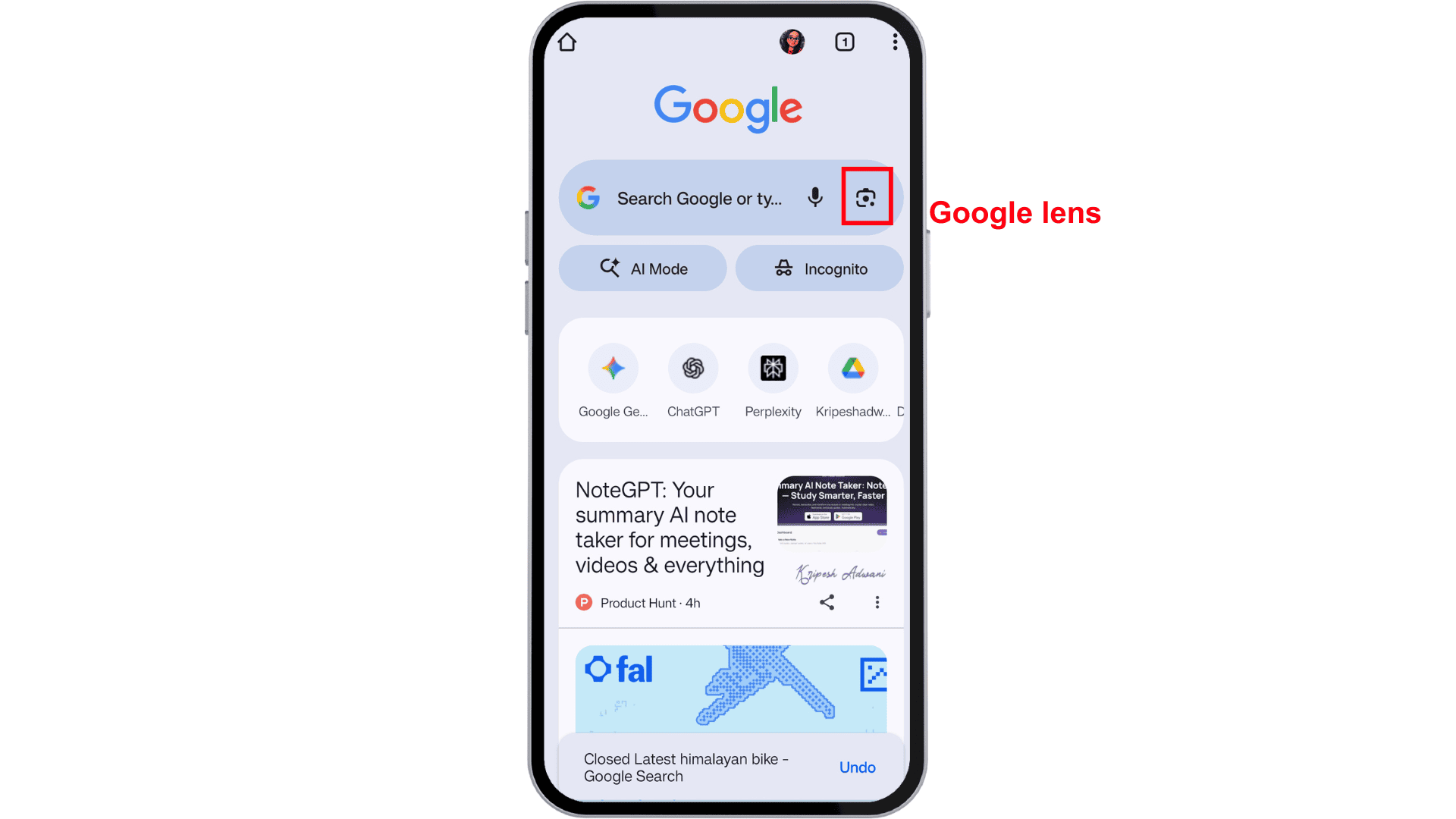
Step 1: Open theGoogle Chrome app on your mobile phone.
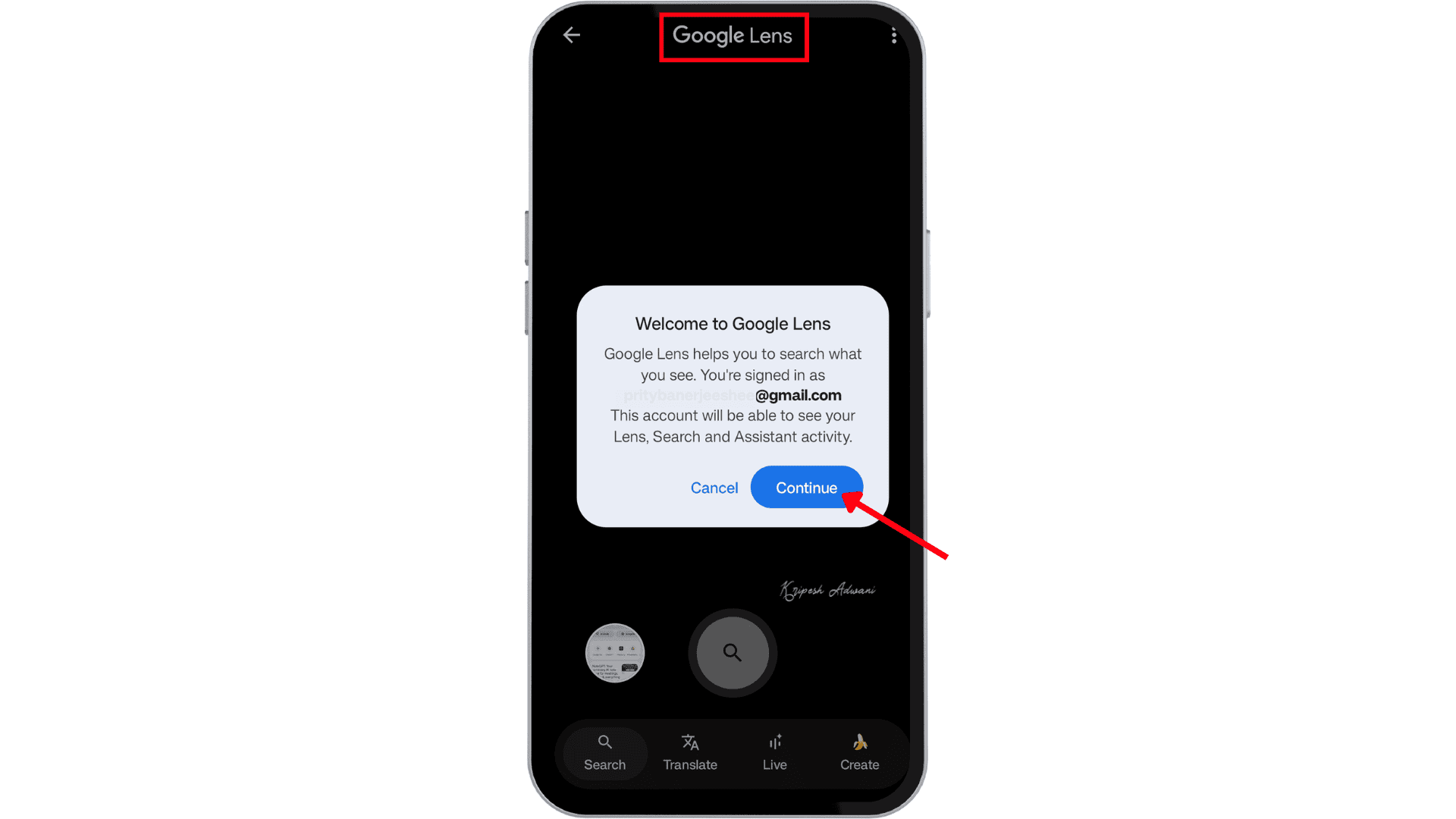
Step 2: Tap the Google Lens icon next to the microphone in the Google search bar.
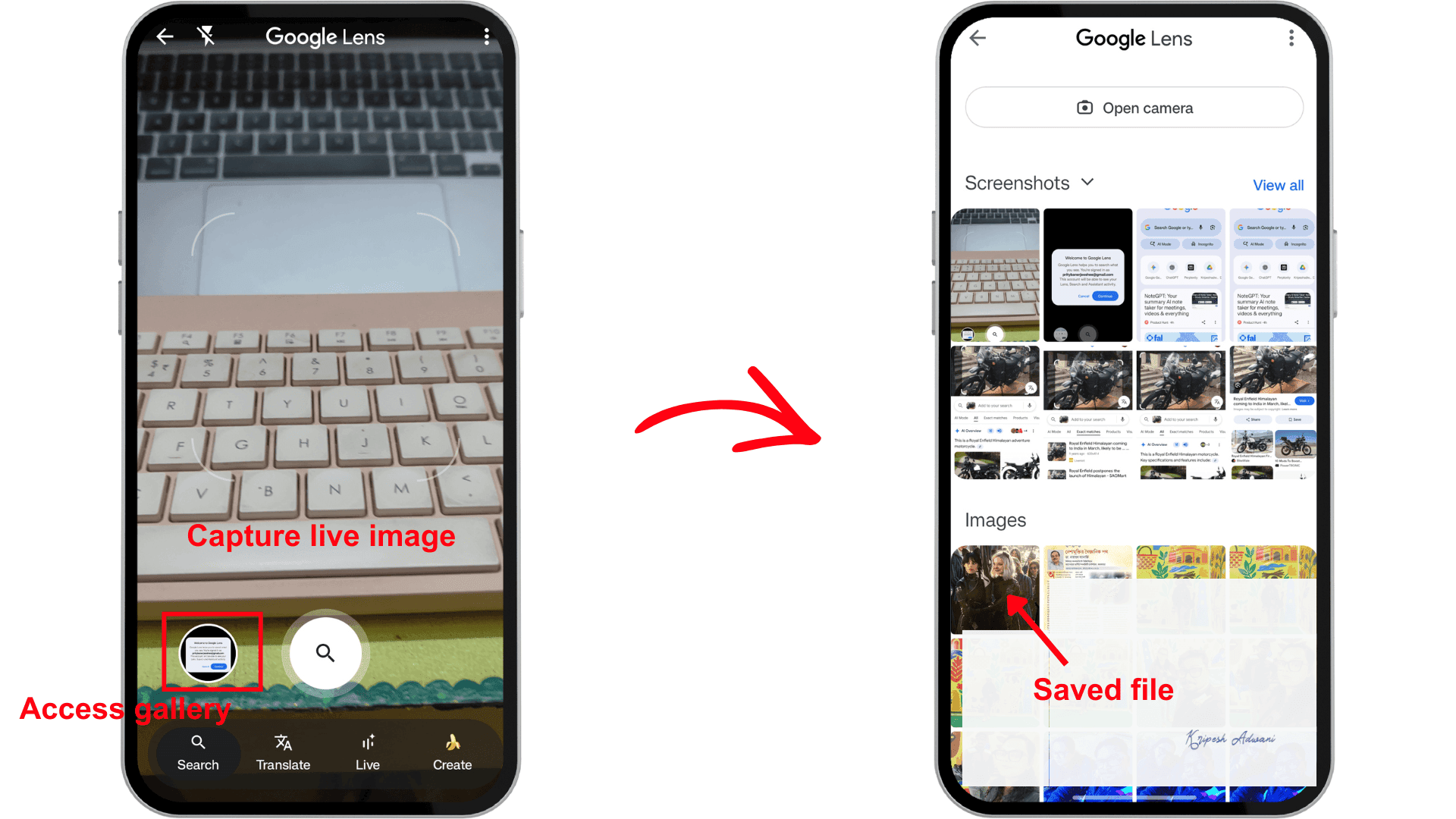
Step 3: Now, you can either take a new photo or upload an image from your media folder. In this example, I uploaded a saved image of “Wednesday movie scenes” from my gallery.
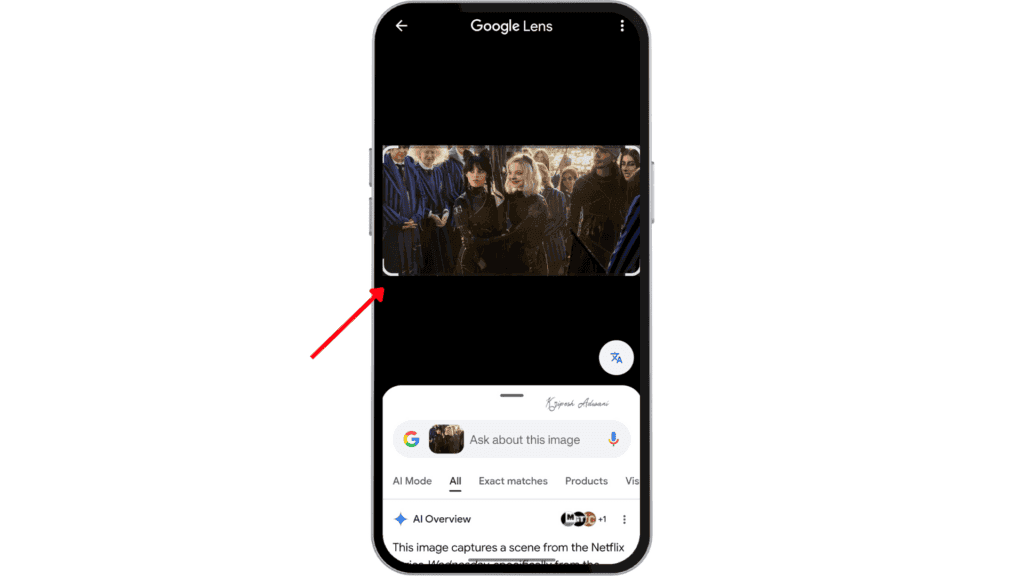
Step 4: Google Lens will, by default, highlight a section of the image and display related search results.
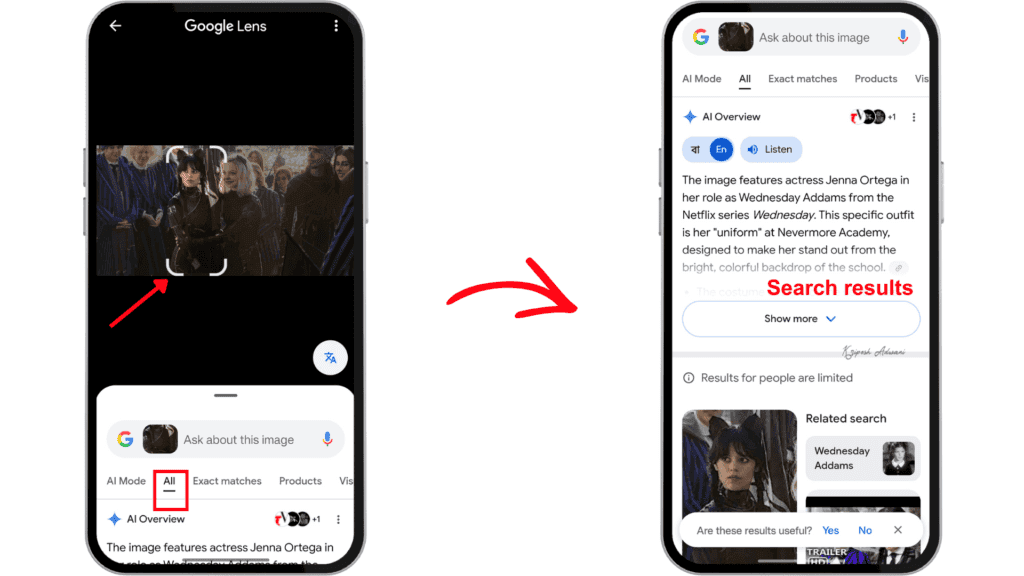
Step 5: Drag to crop or adjust the selection area to refine your search. Here, I focused on the Wednesday character.
Voila! Google displayed detailed search results about the movie, the actress, and related information.
How to Reverse Image Search on Your Computer
Reverse image searching on a desktop isn’t rocket science; it’s just as simple as we did it on a smartphone. In this example, I’m using a MacBook, but the process is the same for Windows devices as well. Let’s look at one of the best ways to do it.
a) Upload Your Saved File
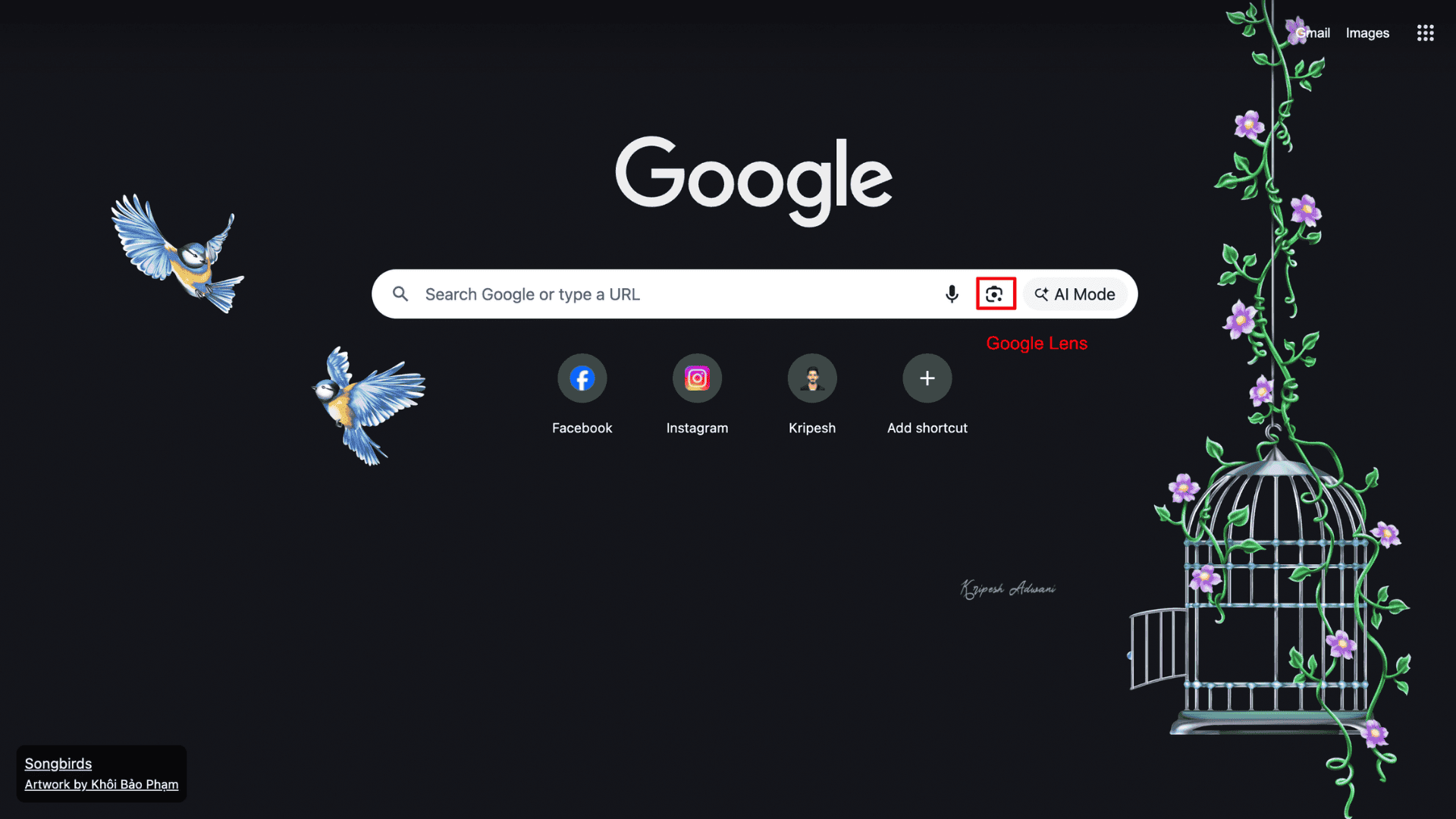
Step 1: Open Google Chrome on your desktop. In the Google search bar, click the Google Lens icon.
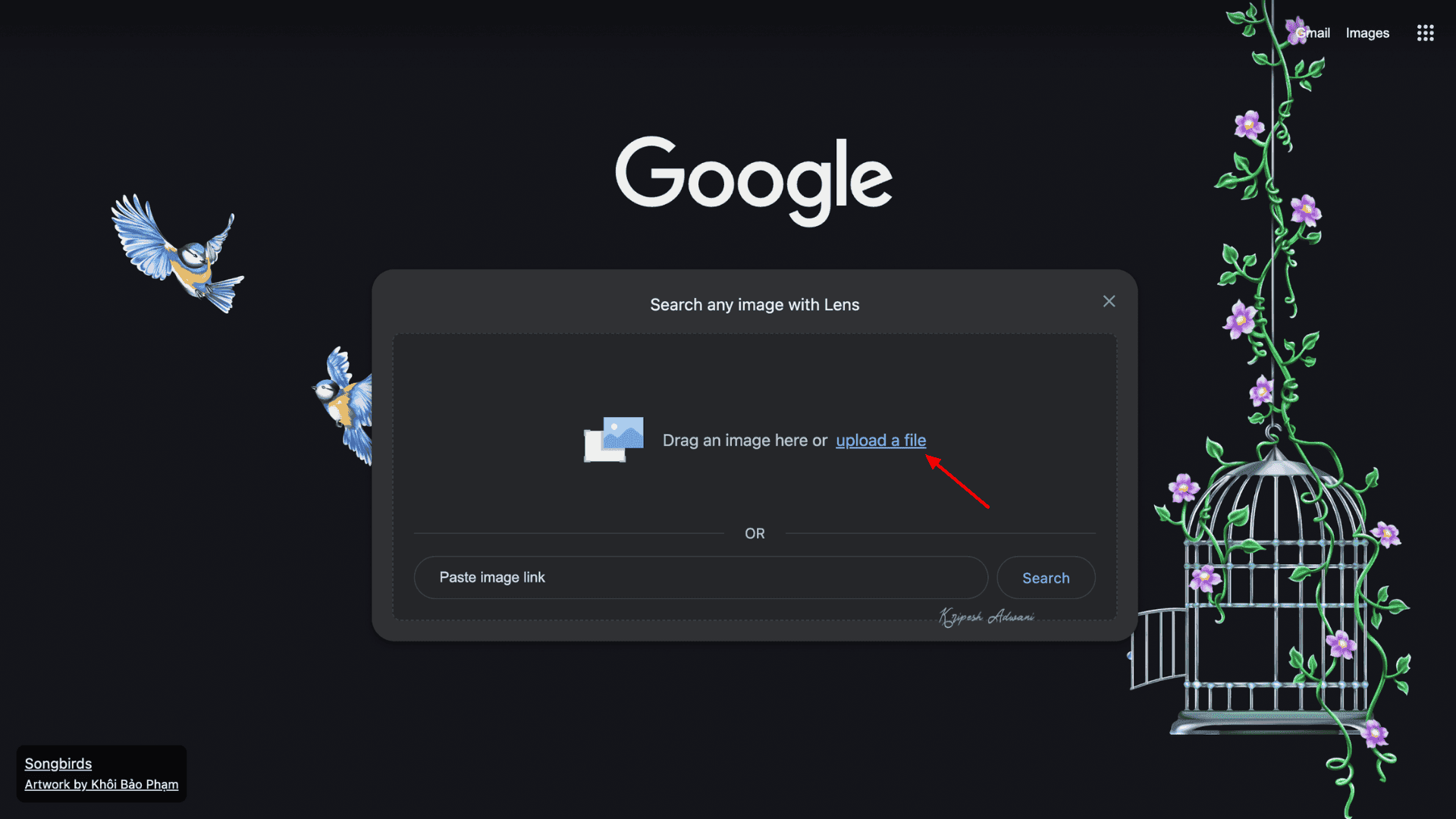
Step 2: You can either drag the file or upload a saved image from your device. Here, I uploaded the “Singapore Orchid Festival” image file from my computer.
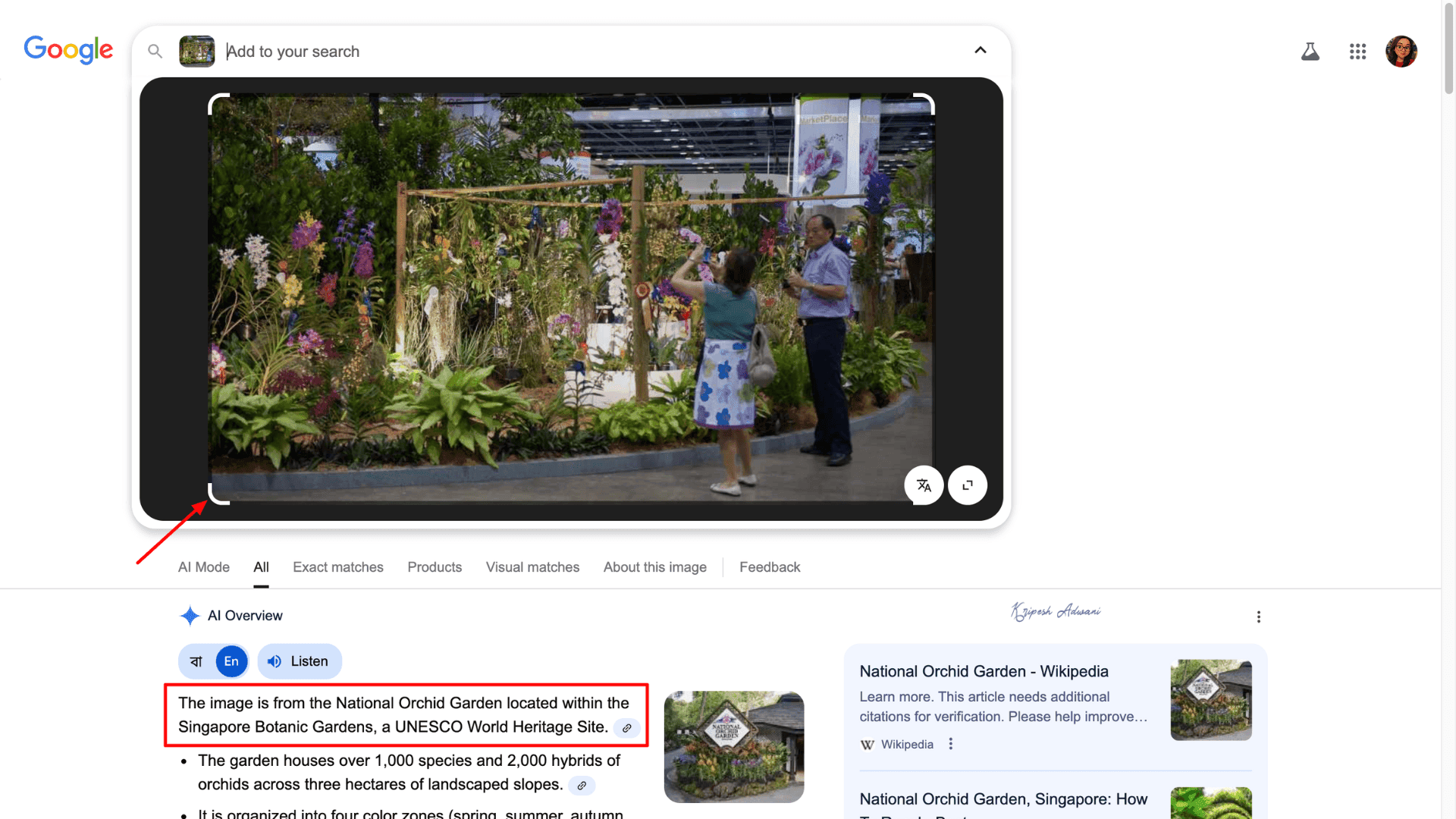
Step 3: Google Lens scans the entire image by default and displays related search results.
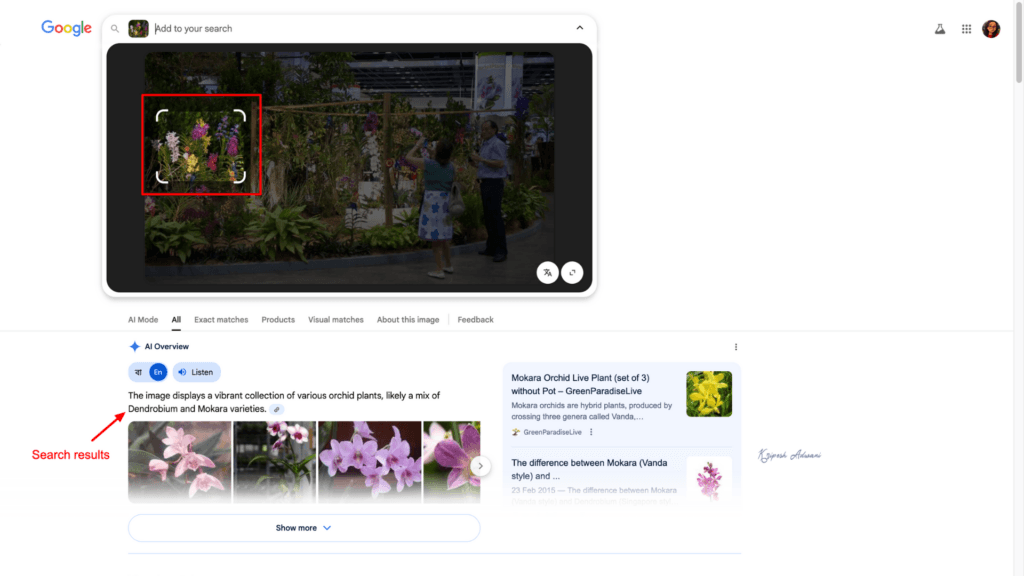
Step 4: I wanted to do a more in-depth search. Hence, in this case, I cropped the image to focus only on the orchids.
Google displayed detailed information about the specific orchids shown in the uploaded image.
b) Search by Image URL
Suppose you find an image on a website and want to learn more about it, but there’s no option to download the image. What can you do? Simple: use reverse image search with the image URL.

Step 1: Visit the website where you found the image.
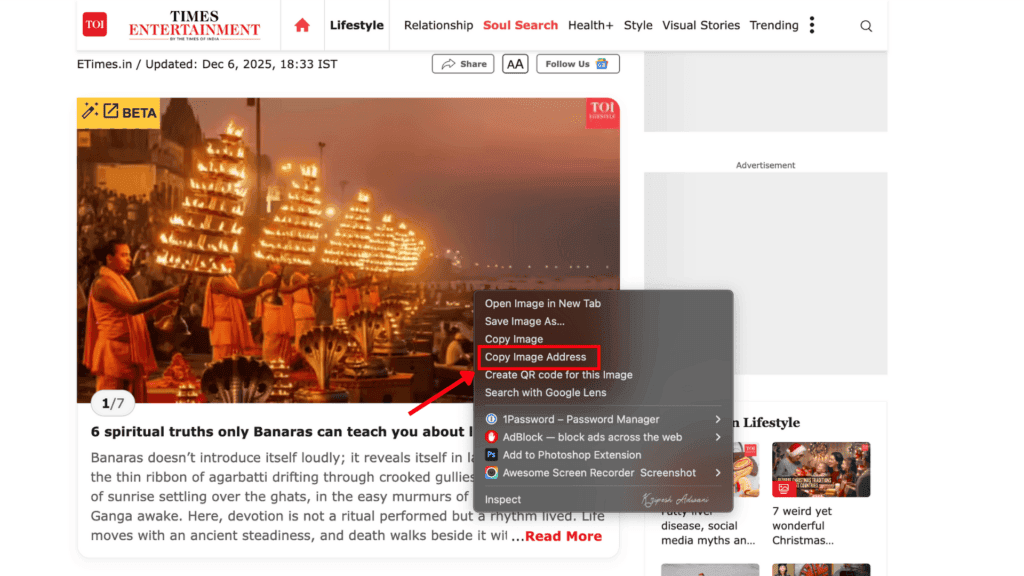
Step 2: Right-click on the image and select “Copy image address.
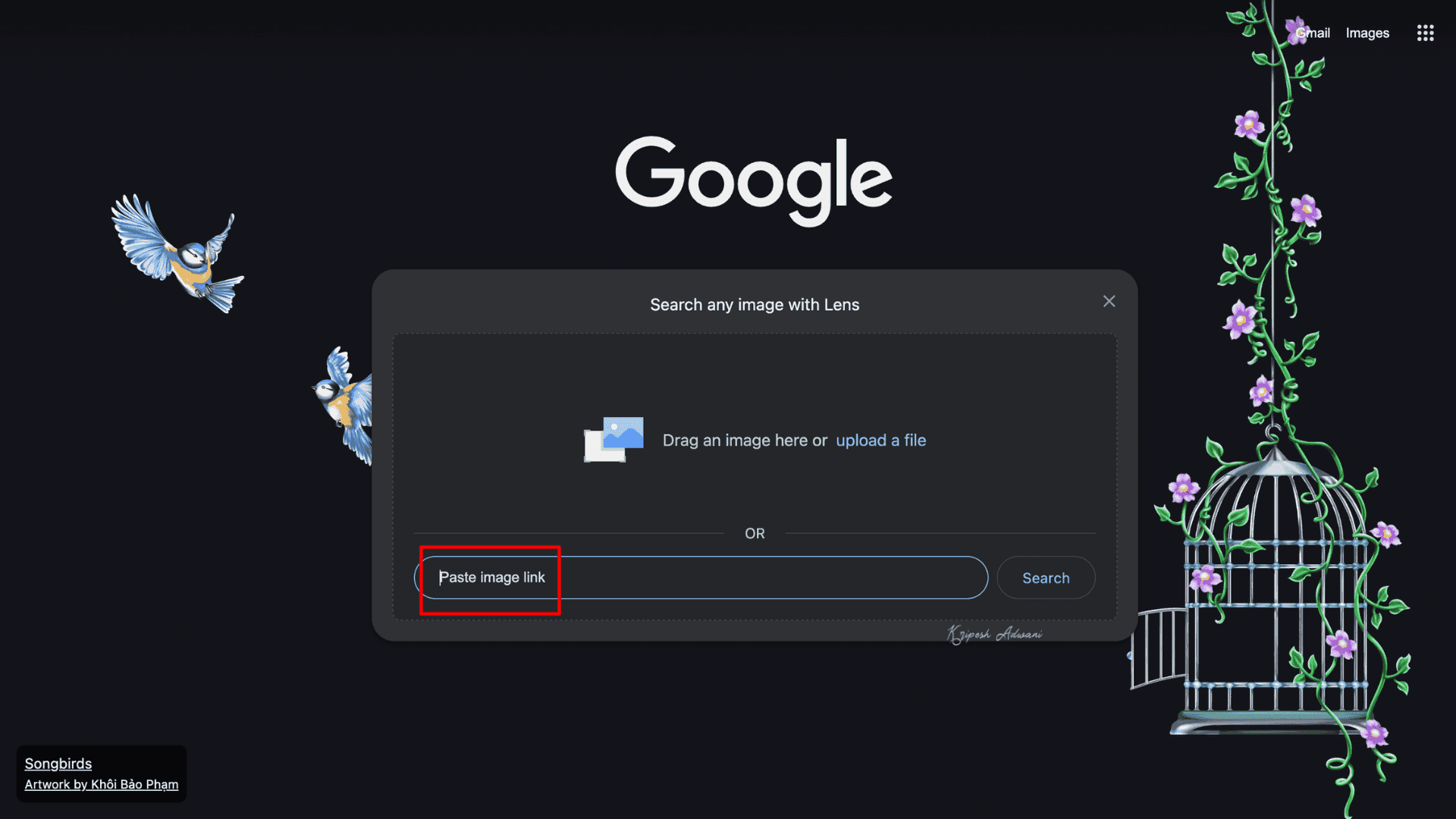
Step 3: Open Google Chrome and go to the Google search bar. Click the Google Lens icon.
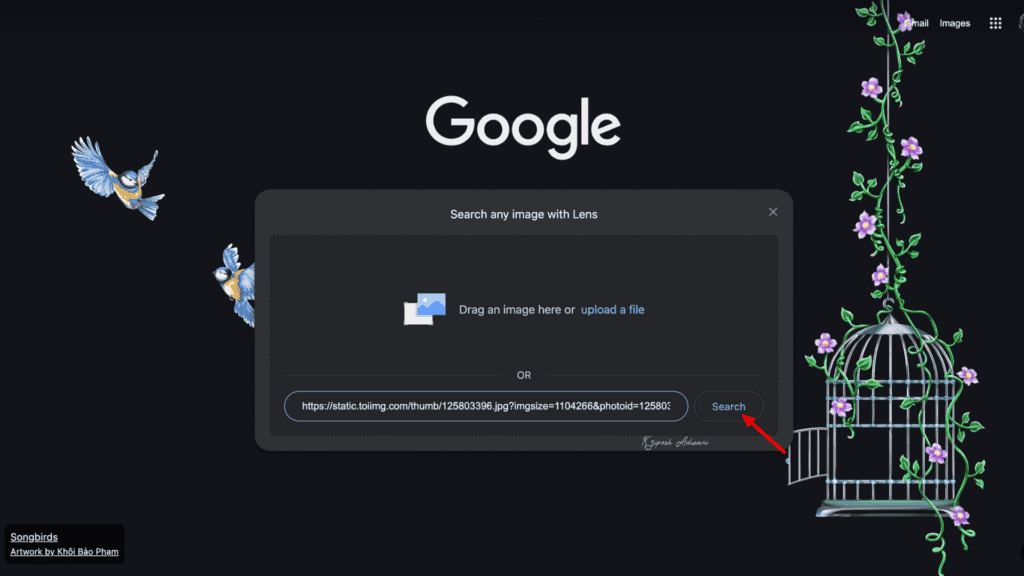
Step 4: Now paste the copied image URL into the above-mentioned field.
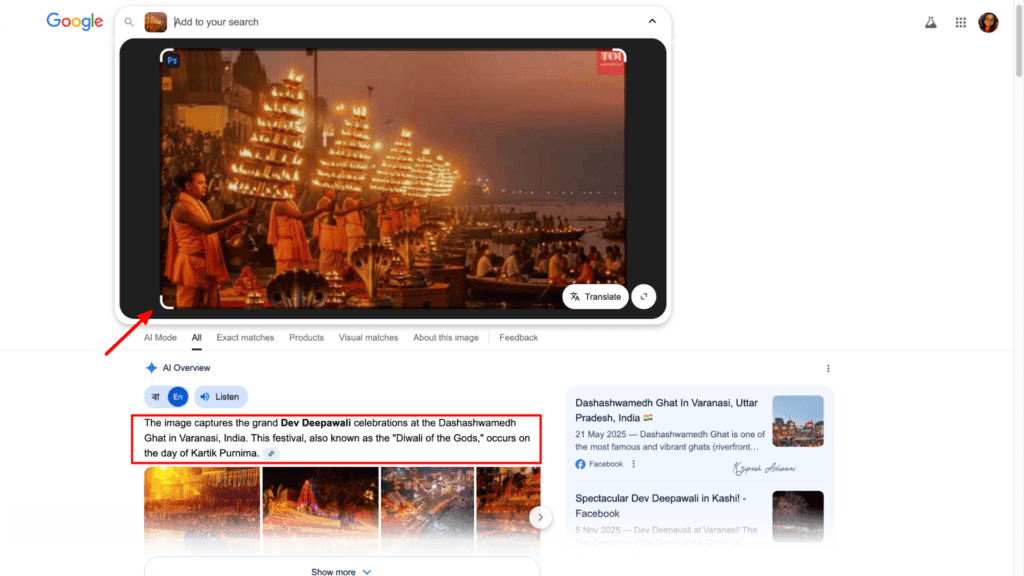
Step 5: Click the search button. Google will then display all relevant information related to the image, including similar photos, sources, and details.
c) Searching directly from a Website Image
Suppose you come across a viral photo on a website and want to verify its authenticity. In that case, you can search for it directly using Google, no need to copy the website’s URL or download the image. Let’s see how it works.
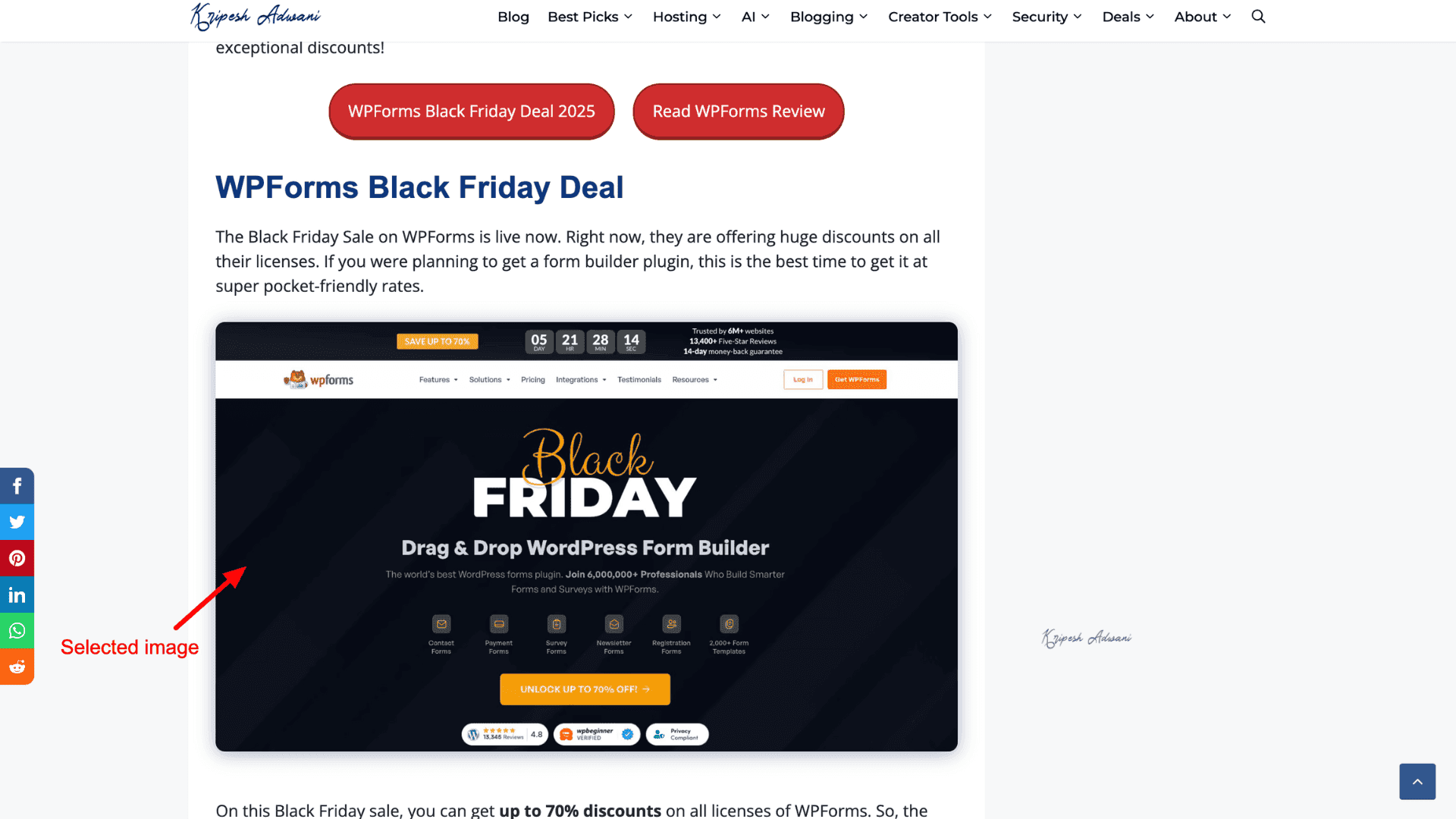
Step 1: Open the webpage where the image appears. In this example, I selected a Black Friday deal poster to verify whether the offer is genuine,
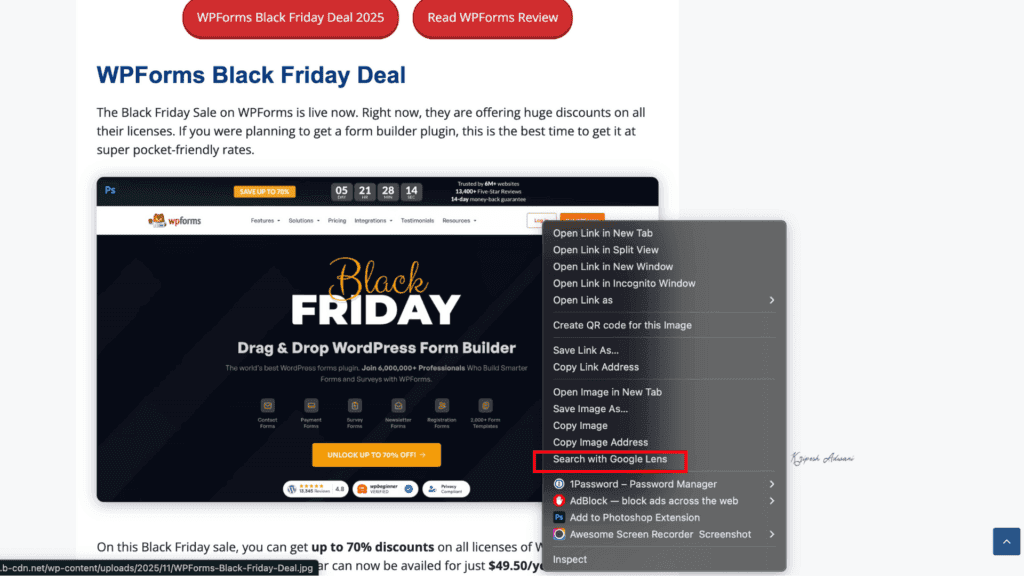
Step 2: Right-click on the image and select “Search image with Google Lens” from the menu.
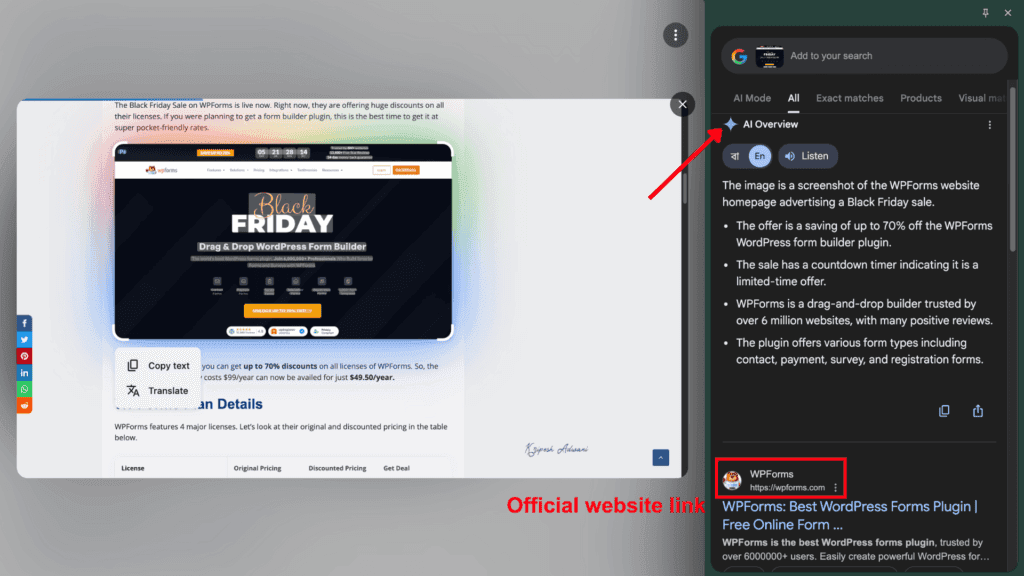
Step 3: Once you click this option, Google Lens scans the image and opens the results in a new sidebar or tab. You’ll see visually similar images with additional details that help verify the image’s authenticity.
As we can see, Gemini provides an AI-generated overview of the deal details. Plus, Google displays official website links and other relevant information about the deal.
d) Search by Google Search Results
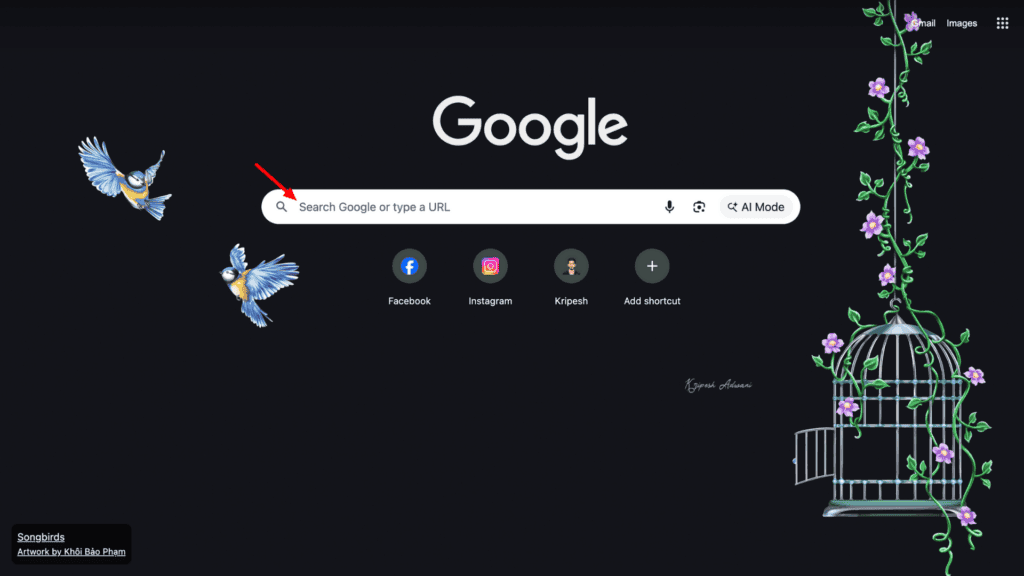
Step 1: Visit Google.com or open the Google Chrome browser.
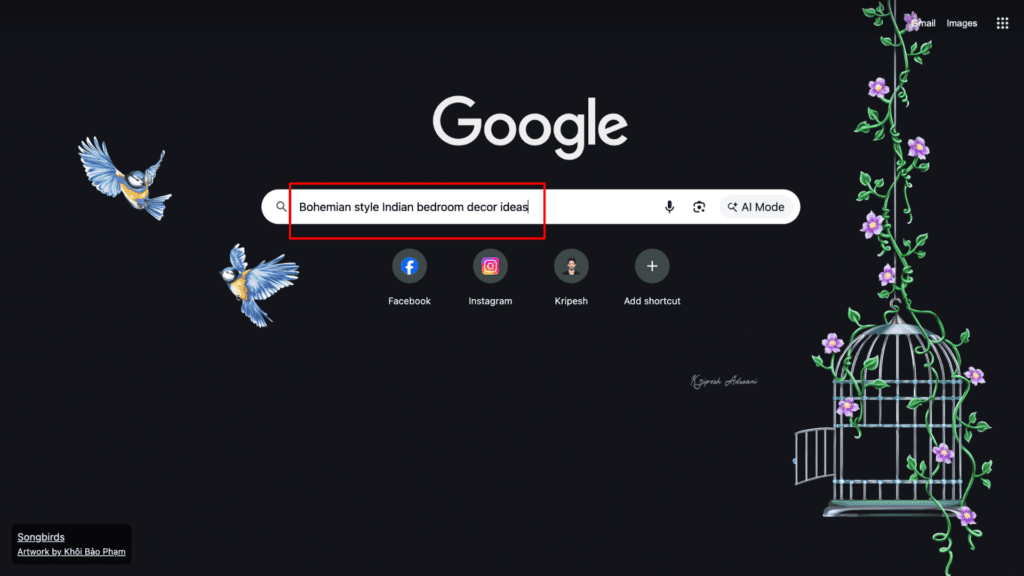
Step 2: Enter your search query to find a relevant image. For example, search for Bohemian-style Indian bedroom décor ideas.
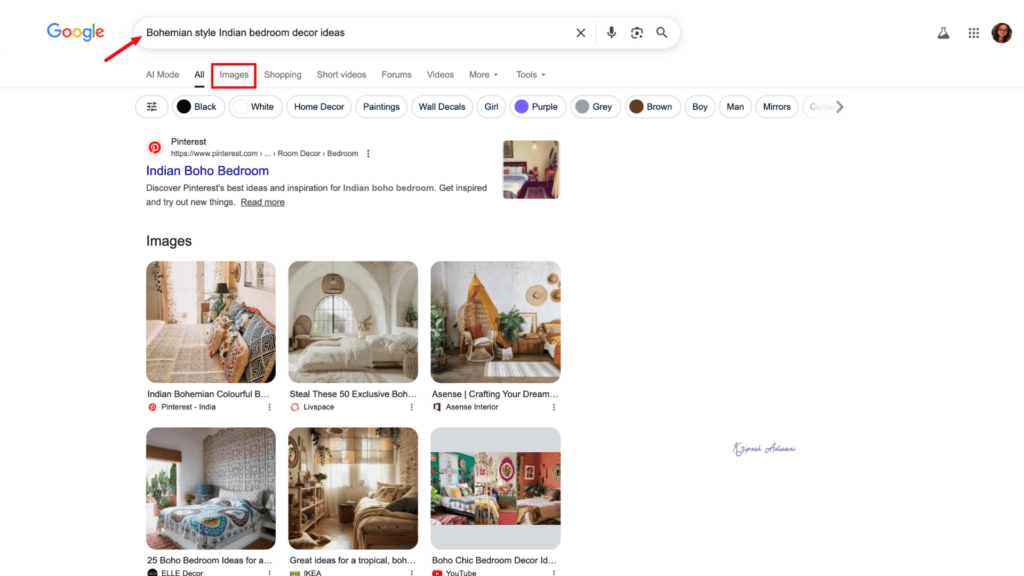
Step 3: Click the Images tab at the top of the results page to view image-only results.
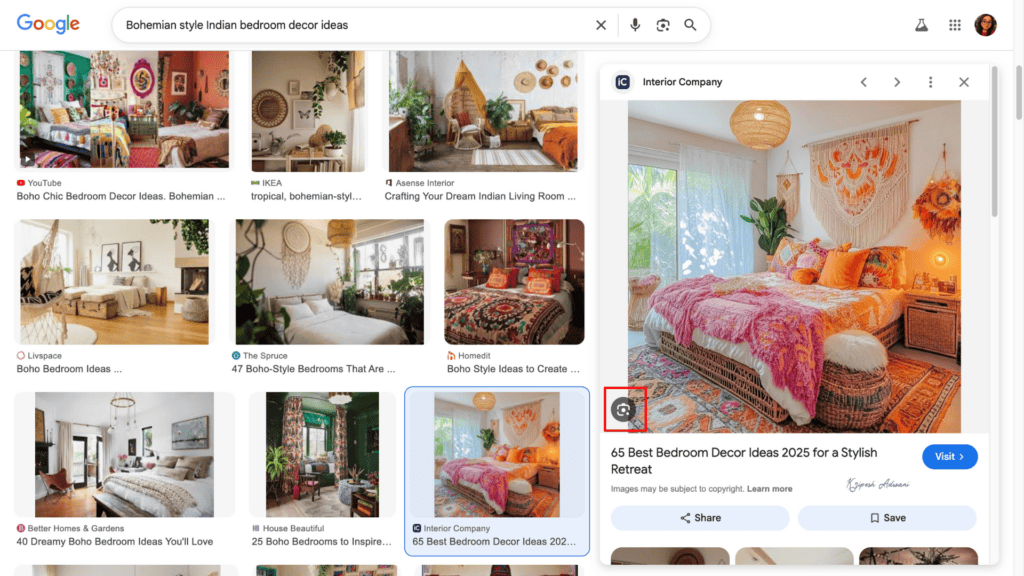
Step 4: Select the image you want to learn more about. On the left side of the image, you’ll see the Google Lens icon; click on it.
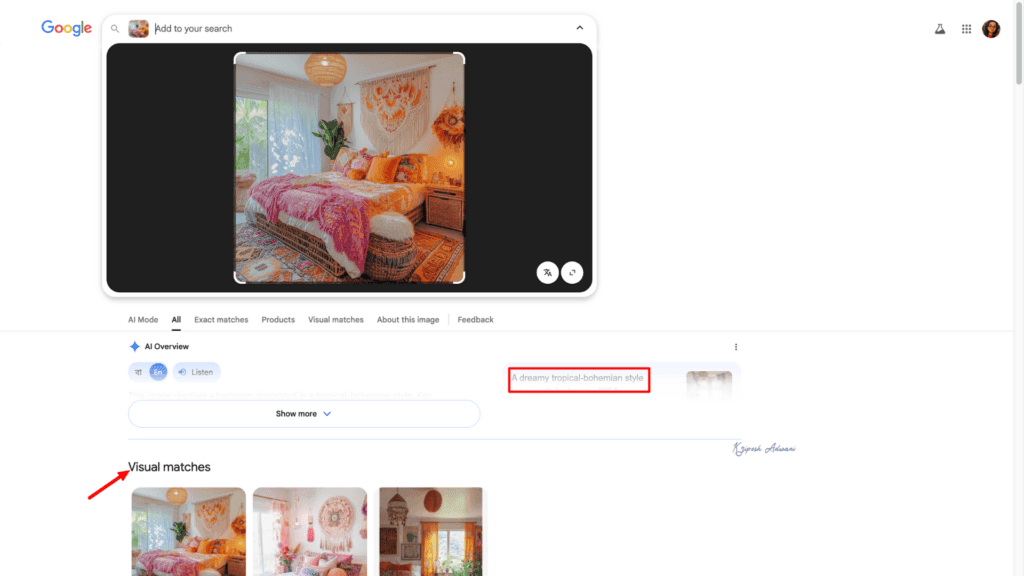
Step 5: Google Lens scans the entire image and displays related details.
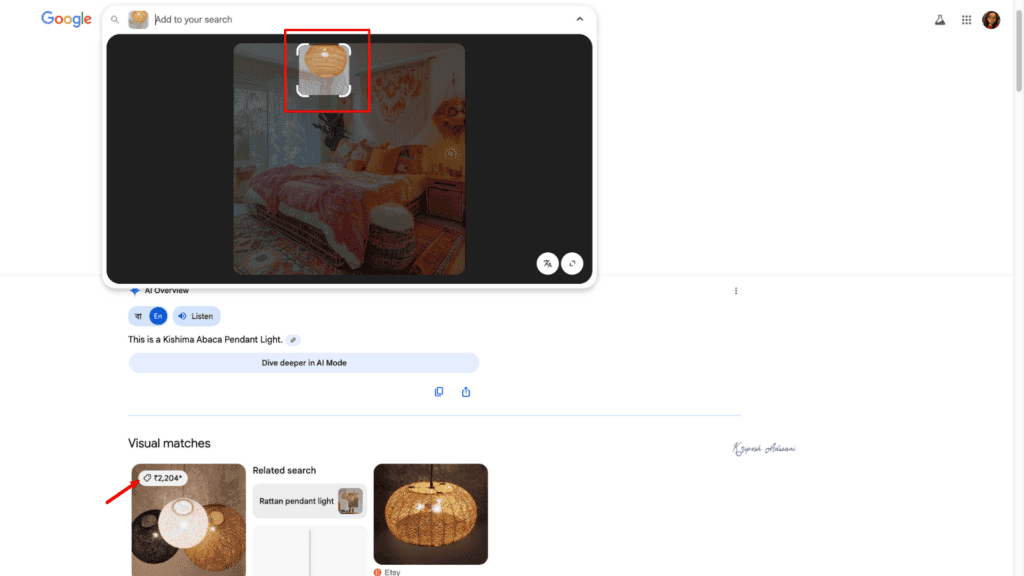
Step 6: If you want to get specific information, drag the corners to focus on that particular object. In this case, I focused on the hanging lamp.
Now, Google Lens automatically updates the results. It shows product details, prices, and related links.
How to Reverse Image Search Using AI Chatbots
AI chatbots let us upload images and ask questions instead of text. Because of this, we can also use these tools for reverse image search and visual analysis. Below, I’ll explain how this works using three popular AI chatbots that I use on a day-to-day basis.
1) ChatGPT
One of thesimplest AI tools you can use is ChatGPT. Its interface is almost the same on both mobile and desktop, so the process remains consistent across devices. I’m using ChatGPT Go, which you can get free in India.
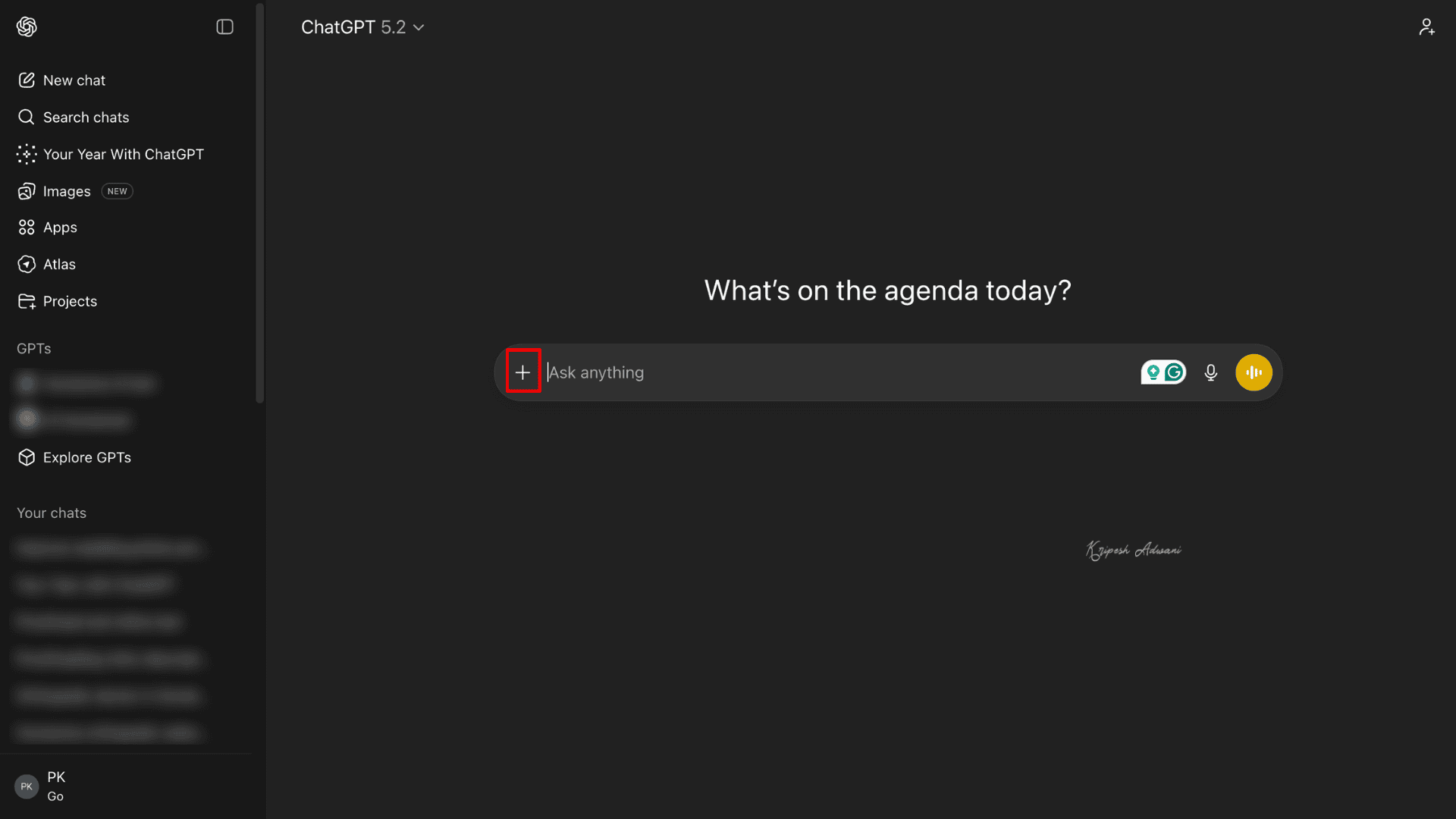
Step 1: Open the ChatGPT app or access the web version in your browser.
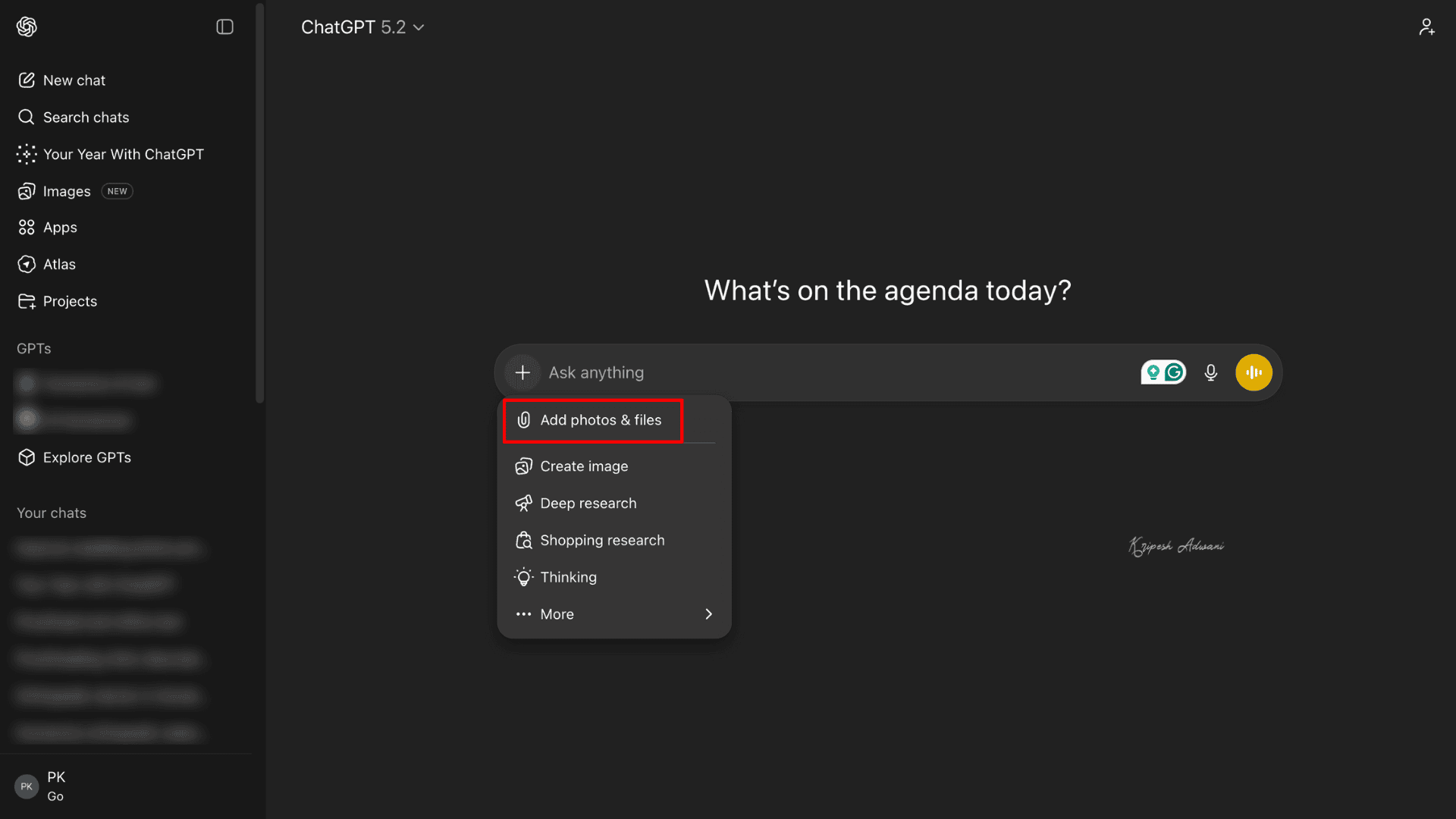
Step 2: Click the “+” icon. You’ll see an option labeled “Add photos & files.” Tap on it to upload your image.
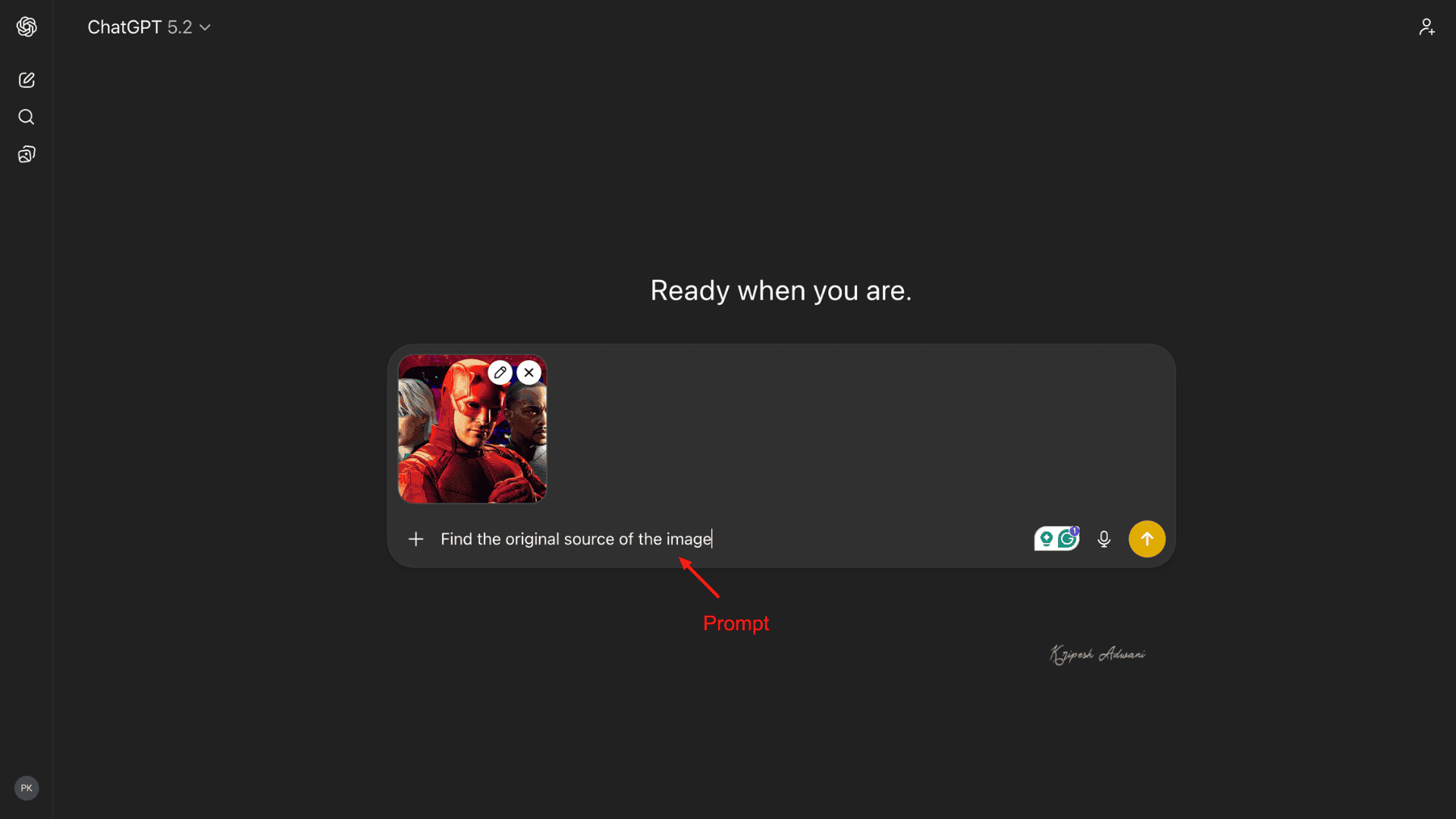
Step 3: Enter your query. In my case, I prompted: “Find the original source of the image.” Then press Enter.
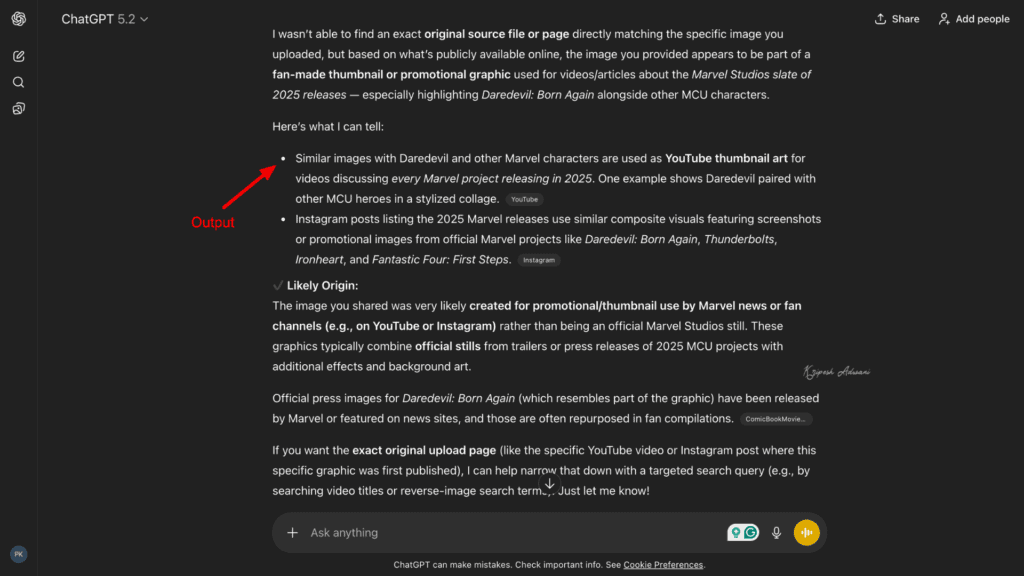
Step 4: ChatGPT scans the image and provides relevant information.
In my example, ChatGPT couldn’t identify the exact original source of the image, but it clearly explained what the poster is all about.
2) Gemini
Gemini provides more detailed answers than ChatGPT, especially if you are using the Pro version. The best part is that for Jio users, Gemini Pro comes with a 1-year complete access for free. I’ll explain the steps using my Pro account.
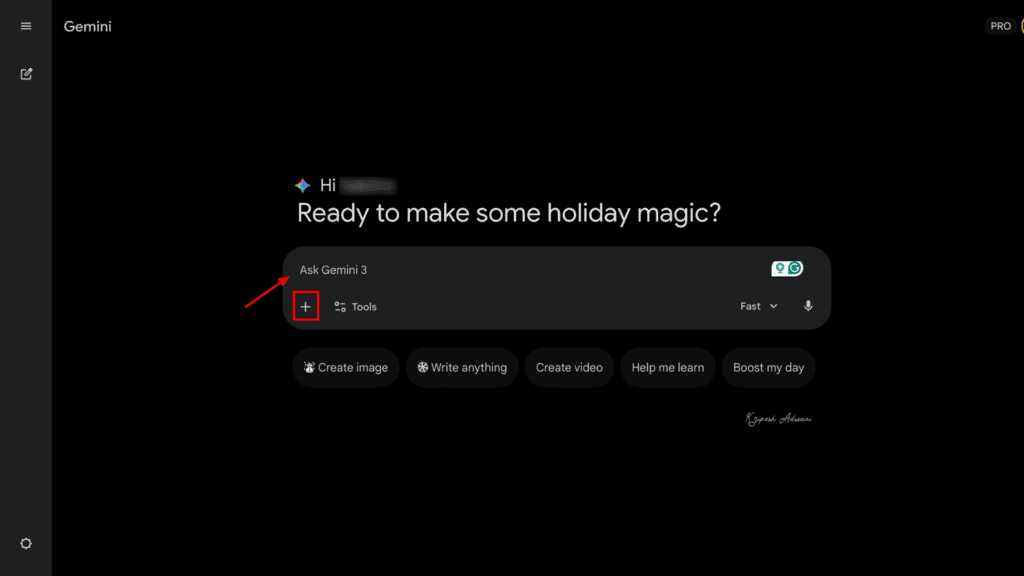
Step 1: Open the Google Gemini app or visit gemini.google.com. Tap on that “+” icon.
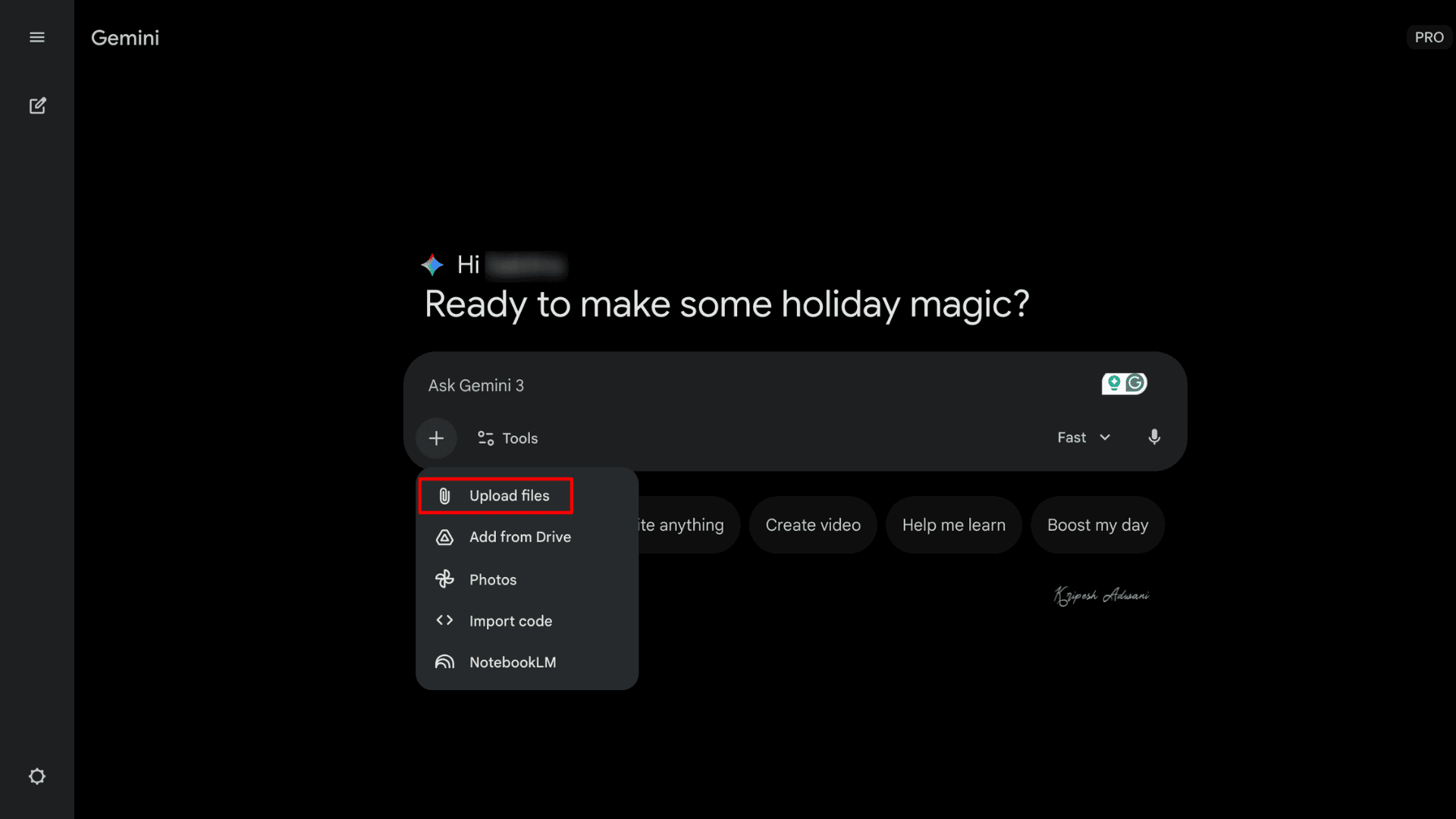
Step 2: Click on “Upload files” and upload the media file from your device.
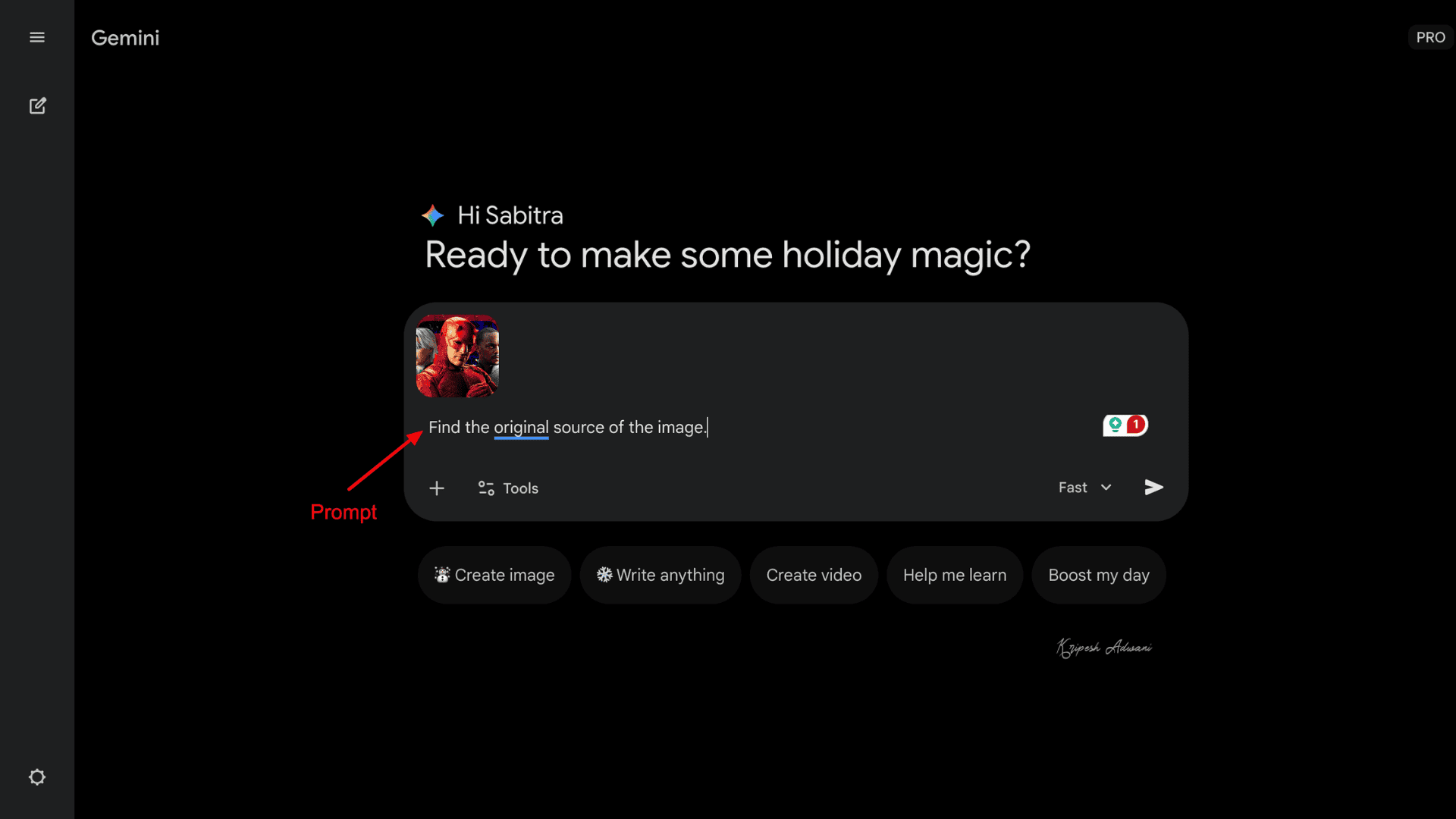
Step 3: Now, enter your prompt. I used the same image and a similar prompt that we used for ChatGPT.
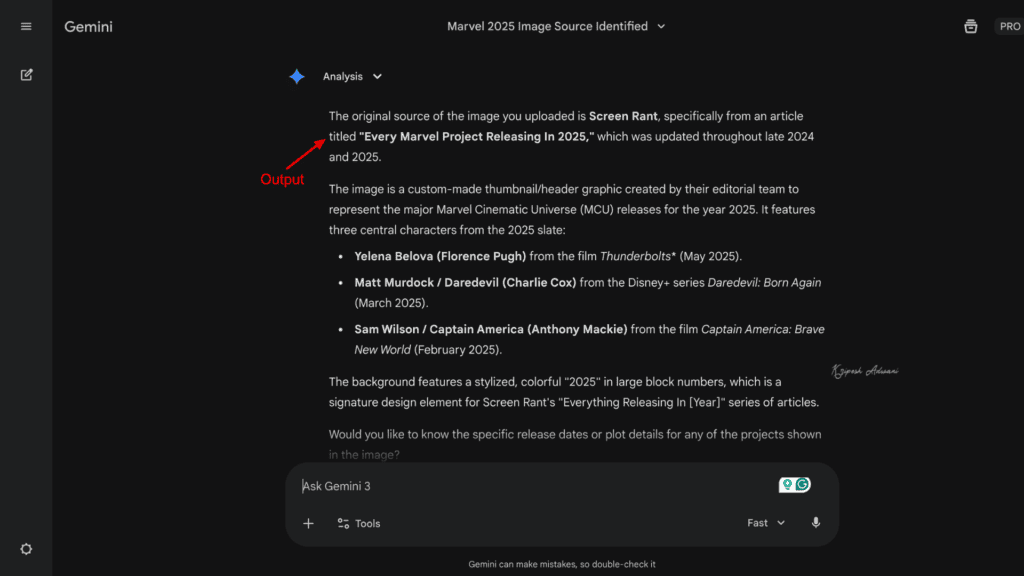
Step 4: Press Enter. Gemini will analyze the image and provide a detailed output.
3) Perplexity
Another advanced AI chatbot is Perplexity. It is great for detailed research. Perplexity Pro is also available for free for 1-year for Airtel users only.
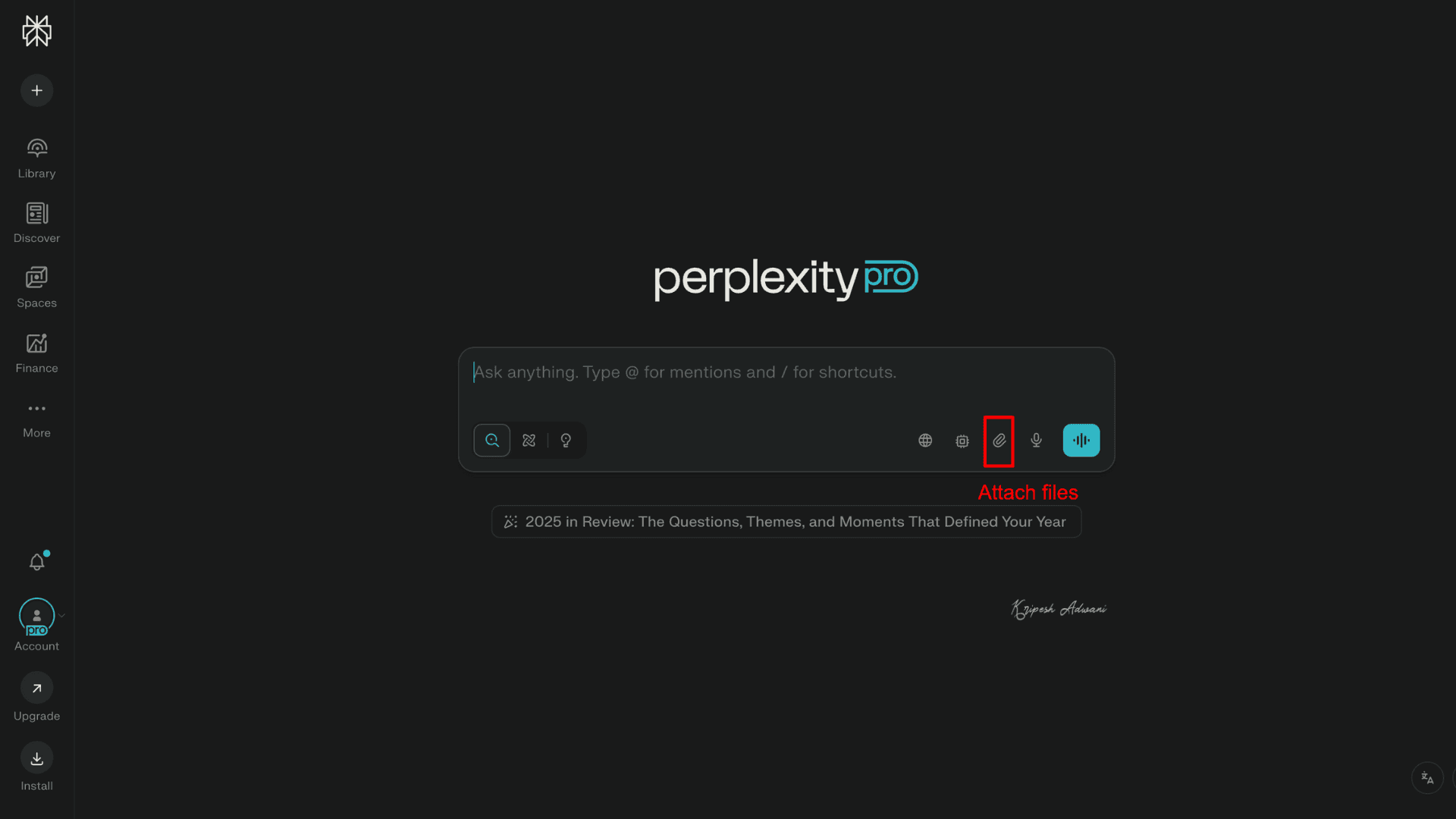
Step 1: Open Perplexity in your browser.
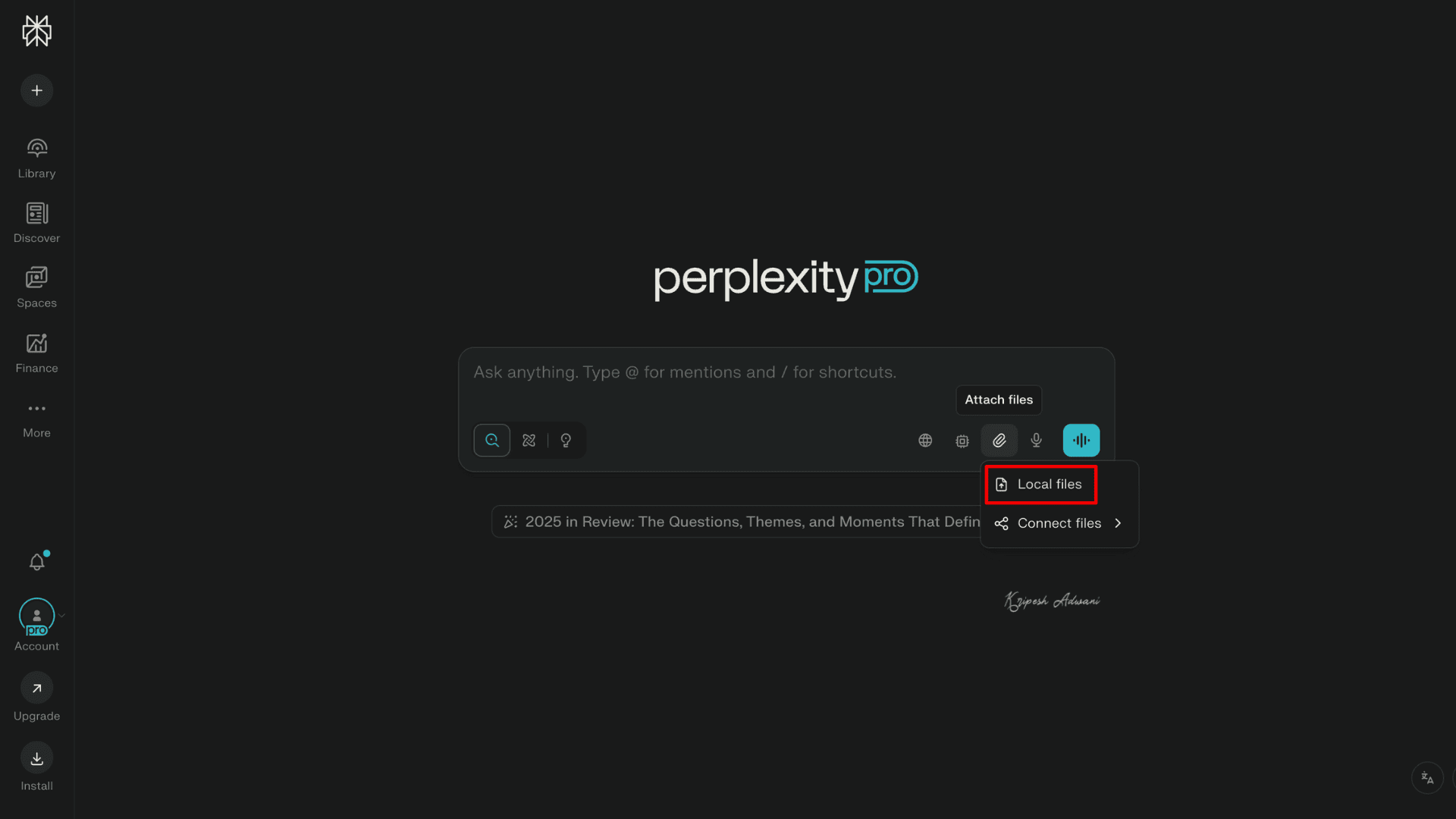
Step 2: Click on the 📎 icon labeled “Attach files.” You will see two options: Local files (for files from your device) or Connected files (for uploads from Google Drive or Dropbox)
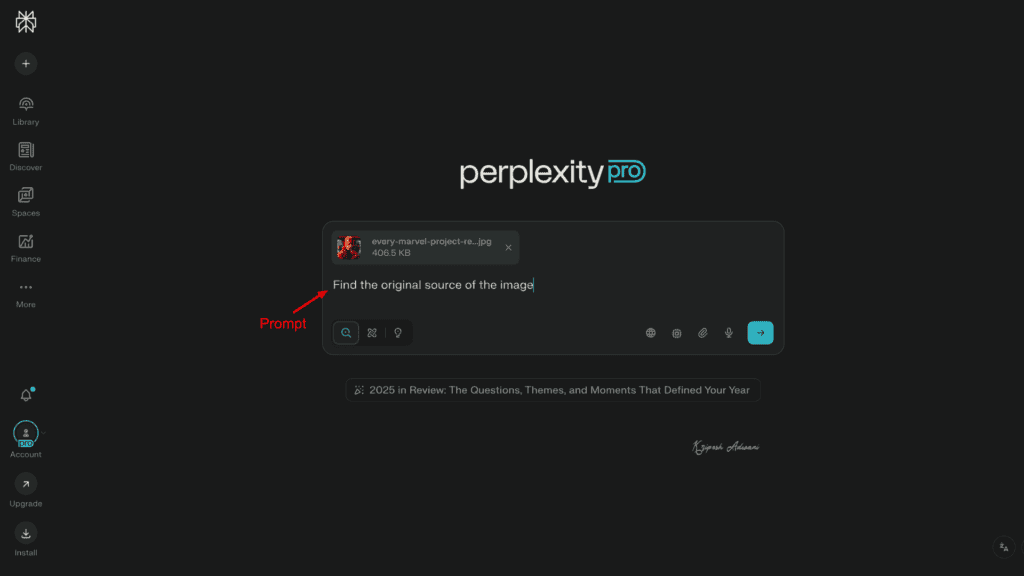
Step 3: I clicked on Local files to upload the same media file. Now, write your prompt in the chat bar.
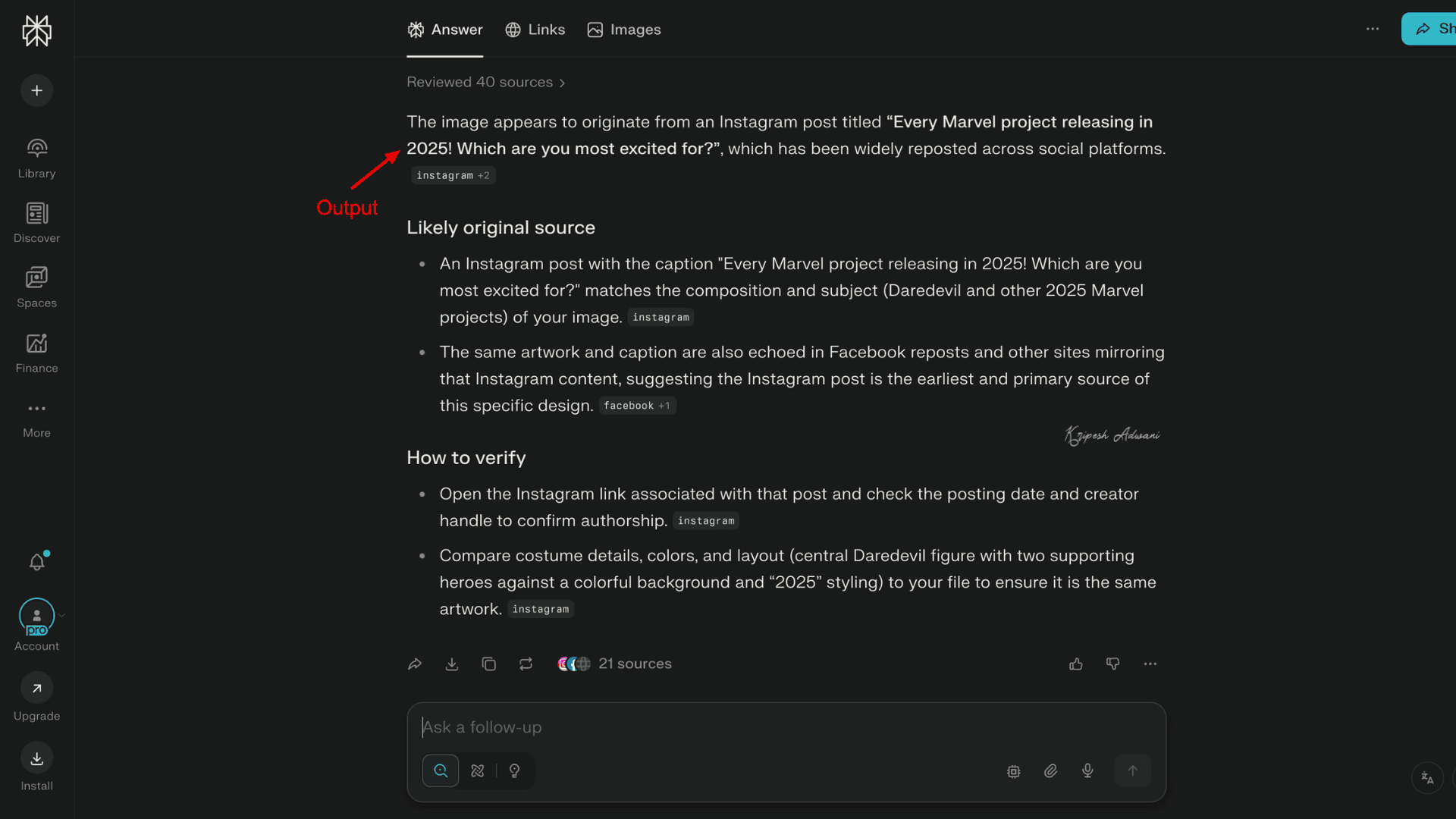
Step 4: Press Enter. Perplexity took a few seconds to review over 40 sources and then delivered the output.
Top Reverse Image Search Tools (Alternatives to Google)
Google Image Search isn’t the only platform for reverse image search. There are several other reliable tools that can help you do the same job. Let’s look at the top three reverse image search tools I’ve personally used.
1) Pinterest Visual Search
Pinterest is a popular visual discovery platform. I’m sure you’ve used it at least once to find aesthetic graphics or wallpapers. It hosts millions of images, videos, and GIFs for inspiration.
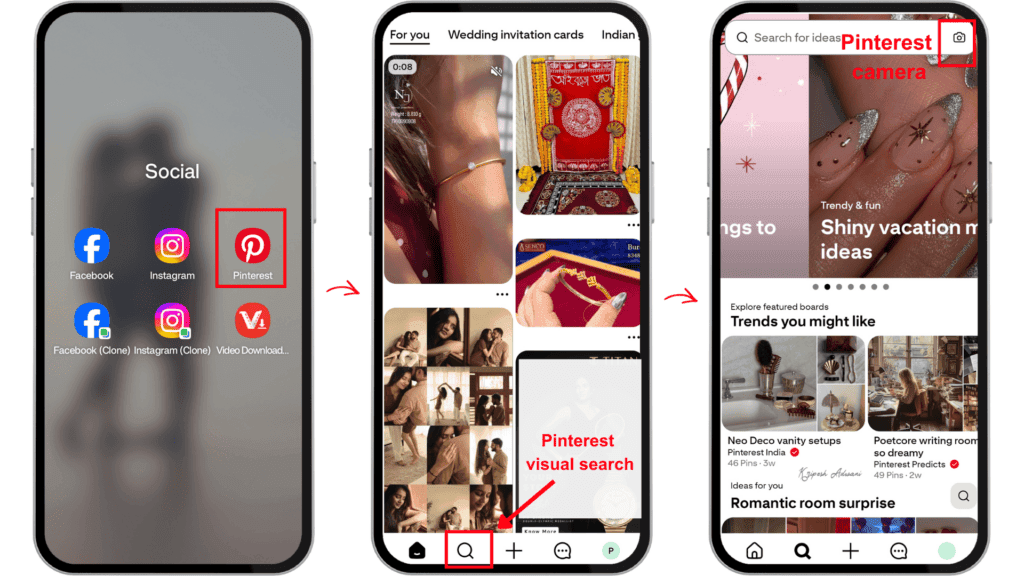
To use Pinterest Visual Search, open the app on your mobile phone. Then go to the Search button at the bottom. At the top-right corner of the search bar, you’ll find a camera icon. Click on it and upload your image. The Pinterest camera will scan the image and provide similar visuals.
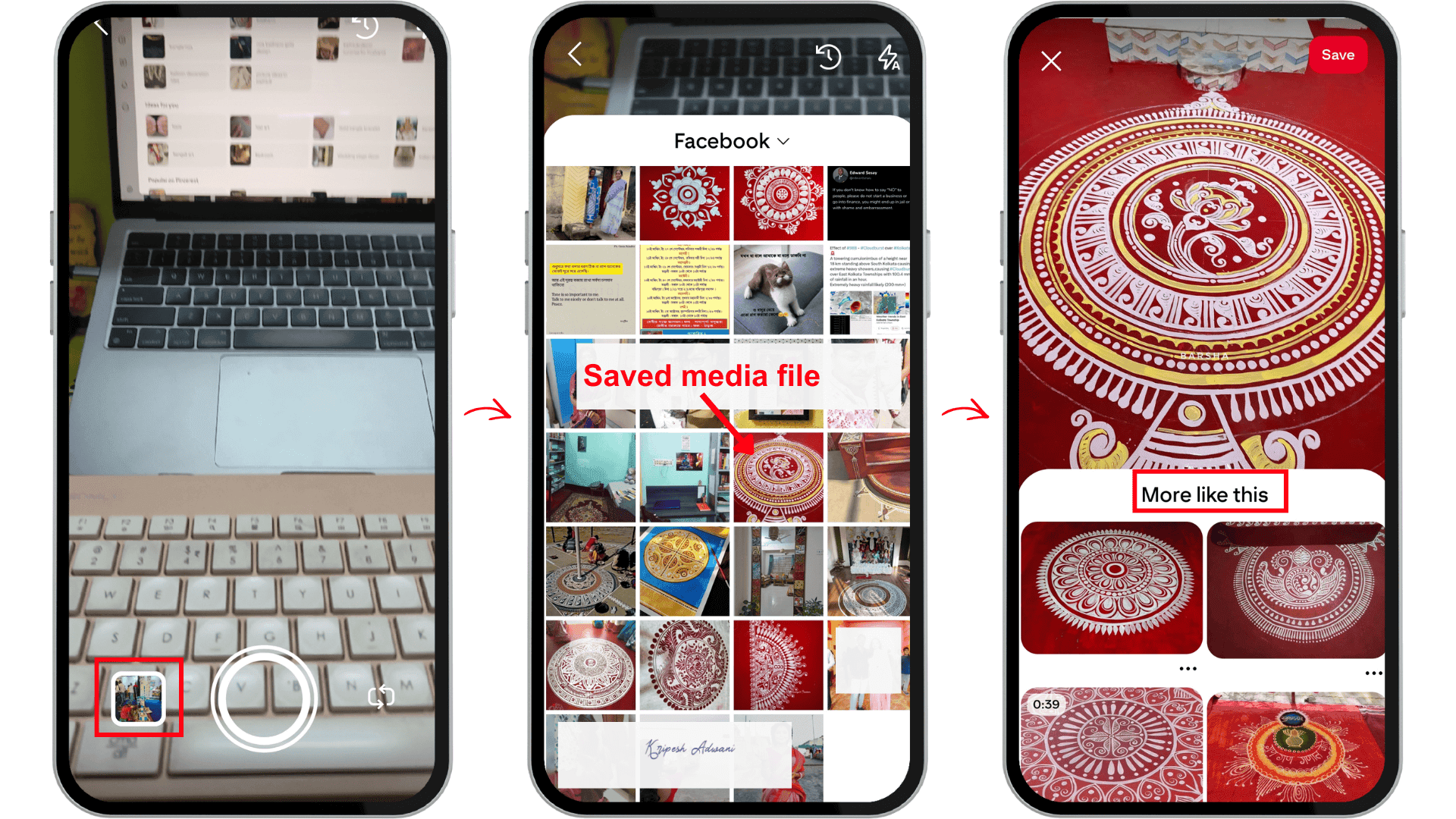
You can also zoom in or out to search for specific items within the image. This tool is especially useful for content marketers, graphic designers, and social media users.
2) TinEye
TinEye is another Canada-based reverse image search engine. This tool allows you to search using images instead of text to find an image’s sources, usage history, and any potential misuse. TinEye search is available both as a web app and a browser extension.
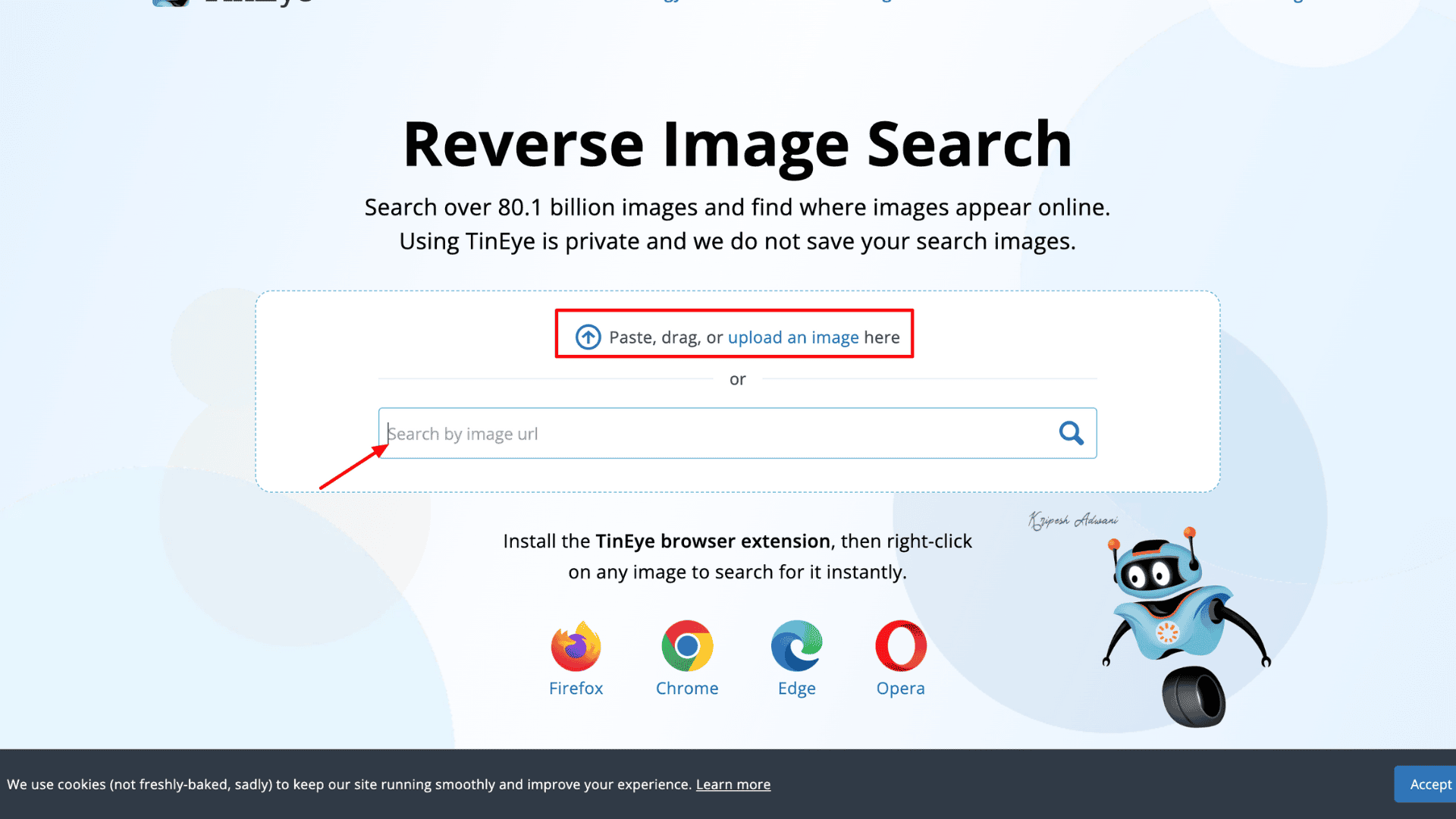
To use it, visit TinEye.com. You’ll find an upload option where you can either drag and drop a media file, upload it from your device, or paste an image URL. TinEye scans the image instantly and provides a list of search results showing where the image has been used online.
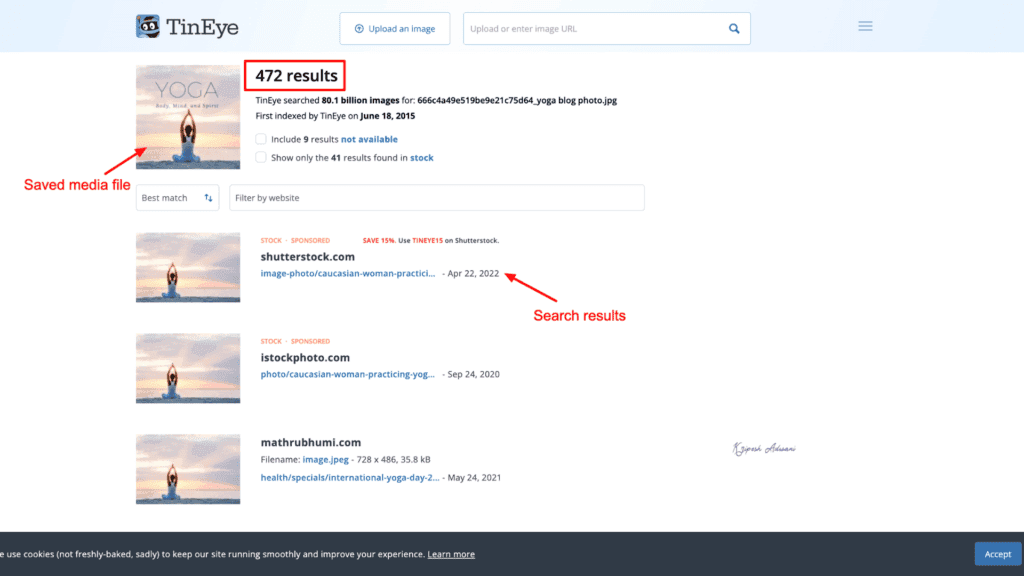
The tool is free to use, making it suitable for both beginners and professionals who want to perform reverse image searches.
When Should You Use Reverse Image Search?
You might be wondering why you should use Google reverse image search and whether it has any real benefits. The answer is yes. Below are some common situations where reverse image search works best.
1) Find the Original Source
Suppose you come across an image on Google and want to use it. To give proper credit, you need to mention the original source. Reverse image search helps trace where the image first appeared online and lets you find the original creator.
2) Copyright Protection
If your graphic content is being used without your permission, reverse image search can help you identify where it appears online. It displays all webpages that are using the same or similar visuals.
3) Search for High-Quality Versions
Reverse image search allows you to find higher-resolution versions of an image. Simply upload the picture, and you may discover better-quality or original versions available online.
4) Check Authenticity
With the rise of deepfake images and viral misinformation on social media, checking authenticity has become crucial. Journalists and media professionals often use reverse image search to uncover the original version of an image and verify whether it has been altered.
5) Gather Information
Reverse image search also helps you gather information related to a specific image. You can explore websites from the search results or use AI chatbots to gain deeper insights about the image.
In a Nutshell
Reverse image search is a simple process, yet it’s incredibly powerful. By uploading just a reference image, you can uncover its original sources, distinguish real images from deep fakes, and track copyright infringement.
You can perform reverse image searches on both mobile phones and desktops. In this article, I’ve clearly explained the step-by-step process. Other than that, AI chatbots like ChatGPT, Gemini, and Perplexity can also assist with image-related research.
But AI tools are not free from error. Therefore, before relying on any factual information, it’s always best to verify details through your own research.
That’s all for today. I’ll be back next time with more helpful guides and honest reviews. Until then, bye!
FAQs
What is Google Lens?
Google Lens is an AI-powered visual search tool developed by Google. It uses your device’s camera or uploaded images to identify objects, text, or products shown in a photo. Based on what it detects, it provides relevant search results.
Can you reverse image search a screenshot?
Yes, you can reverse image search a screenshot. But make sure the screenshot is clear and not blurry to get accurate results.
Can you reverse image search a video?
No, you can’t directly reverse image search a video because most tools only support images. That said, you can take a screenshot or capture a specific frame from the video and then use that image for a reverse search.
Can I use reverse image search to find products from a photo?
Yes, absolutely. To find products using reverse image search, simply upload a photo to Google Lens or any other similar tool. It’ll show you visually similar products along with links to various e-commerce websites and their prices.