Ever tried recording your screen, only to hit watermarks, time limits, or complicated setups?
Whether you’re teaching online, creating SOPs for your team, leaving quick feedback, or building how-to videos for YouTube, finding a reliable screen recorder can feel frustrating.
But guess what? You don’t need expensive software to get the job done. In this article, I’ll walk you through the best free screen recording software that let you record your screen, camera, or both, without unnecessary restrictions.
Ready to discover the most powerful free screen recorder for your needs? Let’s dive in.
- What is a Screen Recording Software?
- 14 Best Free Screen Recording Software
- Best Free Screen Recording Software for Web
- Best Free Screen Recording Chrome Extensions
- Best Free Screen Recording Software for Desktop
- Best Free Screen Recording Software for Mobile
- How Did We Test These Screen Recorders?
- Why Should You Trust Me?
- Conclusion
- FAQs
What is a Screen Recording Software?
A screen recorder is an application or software that captures what’s displayed on your device’s screen. Along with the screen, it also records your audio, mouse movements, and additional sounds. This makes it perfect for recording tutorials, guides, training materials, game recording, etc.
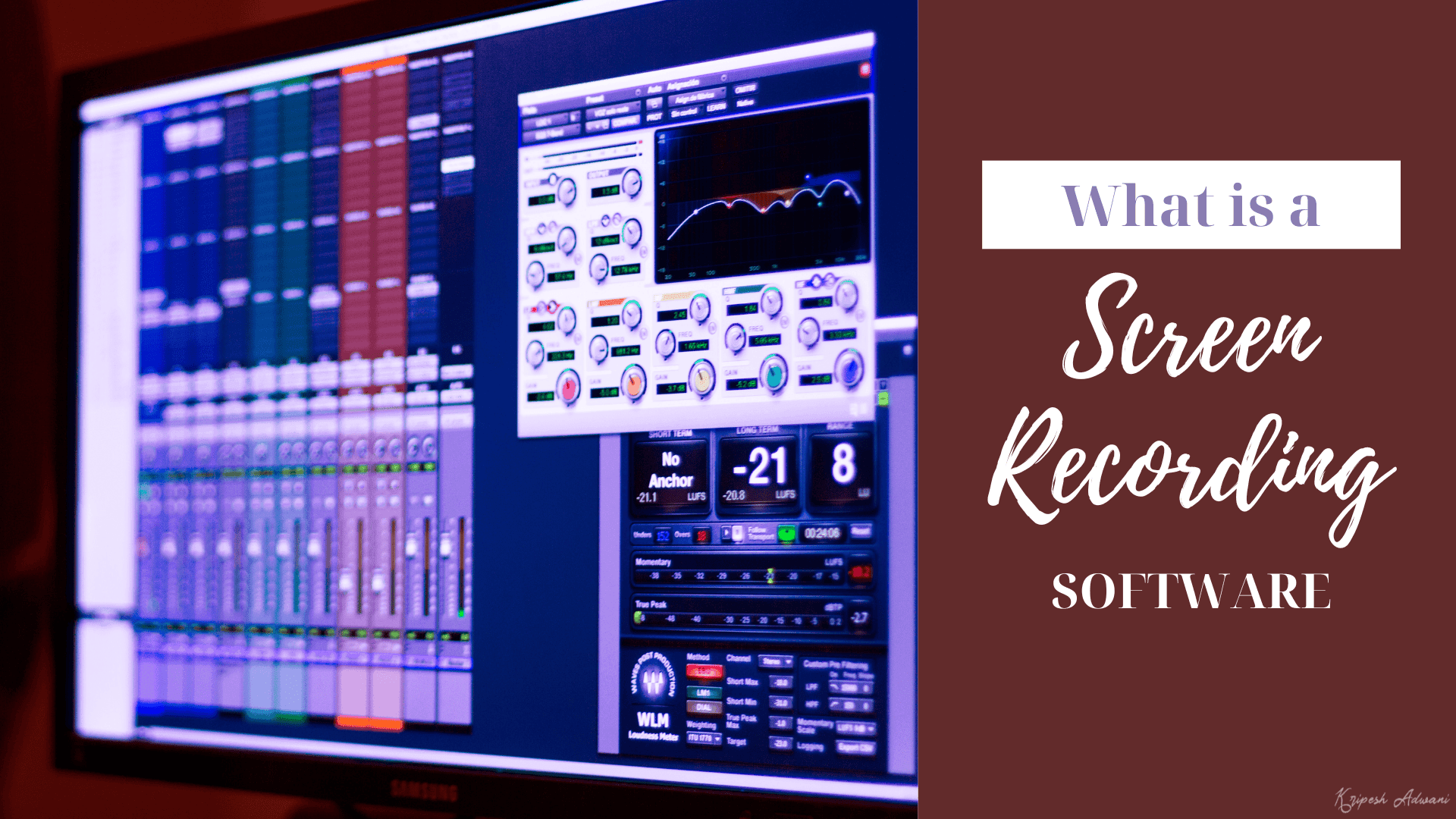
Some screen recorders also offer post-production editing tools to let you create polished videos. Popular examples of screen recorders include OBS Studio, Loom, Camtasia, etc.
14 Best Free Screen Recording Software
| Tool Name | Key Features | Video Exports | Free Plan |
| ClipChamp | Script overlay, video editing suite, AI Captions | Yes ✅ | Basic features with AI video & audio editing tools, and 1080p watermark-free exports. |
| Loom | Loom AI, Time-stamped Comments | No ❌ | 25 videos with a 5-minute recording limit. |
| Veed | Teleprompter, Video background styling, | Yes ✅ | Basic features with watermarked exports in 720p resolution |
| Apowersoft | No sign-up, post-production tools, public links | Yes ✅ | All features with watermark-free exports in HD quality. |
| Screenity | Open-source, on-screen annotations, blur content | Yes ✅ | Recording, annotations, & highlights for free. |
| Screencastify | On-screen annotations, AI captions | Yes ✅ | Record 10 videos up to 30 minutes. |
| Vidyard | Speaker notes, audio test, Drawing tool | No ❌ | 15 videos/month with a 30-minute recording limit |
| Awesome Screenshot | Editing tools, capture screenshots & screen recordings | Yes ✅ | 20 recordings with a 6-hour limit per recording. |
| OBS Studio | Open source, Add sources, create scenes | Yes ✅ | All features are free to use. |
| Camtasia | Post-production editing tools, multiple export formats | Yes ✅ | Unlimited video creation with watermarked exports. |
| ScreenPal | Post-production editing tools, multiple export formats | Yes ✅ | Unlimited recordings with 15 mins video length. |
| Mobizen Screen Recorder | Post production editing tools, adjust frame rate | No ❌ | All basic tools but with ads on the UI. |
| ADV Screen Recorder | No sign up, set video resolution | Yes ✅ | Unlimited recordings with ads on the UI. |
Best Free Screen Recording Software for Web
1) Clipchamp
Clipchamp is a free, browser-based screen recording tool developed by Microsoft. It offers screen recording and basic video editing under one platform. To get started, sign up with your Microsoft account and record your screen, camera, screen+camera, or only system audio.
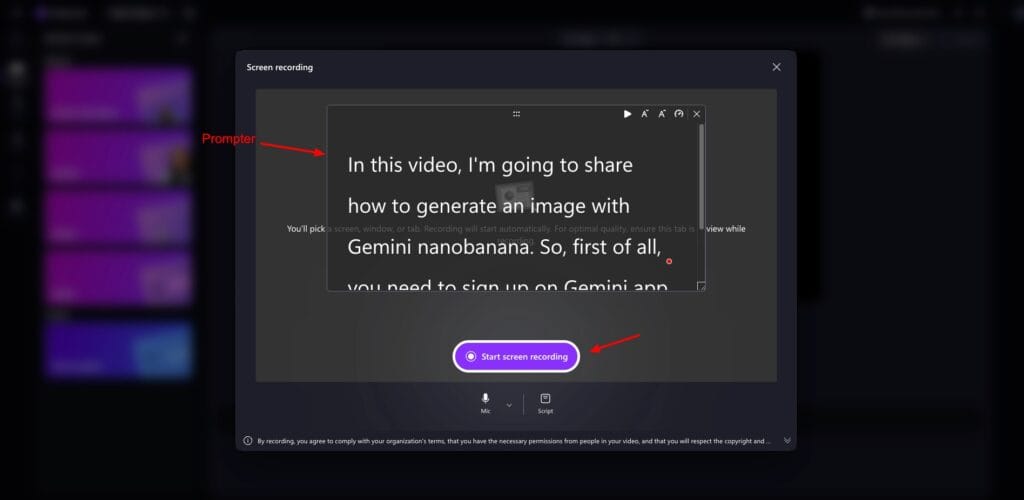
The maximum recording length is 30 minutes. An interesting feature of Clipchamp is its script overlay. It basically works like a teleprompter, allowing you to paste your script and read it while recording. The text doesn’t appear in the final video. This makes Clipchamp great for recording tutorials, lectures, and product demos.
But what really sets Clipchamp apart from other tools is its built-in video editing suite. Once your recording is complete, you can insert text, music, stock video, stock images, templates, graphics, and transitions to polish your video.
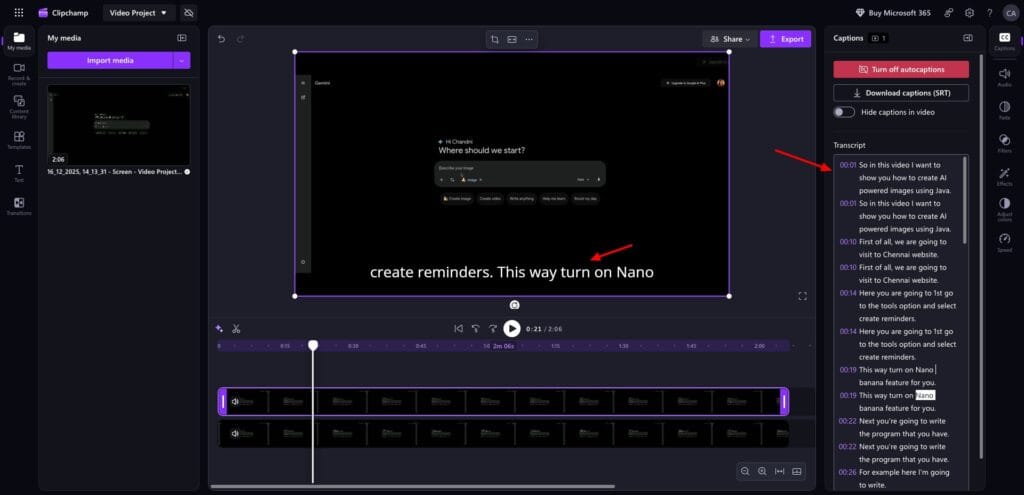
You can also add AI-generated captions, but the transcription is not very accurate right now. You’ll need to edit the captions before publishing. Finally, the videos can be exported in MP4 and GIF formats (for videos under 15 seconds) in up to 1080p output quality with no watermarks.
The only problem with Clipchamp was the onboarding experience. It requires you to sign in with a personal Microsoft account. The login process took me a couple of attempts, which was slightly irritating.
Overall, Clipchamp is best for online instructors, content creators, and users who need a free screen recorder with light editing features and a teleprompter-style script display.
Pricing: The free plan offers all the basic features, along with AI video & audio editing tools, and 1080p watermark-free exports. For premium stock assets, filters, effects, and 4k video resolution, you can upgrade to the Microsoft 365 plans starting at ₹689/month.
2) Loom
Loom is a popular and easy-to-use screen recording software. It’s used by millions of people across 400k companies, including Asana, HubSpot, Walmart, Disney, Tesla, and more.
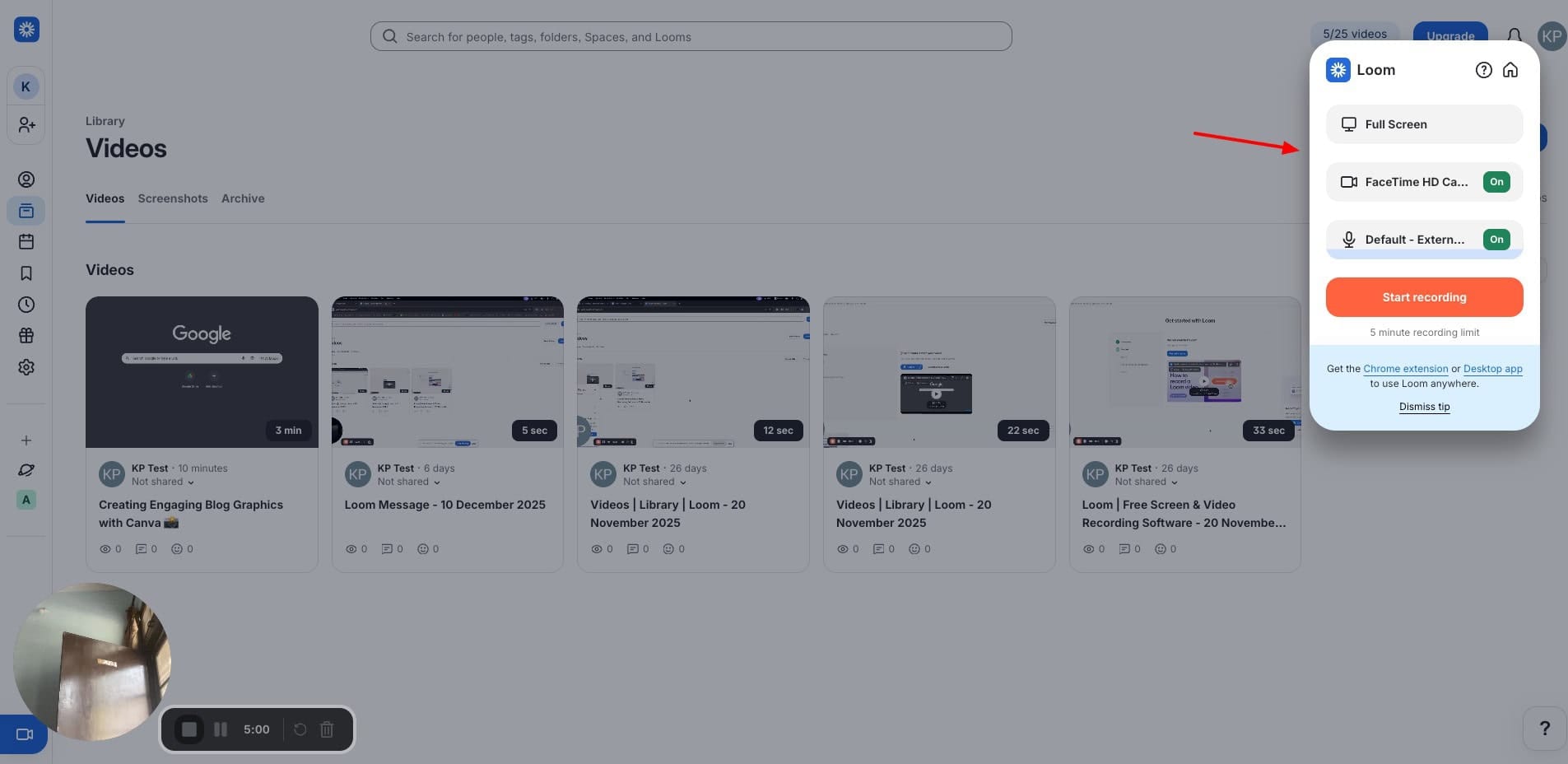
Getting started with Loom is extremely easy. Just sign up with your email and start recording. You can choose to record just your screen, just the camera, or both. Once you finish your recording, it is automatically uploaded to the cloud and is available in the dashboard.
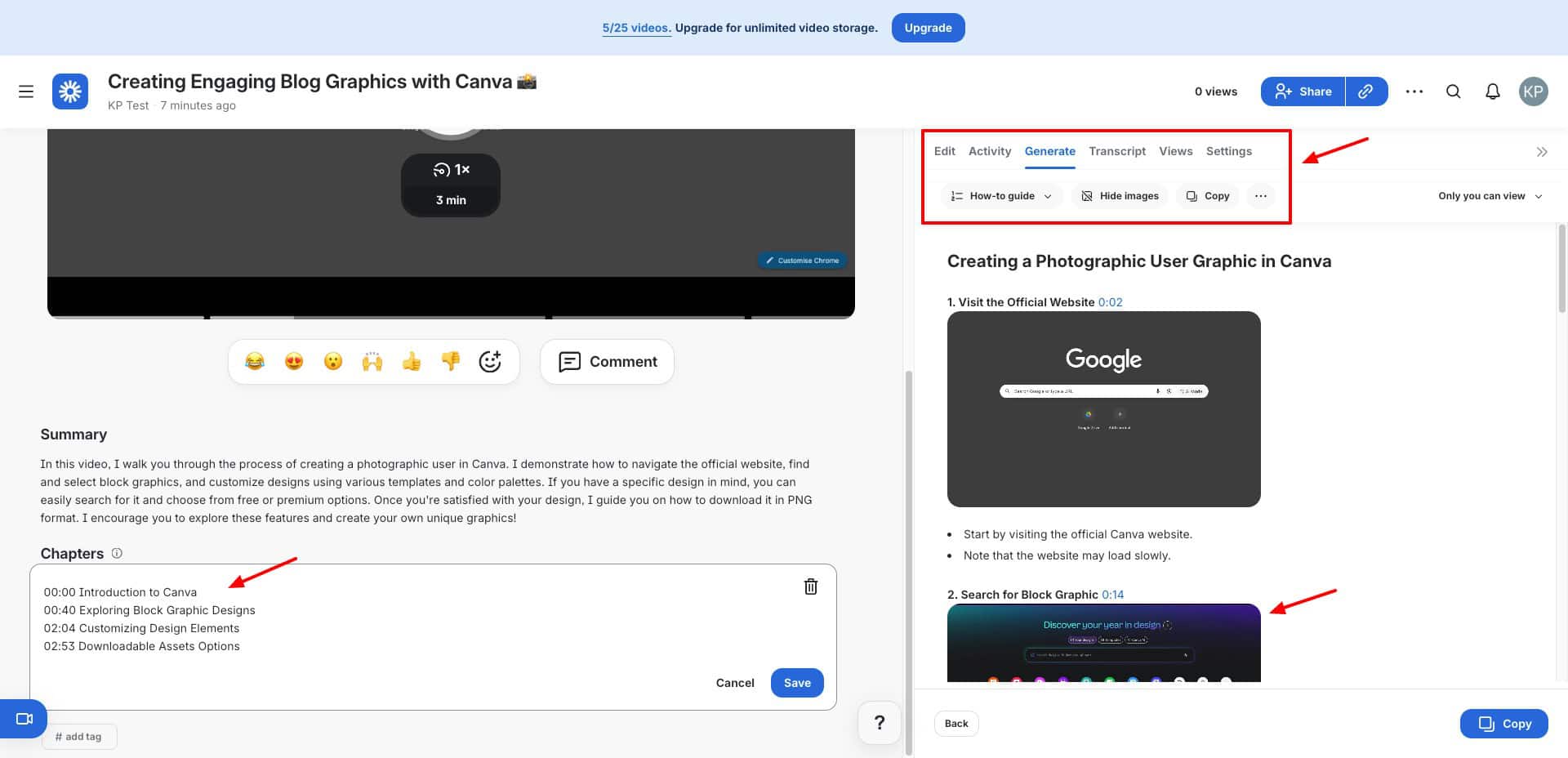
You can then use Loom AI to transcribe the whole video, generate a video summary, chapters, titles, etc for you. You can also generate SOPs, how-to guides, PR descriptions, QA steps, etc. Loom lets you share video recordings via links, email, or through social media platforms.
Viewers can leave time-stamped comments and emoji reactions, and set output quality to either 720p or 1080p. You can also check the number of views on each video. However, it lacks video exports and post-production editing features.
Overall, Loom is best for remote teams, educators, developers, marketers, freelancers, and anyone who wants quicker communication.
Pricing: On the free plan, you can create 25 videos with a 5-minute recording limit on each video. Its paid plans start from $18/month.
3) Veed
Veed Screen Recorder is one of the easiest and beginner-friendly tools to get started with video recording. Once you log in, you simply need to click ‘Record’ and choose if you want to capture your screen, camera, screen+camera, or just audio.
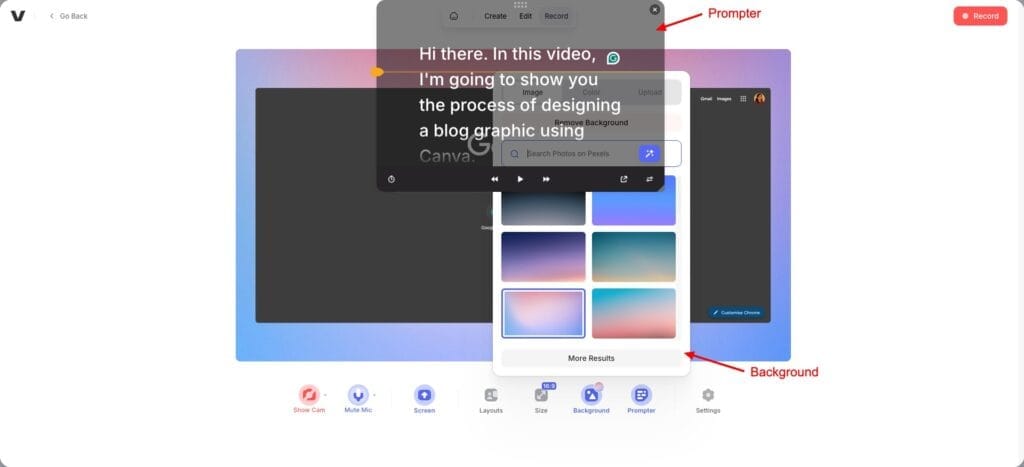
It offers decent recording features like adjusting your video layout, a teleprompter for reading your script, setting a background color, gradient, or image to make your videos stand out! You also get impressive post-production editing tools, allowing you to add subtitles, video, audio, elements, text, etc.
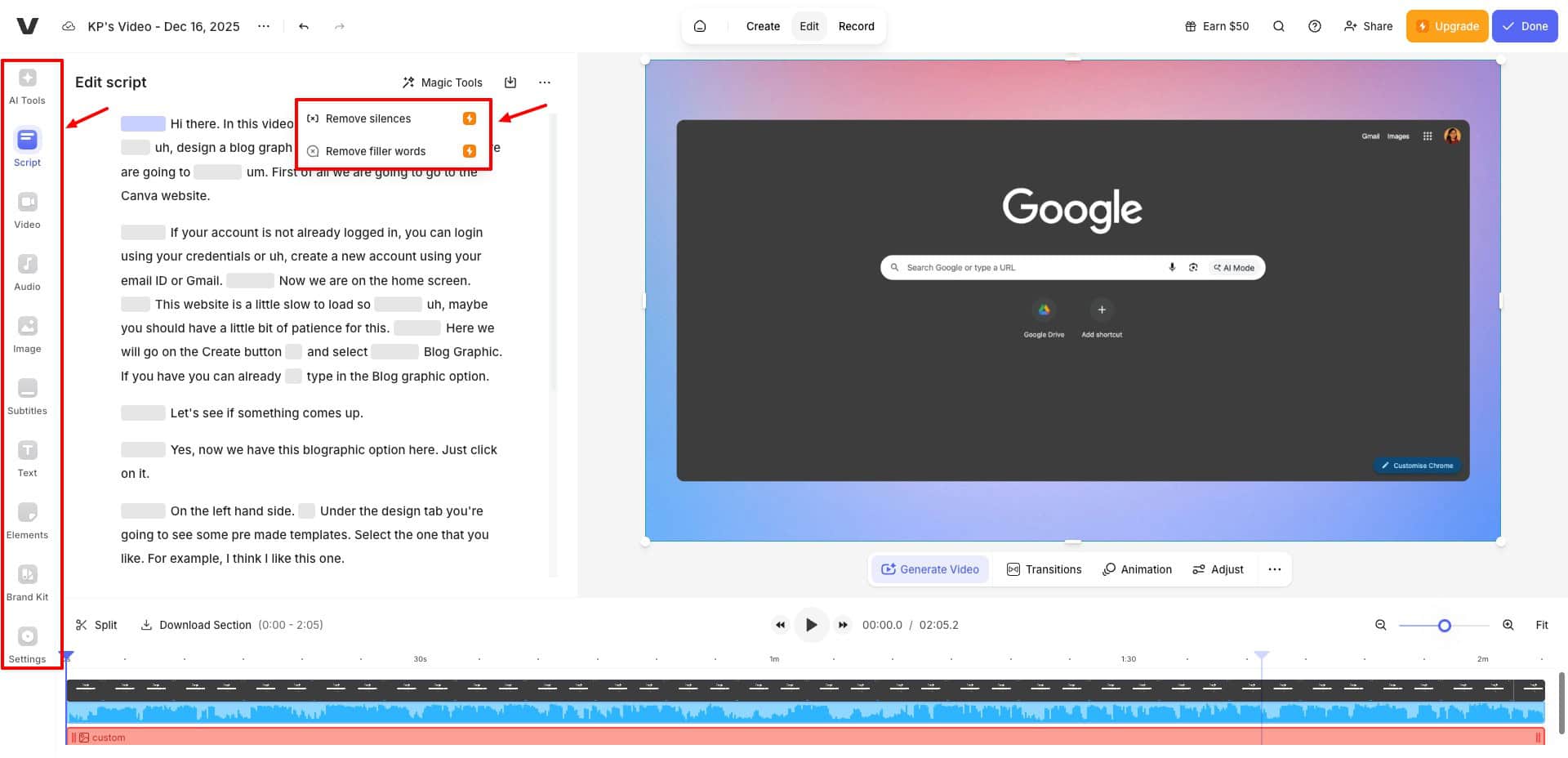
Finally, you can export your video recordings in 720p resolution in MP4 format with a watermark. You can also export audio as MP3 or short clips as GIFs. To share your videos, Veed lets you generate public links, invite collaborators via email with edit or view access, and share videos directly on LinkedIn, X, Facebook, or email.
Overall, Veed screen recorder is perfect for content creators, marketers, educators, and founders who need a quick and easy-to-use video recorder with good sharing and basic styling options.
Pricing: The free plan offers all the basic features with watermarked exports in 720p resolution. If you need 1080p exports, you need to upgrade to their paid plans starting from ₹499/month.
4) Apowersoft
Apowersoft is a free online tool that lets you record your screen and audio simultaneously. The best part is that you don’t need to sign up for this platform. You can directly start recording your screen, webcam, system sound, or microphone audio.
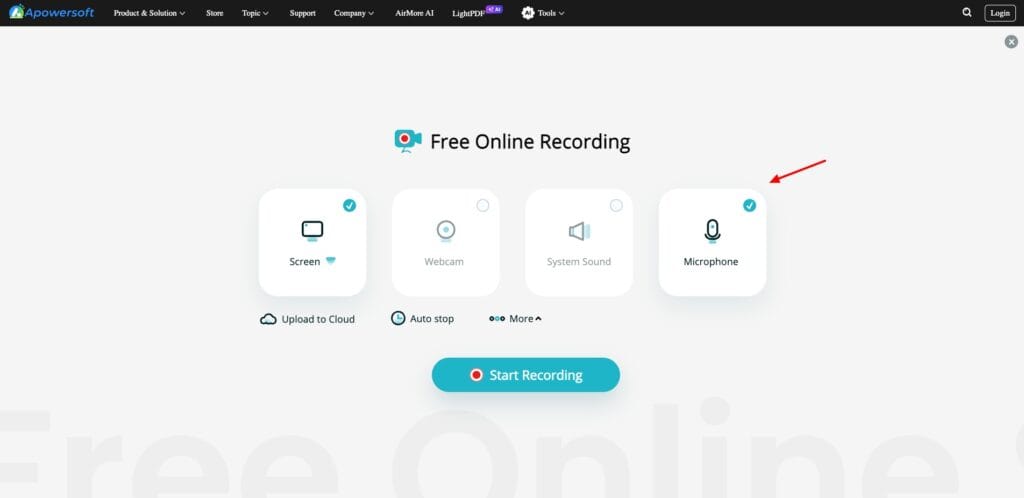
Once your recording is complete, it is automatically uploaded to the cloud. Then, you can access post-production features like trimming and cropping, extracting audio, adding AI subtitles, etc. Finally, your videos can be downloaded in MP4 format and in HD quality.
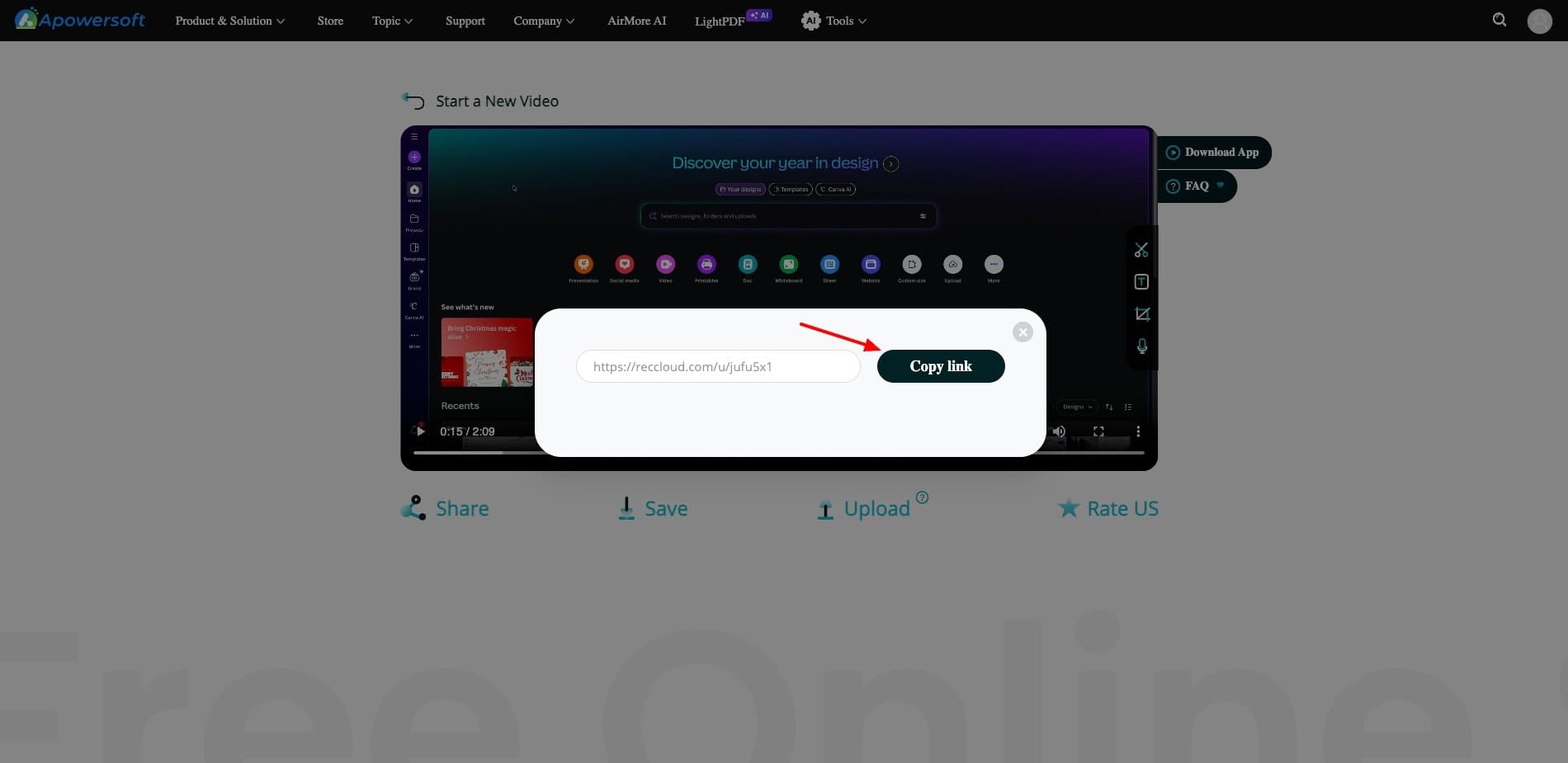
To share your videos, you get publicly accessible links. To access additional features like auto-stop, task scheduler, and 1+ hours of video recordings, you need to download their desktop app.
Overall, Apowersoft is best for users who need basic recording and editing features completely free of cost. Support teams, product managers, remote teams, etc, will find it valuable.
Pricing: The free plan offers all features with watermark-free videos in HD quality. It doesn’t feature any paid plans.
Best Free Screen Recording Chrome Extensions
5) Screenity
Screenity is a free, open-source, and privacy-friendly screen recording and annotation tool. It’s easy to use and requires no sign-up. You can record your screen, tab area, or camera with it.
It also lets you annotate using a pen, highlighter, text, and shapes (rectangles & arrows), and also insert an image. You also get post-production editing features, so you can remove audio, cut, trim, crop, resize, add audio, etc.
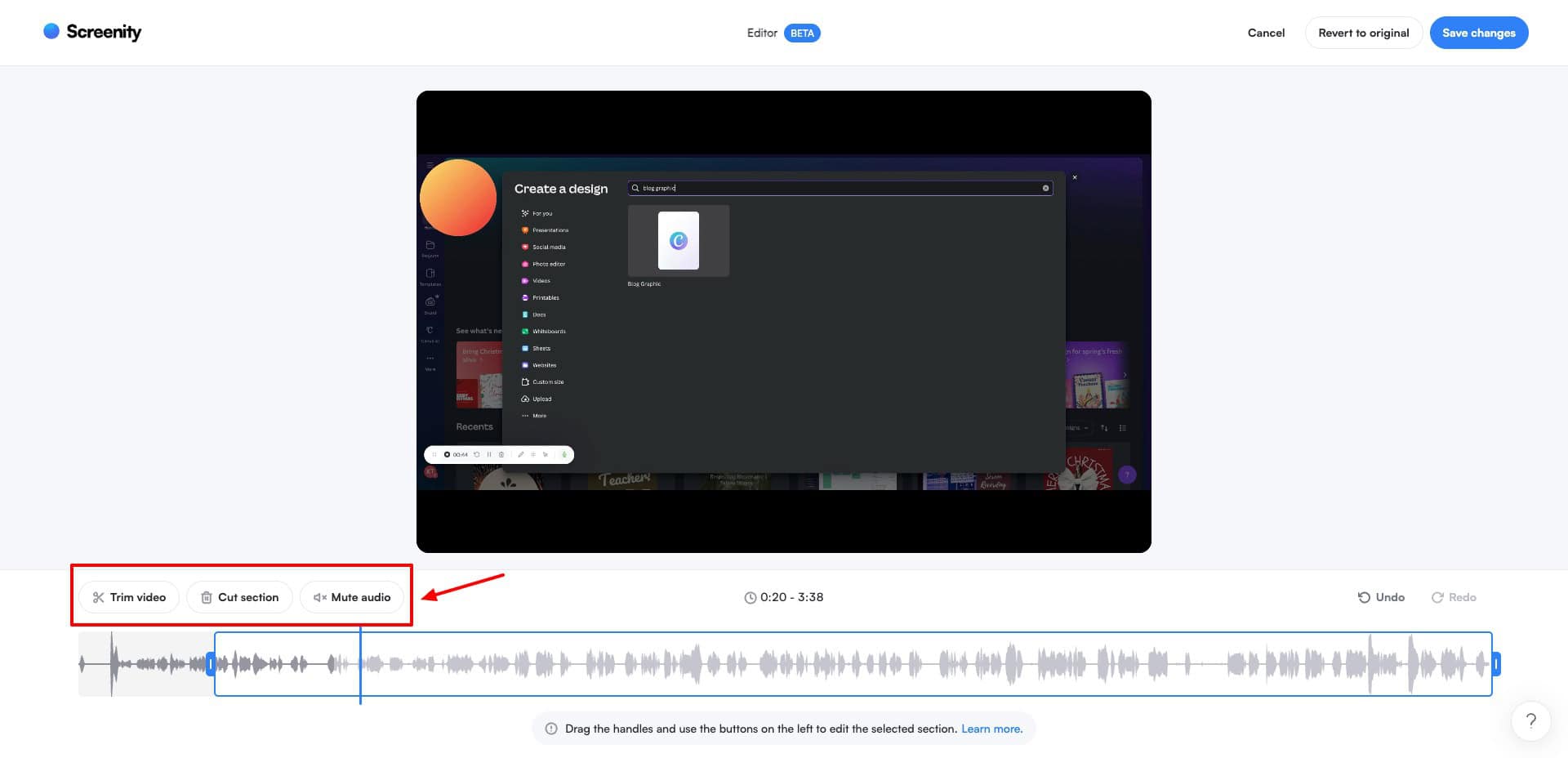
With Screenity, you can download your video recordings as MP4 files, WebM files, RAW video files, and GIFs (if they are under 30 seconds). Overall, Screenity is ideal for content creators, instructors, video editors, and professionals who need raw footage export and basic video editing tools under a single platform.
Pricing: The free plan offers video recording, annotations, and highlights for free. Its paid plans start from $8/month, where you get video sharing, animated templates, captions, layouts, etc.
6) Screencastify
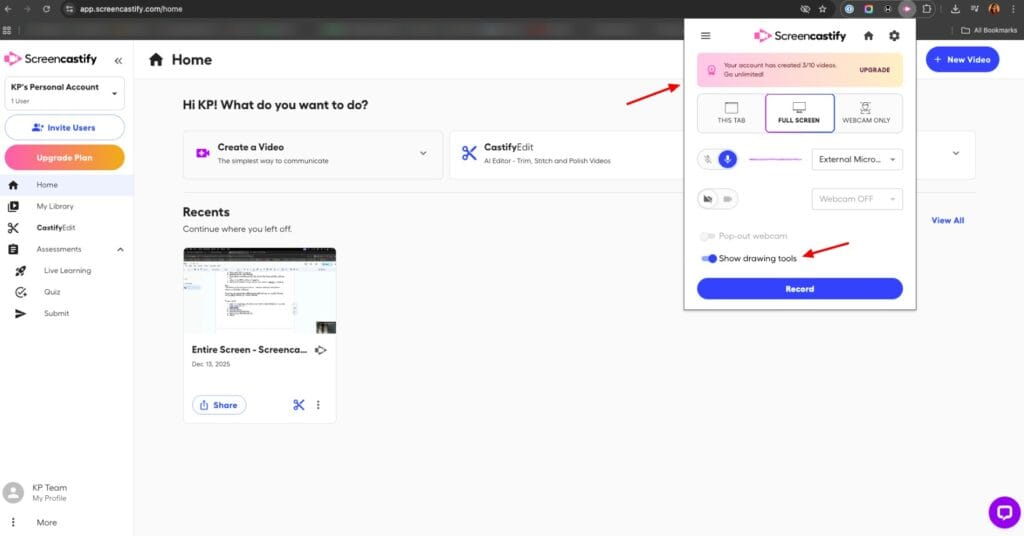
Screencastify is a popular screen recording and video editing tool for the web. It stands out by being easy to use. Just enable the webcam and mic permissions and get started! It lets you record a browser tab, the entire screen, or just your webcam.
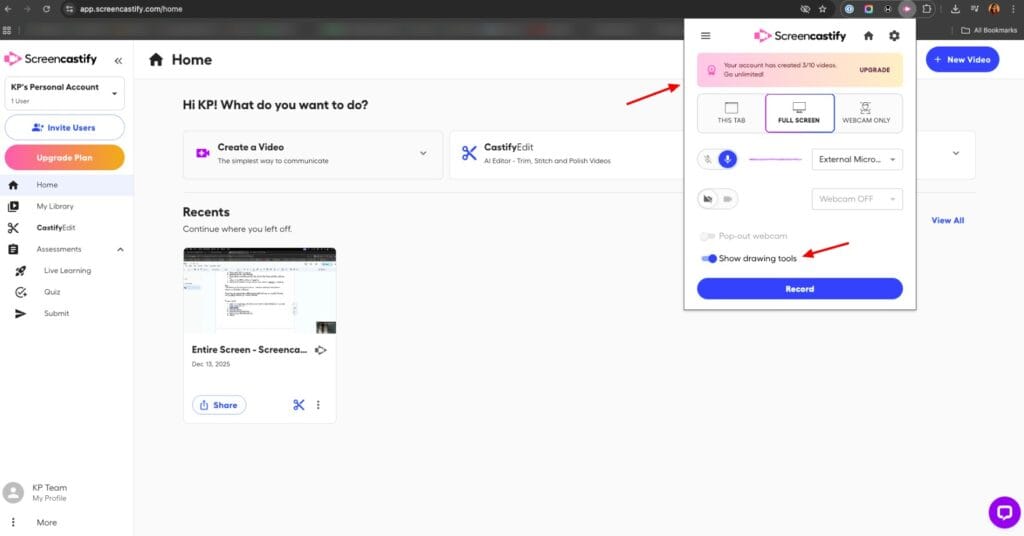
While recording your video, Screencastify lets you add on-screen annotations to highlight text, enable spotlight, add fireworks animation on your highlights, add text, a rectangle, draw with a pen tool, add emojis, etc. These help make your video recordings more engaging.
Once you are done with your video, you can manually add a title, description, chapters, captions & translation, questions, etc, with limited usage. You can also blur, zoom, crop, add audio, and text content to your video. It lets you export in MP3, MP4, GIF, and YouTube formats.
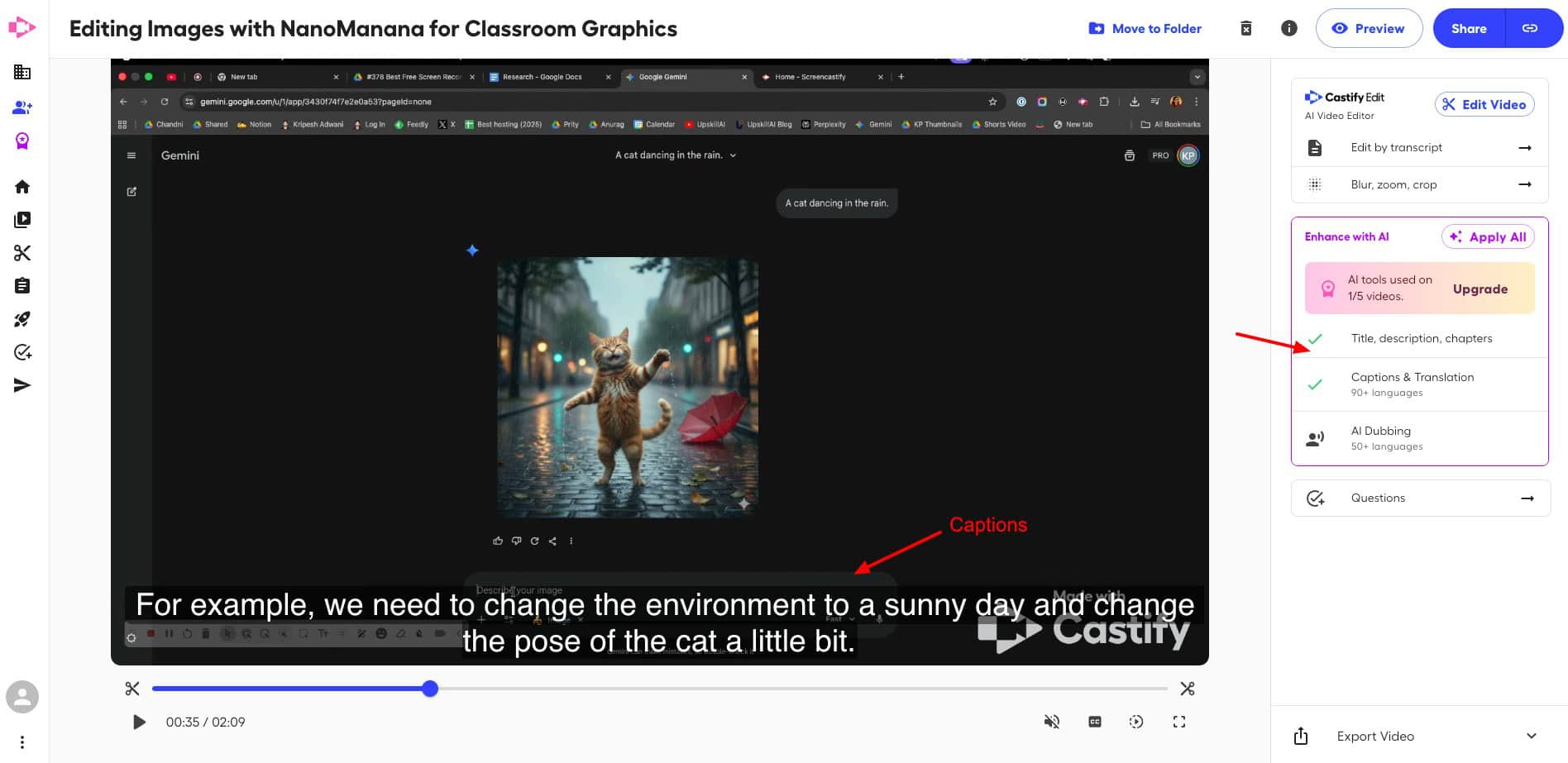
You get limited AI access to generate AI captions with it. The only downside of Screencastify is that it doesn’t specify the output quality. Also, you don’t get any other shapes except a rectangle. I wish they also added arrows, circles, and lines to simplify steps for how-to videos.
You can finally share your videos via links, embed code, email, or through apps like Google Classroom, Gmail, and QR codes. Screencastify is ideal for creating interactive screen recordings for online classes, tutorial videos, explainers, etc.
Pricing: The free plan lets you record 10 videos up to 30 minutes. Its paid plans start from $7/month for unlimited videos.
7) Vidyard
Vidyard is an AI-powered video tool for businesses, marketers, and salespeople. It helps you create and share engaging videos. Getting started with it is extremely easy. Just select if you wish to record your screen, camera, or both.
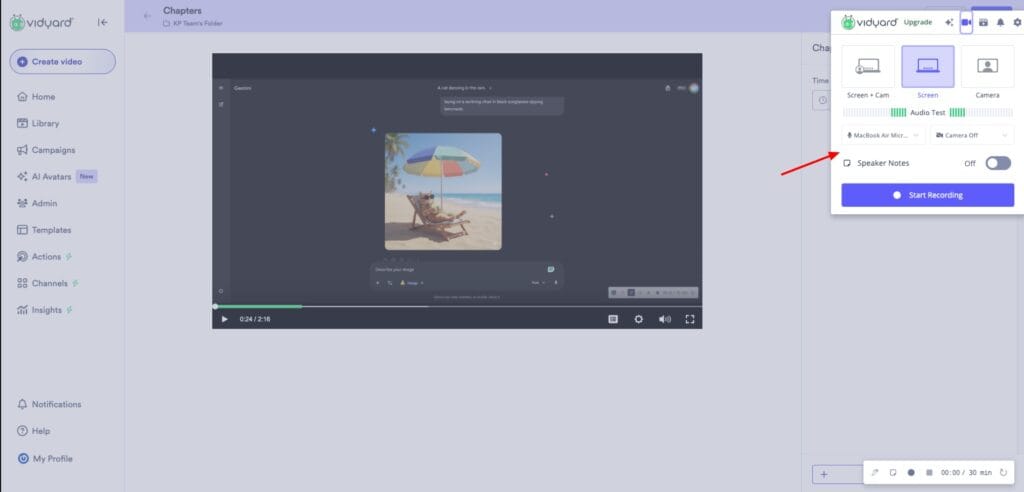
A cool feature of Vidyard is its speaker notes. You can enable your video script beside your video recording or generate it using AI. It also features a handy Audio Test feature that checks if your microphone audio works properly.
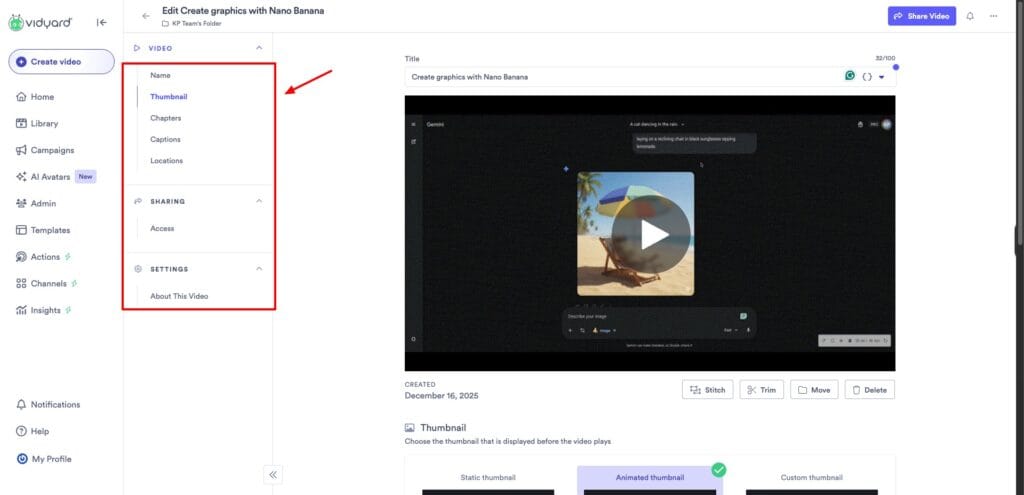
When recording your screen, you can use Vidyard’s drawing tool with variable pen sizes and colors to highlight different elements. The highlights disappear within a few seconds. This feature makes it ideal for recording tutorials, how-to guides, lectures, presentations, explainer videos, etc.
The outputs can be played in 1080p quality. But sadly, Vidyard doesn’t allow video exports. You can share your videos via links only. Overall, Vidyard is perfect for video recordings where you need speaker notes.
Pricing: The free plan lets you create 15 videos/month with a 30-minute recording limit. Its paid plans start from $59/month.
8) Awesome Screenshot
Awesome Screenshot is a popular browser extension for capturing screenshots and screen recordings. Its USP is ease of use. To work with it, you simply need to sign up, pin it to your browser, and it works with 1 click.
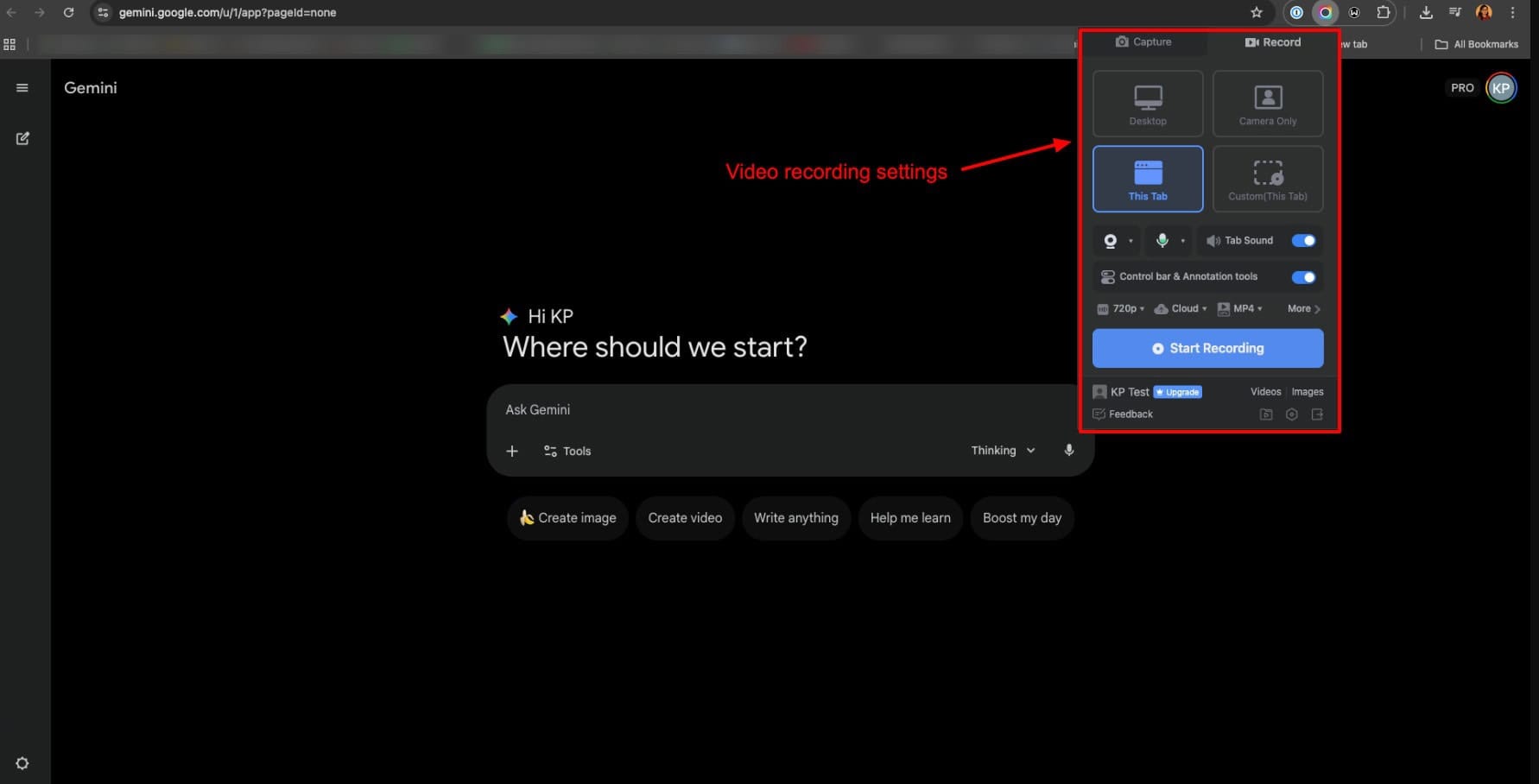
You don’t need to make any additional settings or adjustments. Simply click on the ‘Record’ button and choose if you wish to record your desktop, camera, or your browser tab. Your recording starts after a 3-second countdown.
It also comes equipped with useful editing tools, letting you insert text, shapes, links, blur, and image annotations. These features are useful for highlighting objects, explaining steps, and sharing visual feedback.
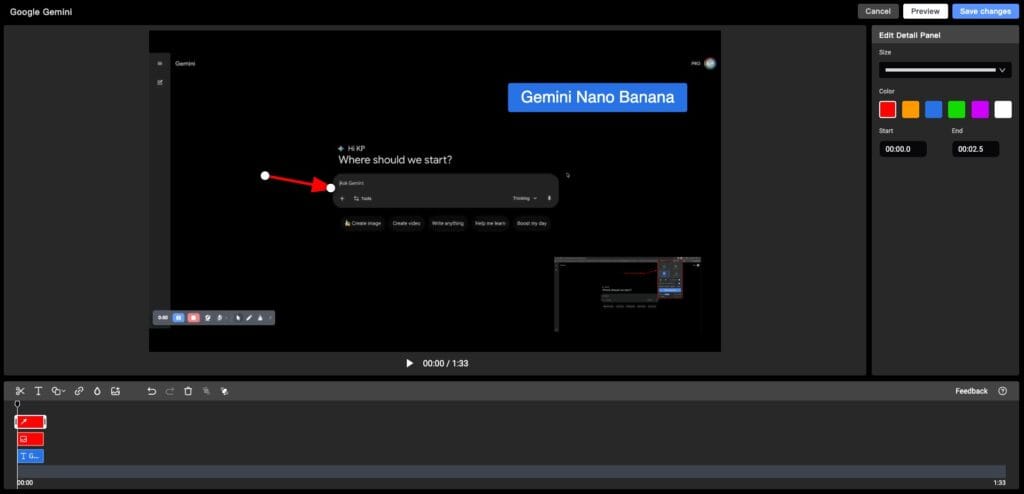
Finally, videos can be exported in MP4 or WebM formats in 720p output quality. However, I experienced errors when recording my webcam along with my screen. It didn’t capture my camera and displayed a white box in its place instead.
If you need quick screen recordings to resolve support queries, create tutorials, and feedback videos, where speed matters more than advanced controls, try Awesome Screenshot.
Pricing: Its free plan lets you create up to 20 recordings with a 6-hour limit per recording. Paid plans start from $6/month, where you get unlimited recordings.
Best Free Screen Recording Software for Desktop
9) OBS Studio
OBS Studio is one of the most popular software for video recording and live streaming. It’s a free and open-source project sponsored by YouTube, Logitech, Twitch, Nvidia, Intel, and other big brands. It features desktop apps for Windows, Mac, and Linux devices.
However, the setup process can be a little complex. First, you need to download the app and enable permissions for screen recording. Then, you need to add a source for capturing your audio, video, and webcam. This can be quite tricky and overwhelming for beginners.
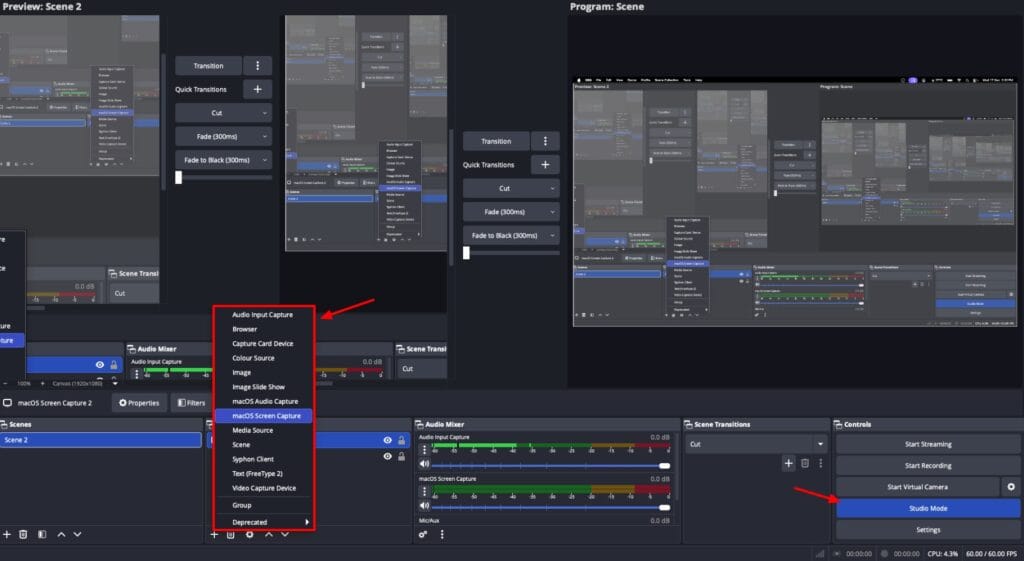
What’s unique about OBS Studio is that it lets you create scenes from multiple sources like webcams, window captures, images, text, etc. Then, you can seamlessly switch between scenes using custom transitions.
Once you finish recording, your videos are exported to your local device in MOV format. Overall, OBS Studio has a learning curve, making it incompatible for newbies. It is ideal for professionals, streamers, educators, & creators who want granular control over their recordings.
Pricing: OBS Studio is a free and open-source project. So, all of its features are completely free to use.
10) Camtasia
Camtasia is a popular screen recording and video editing software designed for desktops. It’s known for its ease of use and professional output. Getting started with it is effortless. Just download the app, sign up, allow access to your screen, camera, and mic, and start recording.
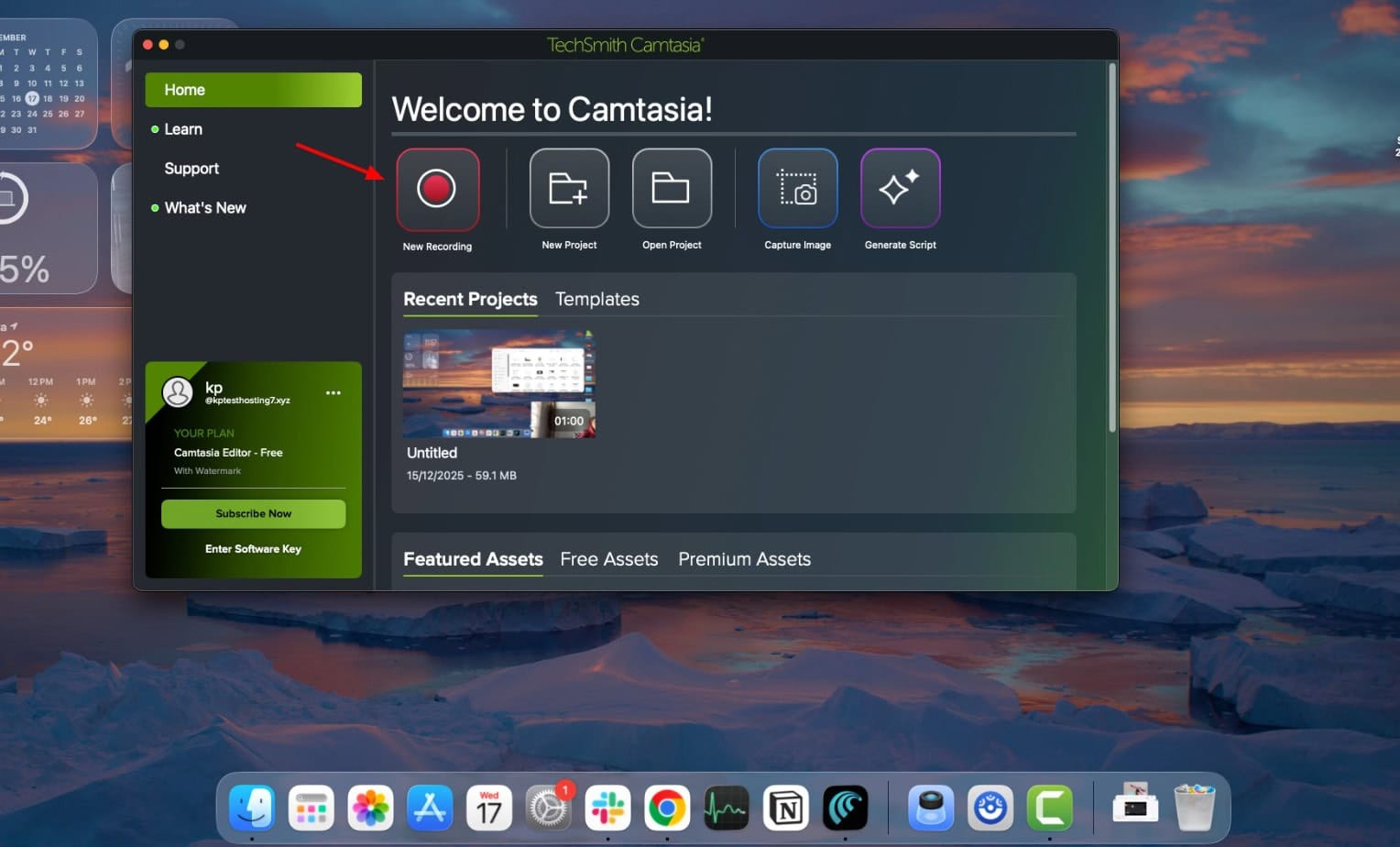
I liked the mic sensitivity. It picks up even subtle sounds clearly. Though you won’t find any advanced controls when recoding your video, it does offer a powerful post-production editing suite.
It lets you enhance your videos with annotations, transitions, animations, cursor effects, audio and voice narration, gesture effects, and captions. You can also transcribe your audio with AI and choose from different caption styles.
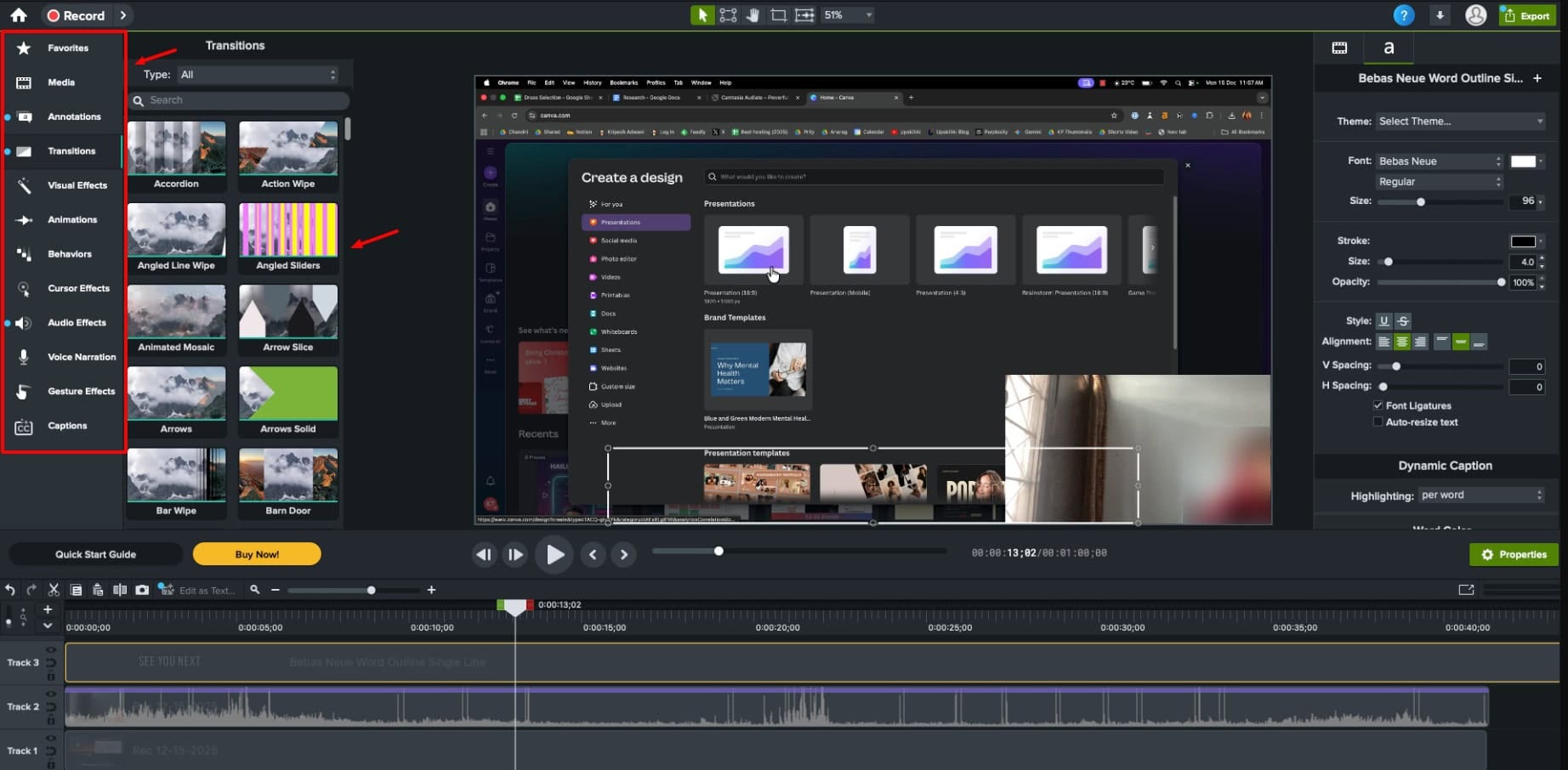
Your final videos can be exported in formats like MP4, MOV, GIF, Screencast, or published directly to YouTube. It doesn’t allow video sharing via links. In my experience, Camtasia is suitable for educators, trainers, marketers, creators, and professionals who want polished, instructional videos with advanced editing controls.
Pricing: The free plan offers unlimited video creation with watermarked exports. To remove watermarks, you can upgrade to its paid plans starting from ₹5,679.20/year.
11) ScreenPal
ScreenPal is a user-friendly screen recording tool that lets you record your device screen, webcam, or both simultaneously. It is quite easy to set up and use, which makes it a desirable option for beginners.
Although it doesn’t offer any additional features while you are recording, like on-screen annotations and scripts, it does offer post-production editing features. You can refine your recordings with overlays, background music, sound effects, transitions, speed adjustments, etc.
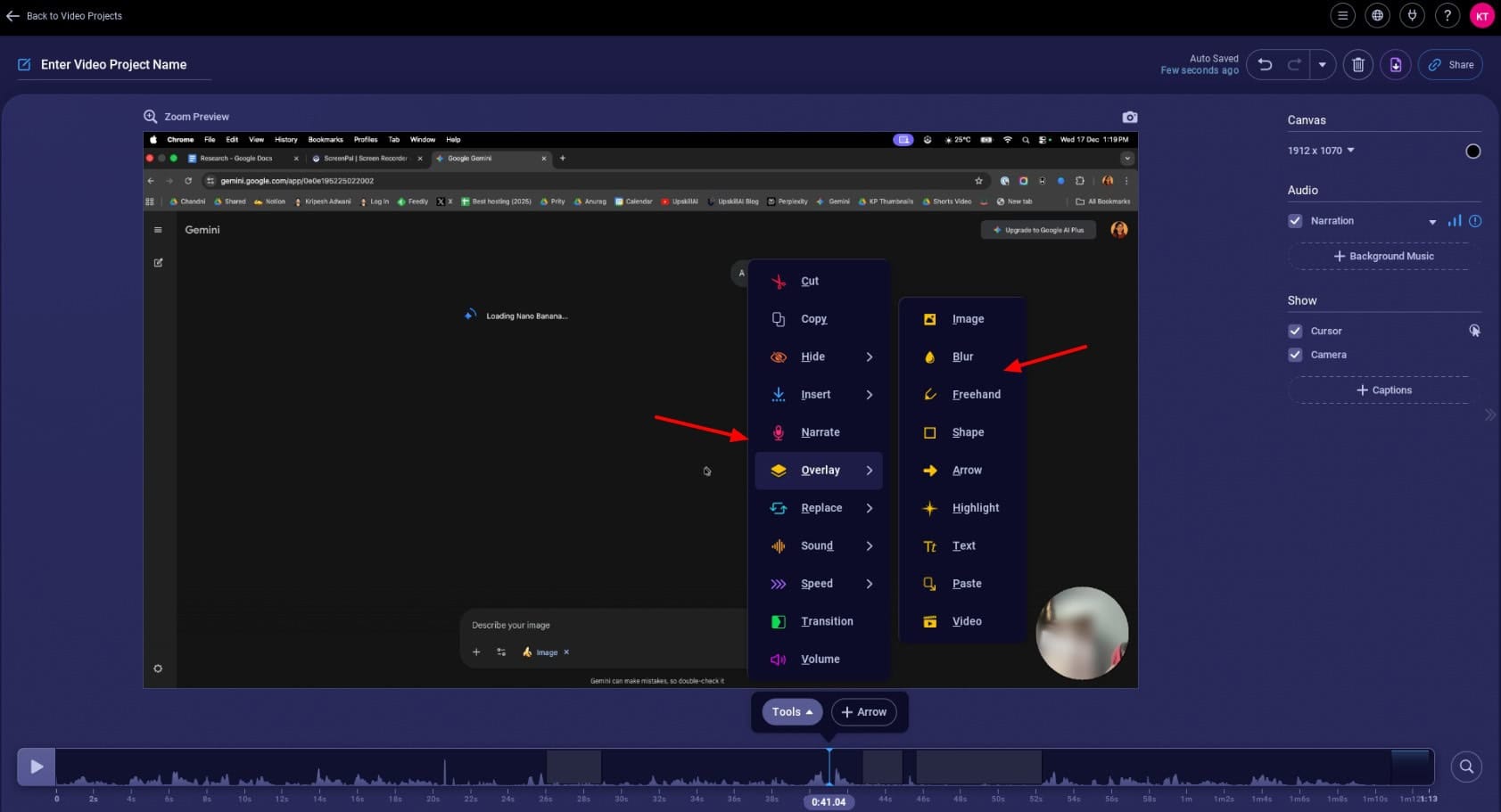
Videos can be exported in 1080p quality in formats like MP4, AVI, FLV, GIF, and MP3. Talking about sharing options, ScreenPal lets you share videos via links or on platforms like Facebook, Google Classroom, Teams, Email, etc. Viewers can also leave comments for engagement or feedback.
Overall, ScreenPal is perfect for educators, trainers, students, and professionals who want a simple screen recorder with built-in editing and easy sharing capabilities.
Pricing: The free plan allows unlimited recordings with maximum 15 minutes of video length. If you need AI captions, interactive video storyboards, unlimited standard stock assets, and 5 video quizzes, you can upgrade to its paid plans starting from $3/month.
Best Free Screen Recording Software for Mobile
12) Mobizen Screen Recorder
Mobizen is one of the top-rated Android apps for recording your phone’s screen. Its setup process is pretty simple. Just install the app, grant it permissions for recording the screen and mic, and start using it. Once you finish, the recording is instantly displayed on the screen.
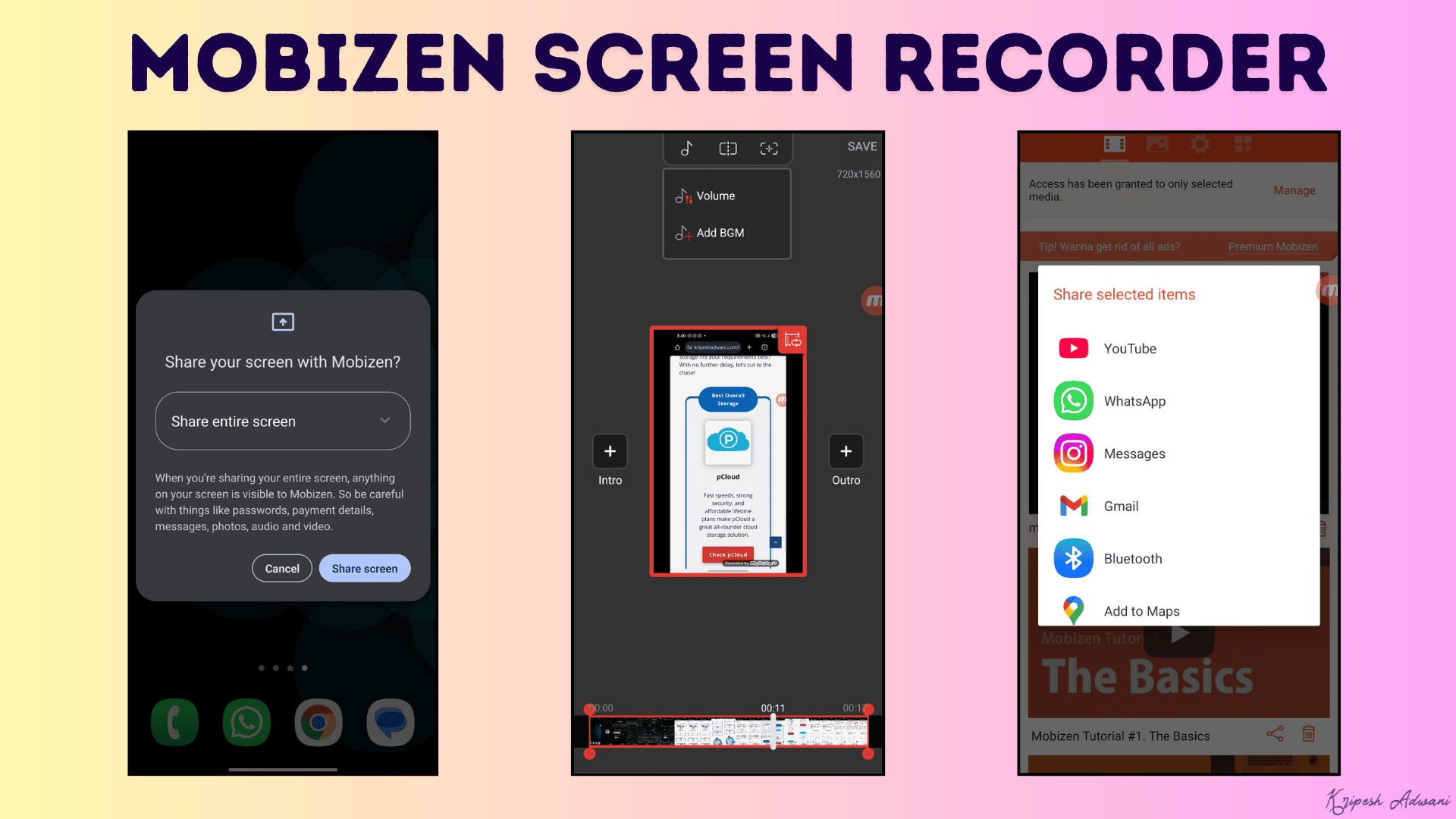
Once the recording is complete, it lets you cut or clip the video, add intro and outro slides, music, text, stickers, backgrounds, adjust speeds, etc. You can finally view your recordings in 240p to 1080p video quality with a 24 to 60 frame rate. Sharing on all installed apps is possible.
However, it doesn’t let you export the recordings. Overall, Mobizen looks like a useful tool for beginners, content creators, and anyone who wants a simplistic tool to record their mobile screens.
Pricing: Its free plan offers all basic tools but with ads on the UI. Its paid plans start from ₹290/month, where you get an ad-free experience, and the ability to remove watermarks, add custom watermarks, create animated GIFs, and more.
13) ADV Screen Recorder
ADV Screen Recorder is a feature-rich mobile app that lets you record your screen activity and audio simultaneously. It’s super easy to use and doesn’t even require you to sign up. Simply hit the record button and start recording.
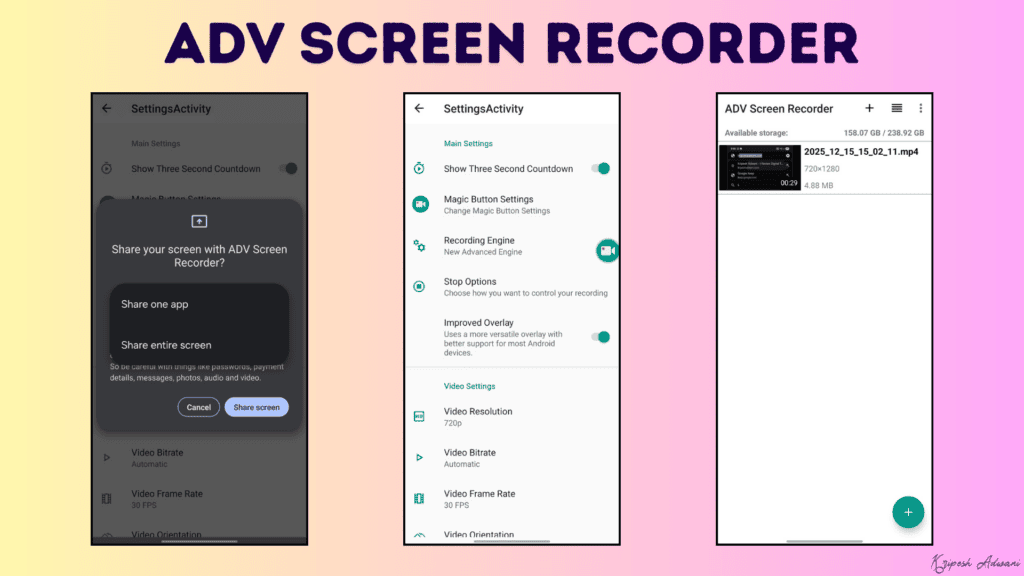
Once you are done, you can download your recorded video as an MP4 file in 240p to 1080p resolution. It also lets you share your recording on all social apps installed on your phone. Content creators and online instructors who need a simple and easy-to-use screen recorder to capture their mobile screen should try this app.
Pricing: The free version lets you create unlimited recordings. But you’ll find ads on the platform. Its Pro version removes all ads and can be availed for ₹90.
How Did We Test These Screen Recorders?
In order to test the above screen recording software, I evaluated each one of them on the following factors.
- How easy is the setup, installation, and overall interface of the app?
- Does it offer video exports in high quality?
- Does it offer any post-production video editing features?
- In what formats can I export the video?
- Does it allow sharing the final video via email and social apps?
- Does it have any AI-powered features?
After the evaluation, I arranged them according to the features they offered and ranked them on my list.
Why Should You Trust Me?
I’ve been working full-time in the digital industry since 2015. Over the past decade, I’ve created thousands of screen recordings and videos for YouTube, social media content, client projects, internal demos, tutorials, and live events.
Because my work heavily involves reviewing digital tools and AI software, screen recording apps have been a regular part of my workflow for years. OBS Studio has been my go-to tool for recording YouTube videos, and I’ve also used other popular tools, like Loom, Camtasia, and BerryCast.
This hands-on experience lets me evaluate screen recording apps practically and share my insights, so you can choose what truly fits your needs.
Conclusion
In this article, we looked at the best free screen recording software for the web, desktop, and mobile devices. My personal favorites are Loom and OBS Studio. I use them frequently for recording tool reviews, how-to guides, and tutorials for my YouTube videos.
I hope you found the software listed in this article useful for your requirements. Which screen recording tools have you used? Do you have any recommendations for us? Do share in the comments section below. We’ll try to test them and add them to our list.
And if you are into video creation and editing, you can check out these detailed listicles on the best AI video generators, AI video editing tools, free video editors for PC, video hosting platforms, and AI video enhancers. Hope these will be helpful for you.
Anyway, I’ll be back with more such interesting listicles. Cheers, and keep learning! 🙂
FAQs
Are free screen recording tools safe to use?
Yes, reputed screen recording tools like OBS Studio, Loom, Camtasia, etc, are usually safe to use. However, it is recommended to always download desktop apps from official websites and carefully review permissions before using them.
Which free screen recorder has no watermark?
If you want watermark-free exports, you can go with OBS Studio, Apowersoft, Screenity, or Clipchamp.
Can I record both the screen and camera for free?
Yes, all the tools on our list allow recording your computer screen and camera for free. There are limitations on export quality, video duration, and watermarked exports, not on recording mode.
Which free screen recorder is best for online teaching?
For online educators, ScreenPal, Screencastify, and Loom are excellent choices. ScreenPal is best for easy editing and sharing; Screencastify integrates well with Google Classroom; and Loom is ideal for quick video recordings with comments and engagement features.
Which is the best free screen recorder for YouTube videos?
OBS Studio is the best free online screen recorder for YouTube with granular controls and high-quality exports. If you want minimal setup, ScreenPal and Clipchamp are good choices for creating tutorial-style videos.