Does your work revolve around creating captivating and professional-looking videos? But video editing software seem too intimidating and technical? No worries, I’m here with an easy-to-use online tool that can take care of all your video requirements.
Introducing, Wave.video. It’s a complete video solution for all your video needs. Whether it’s creating a video, editing it, live streaming or recording it, or just sharing it with the world, you can do all of it with Wave.video!
Today, we’re doing the Wave.video Review. In this article, we’re going to unpack all the exciting features of this video platform. We’ll begin by analyzing its user interface, free plan, major features, and pricing plans.
Then we’ll discuss its integrations, support, additional tools, and the process of using Wave.video. Finally, we’ll talk about its major pros and cons and I’ll also suggest some suitable alternatives to it.
So, with no more delay, let’s get started!
Wave Video Review
Summary
Wave Video is an AI-powered video creation and marketing platform that helps content creators, bloggers, social media marketers, and businesses transform text and blog posts into engaging videos within seconds.
It offers tools for video generation, editing, and publishing, supporting outputs up to 1080p with background music and subtitles.
Disclaimer : I strongly believe in transparency. If you buy using the links on our site, we may earn a small commission without any extra cost to you. This helps me to keep producing honest reviews. Read More >>
What is Wave.video?
Wave Video is a cloud-based video platform founded by Dmitry Skavish and Kate Skavish in 2017. It’s an all-in-one video platform that lets you create, edit, record, generate, host, and manage your videos.
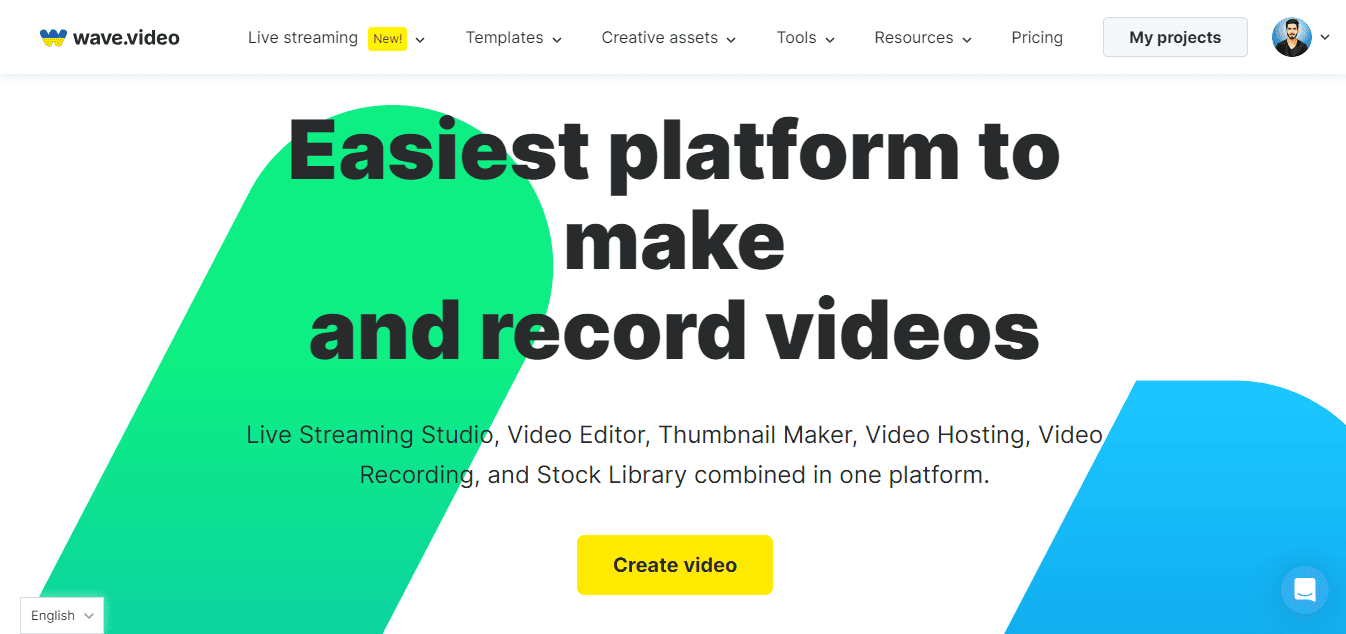
In the last few years, Wave.video has gained much popularity and boasts an extensive user base of 2.4 million+ users. Its ease of use makes it a hit among users of all levels, from novices to professionals.
Wave.video is a pretty refined and established product. A while back, it was launched on AppSumo and was one of the most successful products on their platform. Since then, they’ve made a lot of improvements.
The most popular use cases of Wave.video are online video editing, online podcast recording, live streaming, and screen recording. They also have various AI tools to simplify your video creation experience.
Wave.video Video Review
If you’re not much of a text person, here’s a video review of Wave.video for you! In this video, I’ve done a comprehensive review of Wave.video covering all of its features, Pros, Cons, and a lot more. It’s in the Hindi language with English subtitles. Hope you enjoy watching it!
Wave.video Pricing
Wave.video offers three paid pricing plans, namely Streamer plan, Creator plan, and Business plan. The following table compares their important features.
| Streamer Plan | Creator Plan | Business Plan | |
| Video Editing Limit | 5 min | 30 mins | 2 hrs |
| Stock Library Assets | 2 million | 20 million | 20 million |
| Video Hosting | 30 GB | 30 GB | 500 GB |
| Traffic | 150 GB/mo | 150 GB/mo | 500 GB/mo |
| Live Streaming | 4 hrs | 4 hrs | 12 hrs |
| Image Background Remover | No | Yes | Yes |
| Text to Speech | No | Yes | Yes |
| Shared Login | No | No | Yes |
Wave.video supports payments made through all popular credit and debit cards. In case you’re not sure about purchasing this tool, they also offer a free plan to test out their video editing services.
With the free plan of Wave.video, you can create, record, and edit up to 15 minutes of videos and live stream for up to 1 hour. However, the limitation of the free plan is that it doesn’t let you download videos without watermarks.
Wave.video AppSumo Deal
If you’re interested in lifetime deals, I have good news for you. As of now, Wave.video is available as a lifetime deal on AppSumo for just $99! I am using this plan as well.
With this deal, you can upload 4 hours of streaming or pre-recorded videos. This would be sufficient for most of the users. With this plan, you’ll get 30 GB of storage, along with 150 GB of monthly traffic.
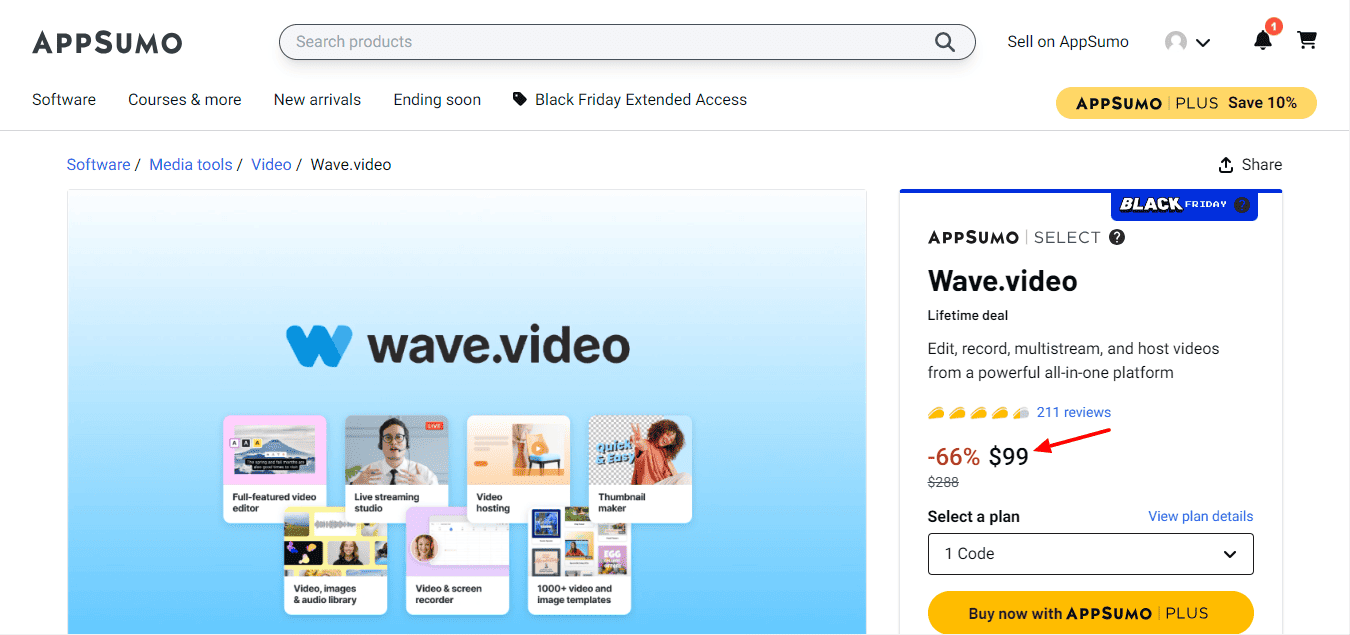
But if you want to create longer videos, you can also check out the $198 plan. It offers 12 hours of streaming or pre-recorded videos. With this plan, you also get 500 GB of storage, 500 GB/month of traffic, and the ability to share your login with up to 5 users.
This is perfect for steaming educational tutorials, conferences, concerts, gaming, documentaries, etc.Wave.video User Interface
The user interface of Wave.video is modern, responsive, and fairly simplistic. The homepage features a list of your projects.
When you click on ‘Create’, you’ll be able to view all the ways you can use Wave.video. You can create a video, image, or recording from scratch, or use their templates and stock assets. You can also use the AI video generator options or import videos from YouTube or Instagram.
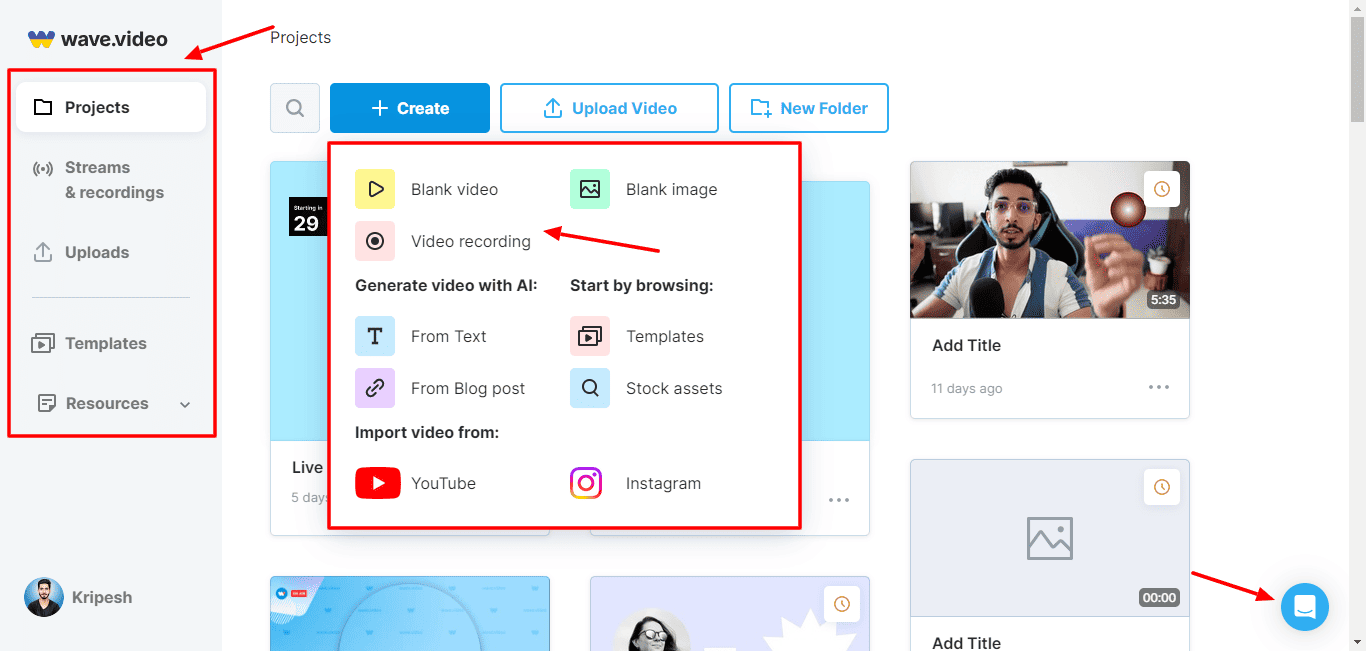
Whereas, the left column lets you view your live streams and recordings, uploads, templates, and resources. On the bottom right corner, you’ll find a helpful chat button to contact support whenever you get into any trouble.
Overall, the user interface looks fairly easy to use. But as you keep on exploring different tools, you’ll find lots of intricate features under each of them. It may be slightly overwhelming for first-time users. But professionals won’t have any problem operating it!
Wave.video Key Features
Wave.video offers dozens of striking features to make the process of video creation, editing, and management easier for you. Let’s check out its significant features below.
1) Online Video Editor
The video editor interface of Wave.video is pretty easy to understand and navigate. You can either upload your own video, choose a video template, stock video clip, or just start from scratch.
On creating a blank video, you’ll be presented with options to add an image, video, template, etc.
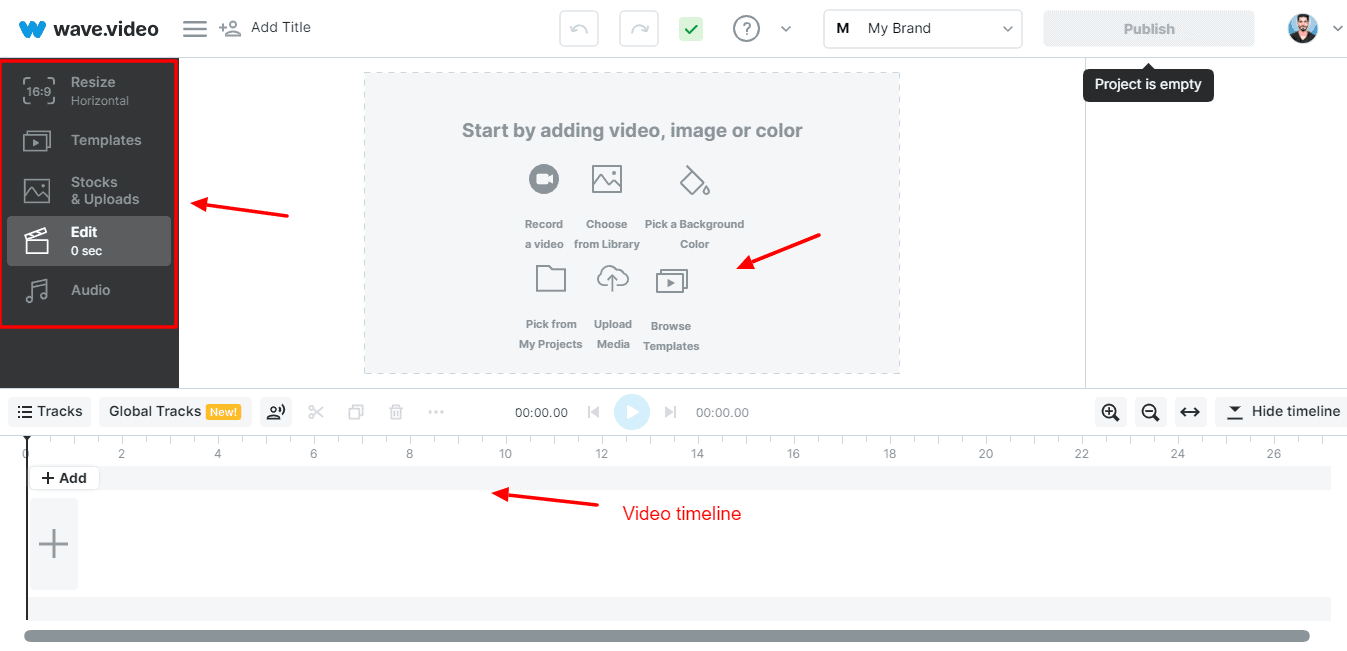
On the bottom of the screen lies the video timeline, which is similar to other video editing software. The editor supports drag-and-drop functionality, so you can drop effects, text, transitions, and audio, on the timeline to add them to the editor.
You can begin by resizing the video and adding text and a brand logo. If you have a custom font for your brand, you can upload that as well. You can also add watermarks and split the video if you need.
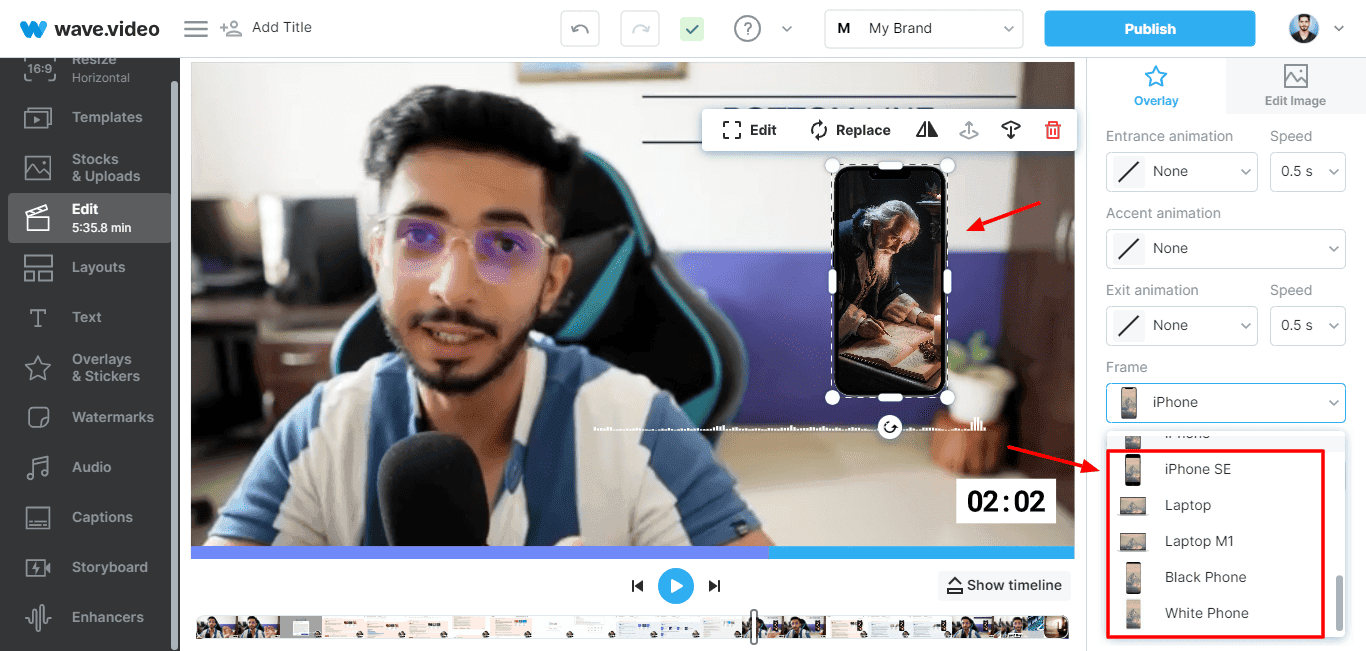
The overlays and stickers tab features hundreds of cool emojis, social media icons, Giphy GIFs, etc. I wish they provided a search bar for searching via keywords. You can also add custom media on top of your overlay and select frames like Star, Polaroid, Laptop, Phone, etc.
2) Pre-Made Professional Templates
Wave.video offers an enormous library of professionally designed templates. You can choose from 1000+ catchy video templates in multiple formats like horizontal, vertical, story/reels, square, Facebook Cover, etc.
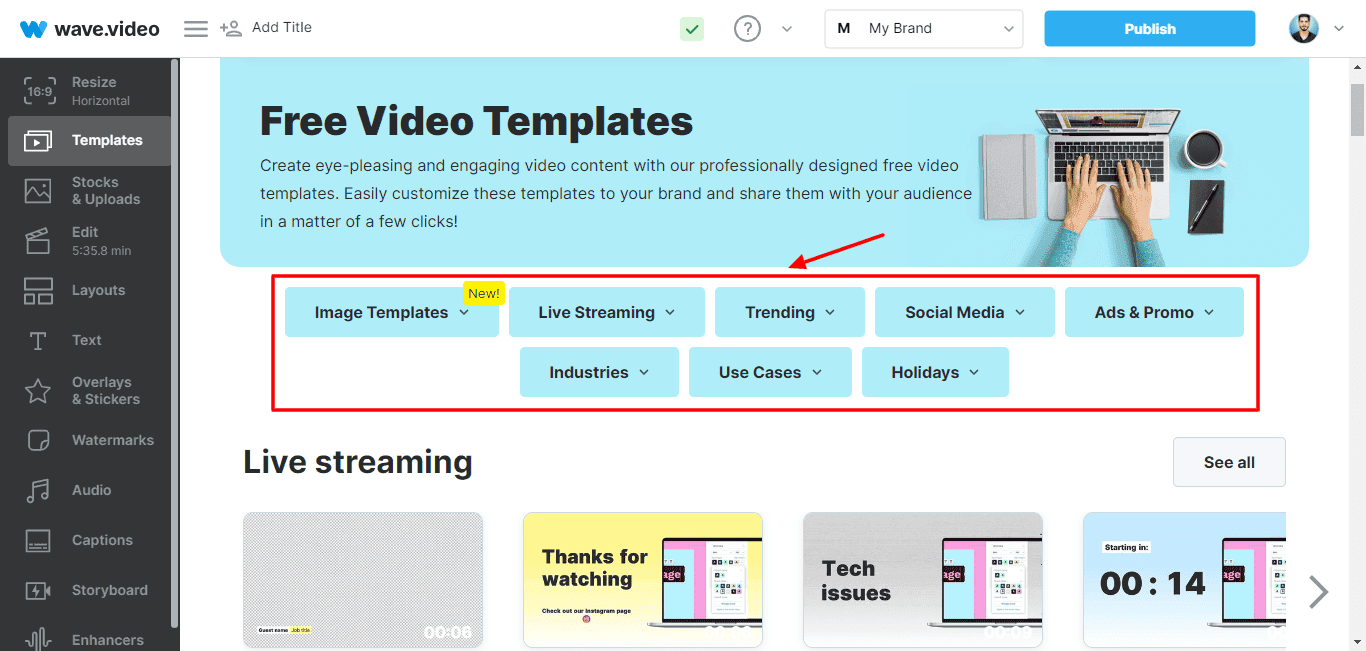
You can also pick them by categories like use cases, social media templates, trending templates, ads and promo templates, etc. They have also launched image templates, where you can find templates for thumbnails, memes, Facebook covers, Quotes, and more.
I didn’t find the templates very catchy. But beginners will surely like the diverse options to implement in their videos.
3) Extensive Asset Library
The Stocks Library features millions of images and videos that you can include in your videos. You can filter them by category, price, visual style, etc. Some popular categories are Technology, Backgrounds, Travel, People, Transport, Food, etc.
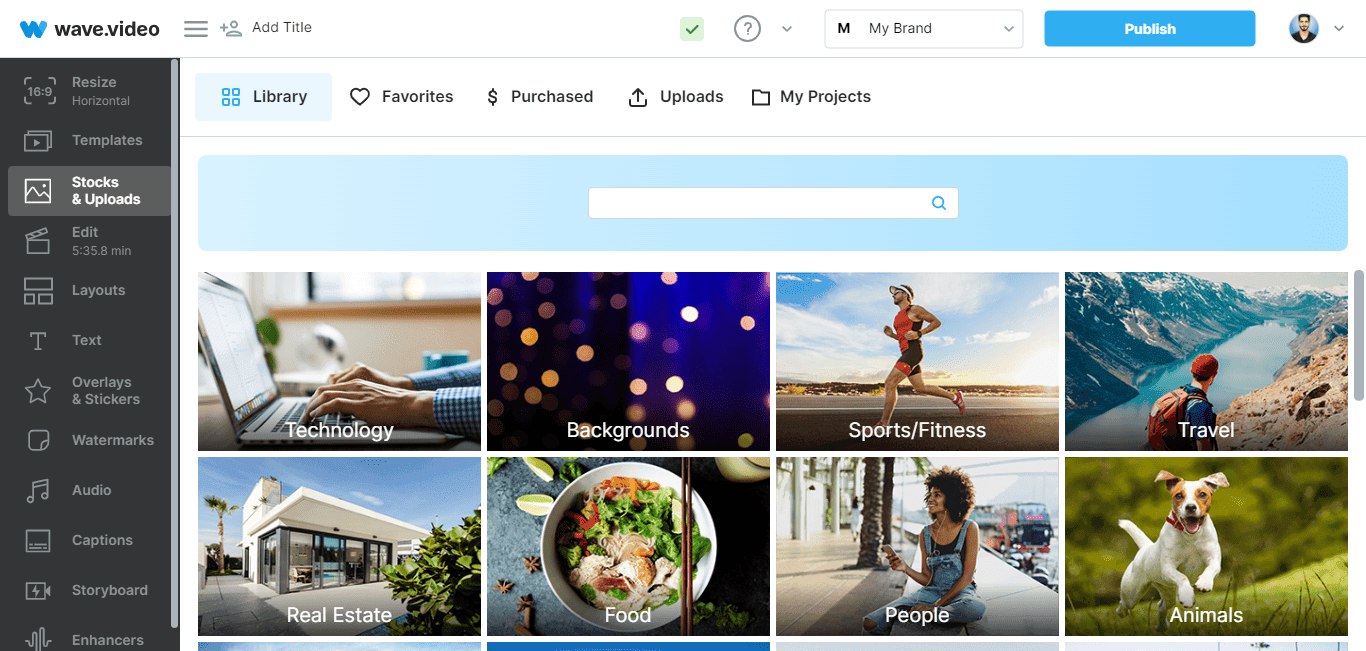
If you like an image or video, you can preview it on the screen. Then, you can either add it to your video timeline or click on the “Search Similar” button to find more assets resembling it. Overall, their image and video collection is great for creating a wide range of videos.
4) Engaging Enhancers
If you want to create some catchy social media videos, you can try the enhancers from Wave Video. These are basically engaging elements you can insert into your videos to make them stand out!
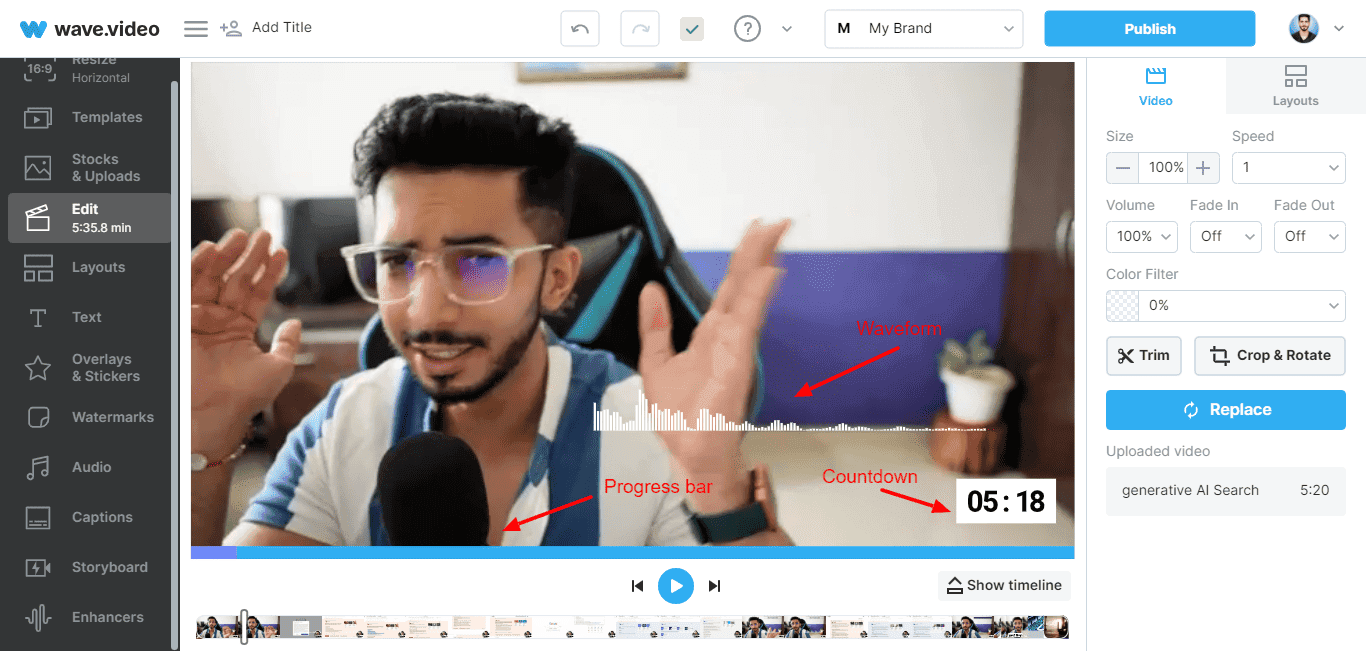
For instance, the Waveforms tab generates a live wave diagram of your audio. The Progress bar keeps on increasing as the video keeps on playing. Similarly, the Countdown timer shows the time left for the video to finish. You can adjust their size, position, duration, color, etc.
These can be placed on your videos to enhance their visual appeal. It works really well for social media videos like Instagram reels and YouTube shorts.
5) Video Transitions
If you are working with multiple short video clips, you can use transitions to progress from one to the other. Wave.video offers multiple transitions like blur, spin, wipe, cross-dissolve, etc. You just need to click on the small button on the timeline between the two video clips.
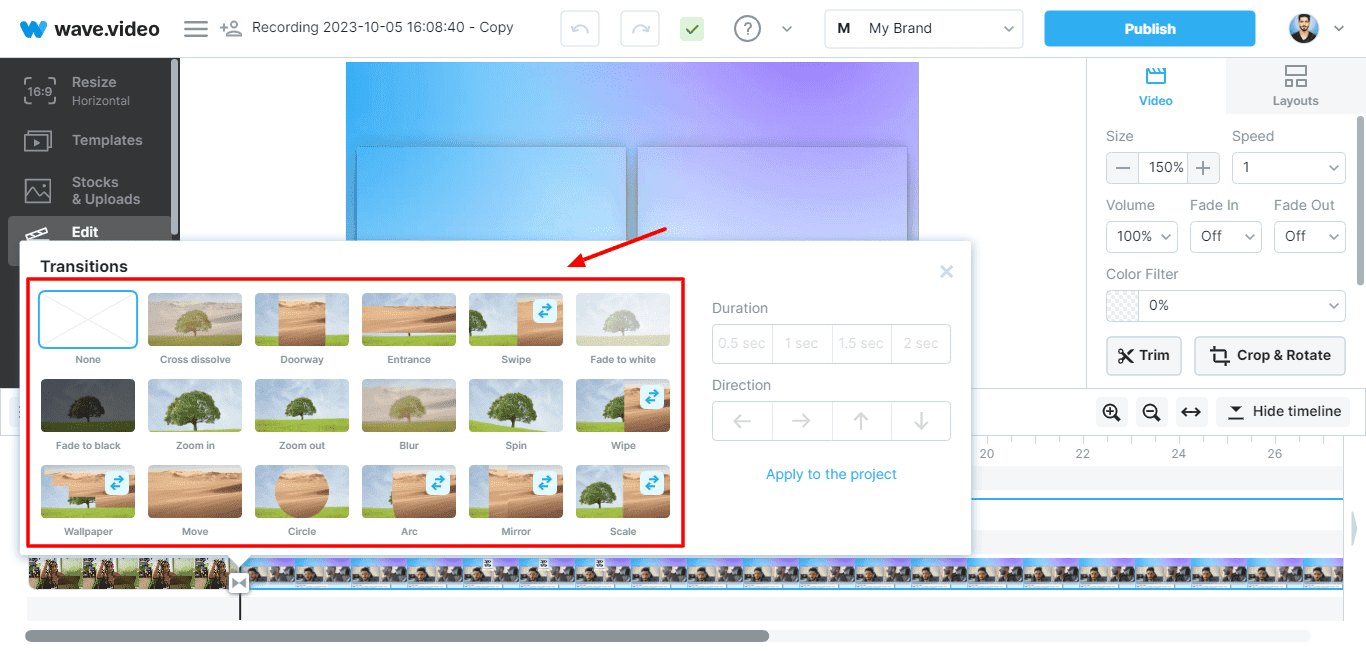
If you wish to experiment with more cool effects, you can head over to the Layouts tab and check out the different categories like Artistic, Best for Captions, Picture in Picture, etc.
6) Live Streaming Studio
If you frequently need to go live on social media platforms, this feature will save you a tonne of time! Wave.video has its very own live streaming studio, where you can live stream on multiple social media platforms.
To begin with, you need to give a name and description to your live stream and specify the folder where the recording will be saved. Then, you can upload a thumbnail and choose your preferred streaming destinations. This may include FB page, Instagram, YouTube, LinkedIn, etc.
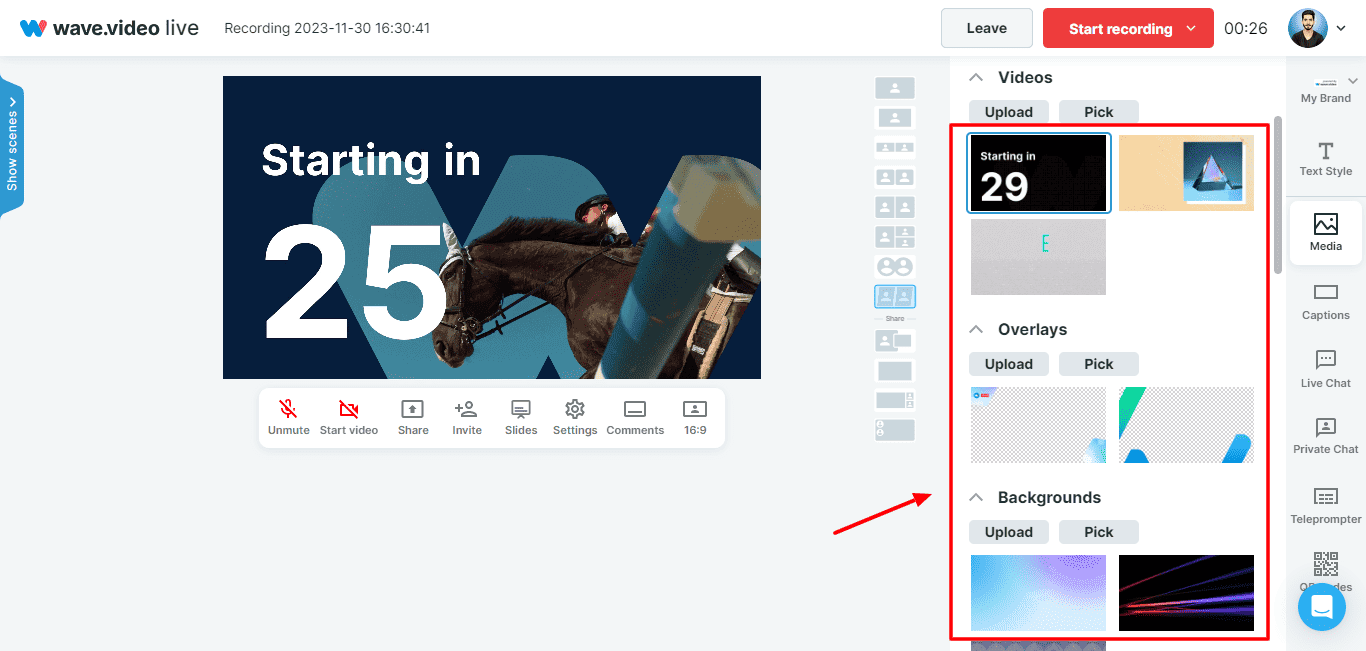
You can experiment with various video templates, overlays, backgrounds, sound effects, audio, text styles, logos, etc to create a screen for your live stream. You can also add multiple screens and camera angles.
Once the screen is ready, you can enter the Live Streaming Studio and invite your guests. If you want to allow your guests to be able to co-stream with you to their own audience base simultaneously, you can enable this function from the settings.
You can also use the Private Chat to chat with your guests and the Teleprompter to read out a script only visible to you!
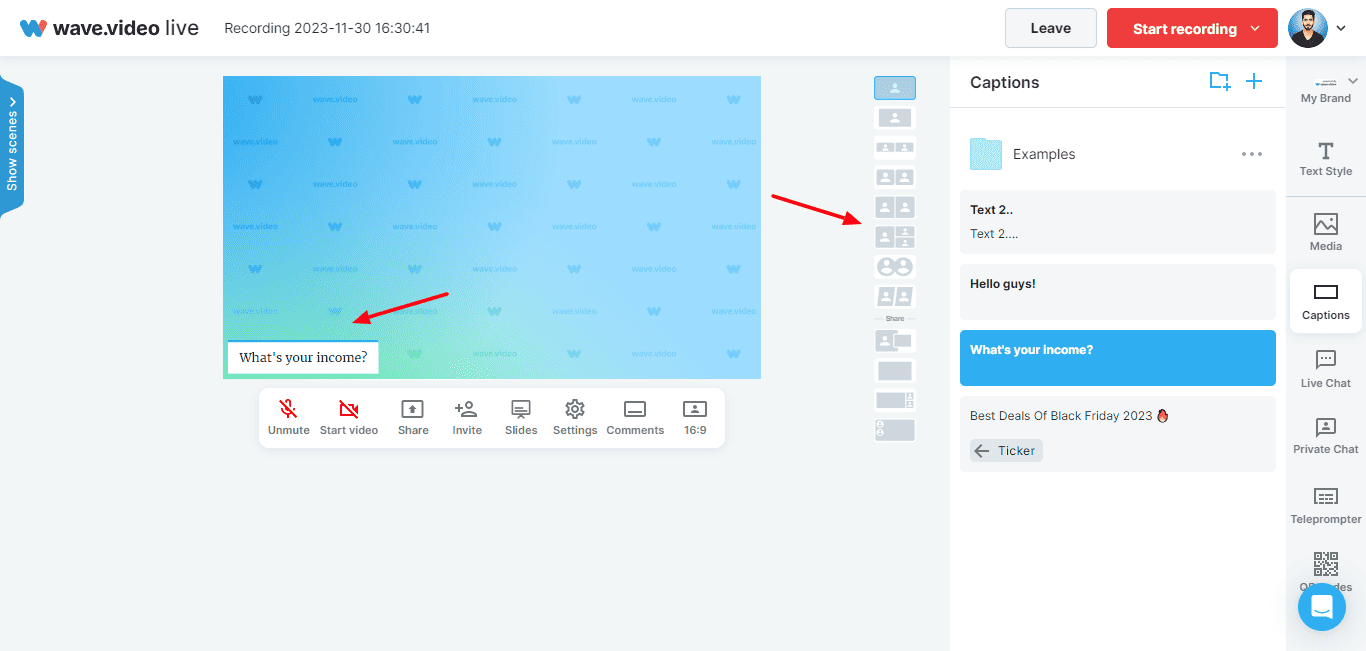
Another cool thing about this tool is the live chat. This tab clubs the live chat messages across all the platforms you’re streaming on and presents them to you. You can also hit the “Show on Stream” button to inform your users about the question you’re currently answering.
This is a really time-saving and convenient feature. Overall, I really liked the powerful and highly customizable live-streaming functionality of Wave.video editor.
7) Video Recorder
You can also use Wave.video as a video recording tool. It offers two types of recordings: Simple and Advanced.
The Simple recordings can be used when you wish to only record your webcam or screen. For instance, you can use them when creating tutorials, offering feedback or support, creating online lectures, etc.
The Advanced recordings are live cloud-based recordings where you can invite guests, play videos, add overlays, different layouts, etc. These are useful when you’re conducting live-streaming sessions, podcasts, etc.
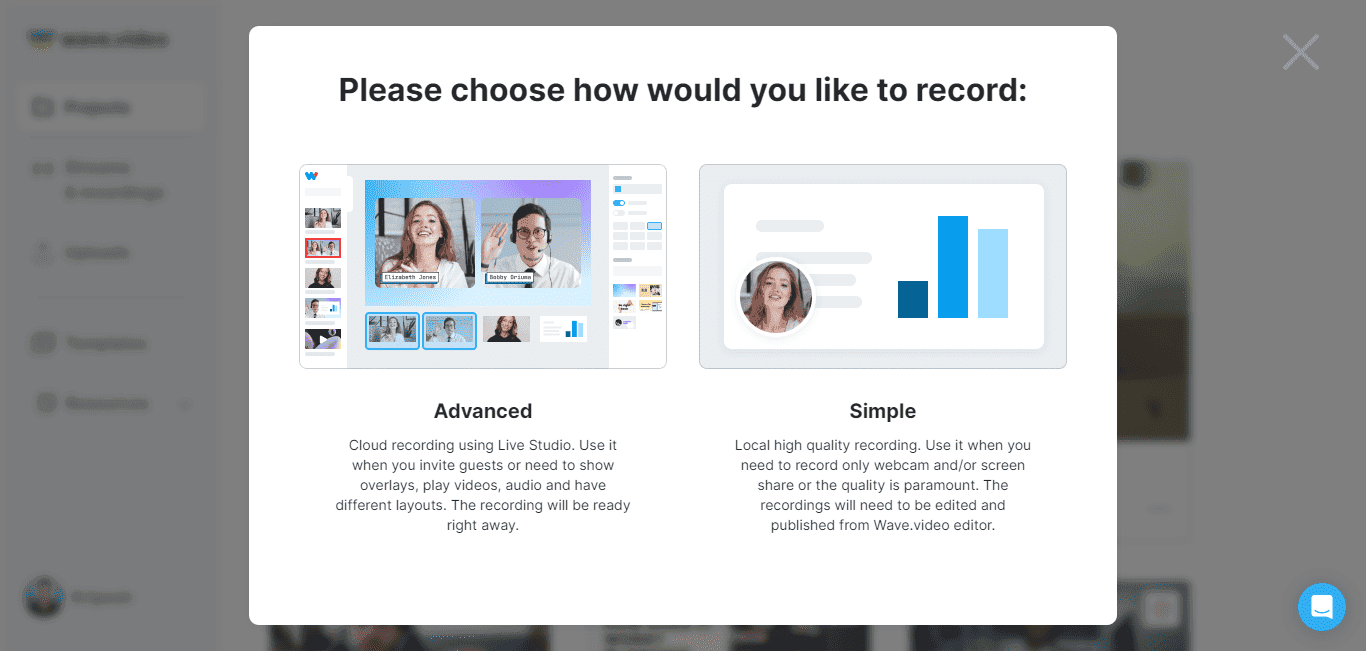
I found the Advanced Recorder to be ideal for recording podcasts. It has multiple screen layouts, the ability to invite guests, add tickers, insert background, overlays, and media, display live questions on screen, and more.
This will not only make your podcasts more engaging but also reduce the post-processing time. Overall, it’s a pretty polished product.
8) Secure Video Hosting
Another essential feature of Wave.video is its secure video hosting solution. It allows you to upload 30 GB of video content with 20 embeds and 150 GB of monthly bandwidth on its Streamer and Creator plans. For extended limits, you can check out its Business plan.
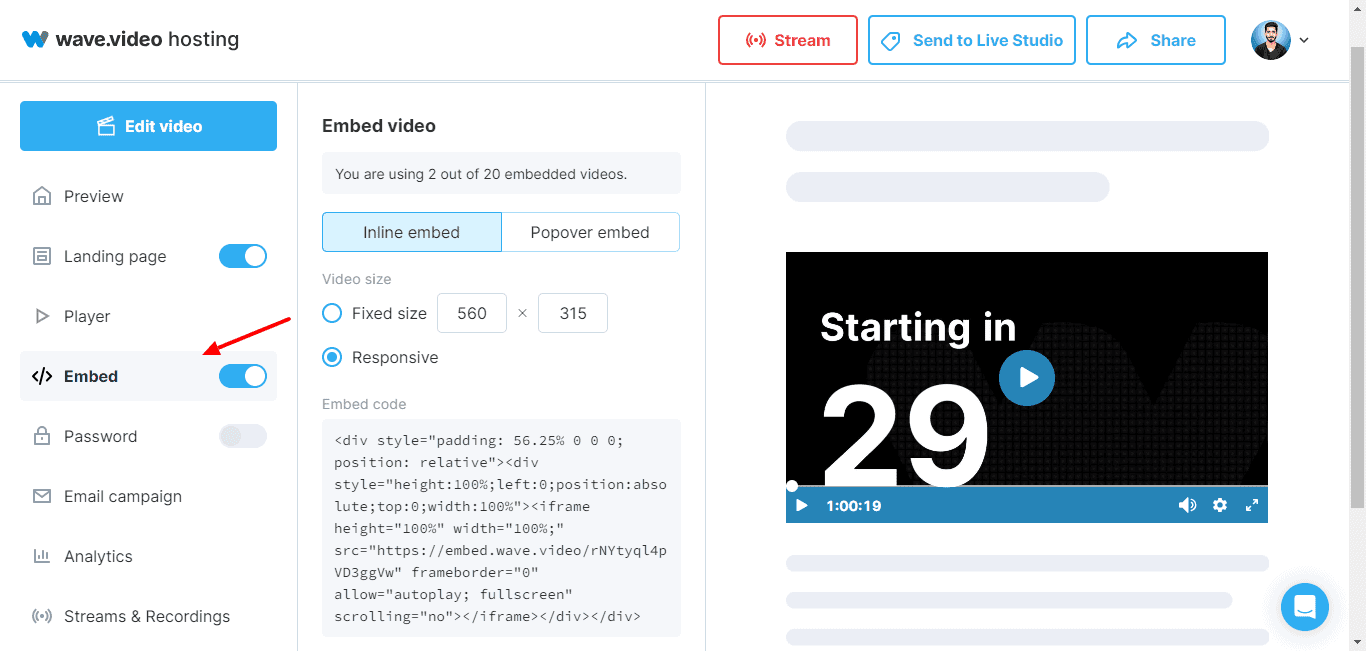
It also allows you to easily embed your videos on your website, landing pages, blog posts, and email campaigns. You can create video landing pages and secure your videos with passwords to allow intended users to access them.
Apart from that, I really loved how it also lets you customize your video player as you need. You can edit the player color and video thumbnail as per your brand and even customize the player controls.
9) Image Editing
You can also edit images in Wave.video editor, somewhat like Canva.
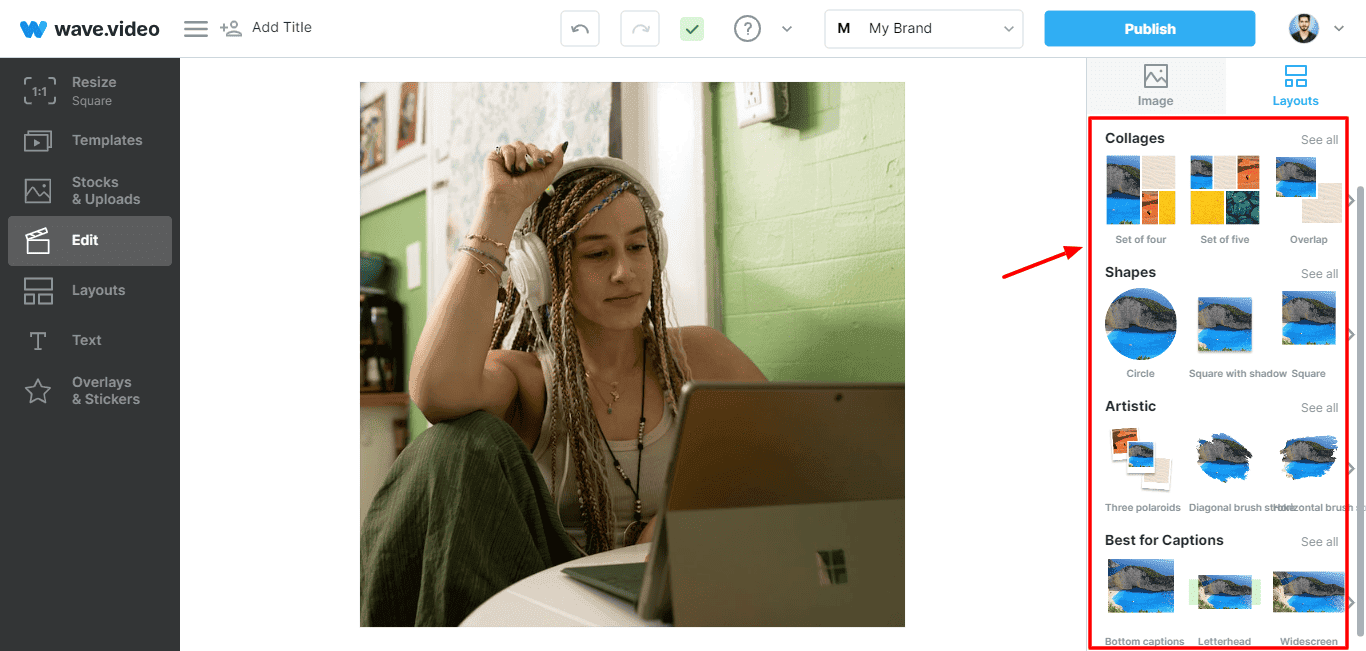
It offers various image options, like the ability to use stock images, resize your design, change the layout, add overlays and stickers, etc. But I found these features to be pretty basic and average.
10) Video Landing Page
If you wish to share a video, wave.video lets you directly share it on the available social platforms or get a public link to share it with specific people. It also allows you to create a separate landing page for each of your videos.
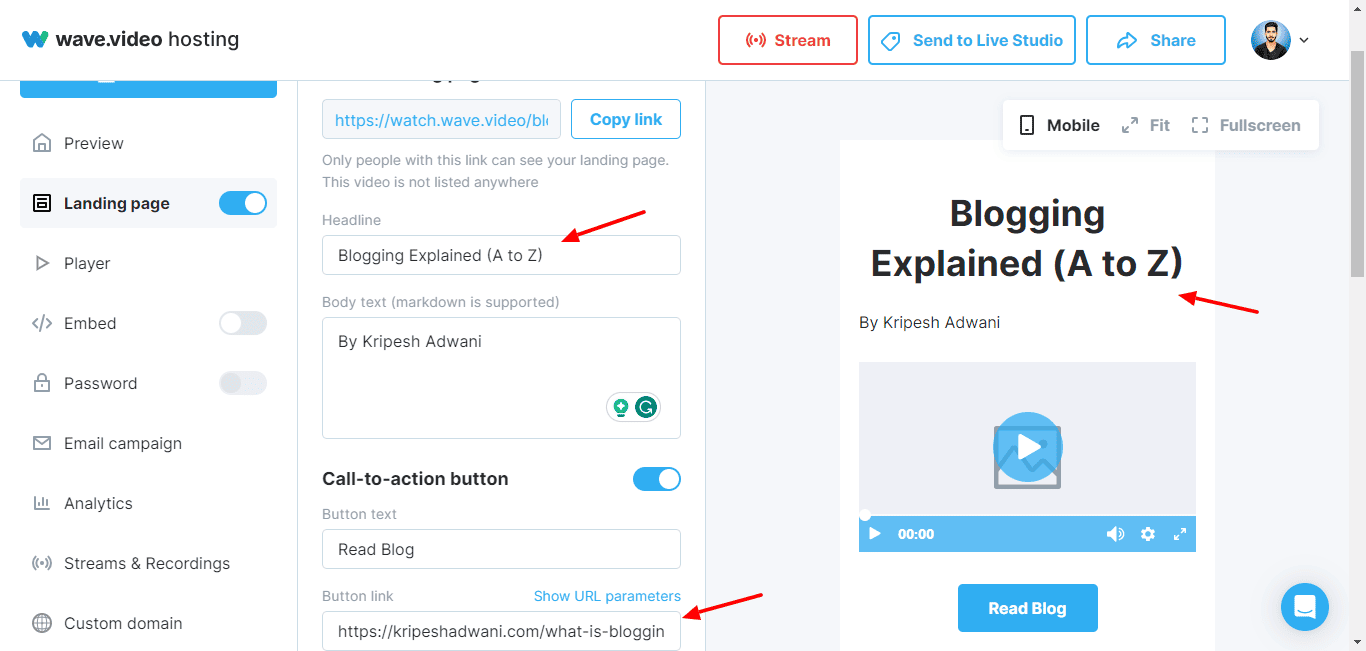
To design your video landing page, you can add a heading, body text, CTA button, logo, layout, and theme. It also offers tracking options, so you can insert your Google or Facebook Pixel tracking ID to track the actions performed by your visitors.
Wave.video AI Tools
Wave.video also integrates artificial intelligence to enhance your video editing capabilities. Following are the popular AI tools you’ll find on their platform.
Automatic AI Captions
If you need subtitles for your video, you can use the automated caption generator of Wave.video. It generates captions in dozens of languages. I really liked how it generated accurate captions in languages besides English as well.
For instance, when I generated AI transcripts for a video shot in the Hindi language, it generated them exceptionally well. It kept the words spoken in the English language intact, and transcribed the Hindi words, which was really smart!
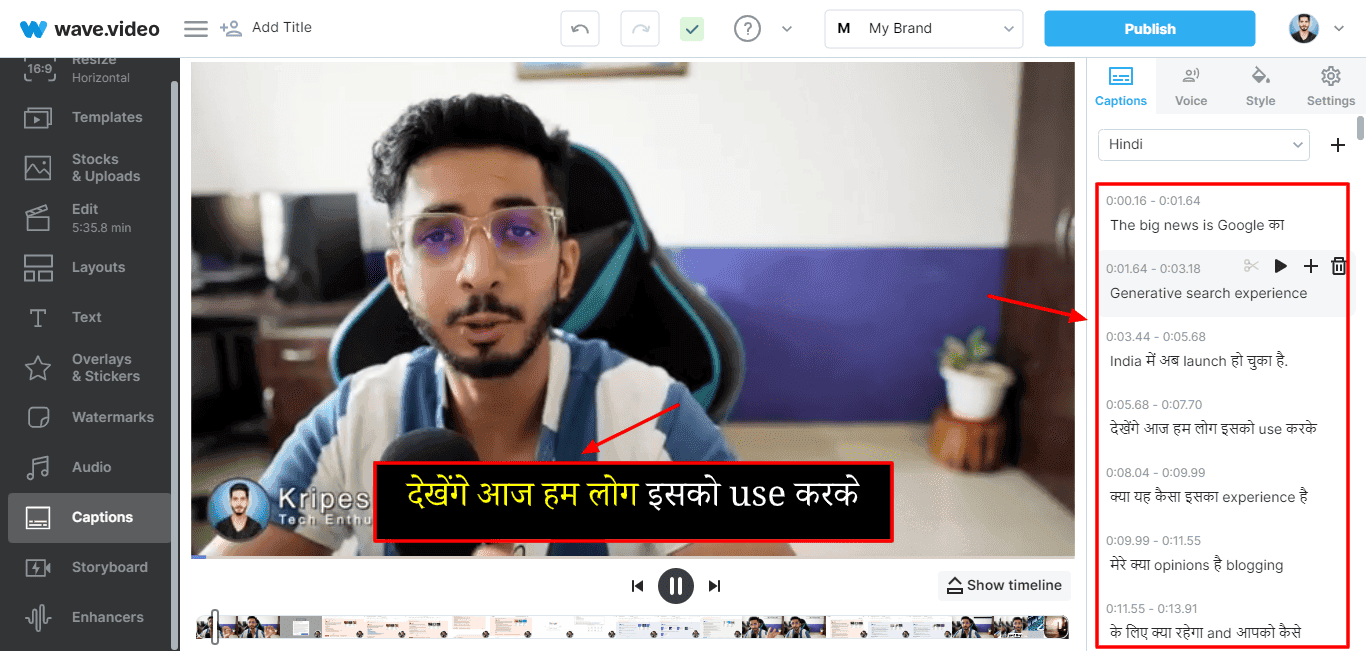
Apart from that, it also keeps on highlighting the words in the transcript as the words are being spoken on the screen. I found this to be a really cool feature. You can also customize the font style, text color, background color, and other properties.
I feel like the Automatic AI Captions will be a really useful feature for short content creators.
AI Text-to-Speech
This tool is perfect for videos generated with AI text-to-video maker. If you have captions ready for your video and need a voice to narrate them for you, the AI Text-to-Speech tool can be helpful.
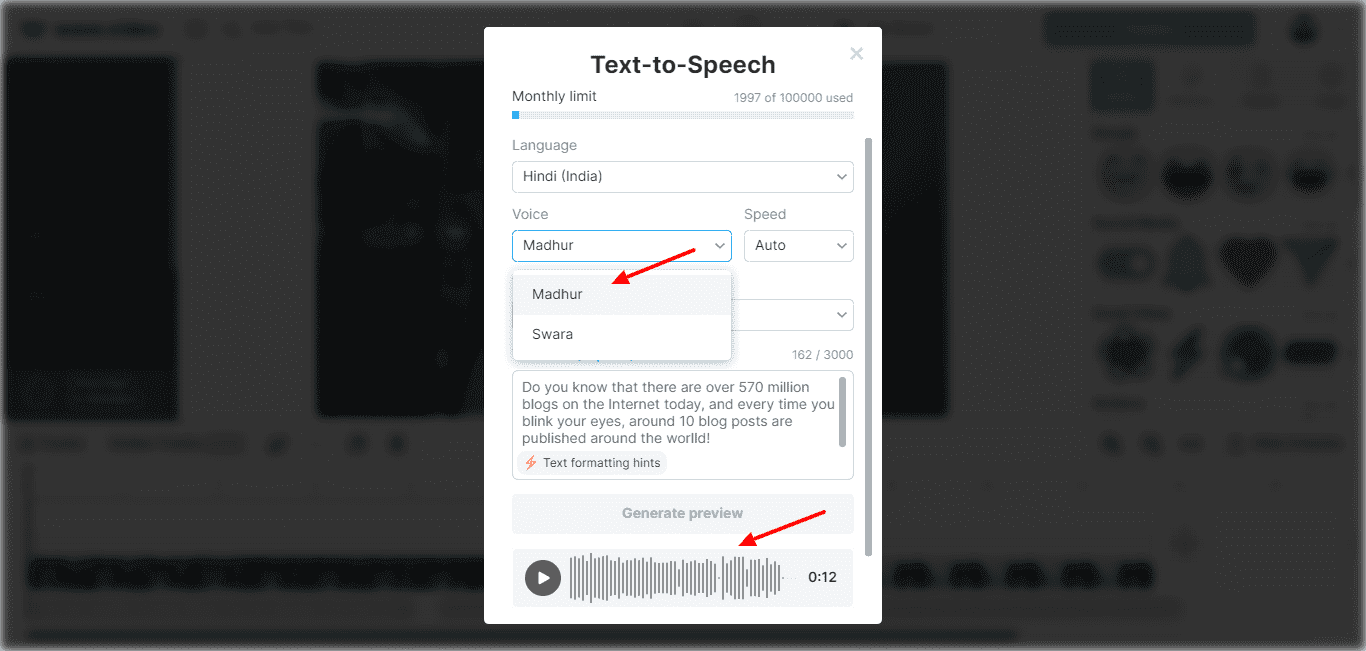
All you need to do is select a language of your choice, choose an AI voice, set a speed, and supply your text. It’ll be converted into AI speech within seconds! It even generates Hindi voices when you provide it with a script in Hinglish or Hindi font!
I really liked the variety of AI voices in Wave.video. It’s at par with all the popular AI text-to-audio generators out there!
AI Text-to-Video
Wave.video offers an exciting AI Text-to-Video Creator that has been catching eyeballs for the last few months. It transforms your text content or blog posts into stunning videos within seconds.
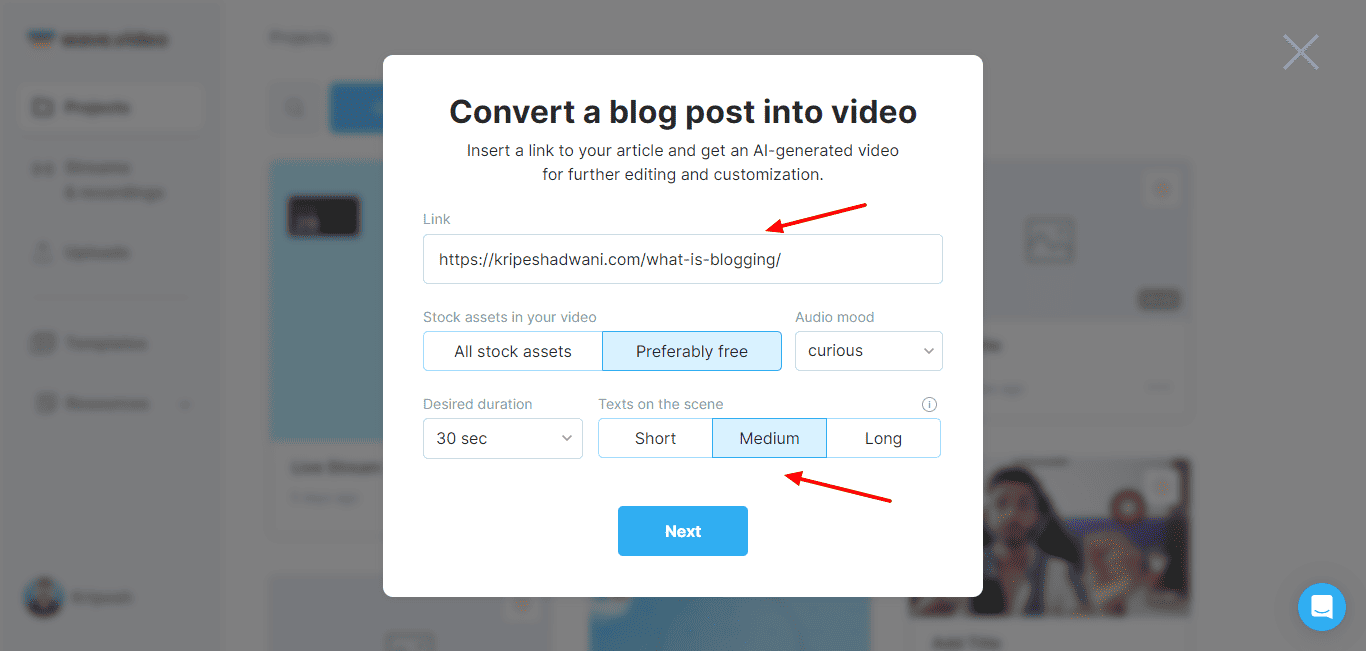
To get started with this tool, you simply need to paste your blog post’s URL and choose a mood, video duration, text length, and video format. It’ll automatically generate an AI video with engaging graphics, stock video footage, background music, and AI subtitles.
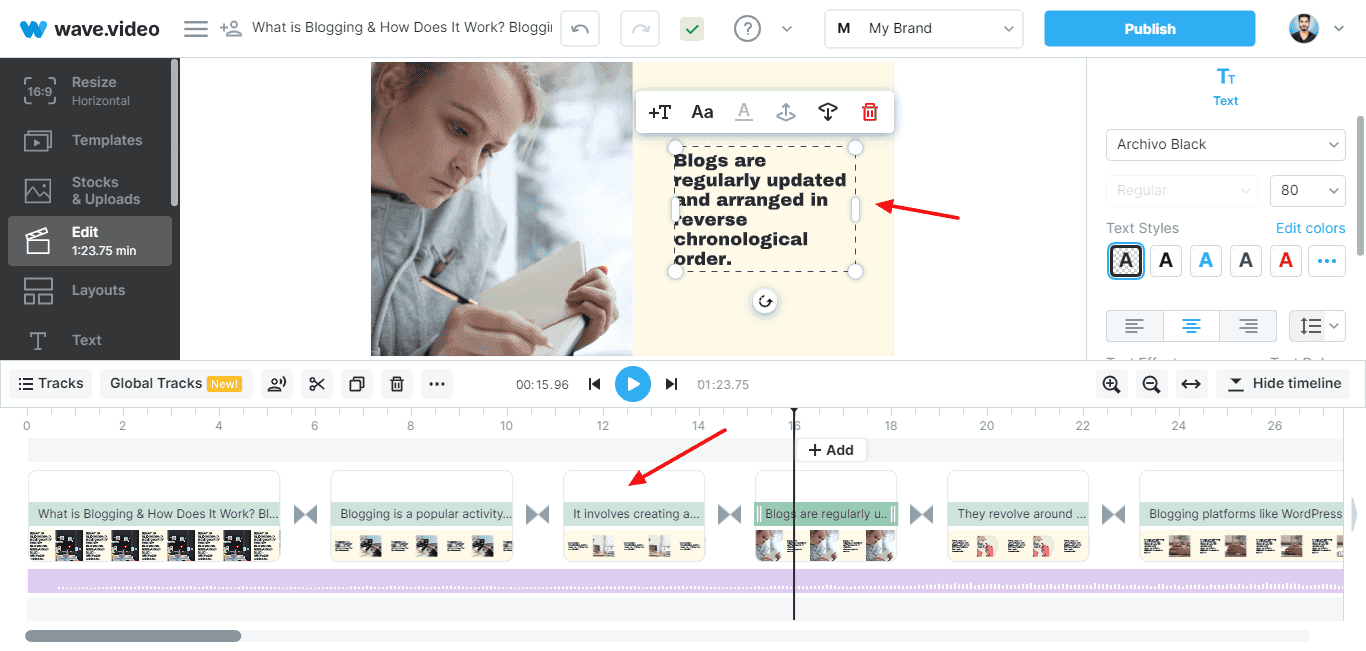
The video generation was quick, and it looked pretty engaging. However, the video footage wasn’t appropriate for most of the slides. It also didn’t have an AI voice narrating the script. I hope to see Wave.video refining this AI tool in the future.
Wave.video Support
Wave.video features a knowledge base with 150+ articles covering all the major topics. The articles are annotated with images, well-structured, and easy to follow for beginners. It also offers chat support where the replies arrive within 20-30 mins.
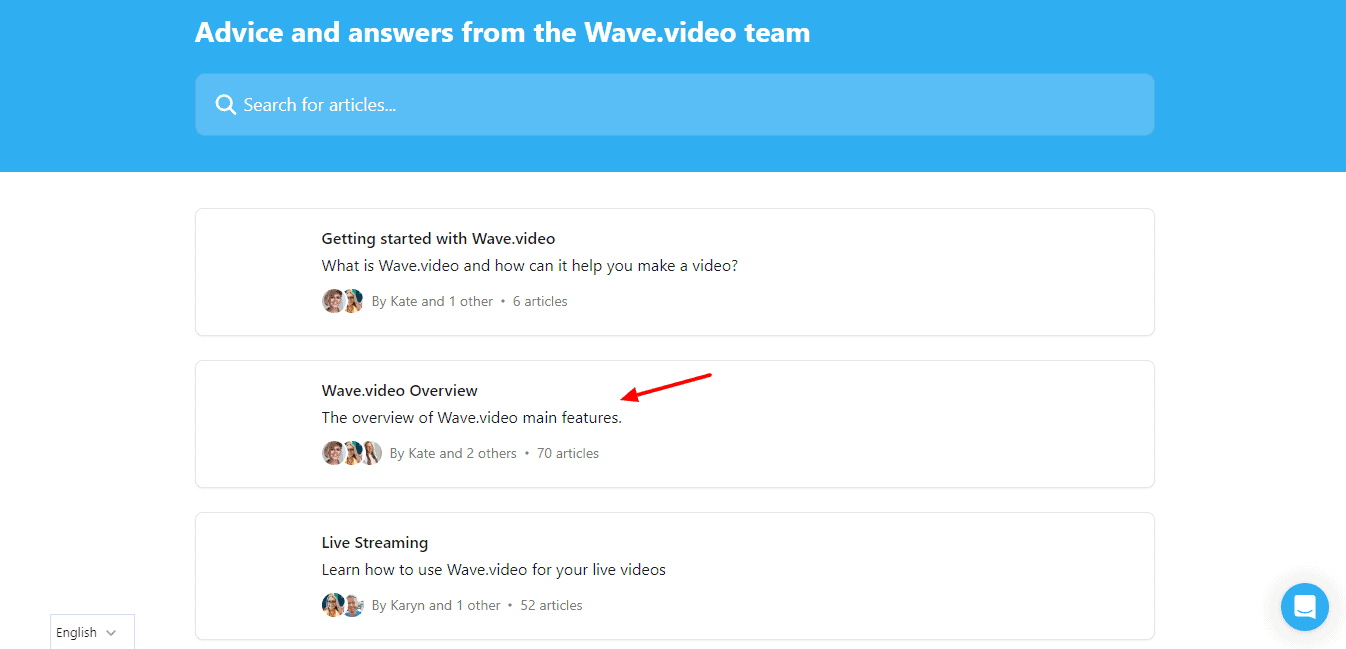
Apart from that, they also have comprehensive video tutorials, a marketing blog, weekly webinars, and an active Facebook Community with 9k members. Overall, the customer support of Wave.video is pretty decent and helpful.
Wave.video Pros
1) Smooth Video Editor
Wave.video is one of the best online video editors I’ve ever used. It has all the tools required for editing your videos, from templates to transitions, and even AI tools!
2) Excellent AI Transcription
I absolutely loved the AI Captions generated by Wave.video. It transcribed the script really well in English and Hindi and even color-coded them for more clarity.
3) Good AI Audio
I’ve used a good deal of professional software for AI audio. Wave.video competes with them with its clean and impactful AI audio.
4) Great for Streaming and Podcasts
Live streaming and podcasting is effortless with Wave.video. You can live stream on multiple social media platforms at a time and then edit the video to post it on all the platforms of your choice.
5) Feature Rich Tool
Wave.video is a feature-rich platform. It boasts a massive library of templates, text formats, overlays, stickers, etc, along with tools for video recording, live streaming, video hosting, and AI tools for converting text into voice and videos.
6) 1080p Recording
Most video editing tools support 720p recording in their basic plans and higher resolutions on the higher plans. But with Wave.video, you can record videos on 1080p even on its lifetime deal!
7) Affordable Lifetime Deal
The lifetime deal of Wave.video is priced at $99, where you get good monthly limits. Getting such a polished and feature-rich tool for a one-time fee is a complete steal deal!
Wave.video Cons
1) No Noise Removal
I couldn’t find any options for removing the background noise from my videos. I hope they introduce this feature in future updates.
2) No Color Grading
If you’re a professional video editor, you’ll be slightly disappointed with the absence of color grading options in Wave.video.
3) Limitations on Free Plan
The free plan of Wave.video has lots of limitations that are not sufficient for beginner users. It even adds watermarks on the videos exported on the free plan.
4) Average AI Video Tools
I found the AI text-to-video and AI blog-to-video tools to be pretty average. I hope they work on improving these tools.
5) Basic Image Edits
Though Wave.video offers the option to edit your images, the options provided for image editing are pretty average. You won’t find any extraordinary tools for this task.
Why Should You Trust Me?
I have been working full-time in the digital industry since 2015. In the past years, I have used dozens of video editing software for my YouTube videos, social media platforms, etc.
Video creation and editing have been a major part of my work, and I have worked with plenty of video editors like Final Cut Pro, DaVinci Resolve, Adobe Premiere Pro, and many more. I’ve also tested and reviewed the Best Free Video Editor Softwares for PC.
Using all of these tools consistently for the last few years has given me enough knowledge and expertise to compare different tools and suggest the best one for your requirements.
Conclusion
Wave.video is a highly polished and versatile video software. I’ve been using it for a while and I’m quite impressed with its pace of development.
The amount of features it’s offering on the AppSumo deal and even on its regular price point are exceptional. You’ll be able to create videos and podcasts, edit your videos, live stream, record your screen, and convert text or blogs to videos, all with a single tool.
If you’re a video creator and you don’t yet have software for editing your videos, Wave.video is an excellent place to start. You can never go wrong with Wave.video. Right now, the AppSumo deal of Wave.video for $99 is an absolute steal! Anyone who creates videos should grab it!
It comprises a tonne of features revolving around videos. So, if you’re a video editor, this is a truly worthy investment for you. It’ll make your work much easier. Its lifetime deal is live on AppSumo for a limited period. So, make sure you go ahead and grab it.
I hope you enjoyed reading this review and found it helpful in deciding if it’s the right tool for your video requirements. Anyway, this is Kripesh signing off. I’ll be back with more such interesting review articles soon. Till then, take care and keep shining. Cheers! 🙂
FAQs
1) How much does Wave.video cost?
Right now, Wave.video is available on AppSumo as a lifetime deal. You can get it for $99, which will give you 4 hours of streaming or pre-recorded videos, 30 GB of storage, and 150 GB of monthly traffic.
2) Does Wave.video offer free trials?
Unfortunately, Wave.video doesn’t offer any free trials. It has a limited free plan where you can export videos with watermarks.
3) What is the refund policy of Wave.video?
Wave.video doesn’t have a standard refund policy. They offer refunds depending on the case. So, make sure you test their free plan before upgrading to the paid one.
4) Does Wave.video have a watermark?
Yes, the free plans of Wave.video are exported with watermarks. You can upgrade to a paid plan to remove the watermarks.
5) What are the payment methods supported by Wave.video?
Wave.video accepts payments made through all popular credit and debit cards.

Wave Video Pros (+)
- Smooth Video Editor
- Excellent AI Transcription
- Good AI Audio
- Great for Streaming and Podcasts
- Feature Rich
Wave Video Cons (-)
- No Noise Removal
- No Color Grading
- Limitations on Free Plan