Confused by Too Many AI Meeting Assistants?
Looking for one app that’s beginner-friendly, affordable, and offers useful AI features?
Today, I’m reviewing Otter AI (2026), a popular AI transcription and note-taking tool for meetings. With 5 million+ downloads and a 4-star rating on the Play Store, this AI-powered meeting assistant has become a go-to productivity companion for many professionals.
In this Otter AI review, I’ll cover everything, from its user interface and key features to security measures and customer support. Stick around till the end; my final verdict might just surprise you.
Otter AI Review
Summary
Otter.ai is an AI-powered meeting productivity platform launched in 2016. It helps sales teams, content creators, and other professionals save time through meeting transcriptions, automated note-taking, and structured insights across platforms like Zoom, Google Meet, and Slack. The app is available on web, desktop, and mobile, but it has limitations such as a single customer service channel, basic speaker recognition, and transcription support for only three languages.
Disclaimer : I strongly believe in transparency. If you buy using the links on our site, we may earn a small commission without any extra cost to you. This helps me to keep producing honest reviews. Read More >>
About Otter AI
Otter.ai is an AI-powered meeting productivity application. The software was launched in 2016 by Yun Fu and Sam Liang. This California-based organization helps people save hours and boost productivity with accurate meeting transcriptions, automated note-taking, AI meeting agents, and other advanced features.
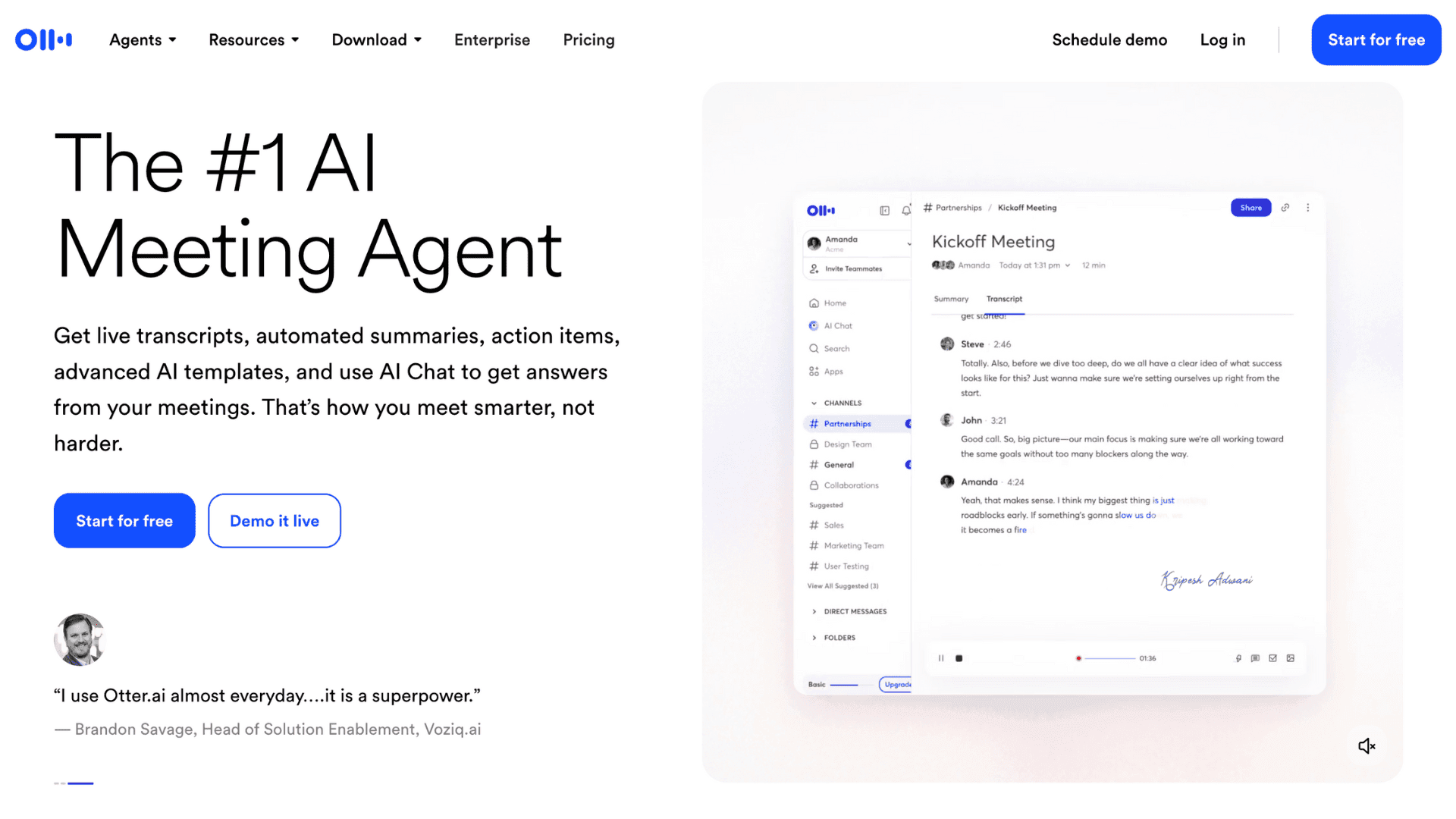
Recently, the company reported surpassing $100 million in annual recurring revenue, a milestone achieved with its groundbreaking AI capabilities. The app now hosts over 25 million global users, including major organizations such as Amazon, IBM, Salesforce, Harvard University, and Mastercard.
Otter AI User Interface
To get started, visit the Otter.ai website and create an account. You can sign up using your Google, Apple, or email account. Once you provide the required details, log in to your dashboard using the same credentials.
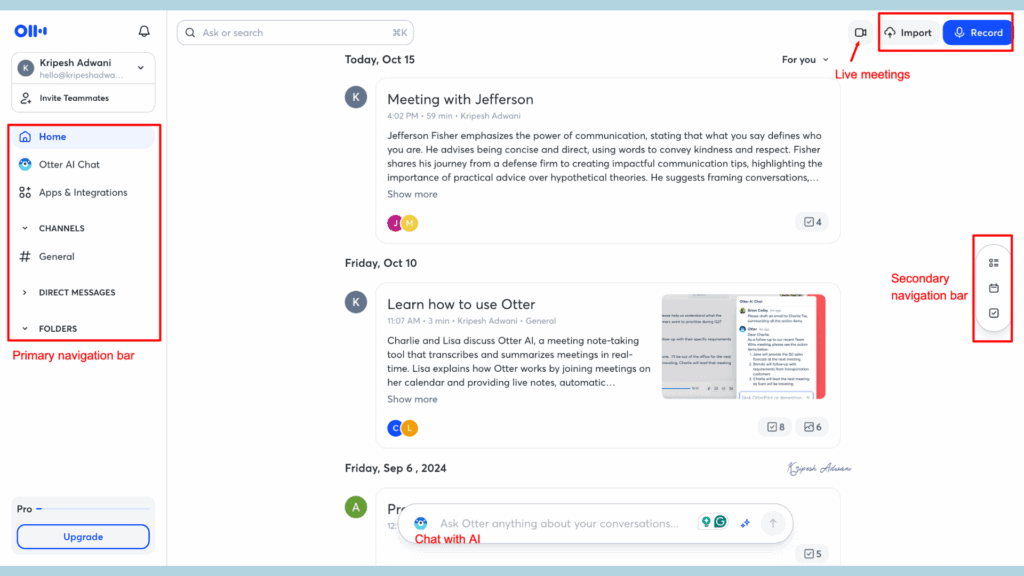
On the left side of the main dashboard, you’ll find the primary navigation bar, which gives you access to Otter AI Chat, Apps & Integrations, Channels, Folders, and Direct Messages. In the top-right corner, you can start live audio recordings or video meetings. The Import option allows you to upload previous meeting recordings or notes.
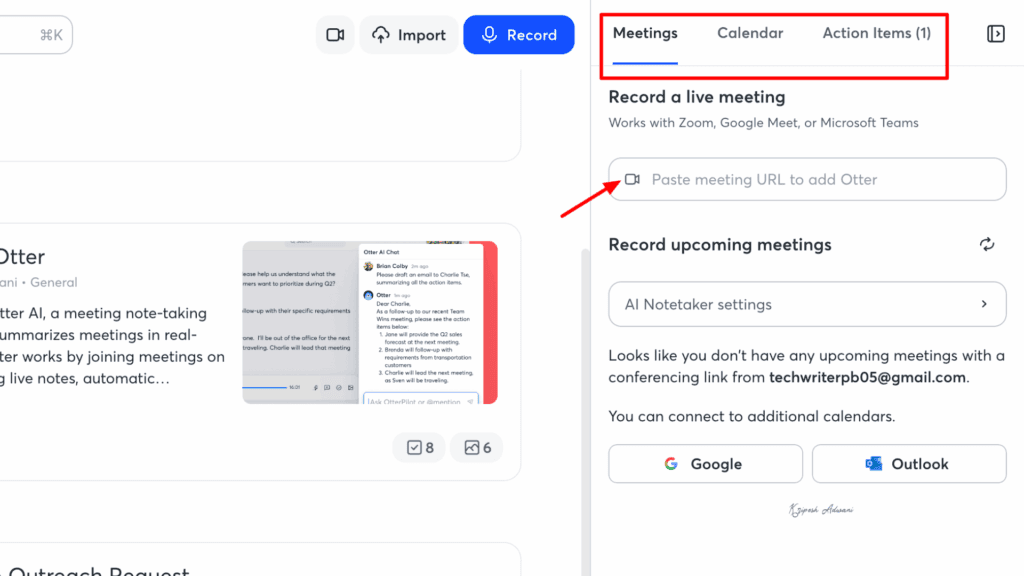
Clicking the secondary navigation bar at the top opens a sidebar with three main options: Record a live meeting, Sync your calendar to view upcoming schedules, and Create action items. In the top-left corner, you’ll see your profile section, where you can access settings, account preferences, support, team invitations, and more.
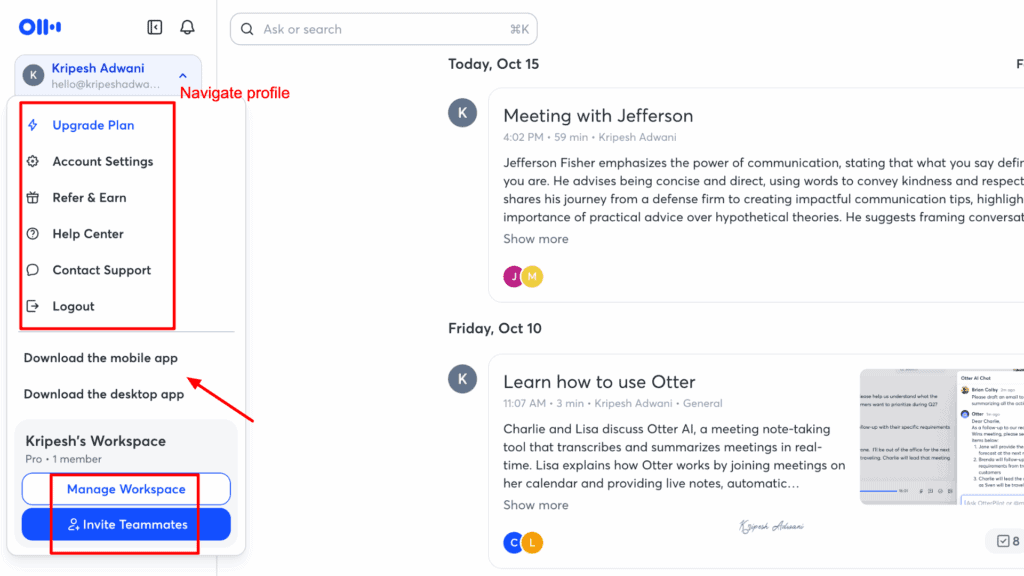
Overall, both the mobile and desktop interfaces of Otter AI are neatly organized. The setup and onboarding process takes just a few minutes, and Otter provides step-by-step guidance to help you get started smoothly.
Key Features of Otter AI
1. Live Recording
From the Otter.ai app, you can record live meetings effortlessly. I’ve connected the web app with my preferred meeting platforms such as Google Meet, Zoom, Slack, and others. Wherever I host a meeting, Otter automatically connects and starts recording.
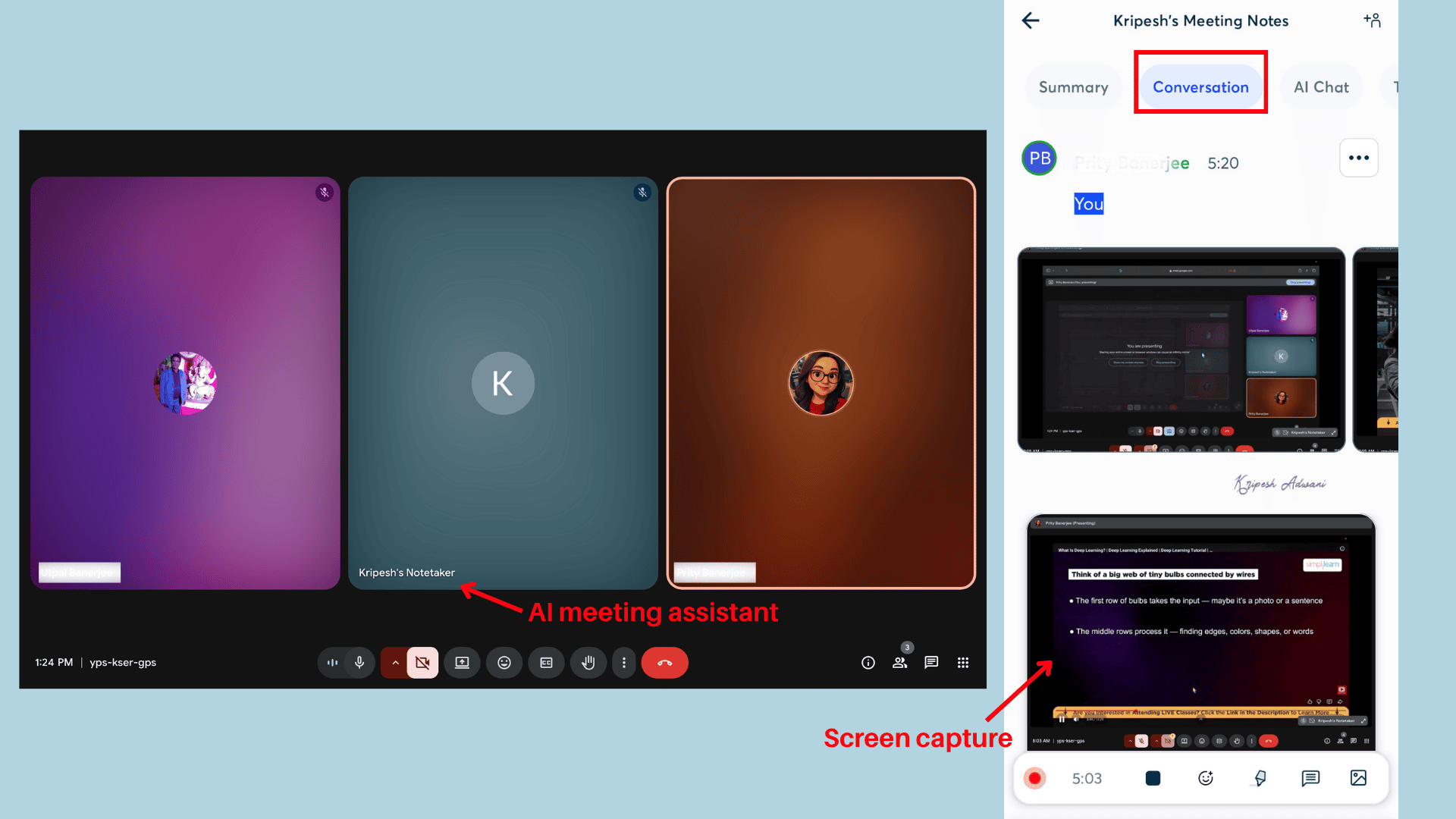
You can also download the Chrome extension, which records your meetings without needing a heavy desktop app. Alternatively, you can paste a meeting link manually to join and start recording. Each Pro user gets 1,200 minutes of in-app recordings per month.
Keep in mind, Otter.ai records only audio, not video. You can later listen to recordings at different playback speeds (from 0.5x to 3x) and even skip silence for faster review. I often listen back to recordings to refine or edit the transcript for better accuracy and clarity.
Since Otter provides audio-only recordings, it may not be the best choice for product demos, visual presentations, or sales meetings that require video capture.
2. Easy Imports
Otter also lets you take notes from past recordings. If you have audio or video files from previous meetings, simply click the Import button and upload them. The platform supports various media formats such as AAC, MP3, M4A, WAV, WMA, MOV, MPEG, MP4, and WMV.
//Otter file imports
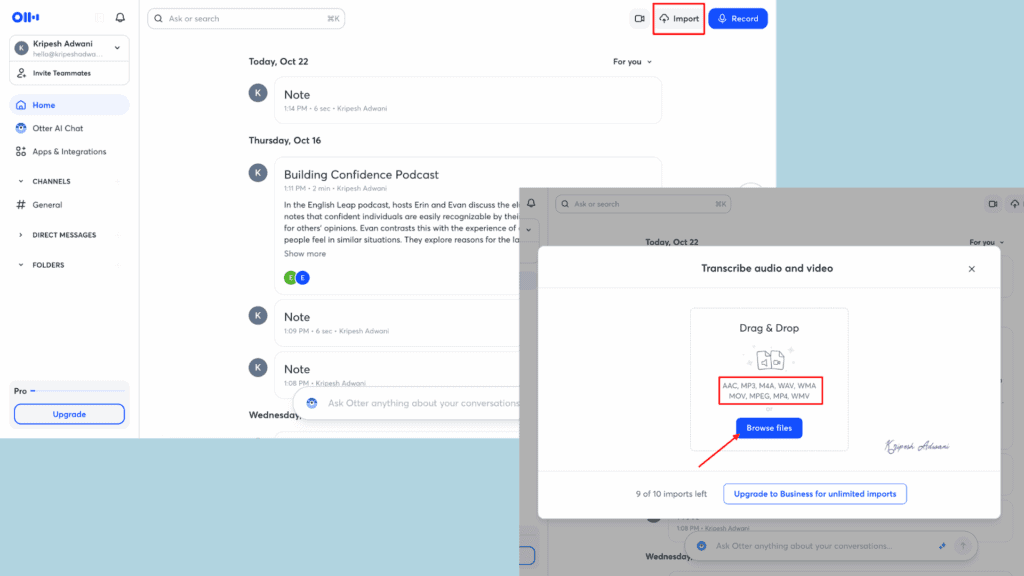
You can either drag-and-drop files or upload them manually. As a Pro user, I can import up to 10 audio or video recording files per month.
3. Real-time Transcription
Once you connect your live meetings with Otter, it automatically transcribes them in English. You get the same AI-based transcription feature when uploading audio or video files as well. The transcription includes speaker identification and timestamps, and you can export the entire transcript in PDF, TXT, DOCX, or other formats.
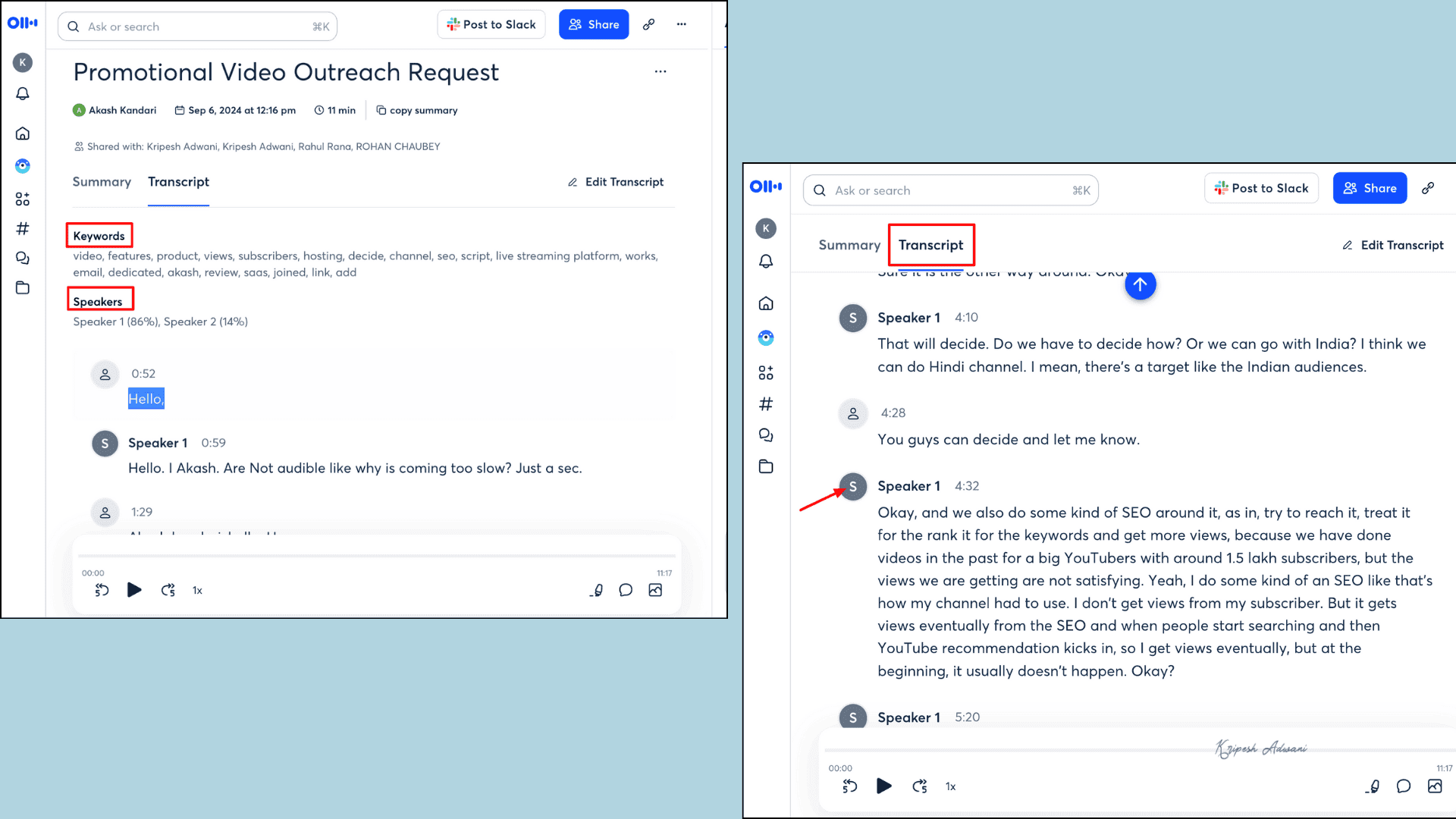
One thing I noticed is that although Otter recognizes different speakers, it can’t automatically identify their names from uploaded media files. For example, when I uploaded the Jefferson Meeting recording, Otter initially labeled the participants as Speaker 1 and Speaker 2. However, once I manually updated the names, Otter applied those changes throughout the entire transcript.
I’ve recorded multiple meetings so far, and I wouldn’t say the transcription accuracy is very impressive. It often mismatches conversations with the correct speaker and struggles to capture technical terms or detailed discussions accurately.
4. Summary and Notes
Otter automatically generates summaries from transcribed recordings. It’ll refer to a General summary template. The summary includes a quick overview of the meeting, action items in a checklist format, and an outline highlighting key topics discussed, along with important insights.
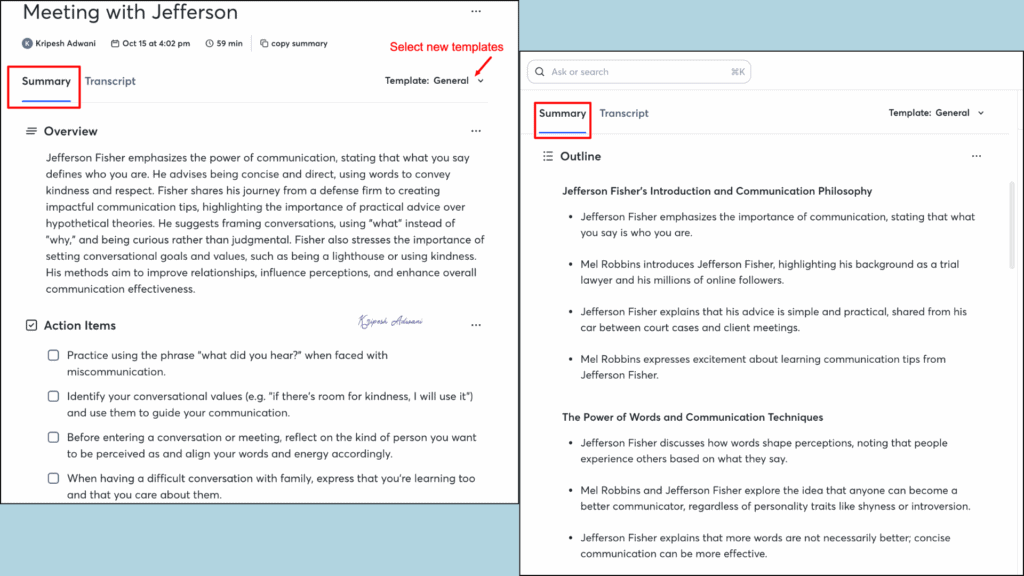
On the right side of the summary dashboard, you can select a different template that matches your meeting type. Otter offers multiple note-taking templates such as Sales -Discovery, Team Meeting, User Research Interview, Performance Review, and more.
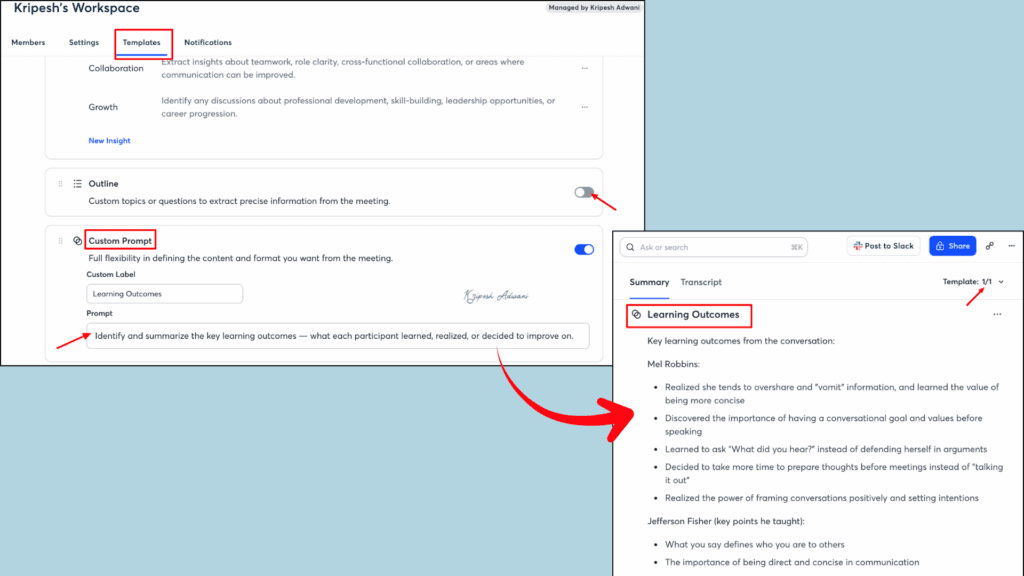
I selected the 1/1 Meeting template and edited it by adding custom prompts for learning outcomes. Otter AI then updated and generated information according to the new template. The only drawback is that Otter takes a bit of time to refresh the content, and I had to reload the app a few times.
There’s no option for manual note-taking, and you can’t edit the content that Otter generates.
5. Cross-platform Accessibility
Otter is available not only as a web app but also as a desktop and mobile application for Windows, Android, iOS, and macOS devices. The app is easily accessible on the respective app stores.
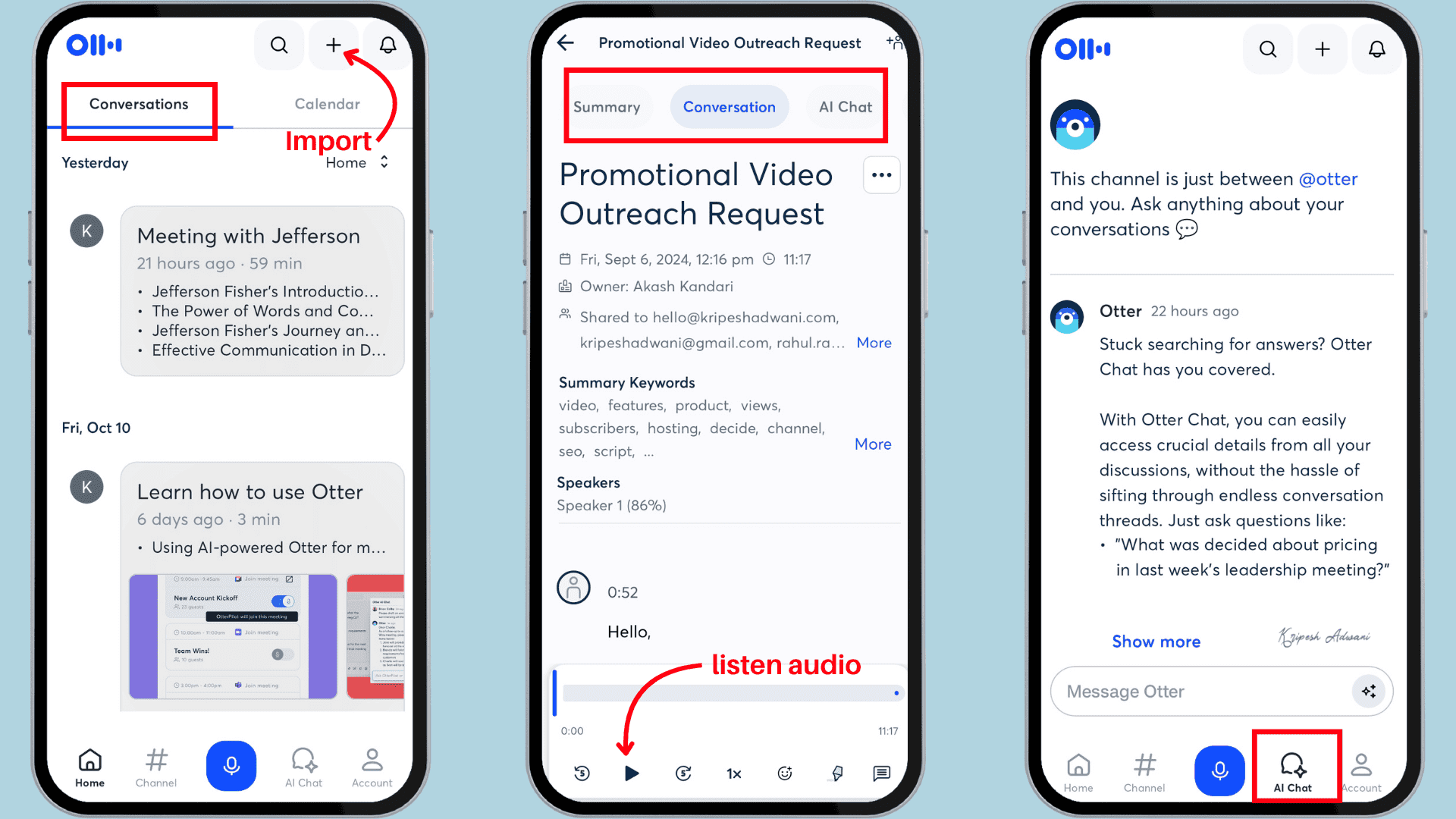
You can log in to the mobile app using the same credentials as the web version. The interface is simple; the homepage displays all your meetings. When you click on any meeting, you can view the summary, conversation, and AI Chat. The ‘+’ icon in the top-right corner allows you to host a live meeting or import a file.
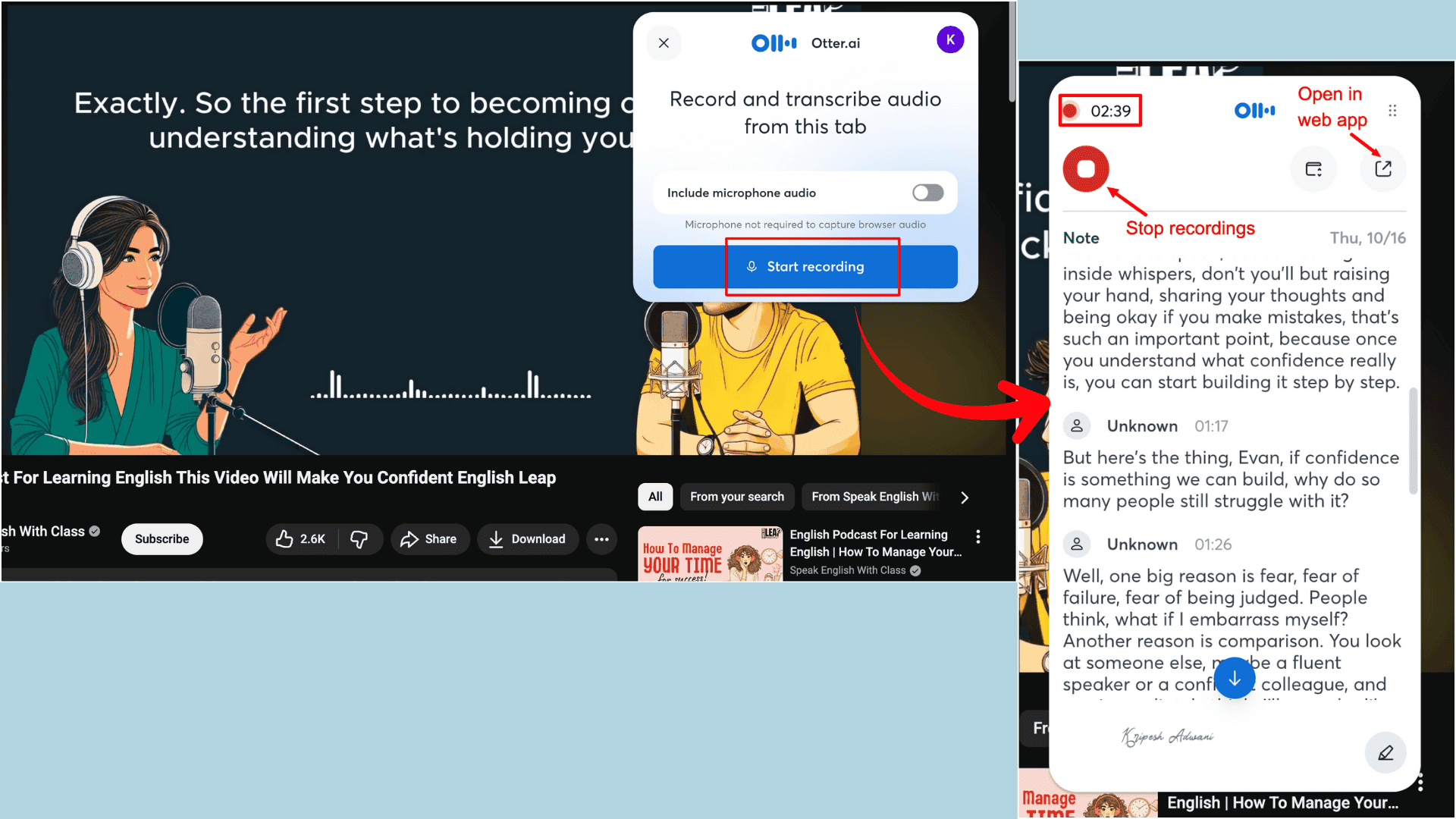
Otter’s Chrome extension is also available in the Chrome Web Store. The AI meeting agent only allows you to record live audio from meetings. To access transcriptions, summaries, and AI-generated notes, you’ll need to open the web app.
6. AI Chat
You can access the Otter AI Chat feature in two ways.
First, open any meeting conversation and use the AI Chat panel on the right sidebar. In the chat bar, type your questions related specifically to that conversation. There are two answer modes available: Express, which focuses on accuracy and speed, and Advanced, which provides more in-depth analysis.
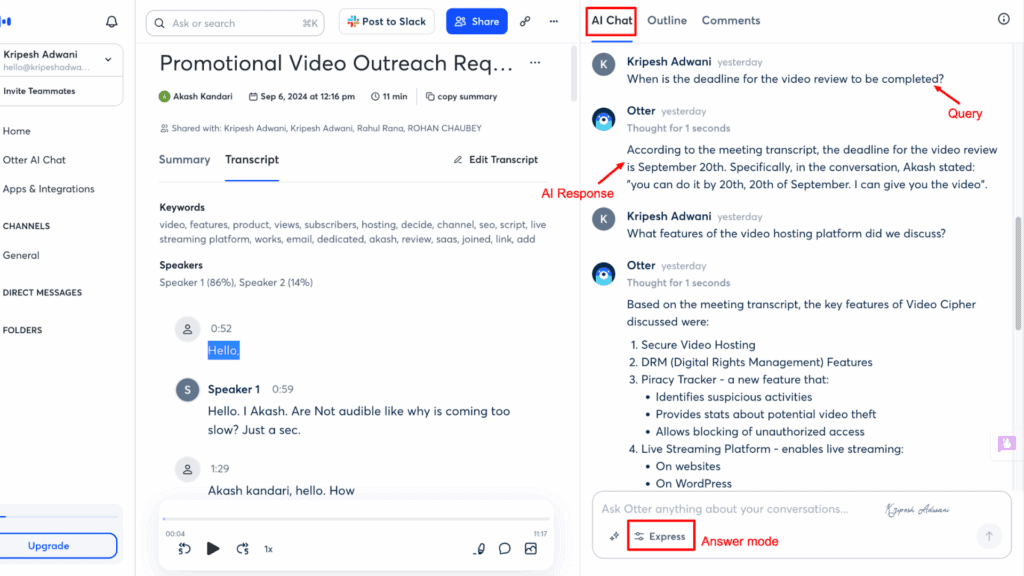
For example, I asked about the deadline for the video review in the “Promotional Video Outreach Request” conversation, and Otter AI accurately provided the answer with an explanation. Next, I asked, “What features of the Video Cipher platform should I highlight in my promotional review?” Otter clearly compiled all the relevant features in bullet points.
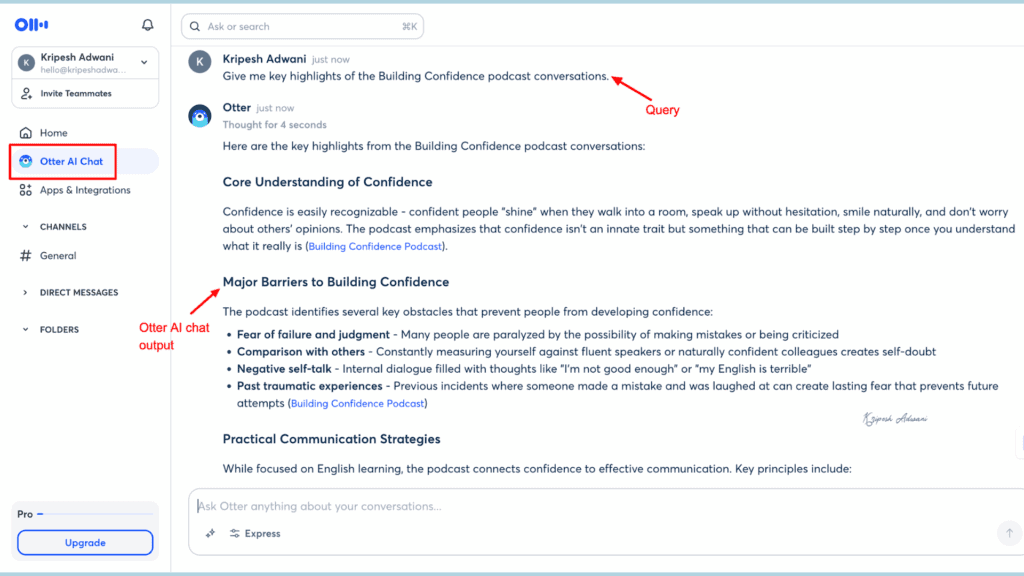
Second, you can access Otter AI Chat through the primary navigation bar (as mentioned earlier). This section allows you to have general conversations that aren’t tied to a specific meeting. For instance, I asked for the key highlights of the “Building Confidence” podcast conversation, and Otter instantly navigated the transcription to provide an accurate, referenced answer.
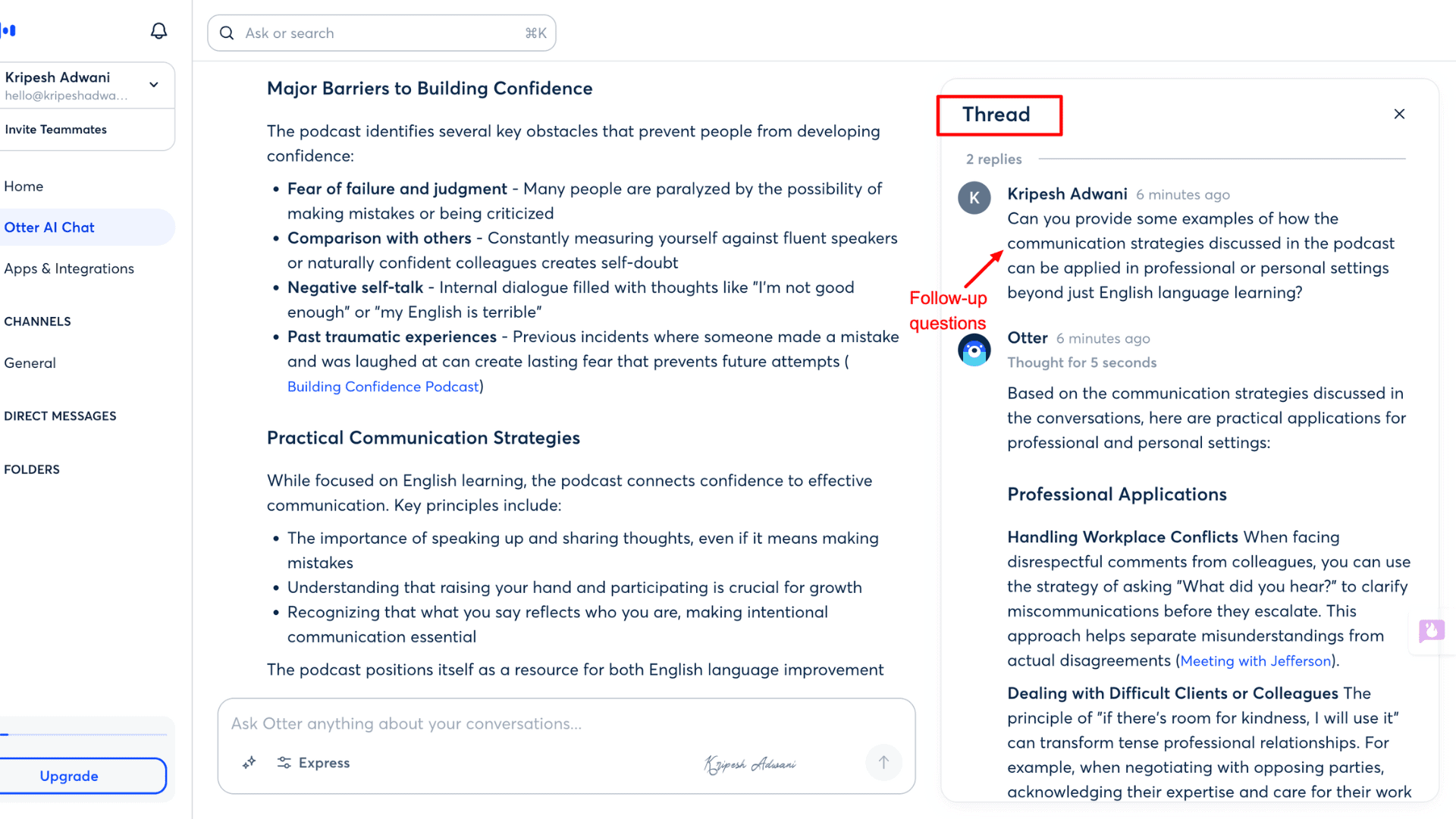
Each response includes links to the relevant transcript, and you can continue asking follow-up questions. All answers appear under separate threads, making it easy to view AI chats related to specific conversations.
7. Follow Up & Meeting Insights
With the help of the Otter AI Meeting Assistant, you can easily draft follow-up emails. For example, I selected a simple prompt from the suggested questions, and Otter generated an email with a clear subject line, proper greeting, and meaningful body paragraphs.
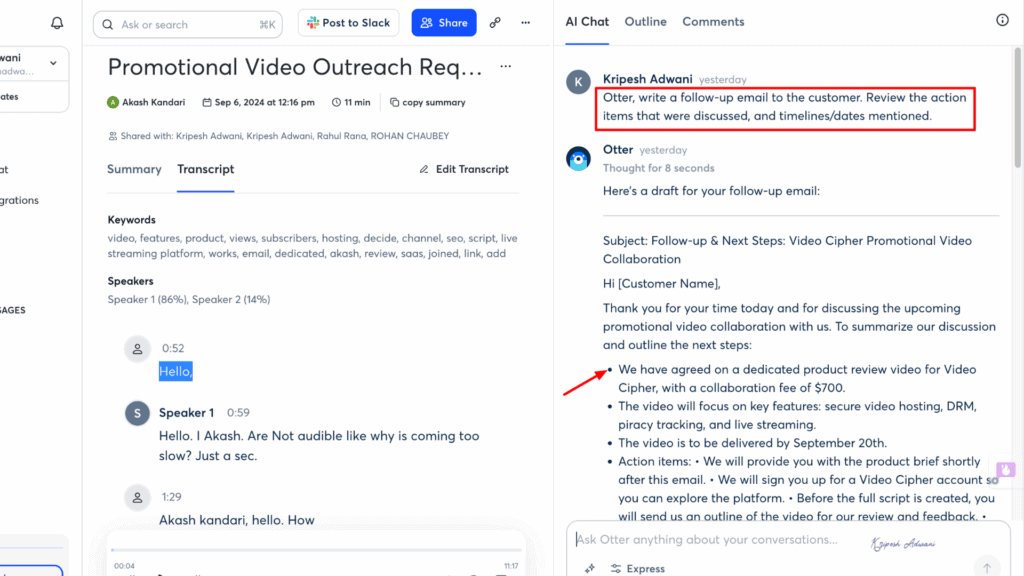
You can also ask Otter to create blog posts, status updates, progress reports, or other types of meeting insights. In addition, the voice-activated OtterPilot agents automatically attend every meeting and help you get answers to your real-time questions.
Otter Integrations
The platform integrates with multiple third-party applications. I connected Otter with Slack, Google Meet, and Zoom during my testing. Below are some of the major integrations that Otter AI supports:
| Categories | Integration |
| Collaboration | Asana, Notion, Slack, JIRA |
| CRM | HubSpot, Salesforce, Zoho |
| Calendar | Google Calendar, Outlook |
| Storage | Dropbox, Google Drive |
| Video Conferencing | Google Meet, Zoom, Microsoft Teams |
//Otter Integrations
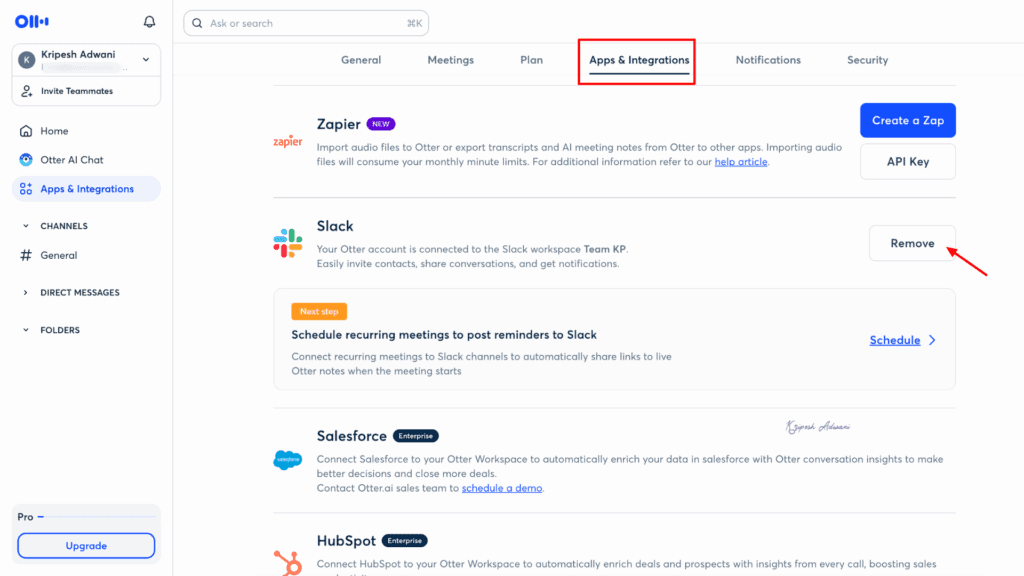
Compared to other virtual AI meeting assistants like Fireflies or Notta, Otter offers fewer integrations. Another limitation is that even though calendar integration is available, you can only view scheduled events. But you can’t create or schedule new meetings directly from the Otter platform.
Otter Security Measures
If you’re using Otter for client meetings or managing remote teams, you’ll likely share sensitive company information that Otter transcribes and records. If I don’t disable the Auto-Join Meetings option in the settings, Otter may automatically start recording meetings.
So, is the platform secure enough to trust?
According to Otter’s Privacy and Security Statement, the platform adheres to major regulatory compliance standards. To protect user data, Otter complies with SOC 2 Type 2, General Data Protection Regulation (GDPR), California Consumer Privacy Act (CCPA), VPAT, and HIPAA.
//Otter Security Statement
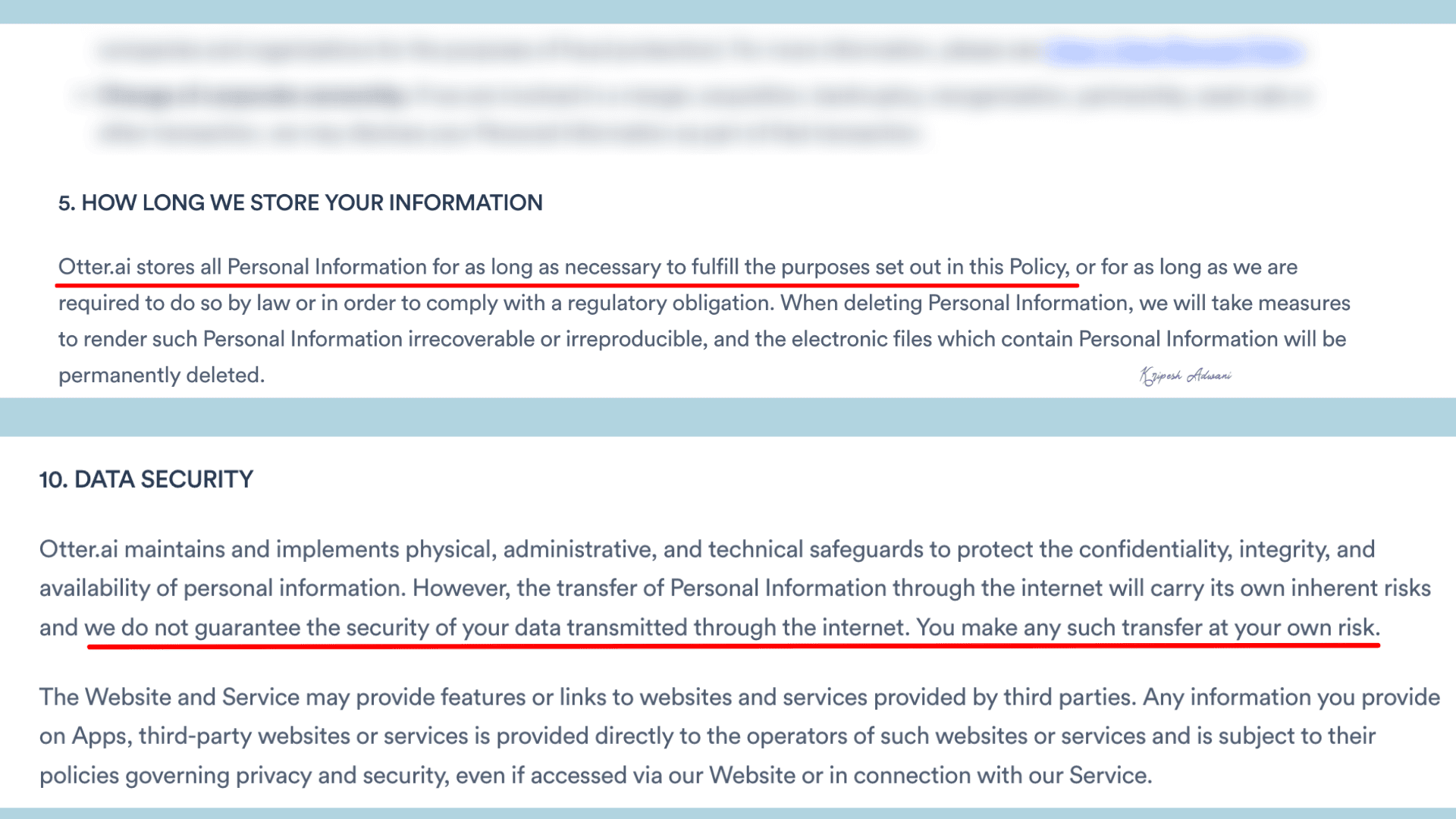
For added security, Otter allows users to enable Two-Factor Authentication (2FA), and recordings only begin when you manually press the Record button. You can review Otter’s Privacy Policy to understand what information they collect. This includes registration details, screenshots, text, and summaries generated through the platform.
However, Otter keeps this data for as long as it deems necessary to provide its services, which raises some privacy concerns for me. In fact, they remove deleted conversations 30 days after the user moves them to trash.
Otter AI Pricing
| Otter Basic | Otter Pro | Otter Business | Otter Enterprise | |
| Pricing for 1 year | $0 (Free) | $99 ($8.33//user/month) | $240 ($19.99/user/month) | Customized |
| Max number of concurrent meetings | 1 | 2 | 3 | 3 |
| Max number of audio or video file imports | 3 | 10 | Unlimited | Unlimited |
| Live transcription | Yes | Yes | Yes | Yes |
| Automated summaries with action items and outlines | Yes | Yes | Yes | Yes |
| Max workspace members | 5 | 5 | 25 | Unlimited |
| AI Meeting Template usage limits | Standard | Advanced | Advanced | Advanced |
| In-app recording/import transcription (per month) | 300 minutes | 1200 minutes | 6000 minutes | 6000 minutes |
| Max transcription time per conversation | 30 minutes | 90 minutes | 4 hours | 4 hours |
| Max Otter AI Chat (per user per month) | 20 | 50 | 200 | 200 |
| AI sales agent | No | No | No | Yes |
Otter AI offers a decent free plan with enough limits to help you try out its features. Beginners can start with the free version and later upgrade to the Otter Pro.
If you’re considering the paid version, it’s better to choose the annual plan. Its annual plan saves you 51% compared to a monthly subscription. Otter Pro 1-year plan costs $99 per year, reducing the monthly cost from $16.99 to $8.33.
Otter accepts payments via debit and credit cards, and you can also make in-app purchases through the Google Play Store or Apple App Store. However, there’s no free trial available for the Pro plan.
If you’re a student or educator, you can get a 20% discount on both the monthly and annual Otter Pro plans. This brings the annual cost down to $79.99 instead of $99. To claim the discount, you must have a valid academic email ID ending with “.edu.”
Otter AI Customer Support
Otter AI’s customer support really disappointed me. Why? First of all, there’s no phone number or official email ID to contact for direct assistance. Even Pro users don’t get access to 24/7 live chat support, which many competitors already offer.
The only way to reach Otter’s support team is by submitting a request form. To do this, you need to click on “Contact Support” from the web app and fill out the form using your registered email address. Unfortunately, I couldn’t find any options to contact support through the mobile app.
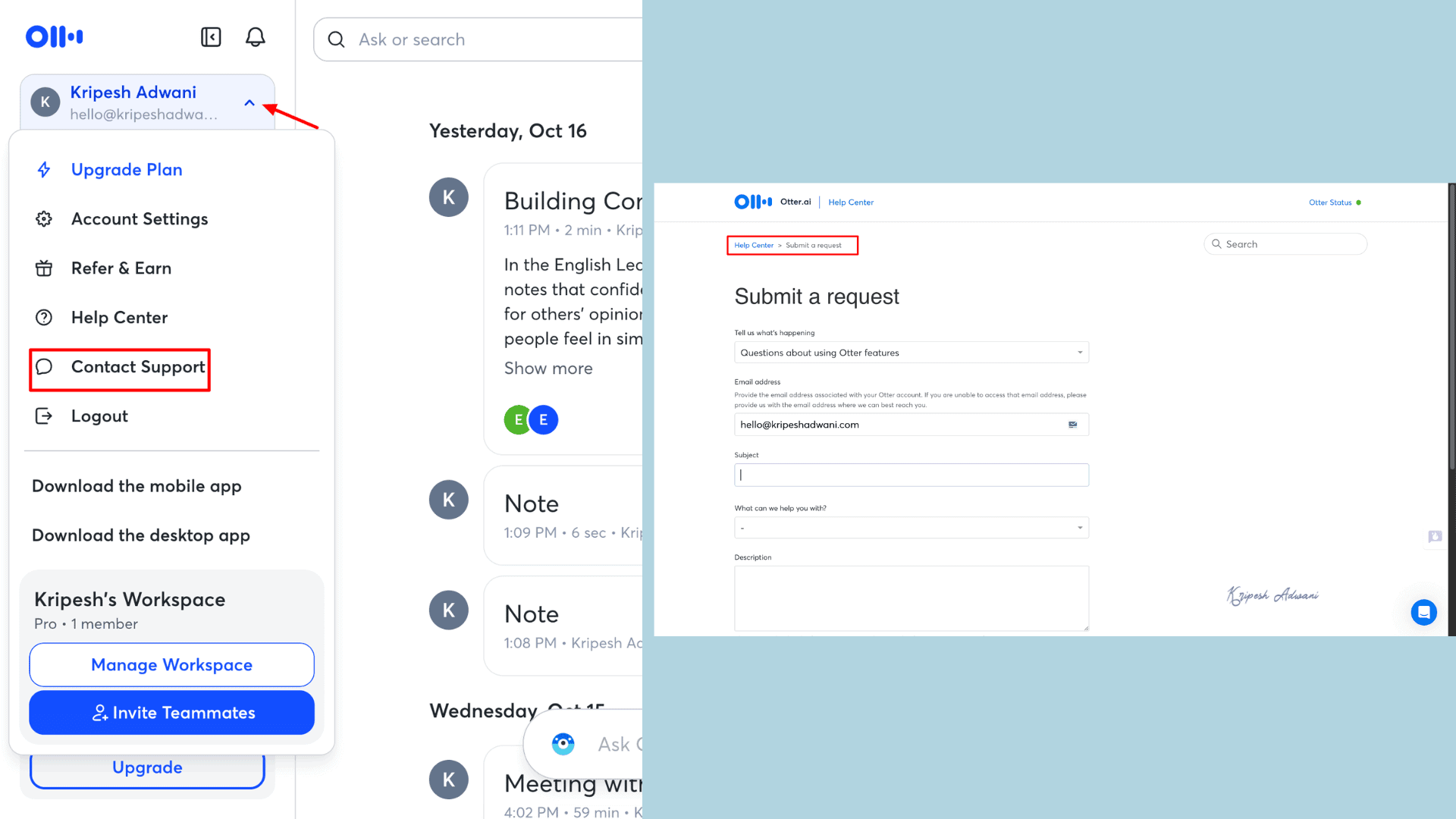
Because Otter offers only one support channel, you can naturally expect slower response times. According to their pricing plans, Basic and Pro users receive only standard email support, while priority support is reserved for Business and Enterprise plan users.
When you click on “Help Center,” Otter AI redirects you to its Knowledge Hub. The good thing is that it includes plenty of useful guides, blogs, troubleshooting tips, and user manuals that can help you resolve the most common issues on your own.
Otter AI Pros
1. Transcription for Pre-recorded Files
Many AI meeting assistants only allow live meeting transcription, but Otter lets you import pre-recorded audio or video files. It processes them and provides detailed, time-stamped transcriptions.
2. Live Recording
Whether using the mobile or web app, Otter offers a Record button. By tapping it, you can record audio to review later. It also provides real-time transcription while you’re in a live meeting.
3. Team Collaboration in Free Plan
Otter AI supports multiple members even on the free plan. You can add up to 5 members and work together in a single workspace.
4. Structured Notes with Outlines and Action Items
Once the transcription is complete, Otter automatically generates a summary note. Instead of long paragraphs, the note includes a quick overview, action items, and an outline of key insights in bullet points.
5. Custom AI Meeting Templates
For sales meetings, product reviews, or demonstrations, Otter offers customized AI templates. You can easily switch from the general template to a specific one and get AI-generated notes within seconds.
6. Cross-Platform Access
Otter is available on Windows, macOS, iOS, and Android. Additionally, a browser extension provides quick access to the platform from your web browser.
Otter AI Cons
1. Can’t Auto-Label Speaker Names
When uploading media files or recording live meetings, Otter AI fails to automatically detect speaker names. You must manually add speaker names, even if you invited them through the app.
2. Limited Customer Support Channels
Otter only allows you to submit queries through its website. There is no phone support, live chat, or dedicated email for direct assistance.
3. Can’t Export Summaries
You can only copy summaries or AI-generated content from Otter AI. Exporting is available only for full transcriptions, not summaries.
4. Limited Language Support
Currently, Otter supports transcription in English, French, and Spanish. This means you cannot record or transcribe meetings in languages like Hindi.
5. Occasional Glitches or Slow Updates
I observed occasional interruptions and slow updates while using Otter AI. For example, I had to reload the app multiple times when switching templates or viewing new content.
Who Should Use the Otter AI?
- High School and University Students: Ideal for basic transcription and minimal AI-powered note-taking support.
- Media Professionals: Capture quotes accurately during live events, extract information quickly, and generate captions.
- Educators and Managers: Transcribe lectures or training sessions and generate reports for coaching, performance tracking, and forecasting.
- Sales Teams: Automatically log sales calls, capture key details, and sync outcomes to CRM platforms.
- Content Teams: Transcribe meetings, webinars, and events for content creation and documentation.
- Businesses & Project Teams: Post-meeting follow-ups, and team collaboration through shared notes and automated action lists.
- Freelancers & Small Businesses: Manage client calls, meeting documentation, and projects efficiently.
Why Should You Trust Me?
My journey with tech started back in 2015, when I first began exploring how digital tools could make work faster and smarter. I’ve tested and reviewed hundreds of SaaS products and AI tools over the years, learning what truly adds value and what doesn’t.
As a tech content creator, I rely on multiple AI tools every single day for writing, planning, marketing, and automation. From those hands-on experiences, I’ve shared my honest, experience-based reviews of tools like AI Fiesta, Gamma AI, QuickAds AI, Polygraf AI, and many more.
The idea of writing in-depth reviews came after my readers responded enthusiastically to my articles on “9 Best AI Note-Taking Apps” and “9 Best AI Note-Taking Apps for Meetings.” Among those tools, I personally purchased and used Otter AI for several months. So, I wanted to share my real, unfiltered experience to help others decide if it’s worth their time.
Conclusion
Otter AI is undoubtedly a powerful AI meeting assistant. It effectively eliminates the need for manual transcription and helps millions of users, like you and me, capture and organize meeting notes effortlessly. The transcriptions are detailed, the AI-generated summaries are well-structured, and the overall feature set is quite impressive.
If you’re trying an AI meeting assistant for the first time, Otter AI is definitely worth a try. Its clean interface, generous free plan, reliable team collaboration, and AI-powered note-taking make it one of the most beginner-friendly tools available.
However, if you’re a professional and ready to pay for advanced features, Otter Pro might feel limited. Despite being paid, I missed many premium features like offline access, priority customer support, highly accurate transcription, smart speaker identification, etc.
For that level of experience, I would suggest Krisp, Fireflies, or Notta AI.
Do you agree with my take on Otter AI? Or did I miss something? Share your thoughts in the comments.
FAQs
What is Otter.ai used for?
Otter.ai is primarily used to transcribe meeting audio. It then generates meeting summaries, action items, and key highlights for better note-taking. You can also use Otter AI Chat to ask questions or generate additional insights from your meeting transcripts.
Can I use Otter for free?
Yes, you can use Otter.ai for free. The free plan includes 3 audio or video file uploads per month, 300 minutes of transcription, cross-platform access across web, desktop, and mobile, and more.
Does Otter.ai translate?
No, Otter.ai does not offer translation features. It only records your audio and provides time-stamped transcriptions in supported languages.
How many languages does Otter support?
Otter currently supports only three languages: English, French, and Spanish.
Can Otter detect who’s speaking?
No, Otter cannot automatically identify speakers by name. It labels participants as Speaker 1, Speaker 2, etc., but you can manually rename them in the transcript, and Otter will then update it.
Does Otter have a mobile app?
Yes, Otter.ai is available for mobile users. The app can be downloaded from both the Apple App Store and Google Play Store.

Otter AI Pros (+)
- Transcription for Pre-recorded Files
- Live Recording
- Team Collaboration in Free Plan
- Structured Notes with Outlines and Action Items
- Custom AI Meeting Templates
- Cross-Platform Access
Otter AI Cons (-)
- Can’t Auto-Label Speaker Names
- Limited Customer Support Channels
- Can’t Export Summaries
- Limited Language Support
- Occasional Glitches or Slow Updates