For CapCut users, it’s a serious concern that the app has been banned in India since 2020. It was a go-to tool for quick edits, easy-to-use effects, and polished results without a steep learning curve. So, you’re looking for free alternatives now.
Today, in this article, we’ll review the Best CapCut alternatives for 2026. After months of testing, I’ve shortlisted 11 software options for both mobile and desktop users.
We ranked each tool based on what matters most when choosing a free video editor: whether exports are truly watermark-free, how closely its features match CapCut’s, and how well it performs once you move beyond basic editing.
So, without wasting any more time, let’s take a quick look at the comparison!
Best Alternatives For CapCut [Quick Comparison]
| Tool | Platforms | Highlighted Features | Export Quality | Best for |
| VN Video Editor | iOS, Android, Mac and Windows | Multi-track timeline, CapCut-like interface, Cross-device projects, AutoCut, BeatsClips | 4K, 60 fps | Best CapCut replacement |
| Edits by Meta | iOS, Android | Single-frame editing, Templates for reels, AI Restyle, Performance insights | 4K HDR | Instagram creators, Reels editors |
| YouTube Create | iOS, Android | Direct YouTube upload, Copyright-safe music library, Auto captions, Audio cleanup | 4K, 60 fps | YouTube creators, Shorts makers |
| YouCut | Android | Speed control, Music library, Voice compressor, AI editing | 4K, 60 fps | Beginners, Android users |
| VLLO | iOS, iPad, Android | Picture-in-picture, Keyframes, Auto-save, AI face tracking, Chroma key | 4K | Travel vloggers, lifestyle influencers |
| DaVinci Resolve | Windows, Mac, Linux | Professional color grading, Fairlight audio, Fusion effects, Motion graphics | Ultra HD (3840 x 2160), 60 fps | Pro editors, YouTubers, filmmakers |
| Clipchamp | Windows, web | Auto-captions, Text-to-speech, Silence removal, Screen recorder | 1080p HD | Microsoft 365 users |
| Shotcut | Windows, Mac, Linux | Multi-format video support, Proxy editing, Color tools and LUT support | 4K | Freelance editors, open-source users |
| Kdenlive | Windows, Mac, Linux | Nested sequences, Group effect controls, Automatic subtitles from speech | 4K | Podcasters, open-source users |
| iMovie | Mac only (macOS 15.6 or later) | Magic Movie, Storyboards, trailers, Cinematic trailers, Themes | 4K, 60 fps | Mac/iPhone/iPad users |
| CyberLink PowerDirector | Windows, Mac, Android, iPhone | Huge effects library, Motion tracking, AI enhancements, Stock library | 4K | Small businesses, effects-heavy creators |
Want the Best AI Tools?
Check My Favourite AI Tools 🖤
ElevenLabs
Elevenlabs and Adam AI Voice are my go-to choices. ElevenLabs is incredibly versatile, and you get 10 mins free every month.
Gamma AI
Gamma App is my top choice for ai ppt generation. You can easily create your ppt for FREE. It’s a must have AI Tool.
HOSTinger AI
I love Hostinger AI Website Builder for how easy and affordable it is. 1 click AI website creation, perfect for websites.
Wanna Grow a Blog? ❤️
Check My Favourite Blogging Tools
Hostinger
Hostinger is a fantastic choice for beginners looking for affordable, user-friendly shared hosting. Get exclusive discount with my link.
Semrush
Semrush is the perfect SEO toolkit. Get keyword research, competitive analysis, and more. Get 14 day free trial.
SEO Surfer
Surfer SEO offers optimization tools to rank higher on search engines and unique AI article generator.
Best Alternatives for CapCut on Mobile (Android & iOS)
1) VN Video Editor – Best Overall CapCut Replacement
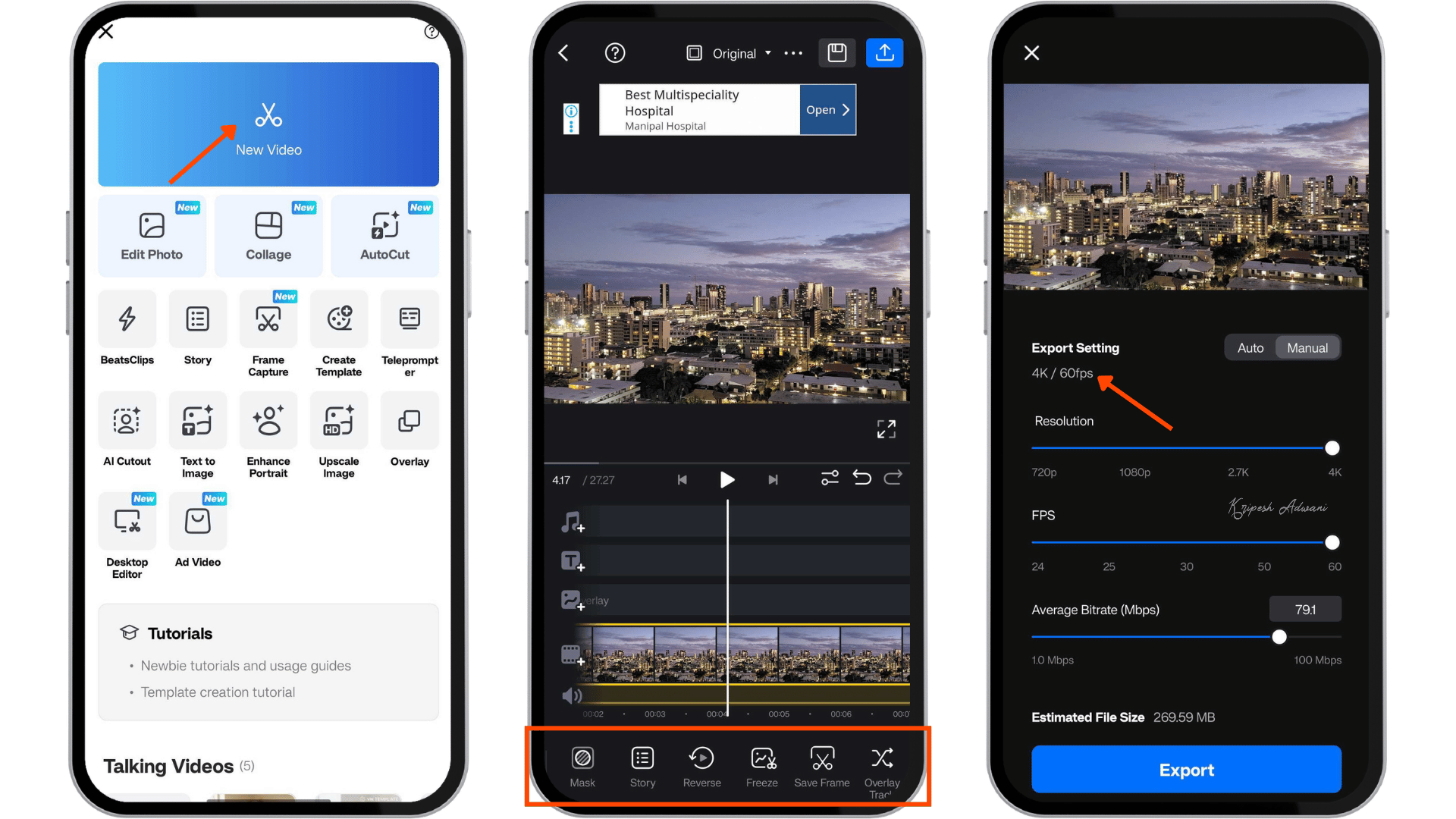
VN is a free video editor for iPhone, iPad, Android, Mac, and Windows. Its biggest selling point is a multi-track timeline without a mandatory subscription. If you’re looking for a CapCut alternative in 2026, VN is worth trying. It offers a solid set of editing tools, watermark-free exports, and support for high resolutions. Most free mobile editors give you one of these, not all core features.
Highlighted Features
- Multi-track timeline with picture-in-picture: You can place video clips, images, stickers, audio, voiceovers, and text on separate layers. This makes it easy to create picture-in-picture effects, reaction videos, split-screen clips, and videos with captions, logos, or subtitles.
- Keyframe animation: You can animate a clip’s position, size, and opacity. For example, you can slowly zoom in on someone’s face during an important line. VN also offers 19 built-in effects and adjustable curves for customizing animations.
- AutoCut and BeatsClips: AutoCut uses selected footage, applies chosen BeatsClips templates, and auto-syncs clips to music rhythms. VN can also synchronize cuts with the beat of your music.
- Auto captions and filler-word removal: VN can automatically generate subtitles in multiple languages. It can also detect and remove filler words or silent sections, which is useful for talking-head videos.
- Drafts and cross-device transfer: The tool automatically saves drafts, so you can pick up where you left off. You can also lock projects with a password and transfer them between supported devices.
Pricing
VN Video Editor lets you edit unlimited projects and export videos in 4K without a watermark for free. If you want an ad-free editing experience, filler-word and silence removal, premium templates, and 100 AI credits per month, you can upgrade to VN Pro. It costs ₹1,799 per year, which works out to around ₹149.92 per month.
Pros and Cons
Pros of VN Video Editor
Offers all core video editing tools for free, like a multi-track timeline, keyframes, frame-accurate cuts, masks, transitions, filters, and speed ramps.
Exports videos without a watermark.
Supports exports up to 4K at 60 fps.
Works on iOS, Android, Mac, and Windows, with project transfer between supported devices.
Has a strong user base, with a 4.6-star rating, 10 crore downloads, and 55.4 lakh reviews.
Cons of VN Video Editor
Includes fewer templates and AI-powered features than CapCut.
Can take longer to render large projects with multiple overlays or high-resolution footage.
Free users may see ads and in-app purchase options.
Final Verdict
VN Video Editor is a strong overall free alternative to CapCut. It’s particularly suitable for creators who prefer manual editing and don’t mind a bit of a learning curve. It’s a good choice for Instagram Reels, YouTube Shorts, travel videos, talking-head videos, and small-business content. But I wouldn’t recommend it for multi-hour video projects or if you need maximum stability on an older phone.
2) Edits by Meta – Best for Reels
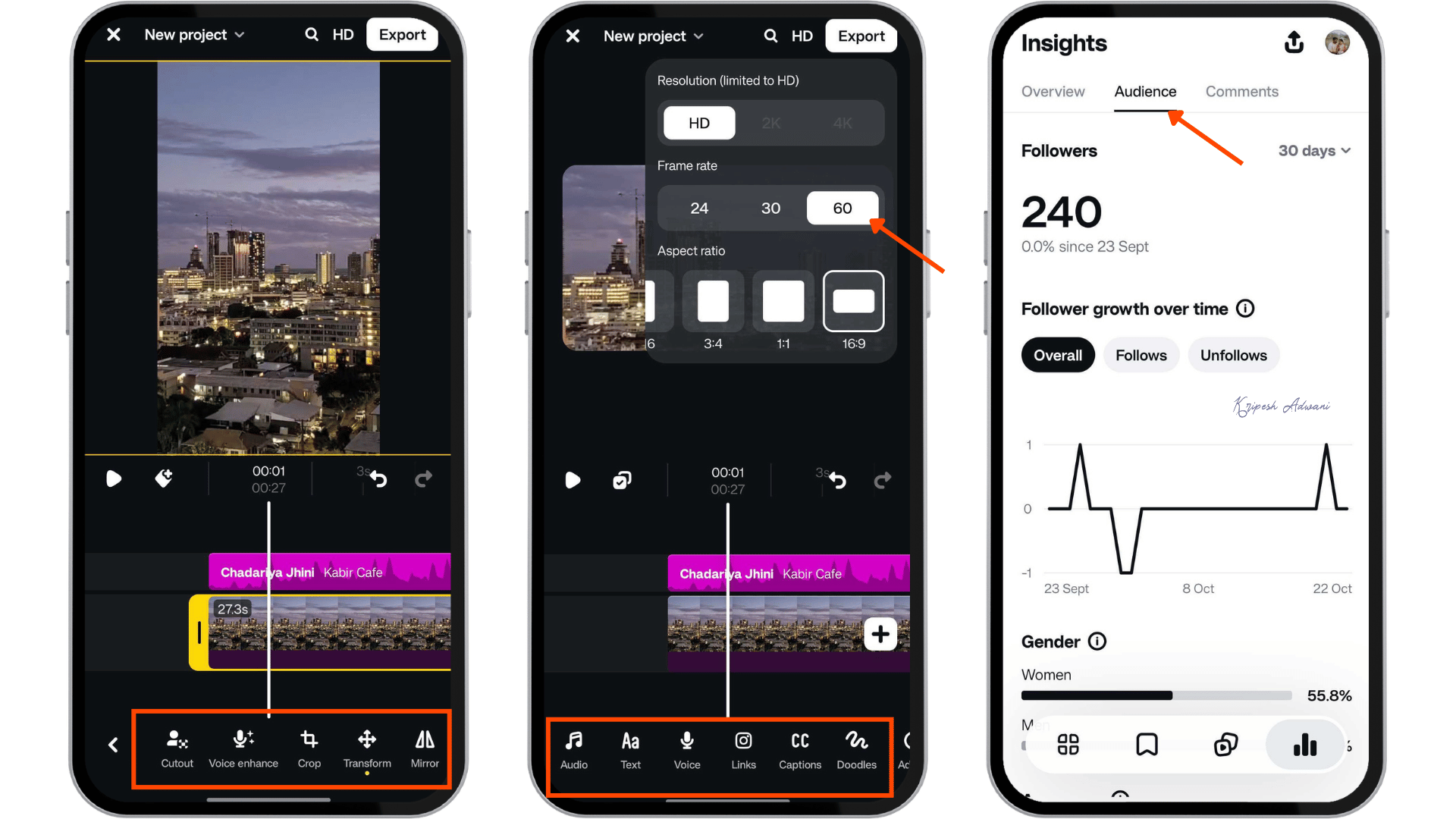
Edits is Meta’s free mobile video editor. It launched in April 2025 as a standalone app built by the Instagram team for Reels and other short-form videos. The app is available on iPhone and Android. You can use it to record, edit, publish videos, and track their performance, all in one app.
Highlighted Features
- Reels-ready templates: Edits are designed for vertical videos. Its layout guides help you position captions and text so that they don’t get covered by Instagram’s on-screen buttons.
- Timeline editing: The app supports frame-accurate trimming and editing. This is useful when you need to cut on a beat or sync a caption with spoken words.
- AI Restyle: This feature applies effects like outlines, glitter, and blur to specific people or objects in a video instead of the entire frame. It’s useful for adding a creative touch to reaction clips without re-editing the whole video.
- Audio cleanup and voice effects: Edits includes audio enhancement tools to make voices clearer and reduce background noise. You can also use sound effects, voice effects, filters, stickers, and fonts to improve videos recorded in noisy environments.
- Performance insights: Edits provides analytics to help you understand how your Reels perform. You can view engagement data for followers and non-followers, along with other metrics.
Pricing
Edits by Meta are completely free to use. You can create as many video projects and Reels as you want and export them in up to 4K resolution, depending on your device’s capabilities and performance limits.
Pros and Cons
Pros of Edits by Meta
Lets you share videos directly to Instagram and access its music, effects, and creator tools.
Its interface is very easy to use.
Combines video creation, publishing, and performance tracking in one app.
Includes a high-quality in-app camera for recording videos.
Provides an inspiration feed with trending audio and Reel ideas.
Exports videos without a watermark.
Cons of Edits by Meta
Is primarily designed for vertical 9:16 videos.
Has a smaller effect and template library than CapCut.
Offers limited options for landscape video editing.
Has fewer advanced editing tools, such as motion tracking and detailed audio controls.
May not be suitable for longer projects, depending on the available editing and export limits.
Final Verdict
Edits by Meta is a strong free alternative, especially for Instagram Reels creators. It’s a good fit if you want a watermark-free editor with easy-to-use tools and built-in performance analytics. However, it may not be the best choice if you regularly edit landscape videos or need advanced editing features.
3) YouTube Create – Best for YouTube Creators
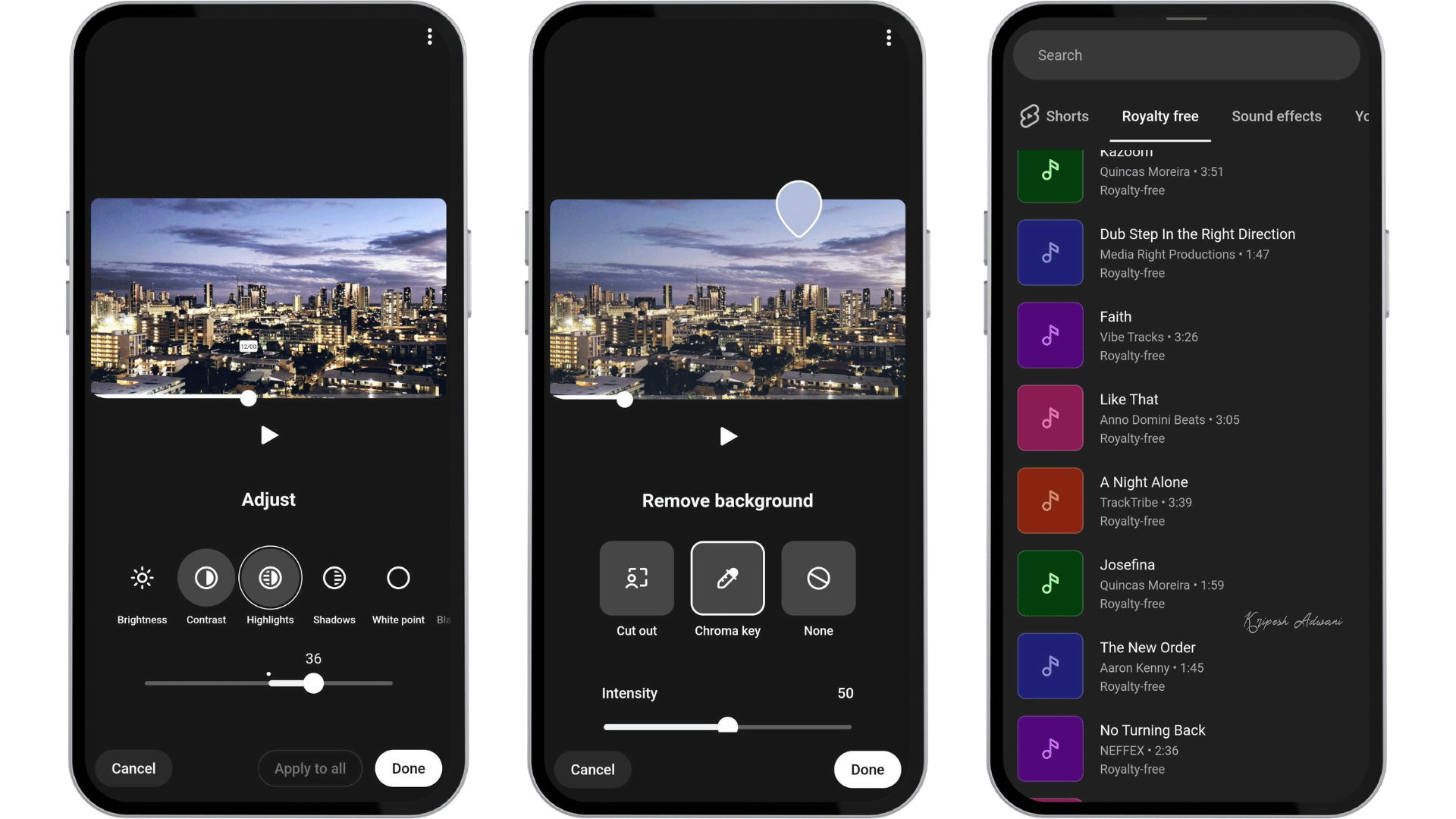
YouTube Create is Google’s official mobile video editing app. It’s designed for both YouTube Shorts and regular YouTube videos, with all the essential editing tools you need. It’s a useful option for CapCut users like me because it’s built by the platform we publish on, so we can upload videos directly to YouTube without an extra export step. The app also offers access to royalty-free music tracks, a convenient option for monetized channels.
Highlighted Features
- Ad-Free Editing with Direct Upload: You can edit videos without ads or a subscription. Once you’re done editing, upload the finished video directly to your YouTube channel without downloading it separately.
- Timeline Editing for Videos: The app includes basic timeline editing tools, like trimming, cutting, cropping, speed control, and clip arrangement. For example, you can record a five-minute tutorial, remove mistakes, rearrange sections, and prepare it for YouTube.
- Auto-Captions in Selected Languages: You don’t need to add subtitles manually to a product explainer or educational Short. YouTube Create can generate captions automatically in supported languages, including English, Hindi, and French. Just check them for accuracy before publishing.
- Large Royalty-Free Music and Sound Library: The app includes thousands of royalty-free music tracks and sound effects. For creators who can’t afford licensing fees, this helps reduce one of the biggest challenges.
- AI Audio Cleanup: YouTube Create includes AI-powered audio cleanup to reduce background noise. You can also record voiceovers directly in the app, which is useful for outdoor vlogs, tutorials, and talking-head videos.
Pricing
YouTube Create is 100% free.
Pros and Cons
Pros of YouTube Create
It’s free, ad-free, and developed by YouTube.
Music from YouTube’s library offers convenient options for creators concerned about copyright claims and monetization.
Tools for trimming, cropping, speed control, transitions, text, and voiceovers cover most basic editing needs.
Direct uploads minimize the extra export and upload step.
Background noise reduction and voiceover recording help improve audio quality without a separate app.
Cons of YouTube Create
YouTube Create has fewer advanced editing tools, templates, and effects than CapCut.
Auto-captions are available only in selected languages, which may limit creators who use local regional languages.
Android users need a device with at least 4 GB of RAM, while iPhone users need an iPhone XR or newer running iOS 17 or later.
YouTube Create is available only in selected countries and regions.
According to YouTube Help, when you save a video longer than 15 seconds to your phone, music from the Shorts Audio Library is removed.
Final Verdict
I’d recommend YouTube Create for creators who want a free, easy-to-use editing app with a simple publishing workflow. It’s especially ideal for beginner creators who want to publish videos quickly. However, it’s not the best option for those who work on extensive projects or need advanced color-grading tools.
4) YouCut – Best free Android-only option
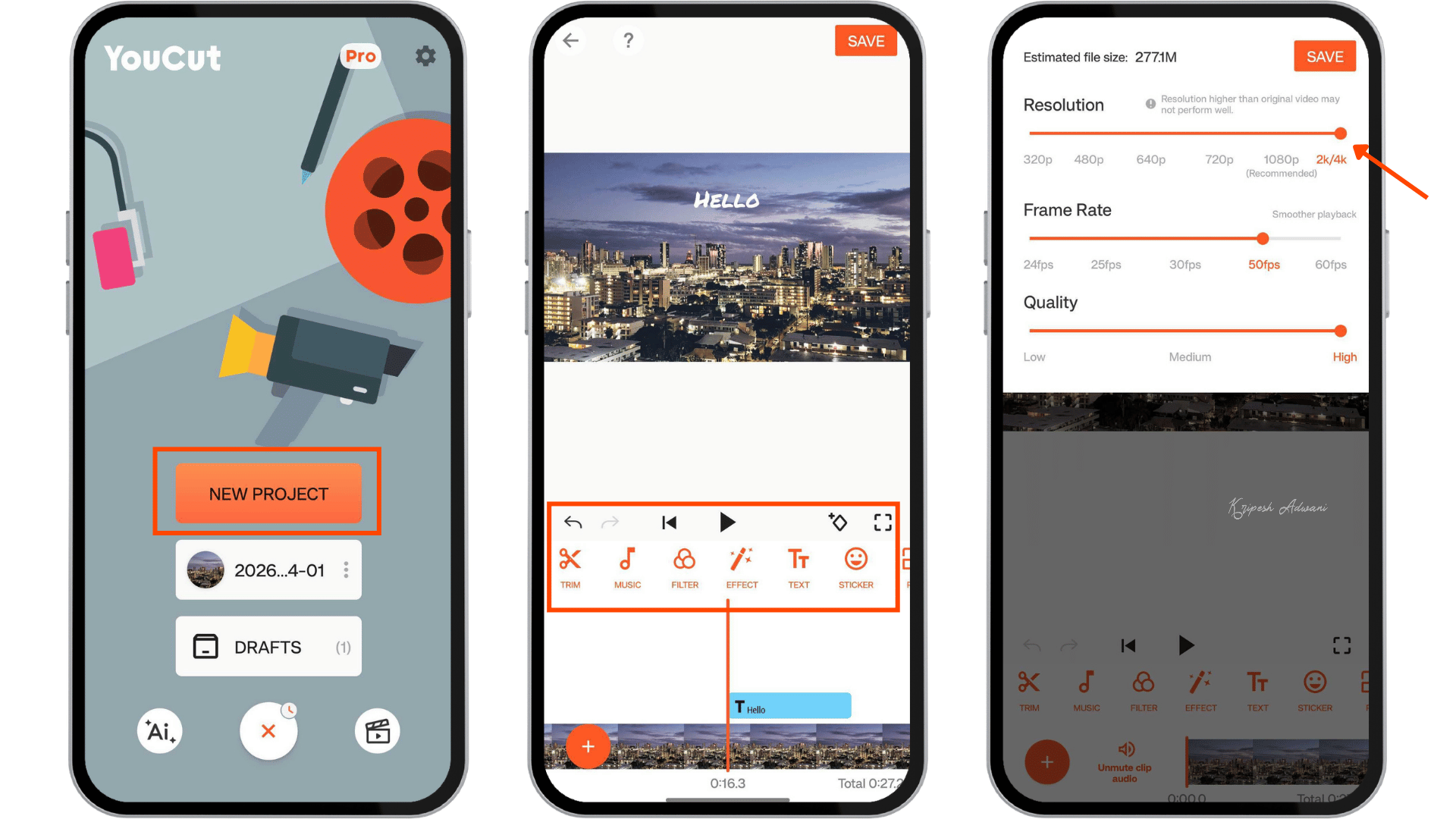
YouCut is an Android video editor developed by the team behind InShot. It has a 4.7-star rating and over 86 lakh reviews on Google Play. The app is best for quick, everyday editing tasks, like trimming/merging clips, adding music and text, adjusting playback speed, applying filters, and preparing videos for social media. While YouCut isn’t as powerful as VN or Edits, it offers a simple editing experience for everyday videos.
Highlighted Features
- Fast editing: You can trim unwanted footage, split longer clips, and merge multiple shots into one video. You can also add text, crop or rotate clips, apply filters, and adjust video colors for free.
- Add music or extract audio: YouCut lets you add background music from YouCut’s audio library and adjust the sound to match the mood of your video. You can also extract audio from an existing video and use it in your own edits.
- Aspect ratio and background options: Suppose we have vertical footage; we can convert it into horizontal videos for Shorts. We can also add colored borders or blur the background instead of cropping out parts of the original video.
- Voice changer: There are different voice effects, such as male, female, monster, and robot voices, to change how your original audio sounds.
- Video compressor and converter: You can reduce large video files before sharing them on WhatsApp or other platforms with file-size limits. The app offers compression options to help reduce file sizes while preserving as much quality as possible.
- Free AI features: AI Enhance helps improve blurry photos and videos, while AI Painting transforms your media into AI-generated art. YouCut also offers AI Auto Captions, which automatically convert speech into subtitles for talking-head videos.
Pricing
YouCut is free to use with limited features and ads in the interface. For an ad-free experience, unlimited imports, premium music and filters, and unlimited AI Enhance, you can upgrade for ₹900/year or get lifetime access for ₹4300. YouCut also offers a 7-day free trial if you purchase the annual Pro plan.
Pros and Cons
Pros of VN Video Editor
Has a clean, beginner-friendly interface without a complicated editing timeline.
Exports videos without a watermark.
Supports 4K exports in the free version.
Offers automatic captions in Hindi and other languages, useful for Indian and regional content creators.
Cons of VN Video Editor
Is primarily available on Android, not for iPhone users.
Offers fewer templates, effects, masks, and AI editing tools than CapCut or VN.
Lacks some advanced features, like motion tracking, green-screen editing, detailed color grading, and professional transition controls.
Displays ads in the interface.
Final Verdict
YouCut is best for beginners who find CapCut too complicated and want a simple way to edit videos on their phones. You can use it to create Instagram Reels, WhatsApp Status videos, merge clips from your phone, or compress extensive files before sharing them. However, it may not be the right choice if you need professional-level control over your videos.
5) VLLO – Best for vlogs
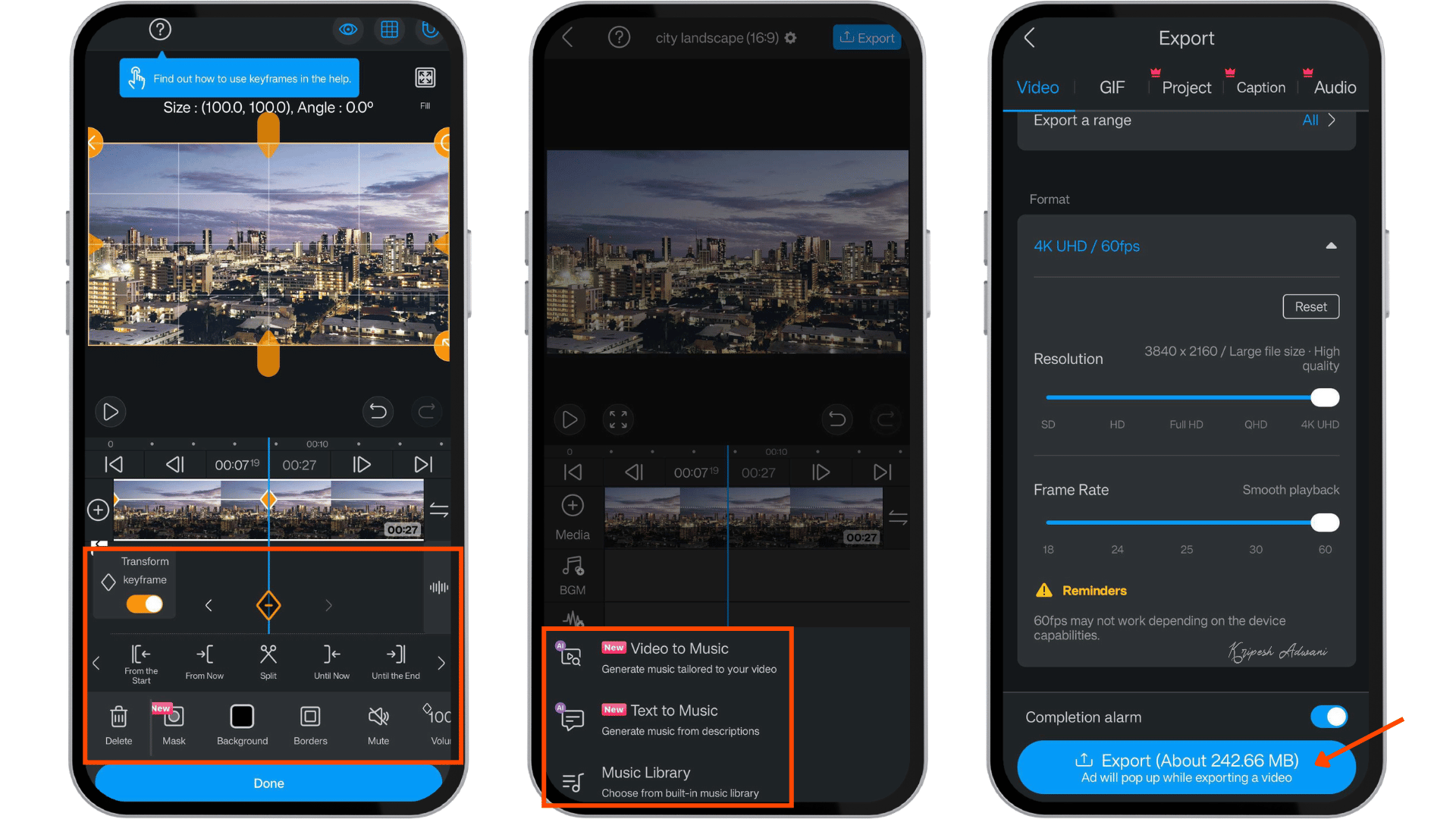
If you regularly edit vlogs, VLLO is a great free CapCut alternative to consider. It supports sharing to platforms like YouTube, Instagram, TikTok, and WhatsApp. The app offers essential editing tools in a beginner-friendly interface. The USP is its balance of creative effects and editing control. You get trendy templates, aesthetic music, filters, and effects for quick social media edits.
Highlighted Features
- Multi-track editing and picture-in-picture: VLLO supports multiple editing layers. So, you can combine videos, images, audio, and GIFs. Its picture-in-picture feature lets you place a smaller video or image over your main footage.
- Keyframe animation: Keyframes let you animate elements by changing their position or opacity. You can use them to animate titles, zoom in on product details, or create smoother transitions between scenes.
- AI face tracking: This feature lets stickers, text, and blur effects follow a person’s face automatically. For example, we can add a name tag that follows the person as they move in a talking-head vlog.
- Color grading and transitions: VLLO offers cinematic filters and controls for brightness, contrast, hue, saturation, and shadows. You can adjust colors and add transitions between scenes to create a consistent visual style without using a separate photo-editing app.
- Chroma key, blur, and mosaic tools: The chroma key feature can remove a specific color, like a green screen background. You can also use blur and mosaic effects to hide faces or other sensitive details in public vlogs.
Pricing
The free plan includes core editing tools, watermark-free exports, and unlimited video editing. To access over 10,000 royalty-free assets, advanced editing features, 5,000 characters of premium AI voice generation per day, 15 minutes of Smart Captions daily, and other AI tools, you can upgrade to the Premium plan. It costs ₹1,300 yearly (₹108.33 per month).
Pros and Cons
Pros of VLLO
Lets you create unlimited videos without watermarks.
Offers keyframes, multi-track editing, chroma key, AI face tracking, and audio effects for greater creative control.
Includes over 8,000 stickers, frames, and text labels, 1,800 copyright-free music tracks, and over 700 sound effects.
Supports direct sharing to YouTube, Instagram, TikTok, and WhatsApp.
Cons of VLLO
Although the free version supports watermark-free exports, you may need to watch ads.
Ads come in between editing or accessing any tools, which is annoying
Some users report crashes, freezing, and problems importing or editing large or high-resolution videos.
Its major strengths are creative assets, templates, and aesthetic editing rather than minimal edits.
Some lifetime-plan users have reported being asked to pay for certain additional features, which can be frustrating.
Final Verdict
VLLO is best for mobile vloggers, travel creators, lifestyle influencers, and small-business owners. It offers a free, watermark-free editor with a good mix of basic and advanced tools. It’s a good fit for people who edit on a phone and don’t need desktop software. But before you pay for a Pro subscription, remember it’s not ideal for extensive projects that must never crash.
Best Alternatives for CapCut on Desktop
6) DaVinci Resolve – Best overall desktop editor
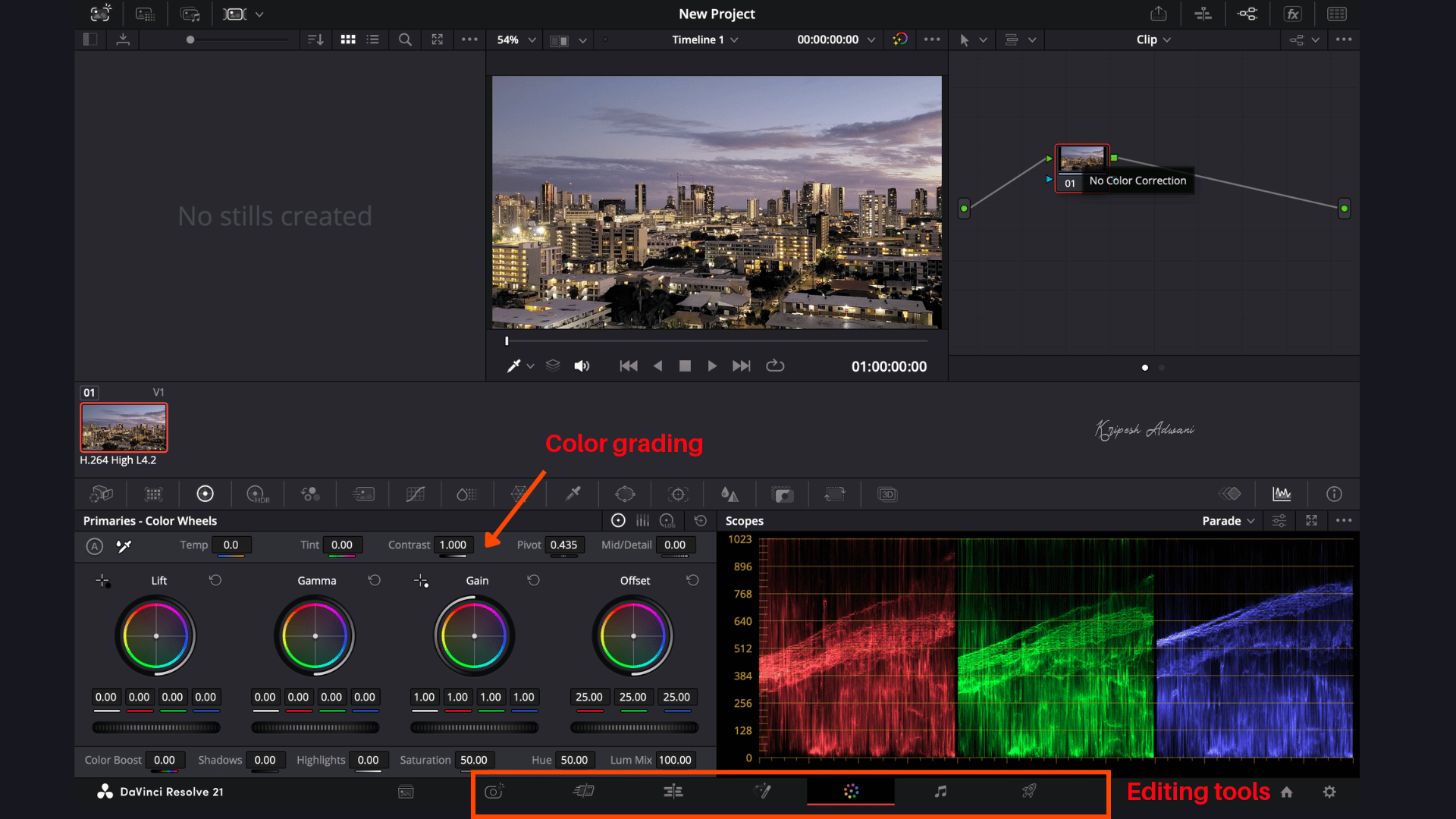
DaVinci Resolve is professional video editing software developed by Blackmagic Design, a company known for its cameras and video production hardware. It is available on Windows, macOS, and Linux. The software combines video editing, color grading, visual effects, and audio mixing in one app. It’s a powerful alternative to CapCut, but beginners need to put in extra effort to learn editing in this tool.
Highlighted Features
- Advanced Color Correction Tools: The Colour page gives you precise control over exposure, saturation, and temperature, plus advanced tools such as qualifiers, Power Windows, and curves. These features help you fine-tune footage and achieve a professional look.
- Cut and Edit Pages: DaVinci Resolve offers two editing workspaces. The Cut page provides a fast, simplified timeline for editing Reels, Shorts, and vlogs. The Edit page offers a more traditional timeline for longer YouTube videos, client projects, documentaries, and multi-camera edits.
- Visual Effects and Motion Graphics: Fusion in DaVinci Resolve offers a visual effects workspace. It supports 2D and 3D compositing, keying, and motion graphics. You can use it to create animated intros, track objects, and add more advanced visual effects.
- Fairlight Audio: Fairlight is a comprehensive audio editing and mixing system. For a podcast video, you can clean up dialogue, balance music with speech, reduce background noise, and create a polished final mix.
- Wide File Format Compatibility: DaVinci Resolve supports major media file formats and allows you to import projects from other professional editing software, including Final Cut Pro and Adobe Premiere Pro, making it easier to switch editing tools.
Pricing
DaVinci Resolve 21 offers a range of tools for video editing, visual effects, motion graphics, color correction, and audio post-production for free. It also provides access to Blackmagic Cloud features. For more advanced AI tools and collaboration features, you can upgrade to DaVinci Resolve Studio 21, which is available for a one-time payment of ₹25,980.
Pros and Cons
Pros of DaVinci Resolve
Free version offers professional editing tools without adding a watermark.
Color grading, visual effects, motion graphics, and audio production are available in one app.
Supports 8-bit video at up to 60 fps, Ultra HD 4K output, with HDR grading.
Color-grading tools are among the best available.
Offers excellent tools for voiceover recording and audio editing.
Provides customizable export settings at no additional cost.
Cons of DaVinci Resolve
Has a steep learning curve; less suitable for beginners
Relies heavily on GPU performance, and demanding projects may require a powerful graphics card.
Software is demanding on hardware and may lag on lower-end systems.
Final Verdict
DaVinci Resolve is best for YouTubers, freelancers, filmmakers, and small production teams. Its biggest strengths are professional video editing, color grading, audio post-production, and visual effects. But if you only edit quick Reels on your phone or have a low-spec computer, this software may not be the right choice for you.
7) Clipchamp – Best Beginner Editor
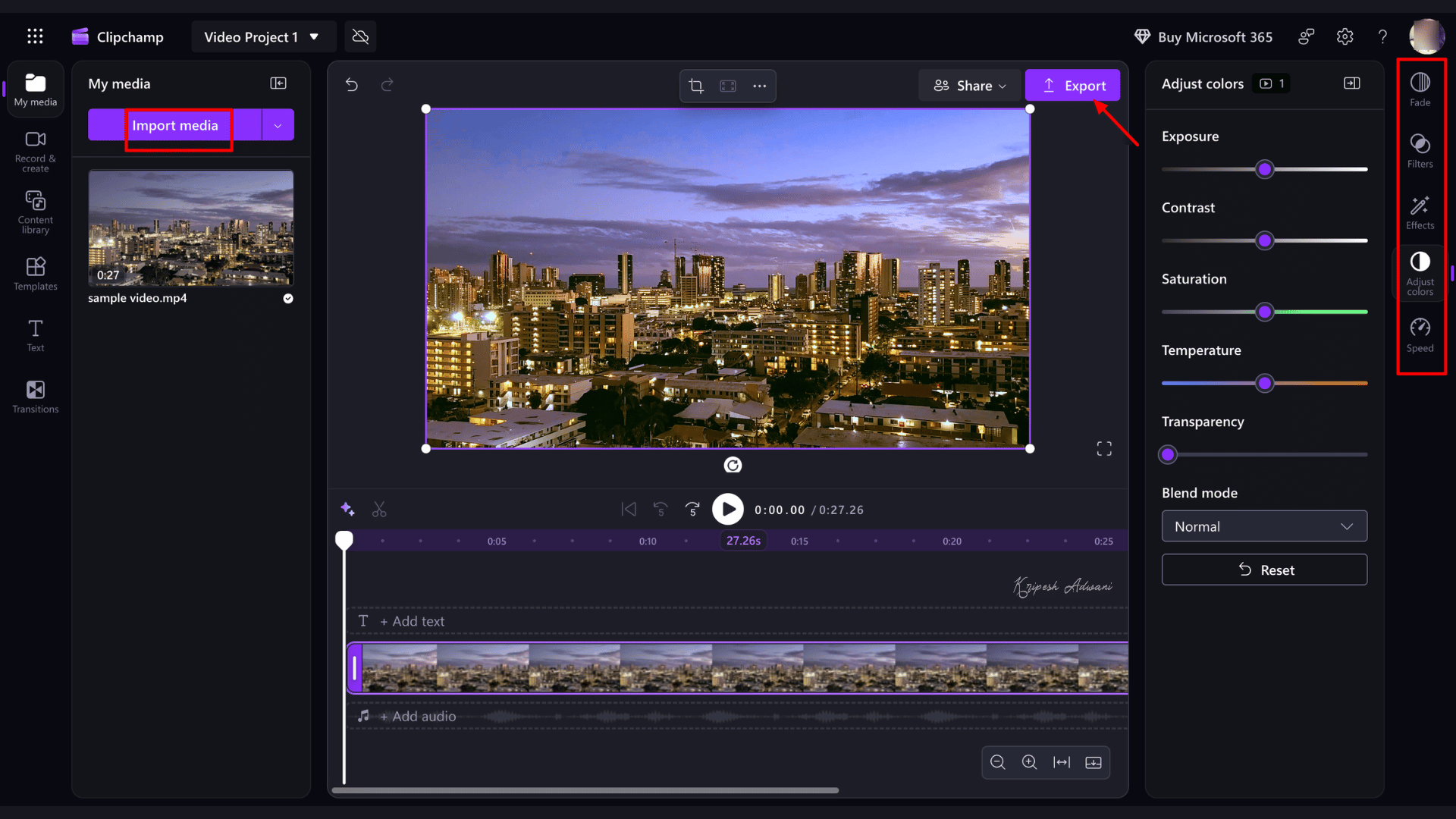
Clipchamp is an easy-to-use video editing tool from Microsoft. It’s designed for beginners who want to trim clips, add text, record their screen, and export finished videos without a complicated timeline. The free plan also includes features such as auto-captions, text-to-speech, and silence removal.
Highlighted Features
- Simple Drag-and-Drop Timeline: For beginners, Clipchamp’s timeline is much less complicated than DaVinci Resolve. You can drag-and-drop files, trim clips, split footage, crop, rotate, and adjust playback speed.
- Silence Removal: Clipchamp can automatically remove pauses from talking-head videos. This can save a lot of time when editing tutorials and vlogs.
- Auto-Captions: The tool can automatically generate subtitles in 80 supported languages. This is useful for talking-head videos and social media clips, especially when viewers watch without sound.
- Text-to-Speech: You can type a script and convert it into spoken audio without recording your own voice. Creators can edit better tutorials, explainers, and videos that need a voiceover.
- Screen and Webcam Recording: Clipchamp lets you record your screen, webcam, or both and edit the recording in the same app. This feature is particularly useful for how-to videos, product demos, and tutorials.
Pricing
Clipchamp’s free plan includes essential editing tools, basic stock media, AI-generated captions, and exports at up to 1080p resolution. If you need 4K exports or access to premium stock content and other premium features, you can upgrade to Clipchamp Premium, available for ₹8,999 per year.
Pros and Cons
Pros of Clipchamp
Free plan includes all essential editing tools, stock media, and watermark-free exports.
Drag-and-drop timeline and simple interface make it easy for beginners to get started.
Can use it in Microsoft Edge or Google Chrome, or through the built-in Windows 11 app.
Cloud-based access makes it easier to work on projects across supported devices.
Features like silence removal, auto-captions, text-to-speech, and background removal save time on common editing tasks.
Cons of Clipchamp
4K video exports require Clipchamp Premium subscription.
Lacks advanced features like keyframing, motion tracking, professional color grading, etc.
Not the best choice for advanced visual effects work.
Final Verdict
Clipchamp is ideal for Windows users, beginners, educators, and small-business owners who want a simple video editor. It’s a good editing tool for creating tutorials, product demos, and quick social media clips. However, if you need advanced color grading or professional visual effects, you may want to consider other CapCut alternatives.
8) Shotcut – Best for Manual Control and Format Flexibility
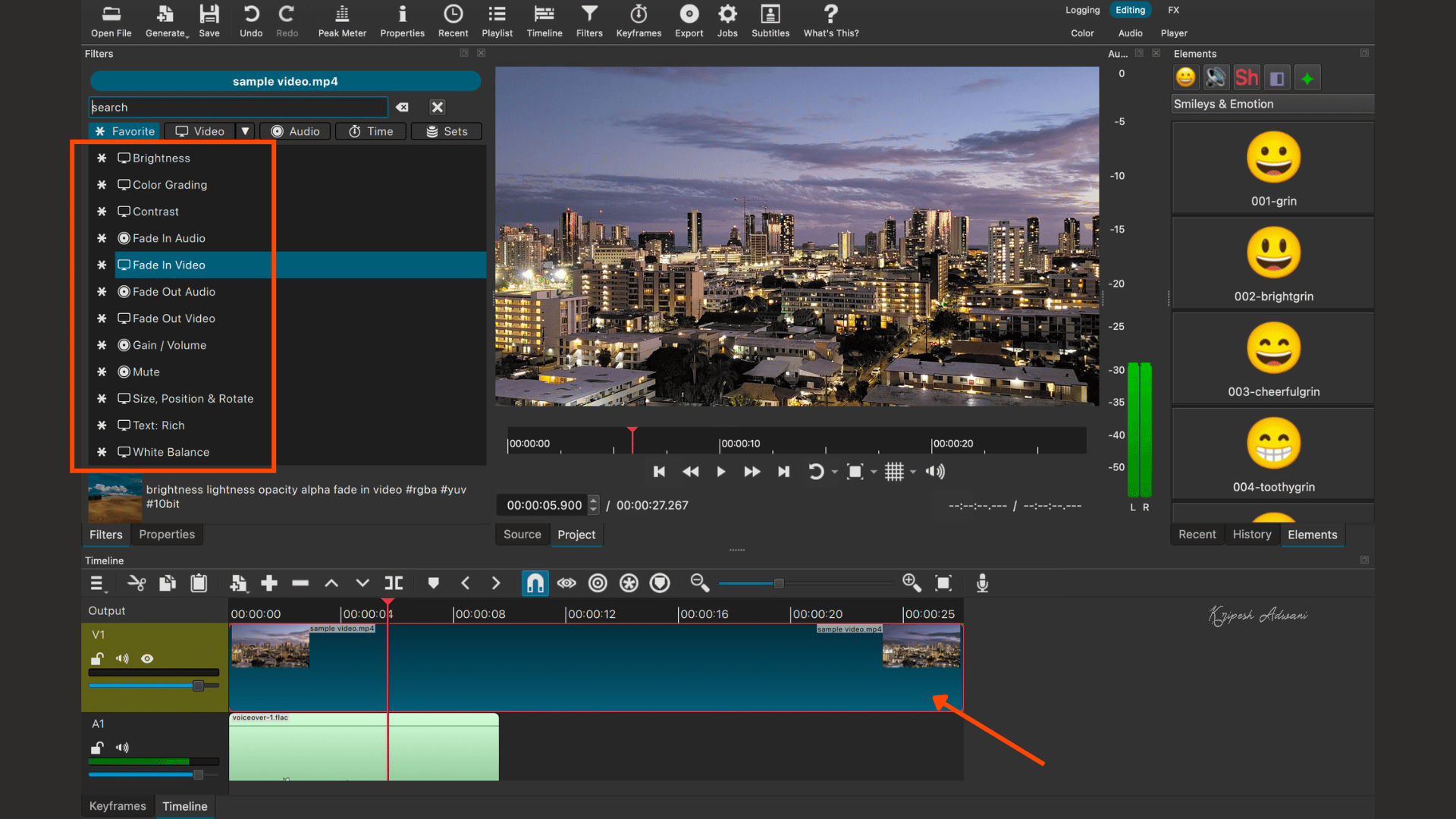
Shotcut is a suitable alternative for Windows, Mac, and Linux users. It’s a strong pick if you find CapCut too limited and DaVinci Resolve too complicated. This editor is open source under the GNU General Public License v3.0 (GPL-3.0), which means anyone can view and modify its source code. Shotcut is built on FFmpeg, a tool that can read hundreds of video and audio formats. Another USP of it is flexibility. You can mix different resolutions and frame rates in one project.
Highlighted Features
- Multi-track timeline: You can stack video, audio, and overlay tracks. This matters once you move past basic editing, since you can build layered edits like picture-in-picture or a voiceover over B-roll.
- Wide format support: Shotcut reads and exports most video, audio, and image formats. So, we can combine phone recordings, camera clips, and screen recordings in one project.
- Keyframes with different interpolation: Keyframes let you change filter settings. Shotcut has three core keyframe types: hold, linear, and smooth.
- Color tools and LUT support: You can adjust colors with HSL controls and apply LUT files, which are presets that give your videos a consistent look. The color tools are surprisingly good for a free program.
- Proxy editing and hardware-accelerated encoding: Proxy editing lets you work with lighter copies of heavy 4K files, which helps on older computers. Hardware encoding speeds up exports if your graphics card supports it.
Pricing
Shotcut is completely free. You don’t have to pay any charges for a premium subscription
Pros and Cons
Pros of Shotcut
Runs on Windows, Mac, and Linux, and older computers.
Supports a wide range of video formats and 4K editing.
Get detailed manual control over filters, keyframes, chroma key, and color tools.
Open-source code and an active community keep it updated regularly.
Offers multi-track editing, keyframes, proxy editing, and color correction without the complexity of DaVinci Resolve.
Cons of Shotcut
Shotcut isn’t as beginner-friendly as CapCut, YouCut, or Edits.
UI feels old-fashioned or confusing compared to modern video editing apps.
Effects library and creative transitions are limited.
Advanced color grading is limited compared to more professional tools.
Has no templates for quick social videos, so beginners have to build layouts by hand.
Some users report occasional crashes and slow previews with heavy projects.
Final Verdict
Shotcut suits creators who want full manual control, don’t want to pay, and are willing to learn a more technical interface. It’s a sound choice for YouTubers, people working with multi-format footage, and anyone who wants a free editor that runs on Linux. It’s definitely not for beginners who want fast, template-driven edits.
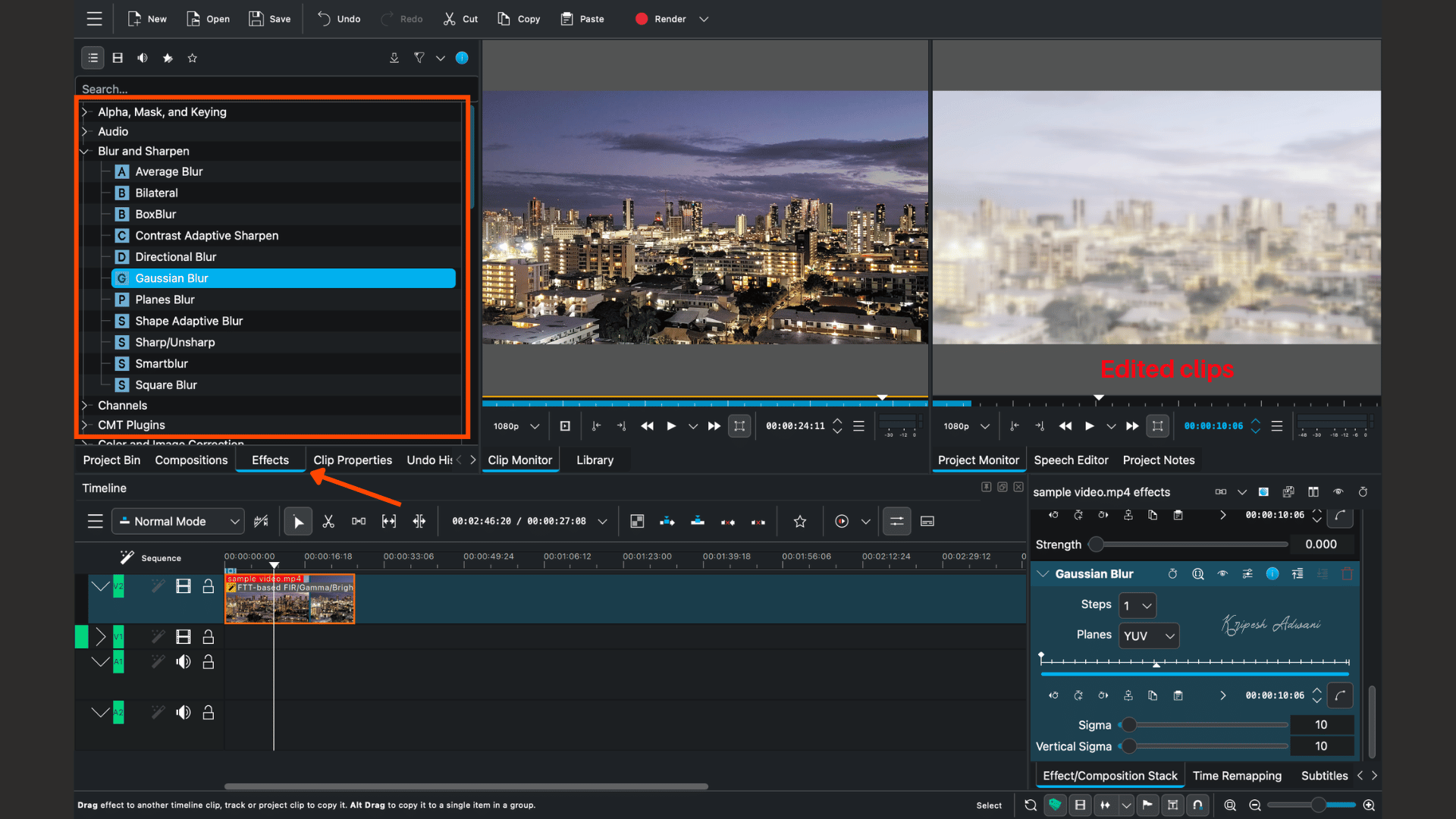
9) Kdenlive – Best advanced open-source editor
Kdenlive is another open-source, non-linear video editor. It’s maintained by the KDE community, the same group behind many popular Linux desktop apps. The software runs on Windows, Mac, and Linux devices. Its project files are plain text, so you can open them in other tools if you need to. Kdenlive is more powerful than Shotcut for multi-track work, and it costs less than many paid tools.
Highlighted Features
- Nested timelines: For longer projects, you can split the work up. Say you’re making a 20-minute video with three scenes. Build each scene on its own timeline, then drop the finished scenes into your main timeline. It will look like one clip.
- Automatic subtitles from speech: Kdenlive can turn spoken audio into text and create subtitles from it. This saves YouTubers and educators a lot of typing, but you’ll still want to check the text for mistakes.
- Color correction and grading: Kdenlive supports full-range 8-bit color, which gives you more room to adjust footage. It also includes scopes like the histogram, vector scope, RGB parade, and waveform, which help you judge exposure and color for cinematic edits.
- Group effect control: If you apply the same effect to several clips, you don’t have to adjust each one separately. The newer version lets you control all the effects in a group from one place.
Pricing
Kdenlive is 100% free and open-source software.
Pros and Cons
Pros of Kdenlive
Works on Linux, Windows, and macOS, which helps if you switch between operating systems.
Proxy editing lets you work with lighter copies of 4K footage, so playback stays smooth on lower-end computers.
LUT support, scopes, and detailed grading give you more control than the basic filters in CapCut.
Updated regularly with new releases and community testing.
Cons of Kdenlive
The learning curve is steep.
Some users report crashes, audio sync problems, and rendering glitches on Windows.
If you stack many effects on 4K footage, you may notice lag or slow rendering.
Final Verdict
Kdenlive suits experienced or determined creators who want a full-featured editor without paying. It’s a sound choice for YouTube content, advanced social media videos, and cinematic edits. But it can be overwhelming for beginners.
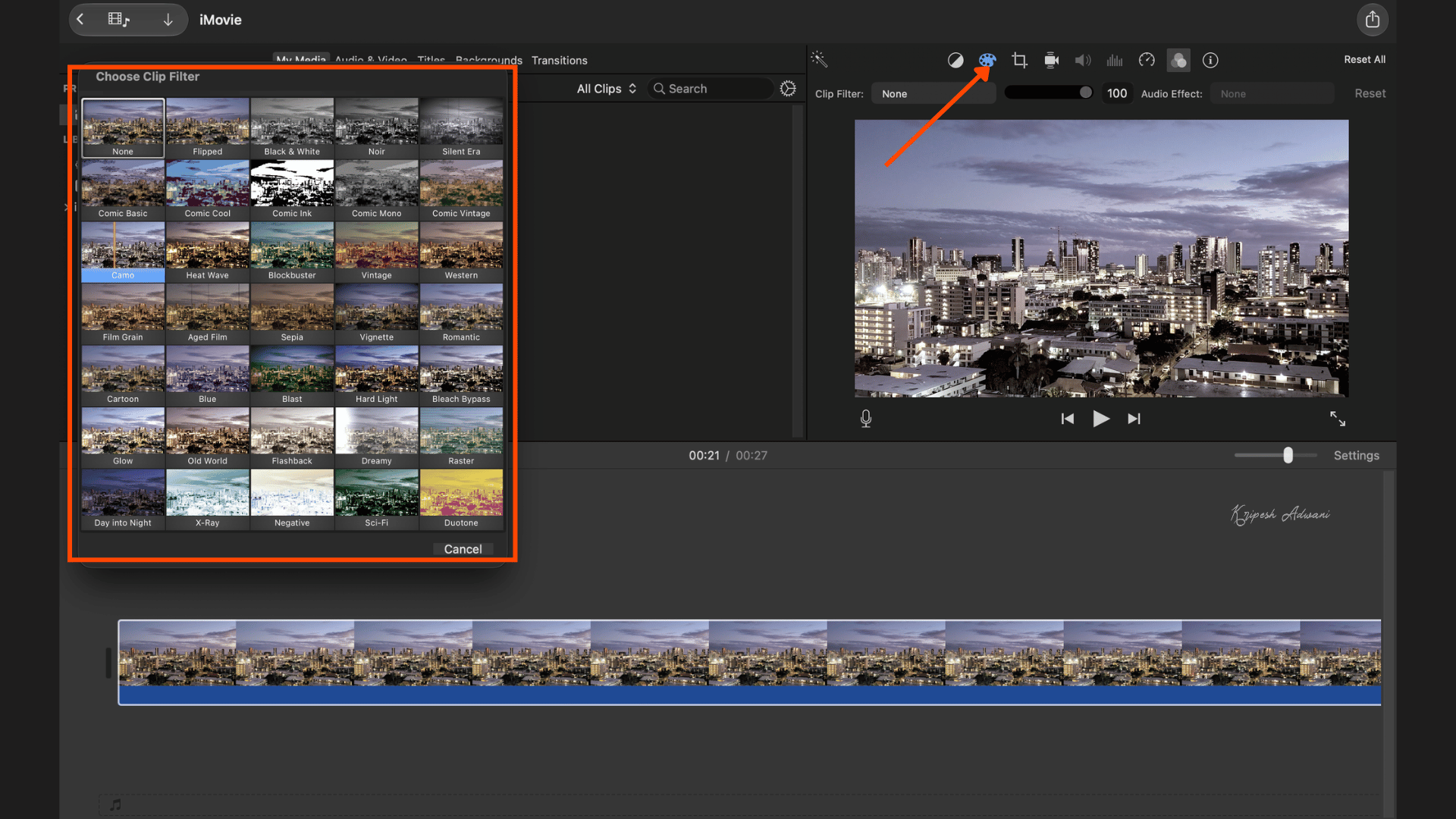
10) iMovie – Best free Mac editor
iMovie is Apple’s free video editor. It comes pre-installed on Mac, iPhone, and iPad. The software is designed for beginners who aren’t comfortable with a complex desktop editor. iMovie offers unlimited free editing with no watermark, 4K export, and direct sharing to YouTube, Instagram, and other platforms. What makes it stand out is how quickly you can finish a first project, thanks to its themes, trailers, and simple timelines.
Highlighted Features
- Themes and titles: iMovie offers 8 movie themes, each with matching titles, transitions, and music. It also has 13 Apple-designed video filters and 11 animated title styles. A theme applies a preset style to your titles, transitions, and fonts in one step, so beginners can get a polished look without design skills.
- Trailers: Trailers are short, movie-style templates. You fill them with your own clips and text. They work well for travel recaps or event videos when you want something that looks finished fast.
- Magic Movie and Storyboards: Magic Movie automatically builds a video from the photos and clips you select. Storyboards offer guided projects for things like cooking, DIY, product reviews, or Q&A videos.
- Cinematic mode editing: You can import and edit video shot in Cinematic mode on iPhone 13 or later. After recording, you can adjust focus points and depth-of-field effects.
- Audio tools: Reviewers like the audio settings. You can add background music, sound effects, and voiceovers. This is handy for narrating a home video or putting music under a vlog.
Pricing
iMovie is available for free on Mac, iPhone, and iPad devices.
Pros and Cons
Pros of iMovie
It’s free, with no watermark and no paid tier.
It’s already on your Mac, so there’s nothing to install.
The interface is simple, with drag-and-drop editing and Multi-Touch gestures.
Themes, trailers, and titles help you finish a video quickly.
It handles vlogs, family videos, school projects, and simple YouTube content well.
It works across iPhone, iPad, and Mac, so you can move projects between devices.
Cons of iMovie
It’s Apple-only, so Windows and Android users can’t use it.
Lacks keyframe animation, motion tracking, and multi-track audio mixing.
Color grading is basic, so it’s not ideal for advanced color work.
Built-in soundtracks are instrumental. Some users want more variety or access to popular songs.
Animated titles are hard to work with.
Current version requires macOS 15.6 or later, which leaves out older Macs.
Final Verdict
iMovie is useful for Mac users who want a free, easy-to-use video editor for vlogs, family videos, and basic YouTube content. Beginners and casual creators who already use Apple devices can start with it. If you need advanced color grading or complex multi-camera editing, a desktop editor will be more practical.
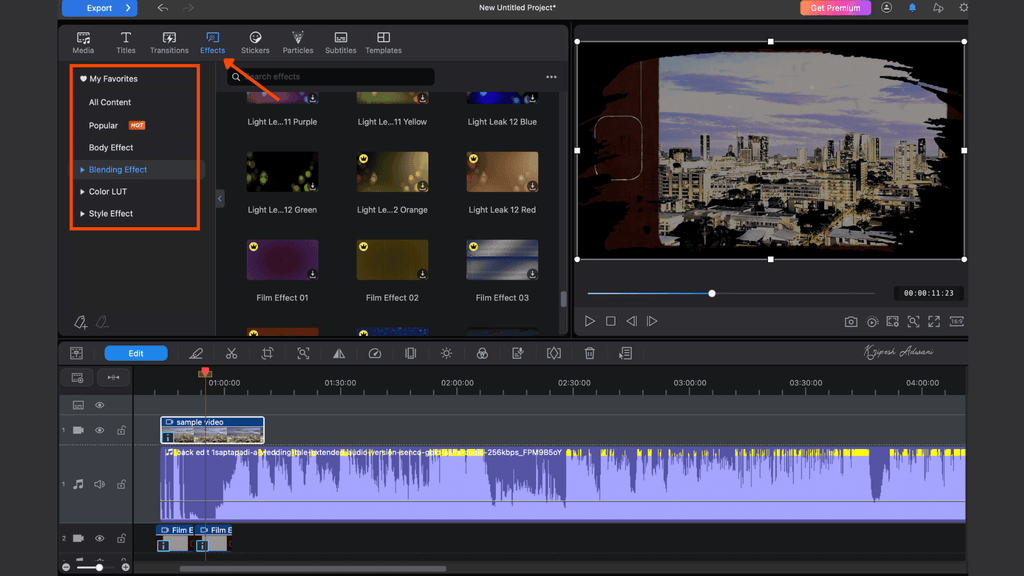
11) CyberLink PowerDirector – Best for effects-heavy edits
PowerDirector is a video editor by CyberLink, a software company based in Taiwan. It comes in two versions. PowerDirector 365 is a paid subscription, and PowerDirector Essential is the free version with no time limit. It runs on Windows, macOS, Android, and iOS. This tool is best for effect-heavy edits as it includes a huge collection of transitions and effects, animated titles, and a stock library.
Highlighted Features
- Large transitions and effects library: Transitions and effects make your clips look polished, from simple cross-fades to stylized wipes. CyberLink claims the full product includes 650 animated transitions. You can also adjust the duration of each effect.
- Animated titles and text: You can add titles that move, fade, or bounce. They’re useful for lower thirds in interview videos and for YouTube intros.
- Motion tracking and motion graphics: Motion tracking lets you attach a title or graphic to a moving object, like a person’s face or a car. The free version includes these features, which are unusual for a free editor.
- AI effects and enhancements: The paid versions offer AI motion effects, sky replacement, and one-click color and audio enhancements. Heavy AI use, however, requires credits.
- Stock library: The full library includes millions of videos, photos, and music from Getty Images and Meta content. However, you need a paid subscription for full access.
Pricing
The free version of PowerDirector 365 offers basic editing tools and limited templates and effects. It doesn’t let you import WEBM and .MOV 10-bit 4:2:2 video files, and you can’t export H.265 or 2K/4K H.264 video files. To unlock all of this, you need to upgrade to PowerDirector 365. Right now, it costs $59.99 for a year ($5/month) with a limited-time discount.
Pros and Cons
Pros of PowerDirector
The interface is clean and beginner-friendly, and it’s easy to learn with guided tutorials.
It renders quickly.
Has a large library of effects and assets.
Available on desktop and mobile, so it fits into a multi-device workflow.
Editing dashboard is clean, intuitive, and packed with features.
Cons of PowerDirector
Free version adds a watermark to exports.
It’s heavy on your computer. Editing 4K footage or using heavy AI features may require a capable PC.
AI features require credits.
Advanced editing features are only available in the paid versions.
Final Verdict
PowerDirector mixes simple editing tools with professional features and strong AI capabilities. It’s a good fit for YouTubers, content creators, and video editors who are okay with a watermark or who don’t mind paying for a subscription. It’s definitely not the right choice for anyone who wants a completely free editor with no limits.
Why Look for CapCut Alternatives?
CapCut is owned and developed by ByteDance, the same company behind the globally popular app TikTok. However, many ByteDance apps, including TikTok and CapCut, have been banned in India because of concerns over data privacy.
In 2020, the Indian government banned 59 Chinese apps. The government cited risks of user data misuse and national security concerns linked to the Chinese government. The U.S. government has also criticized ByteDance and taken regulatory actions over similar issues.
Given these concerns, I’ll advise you to explore alternative video editing software to better protect your sensitive information.
Testing Parameters
There are over 100 video editing software options out there, but not all of them are useful for every user. After personally using CapCut for months, I wanted to find something effective. So, I tested a range of editors that offer valuable features even in their free versions.
While testing, I focused on the following factors:
- Ease of use and user interface
- Free video editing features
- Whether exports include a watermark
- Export quality
- Availability of AI-powered tools
I also reviewed whether each tool supports audio editing, multi-layer editing, and other advanced features. Based on these criteria, I’ve shortlisted five top tools, each for mobile and desktop users.
Conclusion
CapCut is a powerful video editing app that offers a wide range of useful features for free. However, since the app has been banned in India, content creators are actively looking for reliable alternatives. In this article, I’ve shared 11 great alternatives to CapCut.
For mobile users, VN Video Editor, Edits by Meta, and YouTube Create are all solid options. You can also try YouCut for Android or VLLO for lifestyle and vlog editing.
DaVinci Resolve is the most advanced video editor on this list for desktop users. If you’re a Windows user looking for something simpler, you can try Clipchamp. Shotcut and Kdenlive are two great open-source alternatives.
Have I missed a CapCut alternative that you think is better? Drop it in the comments. I’d love to check it out and possibly include it in a future update!
And if you still want to use CapCut, check out my guide on how to use CapCut in India with a VPN. Until then, bye!
FAQs
Which app is better than CapCut?
For mobile users, VN Video Editor is a great alternative. If you’re editing on a desktop, try DaVinci Resolve.
Which is the best tool for ease of use?
YouCut is a user-friendly mobile video editor. ClipChamp and iMovie are beginner-friendly options for desktop users.
Which is the best software for professional video editing?
DaVinci Resolve is ideal for professional-level video editing on the desktop. VN Video Editor is a versatile choice that works well on both mobile and desktop platforms.
Which CapCut alternative is best for YouTube videos?
YouTube Create is best for editing shorts and simple videos on mobile. For more advanced YouTube editing, you can try Kdenlive, VN Video Editor, or DaVinci Resolve.



nice video