Traditional slide decks are dull, repetitive, and often forgotten the moment they end. Do you want to stand out and truly wow your audience? Well, it’s time to level up with Prezi!
Whether you’re a student pitching an idea, an online coach designing a course, or a business owner presenting to clients, Prezi makes it incredibly easy to create dynamic, visually stunning presentations!
After exploring Prezi inside out, I’m here with a complete Prezi Review to help you decide if it’s worth your time. We’ll walk through its interface, standout features, pricing, customer support, pros and cons, and also provide recommendations on who it’s best suited for.
So, are you ready to create some eye-catching presentations with Prezi? Let’s get started!
Prezi Review
Summary
Prezi offers stunning AI-powered presentations with interactive zooming effects, a rich template library, and sleek video presentation tools. It even features an AI image generator for creating engaging visuals.
However, it has limited AI functionality, and its motion effects can feel overwhelming to some users. It’s best suited for educators, students, trainers, and professionals who want to create creative, interactive, and visually dynamic presentations.
Disclaimer : I strongly believe in transparency. If you buy using the links on our site, we may earn a small commission without any extra cost to you. This helps me to keep producing honest reviews. Read More >>
About Prezi
Prezi is an online presentation tool founded by Adam Somlai-Fischer, Peter Halacsy, and Peter Arvai in 2009. It resembles Google Slides and MS PowerPoint. However, it differentiates itself by offering a unique Zooming user interface (ZUI) instead of traditional slides.
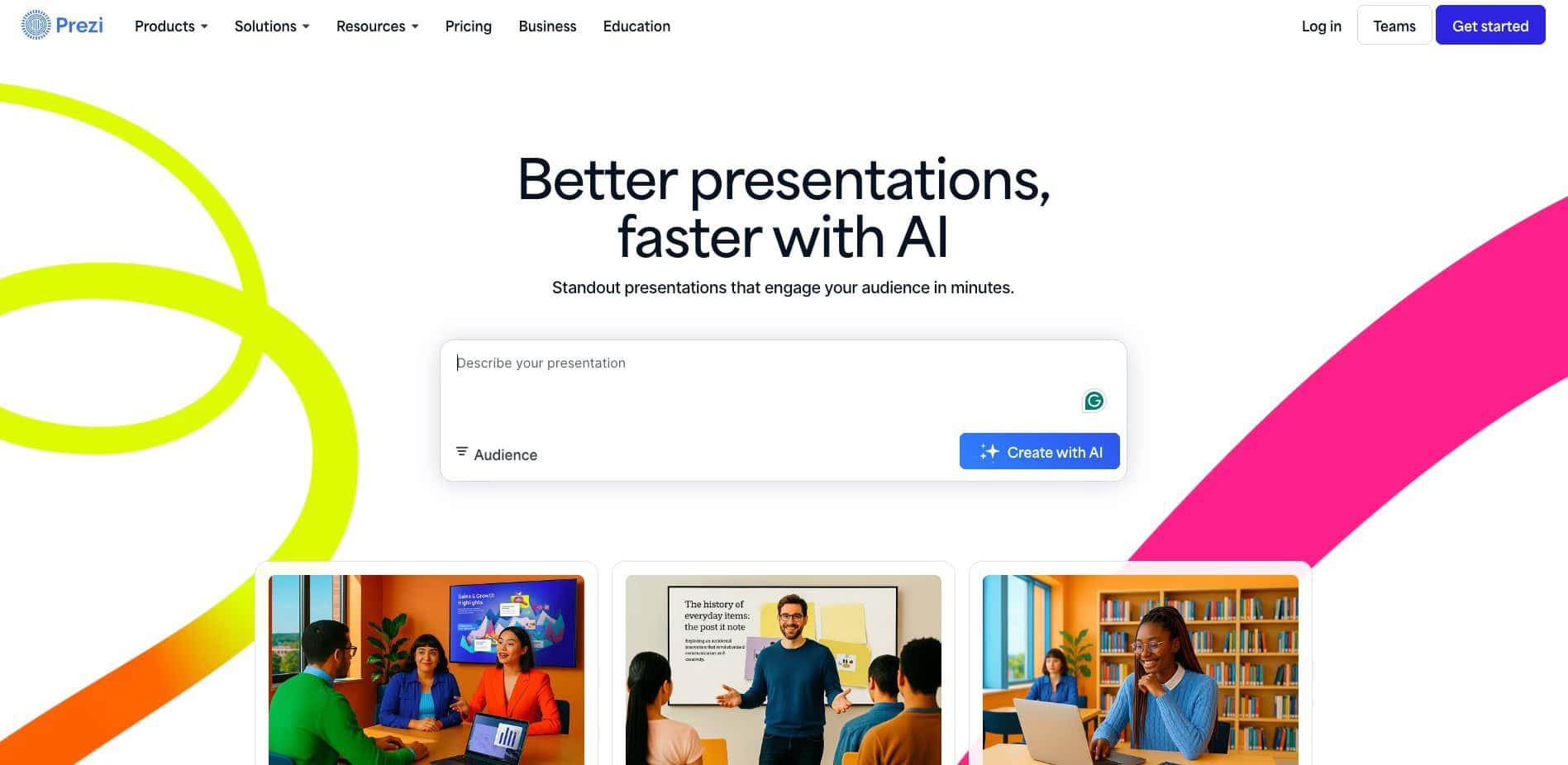
Prezi doesn’t stop at presentations! You can create infographics, live video presentations, and a variety of other graphics with it. It is trusted by top brands like Cisco, Autodesk, Salesforce, etc. and loved by over 160 million people across the globe.
Prezi User Interface
Prezi comes with a modern and clean interface. On the left panel, you get all the features of the tool to start creating. You can also create a new folder, access trash, or view the library of your collections.
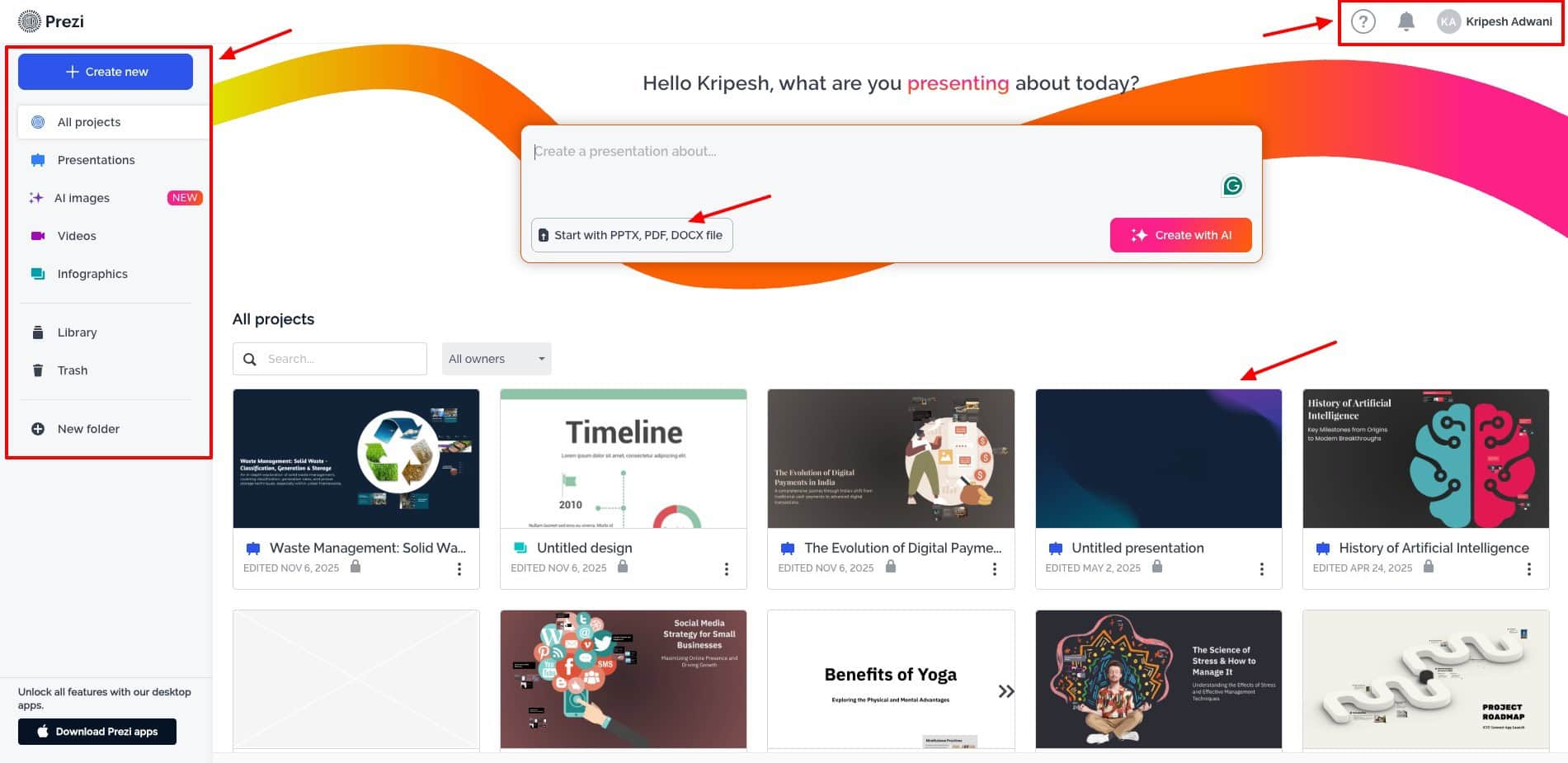
The main screen features a list of all your recent projects. Whereas, on the top right corner, you can view account settings, notifications, or reach customer support. Overall, the UI is easy to navigate with pleasing colors. But the variety of features may overwhelm complete beginners.
Key Features of Prezi
1) AI-Powered Presentations
Besides regular presentations, Prezi lets you create full-fledged presentations using AI. To get started, simply click on the “Create New” button. It now features multiple options. You can start with an idea or with a PDF, PPT, or DOCX file.
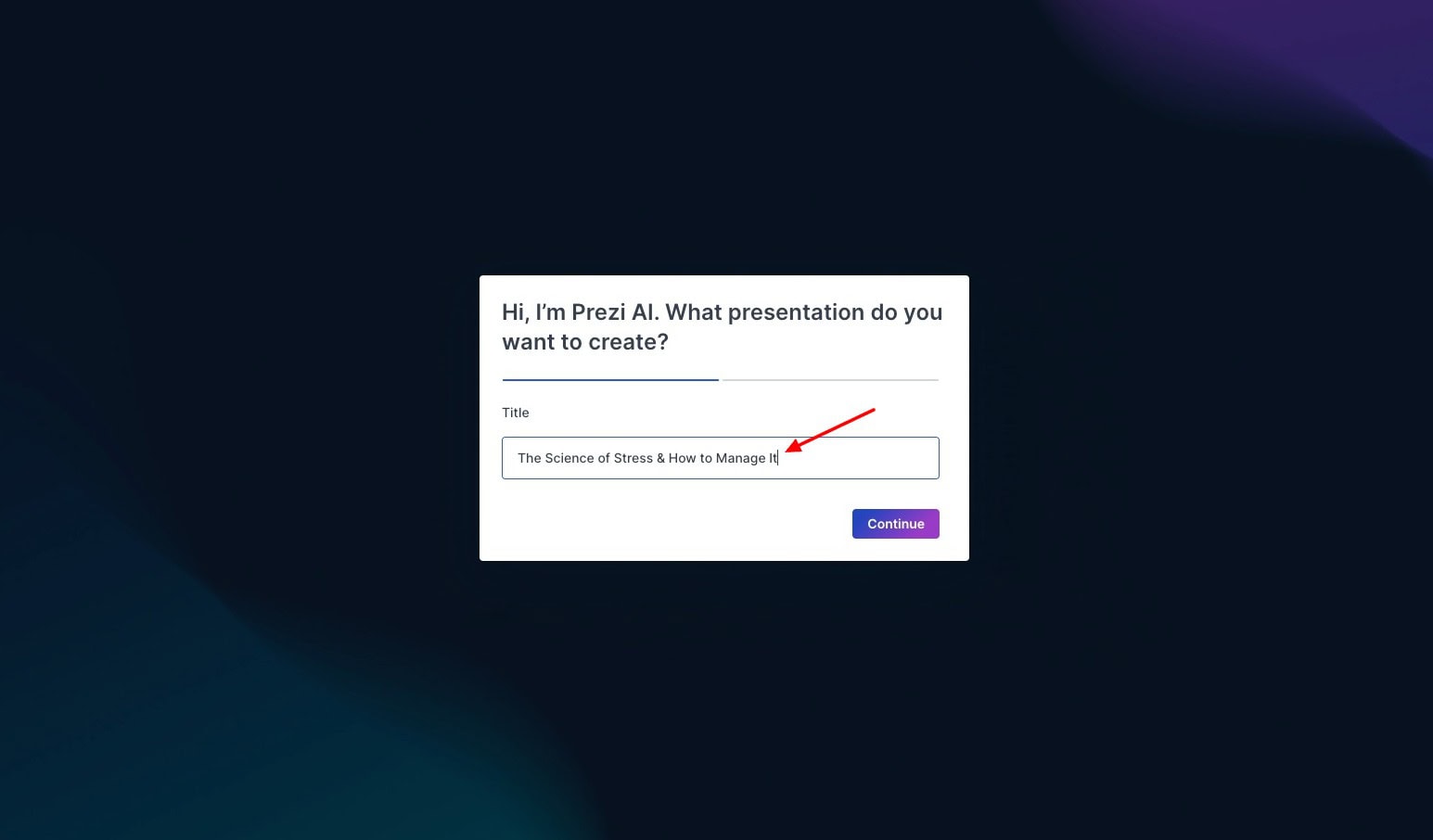
Starting with an idea is simple. You just need to enter your presentation title and provide a short description of your topic. The AI handles the rest!
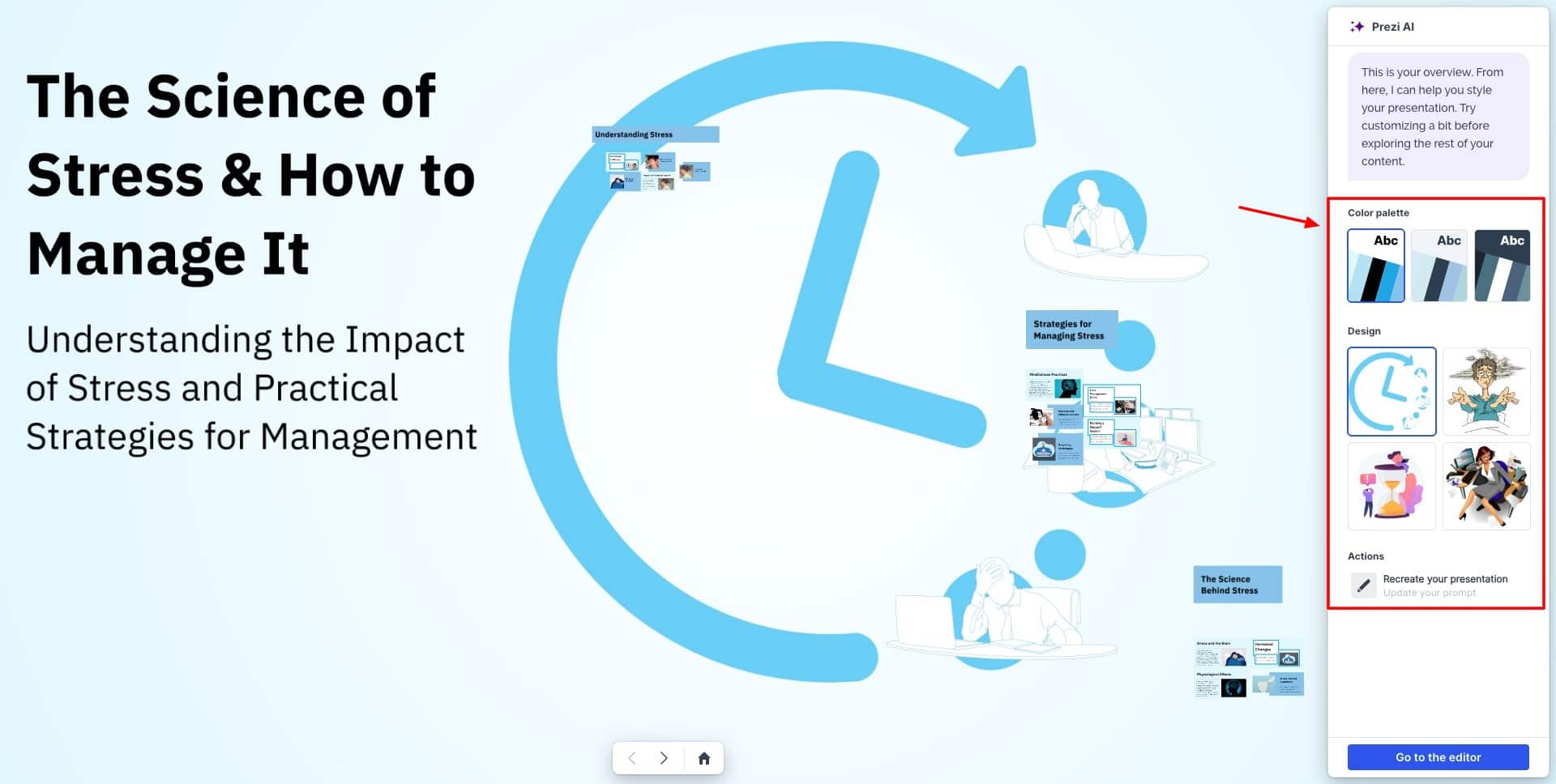
Once it creates your initial slideshow, you can pick a color palette and the design you wish to incorporate. If you’re not satisfied, you can recreate the entire design as well. Based on your choices, it creates a 20+ page presentation with apt content and thoughtful images.
If you choose to go with the file upload option, you can get more relevant results. It lets you upload your PPT, PDF, and DOCX files, and extracts all content. Based on that data, it creates a comprehensive PPT outline for you.
Before generating the PPT, you can edit the outline and add or remove any topics. I loved the lightning-fast generation speeds of Prezi. It creates high-quality content with relevant images, layouts, animations, and colors.
The Zoom to Frame effect in the presentations is Prezi’s USP. Check out this AI presentation I created with Prezi on the topic “The Science of Stress & How to Manage It”.
The downside was that some images were repeated. You cannot generate images separately, but it integrates the Unsplash and Prezi image libraries to give you lots of relevant image choices. Also, the Zoom to Frame effect might be a little uncomfortable to watch after a while.
2) AI Image Generation
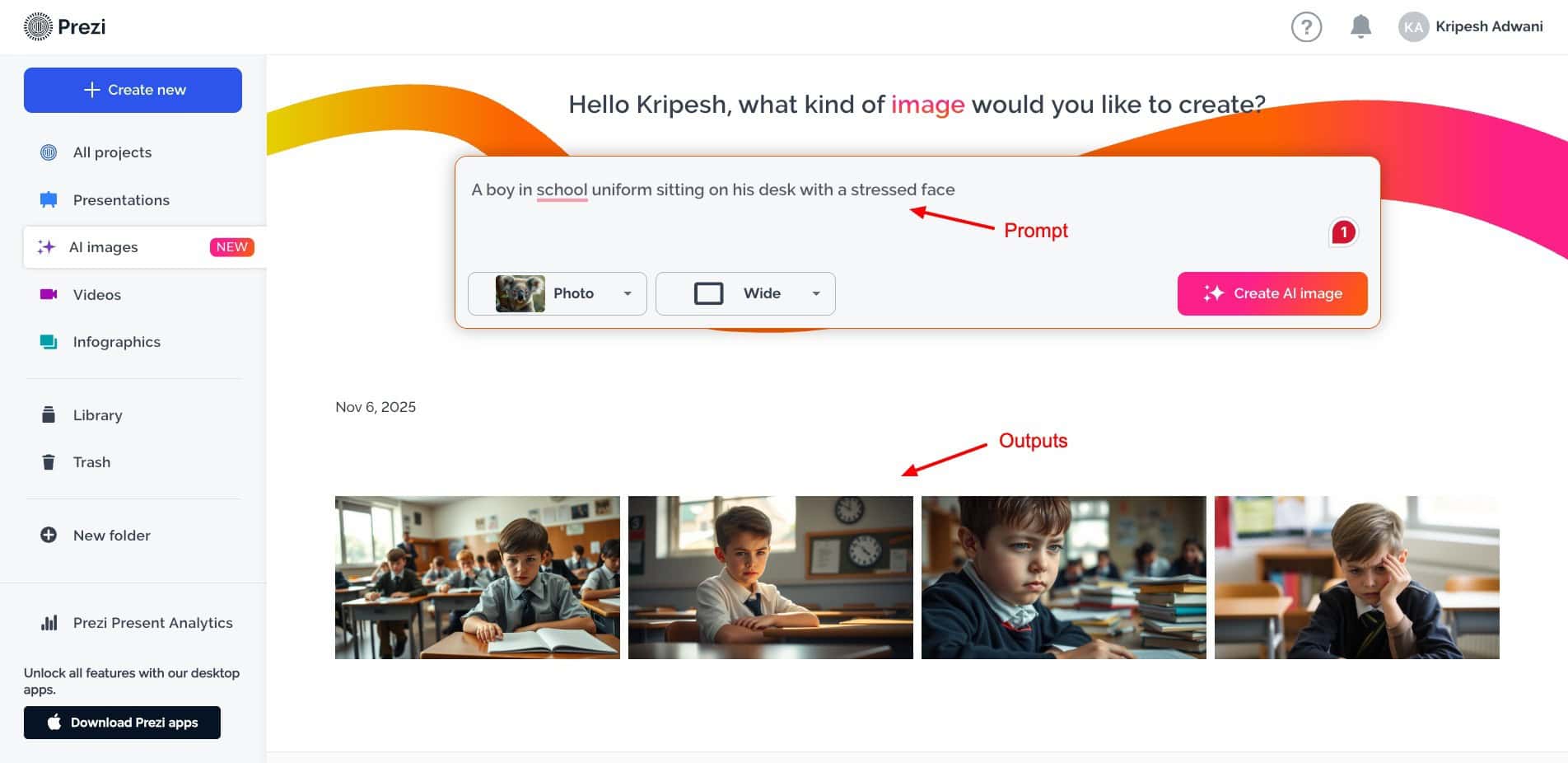
Recently, Prezi has also introduced its AI image generator tool. Using it is super simple.
- Select a style (photo, sketch, illustration, vintage, or 3D, etc.)
- Enter your image prompt
- Choose an orientation (square, wide, tall)
You can search for a specific type of template by entering keywords in its search bar. But I wish they also had pre-built template categories to simplify the searching process.
3) Large Template Collection
Prezi has a library of 200+ pre-designed templates you can use. Hovering over the template will preview its animation style. The best thing about Prezi is that its templates are like a breath of fresh air! They are unique and creative. You can use them and stand out at school or work.
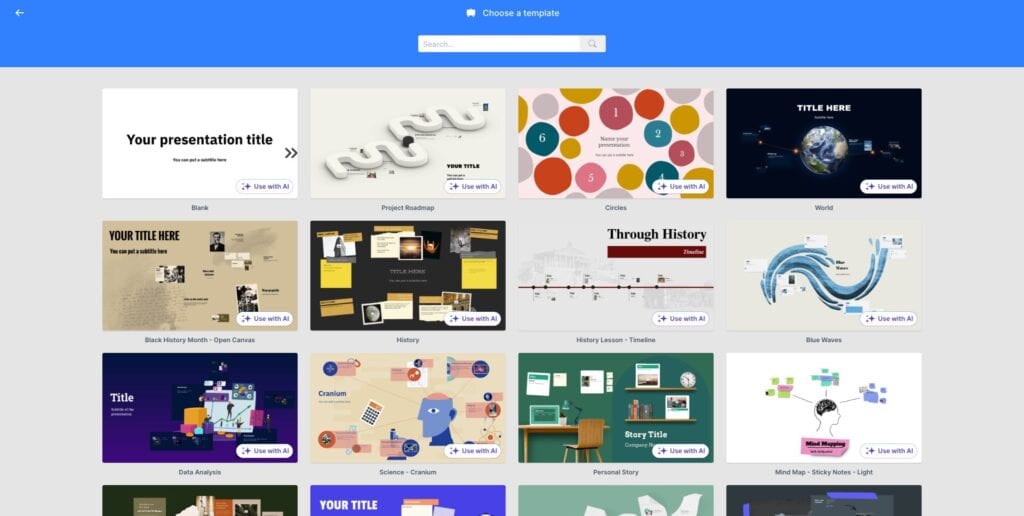
You can search for a specific type of template by entering keywords in its search bar. When you hover the mouse pointer over a template, its animation starts playing. This is great for getting an idea of how your PPT will look and feel.
But I wish they also had pre-built template categories to simplify the searching process.
4) Editing and Customization
Now that we have created our presentation, it’s time to personalize it. Prezi is equipped with a wide range of editing and customization options. Let’s explore them below.
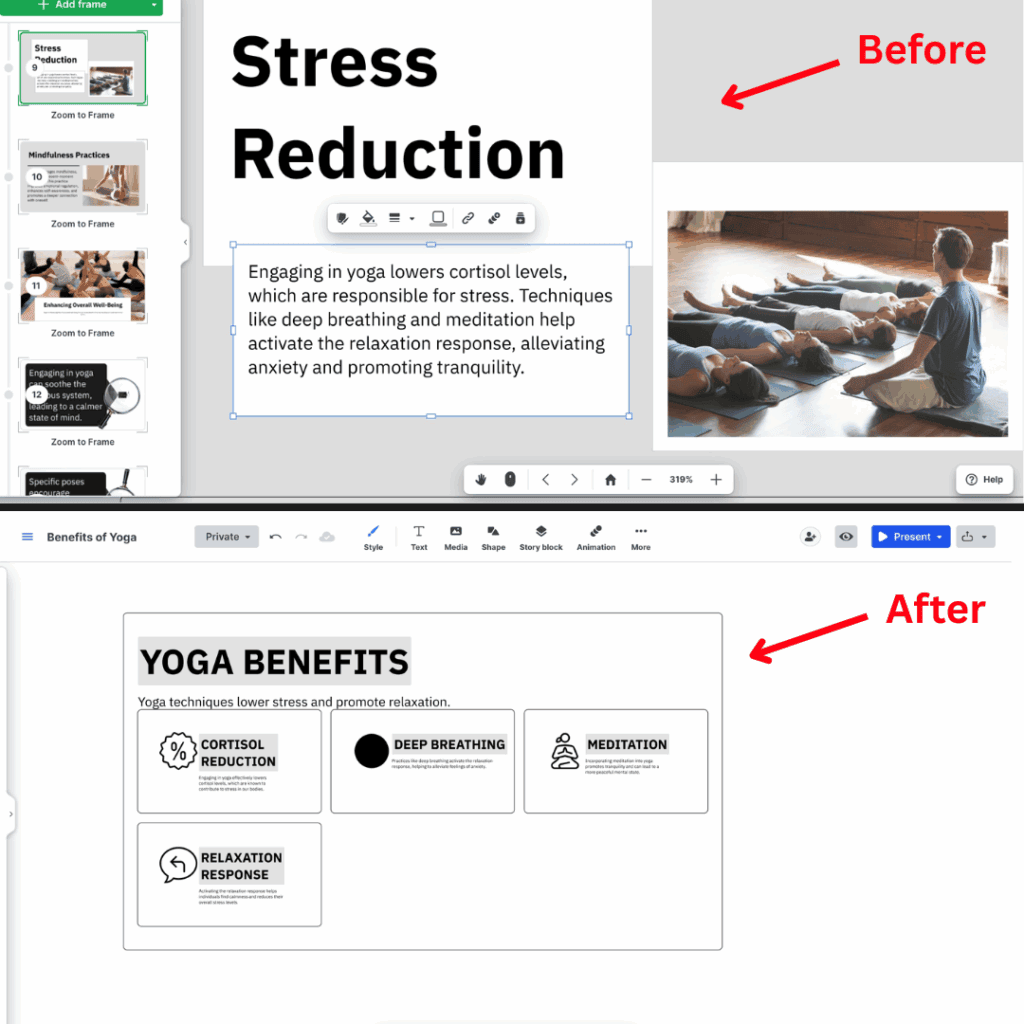
You get the “Ask AI” tool to edit any text content in your presentations. Simply select a block of text and hit “Ask AI”. It presents a drop-down menu with options to make the text longer or shorter, simplify it, turn it into bullets, highlight key points, etc.
You can even create more visual elements with your text, like flowcharts, visual lists, animated stories, zooming effects within the frame, etc. Check out how Prezi translated my text content into a visual list!
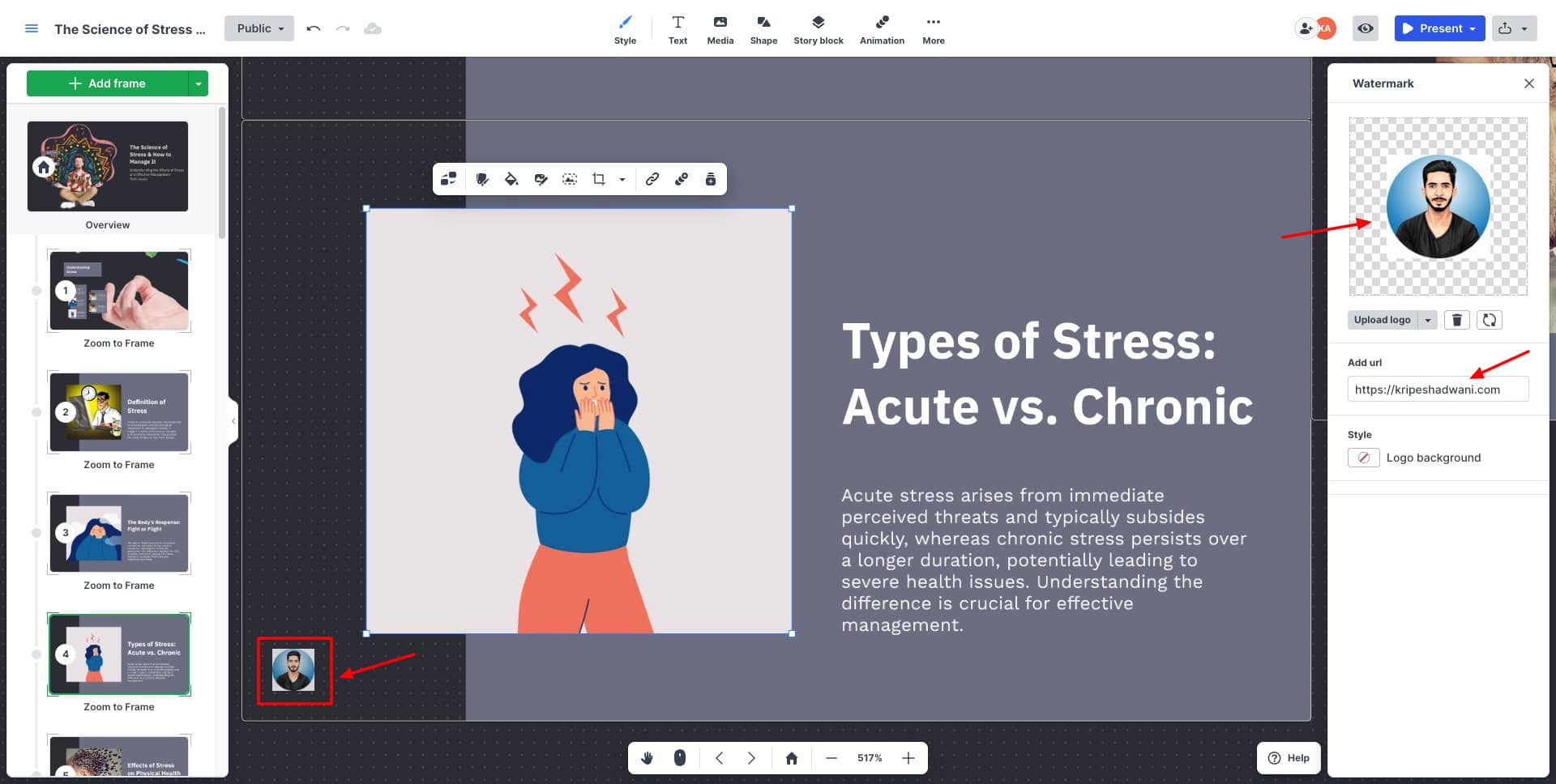
Next, under the Style tab, you can edit the presentation’s background, text style, and color palette. If you have a brand logo, you can also upload it and add it as a watermark to your presentation. For inserting brand URLs, you need to upgrade to the higher plans.
Creating a branded color palette is also possible now. You can manually enter your brand colors or just upload your logo and let the AI extract your brand colors automatically.
Next, you can add text, shapes, animations, etc. You get limited animation options, including Zoom in/out and Fade in/out. Under media, you can insert a range of elements like image, video, audio, PPT, PDF, chart, GIF, sticker, icon, etc.
Recently, they have doubled the size of their stock image library so users get a better and more relevant range of image options.
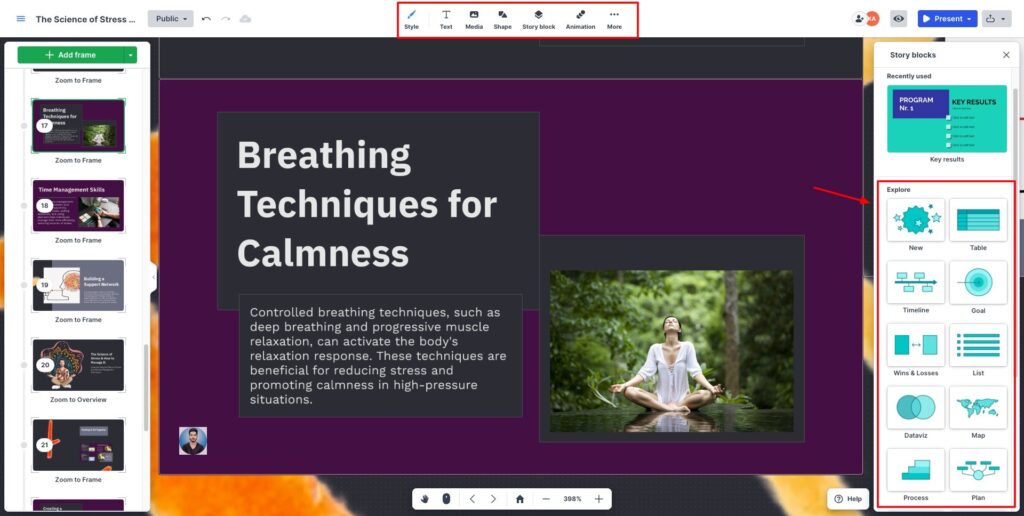
Presenter notes can be added for reference while presenting your slides. If you want to add a new topic, you can use the Planet Topics and Page Topics features.
With the planet topic, you can insert new topics around the main one in a circular way. Whereas, with page topics, you can create linear presentations. Overall, the customization options in Prezi are excellent.
5) Create Video Infographics
Prezi Video lets you present alongside your videos while you livestream with your audience. You can either import your PowerPoint presentation and turn it into interactive videos or create a live presentation by adding slides as you livestream.
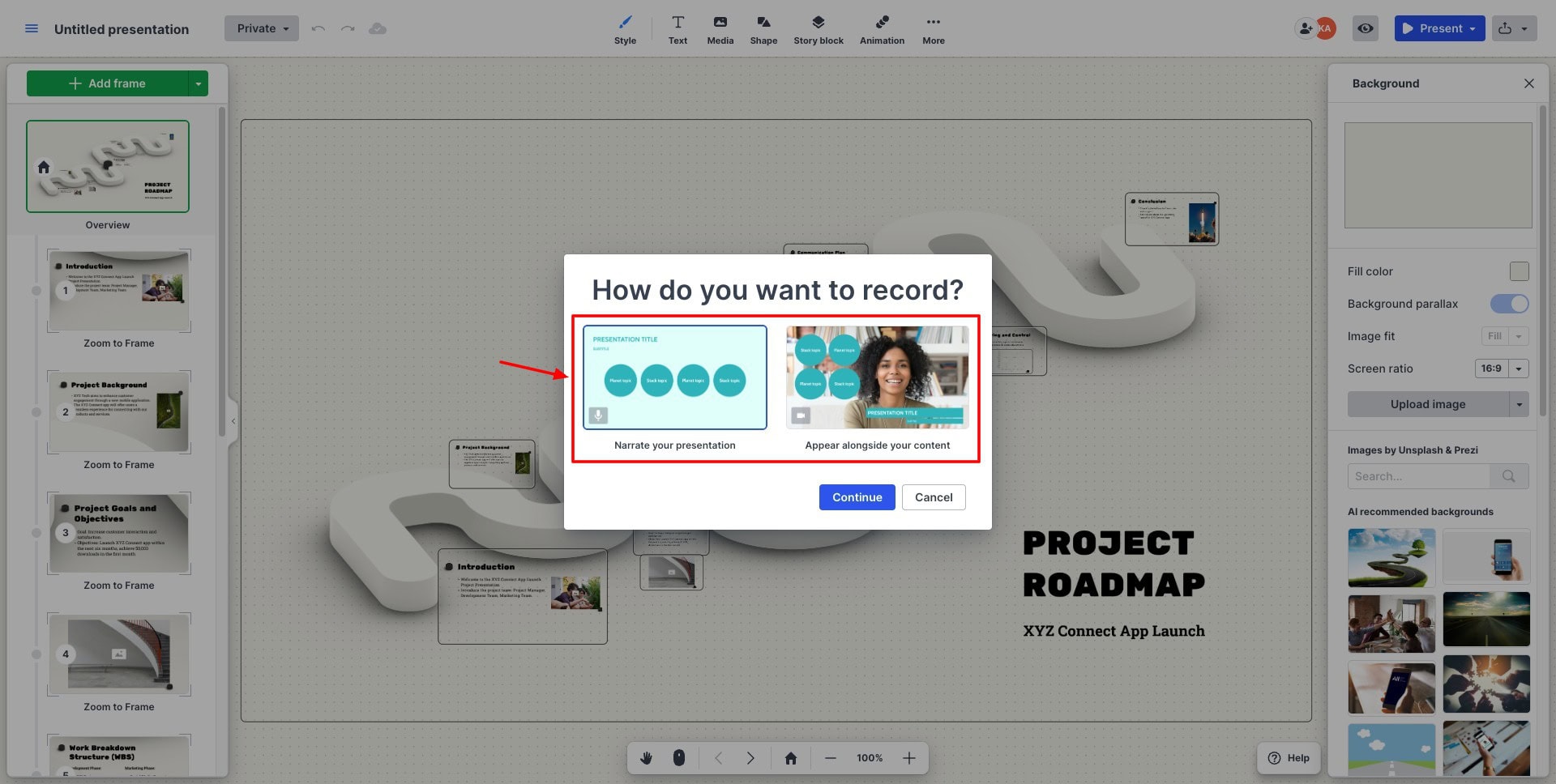
There are multiple ways to present your slideshow. You can use the “Record as a Video” option within your presentation and simply narrate your presentation or appear alongside your content.
Alternatively, you can use the Prezi Video app and import your presentation from Prezi, Google Slides, MS PowerPoint, etc. Once you import your presentation, you can enable virtual background and select a template for your presentation video.
Next, Prezi lets you add content like text, stickers, icons, GIFs, and images to make your videos even more eye-catching. If you can’t find relevant content in the Prezi library, you can also connect cloud storage services like Dropbox, OneDrive, and Google Drive to import content.
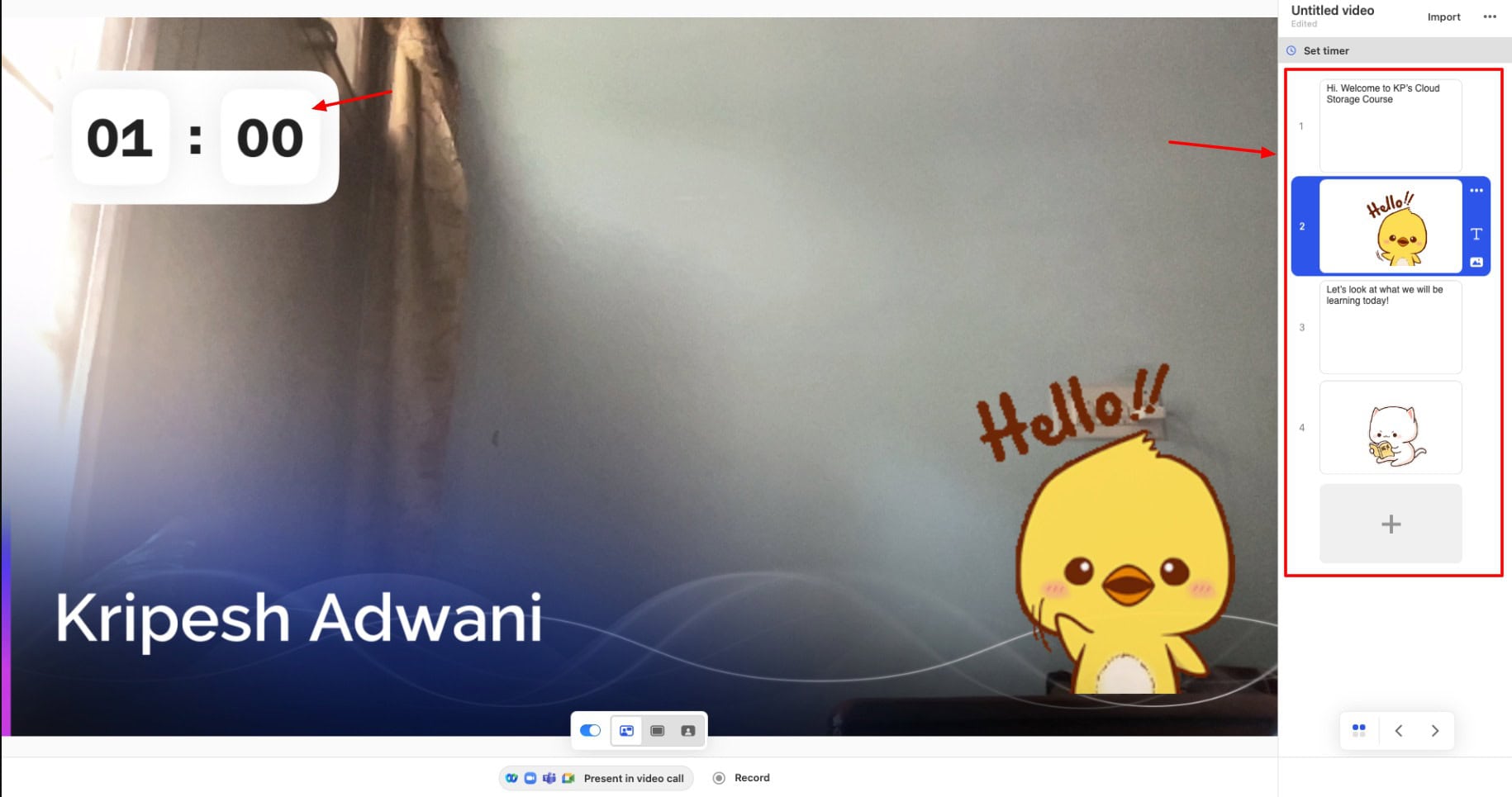
Under widgets, you can also enable your name tag on the screen and a countdown timer for more engagement. Finally, you can present your video by integrating conferencing apps like Google Meet, WebEx, MS Teams, Zoom Meetings, etc.
This is a great way to create interactive and engaging video presentations to keep your viewers hooked! The only downside is that there are very limited customization options. You cannot edit the positions of elements, adjust font size, color, or type, etc.
6) Create Infographics
Infographics help you present lots of data in a compact, yet visually appealing manner. The internet is chock-full of the same, plain and boring infographic templates reused by most users. Prezi can help you make your mark and get the reader’s attention!
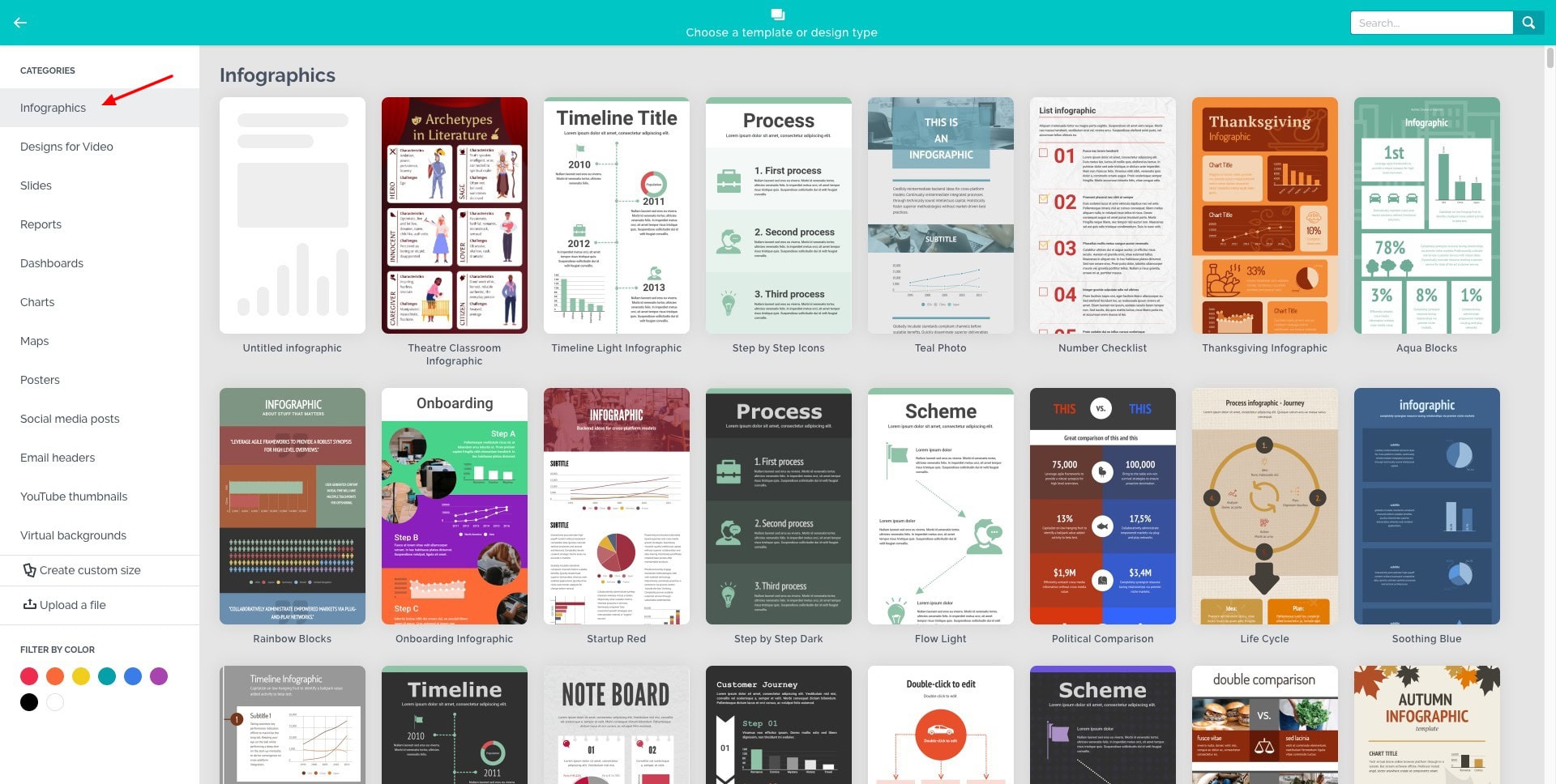
It is equipped with 75+ infographic templates for flowcharts, note boards, schedules, statistics, maps, etc. You won’t find templates organized by categories, which can make it difficult to pick the right one for your requirements.
Once you pick a template, you can manually insert your data and elements like timelines, lists, diagrams, etc. To elevate it further, you can import videos from Prezi Video, YouTube, or Vimeo. Images, icons, stickers, GIFs, and flags are powered by Unsplash, Noun Project, and Tenor libraries.
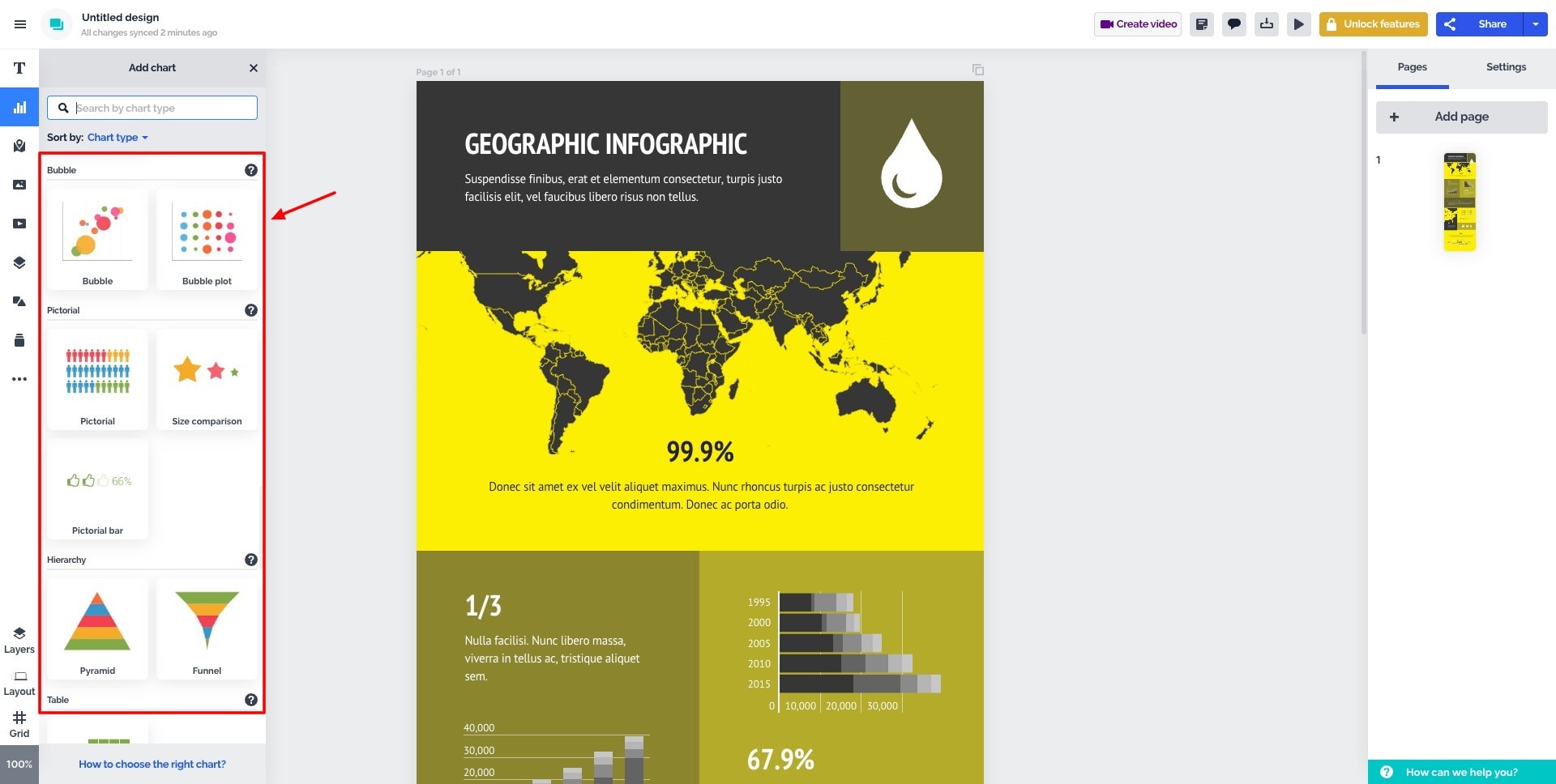
To represent data more visually, you get a number of charts, like line charts, bar charts, column charts, Gantt charts, pie charts, bubble charts, etc. Infographics can be exported in an array of file formats like PNG, JPG, PDF, GIF, and MP4.
I wish they also allowed creating infographics and other media elements with AI. But currently, it’s limited to presentations only.
7) Sharing and Exports
Prezi allows you to create public links to your presentations, so anyone can view them without signing up. You can also create private links to share them with specific people. You can export your slideshows in the PDF format, PPT format, share a live broadcast link, or a QR code.
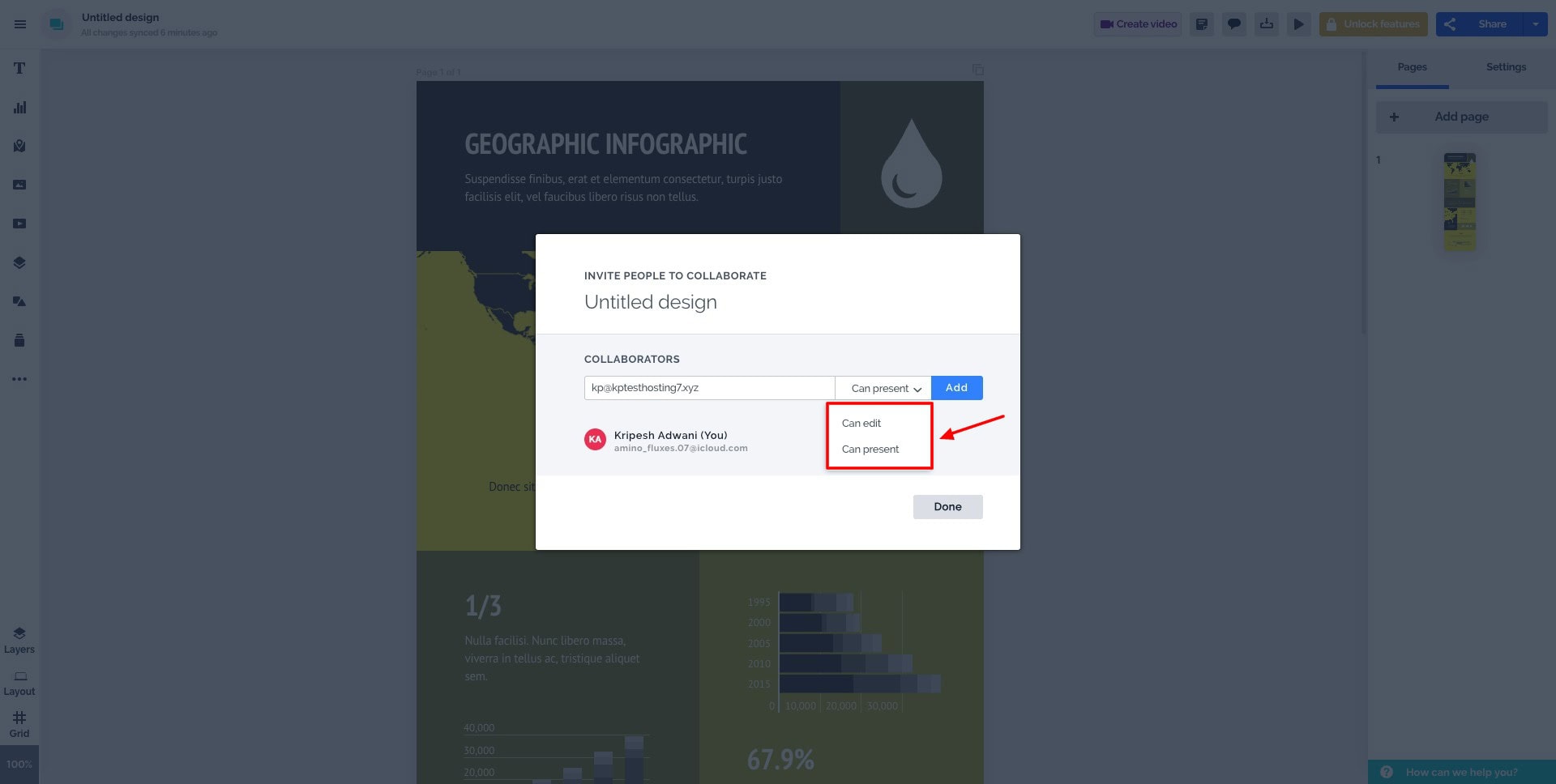
If you want to invite collaborators, you can enter their email and assign them view, comment, or edit access. However, it would’ve been convenient if they offered exports in presentation (PPT) format.
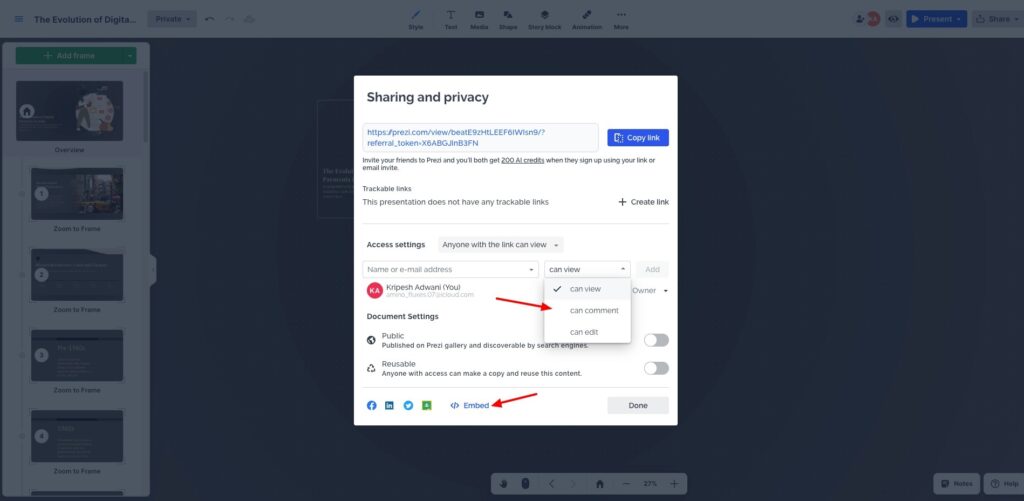
Recently, they have also introduced two new options. First, you can mark your shared file as reusable. With this, anyone with access can make a copy of your PPT and reuse it. Next, you can also get code to embed your PPT on Facebook, LinkedIn, X, and Google Classroom.
8) Multi-Language Support
Besides English, Prezi offers support for 8 languages, including French, Italian, Dutch, Spanish, Portuguese, and more. To create presentations in a different language, simply switch the language from the main menu. I hope they also extend their language support to Hindi.
Prezi Customer Support
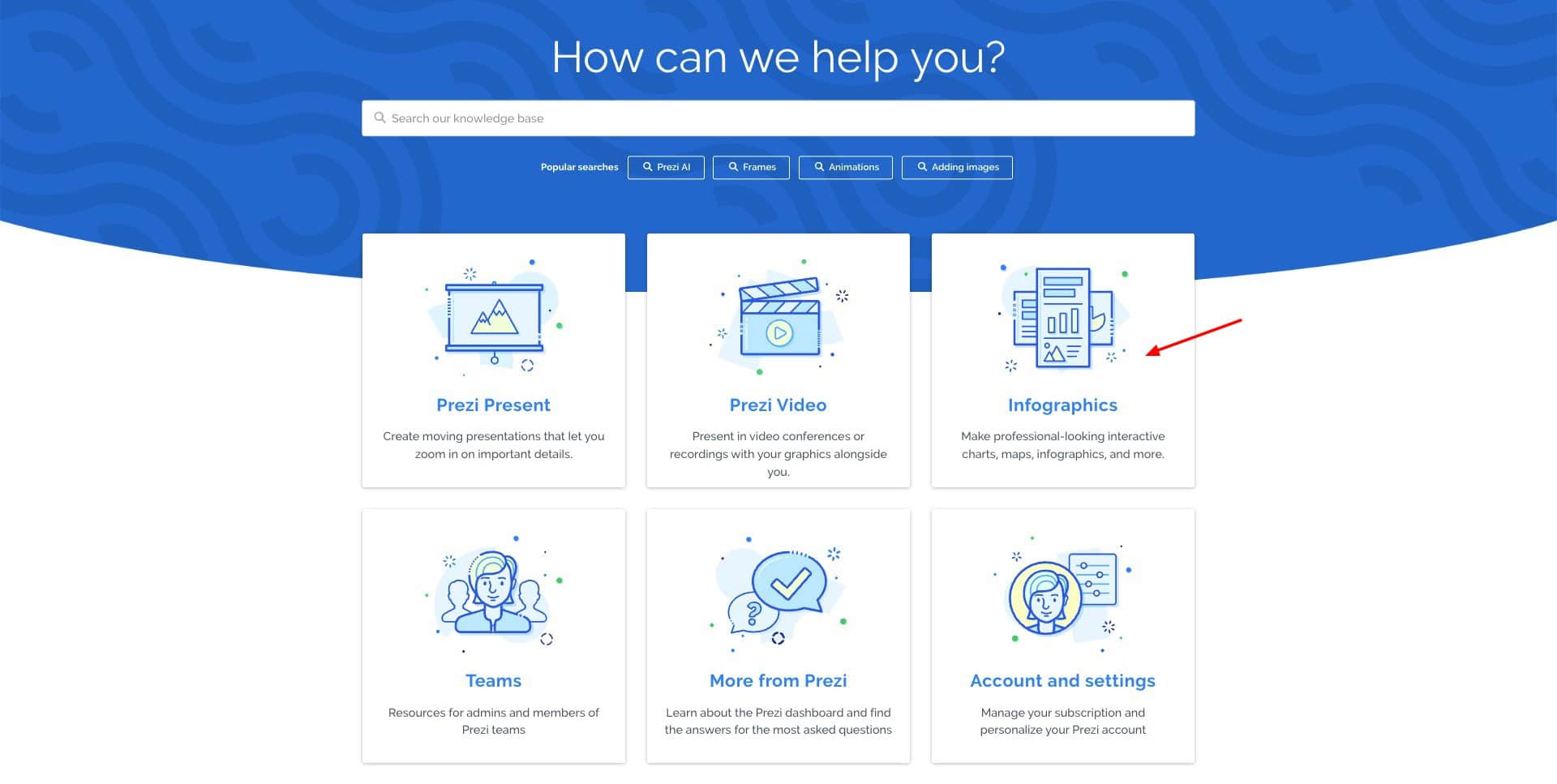
Prezi offers customer support via its knowledge base and email support. You can get answers to all your basic queries within their knowledge base. If you are a beginner, you can check out their tutorial videos to understand how to use the presentation software effectively.
Recently, they have also introduced on-demand training, where you get training courses and video recordings to understand how to use their platform better. I wish they also had live chat support for catering to more technical queries.
Prezi Integrations
Prezi offers a variety of integrations. It lets you connect platforms like Facebook, Microsoft, Google, Apple, and Google Drive to share your presentations.
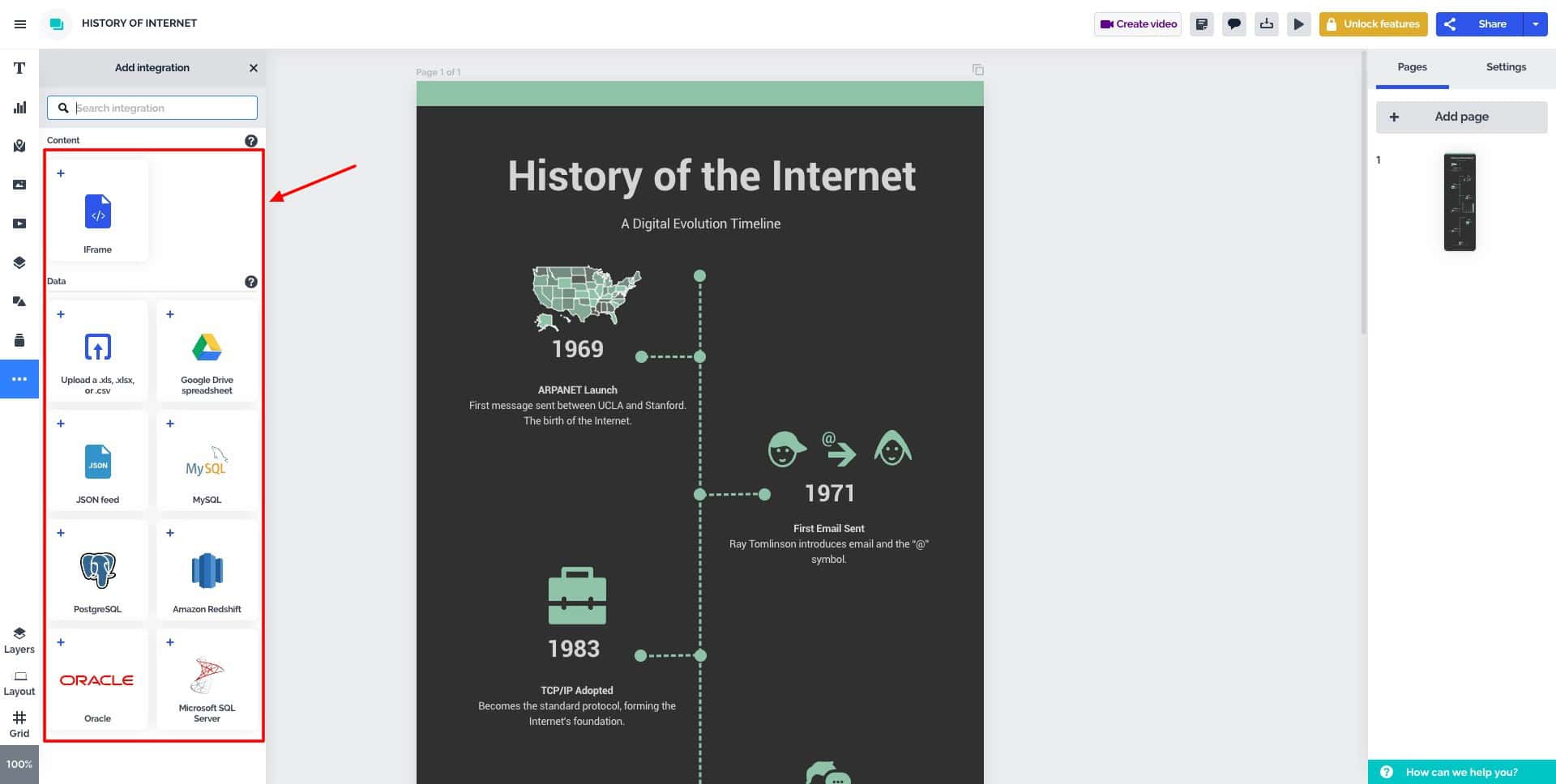
Similarly, while editing your infographic, you can insert iFrames, upload an Excel file or Google Drive spreadsheet, connect with JSON feed, MySQL, PostgreSQL, Oracle, Amazon Redshift, and Microsoft SQL server. All of these integrations are helpful for professional users.
Prezi Apps
Prezi features two fully functional apps to ease presentation and video creation for you. The Prezi app is similar to the web app, allowing you to create presentations and other graphical elements on your local device.
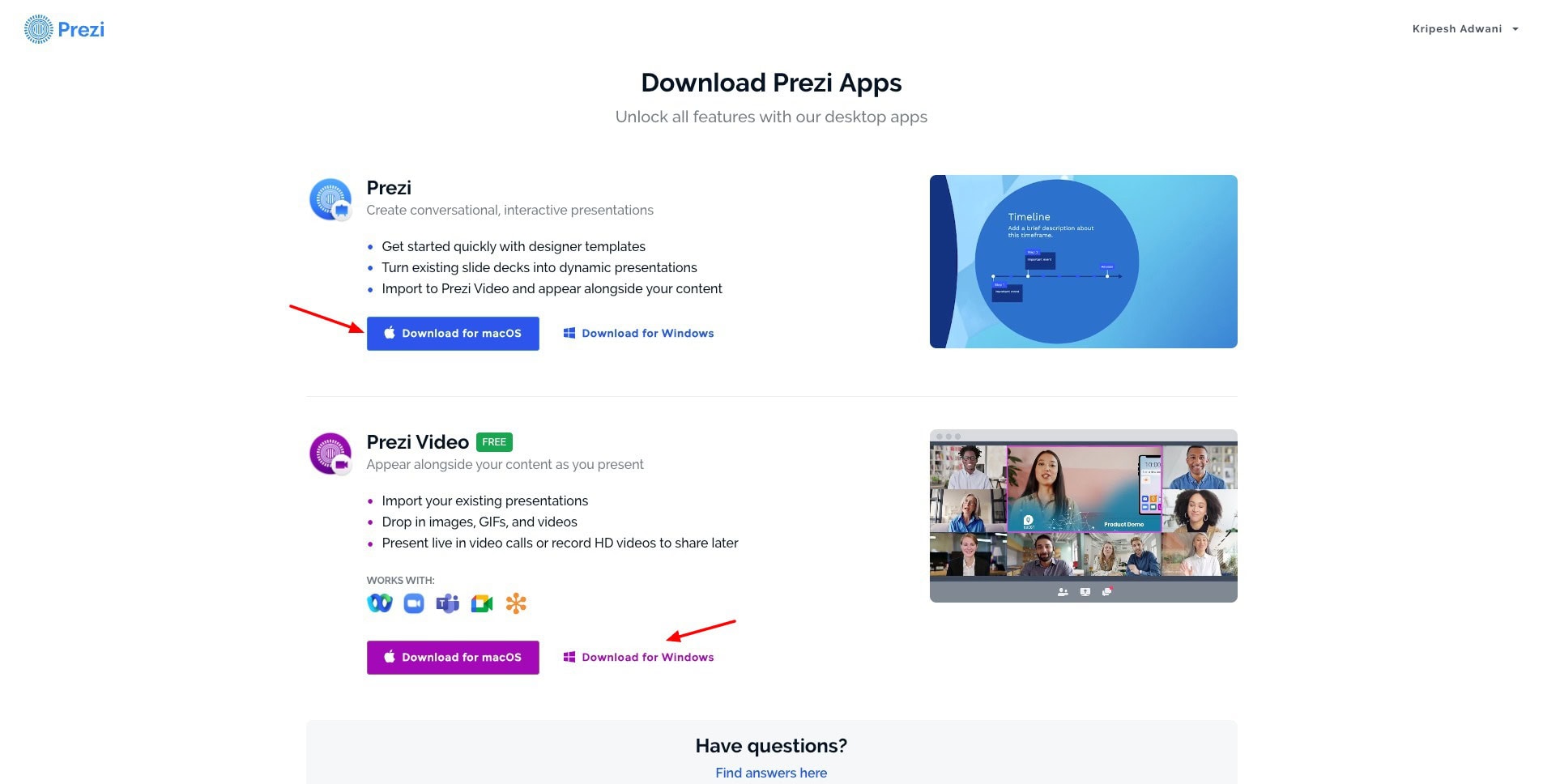
Whereas, the Prezi Video app is specifically focused on video recordings. If you want to unlock all the video features of Prezi and conduct video conferences while streaming your slides, check the Prezi Video app. Both apps are available for Windows and MacOS.
Prezi Pricing
Regarding pricing, Prezi now offers three paid plans: Plus, Premium, and Teams. The following table compares their pricing and features.
| Free Plan | Plus Plan | Premium Plan | Teams Plan | |
| Pricing | $0/month | $15/month | $25/month | $39/month |
| Credits | 500 | Unlimited | Unlimited | Unlimited |
| Generative AI | No ❌ | Yes ✅ | Yes ✅ | Yes ✅ |
| Design Assistant | No ❌ | Yes ✅ | Yes ✅ | Yes ✅ |
| Collaborators | 2 | 2 | 2 | Unlimited |
| Brand Kit | No ❌ | No ❌ | No ❌ | Yes ✅ |
| Export to PDF | No ❌ | Yes ✅ | Yes ✅ | Yes ✅ |
| Pro Images and Backgrounds | No ❌ | Yes ✅ | Yes ✅ | Yes ✅ |
| Presentation Analytics | No ❌ | No ❌ | Yes | Yes ✅ |
Previously, they also had a Standard plan for $5/month, which they have now discontinued. I have purchased their Premium plan, where I get unlimited credits and access to all the advanced features.
Free Plan
Prezi has a free version, where you can get 500 AI credits. However, it gives you access to limited features, which won’t be sufficient for someone who creates presentations frequently.
Free Trial
It features a free trial of 14 days, where you can thoroughly test out all the features of Prezi with no cost. However, you need to provide your credit card details to access the free trial.
Refund Policy
Unfortunately, Prezi doesn’t have a refund policy for its subscriptions. So, if you purchase a plan and decide to cancel it after a few days, they won’t refund any amount, regardless of whether you used the service.
Payment Methods
Prezi only supports payments made via international credit cards.
Prezi Pros
1) Impressive AI Presentations
If you wish to create AI-powered presentations, Prezi won’t disappoint! All you need to do is enter your topic and a short description or upload your files. It generates a complete presentation with apt content, images, and animation effects!
2) AI Image Generation
Prezi now features an AI image generator, which lets you generate good-quality and relevant images with simple prompts.
2) “Ask AI” Tools
Prezi features multiple AI tools to simplify your content editing process. You can summarize text, simplify it, turn it into bullet points, or create flowcharts, animated stories, and visual lists with it in seconds!
3) Interactive Effects in Presentations
The zooming-in and panning-out effect in the presentations is the USP of Prezi. By adding motion to the presentation, you can grip and hold your viewers’ attention much better. On top of that, you also get visual AI tools with Ask AI, along with charts, maps, and stickers, to keep it engaging.
4) Pleasing User Interface
Prezi features a modern and clean user interface, which is friendly for beginners and professionals alike. It is designed with pleasing colors, offering a smooth and seamless experience to the users.
5) Excellent Template Collection
On Prezi, you can find hundreds of fun and out-of-the-box templates to hook your viewers. If you want to create presentations that stand out, Prezi’s library of templates can be helpful.
6) Video Presentations
Prezi doesn’t stop at creating presentations. You can also present them while live streaming or video conferencing. You can record your voice with or without a camera alongside the presentation and even insert slides with interactive elements and widgets as you live stream.
7) Lots of Video Widgets
While streaming your live videos, you can integrate widgets like countdown timers, name tags, and virtual backgrounds to engage the audience in a better manner.
8) Good Sharing & Collaboration
Prezi lets you share public or private links, invite team members with editing or comment access, and even present live, all from within the same platform.
9) Desktop Apps Availability
Prezi offers desktop apps for both presentation creation and video recording on Windows and Mac, giving you the flexibility and convenience to work offline.
Prezi Cons
1) Animation Effects can be Overwhelming
Constant Zooming in and panning out of slides may cause motion sickness and headaches to sensitive users! Thus, the zoom style isn’t for everyone, especially if it’s overused.
2) Limited AI Integration
As of now, the AI feature is limited to the presentation generator only. You can’t create infographics and other media elements with it.
3) Limited Support
You can only access customer support via their knowledge base and tutorials. It would’ve been great if they also had a live chat support option.
Who Should Use Prezi?
Prezi could be a powerful tool for educators, online trainers, and tutors who want to move away from traditional presentations. The zoom-to-frame effect, Ask AI tools, along with charts and graphic elements, can help explain complex concepts and keep students engaged throughout.
Students can take advantage of its creative templates to stand out in their school and college assignments. They can also upload their notes, documents, and other educational content to get more aligned presentations.
Similarly, business professionals can use Prezi to pitch ideas, host webinars, or lead virtual meetings while presenting their slides.
Conclusion
If you want to create dynamic and visually engaging presentations with the help of AI, Prezi stands out from the crowd. Its sleek UI, rich template collection, AI image generation, content editing tools, and signature zooming animation make PPT more interactive.
Its video presentation options and live-streaming widgets further enhance audience engagement, making it a great pick for educators, trainers, students, and professionals.
However, AI functionality limitations, limited support options, and potential motion overload might be deal breakers for some. All in all, Prezi is a solid choice if your goal is to impress with interactive, AI-assisted visuals.
I hope this Prezi review helped you discover its unique features and decide if it’s suitable for your needs. If you’re interested in exploring more tools, check out these Best AI Presentation Makers!
Anyway, this is Kripesh signing off. To stay updated with the latest developments in AI, subscribe to my weekly AI newsletter! I’ll be back with more such interesting content. Till then, cheers and keep learning! 🙂

Prezi Pros (+)
- Impressive AI Presentations
- “Ask AI” Tools
- Interactive Effects
- Excellent Template Collection
- Video Presentations
- Video Widgets
- Good Sharing & Collaboration
- Desktop Apps Availability
Prezi Cons (-)
- No Downloads in PPT Format
- Limited AI Integration
- Limited Support