Buying a domain name in India has never been easier. Yes, you can now register your domain using UPI. No need to enter credit card details! The process is safe and quick.
Curious how it works? If you’re a beginner with no prior experience, I’m here to help! In this guide, I’ll show you “How to Buy a Domain Name in India using UPI” through Hostinger.
You’ll get a detailed, step-by-step walkthrough, from searching for a domain name to changing nameservers and even deleting the autopay mandate. Plus, I’ll share practical tips for choosing a trusted domain name in India.
Let’s get started!
- What is a Domain Name?
- How to Buy a Domain Name in India Using UPI
- Step 1: Visit the Official Hostinger Website
- Step 2: Search for Your Desired Domain Name
- Step 3: Check Domain Availability and Pricing
- Step 4: Choose the Registration Period
- Step 5: Apply Coupon Code
- Step 6: Create Your Hostinger Account
- Step 7: Add Company Details
- Step 8: Select UPI as the Payment Method
- Step 9: Enter UPI Details
- Step 10: Accept the Autopay Mandate
- Step 11: Register Your Domain
- Step 12: Verify Email Address
- Step 13: Access and Manage Your Domain
- Step 14: Update Nameservers
- Step 15: Delete Autopay Mandate from Your UPI App (Optional)
- Things to Keep in Mind When Buying a Domain Name
- Why Should You Trust Me?
- Conclusion
- FAQs
What is a Domain Name?
A domain name is the unique address of your website. It’s just like your home address and unique to your residence. No two websites can share the same domain name.
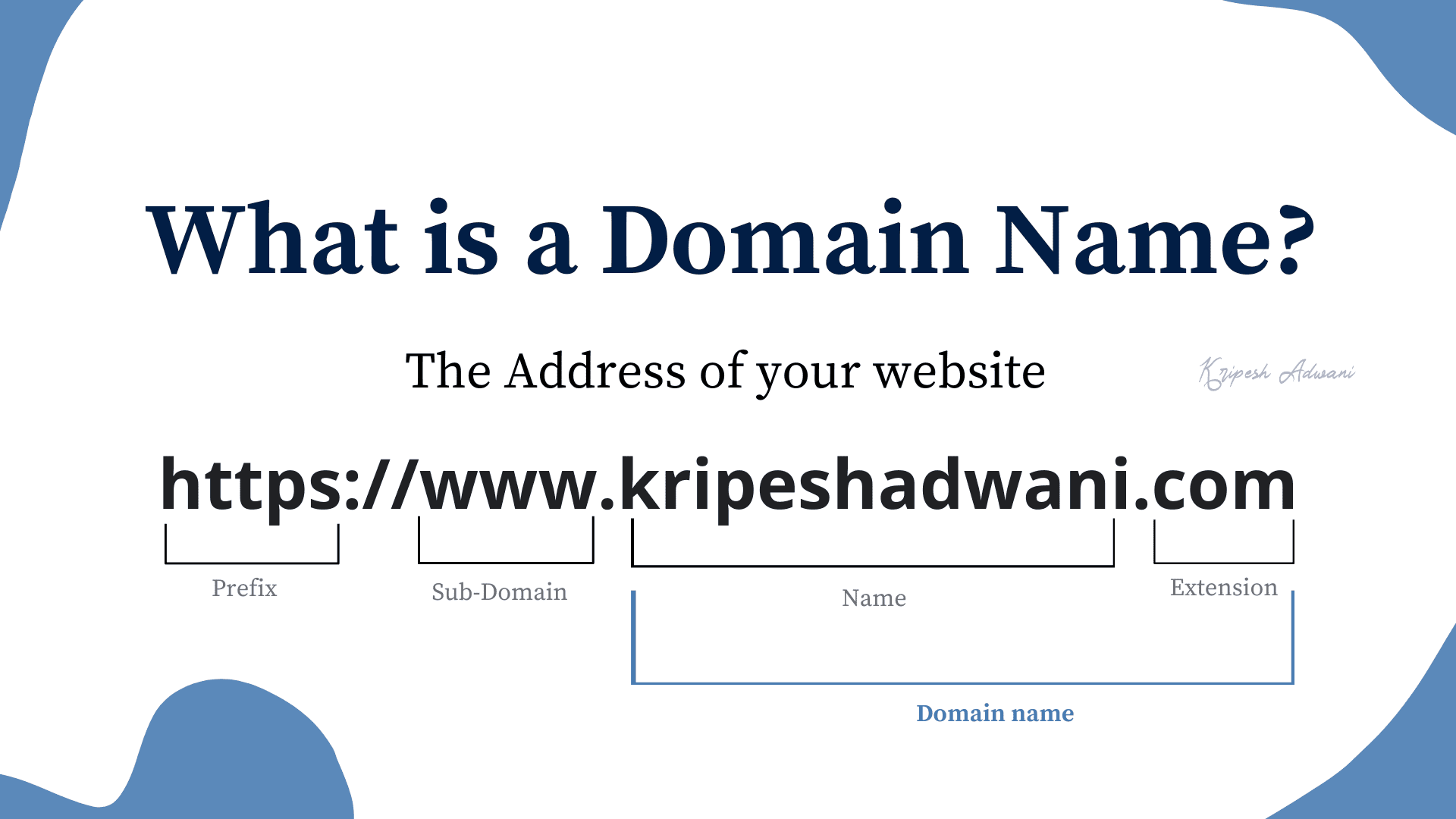
Every website is associated with a unique IP address, which is a series of numbers. However, these numbers are difficult for humans to remember.
That’s why we use domain names. The corresponding IP address is stored in the Domain Name System (DNS). This helps users easily find and remember your website.
How to Buy a Domain Name in India Using UPI
In India, you can now buy a domain name using UPI payments. Domain name registration is super easy—let me show you how!
Step 1: Visit the Official Hostinger Website
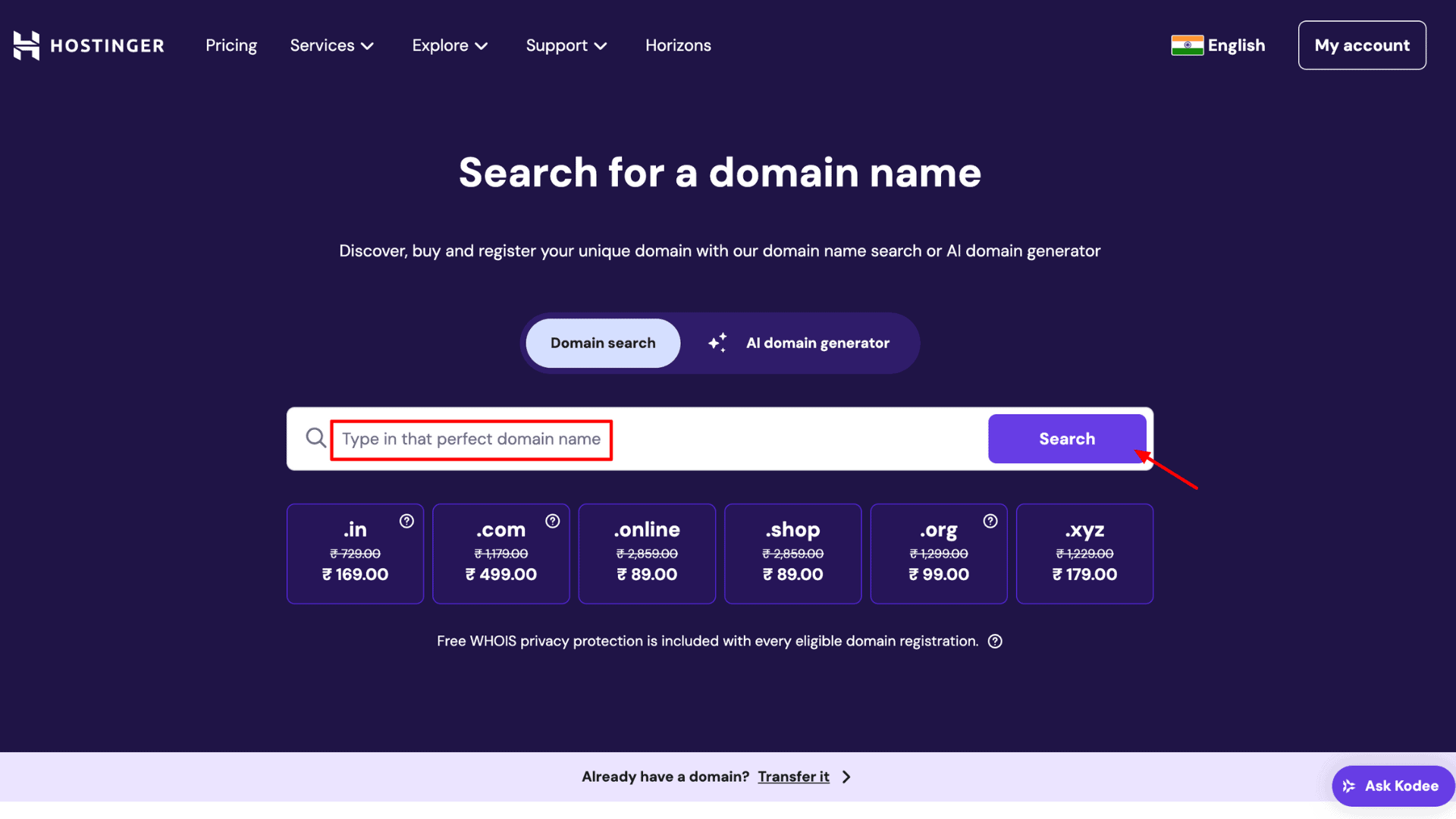
To buy a domain name, you’ll need a trusted domain registrar. Here, I’m using Hostinger, one of the 7 Best Domain Registrars in India for 2026.
Visit the Hostinger Official Website or use my link. Click on “Services.”
Step 2: Search for Your Desired Domain Name
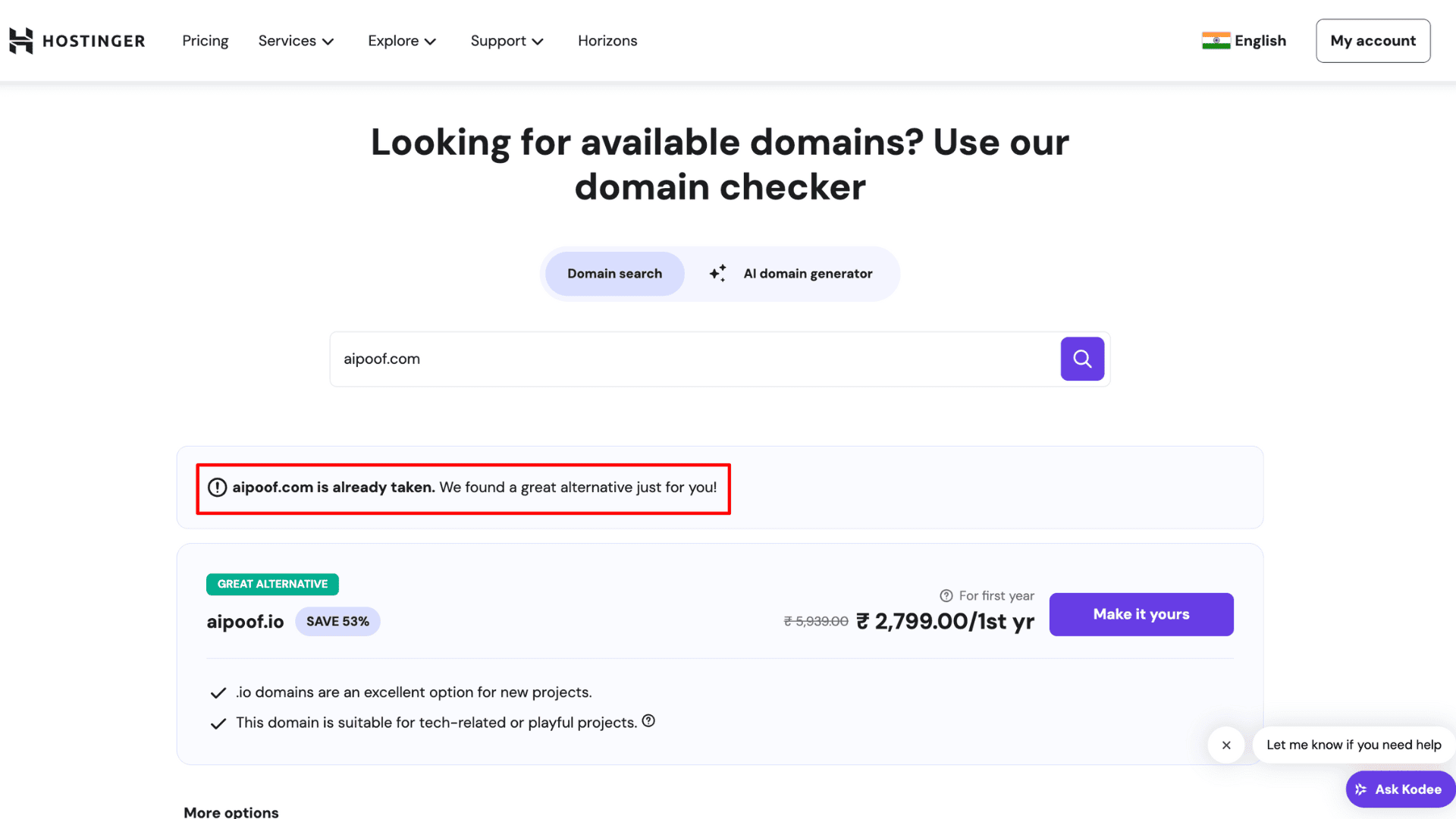
In the “Domain Name Search” bar, type the domain name you want and click “Search”. Hostinger will then display whether the domain is available.
For example, aipoof.com is currently marked as taken (I’ve already purchased it). If your desired name is unavailable, try a different one and check again.
Step 3: Check Domain Availability and Pricing
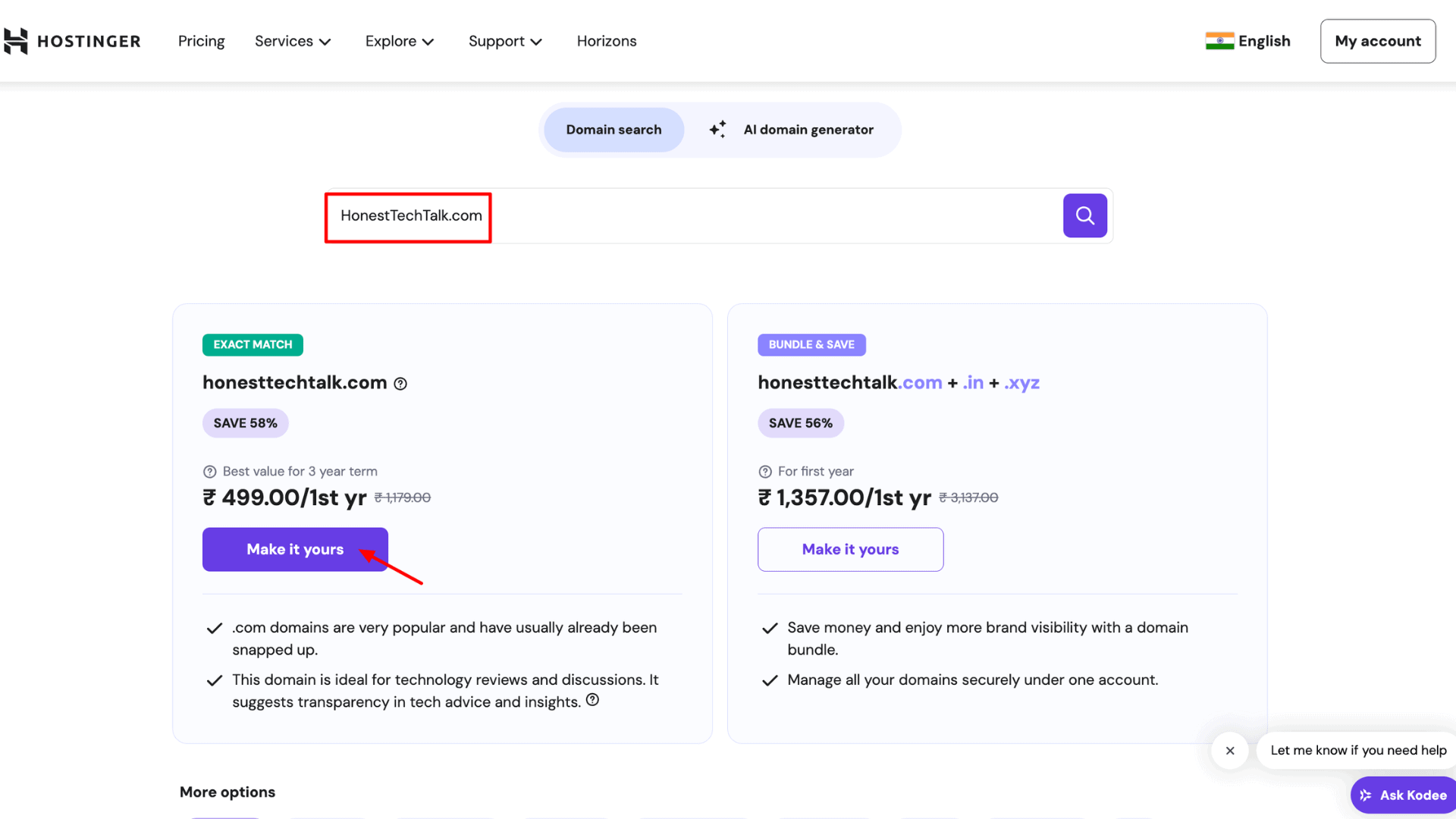
Now, you can see that honesttechtalk.com is available. It’s priced at just ₹499.00 for the first year if you choose a 3-year plan. Once you’re happy with your choice, click “Make it Yours” to proceed.
Step 4: Choose the Registration Period
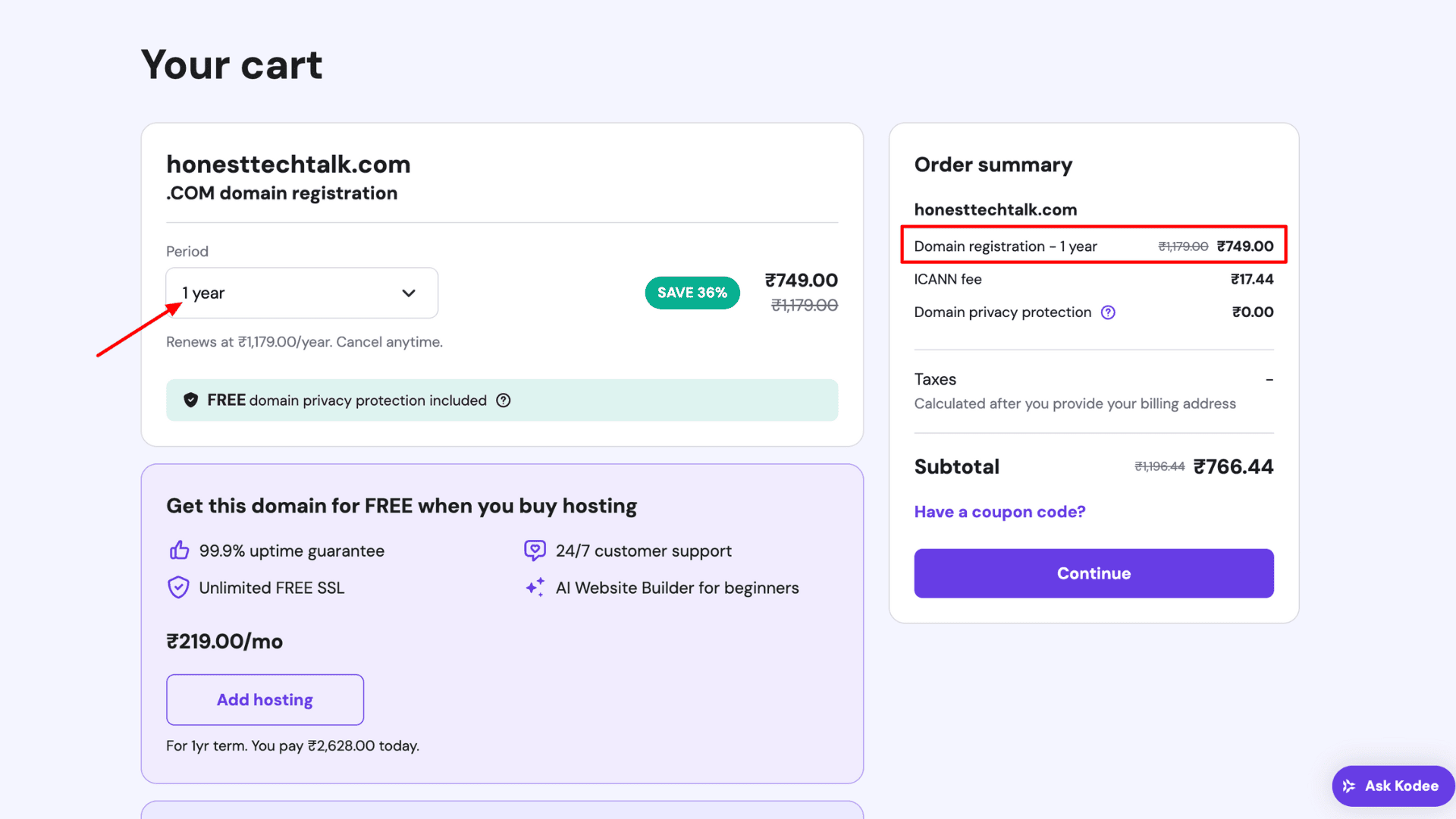
As you can see, the first-year price is different now. I’ve selected the 1-year plan instead of the 3-year plan, which costs around ₹749.00. But if you renew for the second year, the price increases to ₹1,179.00.
So remember — the renewal price is different from the initial discounted price.
Step 5: Apply Coupon Code
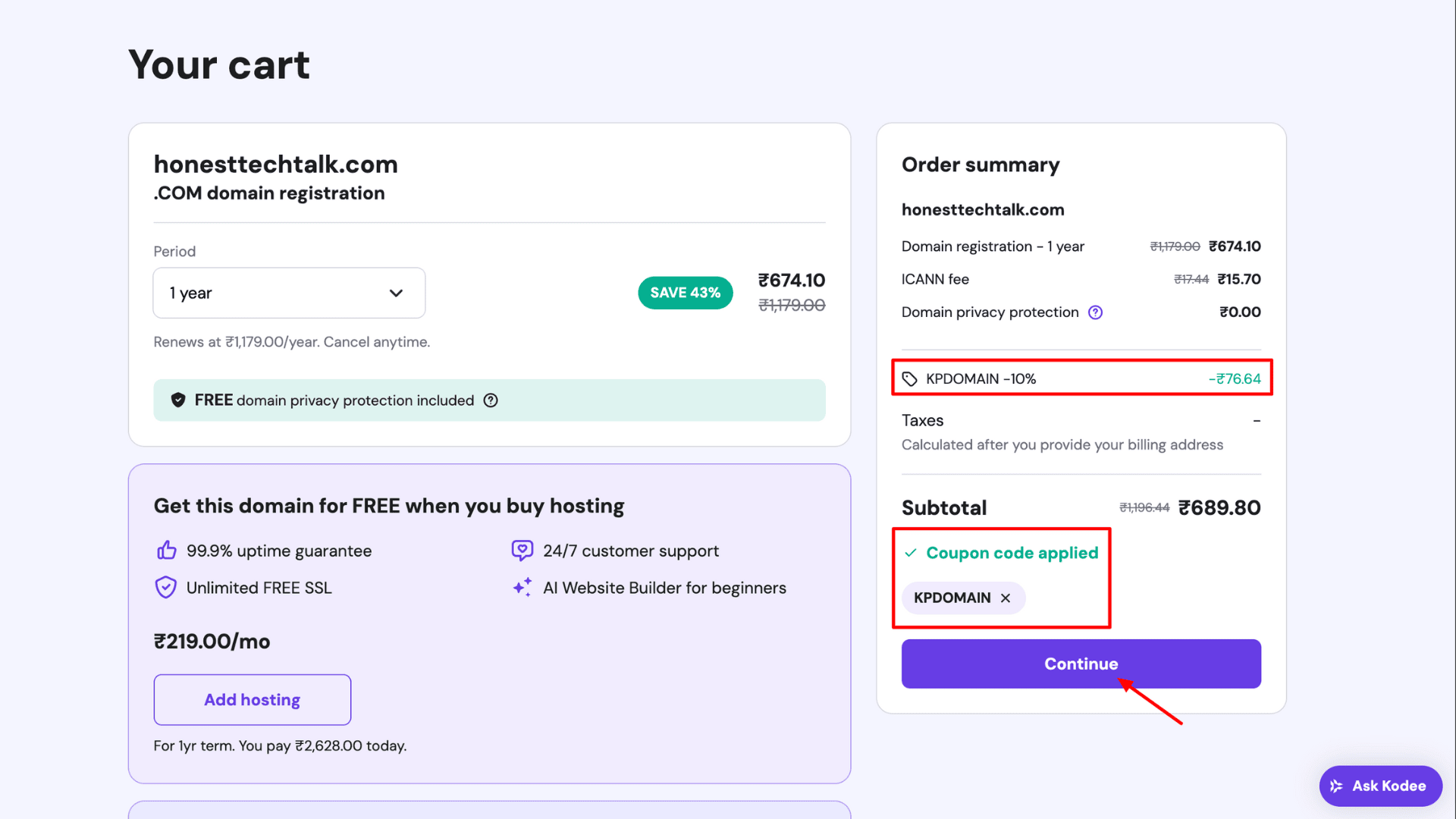
Now, you can get an extra discount using my coupon code. Click “Have a coupon code” and type KPDOMAIN. You’ll get a flat 10% discount, bringing the final price down to ₹689.00. Then, click “Continue”.
Step 6: Create Your Hostinger Account
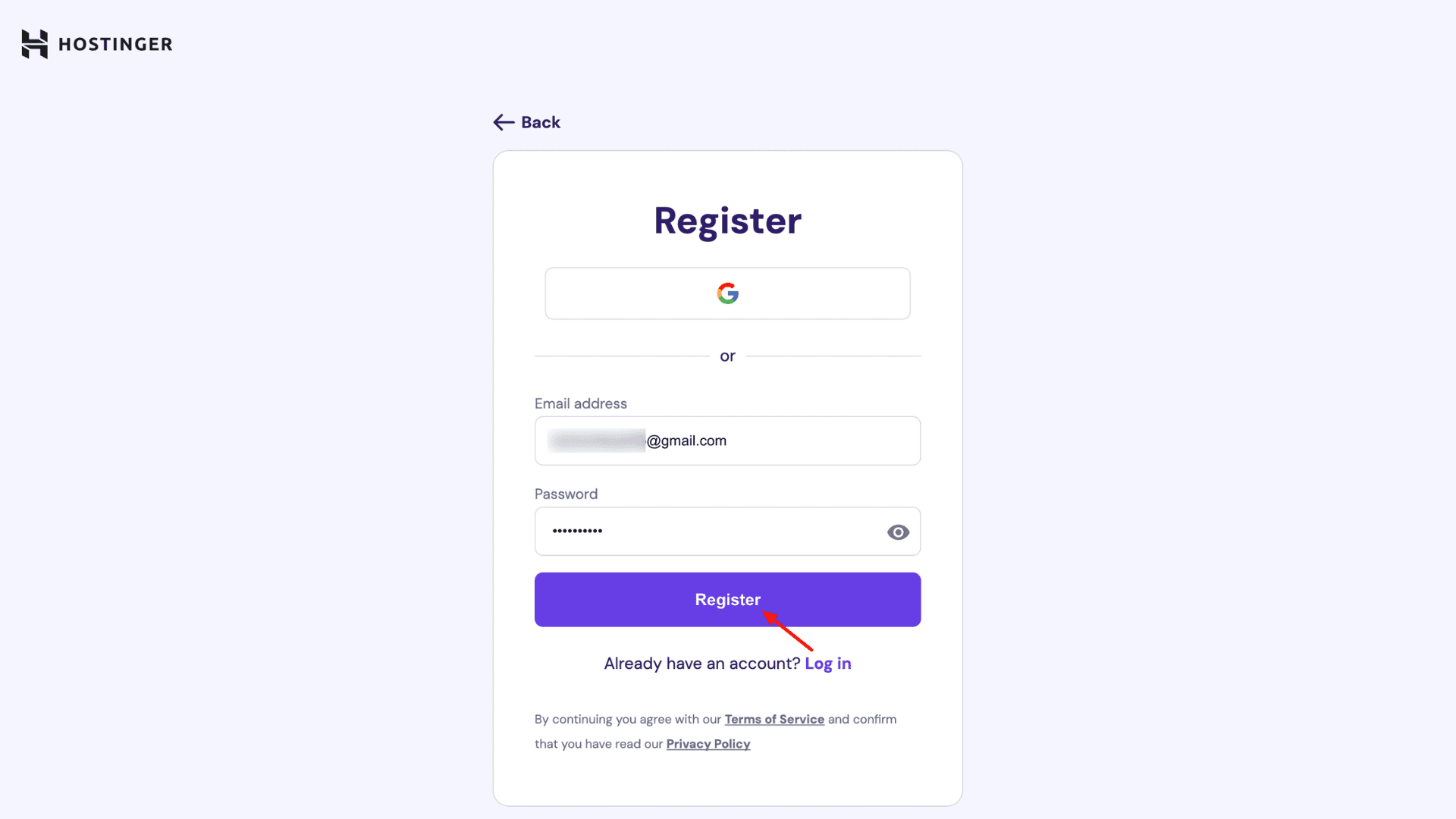
A new page will open where you’ll need to create your Hostinger account. To sign up, enter your correct email ID and set a strong password. Tap “Register”, and you’ll be redirected to the billing page.
Step 7: Add Company Details
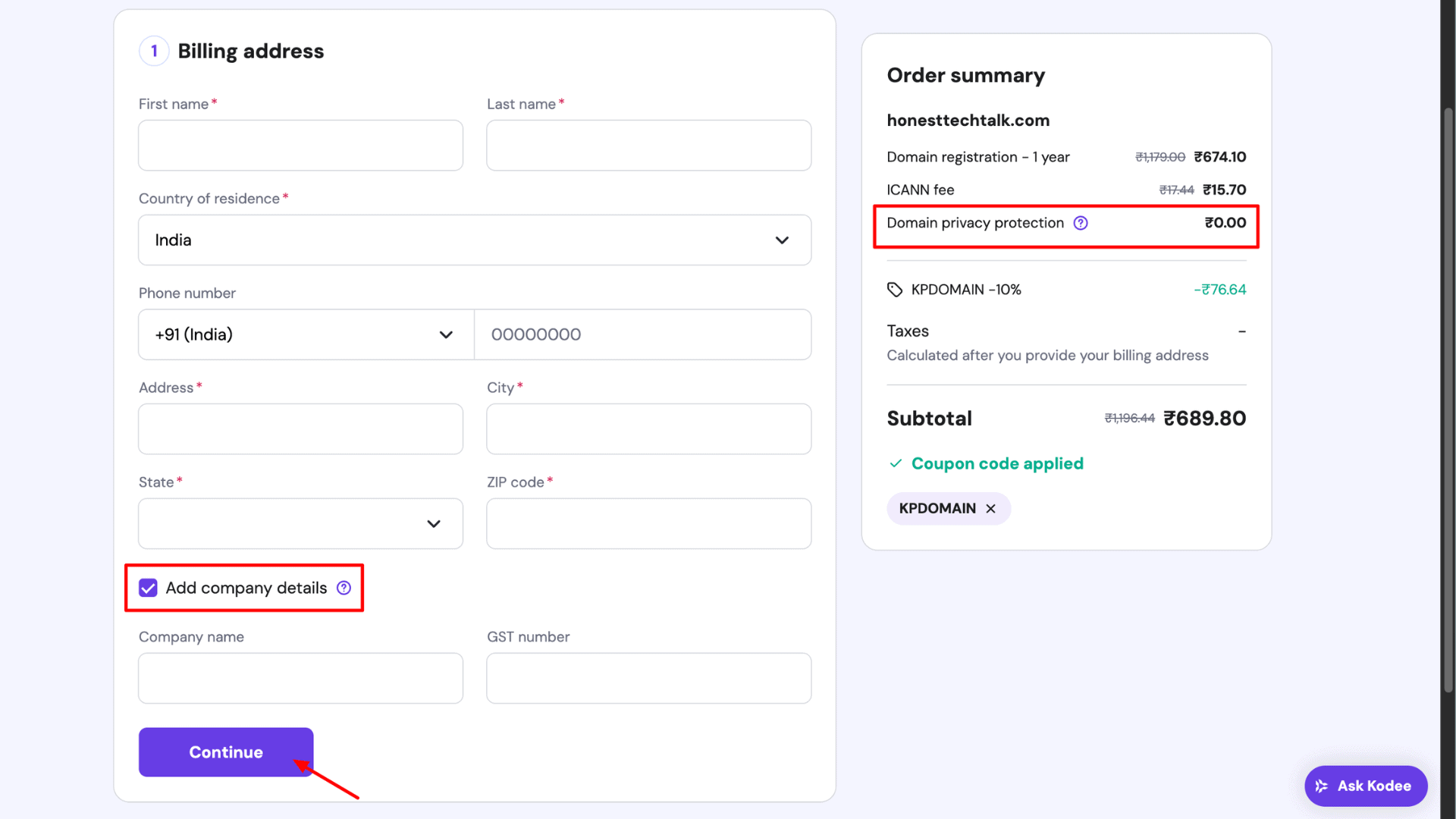
Hostinger automatically enables Domain WHOIS Privacy Protection at no extra cost, which helps keep your personal information safe. Fill in your full name, country of residence, state, city, address, and ZIP code. If you have a GST number, you can add it under “Add Company Details” to save on GST.
Step 8: Select UPI as the Payment Method
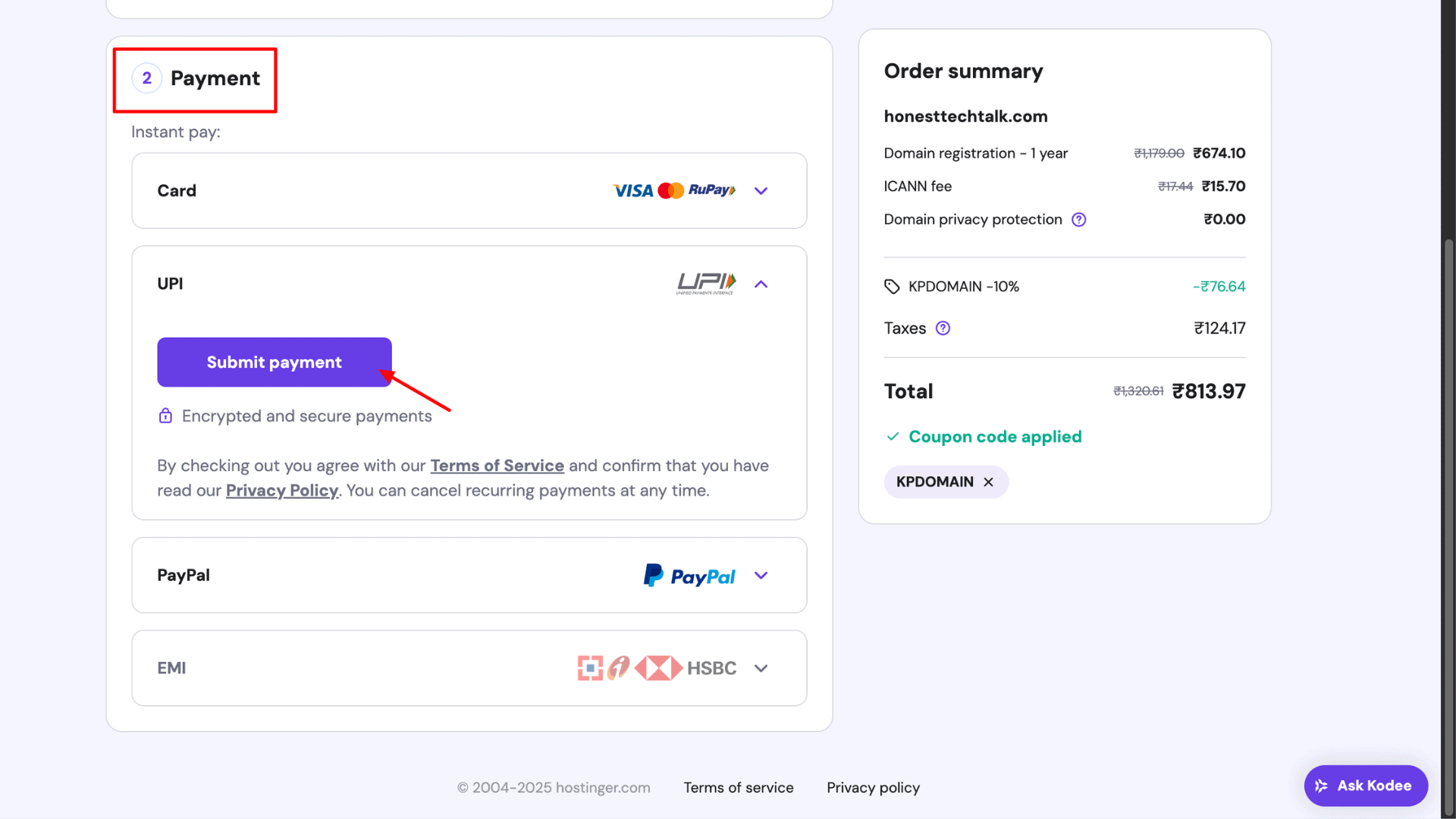
Under the payment section, you’ll find various options such as credit card, EMI, PayPal, and more. Indian users can select “UPI” for a faster and easier checkout. Finally, tap “Submit Payment”.
Step 9: Enter UPI Details
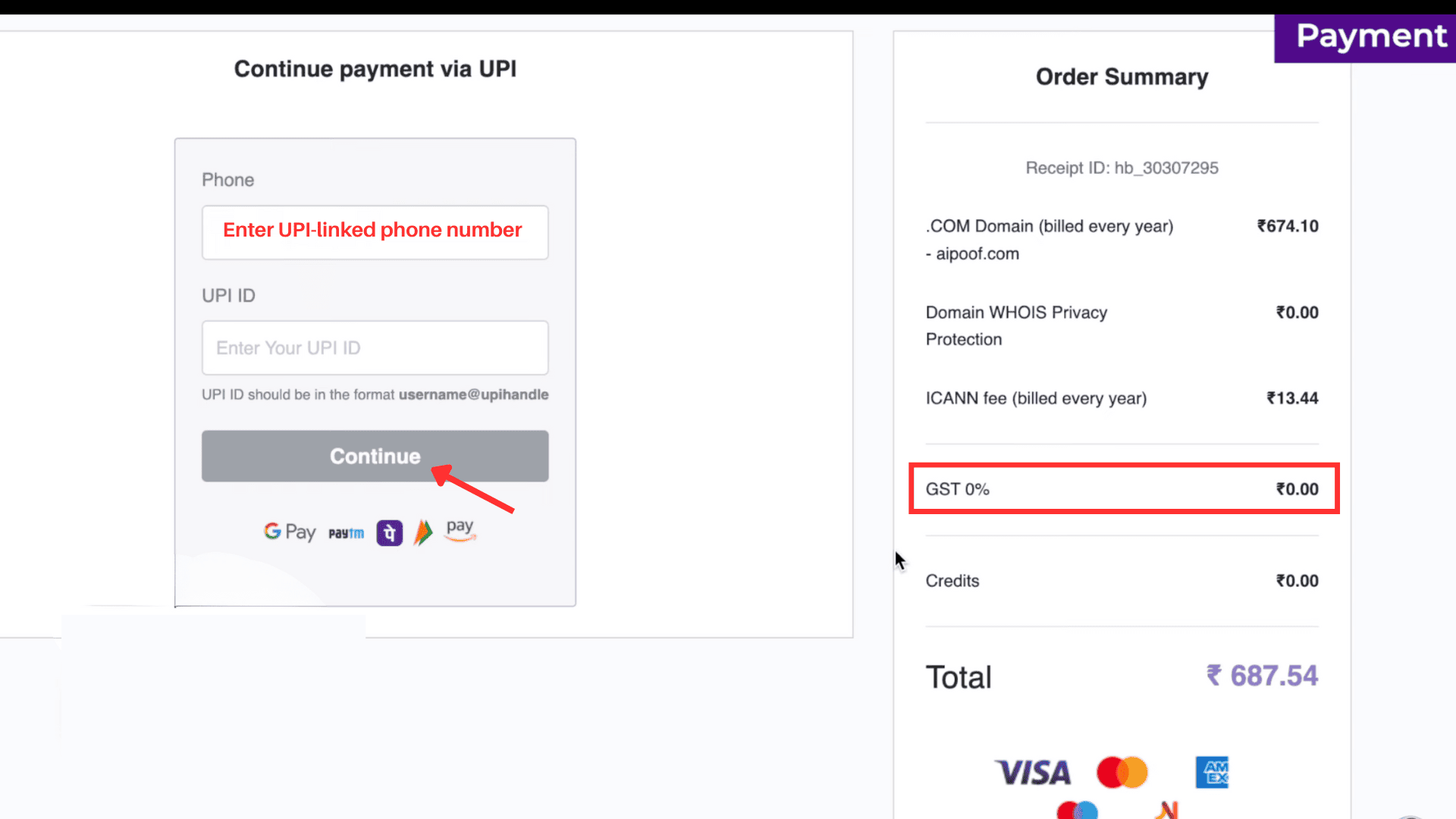
After selecting UPI, the payment window will open. Enter your phone number and UPI ID, then click “Continue”.
Step 10: Accept the Autopay Mandate
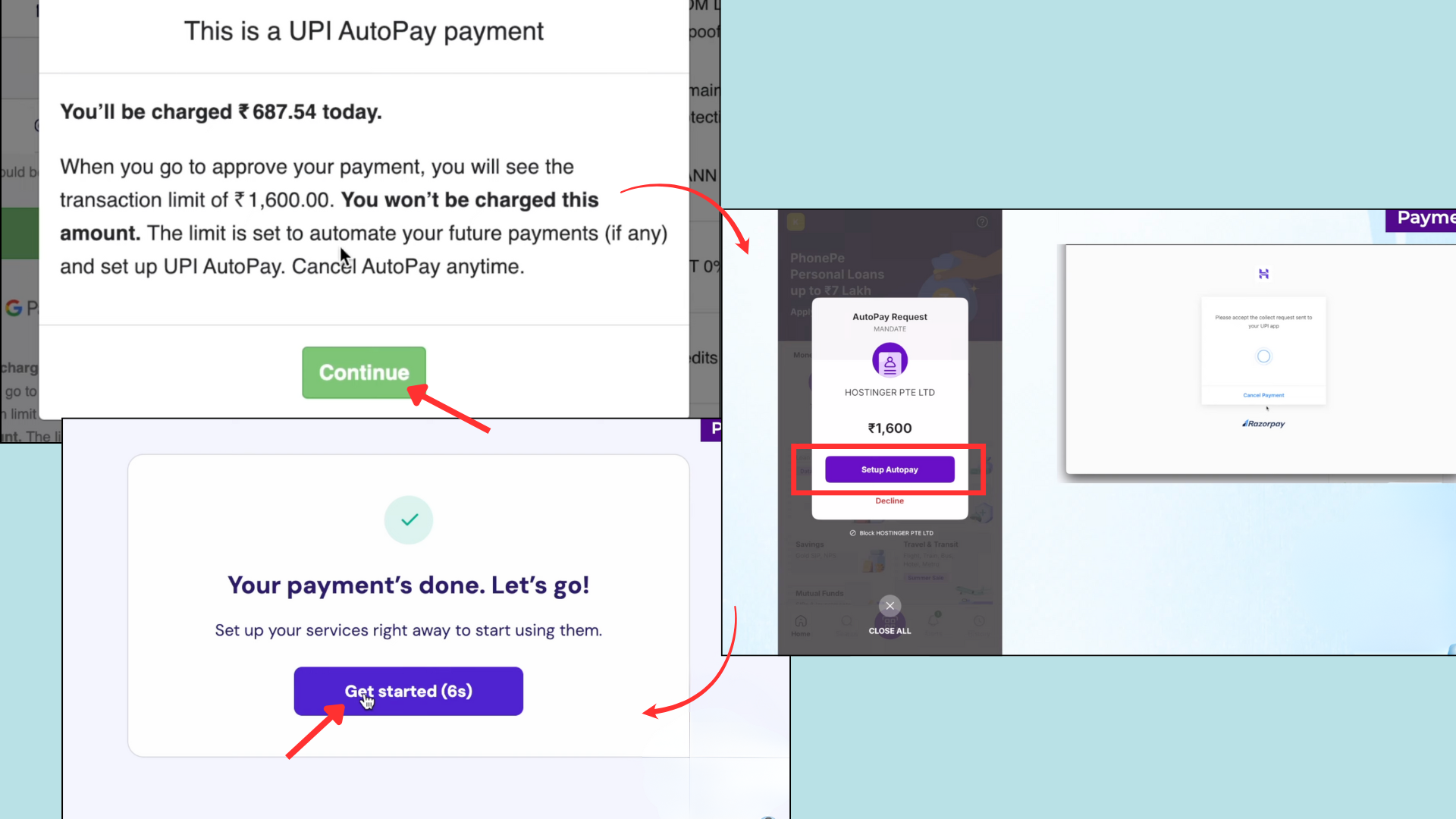
Your UPI app will create an autopay mandate, and you’ll receive a notification. Don’t worry — we’ll cancel this mandate later. Click “Continue”, complete the payment, and your domain purchase will be successful!
Step 11: Register Your Domain
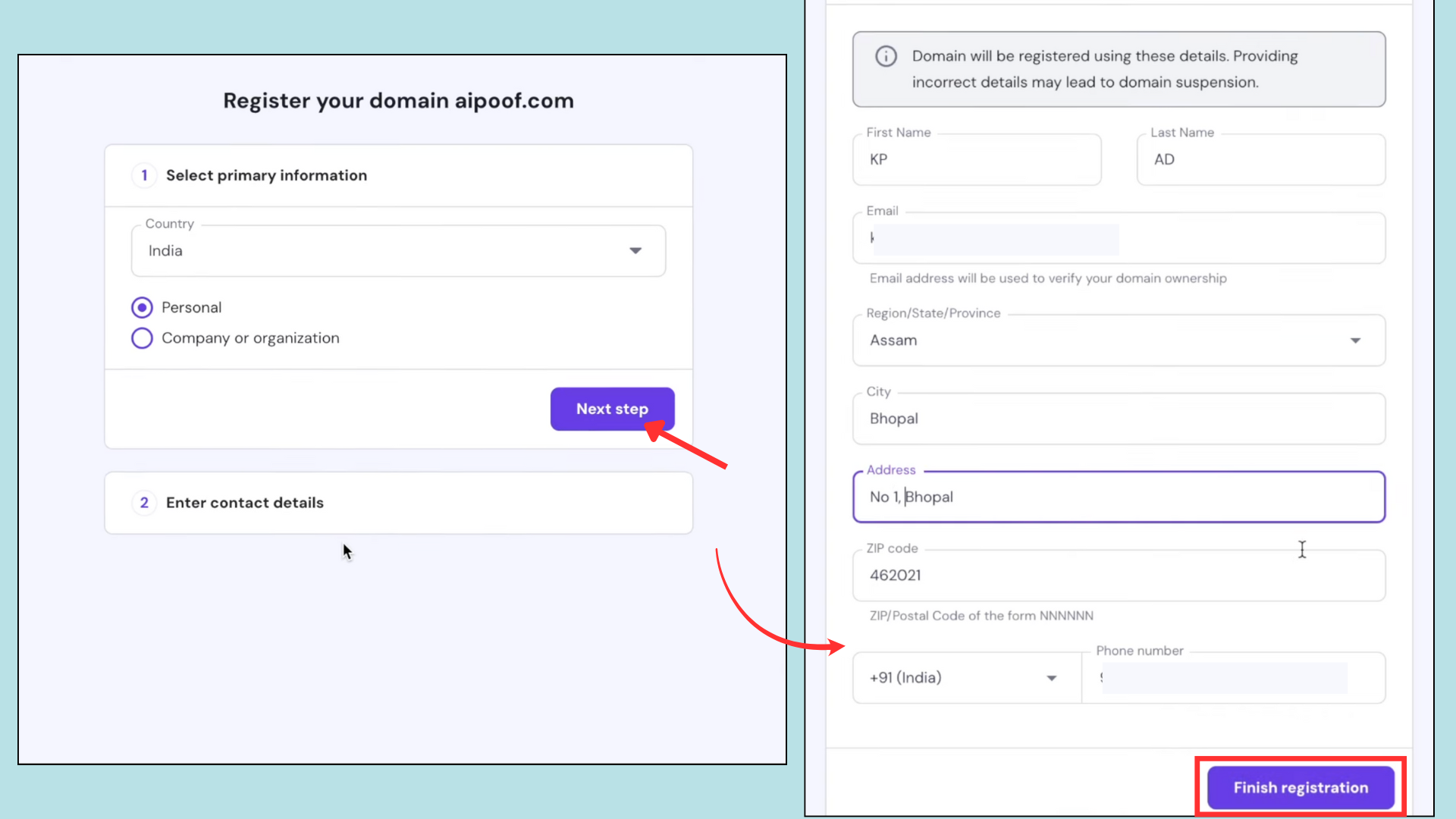
Once the payment is complete, Hostinger will prompt you to finish the domain registration process. First, select your country and click “Next Step”.
Then, carefully fill in your personal or company details, including your full name, region, address, and correct phone number. Click “Finish Registration”.Note: If you provide incorrect details, your domain may get suspended
Step 12: Verify Email Address
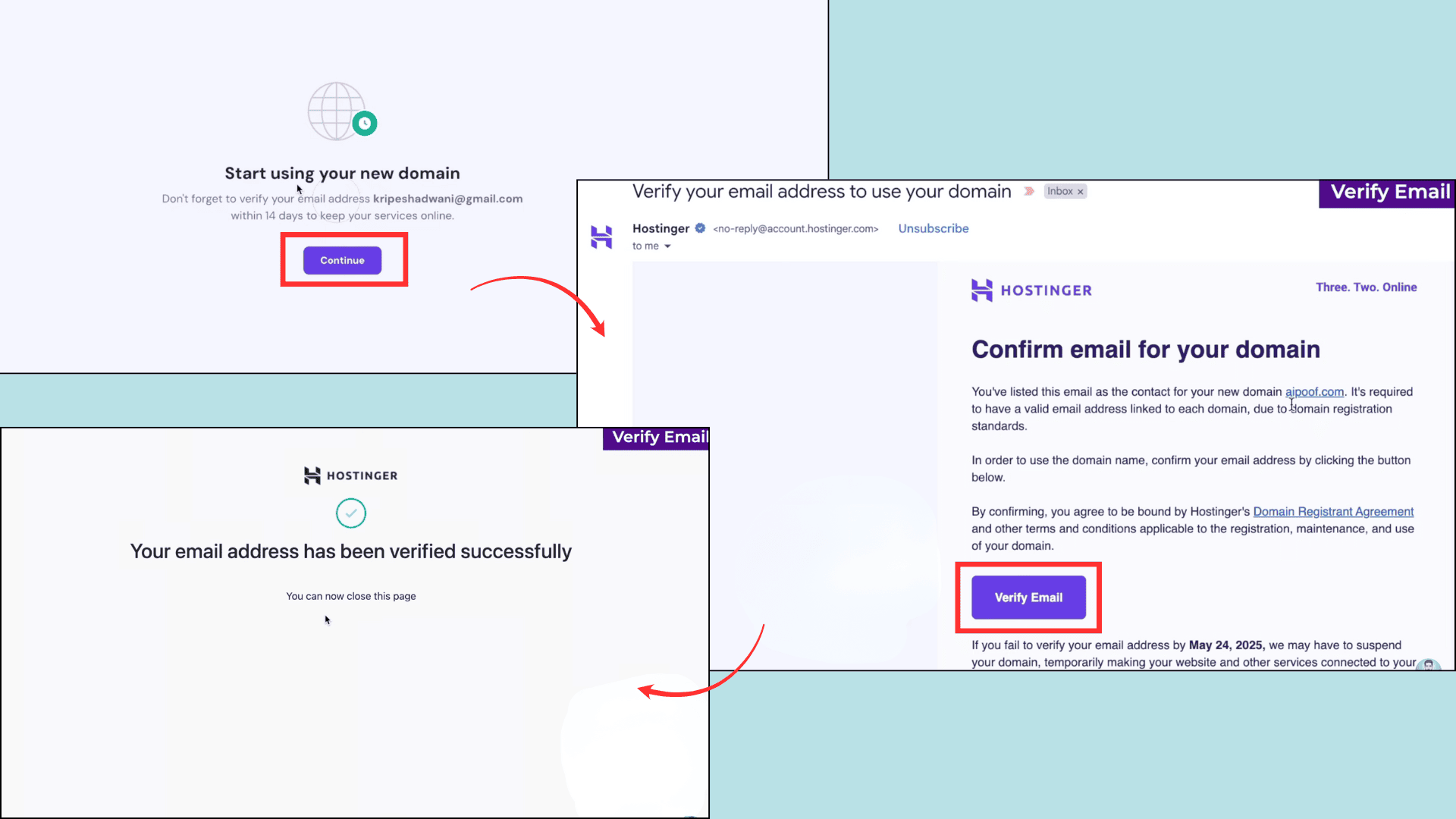
After registration, the above server panel will appear. Before doing anything else, check your email — you must verify your email address to activate the domain. Once verified, you’ll be redirected to the “Home” page.
Step 13: Access and Manage Your Domain
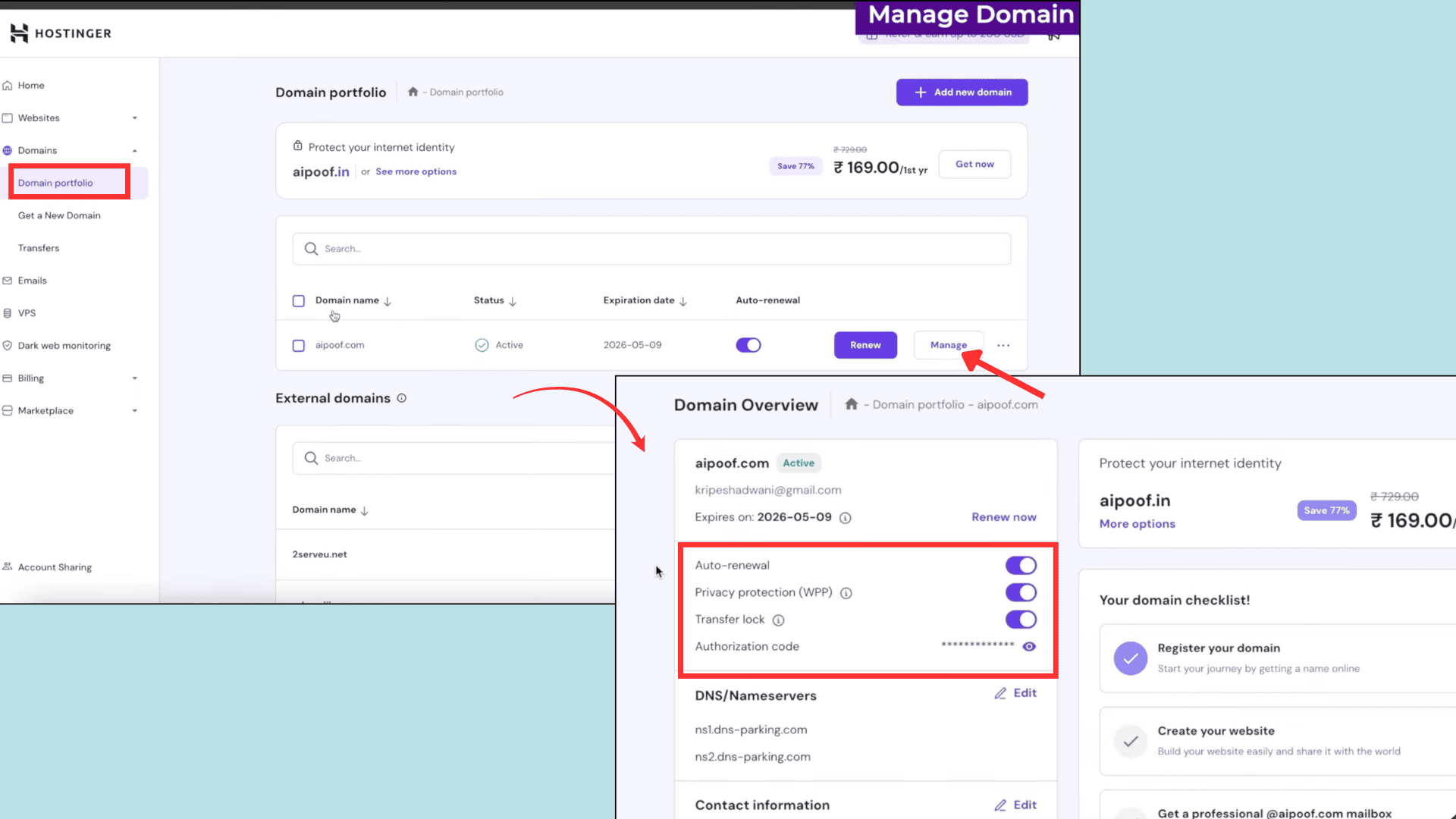
Under “Domain Portfolio”, you’ll see your newly purchased domain listed. Click the “Manage” button next to it, and the server panel below will open.
Here, you can also turn off auto-renewal if you prefer to renew manually. However, do not turn off privacy protection or the transfer lock (unless you’re migrating to another domain registrar).
Step 14: Update Nameservers
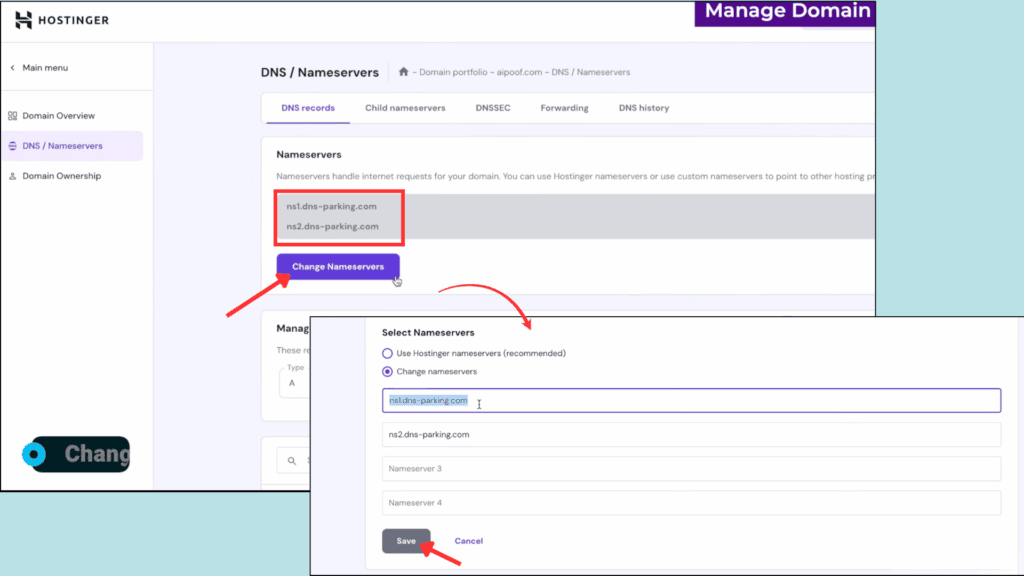
Navigate to the DNS/Nameservers section. Here, you’ll see the default nameservers provided by your domain registrar. If your domain registrar and web hosting provider are different, you’ll need to update the nameservers.
For example, if your hosting is on Cloudflare, click “Change Nameservers”, paste the Cloudflare nameservers, and click “Save”. This step ensures your domain is linked to your hosting plan.
Step 15: Delete Autopay Mandate from Your UPI App (Optional)
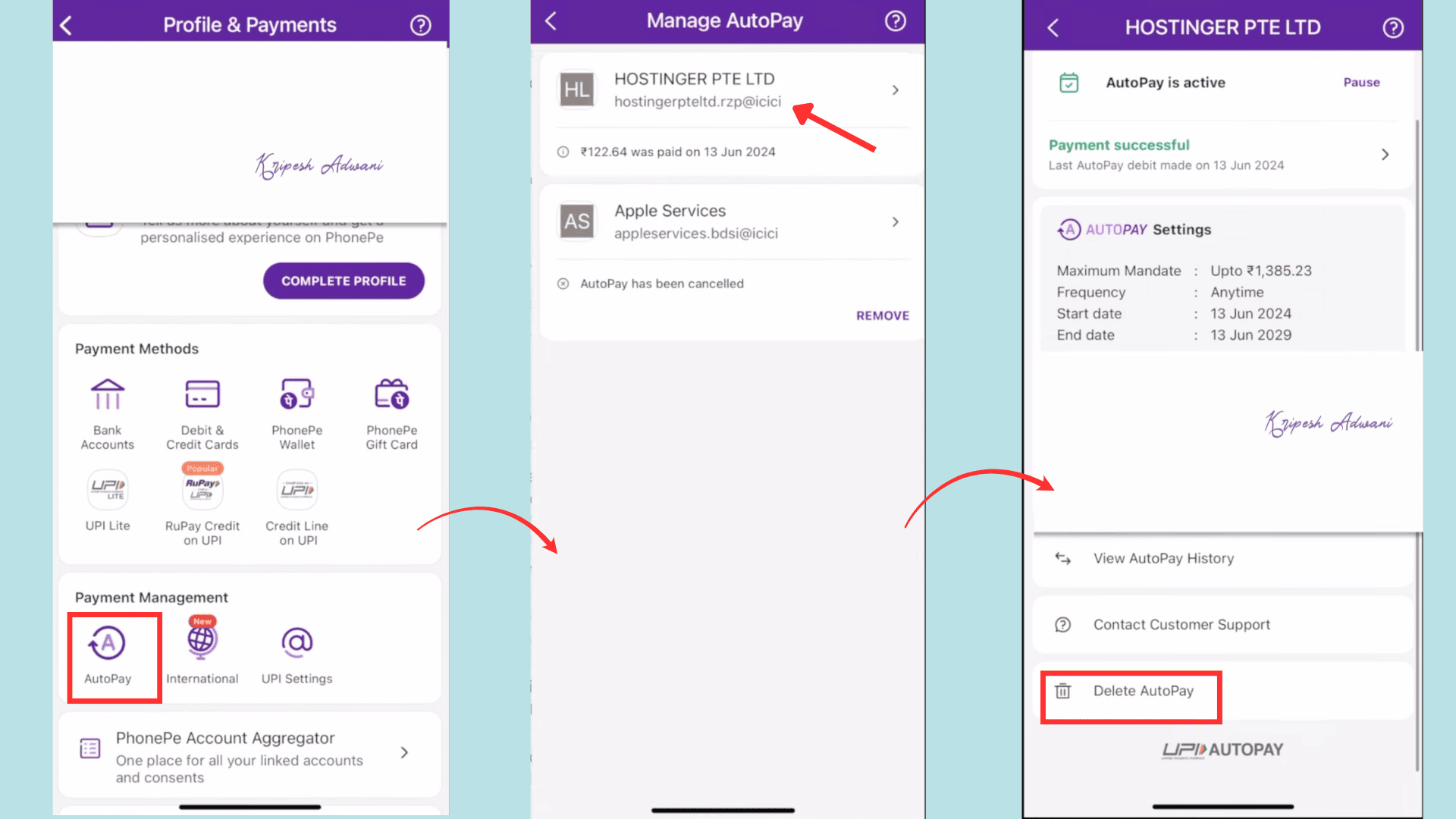
Finally, let’s cancel the autopay mandate set during the UPI payment process. I’m using PhonePe as an example here.
First, open the PhonePe app and navigate to the Profile & Payments section. Tap on “Autopay” to view all the services with active autopay settings.
From the list, select Hostinger, and a new window will open showing details like the start date, end date, and payment limits of the mandate. Scroll down and tap on “Delete Autopay.”
And that’s it—you’re all set!
Things to Keep in Mind When Buying a Domain Name
Buying a domain name isn’t rocket science. But before you rush into it, here are a few important tips to help you avoid ending up with a terrible domain.
1) Avoid Cheap Domain Deals
There are many domain registrars in India. Some of them offer huge discounts that may seem too good to be true. Don’t fall for the trap. Always choose a reliable and reputable domain registrar that is ICANN-accredited and has a clean, transparent history.
2) Protect Your Data
When registering a domain, you’re required to provide personal information like your name, address, and phone number. All of which are publicly accessible unless protected. To avoid identity theft or data misuse, make sure WHOIS Protection is enabled before purchasing. Most trustworthy registrars offer it for free.
3) Choose the Right Domain Extension
Popular domain extensions like .com, .org, or .edu often come at a higher cost. On the other hand, cheaper extensions such as .icu, .xyz, .store Domains are more affordable, but they’re commonly used by low-quality or spammy websites. So, choose your domain extension carefully based on your goals and audience.
If you’re looking for budget-friendly options, you can also check out the 45+ Cheapest Domain Extensions I’ve covered on my blog.
4) Avoid Using Hyphens or Numbers
Domains with hyphens or numbers are generally viewed as less trustworthy. Such names are harder to remember. You’ll rarely find popular websites using such domain formats. For better credibility, take help from domain name generators to get clean, straightforward names.
5) Use Simple Names
Simple domain names are easier to remember and type. For instance, my website domain is kripeshadwani.com, which is just my name. This helps reduce confusion and makes it easier for my audience to find me online.
If you need help, I’ve compiled a list of the 10 Best AI Domain Name Generators to make your search easier.
Why Should You Trust Me?
Since 2015, I’ve tested and reviewed a wide range of digital tools, including AI note-taking apps, AI tools for research, Mac Apps for productivity, using AI tools in Canva, etc. My goal is to simplify tech for freelancers, beginners, and startups through practical tutorials and honest reviews, such as How to Get 2 TB Free Google Cloud Storage, How to Use eSIM While Traveling, and more.
Domain registration is one of the tech areas I started exploring early in my career. You’ll find several helpful articles on my blog, including 25 Best Two-Letter Top-Level Domains, Legit Ways to Get a FREE Domain Name.
I’ve already covered topics like How to Buy a Domain from GoDaddy in India and How to Buy a Domain Name with Namecheap. With the latest updates in the domain space, I felt it was the right time to create an updated guide. That’s why I created this step-by-step tutorial using Hostinger (a reliable domain registrar today), based on my real testing experience.
Conclusion
To wrap up, your domain name is your website’s identity. So it should be simple, easy to remember, and free from numbers or hyphens to help your audience find you easily online. And always purchase your domain from trusted registrars like Hostinger to ensure security and reliability.
The buying process is now easier than ever in India. You can even complete your domain purchase using UPI, without needing a credit card. Just remember to avoid extremely cheap or suspicious domain extensions, as they can harm your site’s credibility.
That’s all for today! Follow the steps I’ve shared to confidently purchase your domain from Hostinger. If you face any issues, feel free to reach out—I’m here to help!
FAQs
Can I buy a .in domain using UPI?
Yes, absolutely. You can purchase any domain extension, including .in, .com, .org, etc., using UPI payments.
Should I choose .com, .in, or other TLDs when buying via UPI?
The choice of top-level domain (TLD) depends entirely on your target audience. For example, if your website is aimed at Indian users, the .in country code TLD is ideal. On the other hand, .com is used for commercial purposes and global websites.
How do I manage auto-renewal and subscription settings?
When you purchase a domain using UPI, a recurring payment mandate is automatically created through your UPI app. You can later cancel this auto-renewal mandate via your UPI app, as explained in this article.
How do I add a GSTIN when buying a domain with UPI?
During the UPI payment process on platforms like Hostinger, you’ll find an option to “Add Company Details”. Here, you can enter your GSTIN to claim input tax credit and receive a GST-compliant invoice.