Want to get more done in less time on your Macbook? Whether you’re a student, a working professional, or an entrepreneur, having the right tools can make all the difference.
In this article, I’ll reveal the 12 Best Mac Apps for Productivity, handpicked to help you stay focused, organized, and efficient. From file management and password security to AI-powered tools and time tracking, these apps will streamline your workflow and eliminate distractions.
So, are you ready to enhance your Mac experience? Let’s dive in and explore these must-have productivity apps!
12 Best Mac Apps for Productivity
| Tool Name | Category | Standout Features | Pricing |
| Alfred | Workflow Automation | Clipboard History, Workflows | Free, Paid plans start from £34 (single user) |
| Dropzone | File Management | Drop Bar | Free, paid plan for $35 |
| CleanShot X | Screen Capture & Annotation | Scrolling Screenshot, Screenshot Background, OCR Reader | Free, Paid plan for $29/year |
| 1Password | Password Management | Travel Mode, Watchtower, Password Change History | No free plan, Paid plans start from $2.99/mo |
| Mounty for NTFS | File System Utility | – | Free |
| IINA | Media Player | Dark Mode, Extensions for Online Media Playback | Free |
| RIZE | Time Tracking | Focus Music, Detailed Monitoring | Free, Paid plans start from $9.99/mo |
| Rectangle | Window Management | – | Free, Paid plans start from $9.99 |
| CleanMyMac | System Optimization | Malware Remover, 1-Click File Deletion | 7 Day Free Trial, $3.33/mo (for 1 Mac) |
| DiffusionBee | AI Image Generation | – | Free |
| Ice – Menu Bar Manager | Menu Bar Utilities | Customize Menu Bar, Menu Items Search Bar | Free |
| ProNotes | Note-Taking | AI Tools | Free, Paid plan for $7.99/mo |
12 Best Mac Apps for Productivity
1) Alfred
| Category | Workflow Automation |
| Standout Features | Clipboard History, Workflows |
| Pricing | Free, paid plans start from £34 (single user) |
| Free Alternatives | Raycast, Maccy |
Are you tired of Spotlight slowing down your Mac and coming up with inaccurate results? Well, try Alfred – a powerful Spotlight alternative for a quick search.
On its free plan, you can set up hotkeys and keywords for repetitive tasks. For instance, typing in “lock” would lock your device. Whereas, typing “Gmail” would redirect you to the Gmail app/website.
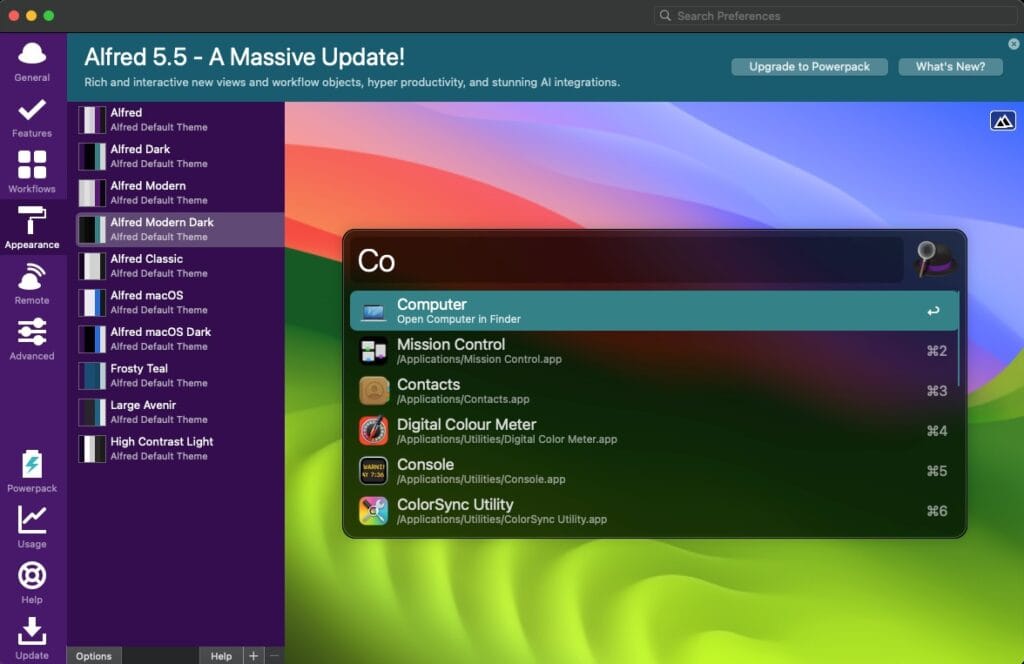
You can even create custom URL shortcuts, check spellings, and perform basic calculations on its free plan. But its paid plan reveals even more exciting features. The Clipboard History option lets you save multiple copied items and paste them wherever you want.
The Snippets feature lets you assign keywords for any URL. When you enter the keyword in the search bar, the URL is auto-filled. You can even create custom snippets. Finally, the best productivity feature of Alfred is Workflows. It’s just like the App Store of Alfred!
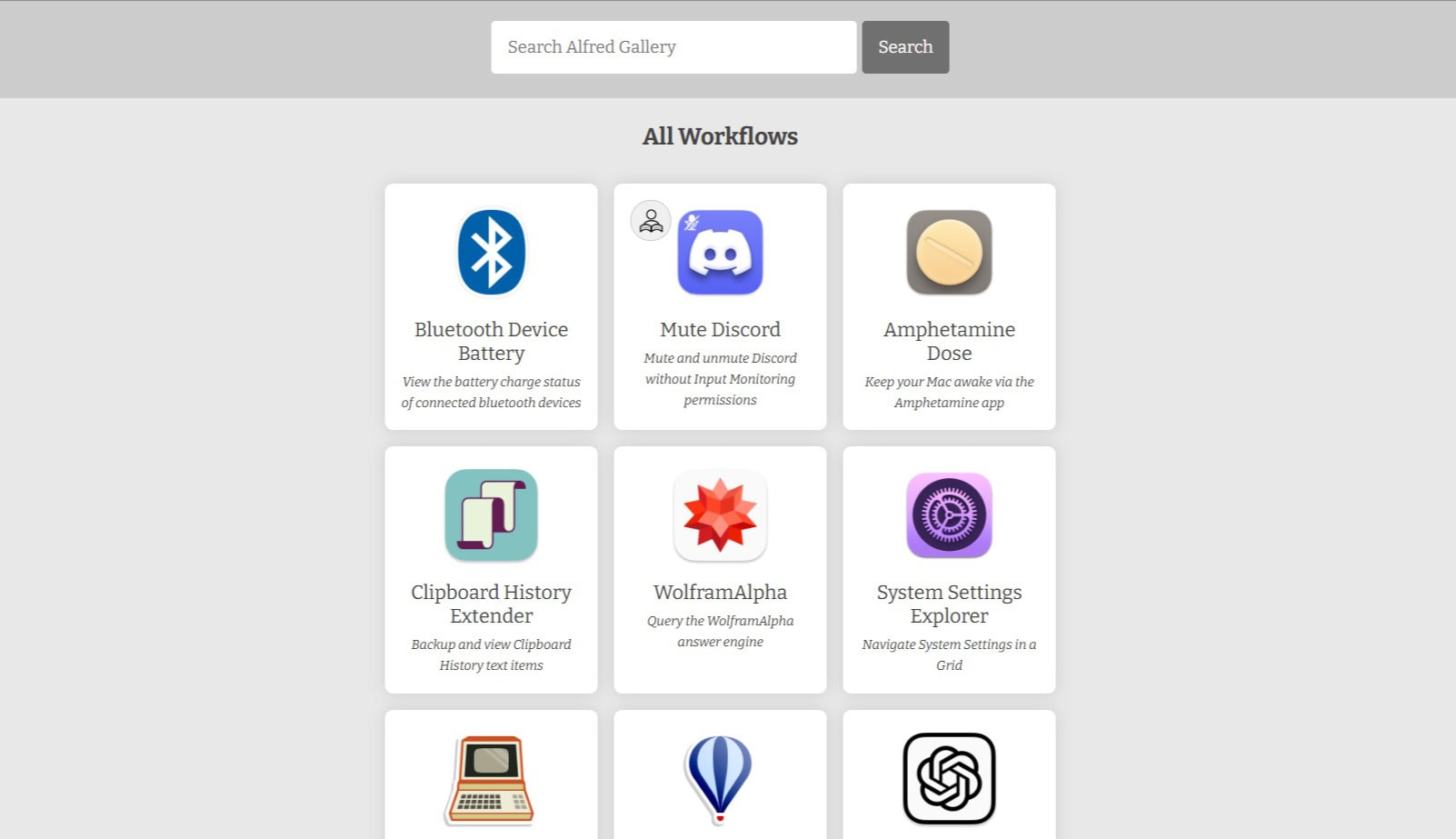
You get a range of pre-designed workflow templates, like Theme Switcher, Dock Switcher, Delete Configuration, Audio Switcher, Hide/Show Windows, ChatGPT integration, etc. My favorite workflow is Timer. Simply type in Timer, select the duration and it’ll set a timer for you.
If you want to use basic search commands and shortcuts, the free plan is a good option. But for unlocking advanced features, Alfred is the best paid productivity tool for Mac! I’ve been using it for the last few years, and it has really helped me boost my productivity.
2) Dropzone
| Category | File Management |
| Standout Features | Drop Bar |
| Pricing | Free, paid plan for $35 |
| Free Alternatives | – |
If your work revolves around file transfers, this is the best free file management and file transfer app. As you download the Dropzone app, it gets installed on your browser menu bar like an extension. It simplifies file sharing and improves productivity.
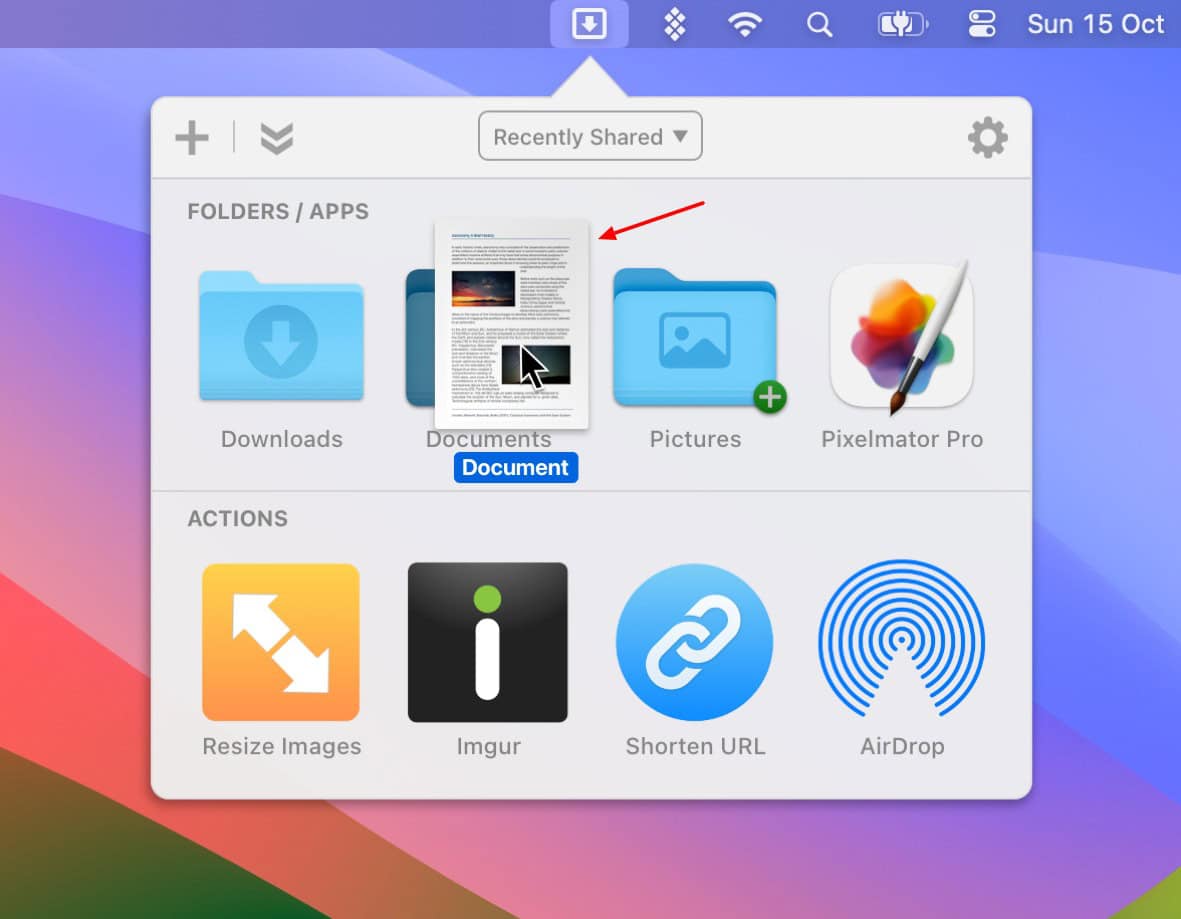
When browsing through any web page, you can select and drag any image into the Drop Bar or AirDrop it to share it with others. Similarly, dropping it into the Downloads folder will save the image, and uploading it to Imgur will give you a publicly shareable link.
I personally use it on all my Mac devices. If you are a blogger, researcher, support agent, graphic designer, or productivity enthusiast who needs to share images on a daily basis, Dropzone is a must-have tool for your work!
3) CleanShot X
| Category | File Management |
| Standout Features | Scrolling Screenshot, Screenshot Background, OCR Reader |
| Pricing | Free, Paid plan for $29/year |
| Free Alternatives | Shottr |
CleanShot X is a screen recorder app that helps you capture images and videos on your screen. You get multiple options like full-screen capture, window capture, region capture, and scrolling capture.
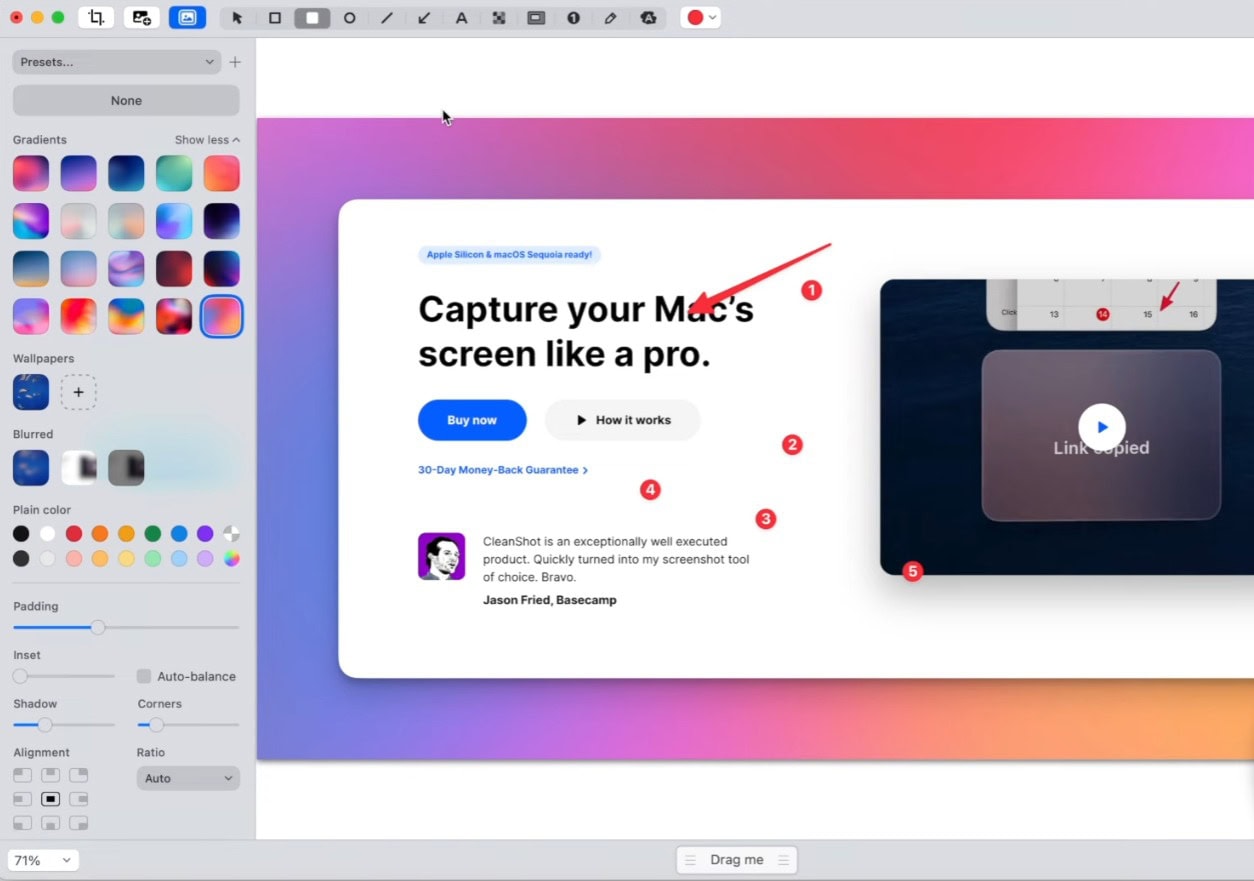
CleanShot X lets you add annotations to your screenshots with elements like shapes, arrows, numbering, background, etc. To add a background, you can pick from its predefined gradients, upload your wallpapers, or choose plain colors and adjust the shadows, corners, alignment, etc.
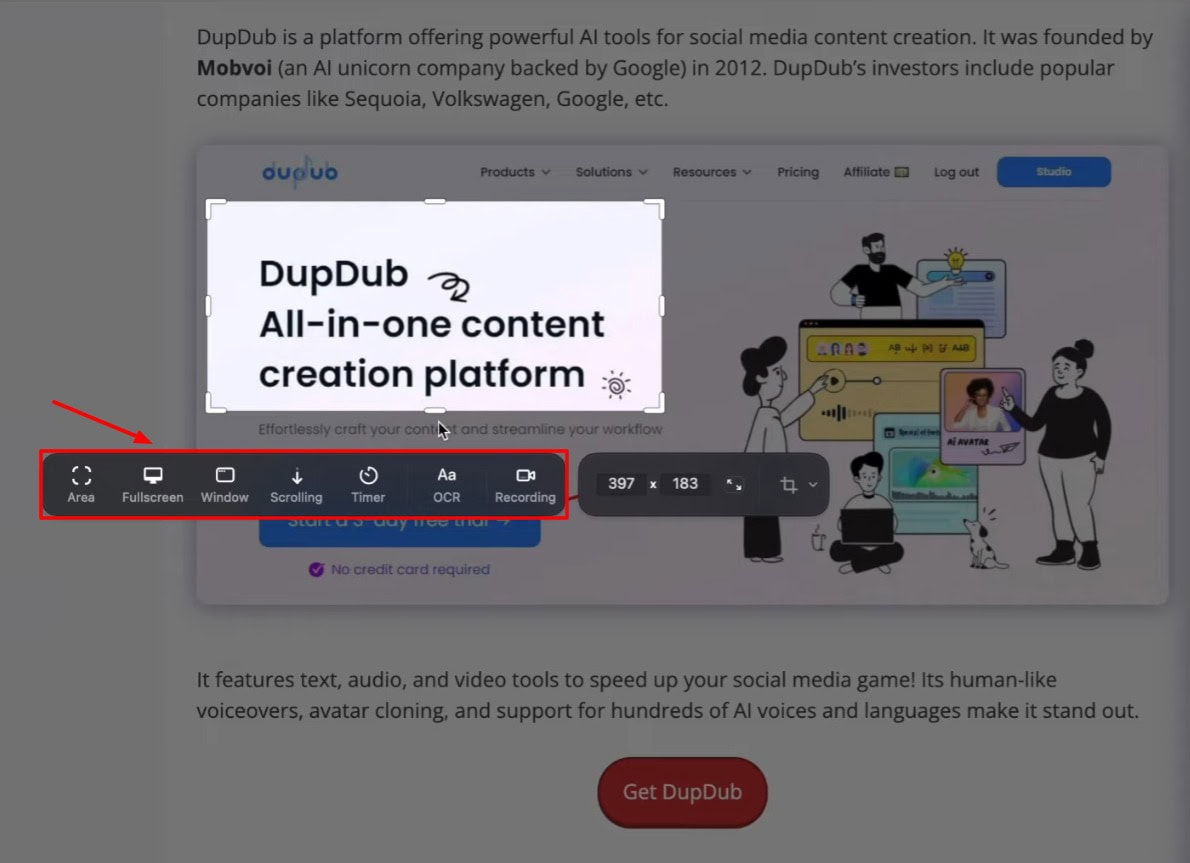
Once you’re done, you can upload it to the cloud and get a shareable URL. It also has an OCR reader that deciphers text from images and an in-built video editor. But my favorite feature is its scrolling screenshot. Simply select an area on the screen and keep scrolling downwards to get a long screenshot!
I’ve been using CleanShot X for years on my Macbook and can vouch for its effectiveness in increasing my productivity. I think it’s best suited for users who work extensively on a Macbook and need to share screenshots and record videos.
4) 1Password
| Category | Password Management |
| Standout Features | Travel Mode, Watchtower, Password Change History |
| Pricing | No free plan, Paid plans start from $2.99/mo |
| Free Alternatives | Bitwarden |
Tired of memorizing dozens of passwords for your accounts? You don’t need to anymore, with 1Password. It’s a secure password manager that works best with the Apple ecosystem. You can lock your vault with a master password, making your passwords inaccessible to anyone but you.
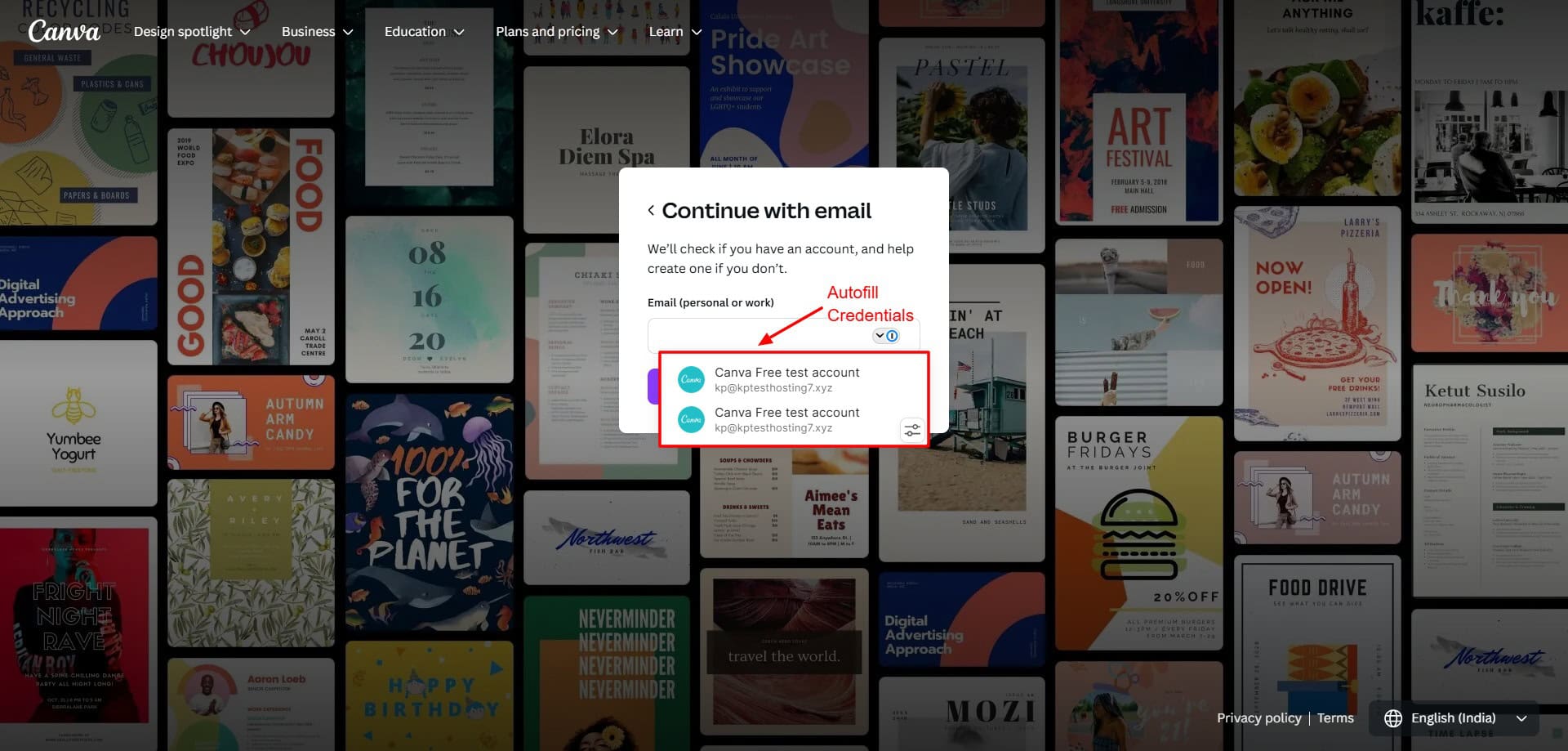
You can use 1Password to generate strong passwords, auto-capture and save your entered credentials, and auto-fill logins on websites. You can even view your password change history in case you accidentally replace a password.
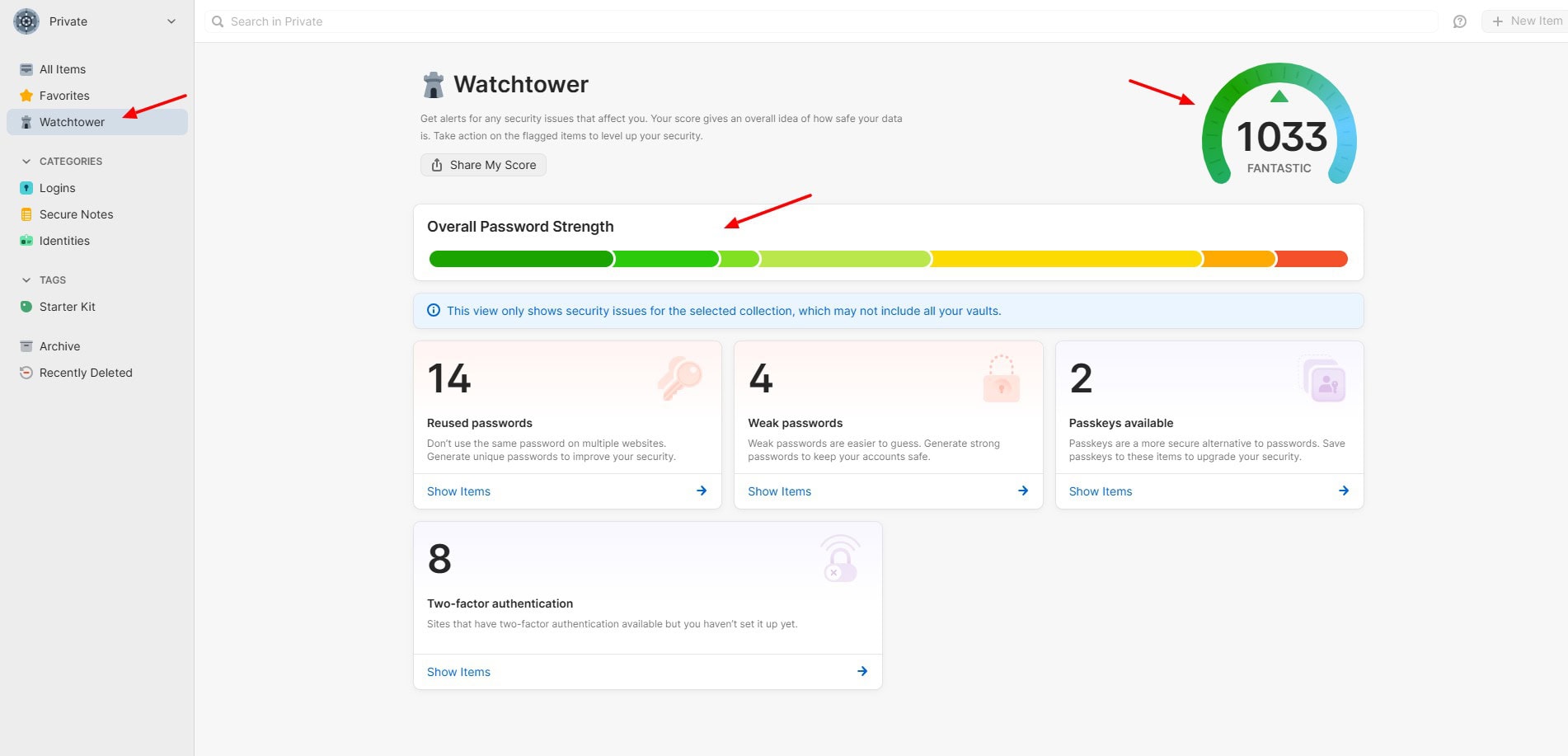
What makes 1Password stand out is its Watchtower feature. It monitors weak passwords and keeps you informed if any of them have been compromised. It also has a Travel Mode, which hides sensitive data from your vault while traveling.
Overall, 1Password is the best-paid password management app for Macbook users. I’ve been using it for the last few years and it has kept all my passwords secure across devices. So, if you’re looking for advanced password protection for your Mac, iOS, iPad, iPhone, etc, try it out!
5) Mounty for NTFS
| Category | File System Utility |
| Standout Features | |
| Pricing | Free |
| Free Alternatives | macFUSE |
Do you also struggle with connecting your Windows drive to your Mac? Well, you’re not alone. Windows systems use the NTFS file format. Mac doesn’t recognize this format when you connect a Windows drive with it.
This is where Mounty for NTFS lets you establish a seamless connection. It’s a lightweight and easy-to-use Mac app that lets you mount and access NTFS formatted drives while being connected to your Mac.
This app is perfect if you work on Mac and Windows OS simultaneously and need to use a common hard drive or external USB on both devices.
6) IINA
| Category | Media Player |
| Standout Features | Dark Mode, Extensions for Online Media Playback |
| Pricing | Free |
| Free Alternatives | VLC Media Player |
Tired of playing your files in the same old QuickTime player? Well, let’s spice things up with IINA! It’s a free and open-source media player designed for Mac devices. It sets itself apart by supporting a wider range of file formats and codecs as compared to other players.
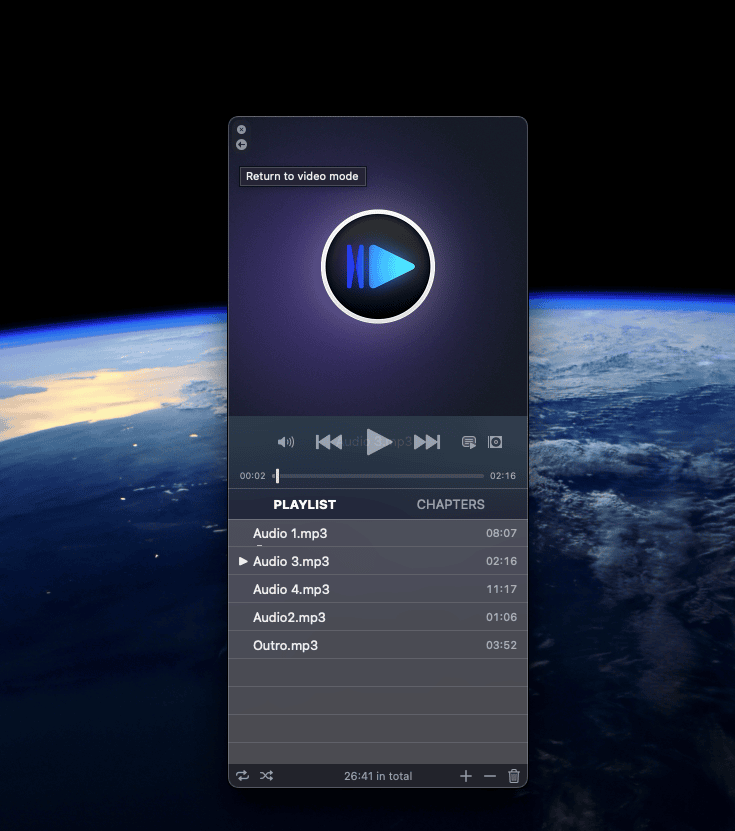
Besides offering support for Picture in Picture mode for all your photos, it also has a slick design and a dark mode UI that blends perfectly with a Mac. You can customize IINA’s UI and even install extensions to play media from online sources like YouTube, Vimeo, etc.
So, if you need a versatile media player that supports more formats and looks super pretty, IINA is a must-try!
7) RIZE
| Category | Time Tracking |
| Standout Features | Focus Music, Detailed Monitoring |
| Pricing | Free, Paid plans start from $9.99/mo |
| Free Alternatives | Toggl Track |
Wondering where your precious time flies away when you sit down to work? You need to try out RIZE. It’s a time-tracking app powered by AI. Simply install it and get to work. RIZE runs in the background and keeps tracking your activities.
If you’re a music fanatic just like me, you can also enable Focus Music to better concentrate on work. On its dashboard, you can check out your activities along with time, total work hours, your work blocks, projects you worked on, your break timer, and time breakdown by category.
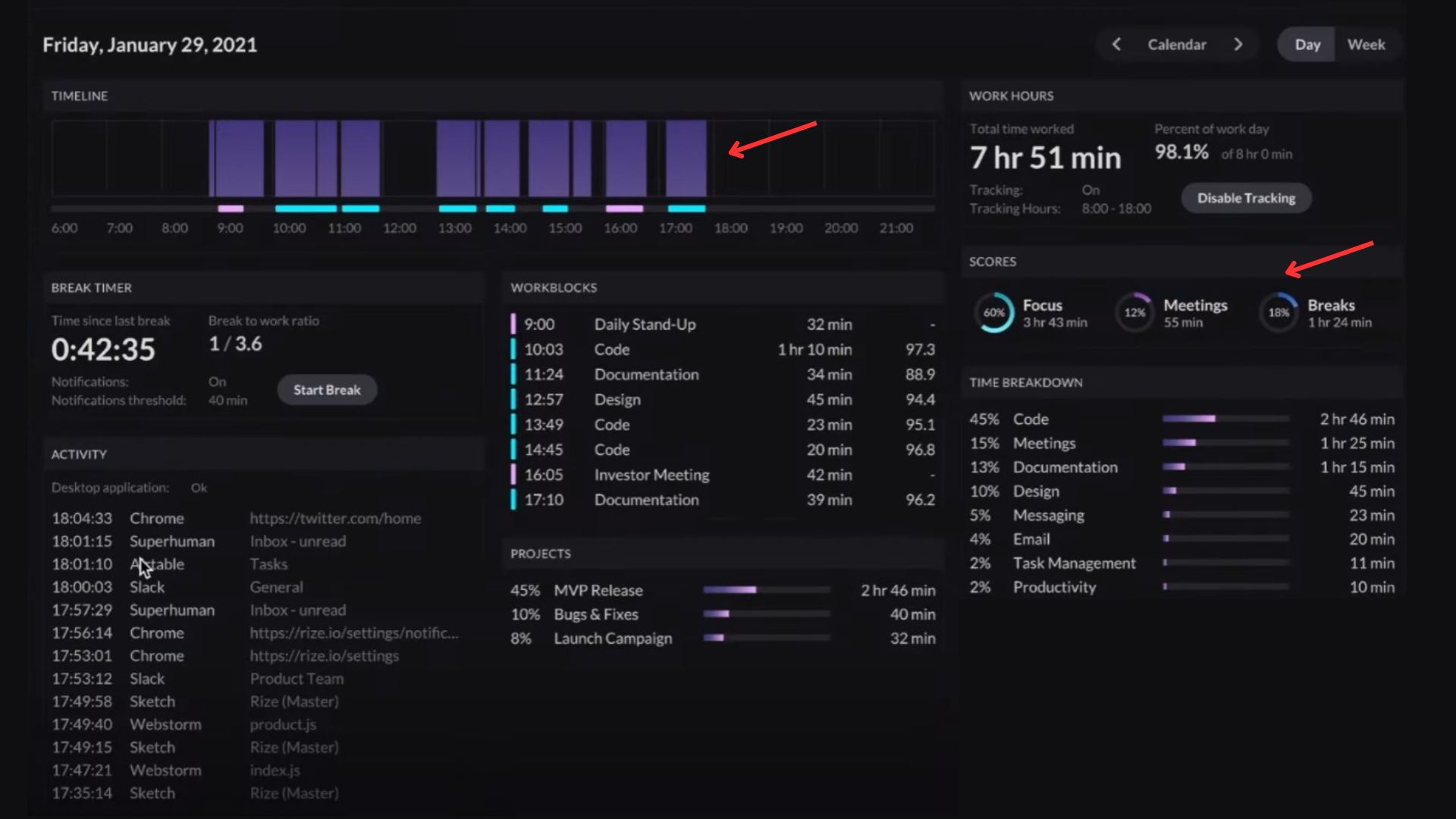
I loved its eye-catching color palette and the efficiency with which it tracks my activities. I’ve been using it on my Mac and it has helped me identify the apps I was wasting my time on and how to make the best use of that time.
If you want to improve your focus and get work done without distractions, RIZE is the app you should try! It’s ideal for project managers, researchers, freelancers, students, and anyone wanting to build more productive habits.
But if you’re more concerned about your privacy, then I won’t recommend using any time trackers. A good workaround would be to enable it while working on your projects and disable it when working on your personal stuff!
8) Rectangle App
| Category | Window Management |
| Standout Features | – |
| Pricing | Free, Paid plans start from $9.99 |
| Free Alternatives | BetterSnapTool |
Multi-tasking can be a struggle without an external screen. But not anymore! Rectangle App is a free, open-source, and lightweight app that snaps your screen. All you need to do is select a window and drag it across the screen corners. It even supports portrait layouts!
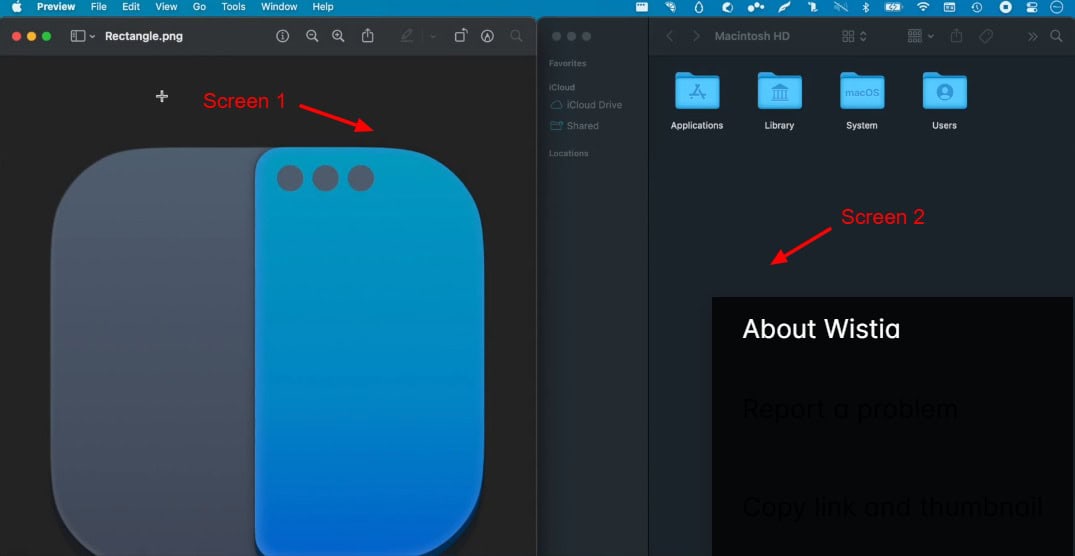
Rectangle is a useful app if you want to multitask and manage multiple windows on your screen. I don’t use it much because I work on an external monitor. But if you’re an online instructor, developer, student, content creator, or corporate, try it out!
9) CleanMyMac
| Category | Window Management |
| Standout Features | Malware Remover, 1-Click File Deletion |
| Pricing | 7 Day Free Trial, $3.33/mo (for 1 Mac) |
| Free Alternatives | App Cleaner, Pearcleaner |
Often, uninstalling apps from your Macbook may leave unnecessary files behind. Cleaning them up manually can be time-consuming and too much trouble. This is why you need CleanMyMac – a premium app to clean your Macbook.
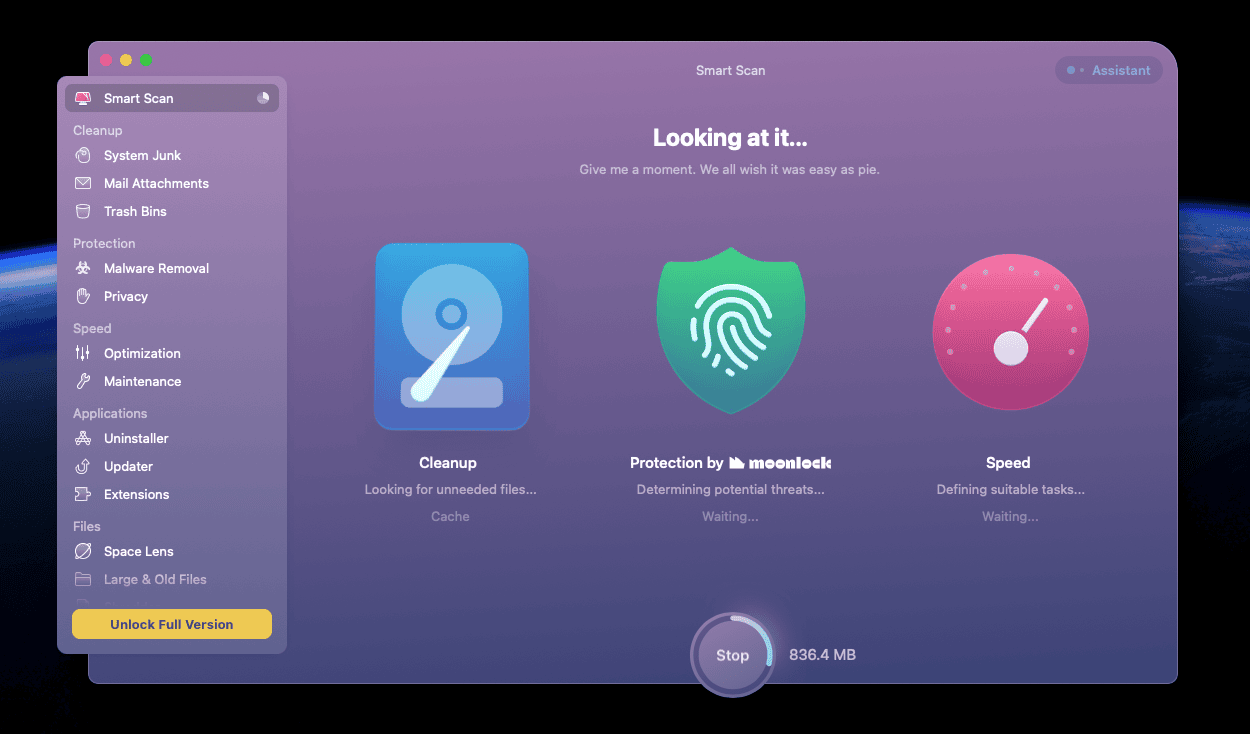
This app is packed with a lot of powerful features for your Mac. Besides scanning your system to delete unnecessary files, it improves your MacBook’s speed, removes duplicate files, and keeps your apps up-to-date.
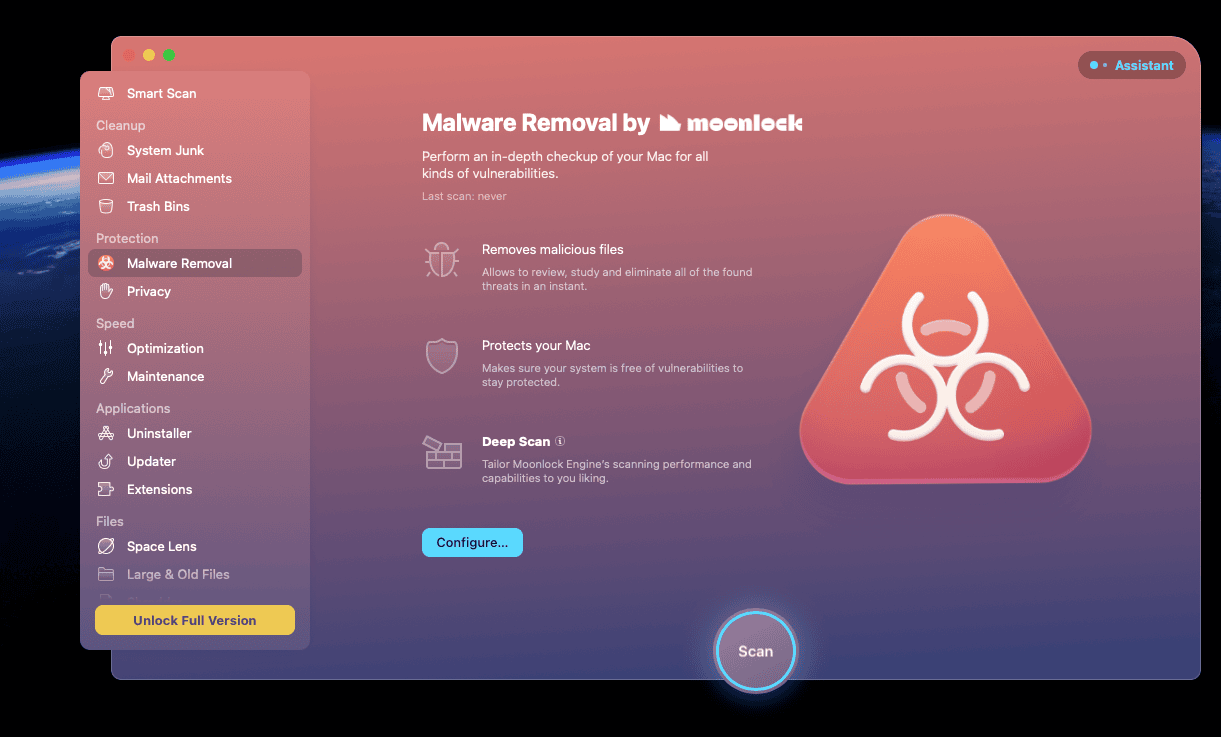
Its built-in malware remover scans the system to detect any threats and reverts the damage done. It even offers you a list of large files and old files on your system that you can delete with a single click!
So, if you want to optimize your system’s performance and clean up unwanted data, check out the CleanMyMac app. Its ideal users are those extensively using their Macbook for over a year with dozens of app installations. I won’t recommend it for new MacBooks, though.
10) DiffusionBee
| Category | AI Image Generation |
| Standout Features | Offline Image Generation |
| Pricing | Free |
| Free Alternatives | – |
Want to create high-quality images on your Mac? Try DiffusionBee. This free AI image generation app works with Stable Diffusion. What’s different about it? You don’t need the Internet to use it. Rather, it uses your system’s GPU and resources to generate images offline.
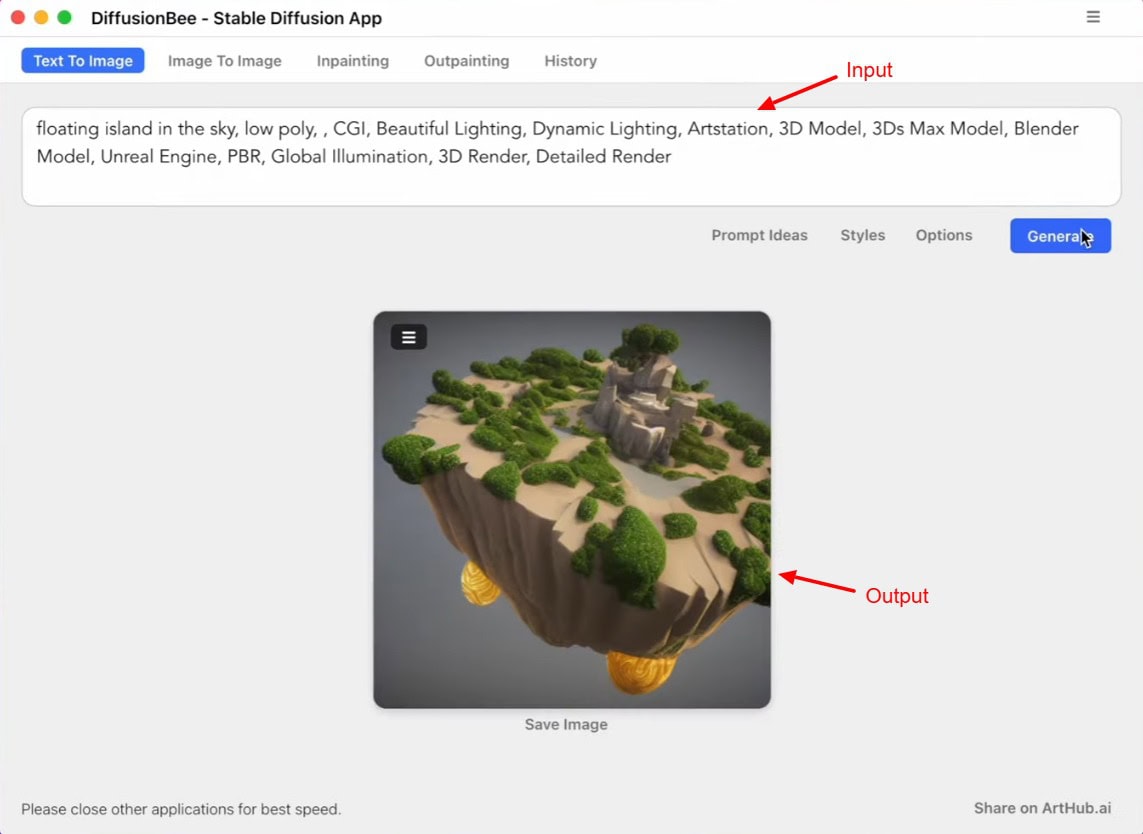
It comes with many features like text-to-image generation, generative fill, image-to-image generation, video tools, image upscaling, illusion generator, image variants, etc. In my opinion, the results it produced were pretty good.
Content creators, web designers, bloggers, or freelancers who work with AI images regularly should try it out. It’s a great way to keep your prompts, AI models, and produced images secure on your local device.
However, an important thing to note is it uses your system’s resources. So I’d recommend you to use it only if you have a powerful laptop (Macbook M/Pro series) to avoid any performance issues.
11) Ice – Menu Bar Manager
| Category | Menu Bar Management |
| Standout Features | Customize Menu Bar, Menu Items Search Bar |
| Pricing | Free |
| Free Alternatives | Vanilla |
Want to focus on work, but a cluttered menu bar full of icons keeps getting in the way? It’s time to switch to Ice! It’s a free and open-source menu bar management app. Upon installation, it simply hides all the icons and unnecessary information from your menu bar, giving it a cleaner look.
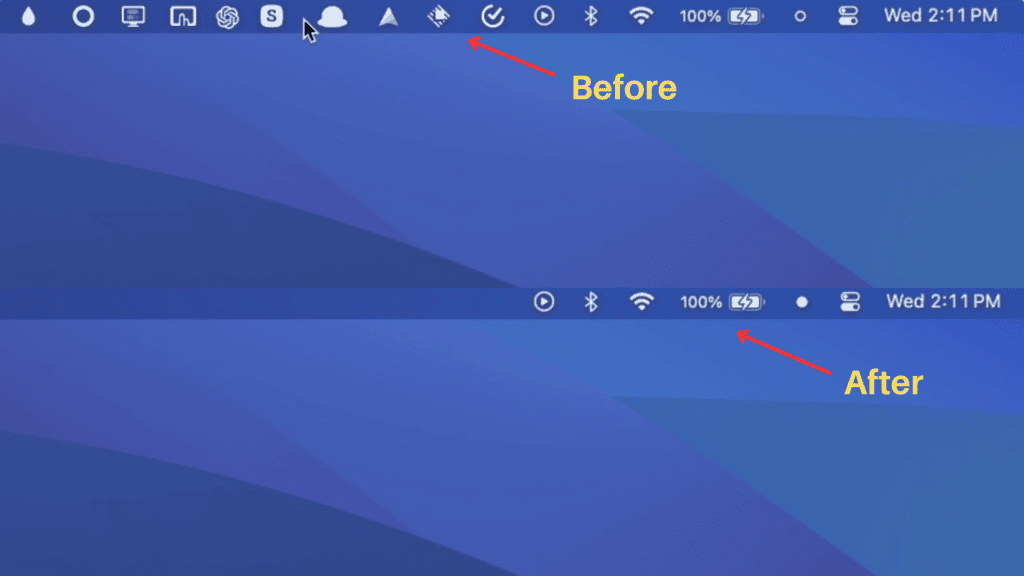
When you place your cursor over the menu bar, all the icons become visible again. Besides hiding icons, it lets you customize your menu bar’s appearance and adjust item spacing. It also offers a drag-and-drop UI to arrange menu icons, and a search bar to quickly search items.
This is a pretty simple app to organize the menu bar on your Macbook. If you want to optimize and manage your menu bar to avoid distractions, check out Ice!
12) ProNotes
| Category | Note Taking |
| Standout Features | AI Tools |
| Free, Paid plan for $7.99/mo | Free, Paid plan for $7.99/mo |
| Free Alternatives | Obsidian, Evernote |
If you use Apple Notes to create your notes and to-do lists, Pro Notes could be a wonderful addition to your workflow! ProNotes is a note-taking app that works as an extension for your Apple Notes and expands its functionality.
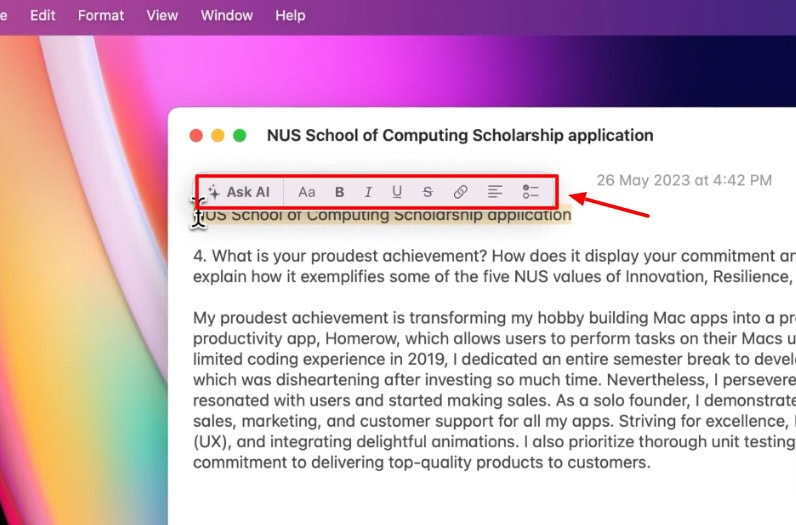
The free plan offers a formatting bar to format your notes using basic formatting options, insert links, checklists, adjust alignment, etc. You can also format your text in markdown, link to other notes, use slash commands, or use their pre-designed templates.
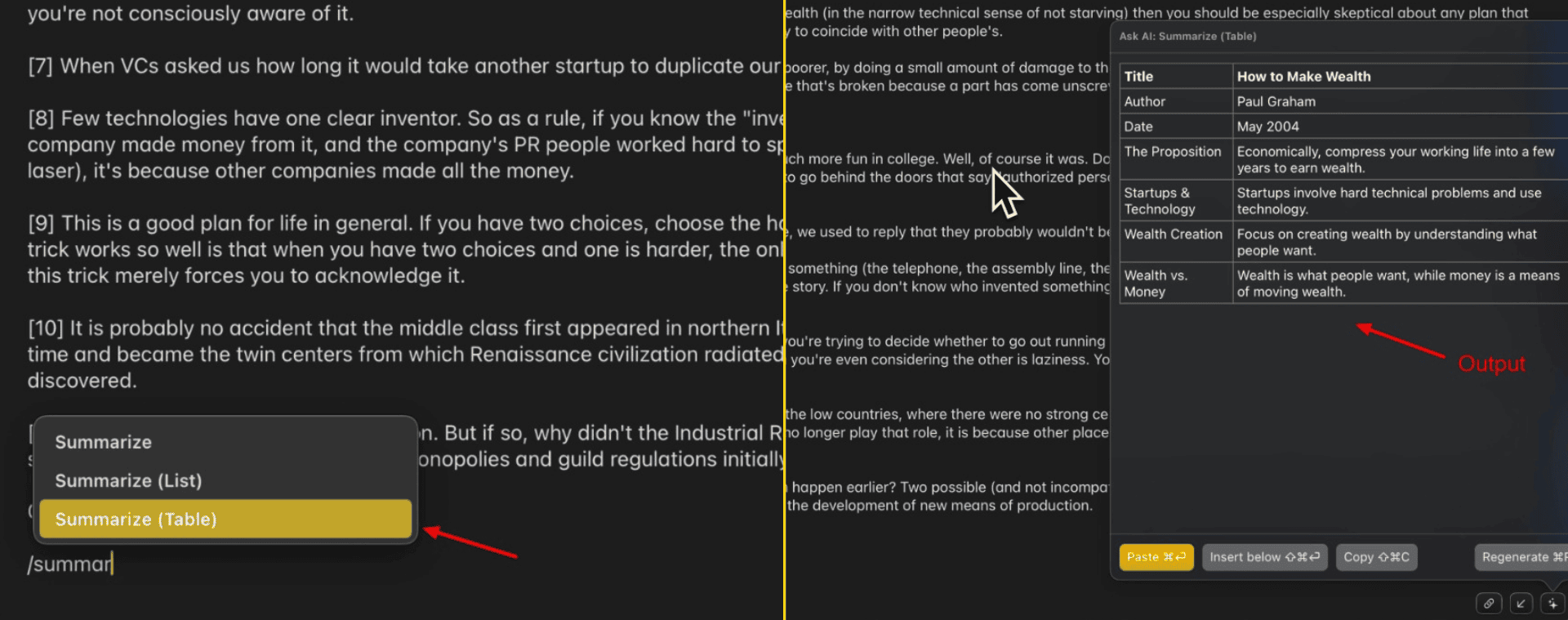
But what’s most exciting is its AI features that come with the paid plan. For any block of text, you can use their AI writer to fix spelling and grammar, improve writing, make text longer or shorter, summarize text, or use a custom prompt.
So if you want to have some extra features on your Apple Notes, try ProNotes. This is perfect for managers, students, and all productivity enthusiasts.
Conclusion
So, these were the 12 Best Mac Apps for Productivity. Whether you’re looking to automate tasks, manage files, track time, or clean up your system, these apps can help you work smarter and get more done in less time!
My favorite productivity apps are Alfred, 1Password, and CleanShotX. Each of them has been a game-changer in my workflow. But what about you? Do you have any other recommendations for the best productivity apps? Do share in the comments section below.
Anyway, if you’re interested in the happenings of the AI world, don’t forget to subscribe to my weekly AI newsletter. This is Kripesh signing off. I’ll be back with more interesting stuff. Cheers, and keep learning. 🙂