CapCut has been banned in India since 2020. Are you still searching for the best alternatives? You’re in the right place! Today’s article will help you find the perfect video editing tool to match your needs.
I’ll be reviewing the Best CapCut alternatives for 2026, covering tools suitable for both mobile and desktop users. After months of testing various video editors, I’ve finally compiled a tried-and-tested list of reliable and feature-rich options.
In this article, you’ll find key features, pros and cons, pricing details, and insights into who each tool is best suited for. So, wasting no more time, let’s dive right in!
Why Look for CapCut Alternatives?
CapCut is owned and developed by ByteDance, the same company behind the globally popular app TikTok. However, many ByteDance apps, including TikTok and CapCut, have been banned in India due to concerns over data privacy.
In 2020, the Indian government banned 59 Chinese apps. The government cited risks of user data misuse and national security concerns linked to the Chinese government. The U.S. government has also criticized ByteDance and taken regulatory actions over similar issues.
Given these concerns, I’ll advise you to explore alternative video editing software to better protect your sensitive information.
Best Alternatives For CapCut (Summary)
| Tool Name | Platform | Pricing | Learning Curve | Export Resolution (Free) | Watermark |
| YouCut | Mobile | Free, paid plan starts at ₹490 for 1 year | Beginner-friendly | 4K | No |
| Edits by Meta | Mobile | Free | Beginner-freindly | HD | No |
| KineMaster | Mobile | Free, paid plan starts at ₹3,795 for 1 year | Pro | 4K | Yes |
| Filmora | Mobile and Desktop | Free, paid plan starts at ₹1,999 (mobile), ₹2,999 (desktop) for 1 year | Intermediate to Pro | 720p | Yes |
| Adobe Premiere Rush | Mobile | Free, paid plan starts at ₹3,100 for 1 year | Intermediate | 1080 p | Yes |
| InShot | Mobile | Free, paid plan starts at ₹2,500 for 1 year | Beginner-friendly | 480 p | Yes |
| DaVinci Resolve | Desktop | Free, paid plan starts at ₹29,980 one time | Pro | 4K | No |
| PowerDirector | Desktop, Mobile | Free, paid plan starts at ₹4,799 for 1 year | Beginner-friendly | 4K | Yes |
| Clipchamp | Desktop | Free, paid plan starts at ₹8,999 for 1 year | Beginner-friendly | 1080p | No |
Want the Best AI Tools?
Check My Favourite AI Tools 🖤
ElevenLabs
Elevenlabs and Adam AI Voice are my go-to choices. ElevenLabs is incredibly versatile, and you get 10 mins free every month.
Gamma AI
Gamma App is my top choice for ai ppt generation. You can easily create your ppt for FREE. It’s a must have AI Tool.
HOSTinger AI
I love Hostinger AI Website Builder for how easy and affordable it is. 1 click AI website creation, perfect for websites.
Wanna Grow a Blog? ❤️
Check My Favourite Blogging Tools
Hostinger
Hostinger is a fantastic choice for beginners looking for affordable, user-friendly shared hosting. Get exclusive discount with my link.
Semrush
Semrush is the perfect SEO toolkit. Get keyword research, competitive analysis, and more. Get 14 day free trial.
SEO Surfer
Surfer SEO offers optimization tools to rank higher on search engines and unique AI article generator.
Best Alternatives for CapCut in Mobile (Android & iOS)
1. YouCut
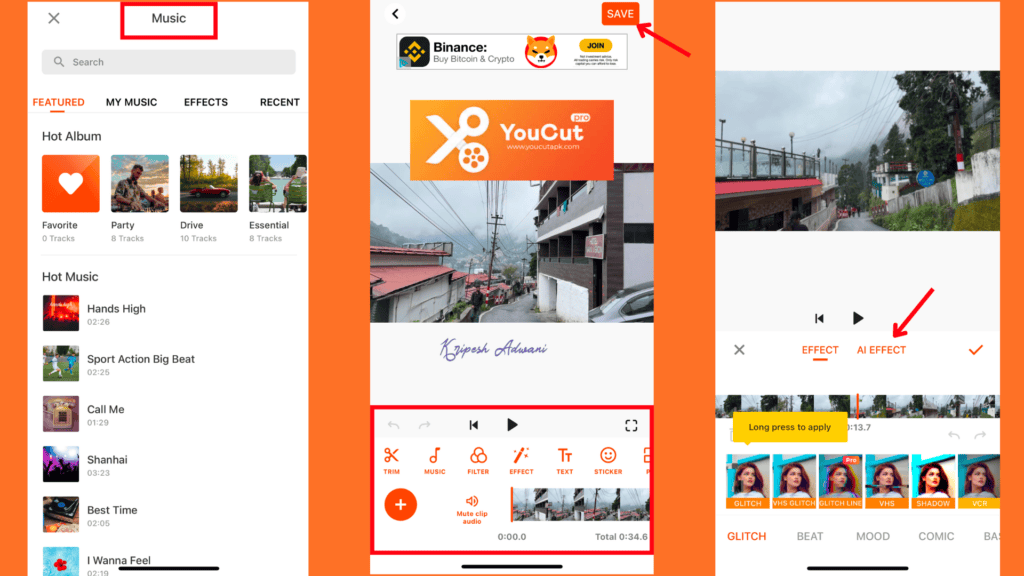
YouCut Video Editor is a great option for watermark-free video editing. It offers effective tools like speed control, video merging, and movie making. However, the app could improve its interface and reduce interruptions from ads.
Highlighted Features
- Editing Tools: YouCut offers tools to add captions, rotate, crop, apply filters, and adjust video colors—all for free.
- Music Library: Users can access a vast collection of royalty-free music and audio at no cost. Includes categories like Sport, Health, Love, Festival, and more.
- Voice Changer: A unique feature that lets you change original audio with various voice effects like Man, Woman, Monster, Robot, etc., using percentage-based adjustments.
- High-Quality Export: You can export videos up to 4K at 60 fps for free. Plus, it allows you to adjust the video quality as needed.
- AI Features for Free: YouCut AI Enhance improves blurry photos and videos (up to 15 seconds). AI Painting also transforms your photos and videos into AI-generated art.
- Beginner-Friendly Interface: Editing with YouCut is very easy to learn, perfect for users with little to no editing experience.
Pricing
YouCut is free to use with limited features and ads in the interface. For an ad-free experience, unlimited imports, premium music and filters, and unlimited AI Enhance, you can upgrade for ₹490/year or get lifetime access for ₹1,150. YouCut also offers a 7-day free trial of the Pro version.
Pros and Cons
Pros of Youcut
4K exports are available in the free version
AI tools are accessible for free
No watermark on video exports
Free voice-changing feature
Cons of Youcut
Interface is basic and feels outdated
Ads appear in the interface and during the use of AI tools
Conclusion
YouCut is best suited for novice video editors and beginners. It’s easy to learn and offers decent features, including 4K quality exports for free. However, professional editors may find some advanced features missing, such as multiple cuts, detailed speed adjustments, and video overlays. Overall, it’s perfect for budget-conscious users or people who just need simple edits without paying.
2. Edits by Meta
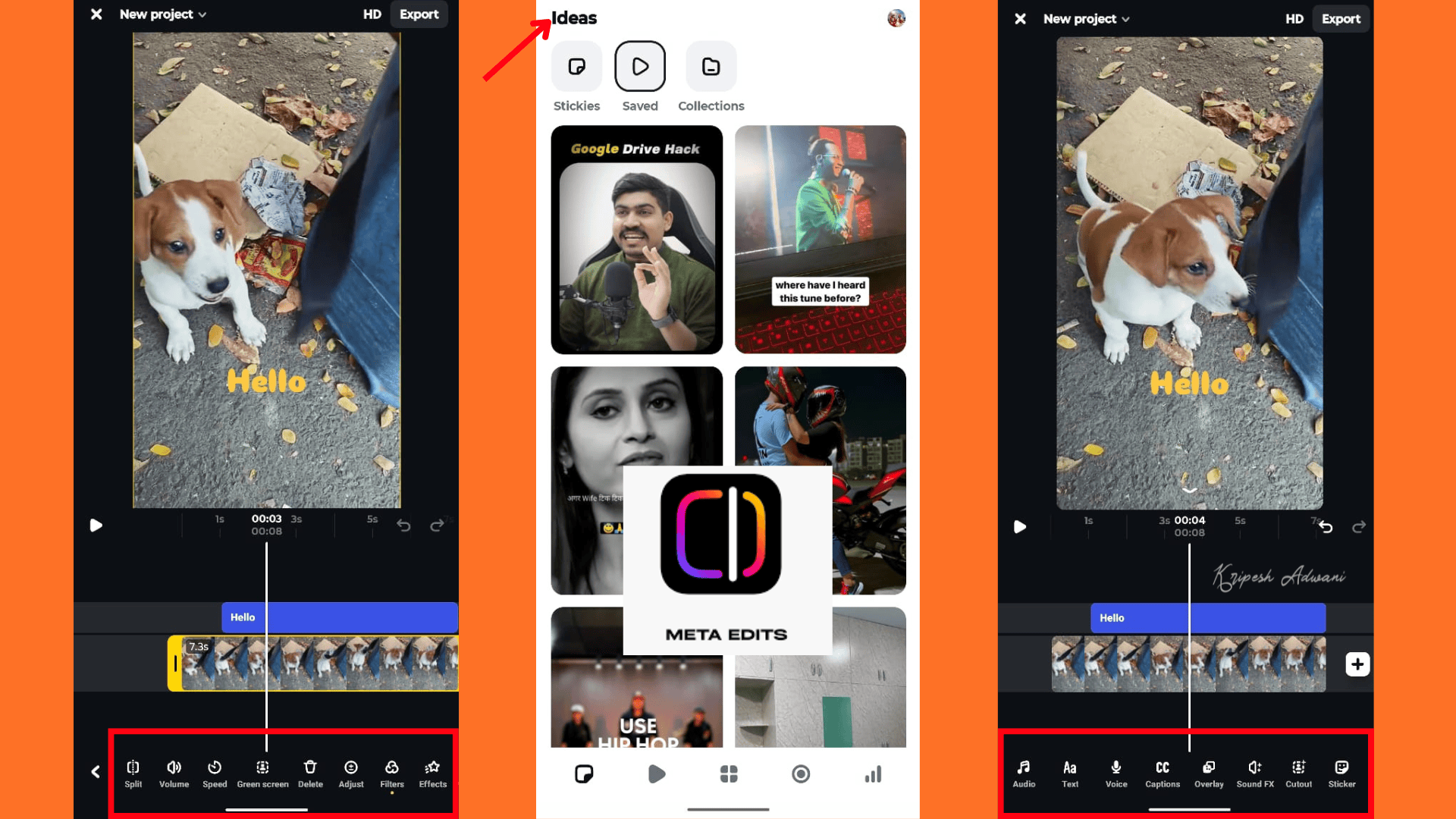
Meta has recently introduced Edits, a new app with deep Instagram integration. It handles everything from shooting and editing videos to publishing content directly on Meta platforms. Videos can be exported without any watermark. The app is still in beta mode, but it’s set to roll out numerous advanced editing features soon.
Highlighted Features
- Smart Editing: Similar to CapCut, Edits offers a solid range of video editing features like cut, trim, adjust, and split. Advanced options include green screen editing and frame-accurate timeline editing.
- Watermark-Free Export: All edits are completely free to use, and Meta users can download videos without watermarks.
- AI Features: Auto Captions lets you automatically add subtitles. Animate turns static images into videos. Cutouts allow you to isolate specific objects in your footage.
- Copyright-Safe Tracks: For audio, it includes music from Instagram’s official library, ensuring copyright safety.
- Inspiration and Idea Tracking: You can bookmark reels and access saved audio/video content from Instagram directly within the app. The “Idea” tab also allows you to jot down content ideas easily.
- Performance Insights: A dedicated analytics page helps you track the performance of your Instagram videos, offering deeper insights into engagement and reach.
- Built-in Recording: The app comes with a high-quality in-app camera that lets you record videos up to 10 minutes long.
- Upcoming Features: Meta is planning to roll out new features soon, including Keyframe animation control, Modify with AI, Collaboration tools, and Enhanced creative assets like fonts, animations, and transitions.
Pricing
The app is currently free to all Meta users.
Pros and Cons
Pros of Edits by Meta
Direct sharing to Instagram and Facebook
Easy-to-use interface with professional editing features
All-in-one app to create, share, and monitor video performance
High-quality in-app camera for recording and shooting
Inspiration feed with trending audio and reel ideas
Watermark-free video exports
Cons of Edits by Meta
Interface feels slightly basic
Supports exports only up to HD resolution
Limited editing capability for videos longer than 30 minutes
Missing advanced features like motion tracking and audio controls
Conclusion
Edits by Meta is a strong alternative not only to CapCut but also to YouTube Shorts. It offers impressive editing features alongside useful AI tools. With direct integration with Facebook and Instagram, it’s best suited for content creators and Instagram influencers.
3. Kinemaster
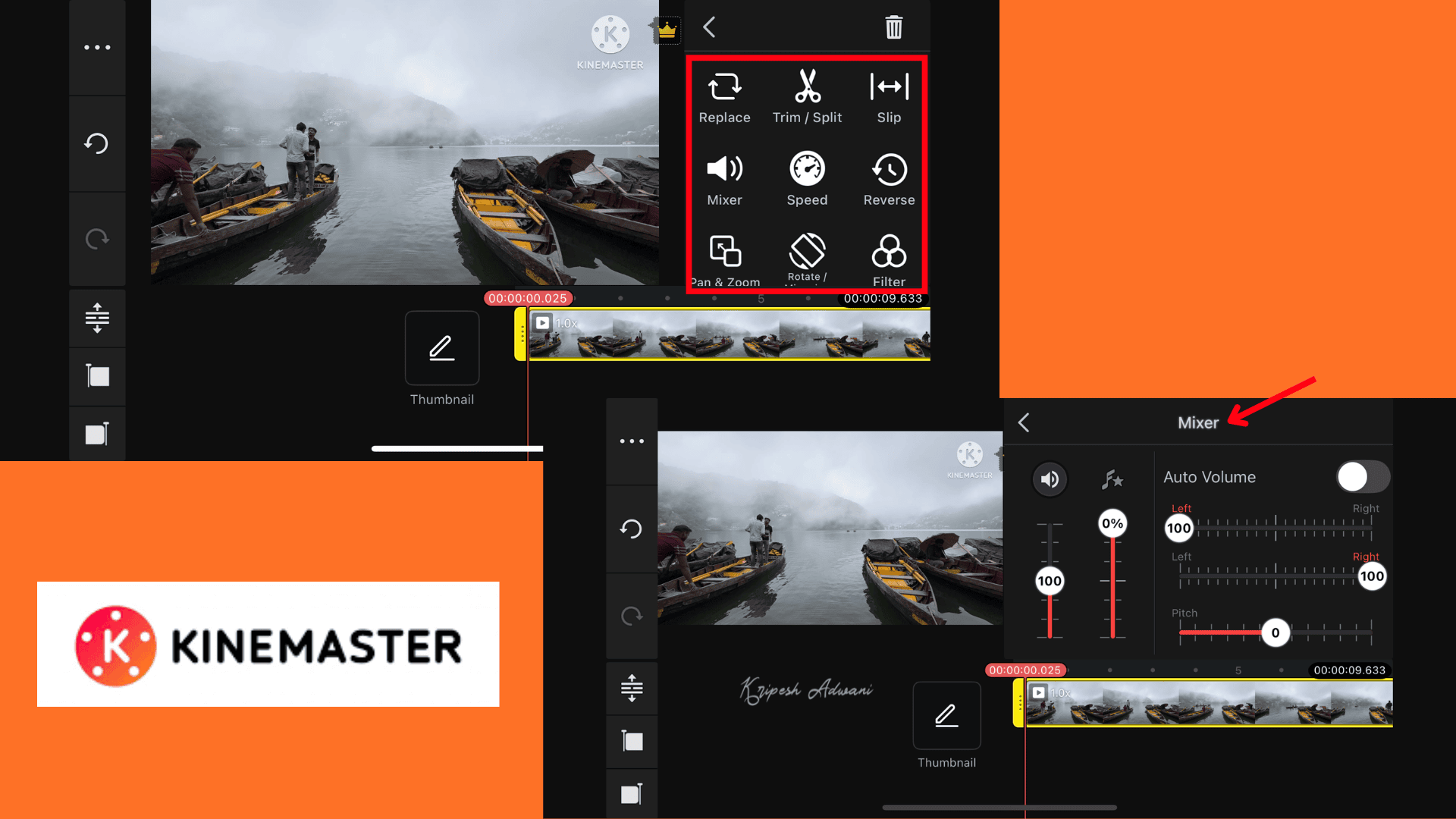
KineMaster is a fantastic, mobile-friendly video editor. It offers everything from basic to professional editing features, including advanced audio editing options and AI tools. With support for layers and more powerful capabilities than typical editing apps, it’s perfect for creators who want more control on the go.
Highlighted Features
- User Flexibility: The app allows you to manually choose the aspect ratio, photo display mode, photo duration, and transition duration.
- Stock Photo Integration: It integrates with platforms like Pexels and Pixabay. So, you can import high-quality stock photos directly into your projects.
- Advanced Editing: The app includes advanced editing features that enable you to work with video layers and perform tasks such as transcoding, speed adjustments, rotation, and mirroring.
- Chroma Key: With this feature, you can easily composite green screen videos using an alpha mask. It also offers preview functionality and tools to fine-tune the final output.
- Asset Store: KineMaster provides access to an extensive asset store filled with free and premium effects, transitions, graphics, stickers, and music to enhance your videos.
- Audio Editor: The built-in editor includes pitch control, volume envelope adjustments, reverb, and voice modulation. Plus, the audio library contains a vast collection of short music tracks, sound effects, and music genres.
- AI Feature: The Auto Caption tool auto-generates captions for your videos in English, Spanish, Hindi, etc. The Music Match feature suggests background music that suits the mood and style of your video. The Text-to-Speech tool allows you to convert written text into speech in Indonesian, Korean, and English.
Pricing
To remove the watermark and ads and to access 10GB of cloud storage along with premium assets, you can purchase a subscription for ₹3,795 per year or ₹575 per month. A 3-day free trial is also available.
Pros and Cons
Pros of Kinemaster
Full-screen timeline offers a PC-like editing experience.
Several AI features are accessible without a subscription.
4K exports are available even in the free version.
Professional features include multi-layer editing, keyframe animation, etc.
Cons of Kinemaster
Ads at the interface can appear frequently.
A watermark is added to the final video export in the free version.
The app is resource-heavy and may lag on devices with low RAM.
Conclusion
KineMaster is quite popular among mobile editors. It’s especially useful for mobile filmmakers, educators, YouTubers who need advanced editing features, and small businesses looking to create quick promotional ads.
4. Filmora
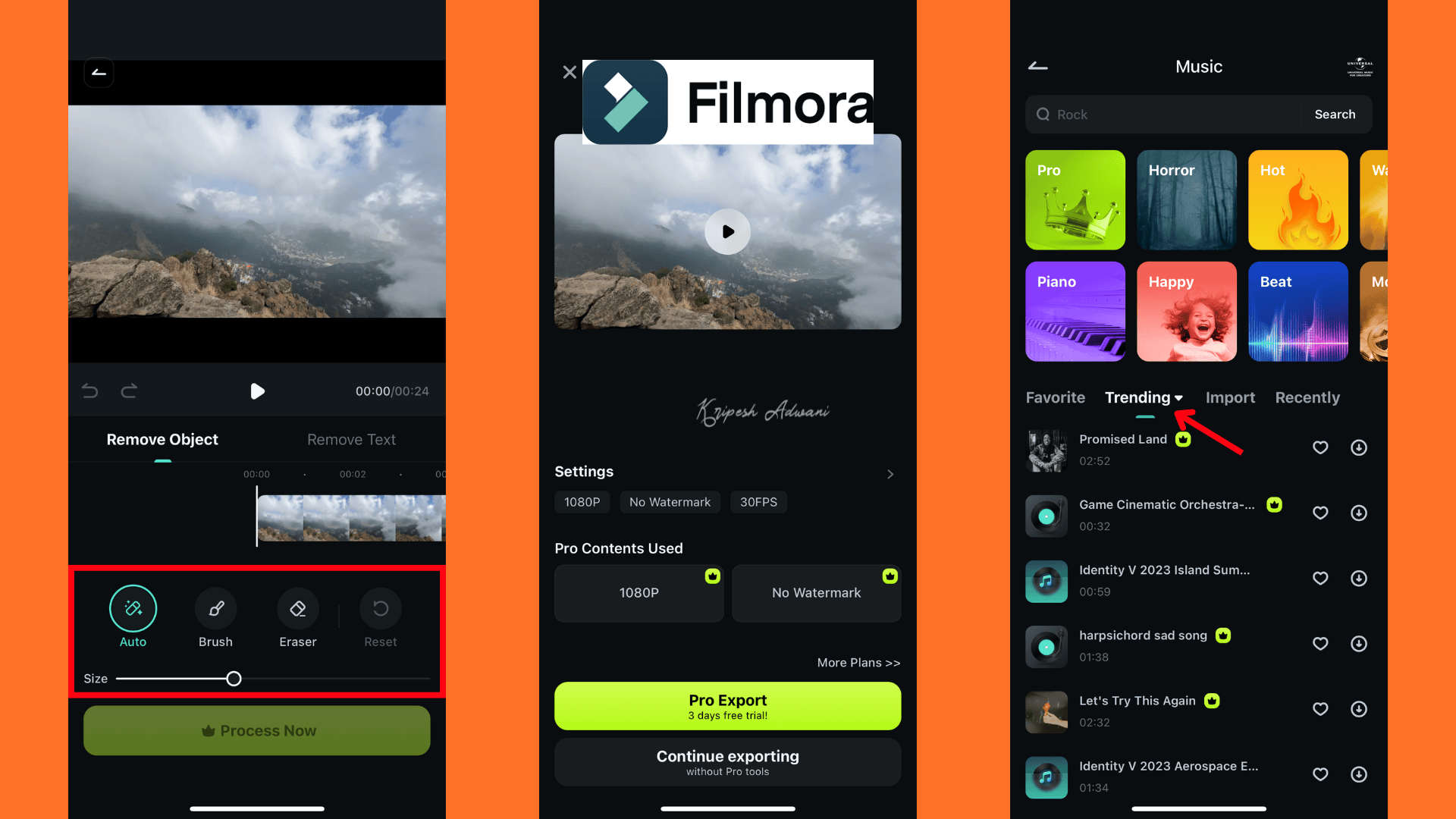
Filmora is a powerful video editing app that offers everything from basic to advanced features, including drag-and-drop editing, effects, and transitions. However, in the free version, exports are limited to 720p resolution and include a watermark.
Highlighted Features
- AI Features: Filmora includes AI Voice Cloning, AI Reels Maker, AI Text and Object Remover, and AI Captions automatically detect the language in your video and generate captions accordingly.
- Text-to-Video Maker: This tool generates engaging videos by simply entering a text prompt.
- Image-to-Video Maker: Upload an image, write a prompt, and bring your photo to life. This feature also supports converting your Ghibli image into shorts, such as Ghibli-inspired videos.
- Editing Features: You can adjust the aspect ratio, freeze frames, reduce noise, reverse clips, and change video speed. Additional options include adding text, stickers, effects, filters, background changes, and format adjustments.
- Green Screen Video Editing: You can use the chroma key feature to edit green screen videos with ease.
- Object and Face Tracking: Filmora allows you to track objects and faces in your videos, and add text or stickers that follow the movement of the tracked items.
Pricing
To unlock 20+ Pro features, you can subscribe to Filmora Pro for ₹249 per month or ₹1,999 per year. The subscription includes access to premium tools such as AI Sound Effects, AI Remover, AI Music, AI Beats, and more.
Pros and Cons
Pros of Filmora
Advanced export options, including frame rate selection and resolution control
Professional, user-friendly interface
Extensive collection of AI tools
Ability to generate videos from text and images
Cons of Filmora
Limited AI credits are available in the free version
Free exports are restricted to 720p resolution
The free version adds a watermark to exported videos.
Dolby HDR Pro sound quality is available only in the Pro version.
Conclusion
Filmora is a feature-rich video editor, yet easy to use. It’s ideal for intermediate users such as vloggers, aspiring filmmakers, educators, and small businesses that need to create polished content without a steep learning curve.
5. Premiere Rush
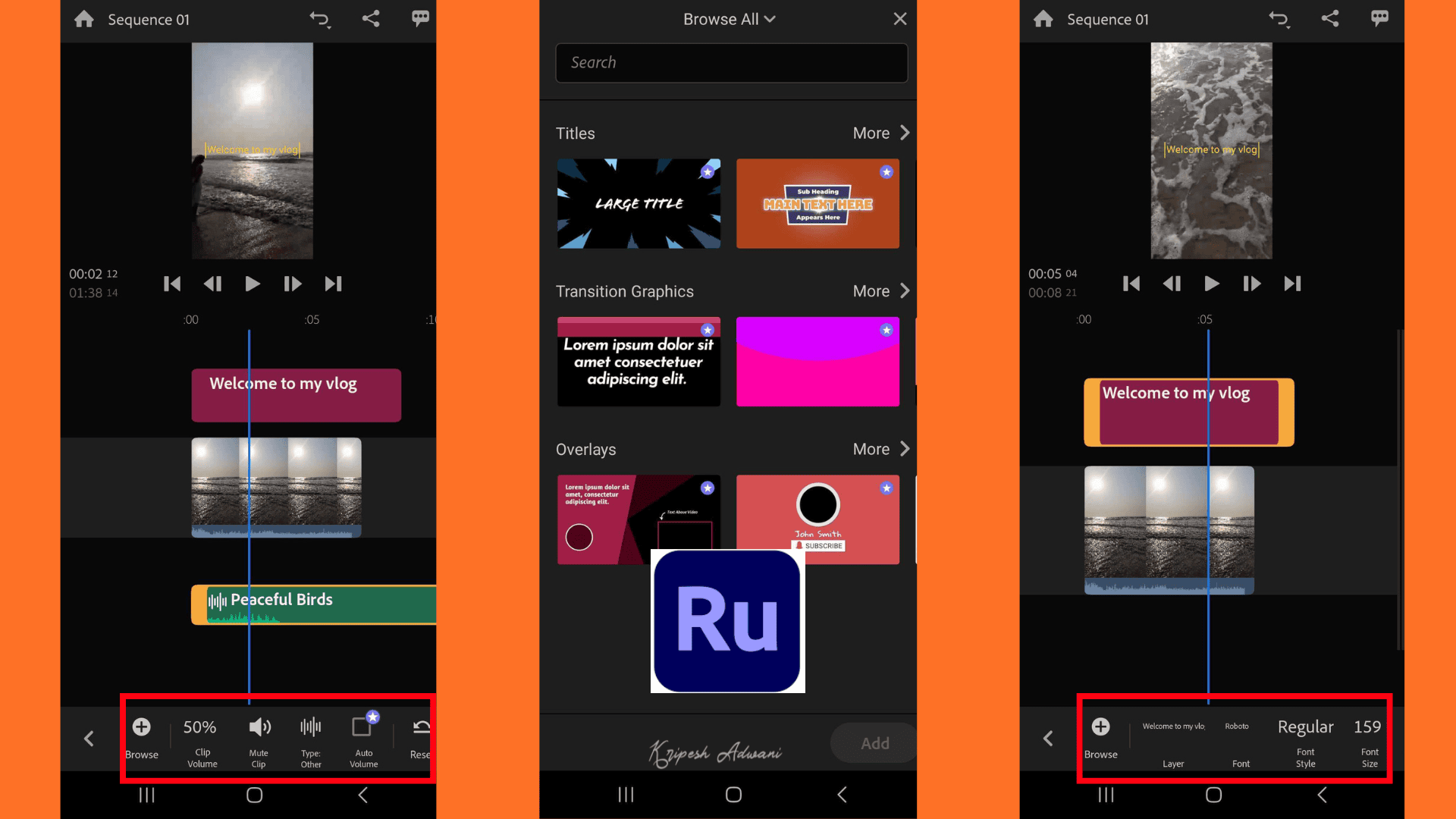
Premiere Rush is a go-to video editing tool from Adobe and a solid alternative to CapCut. It offers an easy-to-use interface, powerful editing features, professional templates, and a free audio library. However, the app may occasionally experience glitches and offer limited features in the free version.
Highlighted Features
- Basic to Advanced Editing Tools: Premiere Rush includes all the essential features—speed adjustment, text overlays, graphics, audio editing, trimming, and cutting.
- Built-in Camera App with Pro Mode: Users can shoot high-quality photos and videos directly using advanced manual controls.
- High-Quality Export: The tool offers unlimited video downloads for free. It supports exports up to 4K resolution.
- Customization Options: Similar to CapCut, Premiere Rush offers advanced export settings that let you choose the video quality and frame rate to suit your needs.
- Audio Settings: Premier Rush provides a library of royalty-free soundtracks, sound effects, and loops—most of them available for free.
- Professional Output: While editing, you can add transitions and motion effects with ease. Simply drag and drop to enhance your videos professionally.
- Voice-over Recording: As an alternative to standard audio, you can record voice-overs directly in your timeline.
- Animated Titles: You can use professionally designed motion graphic templates. Customize subtitles, text styles, fonts, and more.
Pricing
The free plan offers unlimited exports, easy editing, and access to a limited set of features. The Adobe Premiere Rush Premium plan is priced at ₹440/month or ₹3,100/year. It unlocks all premium features, including 4K Ultra HD exports, auto-resize and reframe, premium music tracks, and more. A 3-day free trial is also available.
Pros and Cons
Pros of Premiere Rush
Beginner-friendly interface
No ads are displayed within the interface while editing
Built-in camera for shooting photos and videos directly
Royalty-free audio available
No watermark on video exports, even in the free version
Cons of Premiere Rush
Not compatible with all mobile devices
Free version supports only 1080p exports
Doesn’t support MOV video format
Occasional glitches during export, especially audio distortion or mix-ups
Conclusion
Adobe Premiere Rush is a versatile option for everyone from beginners to professionals. It offers an all-in-one platform where you can shoot, edit, and add voiceovers with ease. It’s especially useful for professional content creators, YouTubers, and social media influencers who need to edit videos quickly without compromising on quality.
6. Inshot
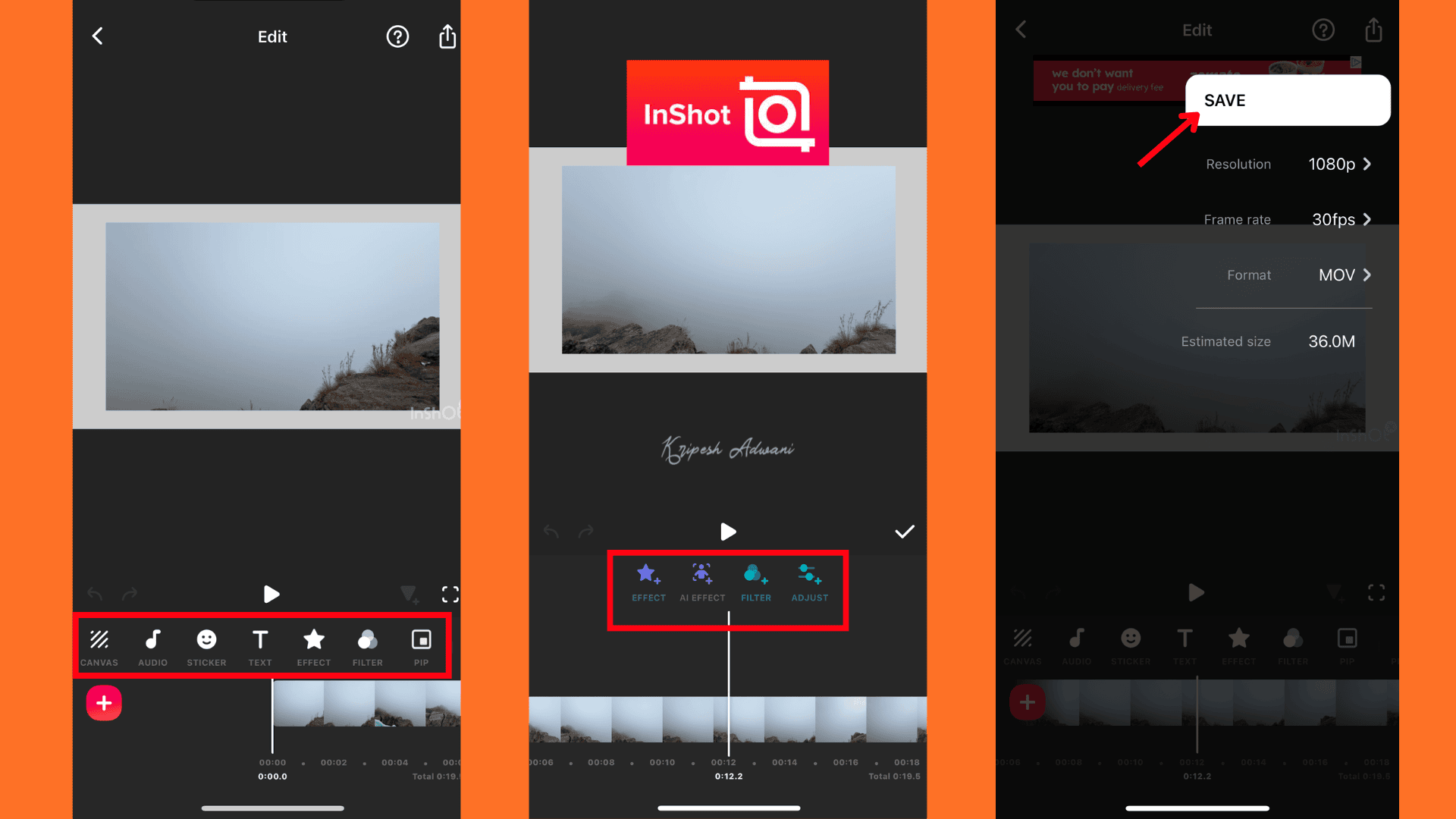
InShot is a lightweight mobile video editor that allows you to edit both images and videos and share them directly as social media content. However, it has limitations in video export quality.
Highlighted Features
- All-in-one Editor: InShot allows you to edit both photos and videos within a single app. It also lets you create collages with ease.
- Voice Effects: The tool includes a unique voice effect feature, similar to YouCut. It allows you to transform your original voice into different styles, such as male, female, robotic, and more.
- AI Features: InShot’s Auto Captions tool automatically detects spoken audio, AI Effects enhance your visuals with smart filters, and the AI Cut feature detects pauses in the video and automatically inserts cuts for smoother transitions.
- Flexible Editing: You can manually adjust the aspect ratio, zoom level, and background settings. A wide range of editing tools, including options to add audio, stickers, text, effects, filters, audio adjustments, and speed changes, is available.
- Social Media Integration: Once your project is complete, you can export it directly to popular social media platforms such as Instagram, WhatsApp, Messenger, Facebook, and X (formerly Twitter).
Pricing
With the Pro version, you’ll get unlimited access to features such as AI Effects, Pro Filters, AI Cut, Pro Effects, and more. You can purchase InShot Pro for ₹220 per month or ₹790 per year, which offers an ad-free experience and watermark-free export. A lifetime access option is also available for ₹2,500. All Pro plans come with a 7-day free trial.
Pros and Cons
Pros of Inshot
Offers advanced export options, including frame rate selection and resolution control.
Supports exporting videos in both MP4 and GIF formats.
Cons of Inshot
Watermarks are added to videos in the free version.
The interface includes ads, which can be distracting.
Maximum export resolution is limited to 480p in the free plan.
AI tools have limited usage in the free version.
Conclusion
InShot is a simple, mobile-friendly video editor. In its free version, it includes standard editing features and supports multiple export formats. However, its AI tools have limited functionality. Since the app directly integrates with Instagram and TikTok, it’s a valuable tool for social media enthusiasts, influencers, and even casual users.
Best Alternatives for CapCut in Desktop (Windows & Mac)
1. Filmora for Desktop
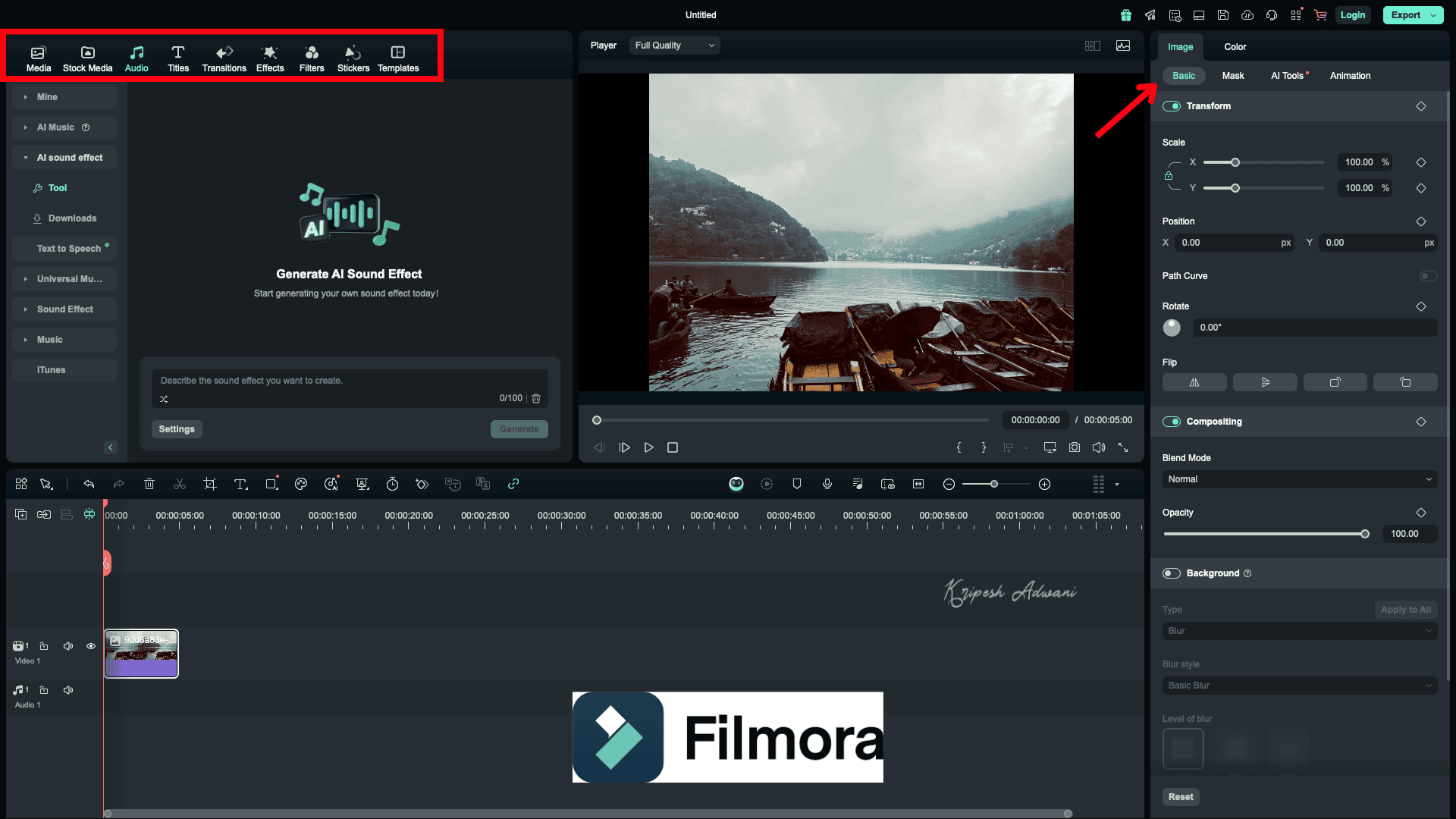
The desktop version of Filmora is quite popular among growing video editors. It offers multi-platform support along with a solid set of editing features such as chroma keying, keyframe animation, and multi-camera editing. Additionally, its AI-powered tools are highly useful and enhance the overall editing experience.
Highlighted Features
- AI-powered Tools: The AI Video Enhancer improves video quality by enhancing clarity. And AI Color Palette generates a customized color palette based on the visual tones of your video.
- Smart BGM Generation: This feature automatically adds background music that matches the mood and scene of your video.
- Smart Short Clips: Filmora allows uploading videos up to 12 GB or 240 minutes. It’ll auto-convert long videos into short-form content like reels and shorts.
- Smart Scene Cut: This feature detects and highlights key moments in the video, trimming them into a highlight reel.
- AI Translation: Filmora lets you translate the speech in your video into different languages with subtitles.
- Advanced Editing Options: The software includes a variety of advanced editing features, such as speed ramping, screen recording, motion tracking, and multi-camera editing.
- Cloud Storage: If you want to edit your projects from anywhere, the tool provides up to 10 GB of free storage. You can back up your work and collaborate across devices.
- Creative Assets: Filmora includes a media library with both free and premium stock assets, pre-made templates for intros, outros, logo reveals, and more.
- Export & Sharing: You can export your final projects in multiple formats, including MP4, MOV, AVI, MKV, MPEG, and more. With built-in YouTube Upload Mode, you can publish videos directly to your YouTube channel with ease.
Pricing
Filmora offers three flexible plans. The Basic Plan starts at ₹829 per month, and the Advanced Plan is priced at ₹2,999 per year. For a one-time purchase, the Perpetual Plan is available for ₹4179.99. It’s perfect for users who prefer a long-term solution without recurring payments.
Pros and Cons
Pros of Filmora
Supports video exports in up to 4K resolution.
Consumes minimal RAM and CPU for uninterrupted editing.
Offers a wide range of AI-powered features for smarter editing.
Includes advanced tools like keyframe animation and multi-camera editing.
Cons of Filmora
Free exports are limited to Full HD (FHD) resolution.
The free version adds a watermark to exported videos.
Cloud storage is not available in the free version.
AI Tools are paid with the free and basic plan.
Conclusion
Filmora features a user-friendly interface with built-in guides, making it an excellent choice for novice video editors. Additionally, YouTubers and content creators seeking budget-friendly, professional-quality video editing software may also find Filmora to be a suitable option.
2. DaVinci Resolve
DaVinci Resolve is a professional video editing software developed by Blackmagic Design, first released in 2009. It’s a feature-rich platform available on Windows, macOS, and Linux. As a powerful alternative to CapCut, it requires a solid understanding of advanced color grading. Hence, it’s less suitable for beginners.
Highlighted Features
- Advanced Color Correction Tools: Users can gain access to professional correction features, including pre-built LUTs, auto color correction, primary and secondary color grading, and Resolve FX plug-ins for enhanced visuals.
- Dedicated Audio Editing Page (Fairlight): It offers real-time effects, immersive 3D audio formats, dehummer, noise reduction, and normalization.
- Fusion Page for Visual Effects: Users can add 2D and 3D effects to their video projects. They can merge images, fine-tune animations, track and overlay infographics, remove green/blue screens, and much more.
- Comprehensive Export Options: A separate export page allows you to customize every export setting and optimize video for platforms like YouTube, Vimeo, Twitter, etc.
- Multi-Layer Editing Support: DaVinci Resolve allows seamless editing across multiple layers. You can add unlimited tracks, clips, and image overlays while maintaining a smooth editing experience.
- Video Format Support: The platform supports up to 10-bit video in the Studio version and 8-bit video in the free version.
- Wide File Format Compatibility: DaVinci Resolve supports all major file formats and enables easy migration of projects from other professional software like Final Cut Pro and Adobe Premiere Pro.
- Blackmagic Design Cloud Integration: You can sync projects and proxies to the cloud for easy team collaboration and access.
Pricing
The free version of DaVinci Resolve offers solid tools for visual effects, motion graphics, color correction, audio post-production, and access to Blackmagic Cloud. For more advanced capabilities, such as the DaVinci Neural Engine for AI-powered region tracking and additional Fairlight FX audio plug-ins, you can upgrade to DaVinci Resolve Studio 20. It is available for a one-time payment of ₹29,980.
Pros and Cons
Pros of DaVinci Resolve
Completely free to use with no ads
Fast export speeds
Advanced settings for color grading and correction
Dedicated tools for professional audio mixing
Access to animated text titles
Excellent features for voiceover recording and audio editing
Custom export settings at no additional cost
Fusion page for advanced visual effects (VFX) and motion graphics
Cons of DaVinci Resolve
Steep learning curve; not ideal for beginners or those with no prior editing experience
Highly dependent on GPU; requires a dedicated graphics card to function properly
Heavy software, may lag on lower-end machines
Conclusion
DaVinci Resolve is a powerful and advanced video editing software, renowned for its color grading capabilities. It is best suited for professionals and color grading experts who require precision and control in their workflow. The software is ideal for editing commercials, films, and high-end post-production projects.
3. PowerDirector
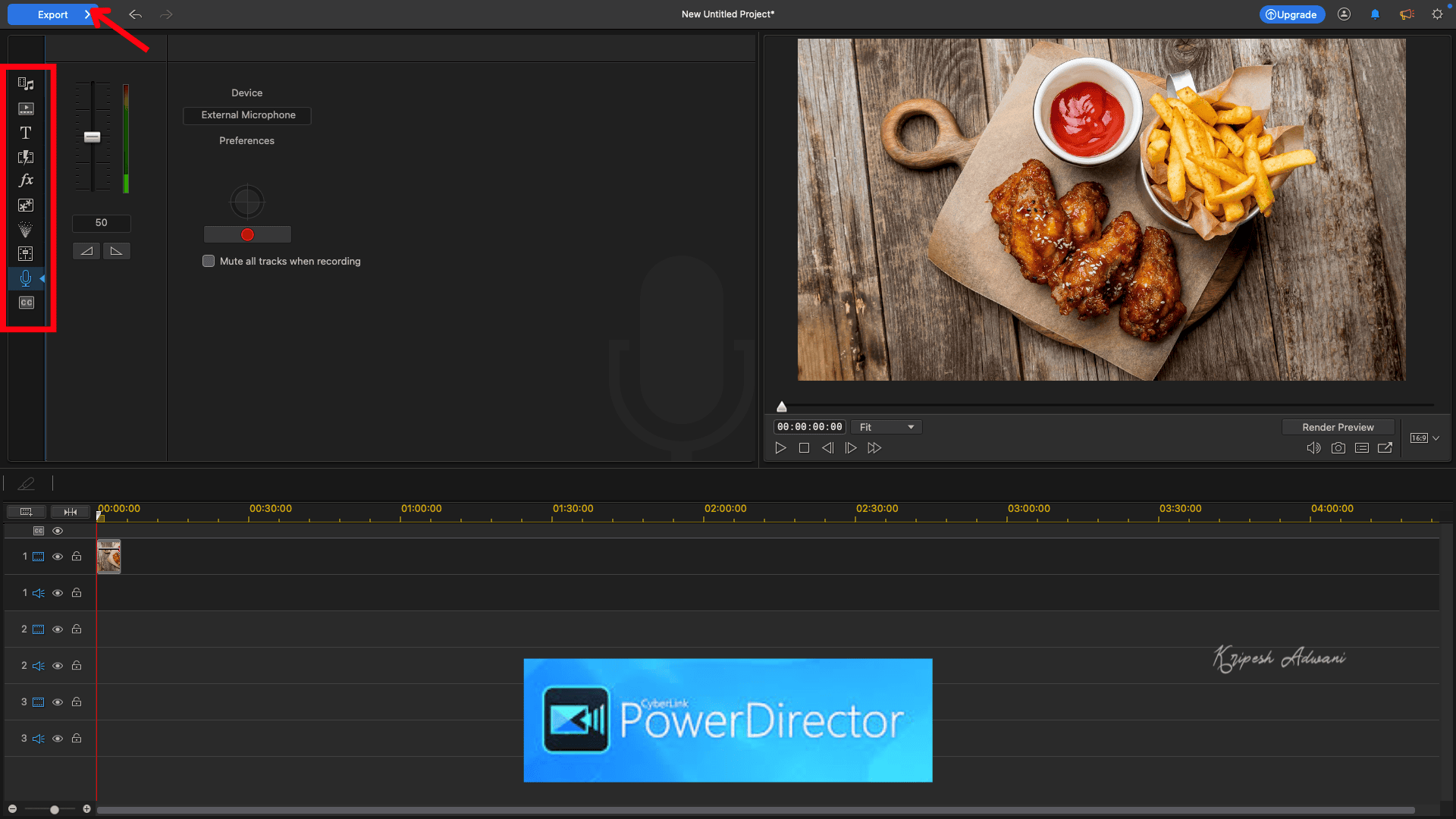
PowerDirector 365 by CyberLink is popular among online video editors. It offers powerful generative AI-based features and multilayer editing. The tool is available for both mobile and desktop users, but the paid plans provide more advanced features than the free version.
Highlighted Features
- Powerful Audio Tools: PowerDirector offers robust audio editing features, including AI Audio Denoise, AI Voice Changer, AI Text-to-Speech, and AI DeReverb to remove echoes. You can enhance speech clarity and use the vocal transformer to control timbre and tone.
- Advanced Editing Features: AI editing tools include AI Speech-to-Text transcription, an AI Co-Pilot for guided video editing, and AI Talking Avatars. For visual effects, it supports auto face blur, object removal, video upscaling, and more.
- Video Enhancer Tools: You can use lens correction to fix fish-eye distortion and other image imperfections. The HDR effect helps highlight the best parts of your footage. Other advanced features include color matching, video stabilization, pan and zoom effects, etc.
- Asset Library: Access a wide range of royalty-free videos, images, music tracks, customizable intro templates, animated stickers, titles, and more. The library also includes background music, sound effects, LUTs, and templates.
- Plug-ins: PowerDirector supports live streaming and third-party plug-ins like BorisFX, making it ideal for creators and professionals alike.
Pricing
PowerDirector 365’s free version offers limited features and basic editing tools. To access the full-featured video editing suite, you can upgrade for ₹1,599/month or ₹4,799/year. Alternatively, the PowerDirector 365 Ultimate Plan with a Perpetual License is available for ₹11,499.
For a bundled package, including PowerDirector, CyberLink’s ColorDirector, AudioDirector, and PhotoDirector, you can opt for the Director Suite 365 at ₹2,399/month or ₹8,399/year.
Pros and Cons
Pros of Power Director
Impressive AI features like audio denoise, background remover, wind removal, body effects, and more
Easy installation and setup process
Clean, intuitive, and feature-rich editing dashboard
Available on both mobile and desktop platforms
Video Intro Designer is helpful for beginner creators and vloggers
Multiple generative AI tools included
Export videos in up to 4K resolution
Cross-platform compatibility (Windows, macOS, and mobile)
Cons of Power Director
Sign-up is required to export videos
Exported videos include a watermark in the free version
Advanced editing features are only available in the paid versions
Conclusion
PowerDirector blends simple and professional editing features with powerful AI capabilities, making it ideal for YouTubers, content creators, and video editors seeking easy-to-use tools with a professional finish.
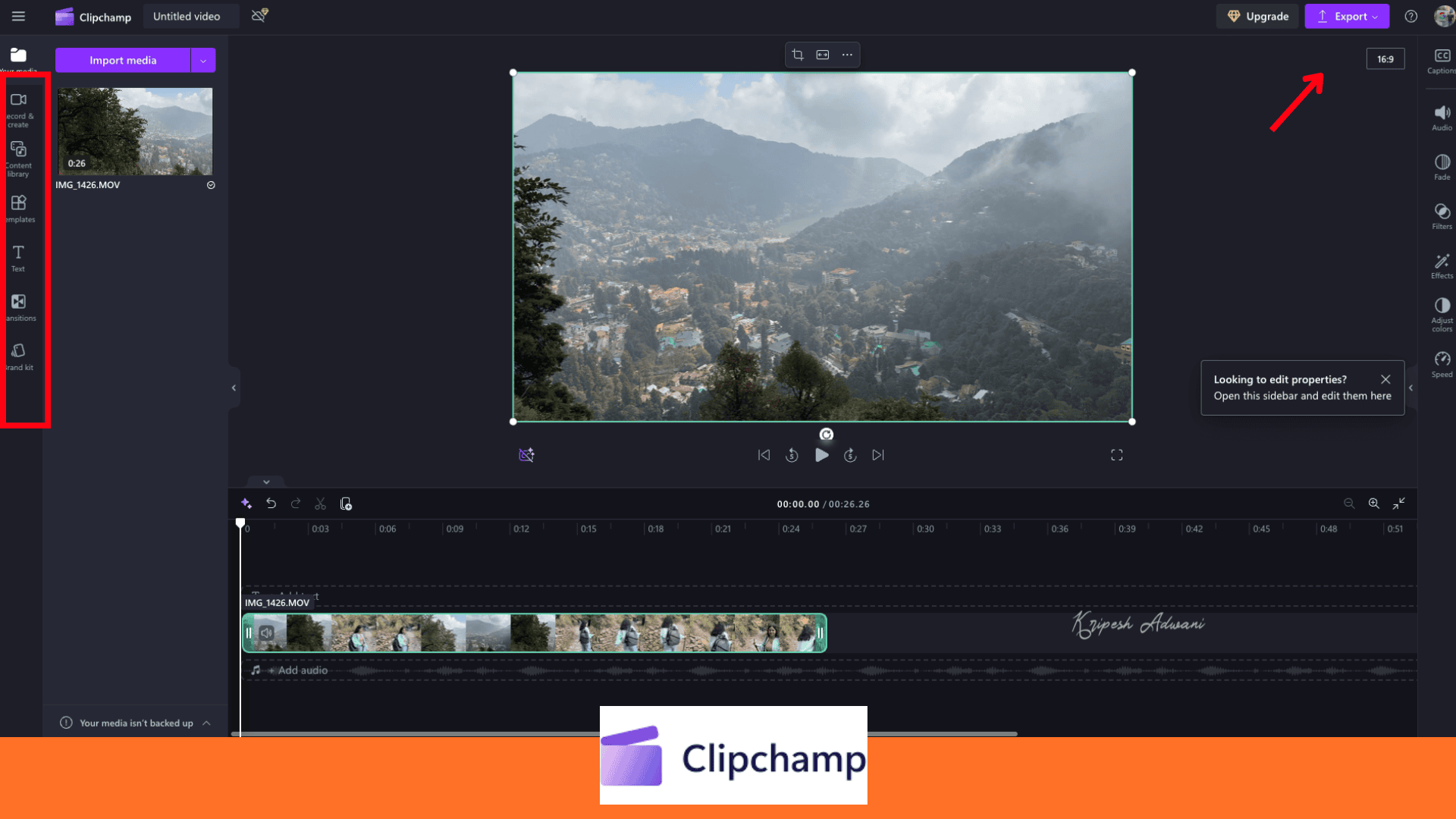
4. Clipchamp
Clipchamp is an easy-to-use video editing tool from Microsoft. It offers a range of basic editing features, AI-powered smart editing tools, pre-designed templates, and advanced effects. However, it lacks some professional-grade features found in high-end editors, such as advanced transitions, audio filters, and motion tracking.
Highlighted Features
- Essential Editing Tools: Clipchamp offers all the must-have tools like trimming, cutting, overlays, cropping, and enhancing. It’s designed to make video editing quick and intuitive.
- Text to Speech: Easily generate professional voiceovers with Clipchamp’s text-to-speech feature. You can convert text into natural-sounding speech for free and save time on production.
- Access to Stock Media: The tool provides access to a basic stock library that includes audio, graphics, stickers, and more. You can also explore over 1 million royalty-free stock videos, images, music, and backgrounds in the content library.
- Flexible Access: You can either edit your videos directly on the web or download the Clipchamp software for offline use.
- Cloud Sync: Your content is automatically synced to the cloud, so you can work from anywhere.
- Brand Kit: Professionals can set up brand kits to save their brand’s color palette, logos, and fonts for consistent branding across videos.
- Screen & Camera Recorder: Record your screen or use your webcam with the free built-in recorder.
- Green Screen Editing: Remove or replace backgrounds and add special effects with the free green screen editor.
- AI Features: The Auto Compose tool helps you create short videos from existing footage. Other AI tools include AI Auto Captions over 80 languages, The Silence Remover, Background Removal, and Noise Suppression to filter out background noise.
Pricing
With the free version of Clipchamp, you’ll get access to essential features like auto video composition, basic stock media, AI-generated captions, and 1080p exports. However, for HD quality video editing, access to premium stock content, and watermark-free exports, you can upgrade to the Premium subscription, available at ₹8,999 per year.
Pros and Cons
Pros of Clipchamp
Available as both a web-based editor and standalone software.
No watermark on video exports in the free version.
Cloud access ensures your projects are accessible from anywhere.
Free access to useful AI tools like Auto Compose, Text-to-Speech, and Auto Captions.
Direct upload to platforms like YouTube, Google Drive, and more.
Cons of Clipchamp
Free exports are limited to Full HD (FHD) Free version supports only Full HD (1080p) exports..
Limited professional-grade editing features
Conclusion
Clipchamp offers pre-sized templates for platforms like Instagram, TikTok, and more. So, it’s ideal for editing quick reels, stories, and other social media content. Content creators and small businesses looking to create engaging promotional videos without needing advanced editing skills may find this tool useful.
5. HitFilm Express
HitFilm Express is a video editor from FXhome. It offers many professional features, including video editing, layering, and motion graphics. However, it doesn’t offer AI-powered editing features.
Highlighted Features
- High-quality Output: HitFilm Express supports up to 32-bit floating point color and 8K resolution. So, the tool is suitable for high-quality video production.
- Timeline Editing Tools: It includes all the basic editing tools like cut, split, crop, and more. You also get essential timeline tools such as blade, slip, slide, and roll, allowing for more precise control during editing.
- Audio and Video Synchronization: If you often work with separate audio and video tracks, HitFilm Express lets you easily sync audio to match the video. This is especially useful for those working with external audio sources.
- Presets and Effects: The software comes with a variety of built-in presets, transitions, and text tools to enhance your videos.
- Advanced Editing Features: You get advanced tools like color grading, motion tracking, and keying (for green screen) to create more complex video compositions.
- Multi-layer Editing: You can layer multiple video and audio tracks to create more complex compositions, ideal for cinematic projects or multi-angle editing.
- Compositing and VFX Tools: HitFilm also includes tools such as green screen removal, 3D model imports, and particle simulations for realistic visual effects and motion graphics.
Pricing
HitFilm’s free version lets you use standard video cutting, trimming, transitions, keying, and HD-quality export. To enjoy 4K output, their Creator Plan is available at $12.99/month or $95.88/year. The Pro Edition includes advanced features like motion tracking and 8K quality export, priced at $19.99/month or $155.88/year.
Pros and Cons
Pros of HitFilm
Access to Motion Array video templates with the free version.
Advanced features are ideal for professional video editors.
Informative tutorials and documentation for beginners.
Cons of HitFilm
Download and setup process can be time-consuming.
HD quality export for free version users
No smart AI tools are available to automate tasks.
May cause performance issues on low-end desktops.
Conclusion
HitFilm Express is perfect for content creators, vloggers, and professional editors. However, beginners and first-time users may find it challenging to use at first.
Testing Parameters
There are over 100 video editing software options out there, but not all of them are useful for every user. After personally using CapCut for months, I wanted to find something effective. So, I tested a range of editors that offer valuable features even in their free versions.
While testing, I focused on the following factors:
- Ease of use and user interface
- Free video editing features
- Whether exports include a watermark
- Export quality
- Availability of AI-powered tools
I also reviewed whether each tool supports audio editing, multi-layer editing, and other advanced features. Based on these criteria, I’ve shortlisted five top tools, each for mobile and desktop users.
Conclusion
CapCut is a powerful video editing app that offers a wide range of useful features for free. However, since the app has been banned in India, content creators are actively looking for reliable alternatives. In this article, I’ve shared 10 great alternatives to CapCut.
For mobile users, YouCut, KineMaster, and Filmora are all solid options. While KineMaster is best suited for professional-level editing, the other two are more beginner-friendly.
For desktop users, Filmora, DaVinci Resolve, and PowerDirector rank among the top three. Filmora is ideal for beginners, whereas DaVinci Resolve is better suited for those with some prior editing experience.
Have I missed a CapCut alternative that you’ve found better? Drop it in the comments. I’d love to check it out and possibly include it in a future update!
And if you still want to use CapCut, check out how to use CapCut in India with a VPN. Until then, bye!
FAQs
Which app is better than CapCut?
For mobile users, Premiere Rush and YouCut are great alternatives. If you’re editing on a desktop, try Filmora or PowerDirector.
Is CapCut getting banned?
Yes, CapCut has been banned in India since 2020. Due to data privacy concerns, this video editing tool, along with other ByteDance applications, has been restricted to Indian users.
Which is the best tool for ease of use?
YouCut and InShot are user-friendly mobile video editors, while Filmora and PowerDirector are beginner-friendly options for desktop users.
Which is the best software for professional video editing?
DaVinci Resolve is ideal for professional-level video editing on the desktop. Filmora is a versatile choice that works well on both mobile and desktop platforms.


nice video