Are you still spending hours editing images manually in Photoshop? I used to do the same—until I discovered some powerful AI features in Canva that changed everything.
Many of us assume that creating professional-looking visuals requires expert-level design skills. Whether designing images from scratch or adding new elements for visual appeal, it all seems overwhelming.
In reality, Canva has made graphic design easy for us. So, aspiring content creators or beginners in graphic design, you can’t stay behind. Today, I’ll guide you on “How to Use AI in Canva”.
Stick with me until the end, and you’ll see just how simple and fun Canva can be!
What is Canva AI?
Canva has introduced multiple AI-powered features. From the launch of Magic Studio in 2023 to the recent release of Visual Suite 2.0 and Canva AI, the platform is upgrading day by day. These advanced features help users automate design tasks and get the job done quickly.
For example, you can create graphics from text, remove unwanted objects/backgrounds in one click, get images with text, or prepare presentations.
With the Canva editor, you no longer need to switch between multiple powerful design tools. You get access to an AI Art Generator, AI Video Generator, Image Editor, Presentation Maker, Animation creator, and more in one app.
Here’s a list of generative AI tools Canva offers:
- Magic Media
- Magic Edit
- Magic Eraser
- Magic Writer
- Magic Grab
- Magic Design
- Magic Switch
- Magic Animate
- Magic Expand
- Magic Morph
- Instant Presentation Generator
- AI Video Generator
Whether you’re a student, a professional designer, a graphic artist, or someone new to AI-enabled image editing, anyone can benefit from Canva’s AI tools.
How to Use AI in Canva?
Confused about how to access all the AI tools in Canva? Let’s take a quick look at each of Canva’s fabulous AI features.
1. Magic Media
Instead of switching between multiple AI apps to create an image, video, and graphic from text prompts, you can now do it all within Canva. The Magic Media tool offers all three options in one place.
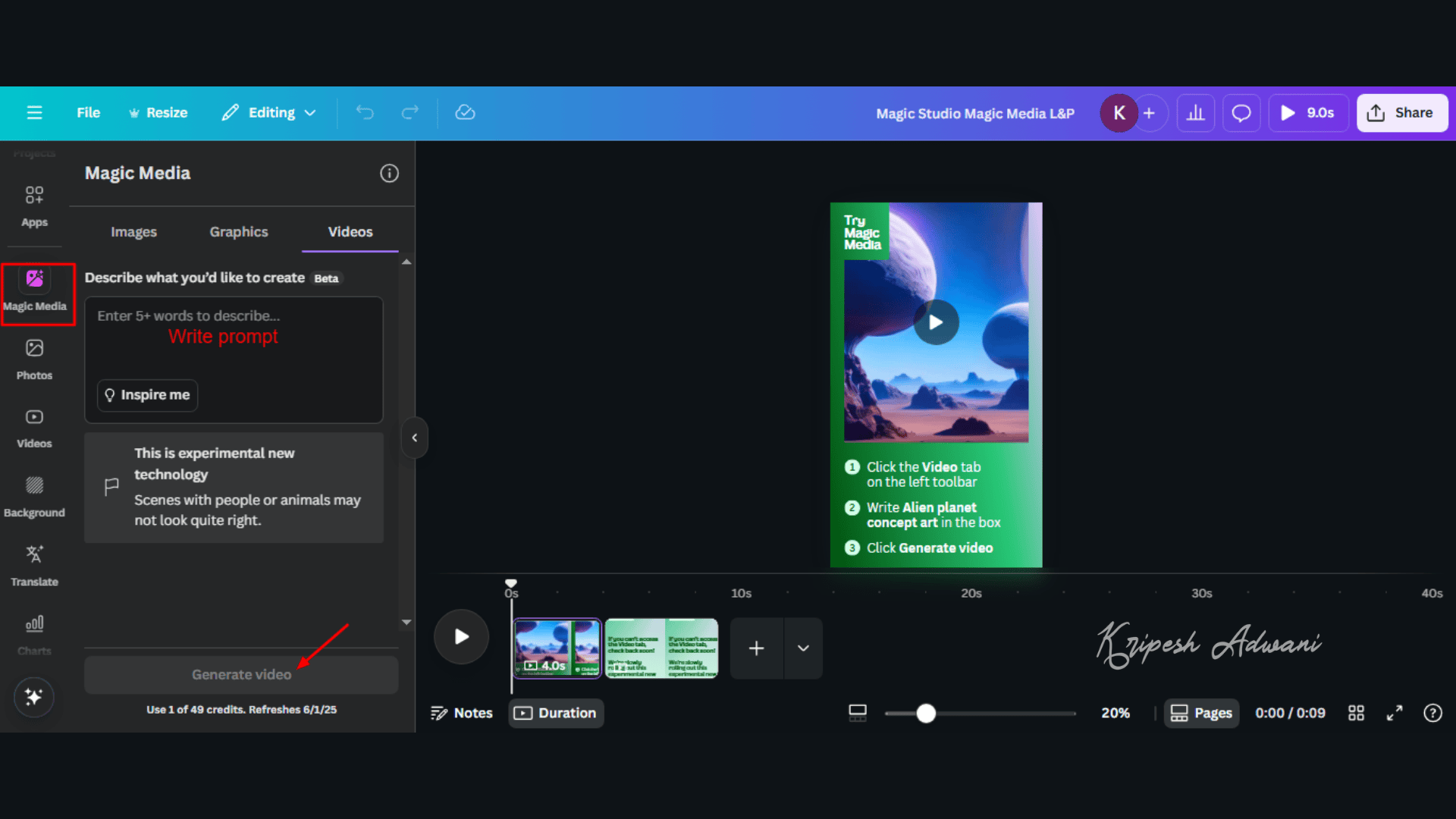
To access it, log in or sign up for the Canva app. Then go to Canva Magic Studio. Scroll down to find Magic Edit, and click on “Try Magic Edit.” The following dashboard will open.
1. Text to Image
Similar to any AI image generator, you need to write a detailed prompt in Magic Media Text to Image Generator. For example, I provided the following prompt:
“A young girl in a yellow dress and hat standing in a field of sunflowers, looking at a flying bird under a blue sky with fluffy clouds, with mountains in the background. Animated style, soft colors, peaceful and nostalgic atmosphere.“
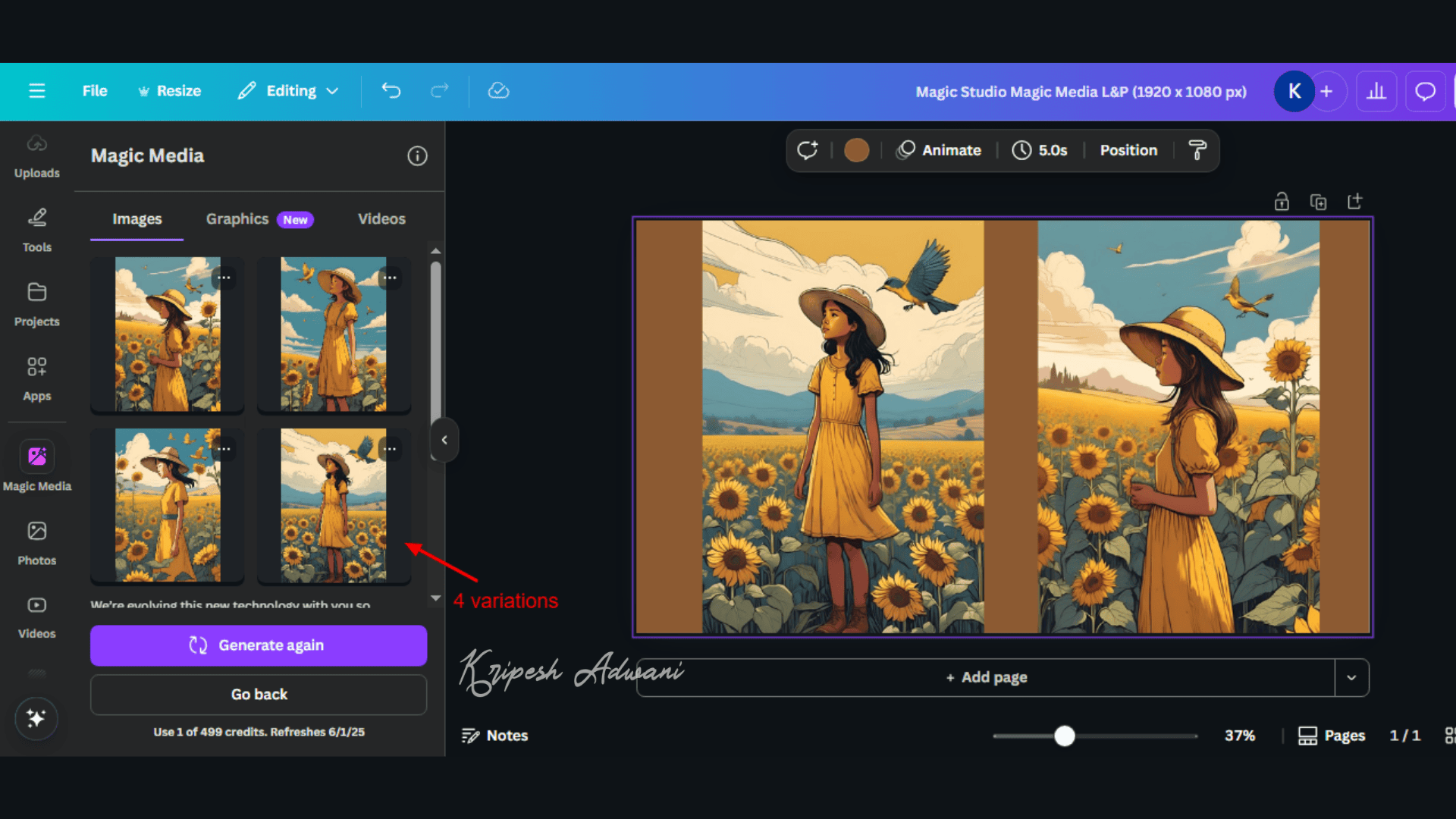
Canva AI quickly generated four variations of the same image. It consumes 1 AI credit out of your 500 monthly credits. There are 25 different image styles to choose from (Filmic, Soft Focus, Dreamy, Retrowave, etc.), and I selected Concept Art.
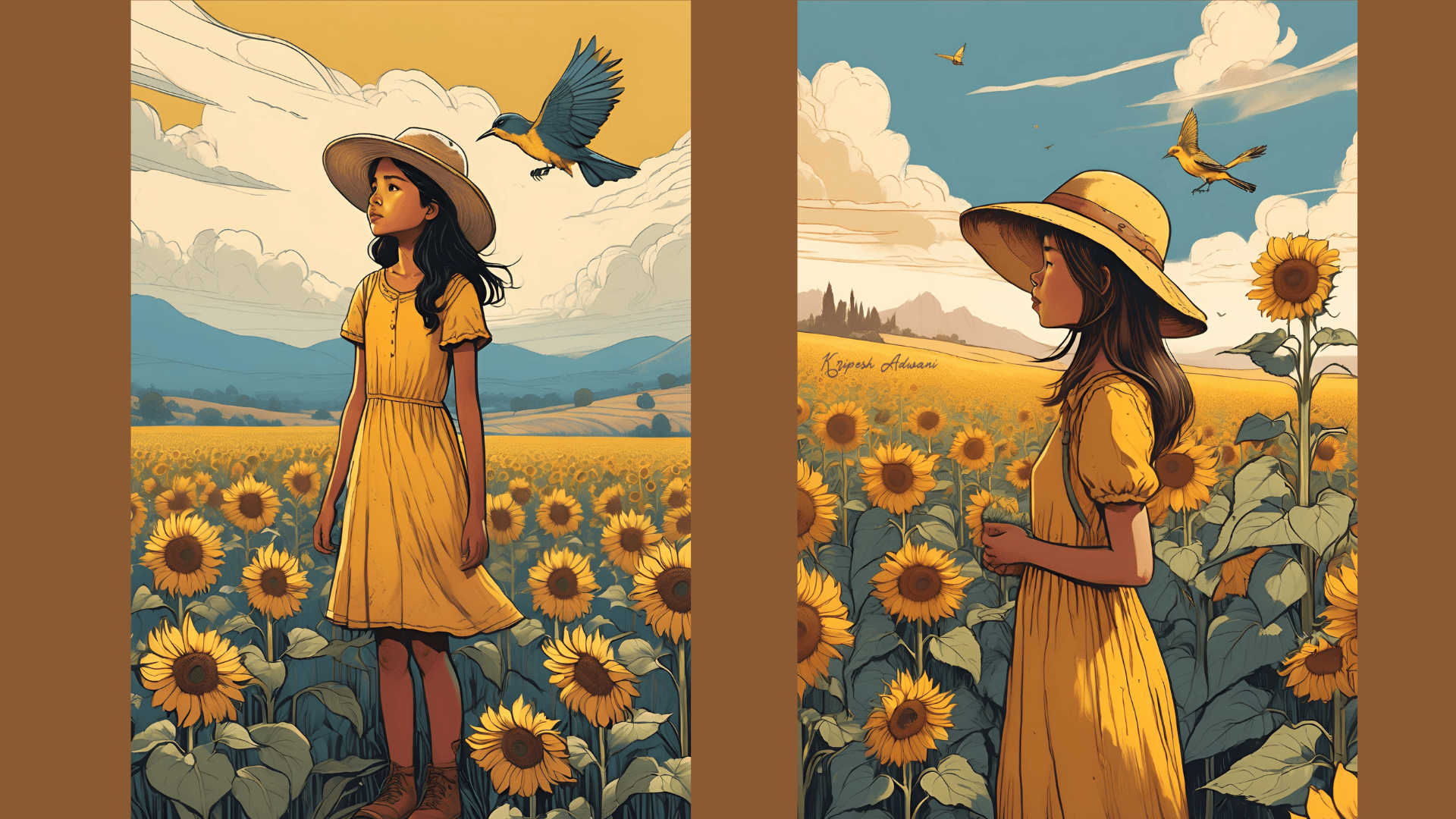
The Text-to-Image feature seems very useful to me. I feel this AI feature outperforms competing apps in terms of image quality and styles. It’s definitely suitable for professional and commercial use.
2. Text to Video
The Text to Video Generator consumes just 1 AI credit out of your 50 monthly credits. But, it currently doesn’t allow you to select an aspect ratio or choose a specific video style.
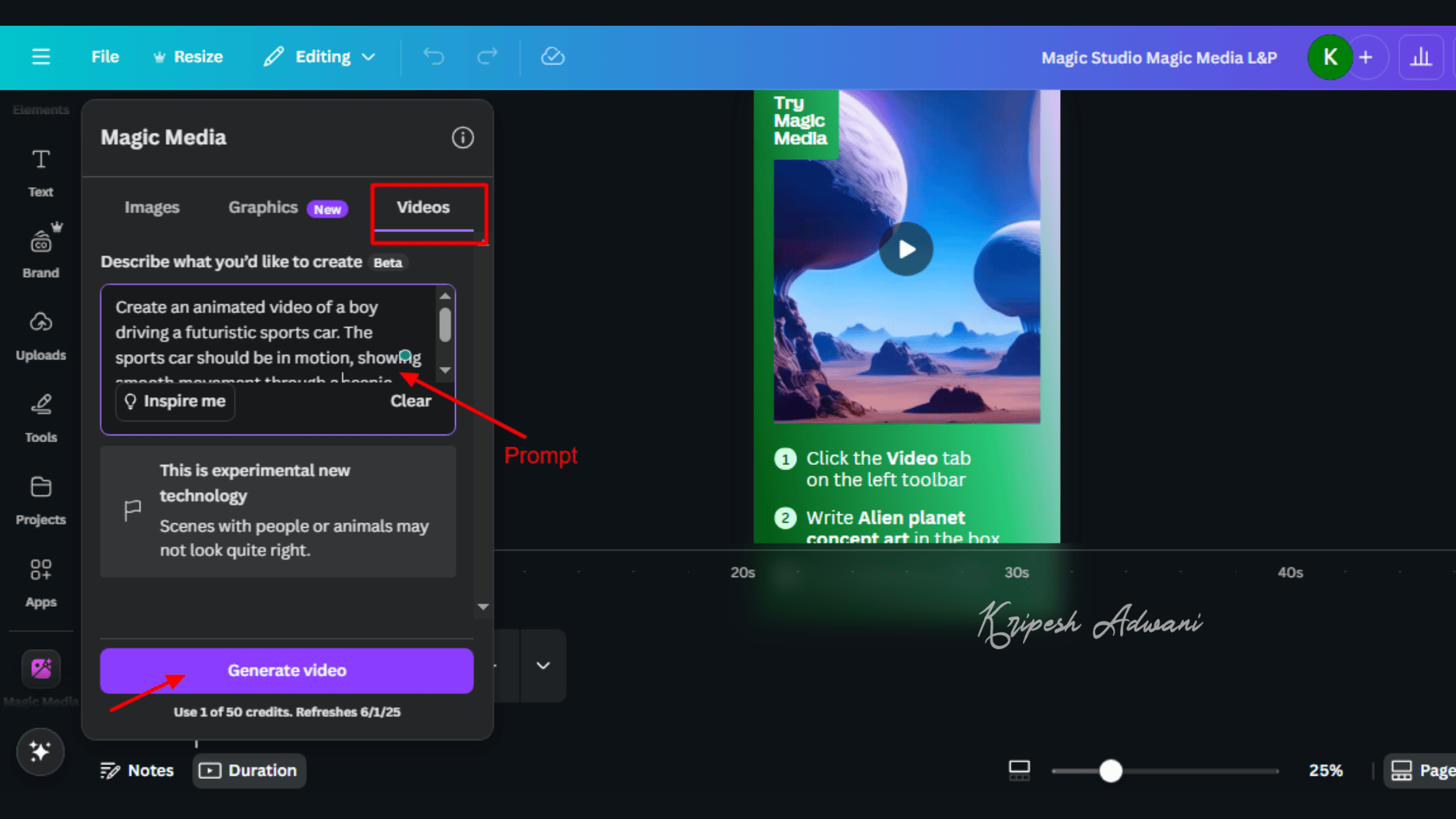
For example, I created an animated video of a boy driving a sports car. I wanted the car to appear in motion and highlight the scenic surroundings.
To be honest, the video quality could have been better. It’s a great tool for beginners, but professionals may prefer more advanced video editors for higher-quality output and more customization options.
4. Text to Graphics
If your work requires clip art, line art, sketches, or illustrations, the Text to Graphic feature is worth trying. With Magic Media, you can skip downloading vector graphics or stock artwork altogether.
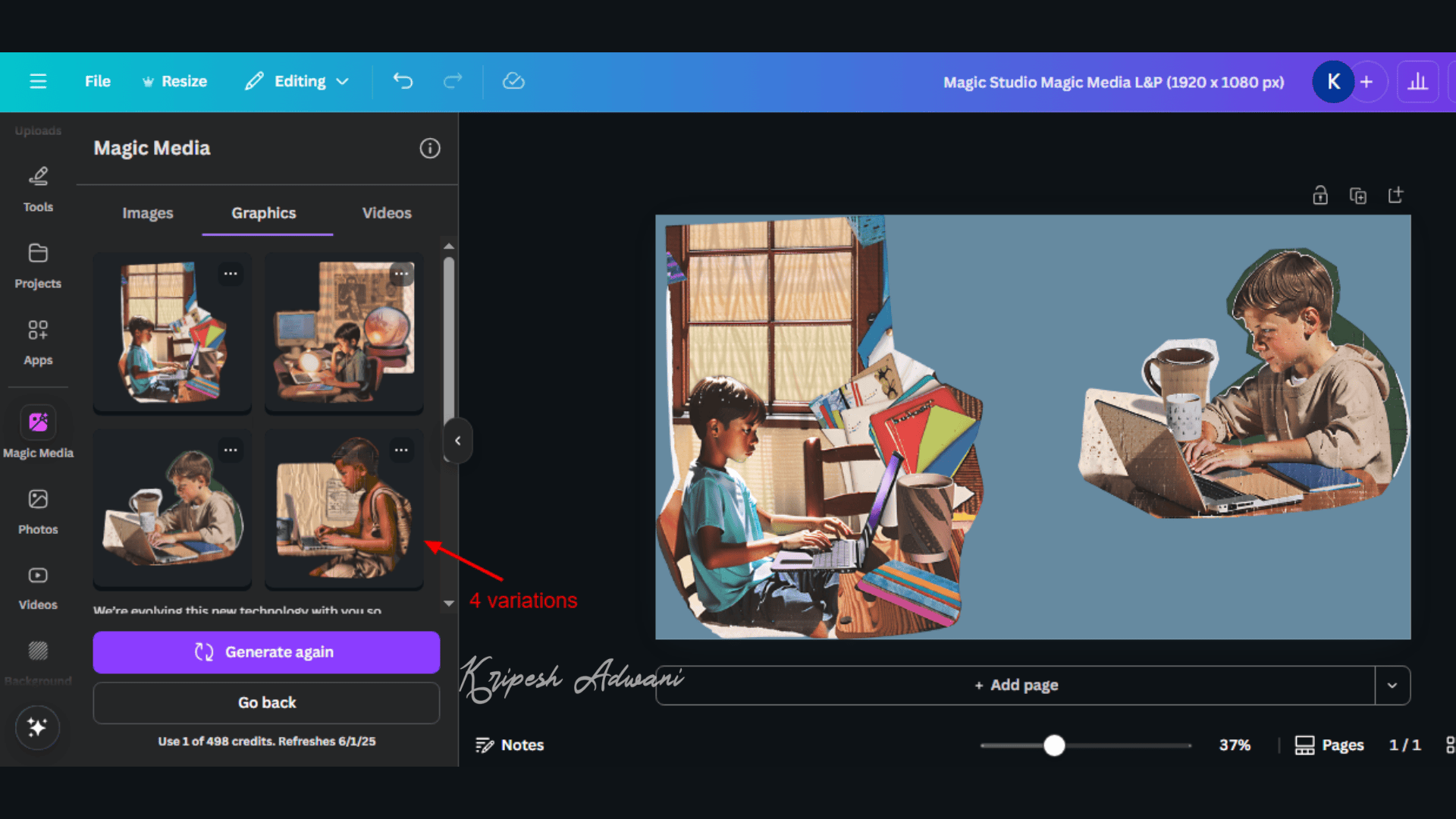
Here, you’ll get access to 14 unique graphic styles—from creative doodle art and hand-drawn effects to exotic gold foil and 3D chrome—all generated with just a click.

For example, I created the above scrapbook-style graphics of a boy sitting at a desk with a laptop. The results just blew my mind!
2. Magic Edit
Magic Edit is pretty fun to use. With just a brush or a click, you can transform one element into another or add entirely new elements to your image.
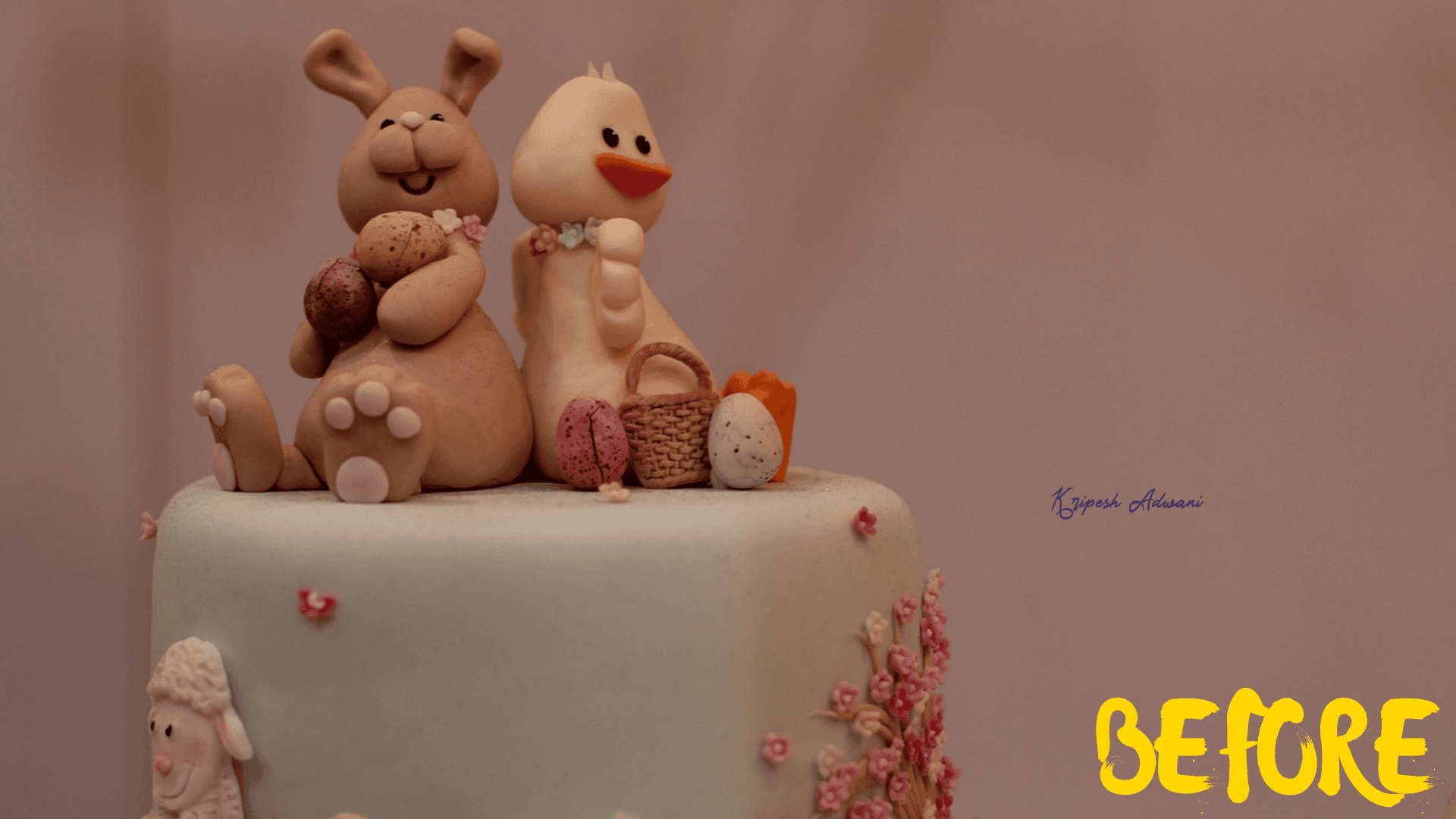
For example, I uploaded an image of a cake and asked it to add some balloons popping up in the background. Voila—the result appeared instantly! Isn’t that amazing?
Professional editors can take it even further. Well, they can change a daytime background to night, customize product shots or apparel in model shoots, and much more.
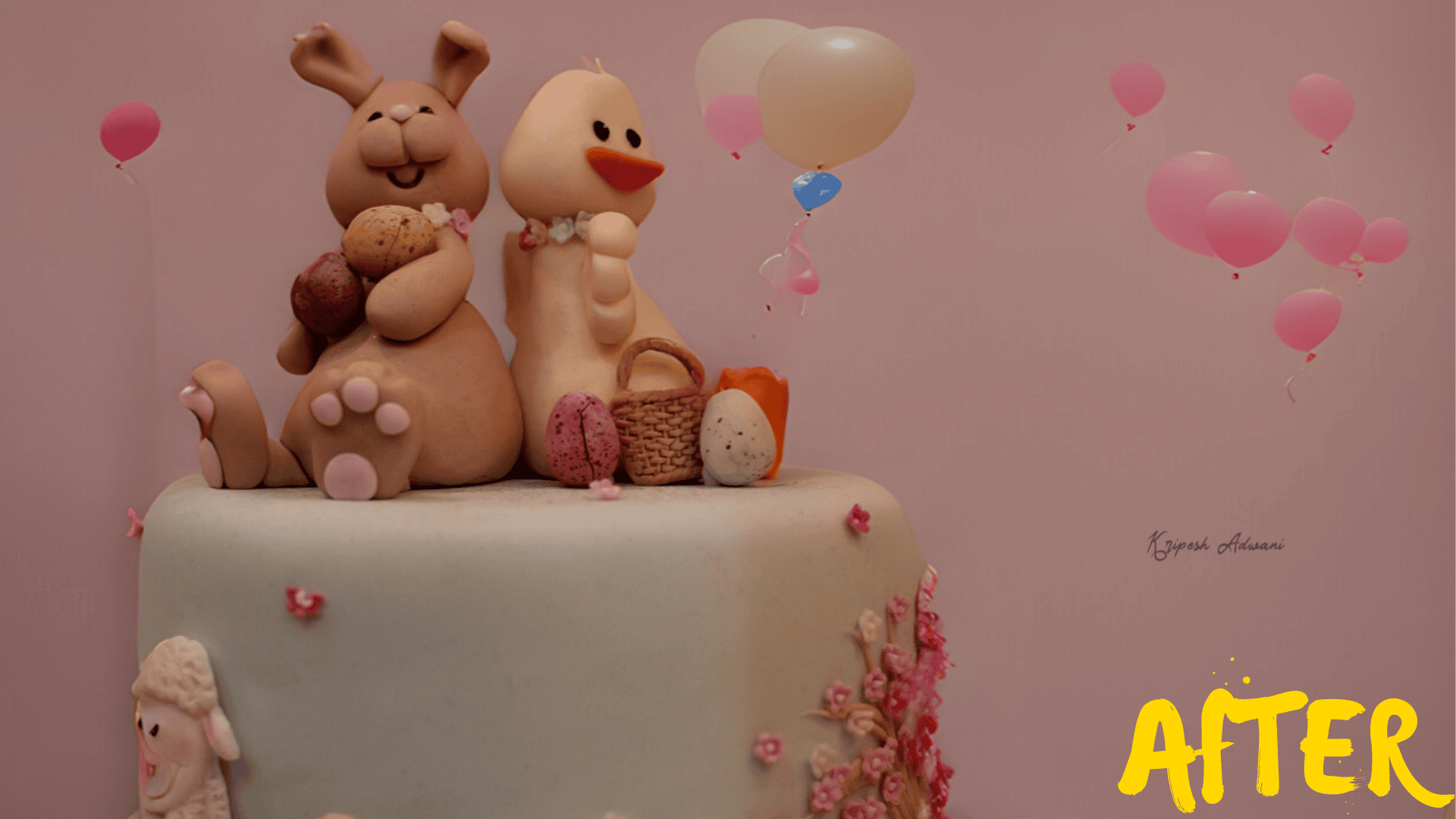
One issue I noticed, though, is that the brush tool can be difficult to control on low-end systems.
3. Magic Eraser
Want to remove people in the background ruining your shot? You can do it in the blink of an eye. Canva AI’s Magic Eraser is powerful enough to turn an hour-long editing task into a matter of seconds.
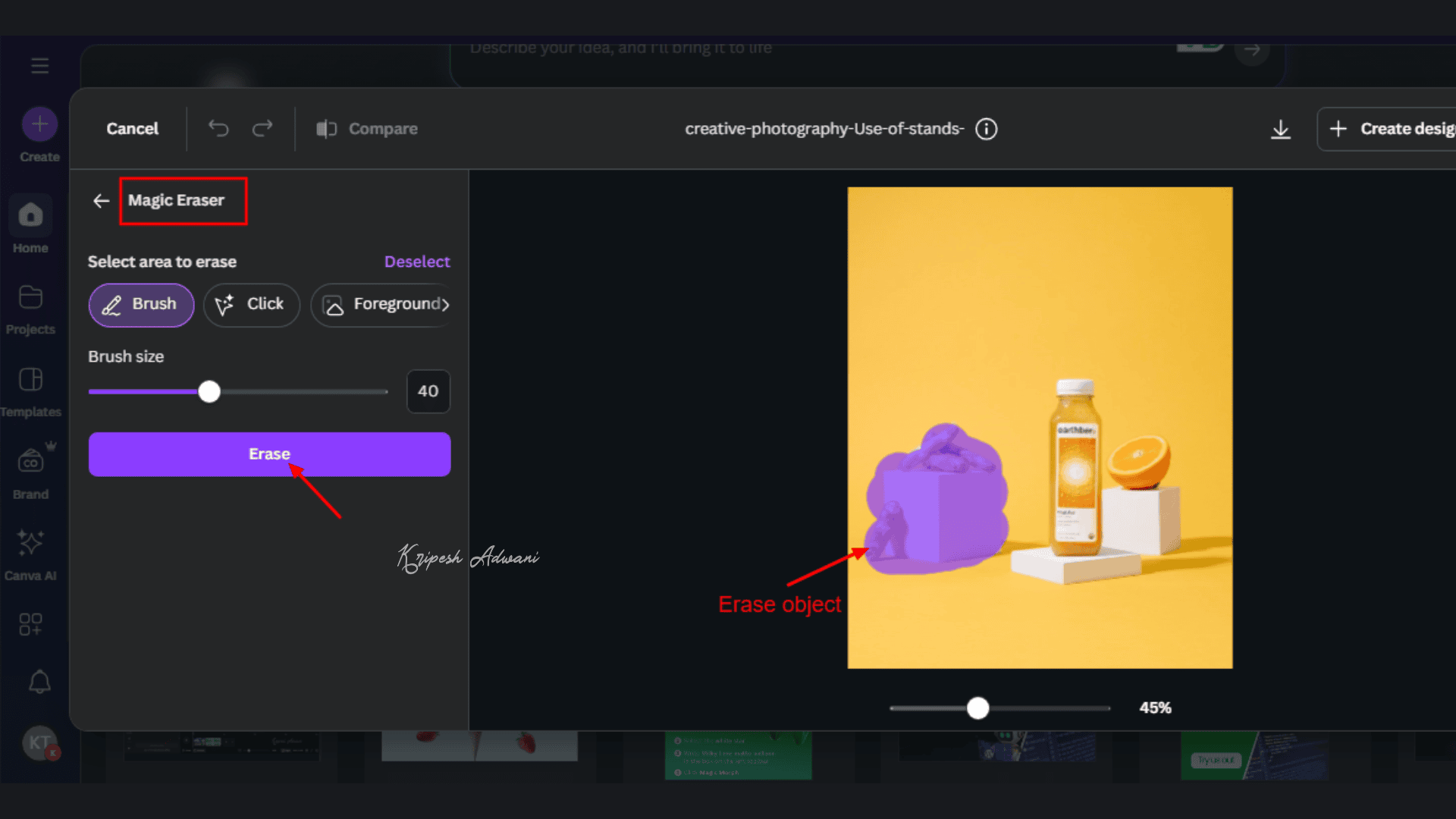
How to use it? Open any image in Canva and tap the “Edit” button above. In the left side panel, under Magic Studio, you’ll find the Magic Eraser. Use the brush or click on the object you want to remove, then hit “Erase” and watch the magic happen.
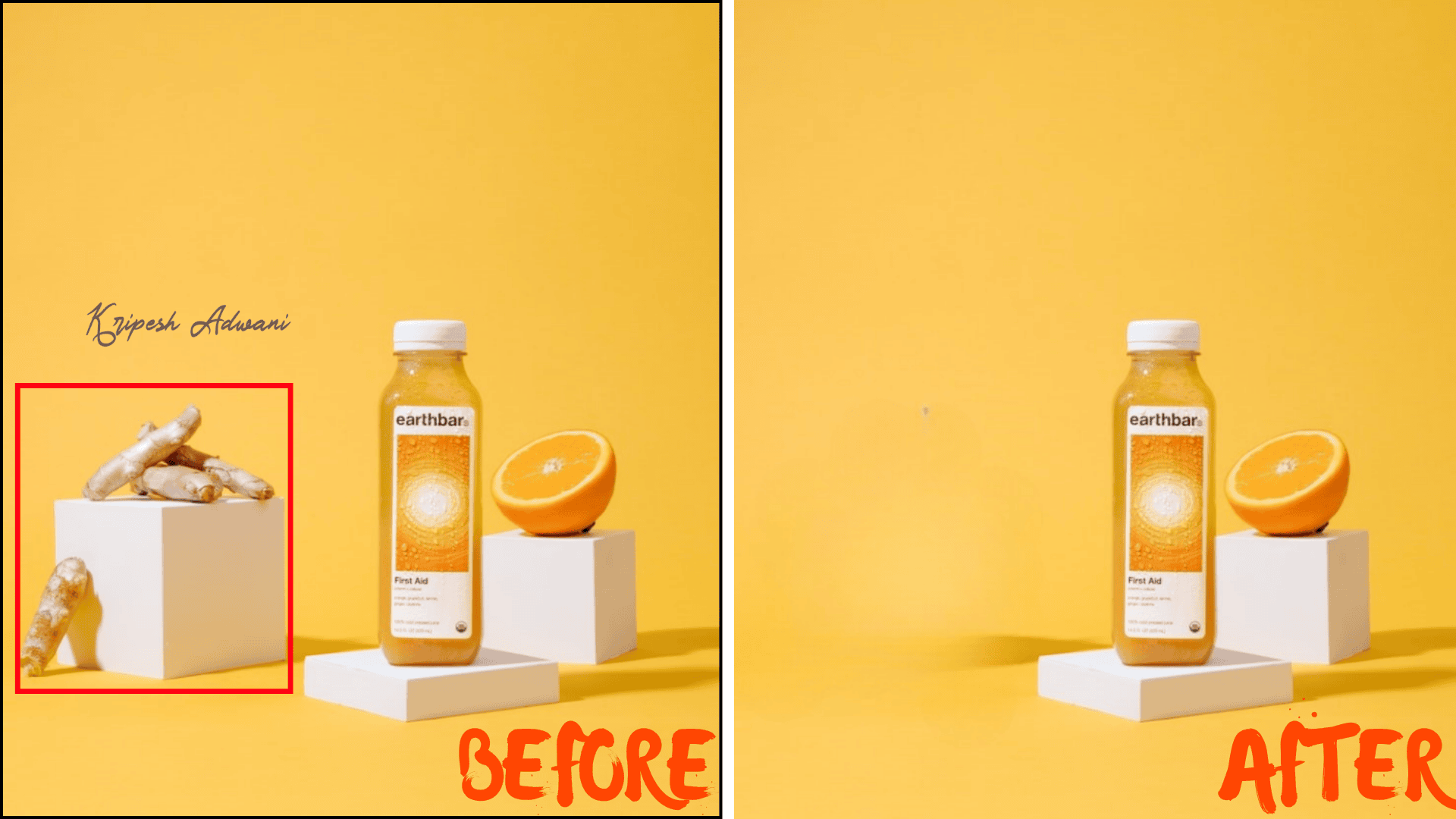
This tool is incredibly helpful for novice photographers like me. In the images above, it replaces unwanted objects with matching solid backgrounds.
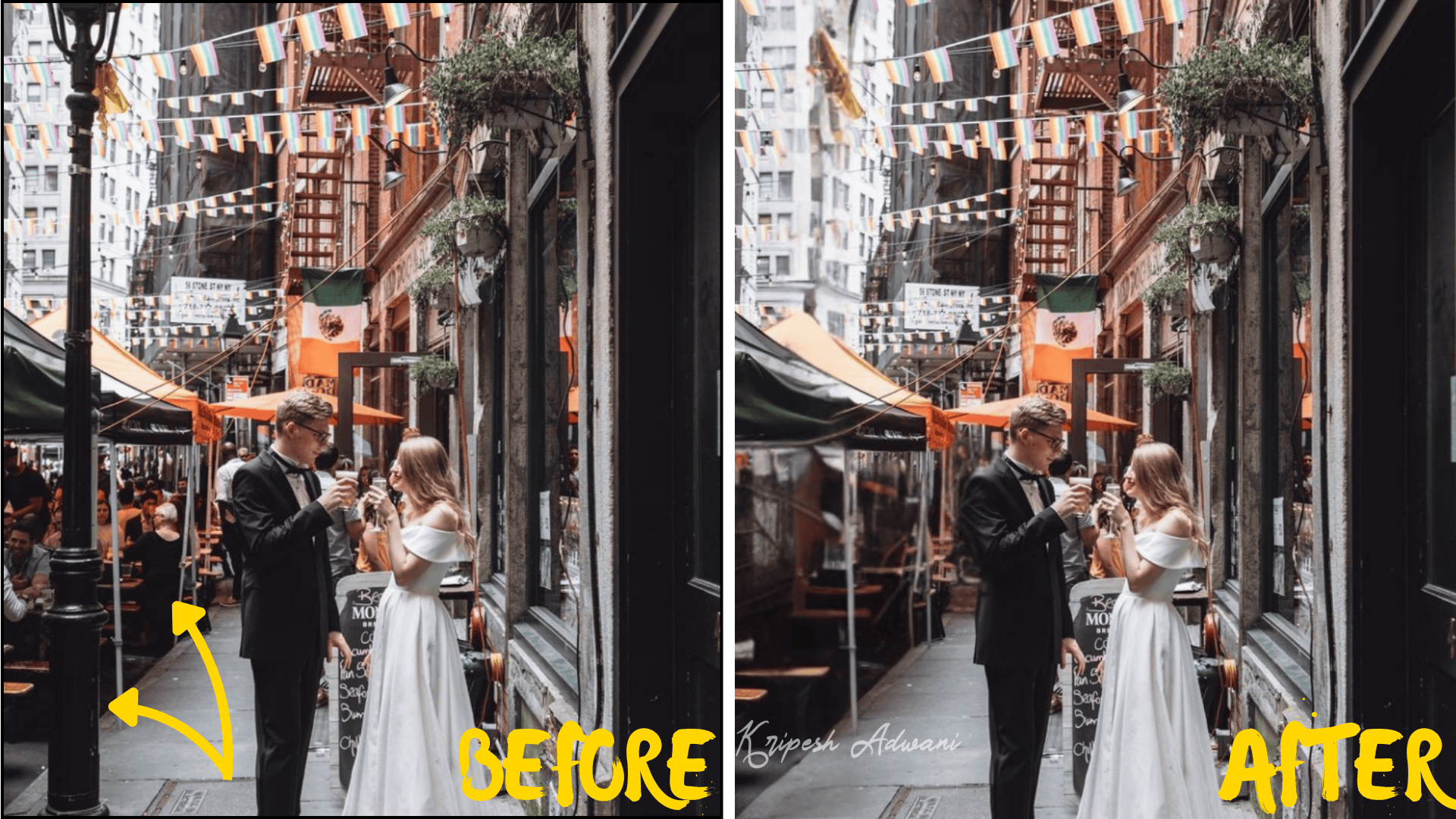
Often, we have no choice but to take photos in crowded places. But with Magic Eraser, you can achieve a clean, professional-looking shot. As shown, I removed people and the street light to create a clean couple shot.
4. Magic Write
AI writing tools are quite common nowadays, and that’s why Canva has also integrated one into its platform. This feature can help you write long-form content, short social media posts, brainstorm outlines, generate key insights, and much more.
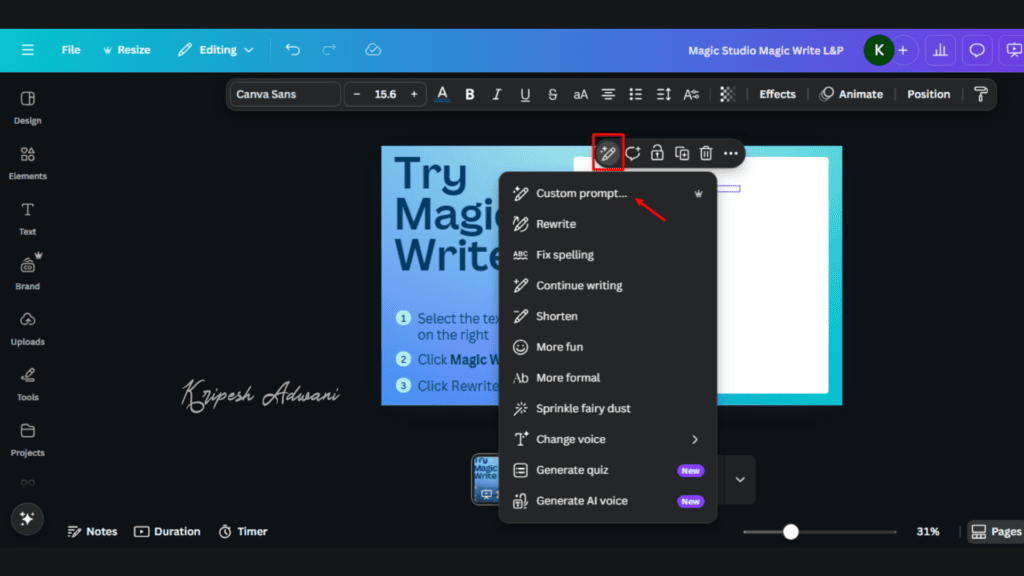
You’ll find options like “Rewrite,” “Shorten,” “Make it more fun,” “Generate Quiz,” and others with preset prompts. To use Magic Write on your own, you can either visit the Magic Studio page or click directly on “Magic Write.” Then, click on a “Text Box” and describe your writing task in a few words under Custom Prompts.
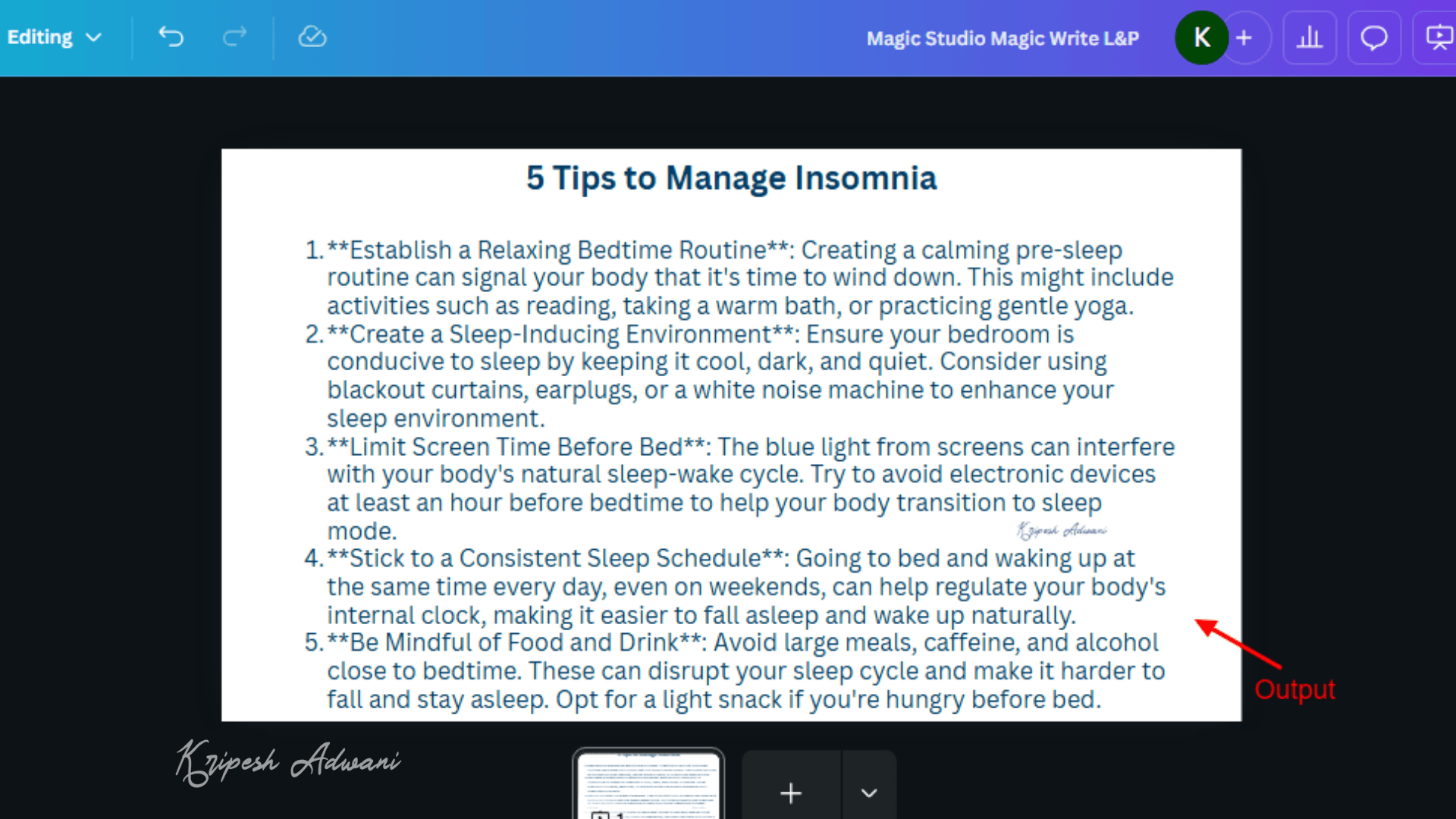
Let’s take an example: “5 Tips to Manage Insomnia.” As you can see, the AI tool generated five informative points. All I had to do was edit or format the text, and it was ready to copy, paste, and use wherever I needed.
5. Magic Grab
Ever loved a text style in your favorite creator’s thumbnail and wished you could include it in your video? With Canva’s Magic Grab, that’s absolutely possible! This tool allows you to cut out any element from one image and paste it into another with ease.
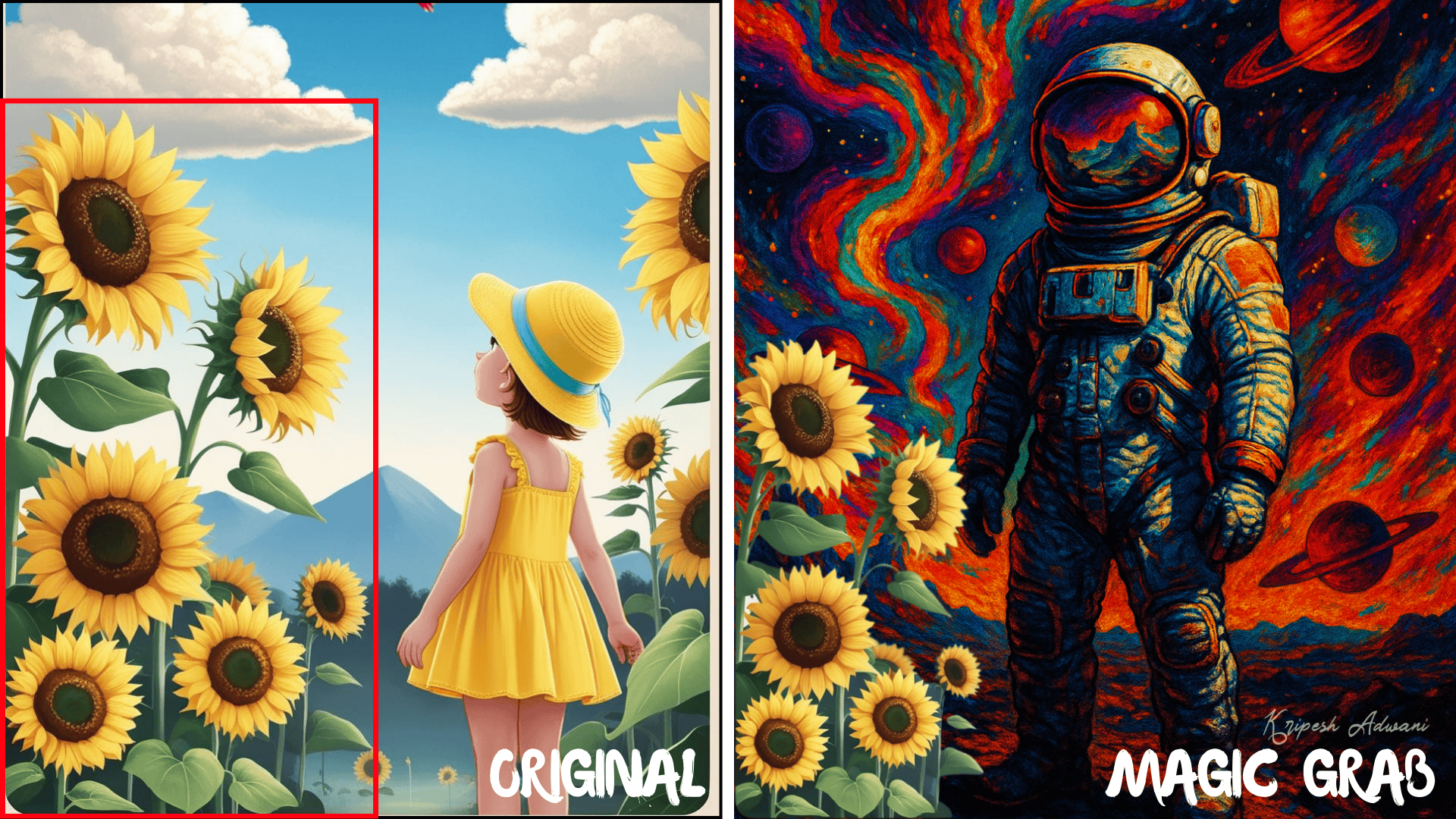
Magic Grab works for both objects and text. You’ll find the Magic Grab option right where you found Magic Edit. Simply select the object, and Canva will automatically cut it out for you. Then, drag it into your original image and resize or adjust it for a perfect match. See how I pasted sunflowers from one image into another?
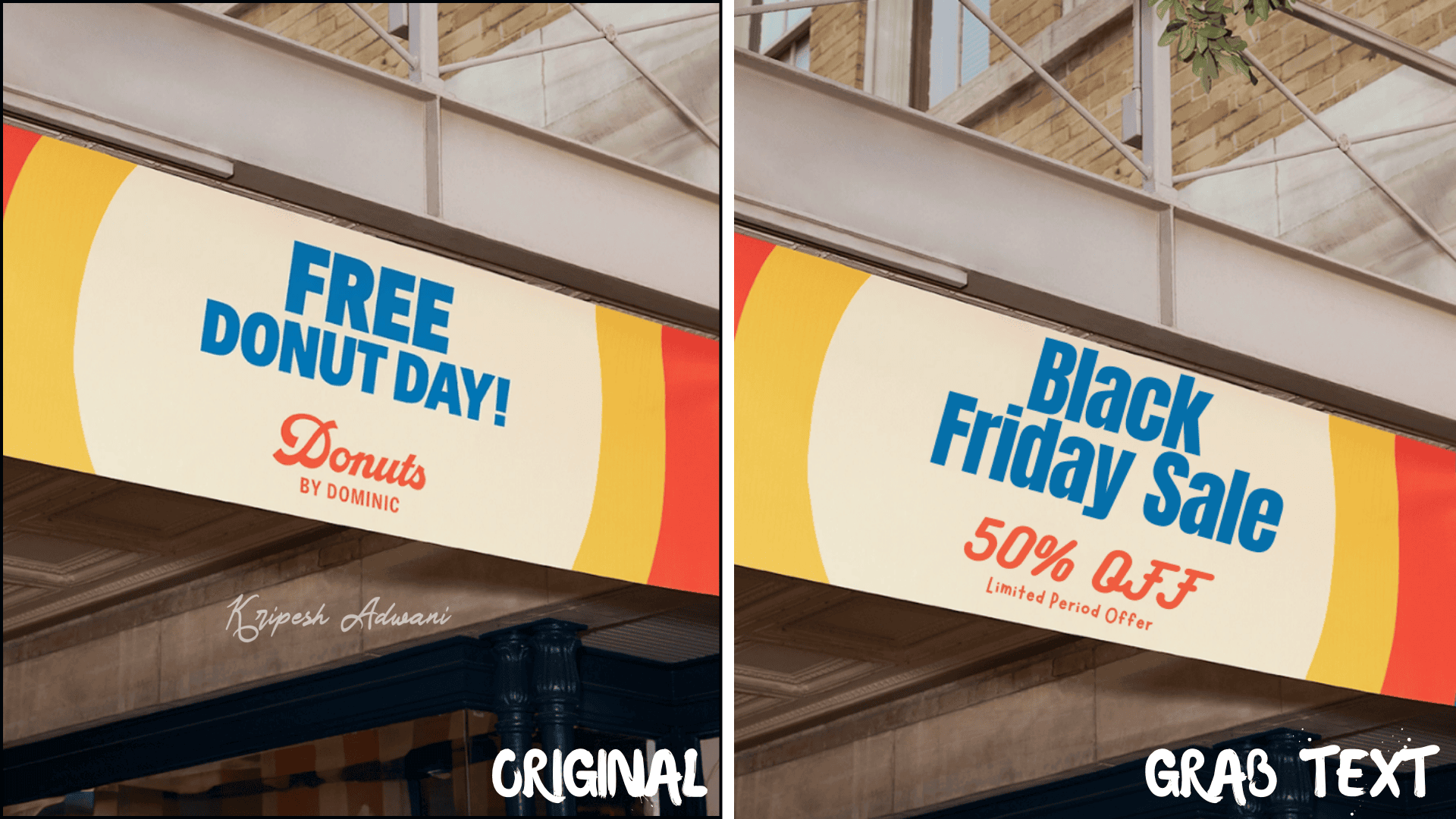
Grab Text works in a similar way. It lets you replace existing text styles in an image with your own words. Just note: Canva AI supports text styles that are part of its font library, so you may be limited to fonts available there.
6. Magic Design
Want to design from scratch? Don’t have a template—just an idea or some inspiration? With Canva’s Magic Design, you can do exactly that. Create graphics for social media, commercial use, stickers, or anything you need.
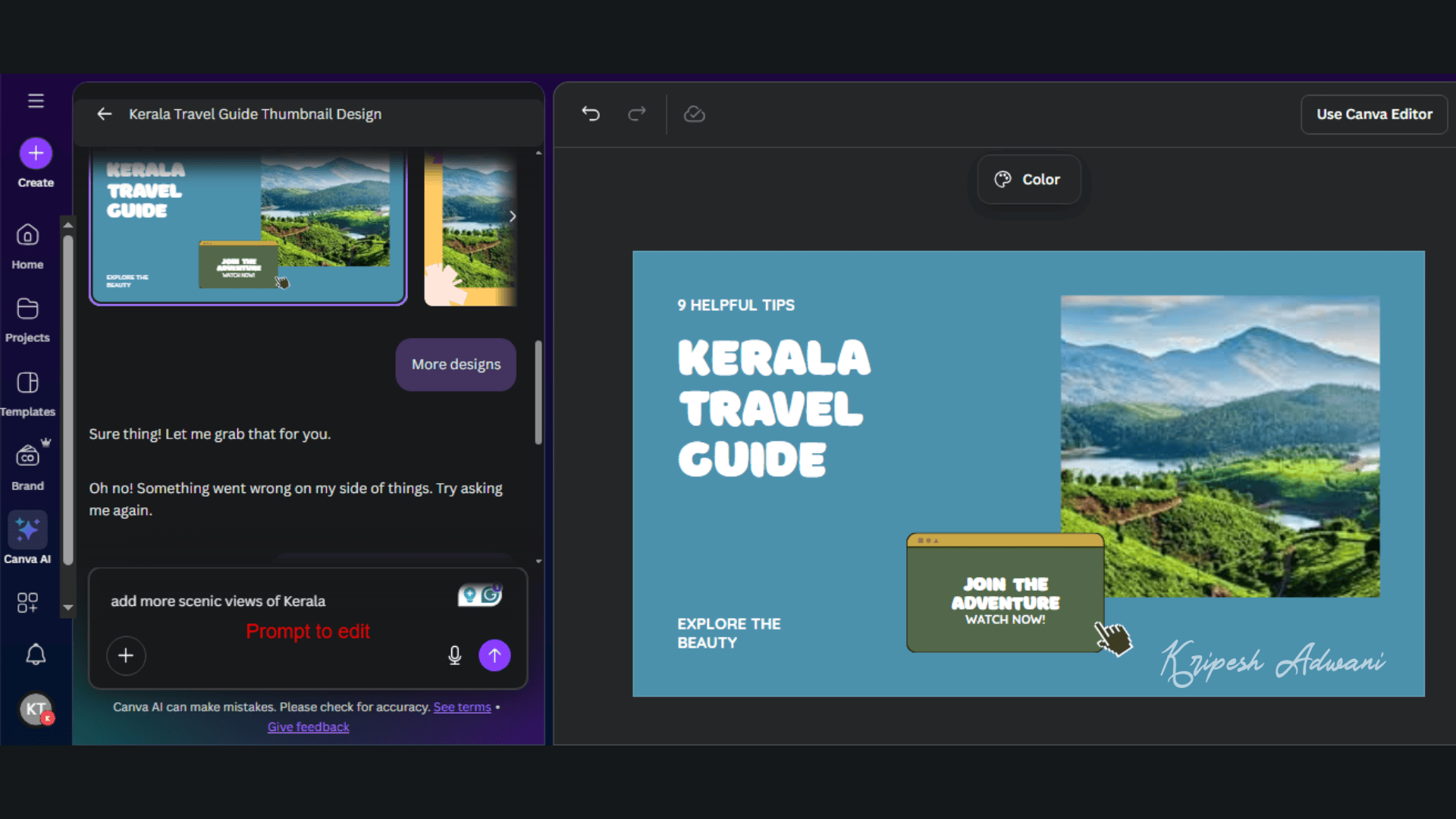
Open the Canva home page and navigate the editor side panel. Head over to Canva AI, and enter a simple prompt like: “Create a thumbnail for my YouTube video on 9 Helpful Kerala Travel Tips.” I uploaded two reference images showcasing Kerala’s scenic beauty to include in the design, and it generated multiple thumbnail options instantly.

You can easily edit the results; no need to navigate through complex menus. Just ask for edits via a simple chat. I asked it to “add more scenic views”, and above is the result. Plus, you can export the final image without any watermark, using your own brand kit.
7. Magic Switch
Let’s say you’ve created a Mother’s Day poster and now need a presentation outline to address your audience at an event. Instead of spending hours brainstorming ideas, figuring out what to say and what to skip, Canva’s Magic Switch can do the job in just a few seconds.
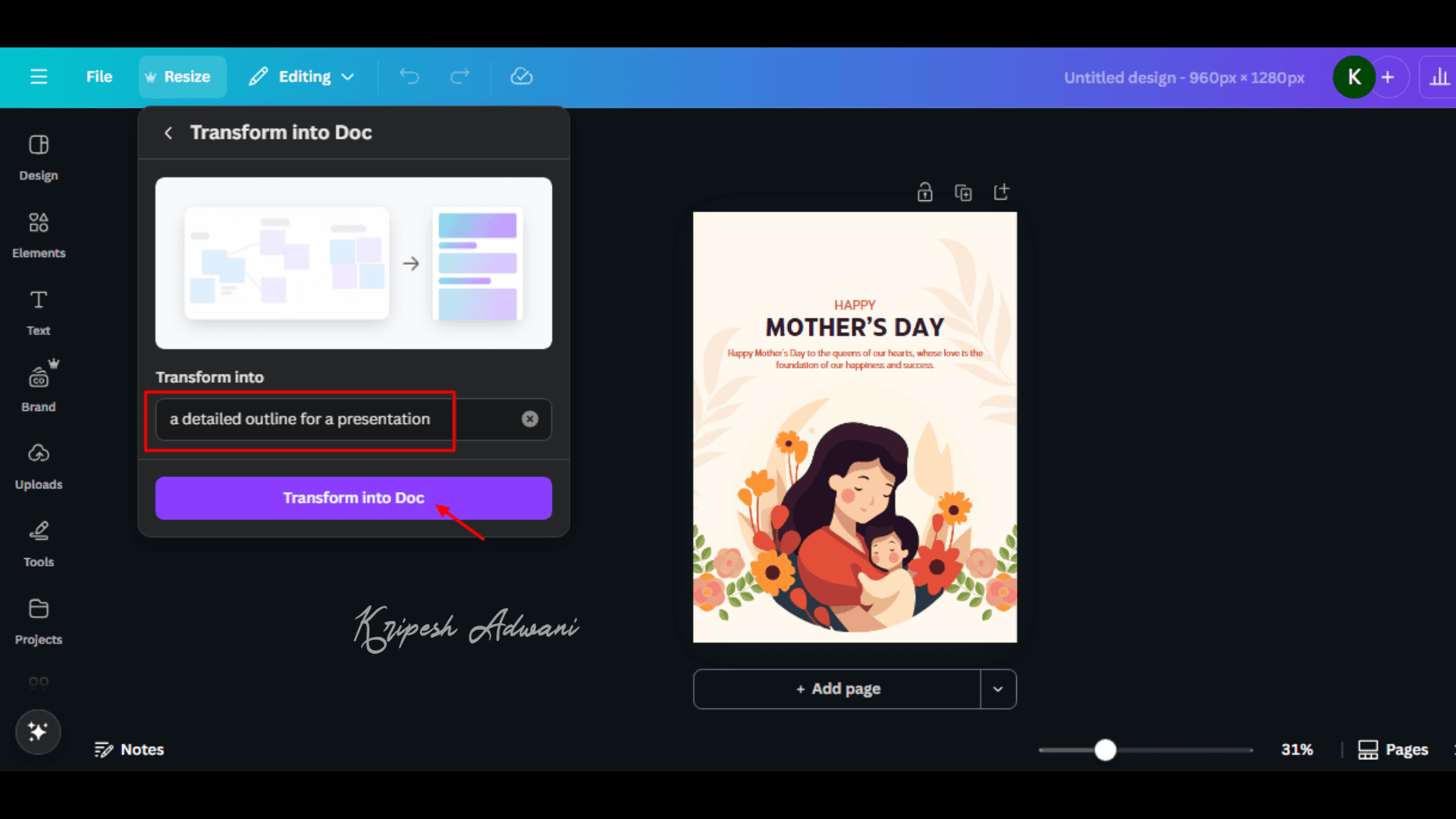
To use it, simply open your image in Canva and click the Resize button at the top-left corner. Scroll down to find the Magic Switch tab, then select “Transform into Doc.” Enter a prompt like “Create a detailed outline for an event presentation,” and Canva will generate a complete structure for you.
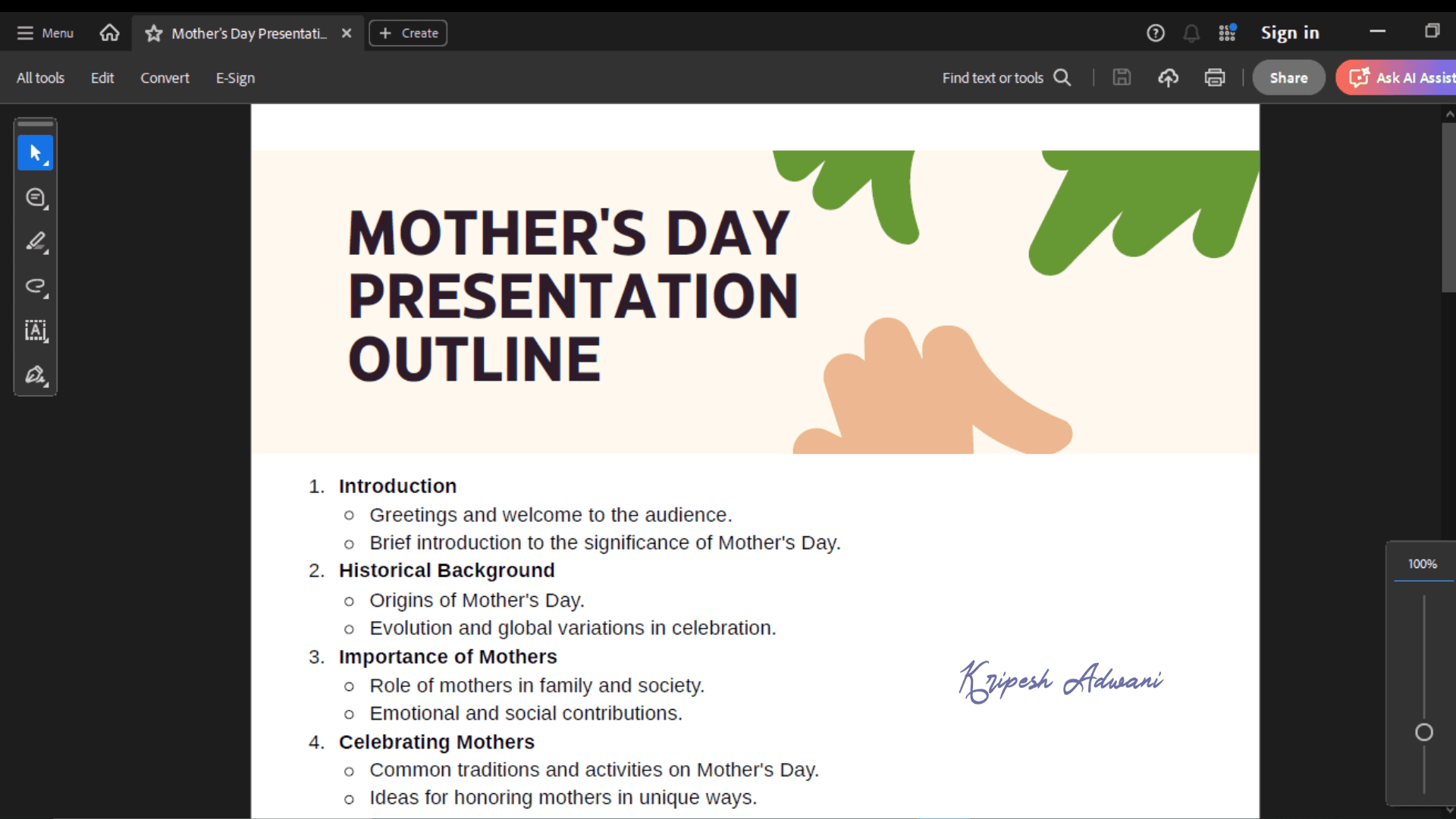
This feature isn’t limited to just presentations. You can also convert a graphic into a social media post, transform an image into a blog post, or create thumbnails from ad banners, all automatically.
Plus, Magic Switch includes a translation option, allowing you to convert your content into your native language. So, it’s a powerful, timesaving tool for content repurposing and audience targeting.
8. Magic Animate
Still using PowerPoint to animate texts and objects? It’s time for an upgrade! Magic Animate is here to save the day.
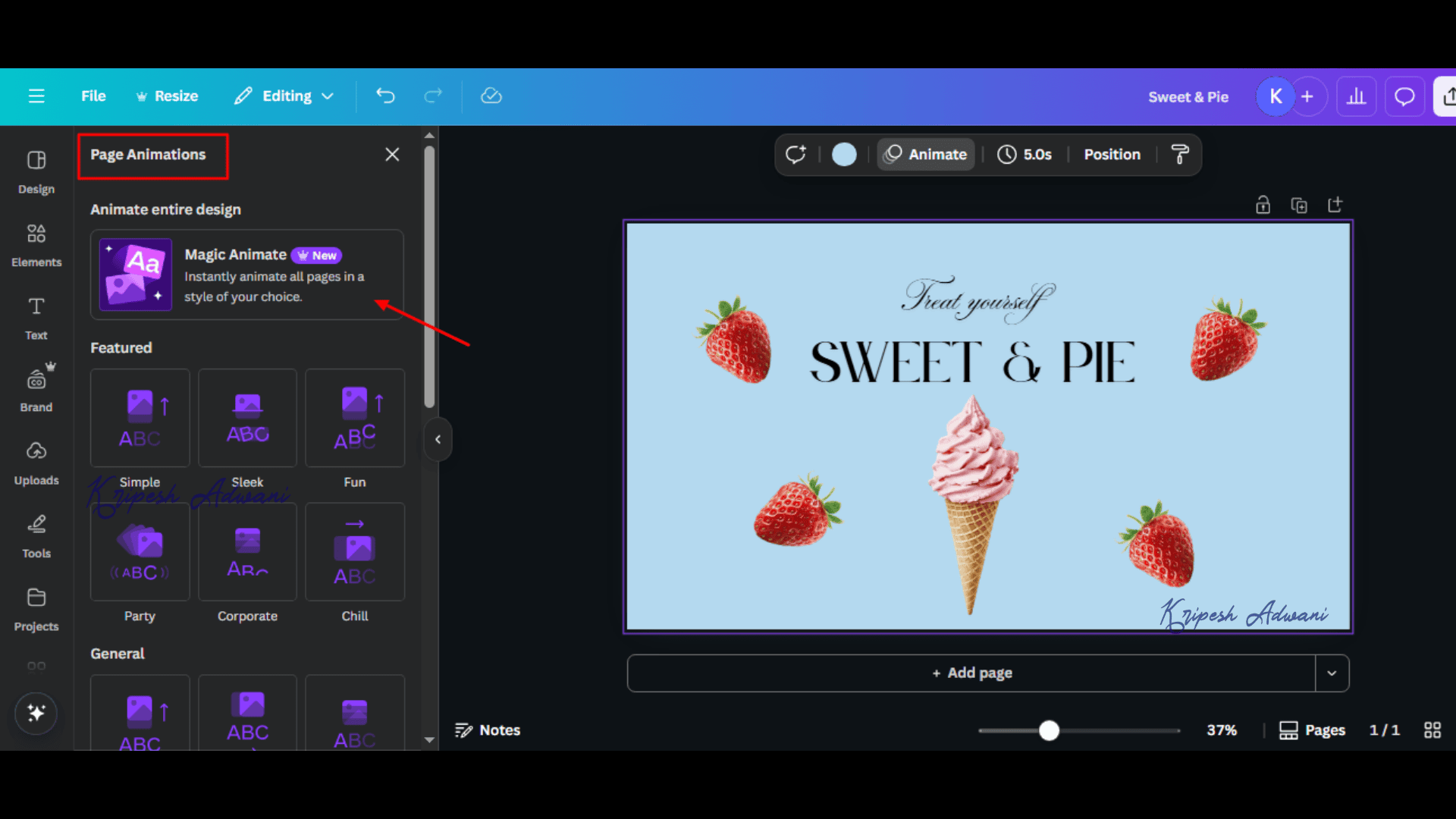
To access it, click on your image. In the toolbar above, you’ll find the “Animate” options. Under Page Animation, select Magic Animate.
Now you no longer need to animate each element manually. Canva detects both elements and text on your page. But it doesn’t currently support photos, and I wish there were more customization options available.
9. Magic Expand
Suppose your product photos don’t match your website layout. You’re struggling to get the aspect ratio right. Do you click product shots again? No! Use Magic Expand instead.
How do you expand an image? Upload your photo to Canva. Under the Edit button, you’ll find Magic Expand. Choose from Freeform, Whole Page, or 1:1, and you’re good to go!
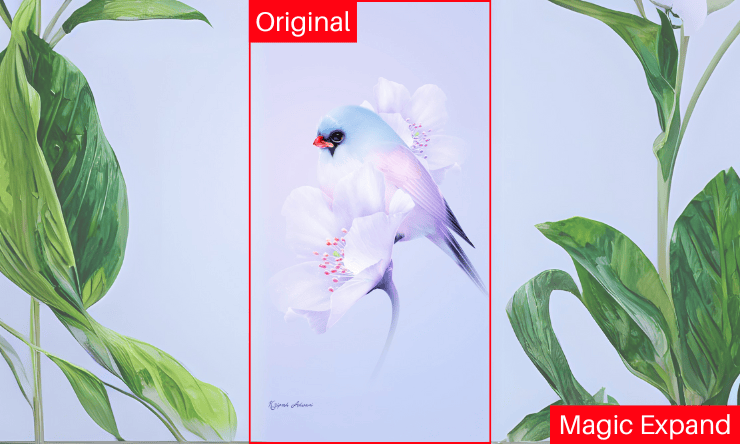
This feature is an absolute game-changer for me. I’ve used it countless times for my blog graphics and YouTube thumbnails. It doesn’t just match the background; it recreates the image with contextually matching objects, too.
10. Instant Presentation Generator
Just like other AI presentation makers, Canva AI includes this feature, too. It can design a detailed presentation complete with premium content, images, outlines, and more.
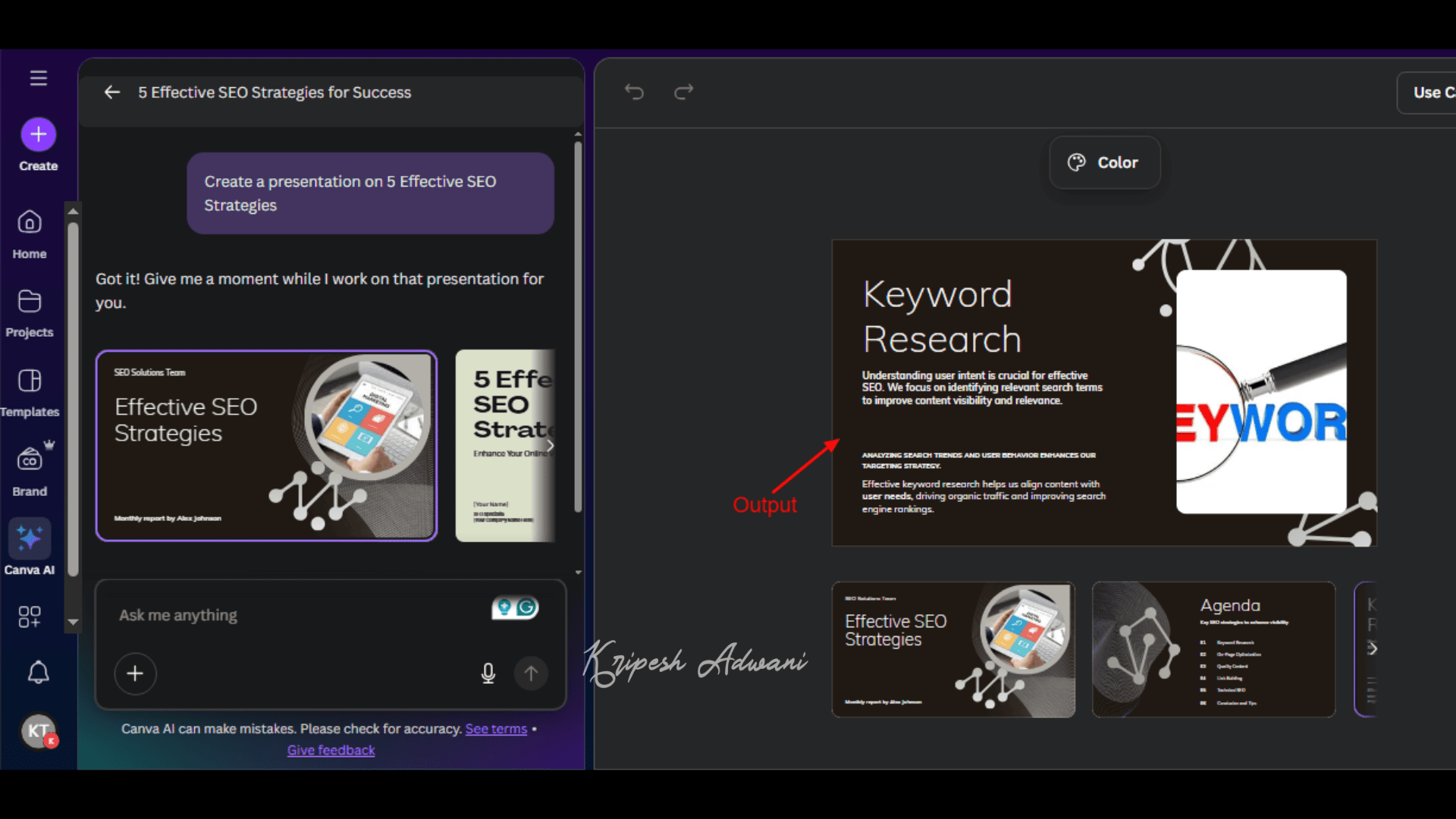
To create a presentation, first access Canva AI Magic Design from the homepage. Now, enter a prompt like: “Create a presentation on 5 Effective SEO Strategies.” Canva will generate the entire presentation in just a few minutes.
While the output feels a bit basic, the content is informative and accurate. So, I feel it would be perfect for beginners or students. You can always edit and customize the presentation further for a more professional finish.
11. AI Video Generator
Canva AI now allows users to generate videos, along with images and presentations. These AI-generated videos are powered by Google’s Veo-3 model. From cinematic visuals to vintage film effects, and from GIFs to short clips, Canva AI has made video creation easier for non-designers by automating the creative process.
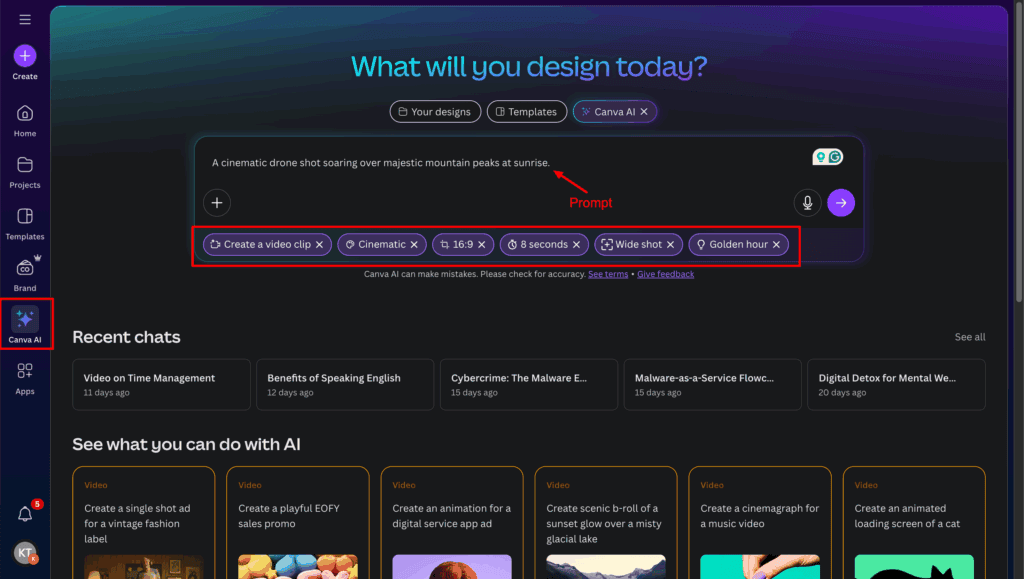
To access the video generator, simply go to Canva AI and click on “Create a video clip.” Then, type in your prompt—for example, “A cinematic drone shot soaring over majestic mountain peaks at sunrise.”
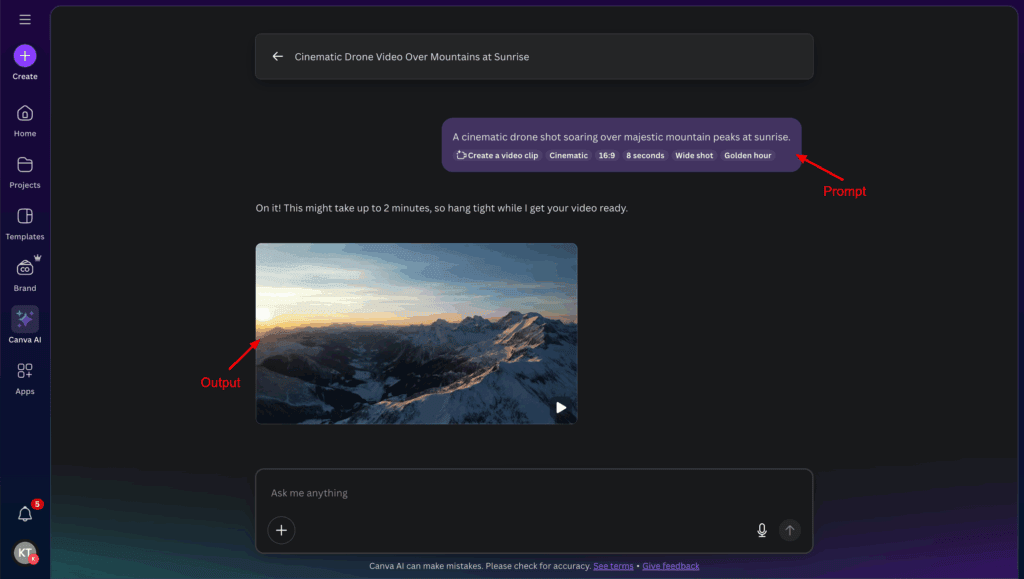
After that, you’ll be asked to choose a video style, such as cinematic, photorealistic, VHS-style, or dreamlike. You can also select the framing (like medium shot, wide shot, or close-up) and one of five lighting options (soft, hard, golden hour, dark, or night light). Currently, videos can only be created in a 16:9 aspect ratio and are limited to a duration of 8 seconds.
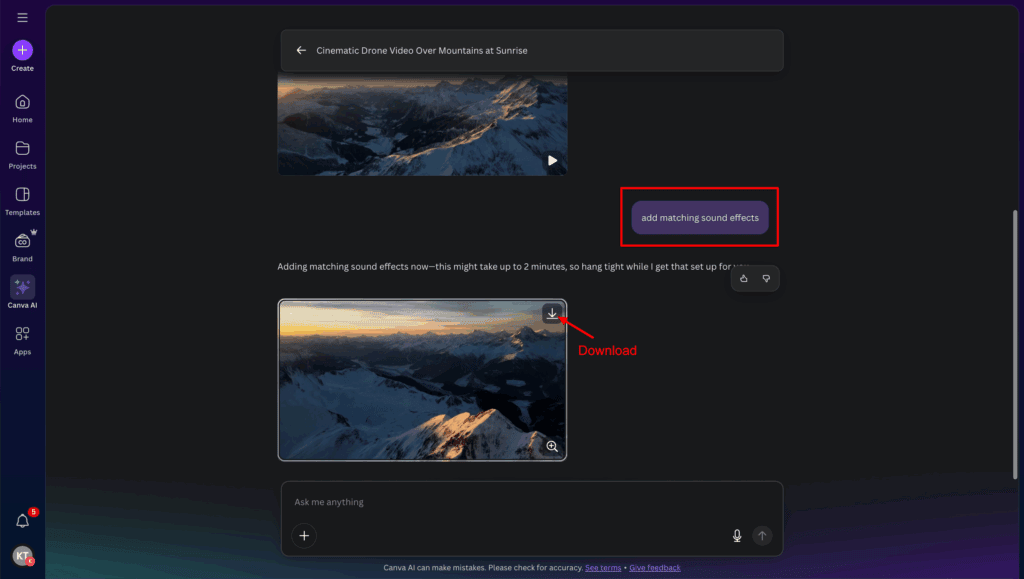
I’m highly impressed by Canva AI’s video generator. The video quality is excellent, and it accurately followed all the selected settings, from lighting and style to framing. It even adds matching sound effects to enhance the final output. But the video generator is currently available to Canva Pro users only.
12. Magic Morph
Does the name sound complicated? Well, Magic Morph is actually a simple tool that transforms ordinary text or images into something extraordinary. You can add shine, floral effects to text, and much more.
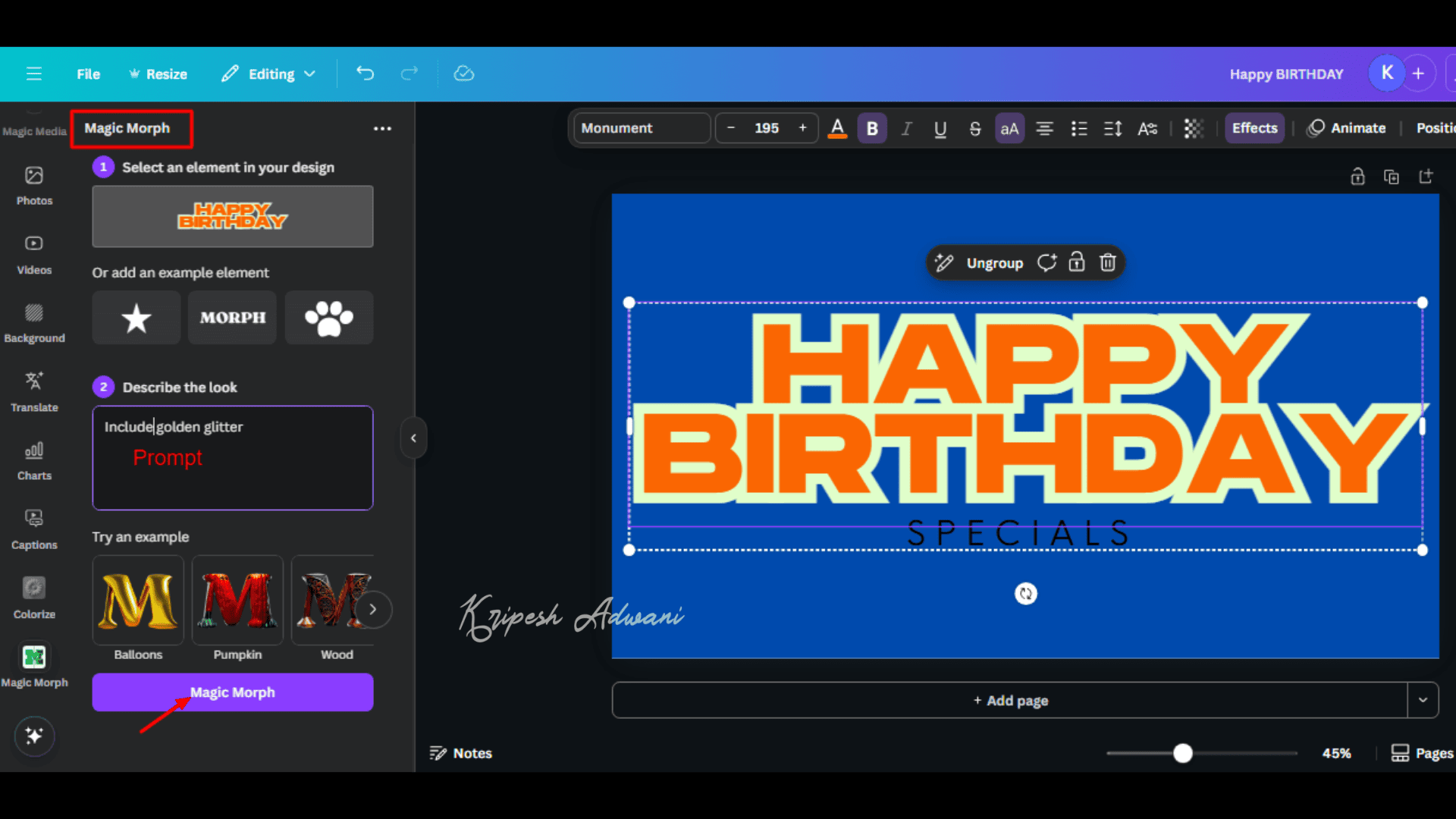
How to access Magic Morph: Go to Magic Studio, where you’ll find the Magic Morph option. Otherwise, search for it under AI Apps. Then select an element and describe the look you want to achieve.
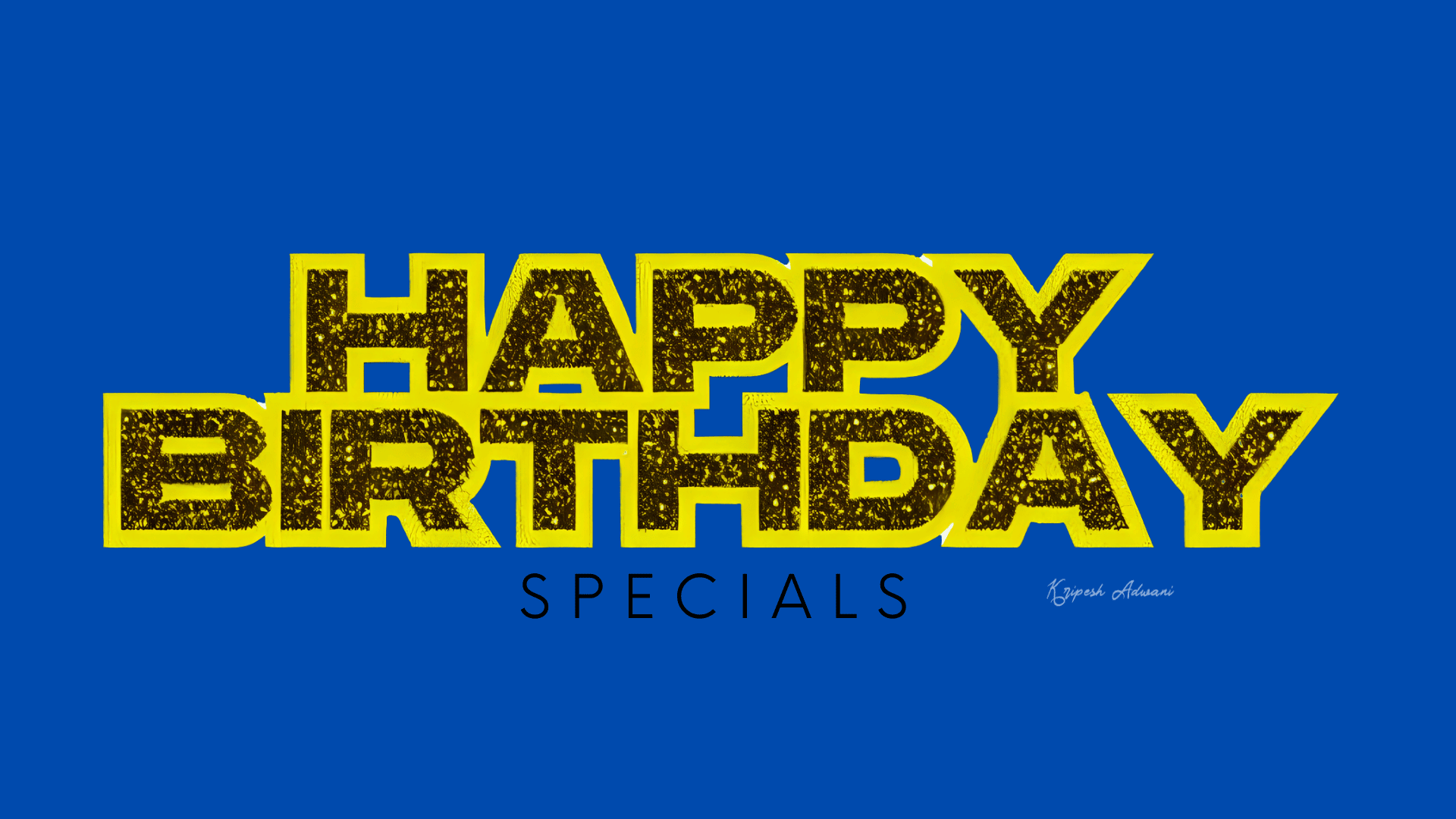
In my opinion, Magic Morph works best with simple texts and shapes. It doesn’t support complex designs, and the result isn’t impressive. So, personally, I didn’t find this tool very useful for professional design work.
Is Canva AI free?
Canva AI offers limited access to free users. For example, you get:
- A limited number of AI chats per month
- 50 AI credits for design
- 20 monthly credits for image generation using Dream Lab
- 5 credits for Magic Media (Text to Video)
- 50 credits for Magic Write
Other AI tools I’ve mentioned above, like AI Video Generator, Magic Animate, Magic Grab, etc., are unavailable on the free plan.
Why Should You Trust Me?
I’ve been part of the tech industry since 2015. Over time, I developed a strong interest in AI and have personally used hundreds of AI-powered tools. That’s when I thought—why not share only the ones that truly add value? You’ll find my detailed guides on topics like AI Photo Editor Apps for Android, AI Resume Builders, AI Dubbing Tools, and How to Create an AI News Anchor.
Canva has been one of the most useful design tools I’ve relied on since my early days in content creation. As it introduced powerful AI features, Canva quickly became a key part of my blogging workflow for creating graphics and managing visual content. This easy-to-follow guide is based on my hands-on experience. My only aim is to help non-designers like you get the most out of Canva’s AI capabilities.
Conclusion
As someone who has worked with AI tools for years, I can confidently say that Canva’s AI features are true game-changers. With the launch of Canva AI and Magic Studio, this popular design platform has transformed complex design tasks into simple, intuitive actions.
The 12 AI tools I’ve covered here can help you complete hours of work in just seconds. For example, Magic Media allows you to generate images, videos, and graphics instantly from scratch, while Magic Grab can isolate and transfer elements from one image to another.
Just in case you’re looking for a starting point, I highly recommend trying AI Video Generator, Magic Media, Magic Grab, Magic Switch, Magic Eraser, and Magic Expand.
Whether you’re a startup owner, a novice creator, or someone who wants to level up their design skills, Canva AI magic is worth a try. Start experimenting with its AI features and discover just how easy and fun design can be.
Which tool are you most excited to explore first? Let me know in the comment section!
FAQ
Does Canva have an AI voiceover?
Yes, Canva now includes an AI Voiceover Generator through its integration with Murf AI. You can create AI-generated voice-overs for free, with a limit of up to 1,000 characters per conversation.
Does Canva have an AI image generator?
Yes, Canva’s Magic Media allows you to generate images from scratch using AI. You can create designs with up to 50 AI credits by entering simple or detailed text prompts.
Does Canva have an AI logo generator?
Yes, Canva offers AI-powered tools that can help you generate logos, along with other images. You can also access their dedicated logo generator through the Dream Lab feature, which allows up to 20 prompts per month.