In 2026, balancing back-to-back meetings, lectures, and side hustles is the norm—and it’s exhausting. Even the most organized minds can struggle to keep up. That’s where AI note-taking tools step in! It offers a smarter way to capture and organize information.
Traditional note-taking methods are outdated: scattered folders, forgotten tasks, and endless hours of wasted transcribing recordings. Today’s AI-powered apps do more than just take notes. They summarize meetings, extract action items, integrate with your favorite tools, and even provide multilingual translations.
To make your choice easier, this article features the Top 9 AI Note-taking Apps in 2026. After months of hands-on testing, I’ve curated this list with a focus on ease of use, affordability, and smart integrations that truly enhance productivity.
Ready to ditch chaotic notebooks for good? Let’s explore your future workflow upgrade.
- What is an AI Note-Taking App?
- Testing Parameter
- Best AI Note Taking Apps of 2026 At A Glance
- Best AI Note Taking Apps of 2026
- 1. Notta- Best User-friendly Note Taking App
- 2. Fireflies- Best for Meeting Analytics
- 3. ClickUp- Best for Project Management
- 4. Krisp- Best for Noise Cancellation and Accent Conversion
- 5. Tactiq- Best for Chrome Browser
- 6. Otter AI- Best Real-time Meeting Overview
- 7. Evernote- Best for Offline Note-taking
- 8. Notion- Best for Task Management
- 9. Mem AI- Best for Students and Beginners
- 10. Letterly- Best for Repurposing Content
- Benefits of Using AI Note-Taking Apps
- Why Should You Trust Me?
- Conclusion
What is an AI Note-Taking App?
AI note-taking apps are software tools that help individuals write, organize, and manage notes. These apps are not limited to basic note-taking capabilities; they offer smart features to save time and enhance productivity.
For example, you can convert audio into written notes, which is especially helpful during lectures, meetings, and interviews. AI note-taking apps can also extract key insights from lengthy notes. They organize bulk content using tags, folders, highlights, formatting, and more.
Some advanced note-taking apps even include built-in voice and screen recorders. You can receive real-time summaries while attending live sessions.
Testing Parameter
In selecting the best AI note-taking apps for 2026, I looked for tools that genuinely boost productivity and reduce the burden of manual note-taking. I evaluated each app based on the following factors:
- Good organization features (labels, tags, folders, etc.)
- AI assistance (automatic transcription, summary generation, writing support, etc.)
- Ease of learning and user-friendliness
- Integration with calendar, project management, and collaboration tools
- Multi-device access
- Free plan offering and pricing for paid plans
After evaluation, I shortlisted 9 AI note-taking apps. I skipped apps that were just basic meeting assistants.
Best AI Note Taking Apps of 2026 At A Glance
| Note Taker App | Platform | AI Features | Best For | Ease of Use | Free Plan |
| Notta | Desktop, mobile, and Chrome extension | Live Transcription, Translation, AI Summaries | Students & Professionals | Beginner-friendly | ✅ Yes |
| Fireflies | Desktop, mobile, and Chrome extension | Meeting Transcripts, Smart Search, AI Chat, Writing Assistant | Sales teams & Managers | Beginner-friendly | ✅ Yes |
| ClickUp | Desktop and Mobile | AI Notetaker, Docs with AI, Chat, Smart Summaries | Teams & Project Managers | Pro | ✅ Yes |
| Krisp | Desktop and Mobile | AI noise cancellation, Summaries, Accent conversion | Remote teams | Intermediate | ✅ Limited (7 days trial) |
| Tactiq | Desktop and Chrome extension | Live Captions, AI Workflows, Meeting Summaries | Chrome users & HRs | Intermediate | ✅ Yes |
| Otter AI | Desktop, mobile, and Chrome extension | Real-time Transcription, Meeting Assistant, AI Notes | Educators & Media Professionals | Intermediate to Pro | ✅ Yes |
| Evernote | Desktop, mobile, and Chrome extension | AI Summarizer, Writing Help, Smart Search, Transcription | Legacy users, Students, & Entrepreneurs | Intermediate | ✅ Yes |
| Notion | Desktop and Mobile | AI Writer, Autofill, Note Structuring, Smart Suggestions | Startup owners, Researchers & Content Creators | Intermediate to Pro | ✅Paid for AI Features |
| Mem AI | Desktop | AI Chat, Context-aware Organization, Instant Search | Students | Beginner-friendly | ✅ Yes (Beta) |
| Letterly | Mobile | Voice-to-Text, Summarization, Writing Assistant | Mobile-first users & Journalists | Beginner-friendly | ✅ Limited (1-year license) |
Best AI Note Taking Apps of 2026
1. Notta– Best User-friendly Note Taking App
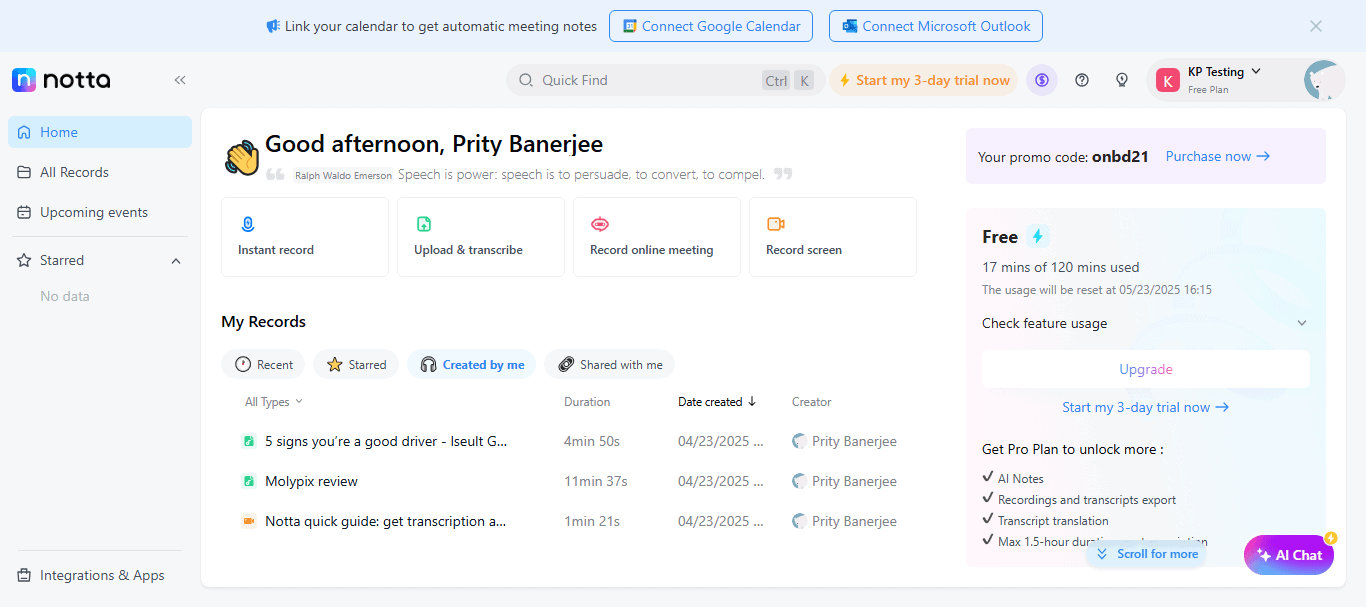
Notta AI is the most user-friendly, AI-powered note-taking and meeting transcription application. It’s available as a web and mobile app, as well as a Chrome extension. The tool helps with auto-transcribing meetings, generating time-stamped summaries, taking notes, scheduling/recording meetings, and more. However, many of these features are limited in the free plan.
Highlighted Features
1. Quick Transcription
On the homepage, Notta makes it easy with two options: Instant Record and Upload to start transcribing right away. You can upload media files or import a link. It supports various file formats, including MP3, M4A, MOV, and WAV. The tool automatically detects speakers and provides clear mono- or bilingual transcriptions.
2. Writing Assistance
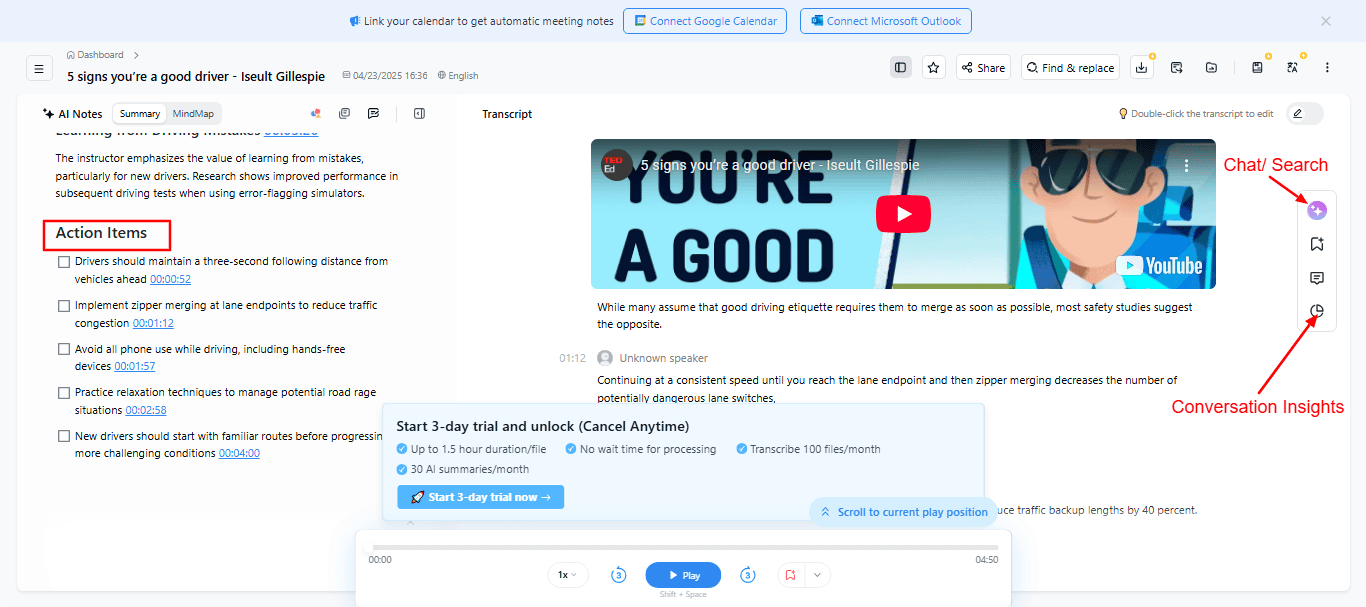
With the AI button, you can quickly generate a summary, key points, timestamped chapters, and action items from your transcription. You can also bookmark important moments, add comments, star files, and more. On the Business plan, you’ll also get detailed conversation insights.
3. Note Visualization
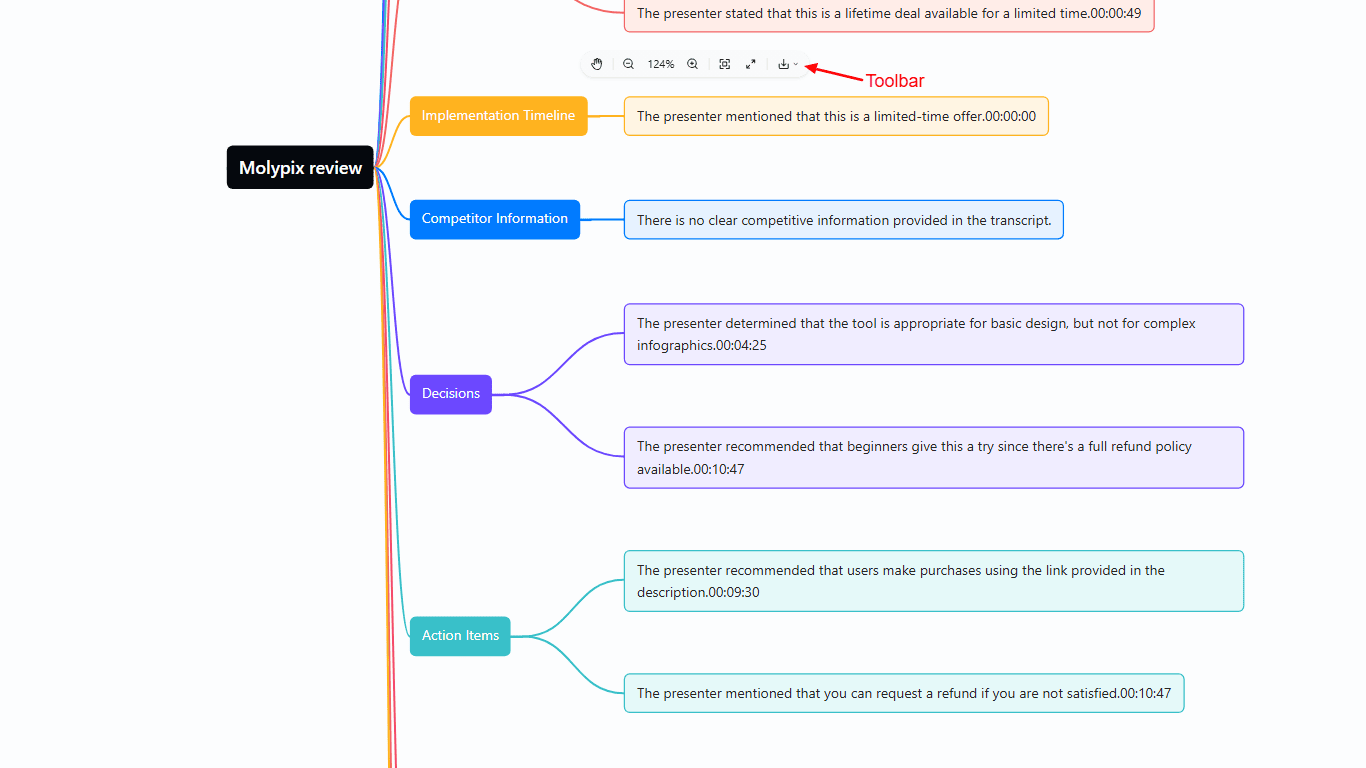
Want to see key information at a glance? Notta creates AI-generated mind maps that visually organize summaries, chapters, and action items into a single document. You can easily copy or export these maps in PNG format.
4. Meeting Recording
Notta integrates directly with Zoom, Google Meet, Microsoft Teams, and Webex. You can record meetings using its built-in screen recorder and save everything to the cloud. Plus, with Calendar integration, you can even schedule meetings and create a booking page for appointments.
5. Helpful Templates
If you’re new to meeting management, the tool provides ready-to-use templates. For example, if you work in sales or marketing, the Sales Pitch template includes sections for the theme, proposal, budget, and competitor analysis. Just select the template, and Notta automatically generates the key information you need from transcriptions.
Limitations
- AI-generated summaries are limited to 10 uses per month on the free plan.
- Bilingual transcription and translation are available only as paid add-on services.
- The free plan allows up to 120 minutes of transcription per month.
- Uploads for meeting transcriptions are restricted to recordings of 3 minutes on the free plan.
Pricing
Notta’s Free Plan includes basic integrations, 10 AI-generated summaries, and up to 50 file uploads per month. For users requiring more robust features, the Pro Plan is priced at $8.17/month per user (billed annually). It offers 1,800 transcription minutes, 30 AI summaries, 100 file uploads per month, and supports transcription of up to 90 minutes per conversation.
Best For
- Professionals requiring a secure platform for discussions.
- Global team needing multilingual transcriptions.
- Newbies to try out an easy-to-use AI Note Taker app.
2. Fireflies– Best for Meeting Analytics
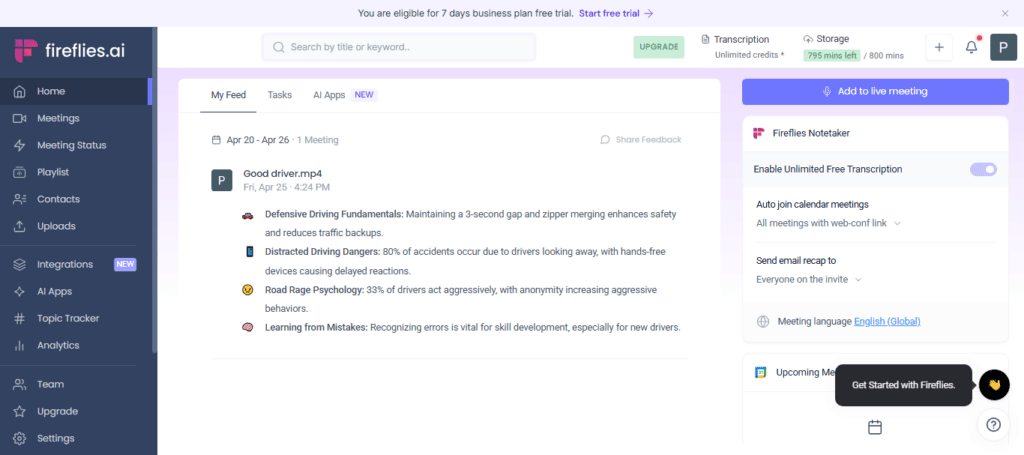
Fireflies.ai is a best-in-class meeting assistant that provides automatic transcription and advanced note-taking capabilities. It features smart search, soundbite creation, CRM integration, and a built-in writing assistant. What truly sets Fireflies apart is its dedicated focus on meeting capture, offering rich analytics and insights.
Highlighted Features
1. Transcription with Sentiment Analysis
After opening the Fireflies app, you’ll see a “+” icon. Tap it to upload an audio or video file (up to 200MB) for instant transcription. The tool auto-detects speakers and even analyzes their sentiment (neutral, positive, or negative).
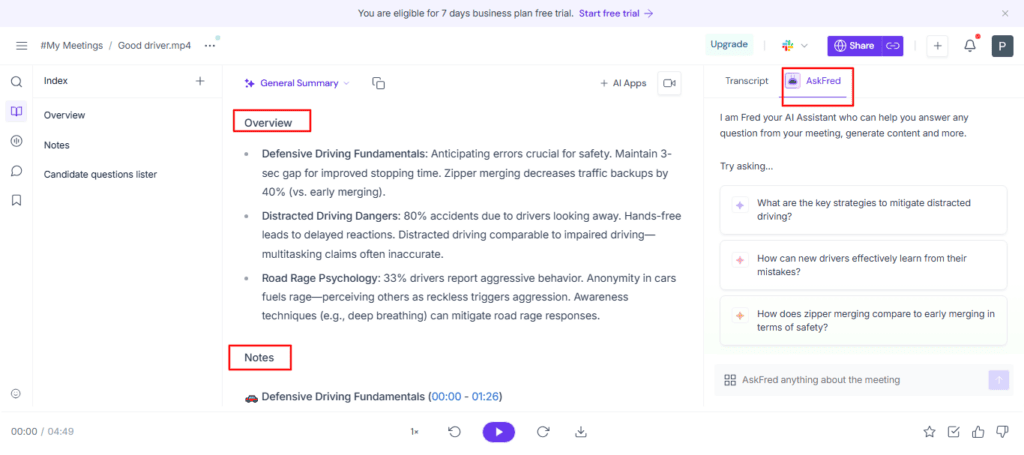
2. Meeting Management
You can add live meetings or schedule new ones, all within a single platform. From there, check the status of upcoming meetings and create channels to keep conversations organized with your team. It easily integrates with tools like Google Meet, Slack, Microsoft Teams, Workplace, and more.
3. Advanced Search
Do you need to manage multiple projects? Its Smart Search helps you quickly find topics or action items. Just use filters like questions, keywords, metrics, date & time, and others to narrow down exactly what you need.
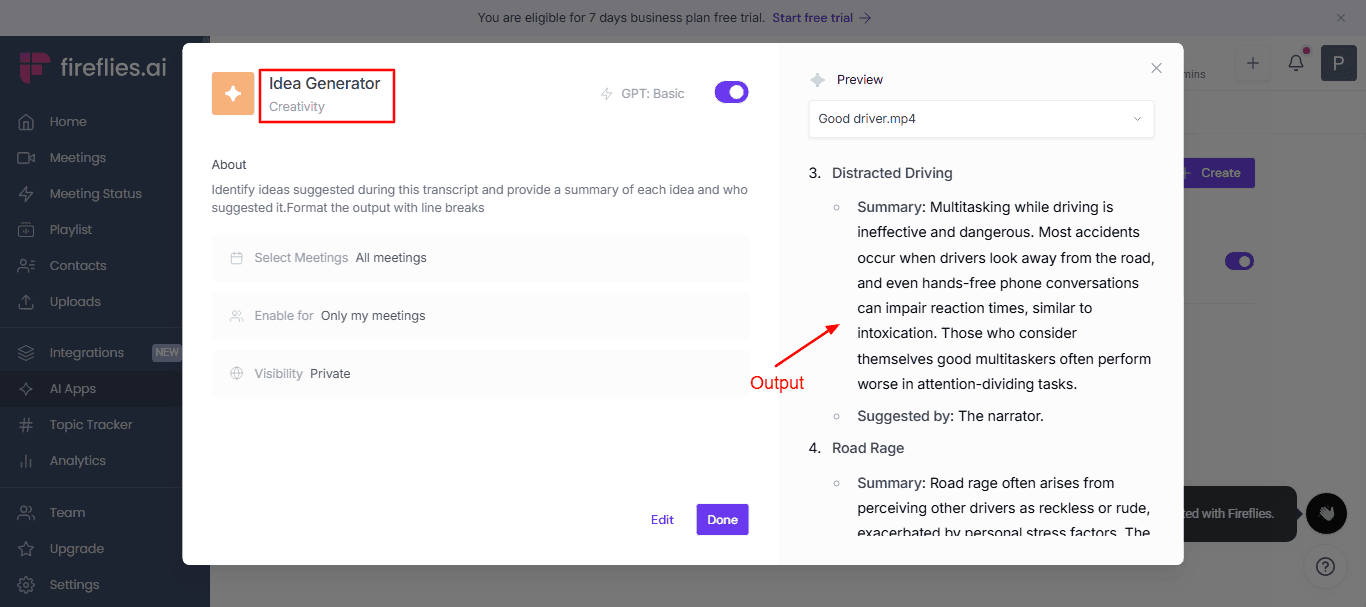
4. AI Apps
On the left-hand toolbar, you’ll find the “AI Apps” section. Here, you can access productivity tools like Content Calendar Generator, USP Advantage Tracker, Idea Generator, Time Management Analyzer, Knowledge Gap Identifier, etc. These tools save you hours by helping you extract insights and generate ideas directly from meeting notes.
5. Short Meeting Highlights
To share key highlights from long meeting recordings, Soundbite helped me a lot. There are different ways to create Soundbites: Manually select transcript sections, or generate Keyword Soundbites based on key terms. I’ve used Magic Soundbites to automatically extract important points.
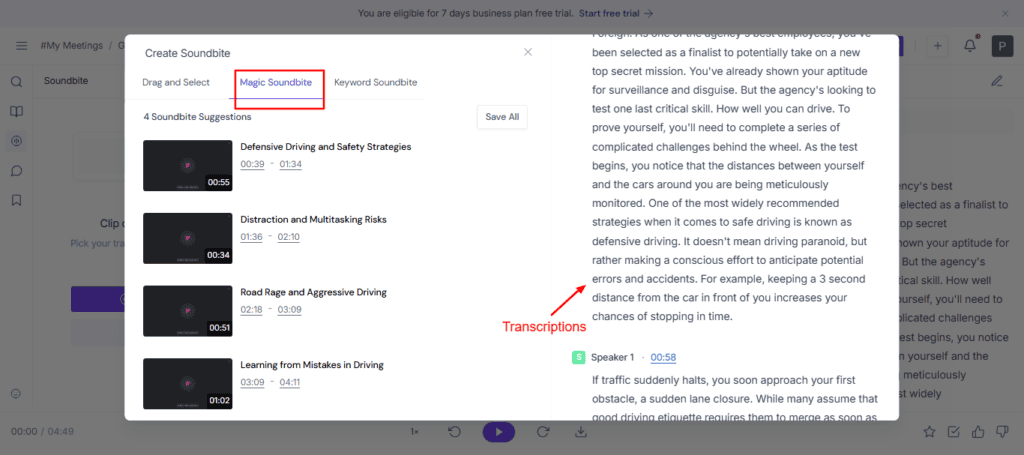
6. Instant Query
The dashboard includes an AI chatbot called AskFred. You can ask Fred to pull meeting info, generate content, explain discussions in detail, and more. It also suggests questions you might ask for faster insights and better understanding.
Limitations
- The user interface appears outdated compared to other apps.
- AI-generated summaries are limited in the free version.
- AskFred AI Assistant has limited functionality in the free tier.
- Downloading transcripts or recordings is not available for free.
Pricing
The Free Tier offers unlimited transcriptions and up to 800 minutes of storage per seat. With the Pro Plan, you unlock unlimited transcriptions, unlimited AI-generated summaries, and 8,000 minutes of storage per seat at $10/month per user (billed annually). Besides, you’ll receive 20 AI credits, full access to the AskFred AI Assistant, advanced analytics, and more.
Best For
- Sales teams automating CRM updates and analyzing call sentiment.
- Managers auditing team performance through meeting analytics.
3. ClickUp– Best for Project Management
ClickUp is a free all-in-one productivity and project management platform. It ranked as our top choice due to advanced note-taking, quick documentation, and AI-assisted features. The platform supports real-time communication, visual planning, and it’s affordable than any other AI note-taking app.
Highlighted Features
1. Clear Project Insights:
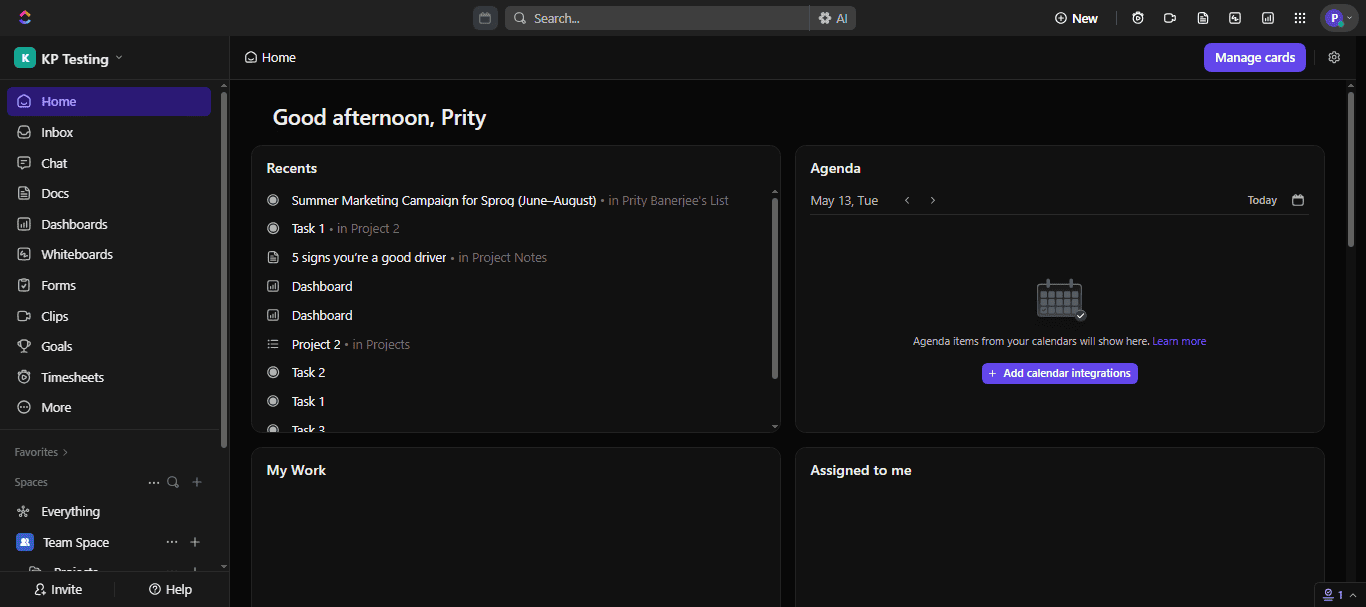
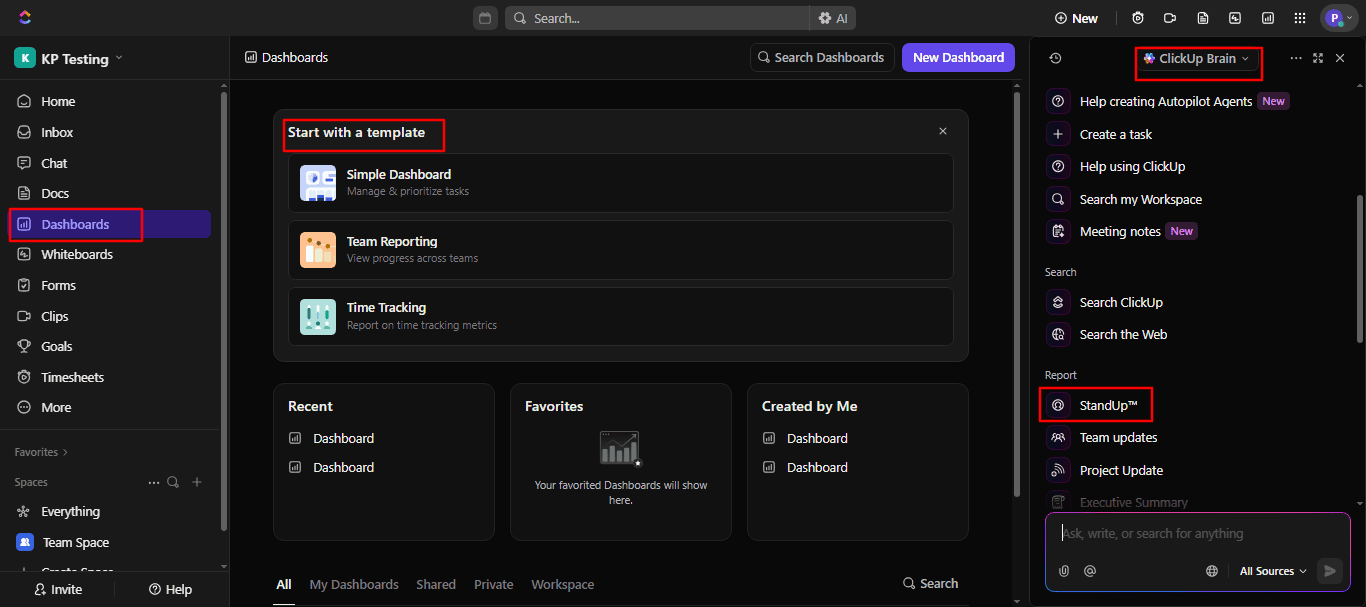
The moment you open ClickUp, you’ll see a dashboard for seamless project management. Here, you’ll find all tasks clearly listed along with details such as due dates, assignees, priorities, statuses, and more. The dashboard is fully customizable with templates like Simple, Team Reporting, and Time Tracking.
2. Smart Task Management:
ClickUp Brain is a powerful feature that automates the entire project workflow. You can access it by clicking the AI icon in the search bar. It allows you to create tasks, take meeting notes, generate tables, and search for anything within your workspace.
3. Auto Task Creation:
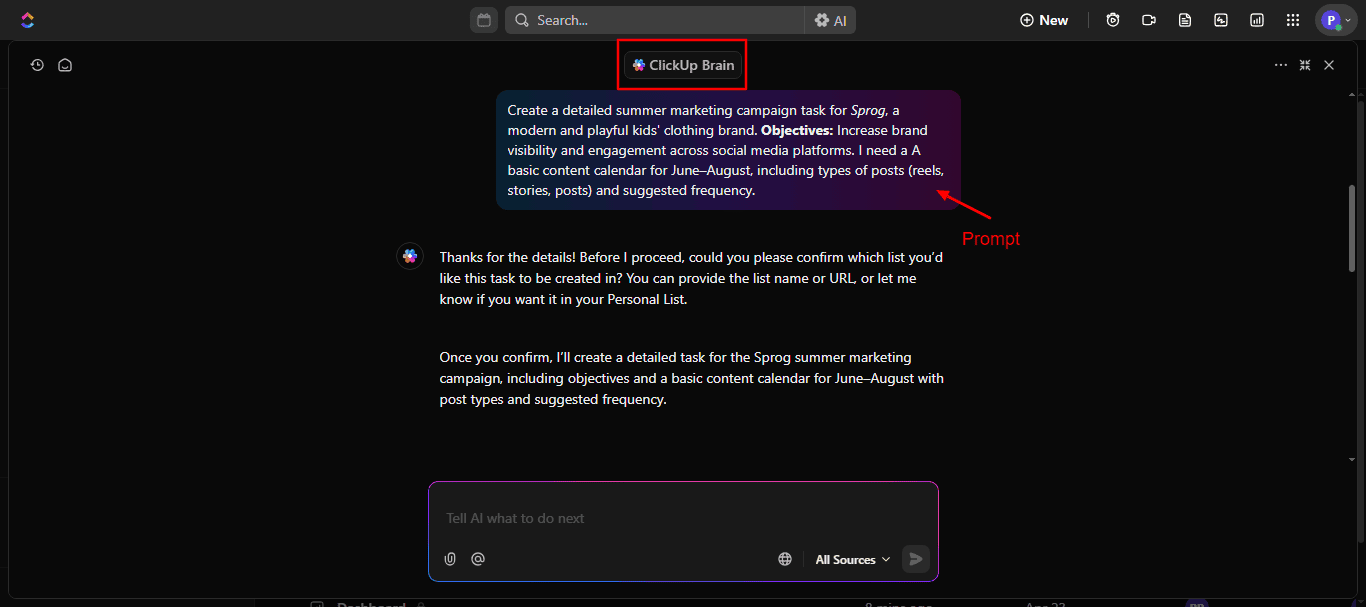
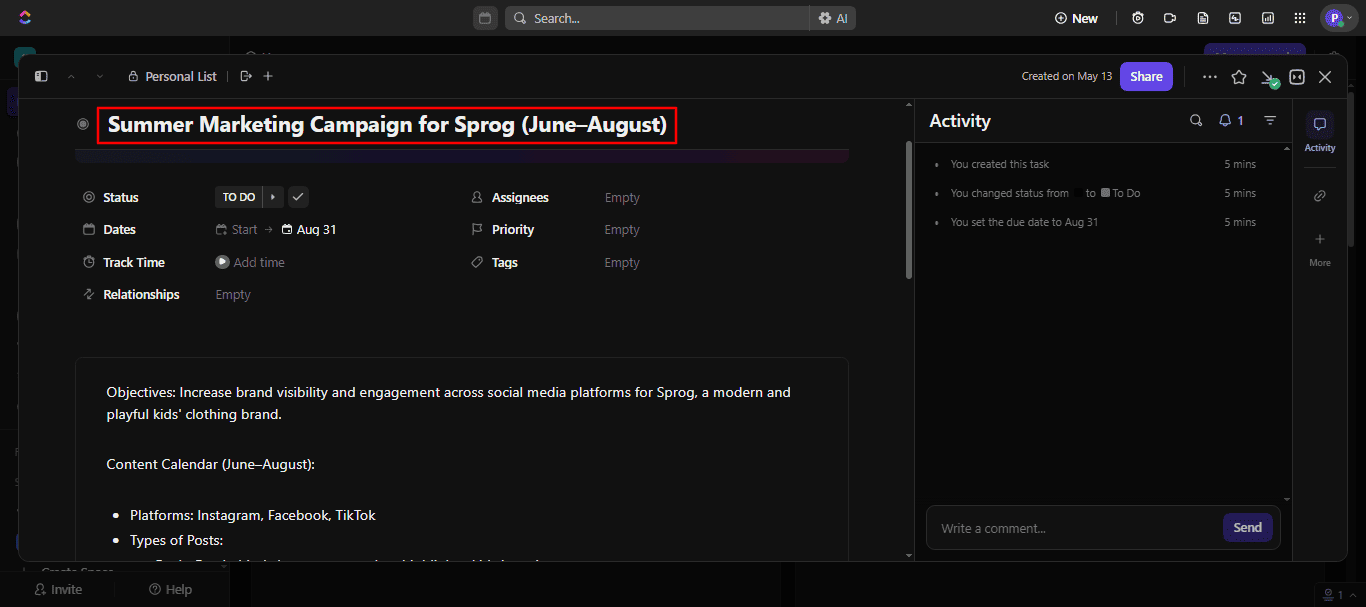
I asked ClickUp to create a “Summer Marketing Campaign Task for Sprog.” It generated tasks with appropriate statuses, deadlines, objectives, a content calendar, and action items. Another standout feature is Write StandUp, which enables you to view team reports and monitor time tracking for up to 20 members simultaneously.
4. Meeting Integrations:
ClickUp also simplifies hosting meetings. You can integrate it with Zoom, Google Meet, and Microsoft Teams to capture internal meeting content, transcribe conversations, and automatically generate summaries, saving them directly into ClickUp Docs for easy reference.
5. Quick Note-Taking:
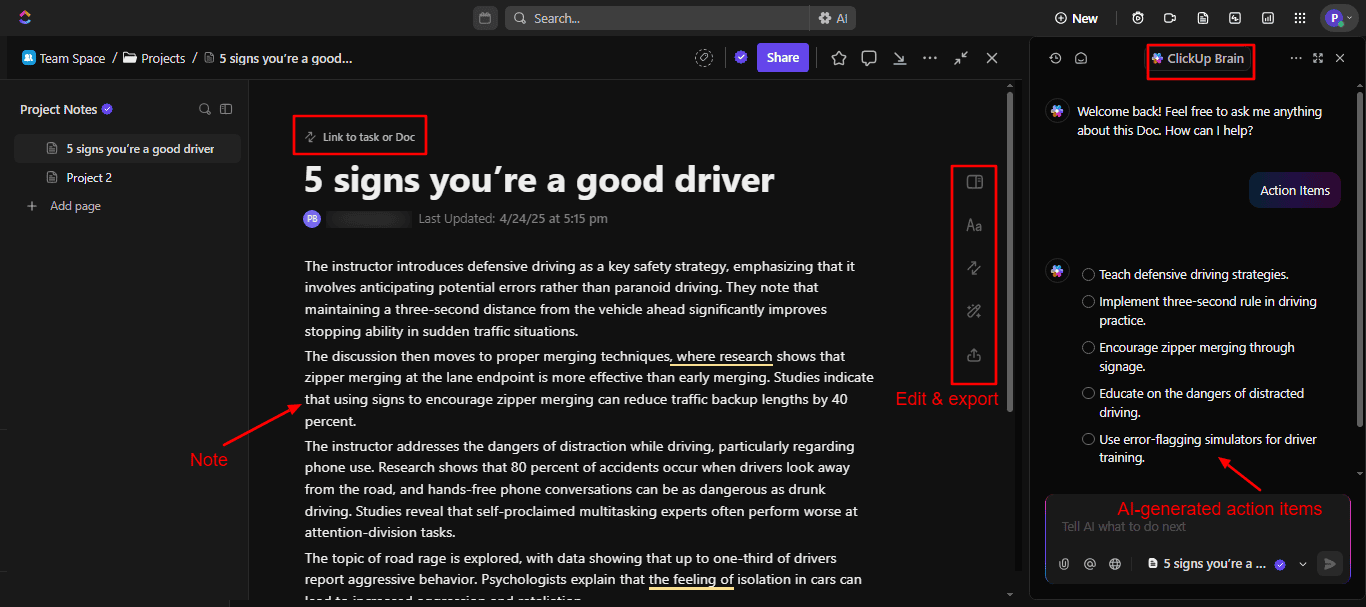
The Docs allows you to jot down ideas, build a knowledge base, create wikis, and enhance documents with tables, buttons, attachments, widgets, markdown, and more. For better organization, you can add covers, icons, or link tasks directly to documents. ClickUp Brain also works within Docs to assist with generating summaries, action items, and overviews.
6. Team Coordination:
If you manage large projects or multiple team members, ClickUp Chat will become invaluable. You can ask simple questions to get updates on tasks, take quick notes, track people, and reference documents, without accessing multiple tabs. Even chats can be imported from Slack.
Limitations
- The learning curve can be a bit steep for beginners.
- Does not provide transcription from uploaded audio or video files.
Pricing
In the free plan, you get 100 MB of storage, 100 automations/month, unlimited tasks, two-factor authentication (2FA), and more. The ClickUp Unlimited plan is available for $7/month per user (billed annually). It includes unlimited storage, access to AI features, unlimited spaces, and additional advanced tools. A 14-day free trial is also available.
Best For
- Project managers and remote teams need to manage complex workflows.
- Marketing and Sales professionals streamlining campaigns, event planning
- Small businesses that are looking for free task automation.
4. Krisp– Best for Noise Cancellation and Accent Conversion
Krisp AI is a versatile meeting assistant developed by David Baghdasaryan and Artavazd Minasyan. Its standout features include AI-based noise cancellation, support for long meeting recordings uploads, accurate transcription, and accent localization. I also really appreciate its helpful meeting summarization feature. However, free users only have limited access to the features for noise cancellation and accent conversion.
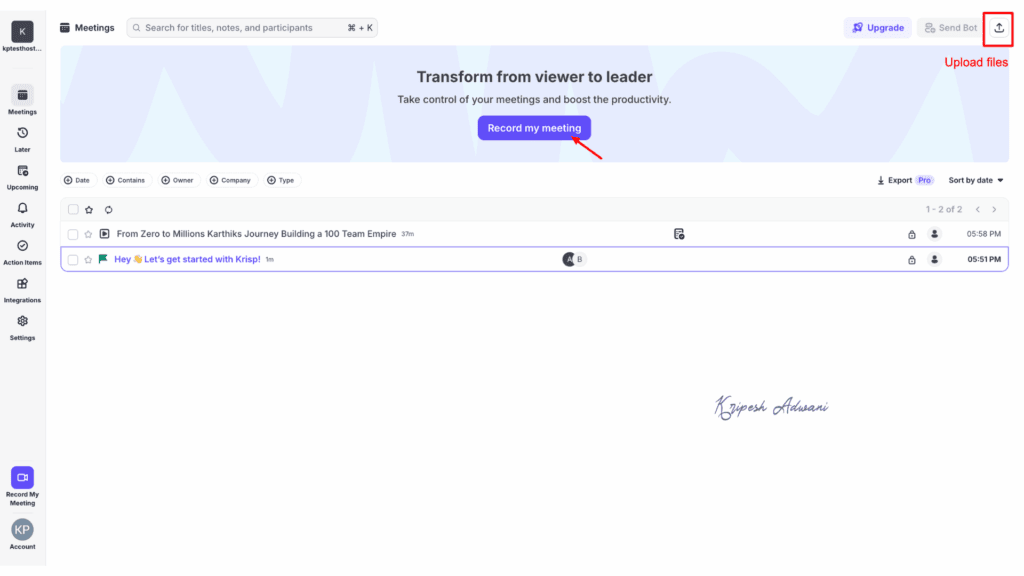
Highlighted Features
1. Live Transcription & Summaries
Krisp AI Note Taker automatically transcribes everything said during your meetings and calls. It supports over 16 languages, including English, French, Dutch, Italian, and German. The transcriptions are accurate and can label multiple speakers, although the system fails to label specific names.
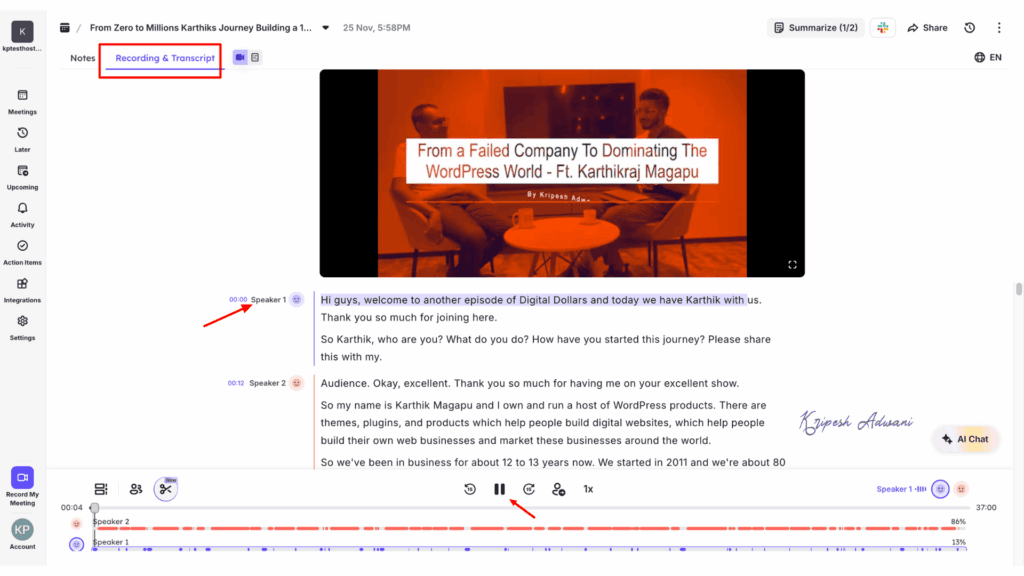
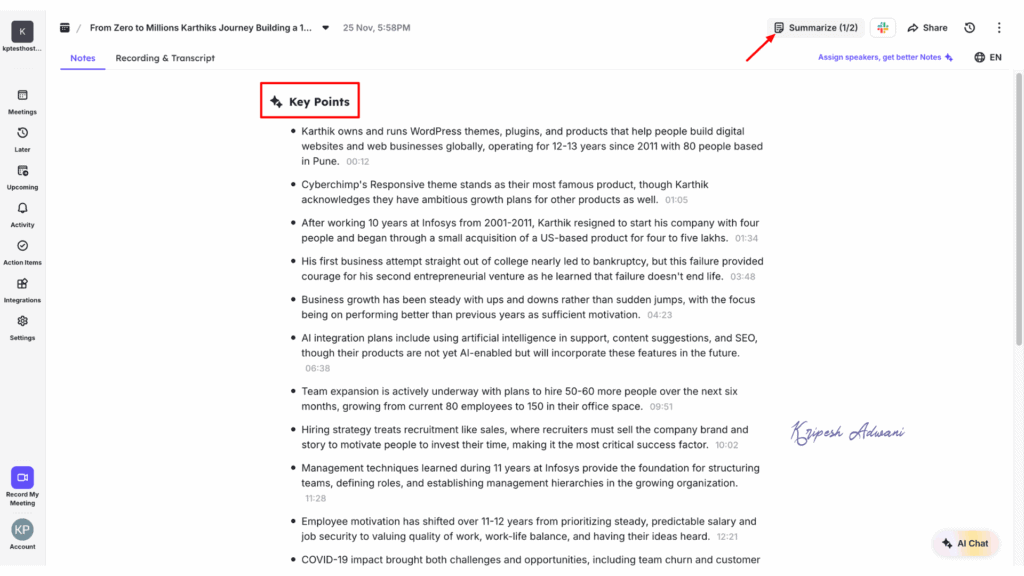
2. Auto Summaries
When you tap on the “Summarize“, Krisp quickly drafts the key notes and highlights from your meeting. If necessary, it can also immediately pull out any action items (tasks that need to be done).
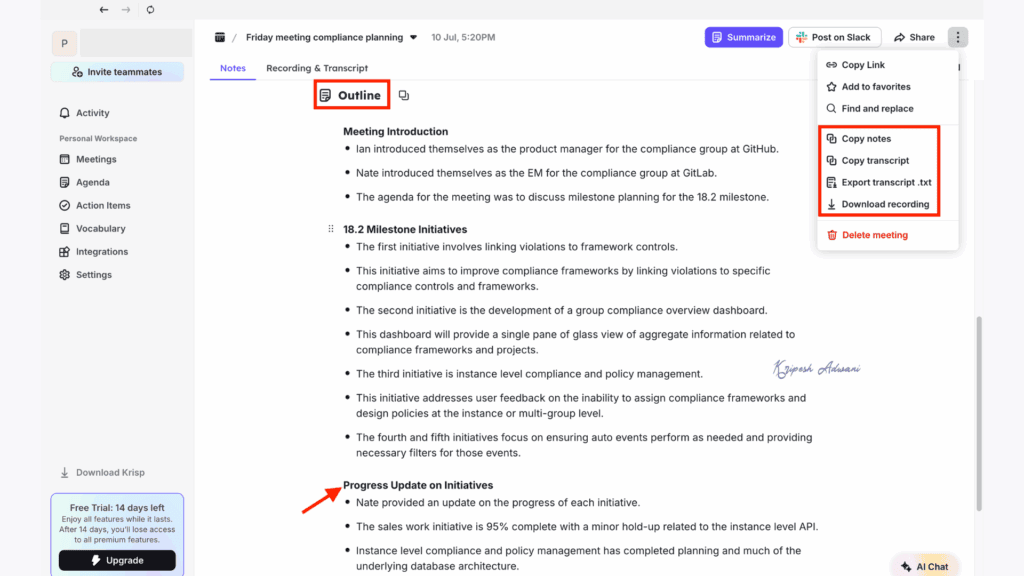
3. Smart Templates
To make note-taking easier, the tool includes pre-made templates you can use. For instance, I used the Outline Generator, which created a structured format with suggested sections and bullet points. All of these notes can be downloaded and shared with others.
4. AI Noise & Voice Cancellation
For people who work from home, it can be hard to conduct meetings in a quiet space when family is nearby. Krisp solves this problem with its AI-powered cancellation. This feature works in real-time to filter out unwanted background noise, remove echoes, and actually make your voice sound clearer and better.
5. Accent Localization & Voice Enhancement
If you are not a native speaker, Krisp AI’s accent conversion feature makes communication smoother. The AI-powered assistant maintains your unique voice characteristics (like pitch and tone) but refines your accent for better team communication.
Limitations
- Free trials are available for only 7 days.
- AI accent conversions are of limited use.
- Pro plan users get 60 minutes of AI accent conversion per day.
Pricing
Krisp is a paid tool but offers a 7-day free trial with full access to premium features. No credit card is required. To unlock AI chat, unlimited transcriptions and notes, 5 GB cloud storage, and access across devices (mobile and browser extension), the Pro Plan is available at $96 per year (billed at $8/month).
Best For
- Businesses that handle multilingual team recordings and need accurate transcriptions
- Remote workers dealing with noisy home environments
5. Tactiq– Best for Chrome Browser
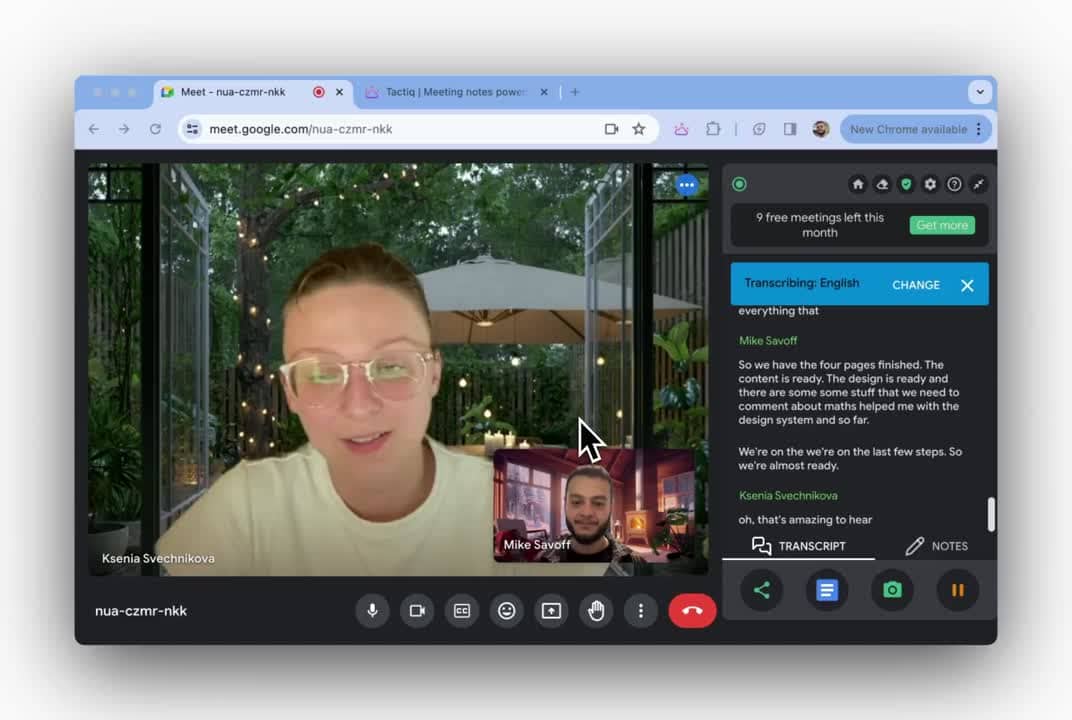
Tactiq primarily functions as a meeting assistant and now also offers basic note-taking capabilities. This browser-based tool generates well-organized transcripts, AI summaries, and actionable insights. While it offers workflow automation, it lacks some of the advanced features available in tools like Fireflies.
Highlighted Features
1. Meeting Assistant
Tactiq.io helps more in hosting/managing meetings than just note-taking. It comes with a Chrome extension that automatically records meetings and provides real-time transcription in over 30 languages. For remote workers and multicultural organizations, the translation feature is also helpful.
2. File Upload & Integration
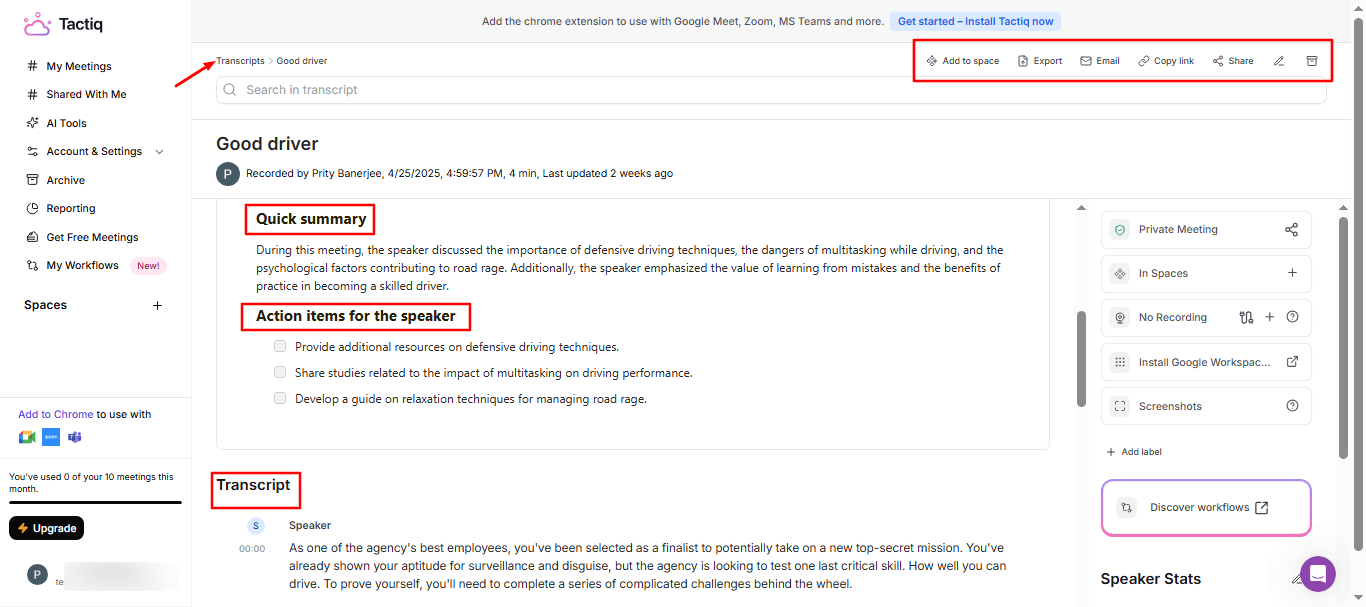
Besides live recording, the app allows you to upload audio/video files up to 2 GB. The platform supports a variety of file formats, including docx, pdf, mp3, and mp4. You can also import meeting links from Zoom, Microsoft Teams, or Google Meet.
3. Pre-designed Meeting Kits
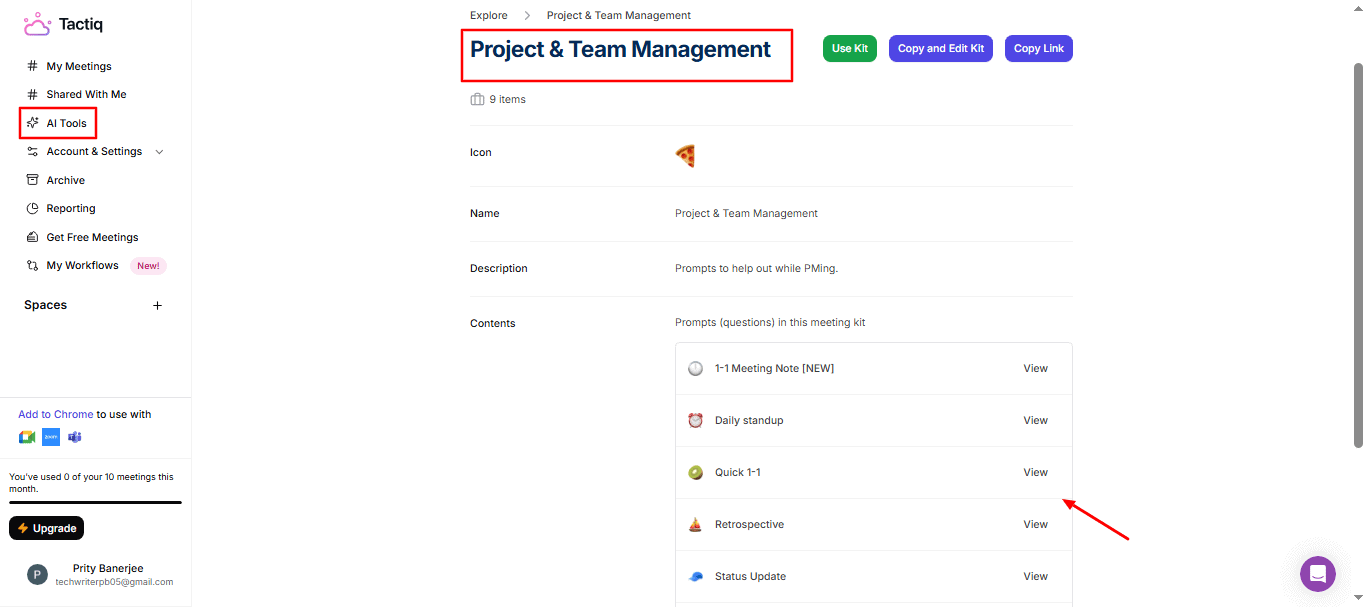
Once your transcriptions are generated, you can make use of Tactiq’s AI tools. These include templates to help draft short or detailed summaries (with citations), action items, AI suggestions, project updates, and team management notes.
4. Reporting & Integration
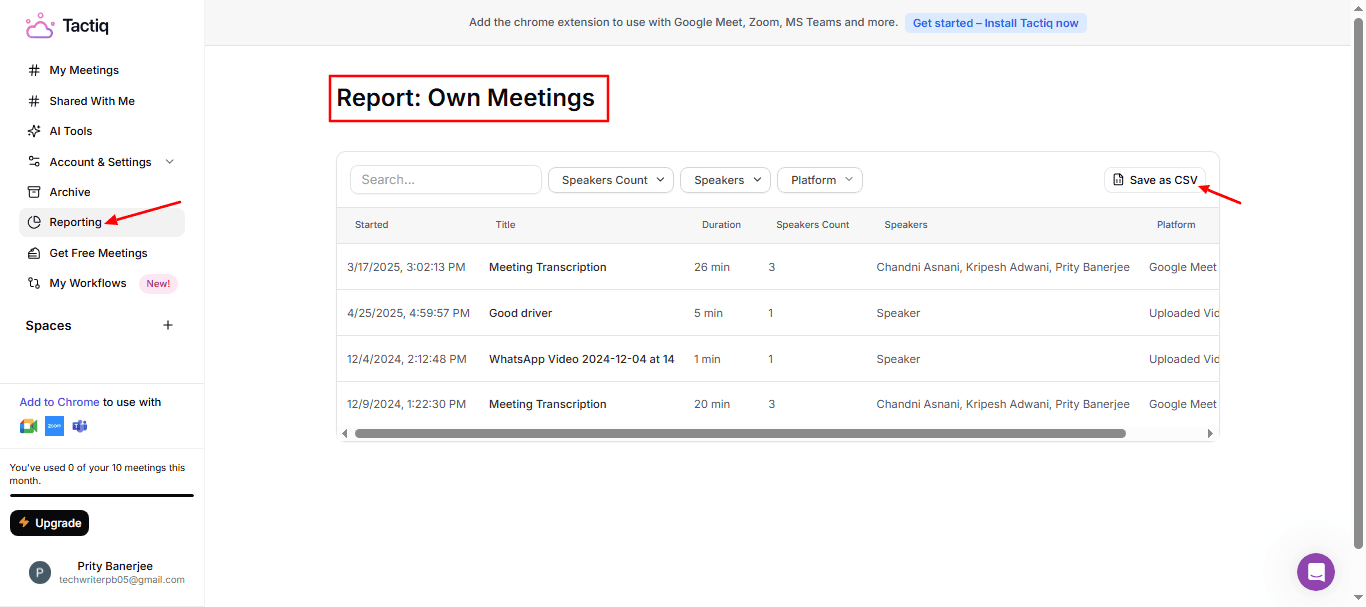
Under the Reporting section, you can search for meeting details by connecting the app with tools like Slack, Notion, Salesforce, HubSpot, and more. You can generate reports with details like duration, speaker counts, and speaker details, and then export them in CSV format.
Limitations
- Lacks organizational features such as tables, custom tags, and wikis for note-taking
- Free plan allows only 10 transcriptions per month
- Export options are limited to PDF and TXT formats
- No mobile app available
- AI credits are capped, even with the high-tier plan
Pricing
Tactiq’s free plan includes 5 AI credits per month, access to AI workflows, AI-generated insights, and a few transcriptions. For unlimited transcriptions, 10 AI credits per month, and access to advanced features, the Pro plan starts at $8 per user/month (billed annually).
Best For
- Chrome users transcribing real-time meetings.
- HR teams documenting interviews or performance reviews.
- Individuals converting meeting insights into client-ready updates.
6. Otter AI– Best Real-time Meeting Overview
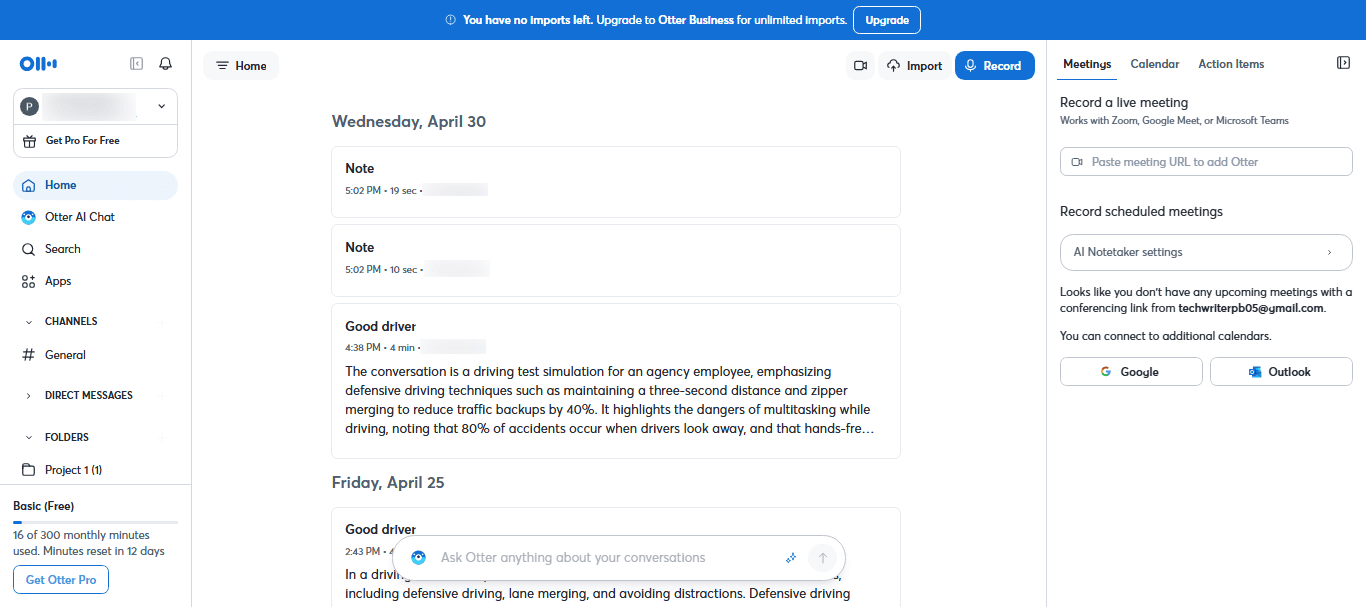
Otter AI stands out for its AI Meeting Agent and AI Chat, which help automate meeting hosting and team management. The tool provides live summaries and also allows users to import audio or video files for automated content generation. However, it falls short in manual note-taking and organizational features.
Highlighted Features
1. Meeting Recorder
In the top-right corner, you’ll find the recording options. You can record meetings in English, French, or Spanish, and Otter generates accurate transcripts with speaker identification. It’s recommended to integrate the app with your Google or Microsoft account—this way, Otter can automatically join scheduled meetings.
2. OtterPilot Assistant
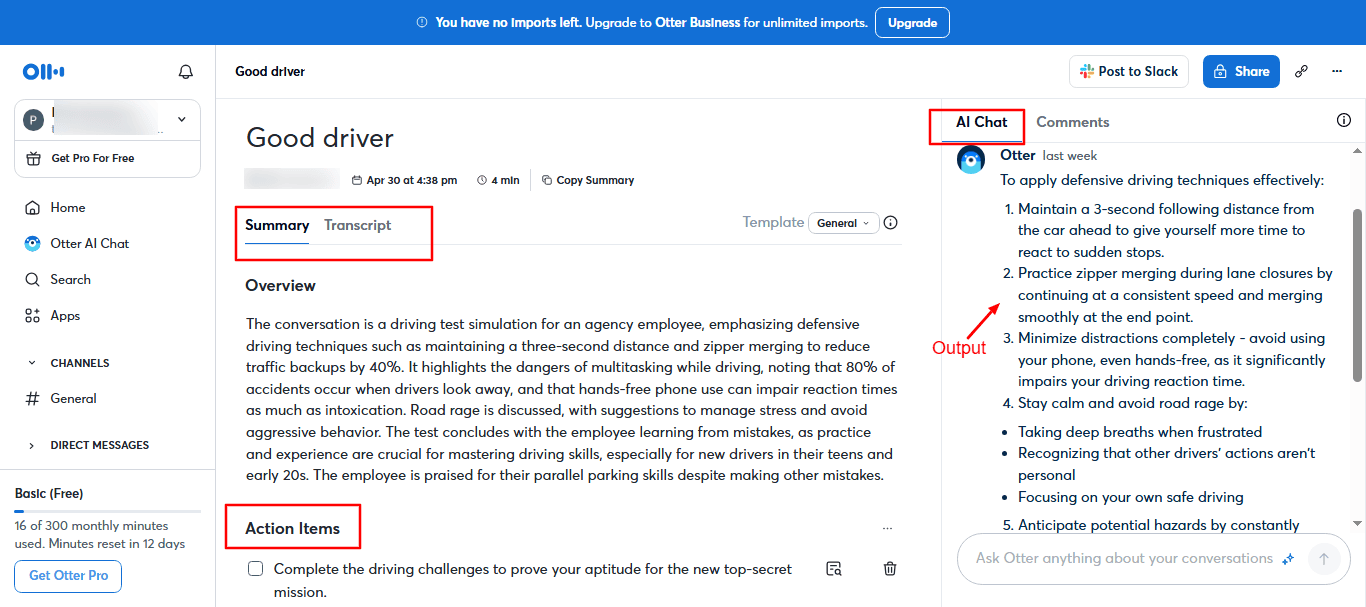
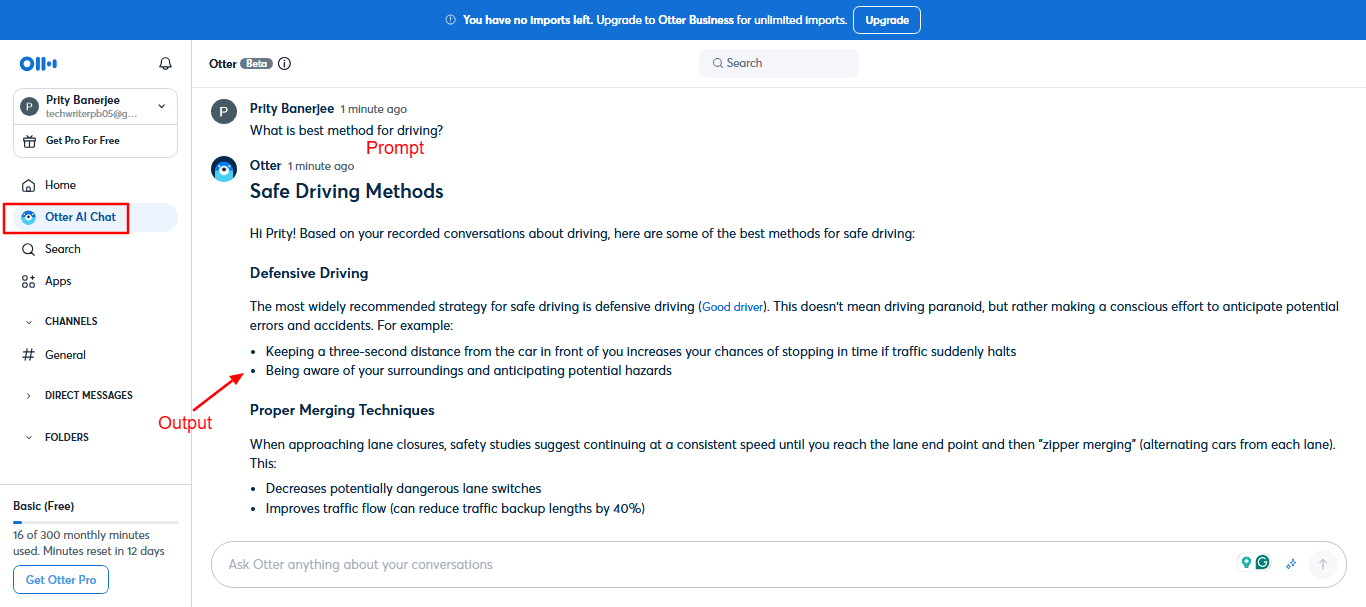
Otter AI offers an AI meeting assistant called OtterPilot. It’s a voice-activated participant that functions like a chatbot. It can analyze meeting data and answer questions. For example, when I asked, “How can I apply defensive techniques to improve my driving skills and safety?”, it instantly generated clear, easy-to-understand pointers.
3. Quick Response
The Chat feature is helpful for gaining deeper context and understanding. I tested it by asking random questions without referencing any projects or conversations, and Otter was still able to provide accurate answers by analyzing relevant meeting content.
4. Organized Folders
If you host multiple meetings each day, you can keep things organized using folders. When you create a new folder, you’ll be able to import a meeting file, record a meeting directly, or even paste a link to a previous meeting.
Limitations
- Transcriptions are only available in English, French, and Spanish.
- Note-taking capabilities are minimal and lack customization.
- No advanced tools for organizing content, except basic folders.
- Generating transcripts can take a huge amount of time.
- Users can only export transcripts, not summaries.
- The free version allows uploading only up to 3 media files.
Pricing
For free version users, Otter AI offers 300 minutes of transcription per month, with a 30-minute limit per conversation and a lifetime limit of three audio or video file imports per user. The Pro plan is priced at $8.33 per user per month (billed annually) and includes 1,200 minutes of transcription per month, a 90-minute limit per conversation, and the ability to import up to 10 audio or video files per month.
Best For
- Students and educators need basic transcription and minimal AI-powered note-taking support.
- Media professionals capturing quotes accurately during live events.
7. Evernote– Best for Offline Note-taking
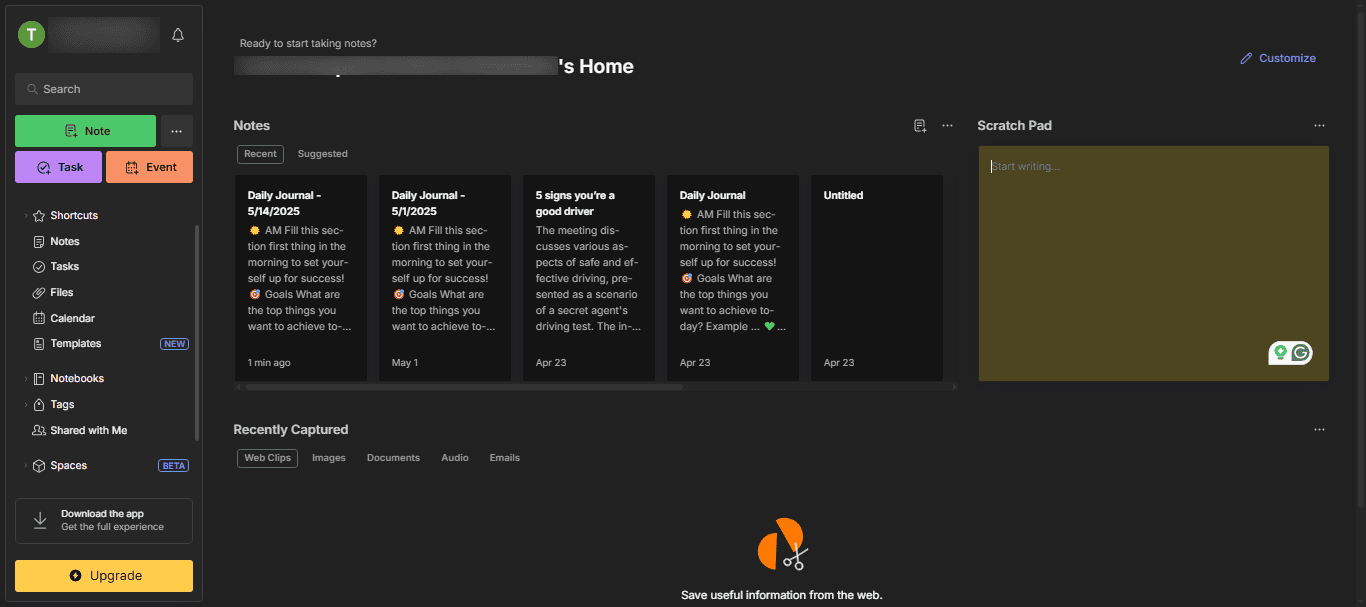
Evernote is a highly popular digital task management and note-taking assistant, available via web clipper, mobile app, and desktop access. It’s ideal for organizing notes, receiving AI-powered writing assistance, saving web content, and storing paperless documents. The free plan offers decent functionality for beginners, but professionals may need to upgrade to a paid plan for full access.
Highlighted Features
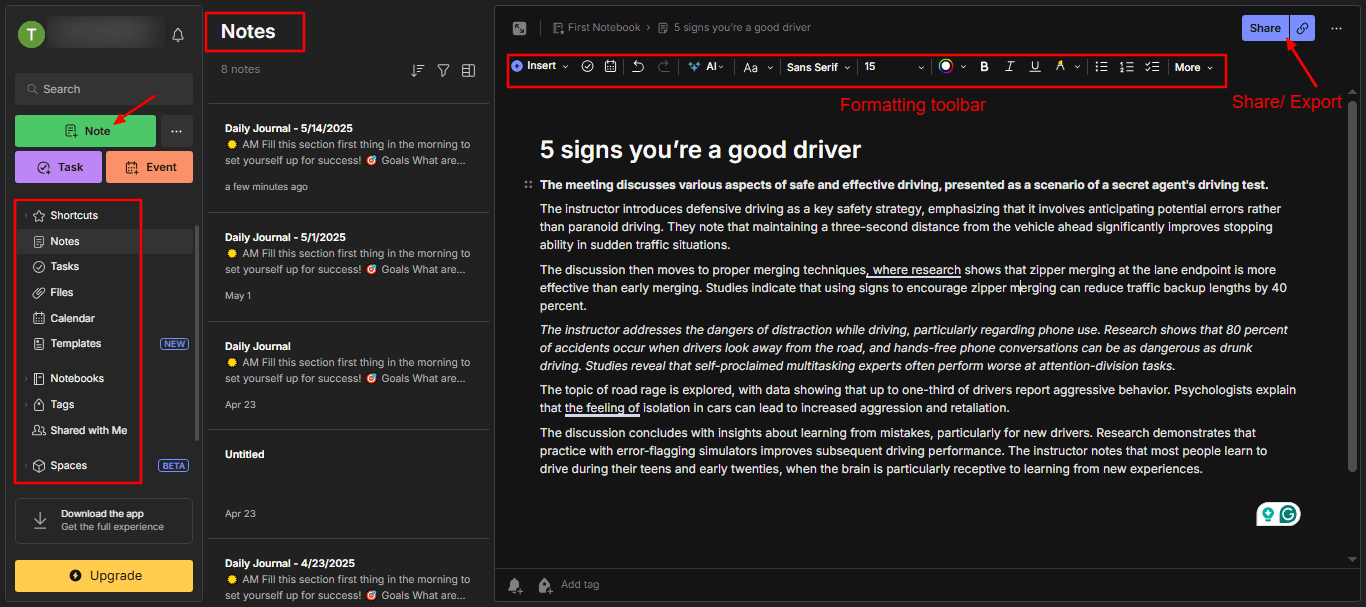
1. Flexible Note-Taking
In Evernote, you can take notes for assignments, prepare for meetings, plan trips, or write anything using rich formatting tools. You can even restore previous versions of your notes with note history. Plus, your notebooks are accessible offline, so you can work anytime.
2. Writing Assistant
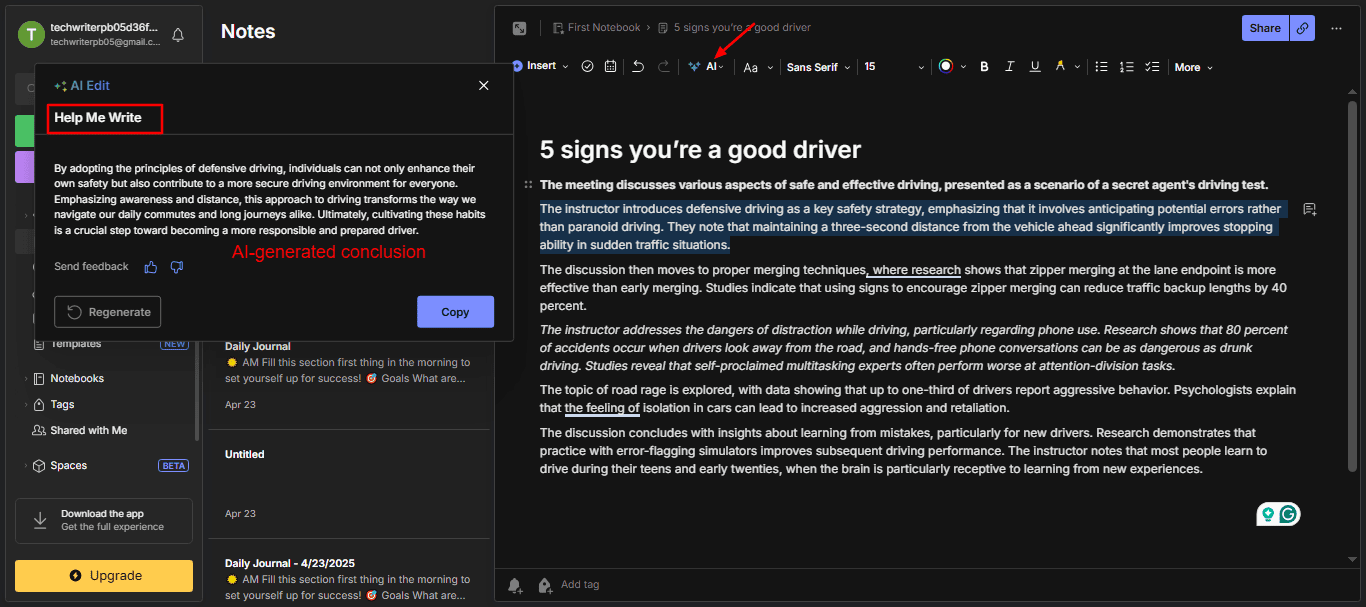
Evernote’s “Help Me Write” AI assistant makes writing easier with preset content types like introductions, conclusions, and titles. You can also turn your notes into polished emails or social media posts with just a few clicks.
3. Smart AI Tools
There’s more! The AI Summary tool gives you summaries in three formats: paragraph, extended, or bullet points. With AI Paraphrase, you can change the tone of your writing, whether you want it to be formal, friendly, concise, or engaging. The Fix Typos feature helps you clean up spelling and typing mistakes instantly.
4. Meeting Transcripts
Have recordings from past meetings? Evernote’s AI Transcribe tool turns speech into text, so you can revisit discussions easily. It supports six languages: English, Spanish, French, German, Chinese, and Japanese.
5. Digitize Paper Documents
No more paper clutter. I use Evernote to scan and save important documents like ID cards, insurance papers, warranties, invoices, and more, all stored securely in my personal database.
6. Quick Search
If you’re juggling multiple projects, Evernote’s smart search helps you find notes in seconds. It can search handwritten notes, PDFs, images, DOCX files, and presentations. For extra efficiency, create custom buttons and shortcuts to fit your workflow.
7. Manage Task
Stay on top of your to-dos with Evernote’s task manager. You can add tags, priorities, reminders, descriptions, flags, assignee names, and due dates within notes. You can also link your calendar app to manage tasks and schedules seamlessly
Limitations
- The free version allows you to manage only one notebook
- The 200 MB maximum note size in the free tier is limiting for detailed notes that include graphics and attachments
- Paid subscriptions are more expensive than other note-taking apps
- Free-tier users can only access the app on either mobile or desktop.
Pricing
Evernote Free Plan allows users to create up to 50 notes and 1 notebook, with a monthly upload limit of 250 MB and a maximum note size of 200 MB. The Personal Plan starts at ₹333.25 per month or ₹3,999 annually. It includes up to 150,000 notes, 2,000 notebooks, unlimited device access, 10 GB of monthly uploads, and additional premium features.
Best For
- Legacy users transitioning from physical to digital notebooks,
- Students for organizing notes and study materials with tags and notebooks.
- Professionals seeking cross-platform synchronization and offline access.
8. Notion– Best for Task Management
Notion is another popular workspace designed for note-taking, project management, task tracking, and team collaboration. It offers decent features, including wikis, databases, document creation, email integration, and a highly customizable interface. However, its AI capabilities (text generation, smart search, and database automation) are only available through a paid add-on.
Highlighted Features
1. All-in-One Workspace
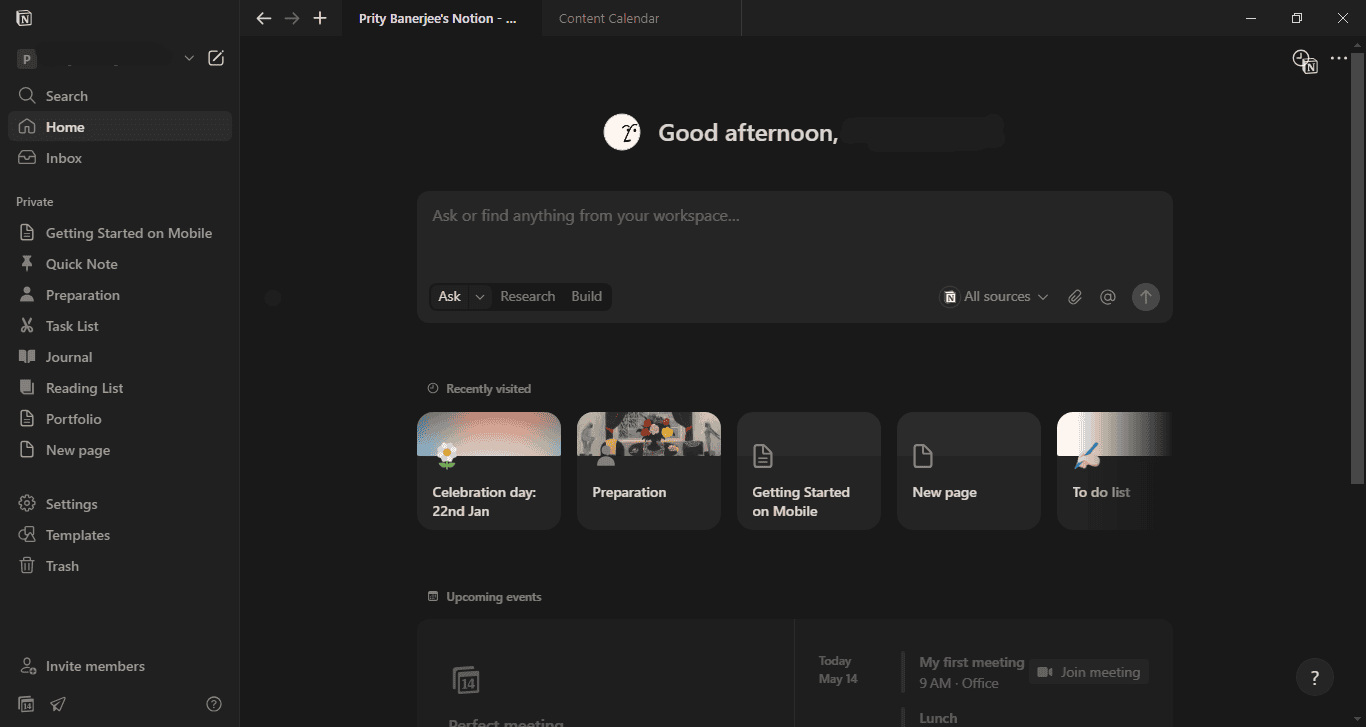
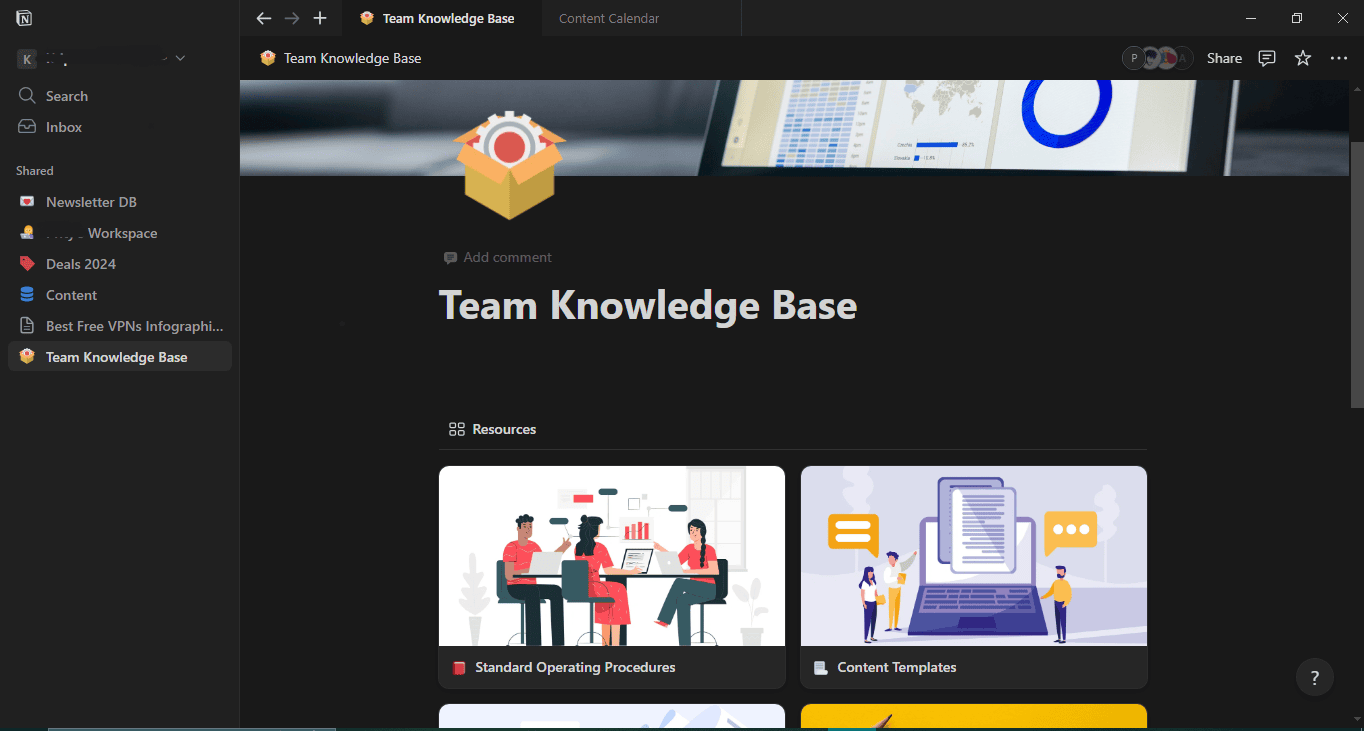
Notion is a productivity app that simplifies task management. I’ve been using Notion for years to create structured notes and design custom pages with code snippets, tables, toggles, images, videos, charts, and more. For organizing and formatting content, Notion offers tags, categories, folders, tables, wikis, and other useful tools.
2. AI Assitance
Notion now includes smart search, similar to ClickUp. You can connect other collaboration tools and manage projects and conversations all from one platform. The AI also helps generate and edit content, autofill databases, and even chat using built-in models like GPT-4 and Claude.
3. Inbox Management
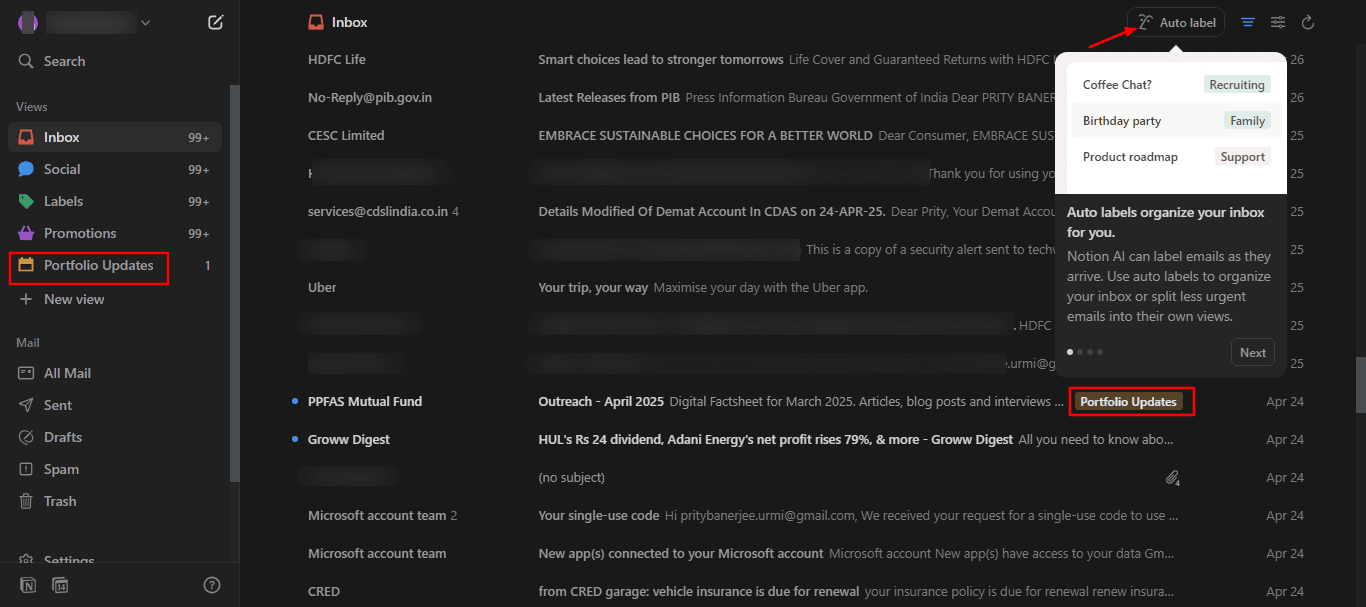
For a clutter-free email inbox, I linked my Gmail account with Notion. With smart auto-labeling, it’s easy to sort, group, and filter emails. You can split your inbox and use AI tools to draft, edit, or refine messages right inside Notion.
4. Professional Templates
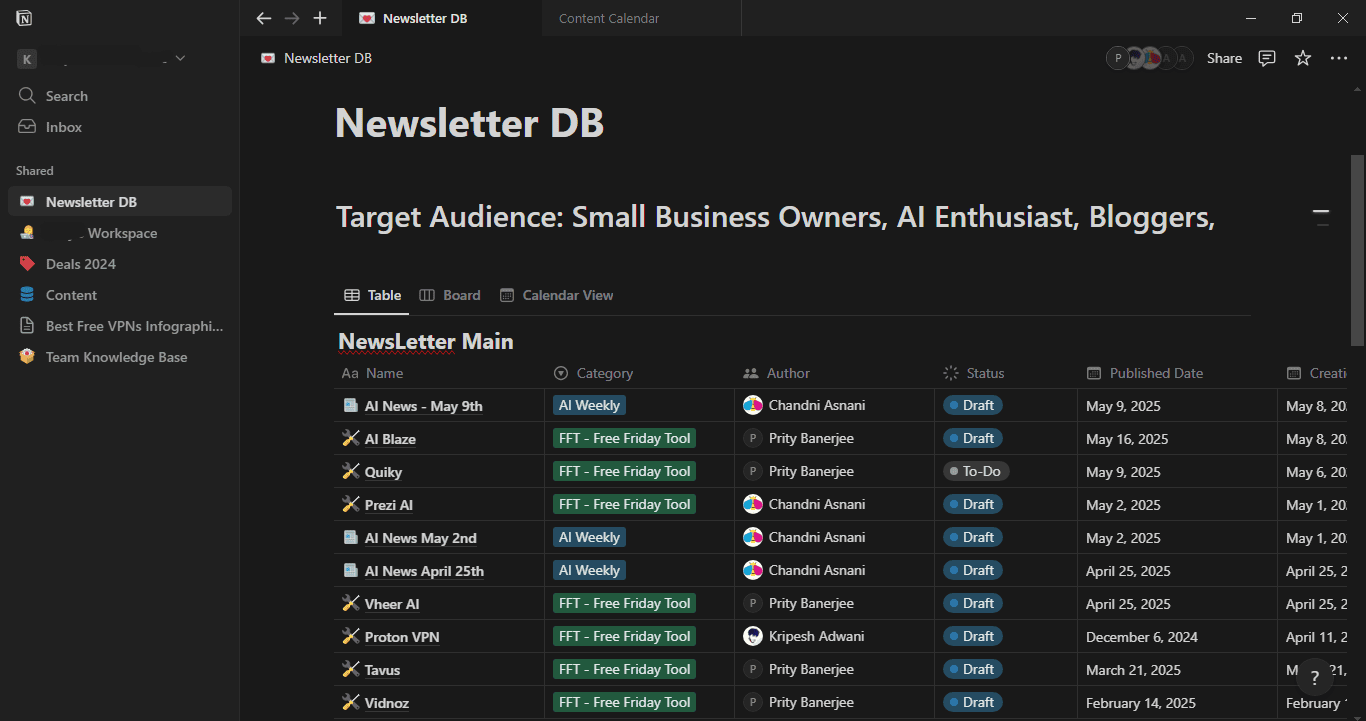
Notion is especially popular for its community-created templates. Both free and paid options are available in the Notion Marketplace. I personally use templates for content calendars, project plans, and portfolios to speed up my note-taking and streamline my workflows.
Limitations
- No AI transcription feature is available.
- The user interface can feel overwhelming and clunky for first-time users.
- AI assistance features are available at an extra cost.
- The desktop version is more feature-rich and user-friendly than the mobile app.
Pricing
Notion’s free plan offers access to essential features, including all integrations, file uploads up to 5MB, collaborative workspaces, a 7-day page history, Notion Mail, and Notion Calendar. The Plus plan, priced at $10/month per user (billed annually), includes unlimited blocks, larger file uploads, custom automation, custom websites, and more. Notion AI is available as an add-on for $8 per user/month (billed annually) for both free and paid plan users.
Best For
- Content teams need to brainstorm ideas and draft blogs.
- Startups that are looking for an all-in-one workspace for documentation.
- Tech enthusiasts to build custom databases and project trackers.
9. Mem AI– Best for Students and Beginners
Mem AI is a simple, AI-powered application that combines solid note-taking features with basic AI assistance. It offers essential tools such as text formatting, basic writing assistance, AI-powered organization, and a chat feature, all for free. However, it lacks advanced features like tagging, labeling, time-tracking, integrations, and transcription support.
Highlighted Features
1. Easy Note-taking
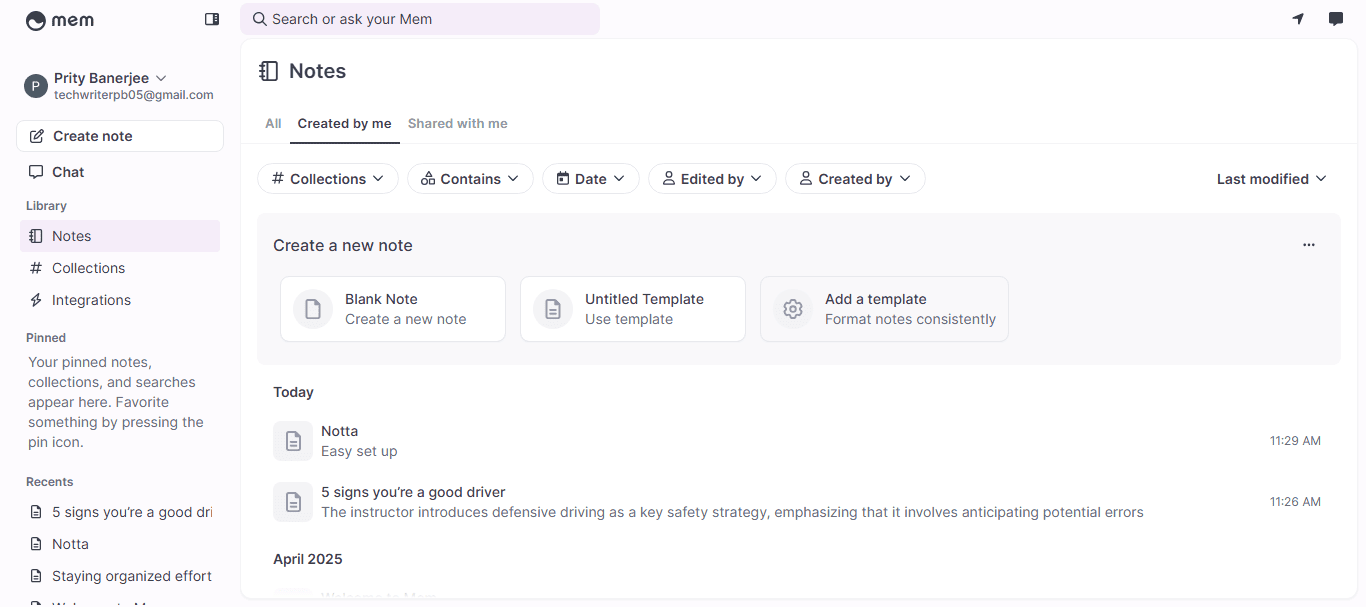
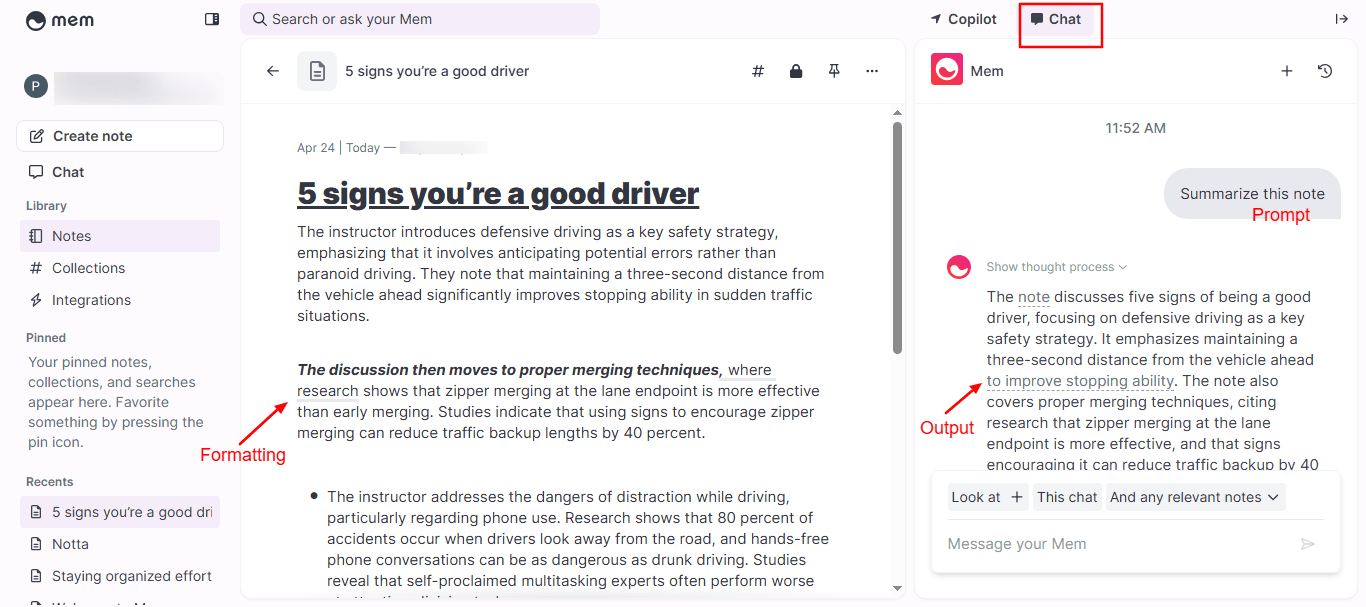
Right when you launch Mem AI, a clean and intuitive dashboard appears. You’ll see blank notes and ready-to-use templates designed for effective note-taking. Formatting is easy, as you can see I’ve highlighted text, added headings, used bullet points, and underlined important parts. You can also insert tables, links, and more.
2. Link Notes
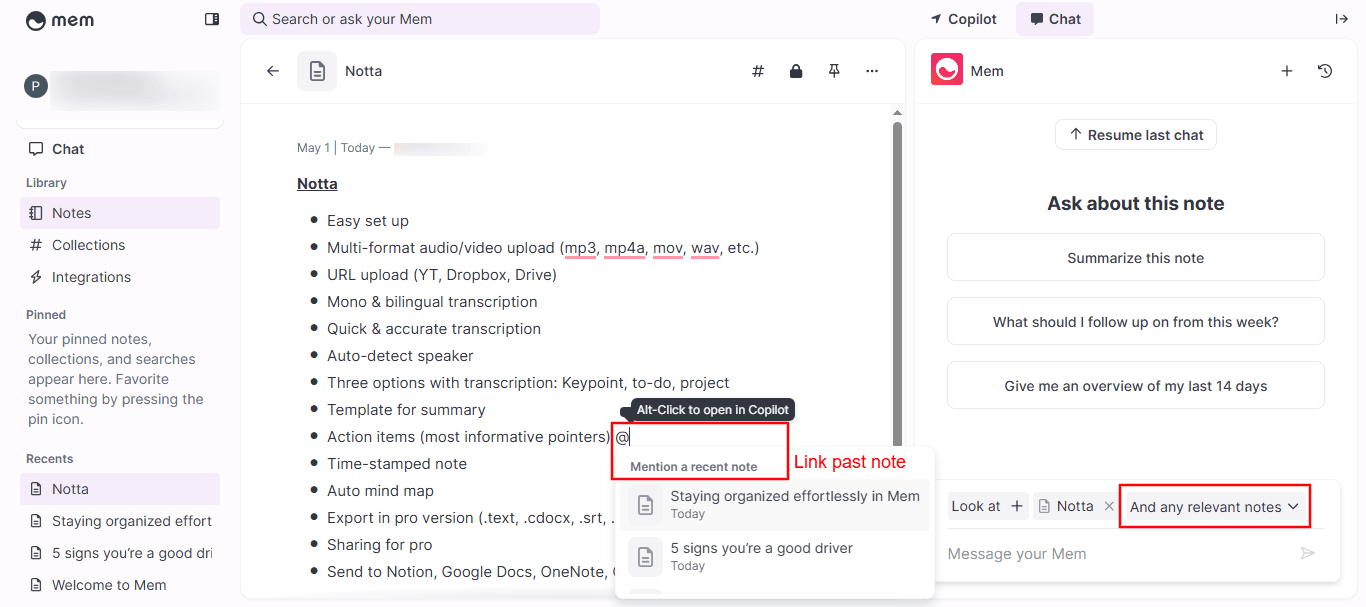
When you open any saved note in Mem, you’ll see “Relevant Notes” displayed alongside it. This feature simplifies your research process. For instance, if you’ve saved five notes about “Artificial Intelligence,” you’ll be able to view them side by side while working on a related topic. I use the “@menu” shortcut to build a connected, searchable network of notes.
3. Smart Organization
For organizing your content, Mem AI provides #collections. You can sort and filter your notes using dropdown options like “edited by” or “created by.” You’ll find the ‘#’ menu at the top right when you open a note. I also pin important notes for quick access from the sidebar.
4. AI Chat
To better understand any note, use Mem Chat. I asked it to summarize one of my notes, and it generated a clear summary in seconds. You can also ask detailed questions about insights, key points, action items, and more.
5. Offline Access
Surprisingly, Mem AI works offline too. It syncs your notes in real time, even without an internet connection. There’s no need to manually save — you can quickly jot down ideas anytime.
6. Email Integration
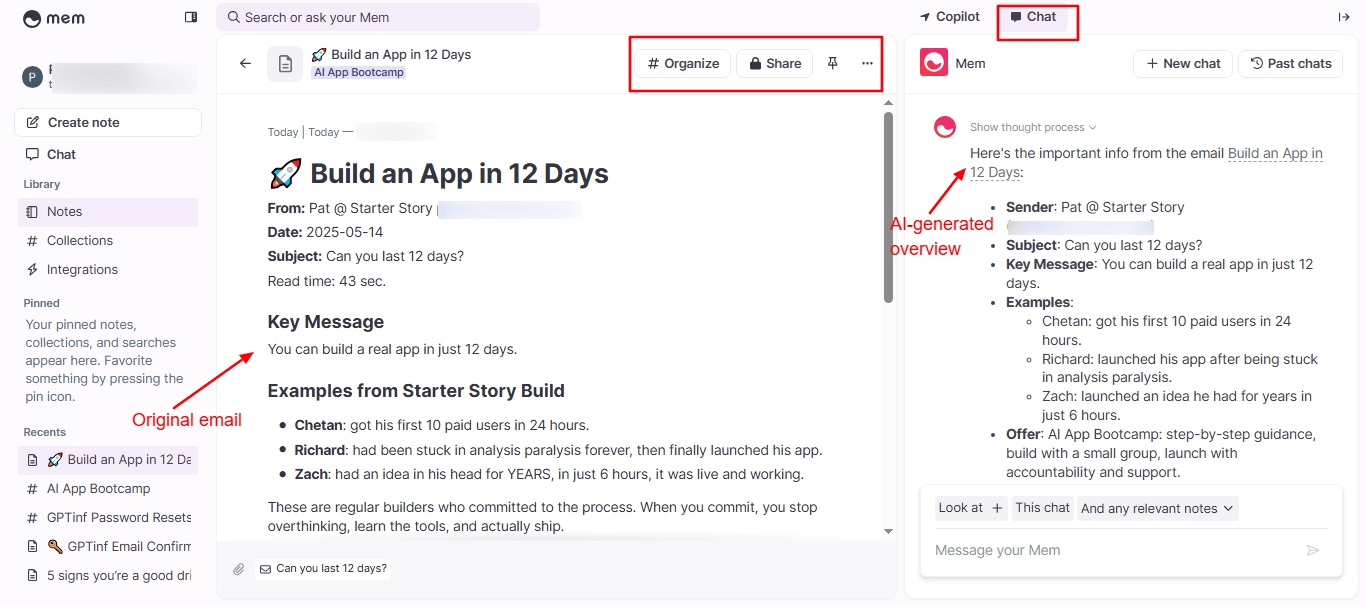
Want to summarize a long email? Just link and verify your email with Mem AI. Then forward any message to [email protected], and it’ll appear directly in your Mem dashboard. This helps me sort important emails and turn threads into structured, organized notes.
Limitations
- No support for audio/video file transcription
- Image search may have delayed response times
- No time-tracking feature for notes
- No third-party integrations are available currently
- Notes cannot be exported, only shared with other Mem AI account holders
Pricing
As of now, Mem AI is free for everyone. The tool is continually improving, with new features being added regularly. A pricing plan is expected to launch with the full release of Mem 2.0.
Best For
- Individuals for daily journaling and quick note-taking.
- Entrepreneurs managing personal tasks
10. Letterly– Best for Repurposing Content
Letterly is a mobile-centric, AI-powered content creation tool. It’s designed specifically for converting voice to text, generating purpose-specific content across various use cases using preset prompts. The app stands out for its ability to record offline and generate multiple types of content from a single voice recording. However, it does not support uploading media files or recorded meetings, which limits its use for more complex workflows.
Highlighted Features
1. Voice-to-Note Simplicity
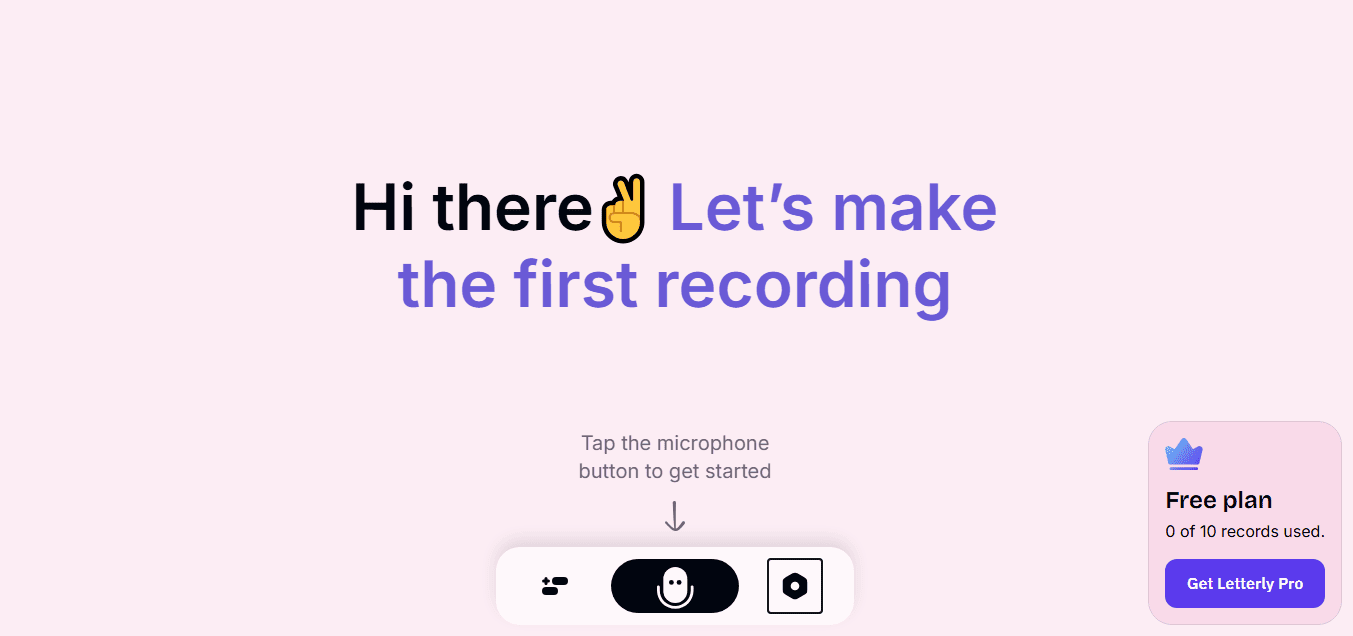
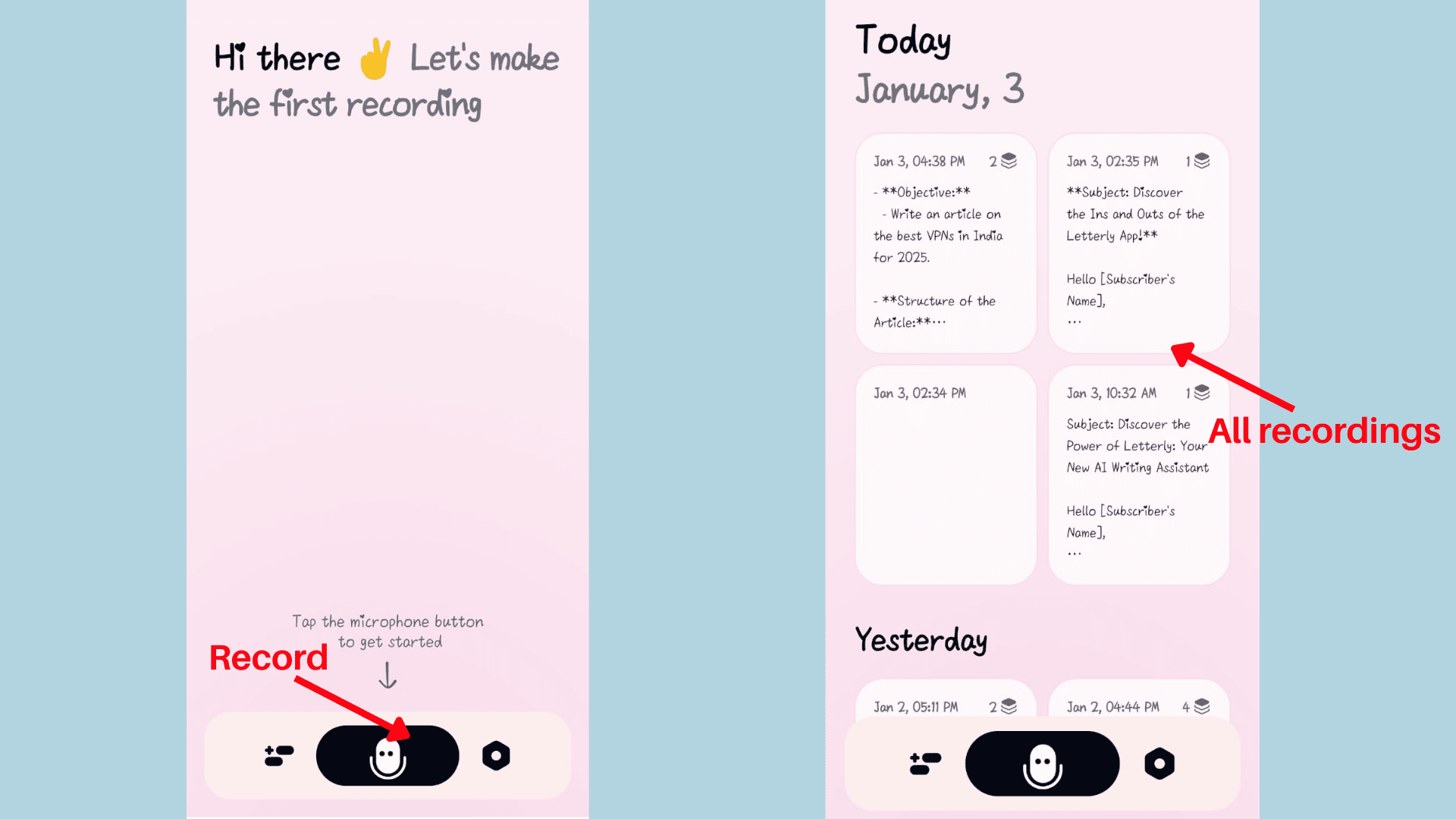
Lettrly helps you quickly jot down notes through audio recordings. Its advanced AI models can transcribe voice recordings up to 15 minutes long. As you can see above, it accurately captured my every word and phrase.
2. Summarize with AI
Once the transcription is ready, Lettrly’s AI can auto-generate summaries. You can turn long voice recordings into concise notes, highlight key takeaways from meetings, and get quick overviews in seconds. I’ve generated a quick to-do list from my voice recordings.
3. Multilingual Support
The app understands over 90 languages. Whether you speak Hindi, Kannada, Malayalam, Marathi, Urdu, or more, Lettrly transcribes your speech accurately. With the AI Translator, you can convert your entire recording into English or other languages easily.
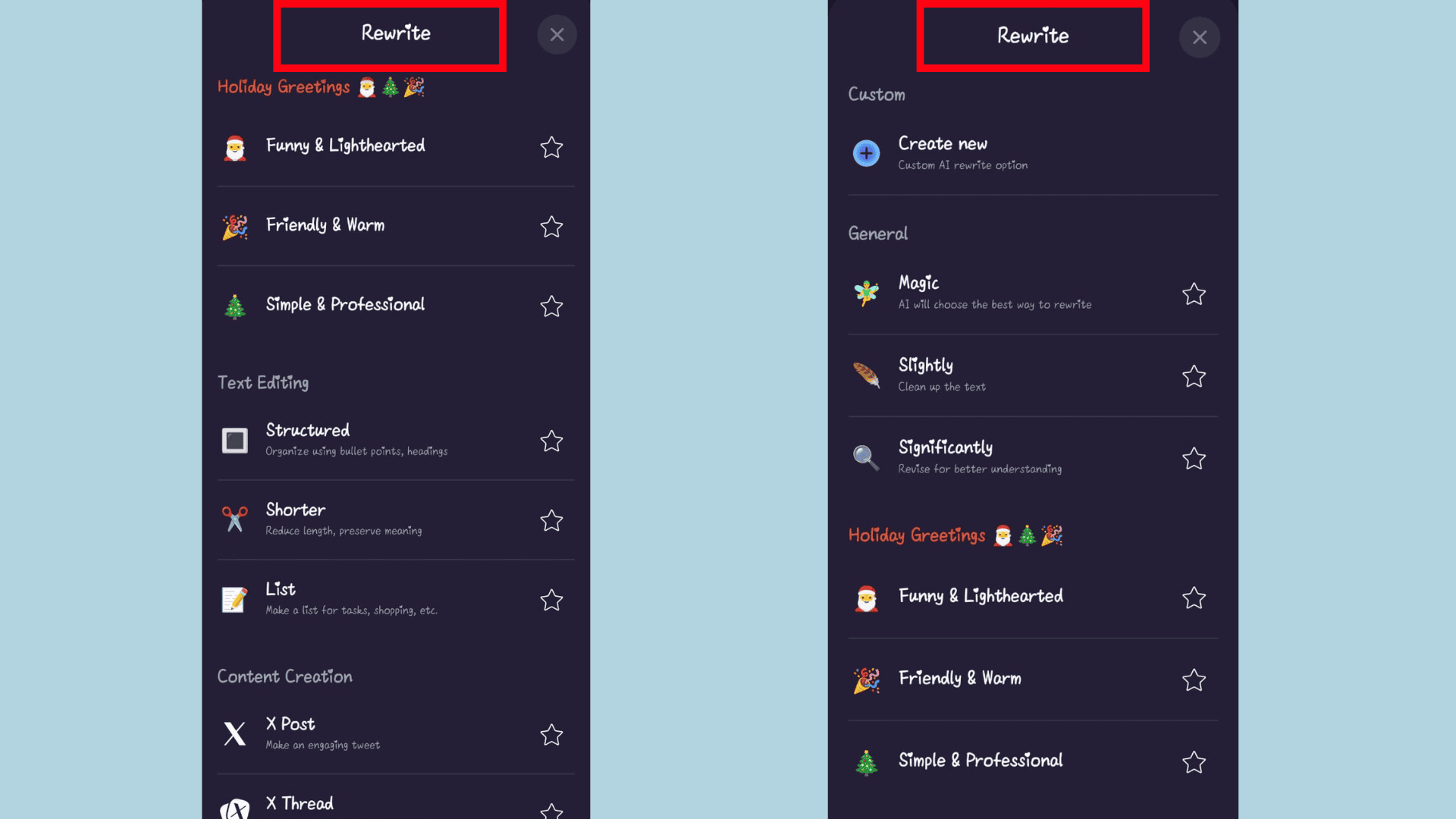
4. Offline Recording
Lettrly’s recording feature works even without an internet connection. I can record my voice on the go, even without unlocking the screen. So, this feature makes it super convenient for spontaneous thoughts.
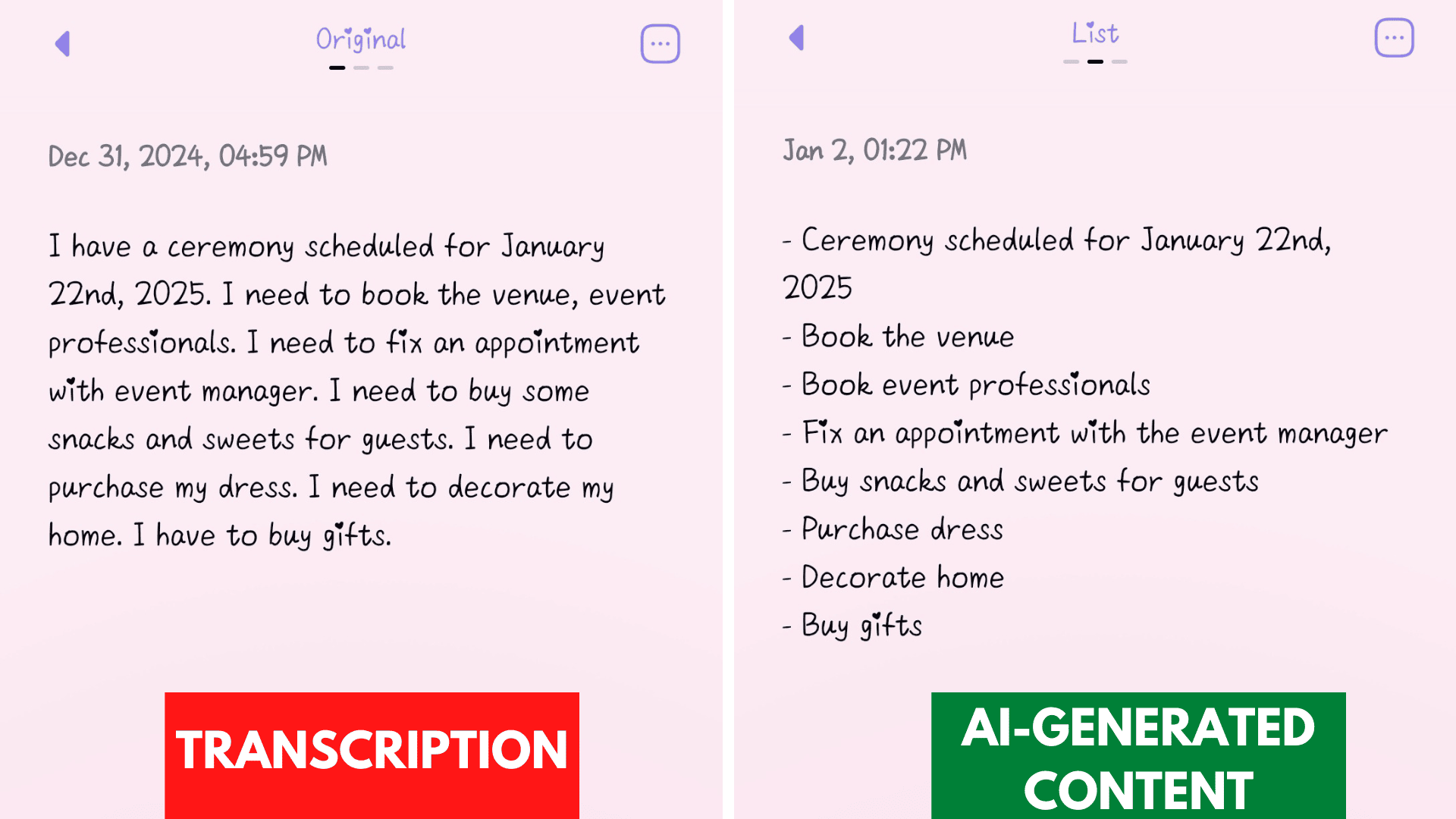
5. Text Prompt Capabilities
Lettrly doesn’t just support audio; you can also paste written notes into the app. It can repurpose your text into emails, blog outlines, social media posts, or other content formats with just a few taps.
Limitations
- The tool does not allow uploading of audio or video files
- The short audio recording limit makes it unsuitable for lengthy podcast scripts
- Content generation for emails and captions tends to be generic
- Lacks advanced note-taking and task management features
Pricing
Letterly is a paid service, priced at $79.90 per year. The subscription includes access to both the mobile and web apps, unlimited recordings, transcriptions, and rewrites, a quick-capture widget for iPhone, and offline plus screen-off recording support. A 7-day free trial is also available for new users.
Best For
- Novice bloggers and mobile users looking to turn voice memos into polished text
- Non-native speakers drafting emails or social media posts
- Journalists who need to quickly transcribe field recordings into article drafts.
Benefits of Using AI Note-Taking Apps
Are AI Note-Taking Apps really worth the hype? Thought the same? Let me share some mind-blowing benefits:
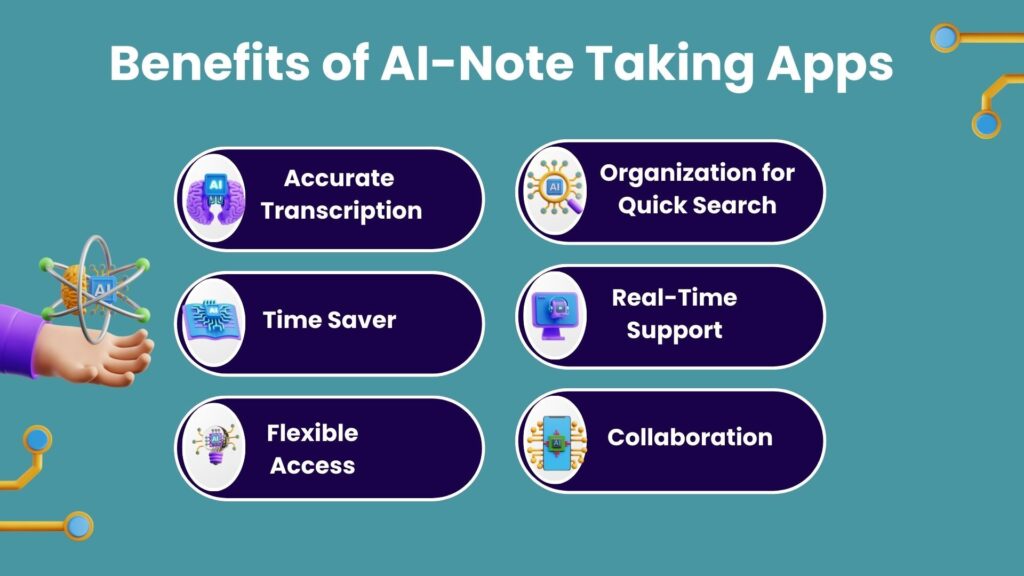
1. Accurate Transcription
During live meetings or lectures, it’s easy to miss key details while trying to listen and write at the same time. AI note-taking apps help by offering accurate transcription from audio files or live recordings and reducing writing errors.
2. Time Saver
Manual note-taking is tedious, and generating summaries or key takeaways adds to the challenge. AI note management apps automate everything, from capturing notes to converting them into summaries, overviews, and even action points.
3. Flexible Access
With these digital tools, there’s no need to carry around a notebook. Most AI note-takers are available on both mobile and desktop platforms. Notes are stored in the cloud, so you can access them anytime, anywhere.
4. Organization for Quick Search
AI note-takers do more than just transcribe. They help you organize. Use folders, labels, tags, hashtags, and even time trackers to keep everything structured. You can also hyperlink content, save wiki-style notes, and customize formatting for easy retrieval whenever needed.
5. Real-Time Support
Apps like ClickUp, Tactiq, and Otter allow you to record meetings and receive live summaries. This means you can stay engaged in real-time without stressing about writing everything down.
6. Collaboration
Most AI note-taking assistants integrate seamlessly with platforms like Slack, Zoom, and Microsoft Teams. This makes it easy to track progress, follow up on discussions, and share insights, boosting team productivity and collaboration.
Why Should You Trust Me?
Since 2015, I’ve been fully immersed in the tech domain—testing, exploring, and reviewing hundreds of SaaS and AI-powered tools.
As a tech enthusiast, I don’t just write about these tools, I use them daily. From AI writing assistants and voice generators to video creators, AI art generators, and website builders, I’ve put them through real-world tests to find out what actually works.
Years of hands-on experience have given me a sharp eye for what makes a tool truly valuable. So when I recommend something for your workflow, it’s not guesswork, it’s backed by real use and deep insight.
Conclusion
AI has completely transformed the way we capture, organize, and act on information. Today’s digital note-taking apps allow us to stay fully engaged in meetings without the distraction of scribbling notes. With advanced organization features, smart AI capabilities, and seamless integrations, collaboration has never been easier.
Here’s our final take on the top AI note-takers of 2026: ClickUp stands out as the ultimate all-in-one platform for note-taking, project management, and meeting organization. Notion excels in flexible task and content management, ideal for structured workflows.
Notta is an intuitive, beginner-friendly app perfect for quick meeting summaries. Fireflies shine when it comes to in-depth meeting analytics and CRM integrations.
Whether you’re a student looking for lecture summaries, a founder automating sales follow-ups, or a creative trying to organize scattered thoughts, there’s an AI note-taker designed for your needs. You can also check out Chrome extensions, AI tools for students, and Firefox extensions to boost productivity.
So, which one will you try first? Let me know in the comments section!



Thanks, I was looking for best ai note taking apps, this helped a lot.